




Transform your applications today by downloading our free evaluation version
Overview
The Blazor Ribbon component provides a structured and easy-to-use user interface. Users can access different features and functions using a series of tabs, improving users’ experience and efficiency.

Tabs and groups
Ribbon provides a structured way to organize and group related functions, improving the user experience by enabling quick access to specific features within categorized sections. Each group contains a launcher button that displays additional functions, allowing users to explore and utilize more tools efficiently.
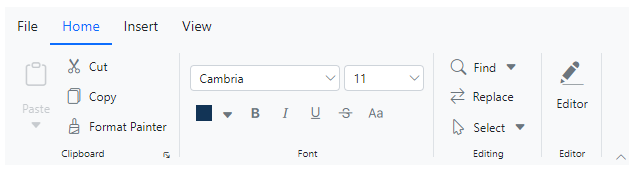
Simplified layout
The Blazor Ribbon offers a simplified mode that organizes items and groups into a single row to reduce clutter. End users can quickly navigate to other commonly used items in the overflow menu and switch to normal mode using the built-in toggle button.

Built-in Ribbon items
Several built-in support items, such as buttons, checkboxes, dropdown buttons, split buttons, and combo boxes can be customized and used to execute specific actions. Three size modes (large, medium, and small) are supported.
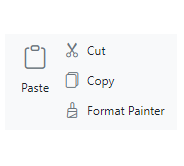
Button items
Use different-sized buttons to showcase content and icons in a visually appealing and interactive manner.

Checkbox items
Enable users to toggle between checked and unchecked states. Users can caption the checkboxes and position the labels before or after them.
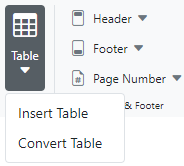
Dropdown button items
The dropdown button item functions like a regular button, but includes a dropdown menu that displays menu items.
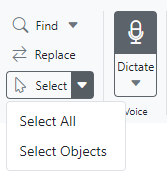
Split button items
Split button items combine the functionality of a button with a dropdown menu, allowing users to perform a default action and access additional options.

Combo box items
A combo box item combines a dropdown list with an editable text box, enabling users to select from predefined pop-up list options.
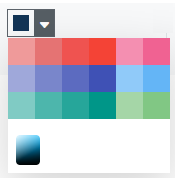
Color-picker item
The color-picker ribbon item lets users select colors from a palette or define custom colors.

Ribbon gallery
In addition to the existing built-in items, gallery items allow users to perform specific actions by displaying a collection of related items, including icons, content, or images.
Custom ribbon items
The Blazor Ribbon supports templates to customize the ribbon items with any items or HTML content not built-in.
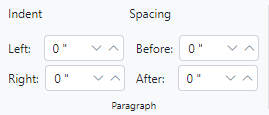
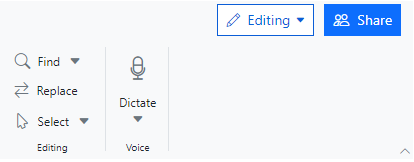
Help pane
The help pane template, positioned at the right side of the Ribbon, enables users to access help content typically for actions such as managing document permissions and sharing functions.
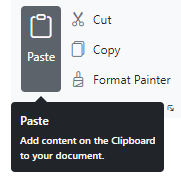
Tooltips
Tooltips display information when hovering over items, offering additional details about them.
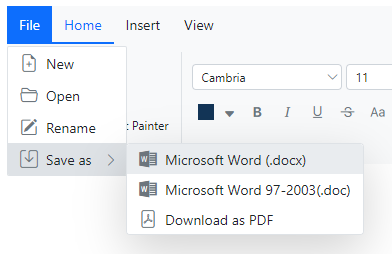
File menu
A built-in menu allows users to add file-related actions easily.
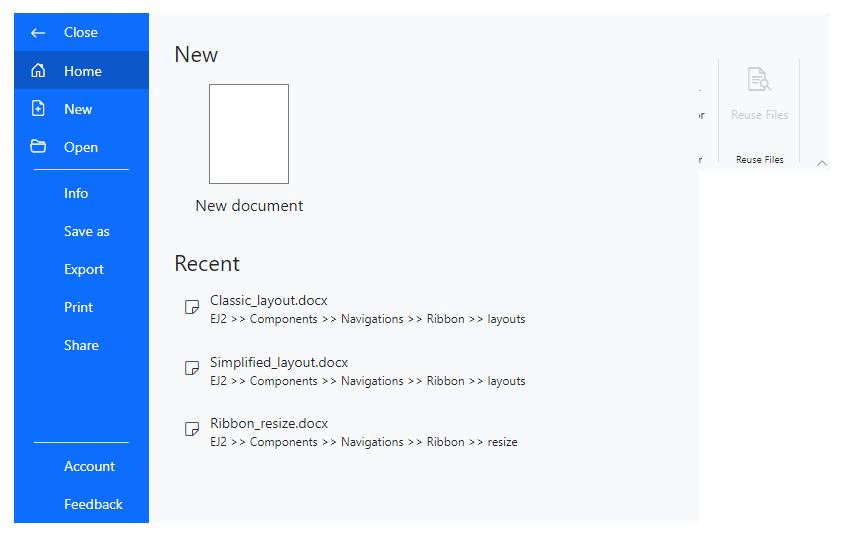
Backstage view
In addition to the traditional file menu, the backstage view displays information such as application settings, user information, and more. The backstage options are displayed on the left, while the content of each option is shown on the right.
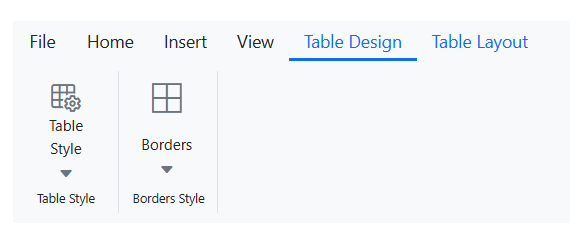
Contextual tabs
Dynamically adds tab groups based on user interactions, displaying only relevant tabs for a clean and organized experience.
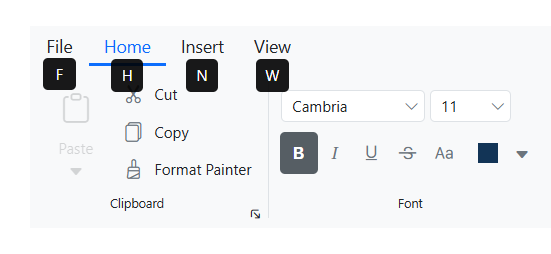
Keytips
KeyTips allow users to navigate and activate ribbon items using keyboard shortcuts, ensuring easy access without relying on a mouse.
Built-in themes
The Blazor Ribbon supports these built-in themes: Tailwind CSS, Bootstrap 5, Bootstrap 4, Bootstrap, Material, Fabric, Fluent, and high contrast. Users can customize one of these built-in themes or create new themes to achieve the desired look and feel by overriding SASS variables or using the Theme Studio application.
Accessibility
- Fully supports WAI-ARIA accessibility practices for screen readers and assistive devices.
- Follows WAI-ARIA best practices for implementing keyboard interaction.
- Follows WCAG 2.0 standards in the design of the UI visual elements such as foreground color, background color, line spacing, text, and images.
- Supports right-to-left (RTL) text rendering for users of RTL languages like Hebrew, Arabic, or Persian.
Blazor Ribbon code example
Easily get started with the Blazor Ribbon using a few simple lines of C# code, as demonstrated in the following example. Also, explore our Blazor Ribbon example, which shows how to render and configure the Blazor Ribbon.
@using Syncfusion.Blazor.Navigations
@using Syncfusion.Blazor.SplitButtons
@using Syncfusion.Blazor.Ribbon

<div style="width: 500px;">
    <SfRibbon ID="ribbon">
        <RibbonFileMenuSettings Visible=true MenuItems="@fileMenuItems"></RibbonFileMenuSettings>
        <RibbonTabs>
            <RibbonTab HeaderText="Home">
                <RibbonGroups>
                    <RibbonGroup HeaderText="Clipboard" ID="clipboard" GroupIconCss="e-icons e-paste" ShowLauncherIcon="true">
                        <RibbonCollections>
                            <RibbonCollection>
                                <RibbonItems>
                                    <RibbonItem AllowedSizes=RibbonItemSize.Large Type=RibbonItemType.SplitButton>
                                        <RibbonSplitButtonSettings Content="Paste" IconCss="e-icons e-paste" Items="@formatItems"></RibbonSplitButtonSettings>
                                    </RibbonItem>
                                </RibbonItems>
                            </RibbonCollection>
                            <RibbonCollection>
                                <RibbonItems>
                                    <RibbonItem Type=RibbonItemType.Button>
                                        <RibbonButtonSettings Content="Cut" IconCss="e-icons e-cut"></RibbonButtonSettings>
                                    </RibbonItem>
                                    <RibbonItem Type=RibbonItemType.Button>
                                        <RibbonButtonSettings Content="Copy" IconCss="e-icons e-copy"></RibbonButtonSettings>
                                    </RibbonItem>
                                    <RibbonItem Type=RibbonItemType.Button>
                                        <RibbonButtonSettings Content="Format Painter" IconCss="e-icons e-format-painter"></RibbonButtonSettings>
                                    </RibbonItem>
                                </RibbonItems>
                            </RibbonCollection>
                        </RibbonCollections>
                    </RibbonGroup>
                </RibbonGroups>
            </RibbonTab>
            <RibbonTab HeaderText="Insert">
                <RibbonGroups>
                    <RibbonGroup HeaderText="Tables">
                        <RibbonCollections>
                            <RibbonCollection>
                                <RibbonItems>
                                    <RibbonItem Type=RibbonItemType.DropDown AllowedSizes="RibbonItemSize.Large">
                                        <RibbonDropDownSettings Content="Table" IconCss="e-icons e-table" Items="@tableItems"></RibbonDropDownSettings>
                                    </RibbonItem>
                                </RibbonItems>
                            </RibbonCollection>
                        </RibbonCollections>
                    </RibbonGroup>
                </RibbonGroups>
            </RibbonTab>
        </RibbonTabs>
    </SfRibbon>
</div>

@code {

    List<MenuItem> fileMenuItems = new List<MenuItem>()
    {
        new MenuItem { Text = "New", IconCss = "e-icons e-file-new", Id = "new" },
        new MenuItem { Text = "Open", IconCss = "e-icons e-folder-open", Id = "open" },
        new MenuItem { Text = "Rename", IconCss = "e-icons e-rename", Id = "rename" },
        new MenuItem { Text = "Save", IconCss = "e-icons e-save", Id = "save" }
    };

    List<DropDownMenuItem> formatItems = new List<DropDownMenuItem>()
    {
        new DropDownMenuItem{ Text = "Keep Source Format" },
        new DropDownMenuItem{ Text = "Merge Format" },
        new DropDownMenuItem{ Text = "Keep Text Only" }
    };

    List<DropDownMenuItem> tableItems = new List<DropDownMenuItem>()
    {
        new DropDownMenuItem{ Text = "Insert table" },
        new DropDownMenuItem{ Text = "Draw table" },
        new DropDownMenuItem{ Text = "Convert table" },
        new DropDownMenuItem{ Text = "Excel SpreadSheet" }
    };

} 145+ UI components
1200+ interactive Blazor demos
9.7M+ downloads
145+ UI components
1200+ interactive Blazor demos
9.7M+ downloads

Blazor Components – 145+ UI and DataViz Components
ALL COMPONENTS
SMART COMPONENTS
GRIDS
DATA VISUALIZATION
FILE VIEWERS & EDITORS
DROPDOWNS
NAVIGATION
INPUTS
BUTTONS
INTERACTIVE CHAT
Standalone UI SDKs
Integrate the DataGrid, Chart, Scheduler, Gantt, Rich Text Editor, File Manager, and Diagram UI components into applications to enable rich interaction and visualization, delivering a seamless user experience.
Document Solutions
Integrate the PDF Viewer, DOCX Editor, Spreadsheet Editor, and document-processing libraries into the Blazor applications to enable a smooth user experience.
Our Customers Love Us
Having an excellent set of tools and a great support team, Syncfusion® reduces customers’ development time.Here are some of their experiences.

Blazor components
The speed how they adding new Blazor controls and update theirs functionality.
I am using Blazor components. Searching for Blazor components I found that Syncfusion very fast adopted theirs controls for new development platform. Tech support is fast and excellent. The best of best is that they provide free controls for small business.

Igor L,

CEO, Small-Business
Syncfusion objects with a Blazor
I have used some of the Syncfusion objects with a Blazor application. The support group has always been very helpful.

Kris B,
Software Development Consultant, Small-Business
See Real Success Stories
Developers around the world trust Syncfusion’s Essential Studio to simplify complex projects and speed up delivery. With a vast library of UI controls, powerful SDKs, and reliable support, Essential Studio helps teams build enterprise-ready applications with confidence.
Read Our Customer StoriesIndustry
Software development
75% Cost reduction
50% Faster development
Industry
Utilities (oil and gas)

450+ hours saved
Streamlined processes and hours of development effort saved.

Advanced, flexible features
Empowered users through robust and versatile functionality.
Industry
Software and technology
1000+ of hours saved
Accelerated development with enterprise-ready UI components.

Efficient file management
Streamlined workflows with document libraries without building them from scratch.
Industry
Software and technology

2 Years of delay avoided
Two years of delays prevented with proactive planning.

On-time delivery
Projects delivered on schedule using trusted controls.
Industry
IT services and IT consulting

Improved performance
Large datasets handled with easy customization and quick debugging.

Highly customizable
Plug-and-play controls with quick template integration.
Industry
Professional services
Instant access
Quick availability of features and resources.
Reduced dependencies
Fewer dependencies for faster development.
Rated by users across the globe
Syncfusion Blazor Resources
Learning
 Documentation
 Documentation


Awards
Greatness—it’s one thing to say you have it, but it means more when others recognize it. Syncfusion® is proud to hold the following industry awards.









