








Transform your applications today by downloading our free evaluation version
Overview
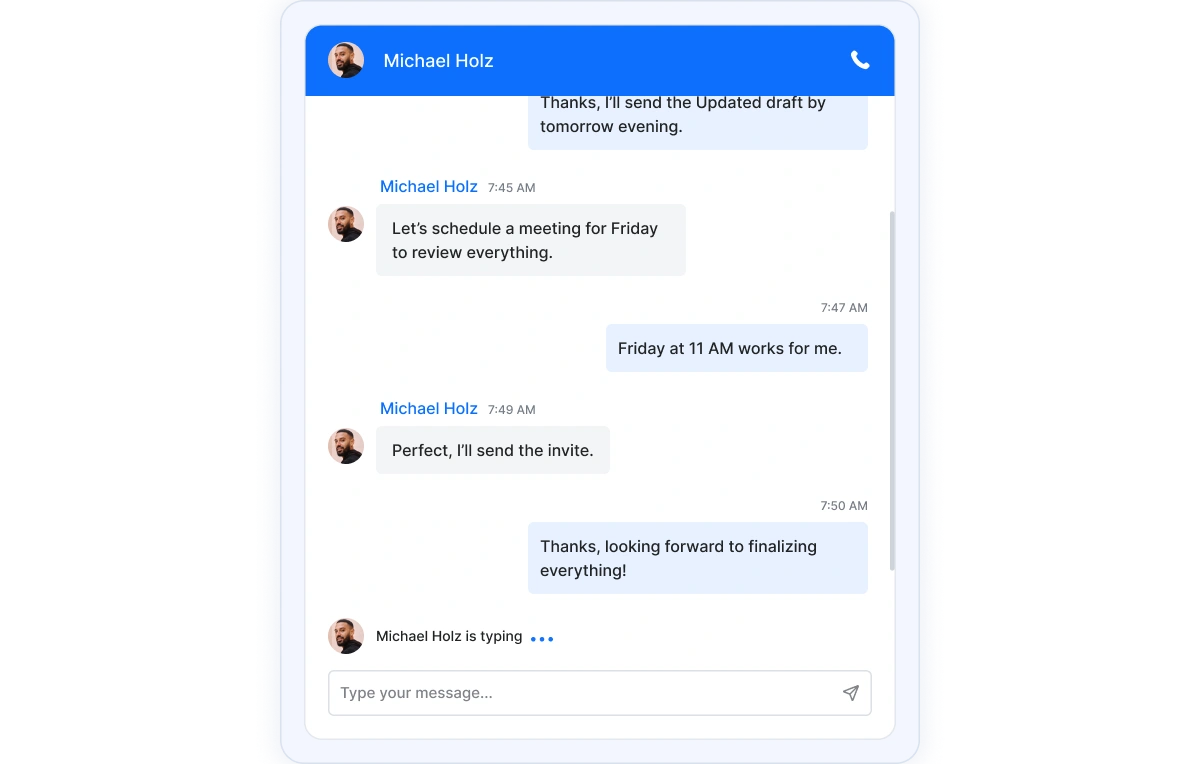
The Blazor Chat UI is a lightweight and highly customizable component designed for creating modern chat interfaces. It displays conversations between two or more users, offering powerful features like real-time typing indicators, on-demand message loading, message suggestions, and a great user experience.
Blazor Chat UI Code Example
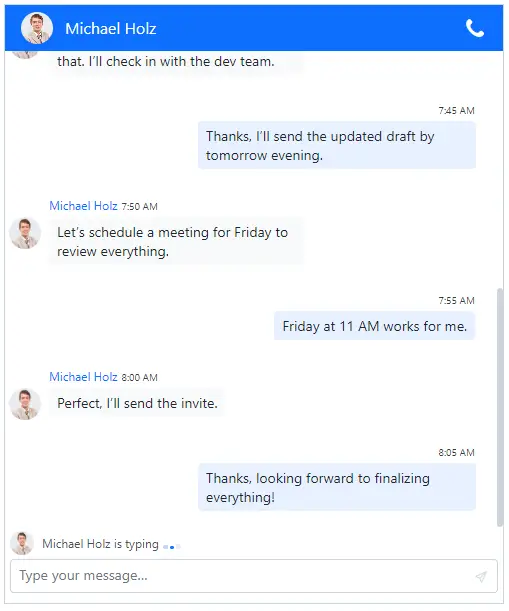
Easily get started with the Blazor Chat UI using a few simple lines of C# code example, as demonstrated below. Also, explore our Blazor Chat UI Example, which shows how to render and configure the Blazor Chat UI.
@using Syncfusion.Blazor.InteractiveChat

<SfChatUI User="@Customer" HeaderText="LiveAssist" Messages="@ChatMessages" Width="400px" Height="500px">
</SfChatUI>

@code {

    UserModel Customer;
    UserModel SupportAgent;
    List<ChatMessage> ChatMessages;

    protected override void OnInitialized()
    {
        Customer = new UserModel()
        {
            ID = "user-1001",
            User = "Richard Rose"
        };

        SupportAgent = new UserModel()
        {
            ID = "agent-1001",
            User = "Donald Krish"
        };

        ChatMessages = new List<ChatMessage>()
        {
            new ChatMessage() { Text = "Hi, I need help with my order.", Timestamp = new DateTime(2024, 12, 11, 9, 0, 0), Author = Customer },
            new ChatMessage() { Text = "Sure, could you provide your order ID?", Timestamp = new DateTime(2024, 12, 11, 9, 1, 0), Author = SupportAgent },
            new ChatMessage() { Text = "My order ID is #12345.", Timestamp = new DateTime(2024, 12, 11, 9, 2, 0), Author = Customer },
            new ChatMessage() { Text = "Thank you. Let me check the details for you.", Timestamp = new DateTime(2024, 12, 11, 9, 3, 0), Author = SupportAgent },
            new ChatMessage() { Text = "I found it! Your package was delivered yesterday at 3 PM.", Timestamp = new DateTime(2024, 12, 11, 9, 4, 0), Author = SupportAgent },
            new ChatMessage() { Text = "Oh, I didn’t notice it. Let me check.", Timestamp = new DateTime(2024, 12, 11, 9, 5, 0), Author = Customer },
            new ChatMessage() { Text = "Found it behind the planter. Thanks for your help!", Timestamp = new DateTime(2024, 12, 11, 9, 6, 0), Author = Customer }
        };
    }
}
AI-assisted development
Build feature-rich Blazor Chat UI experiences faster
Accelerate messaging interface development with Syncfusion AI tools that turn requirements into fully configured chat experiences with minimal setup.
Agentic UI Builder
Turn prompts into ready-to-use UI screens, layouts, and workflows with Syncfusion Blazor components.
Example Prompt Create a team messaging interface with reactions, typing indicators, and grouped conversations.
Agent Skills
Accelerate development with Syncfusion AI Agent Skills for faster implementation and integration.
Example Prompt Generate a Blazor chat UI with grouped messages, timestamps, and typing indicators.
AI Coding Assistant
Accelerate development with AI that generates, configures, and troubleshoots component code directly in your IDE.
Example Prompt Show how to dynamically load chat history in the Syncfusion Blazor Chat UI.
Messages
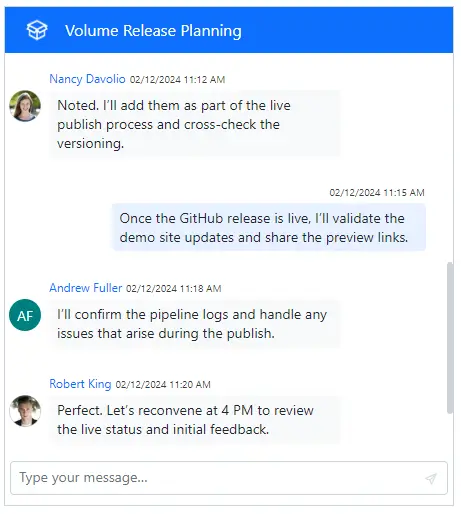
The Chat UI supports binding data from real-time data streaming services, enabling seamless updates to the chat interface. It supports user avatars and timestamps, with current user messages aligned to the right for clarity. If an avatar image is not provided, fallback text is displayed using the initials of the user’s first and last name.
Message status
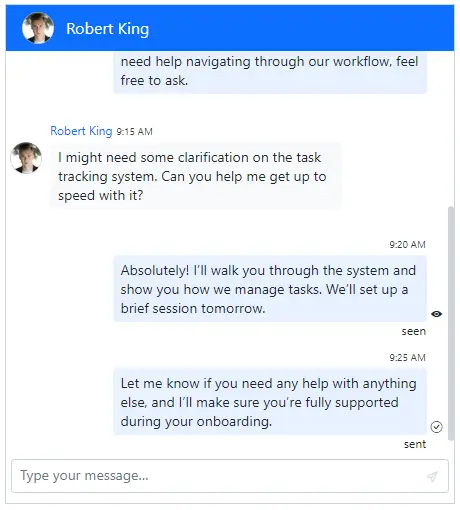
To enhance communication, the Chat UI allows setting a status for each message. You can also define custom statuses, such as sent, delivered, and read, along with corresponding icons and tooltips.
Suggestions
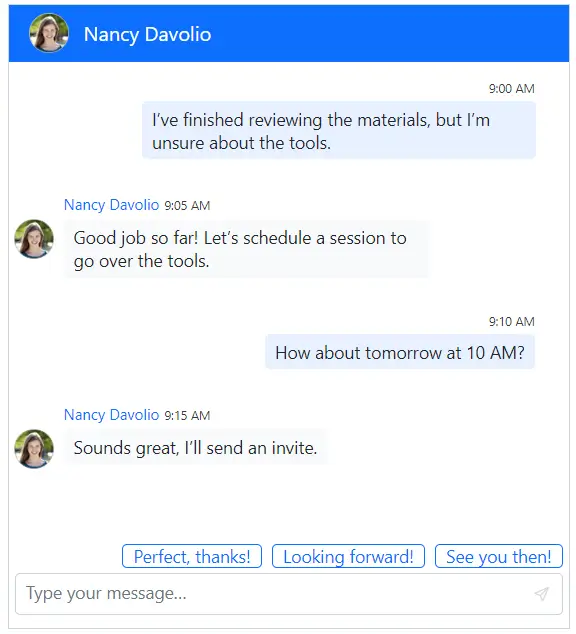
The Chat UI offers dynamic message suggestions to enhance user engagement and streamline conversations. Customizable suggestions, such as quick replies or predefined templates allow users to respond and take action within the chat.
Time break
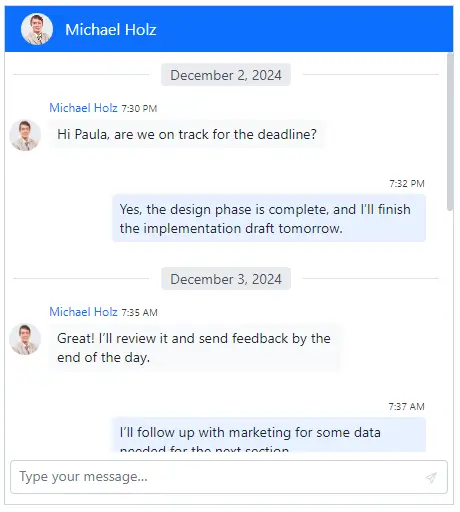
The time break in the Chat UI automatically inserts breaks between messages based on the time, organizing conversations by date. This enhances readability by visually grouping messages, making it easier for users to follow the conversation.
Typing indicator
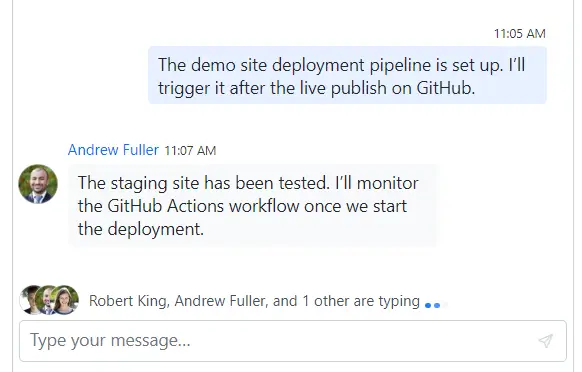
The typing indicator displays real-time updates when users are typing messages. It enhances user interaction by signaling activity, creating a responsive and engaging chat experience.
Header toolbar
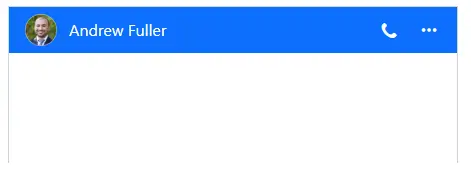
The header toolbar allows the addition of custom items to the header area, enabling actions like initiating a call, starting a new chat, or accessing chat settings. It offers extensive customization options, including adjusting toolbar item icons, text, alignment, and other settings to suit the needs.
On-demand messages loading
On-demand message loading allows messages to be loaded dynamically, improving performance and reducing load times, particularly in long conversations. This ensures a smooth user experience by only fetching messages as needed rather than loading the entire conversation at once.

Message options
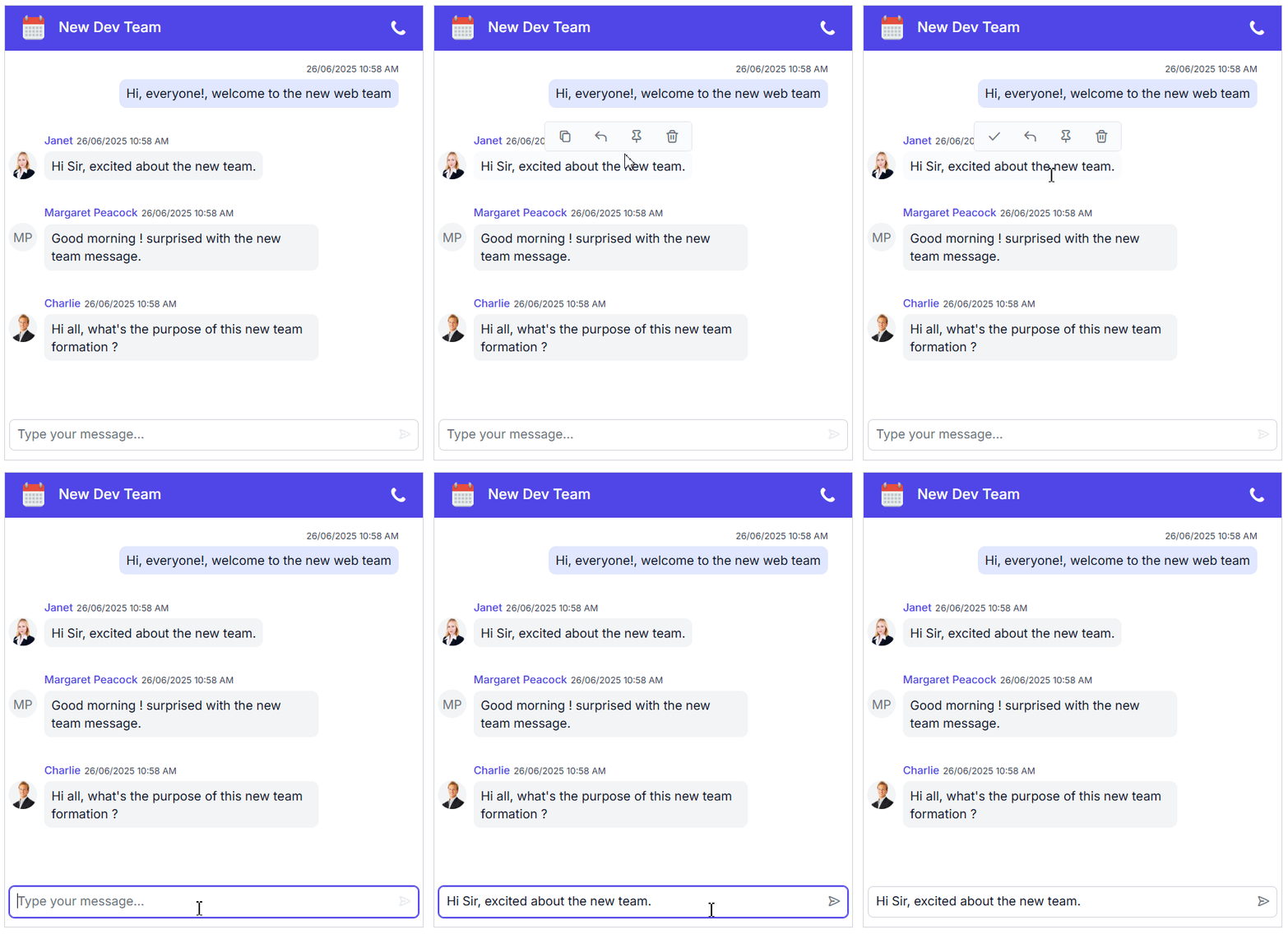
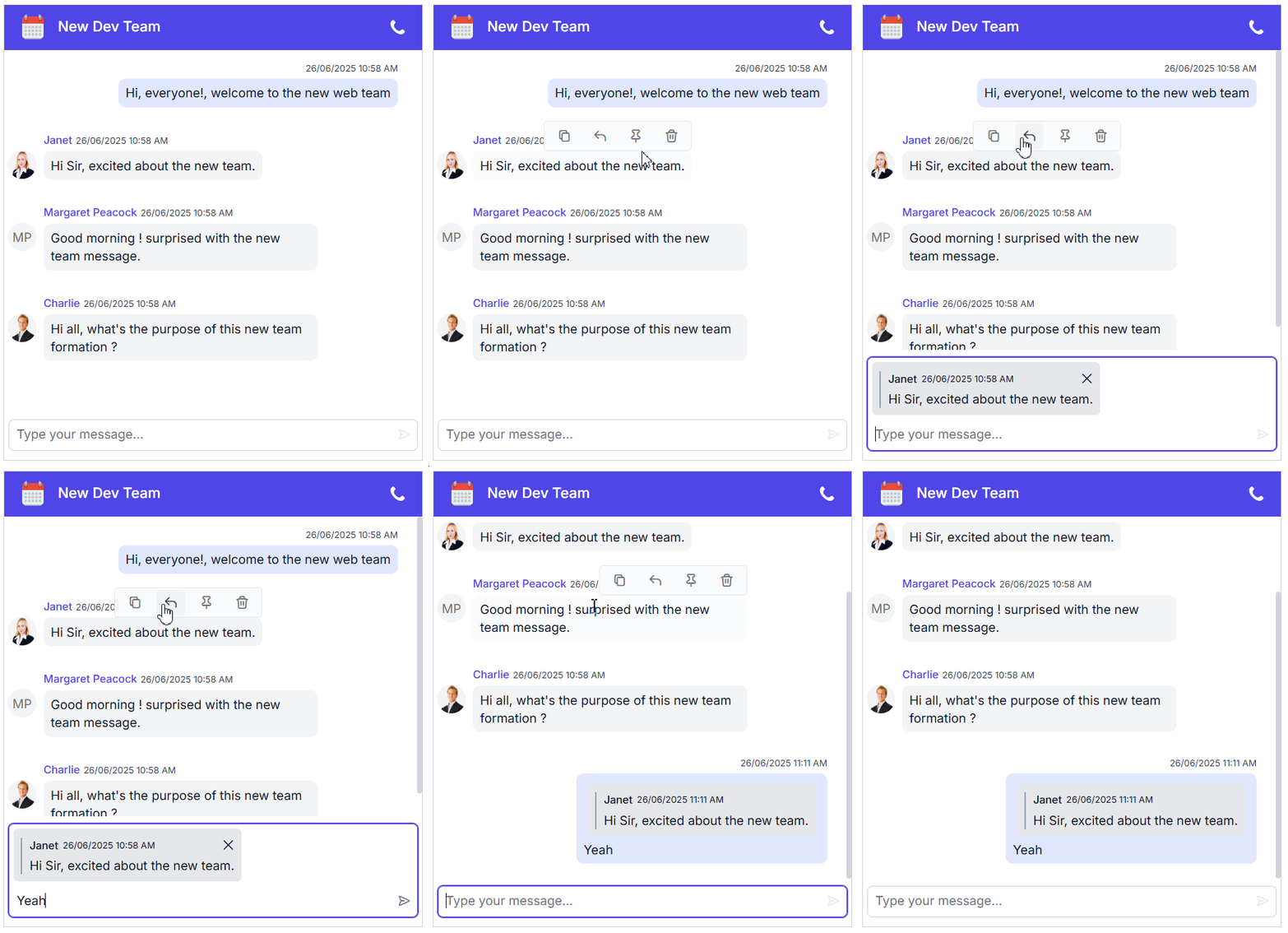
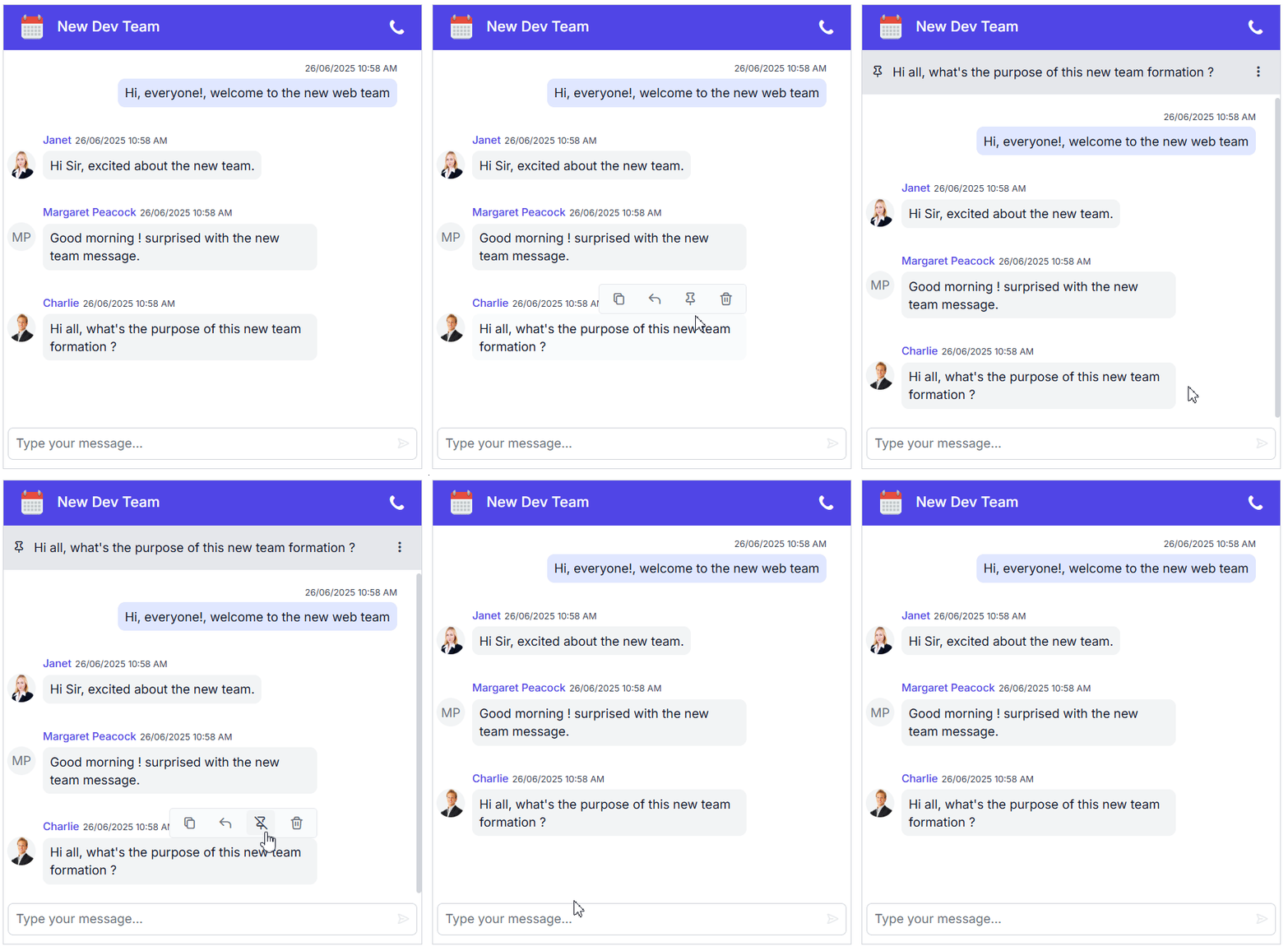
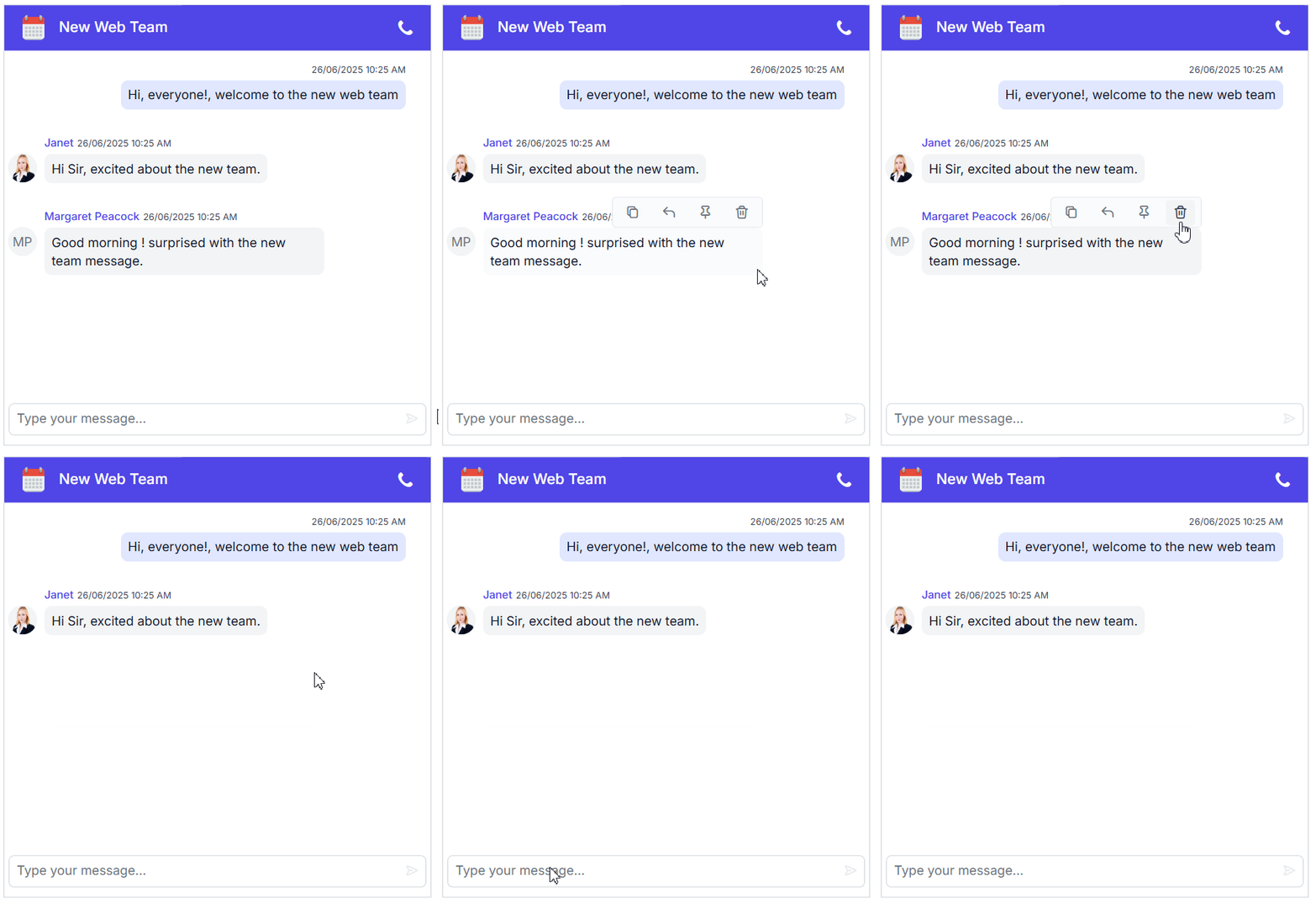
Enhance user interaction with intuitive message-level actions that make conversations more engaging and organized by using the built-in options like copy, reply, pin, and delete.
Copying message
The copy option allows users to quickly duplicate the content of any message, making it easy to reference or reuse important information across conversations or applications.
Replying message
The reply option enables users to respond directly to a specific message, preserving context and creating a threaded conversation flow that enhances clarity and engagement.
Pin message
The pin option highlights important messages by keeping them fixed and easily accessible, helping users quickly revisit key information without scrolling through the chat.
Delete message
The delete option allows users to remove messages from the conversation, helping maintain a clean and focused chat environment by eliminating unnecessary or outdated content.
Forward message
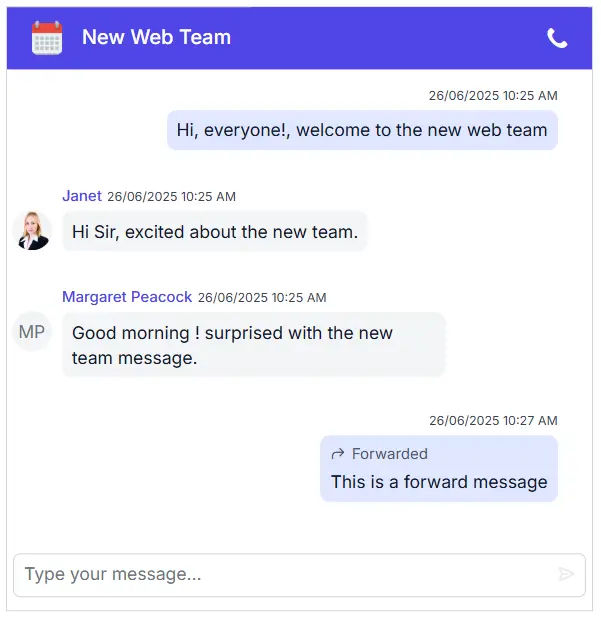
The forward option lets users share messages across different chats, clearly marking them as forwarded to maintain transparency and streamline content redistribution.
Templates
Supports templates for customizing the empty conversation area, messages, typing indicator, and more. These templates allow users to create a unique, personalized chat experience that integrates seamlessly into their applications.
Empty chat template
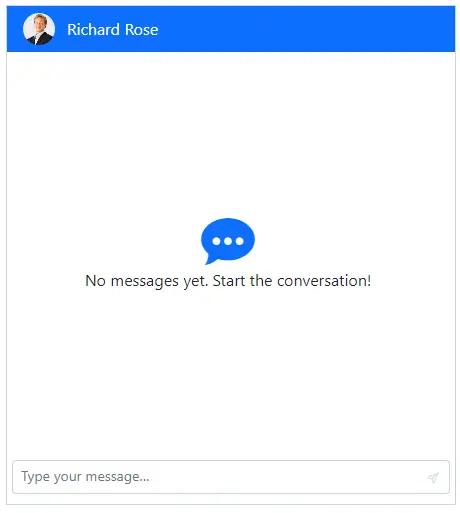
The empty chat template allows customization of the chat interface when no messages are displayed. Personalized content, such as welcome messages or images can be added to create an engaging and inviting experience for users starting a conversation.
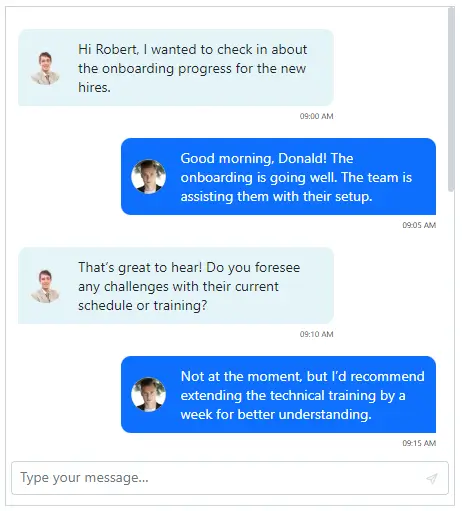
Message template
The message template provides flexibility to customize the appearance and styling of each message. Modify text styling, layout, and other design elements to ensure a personalized chat experience.
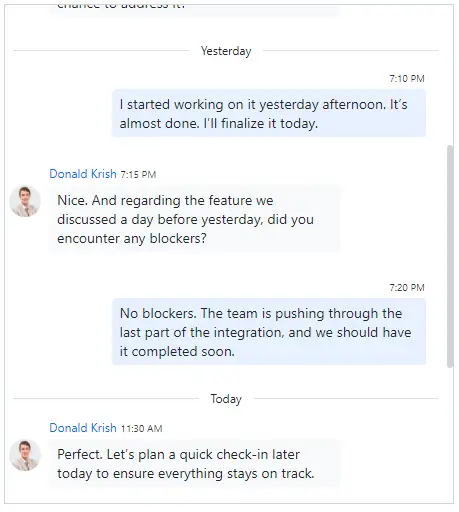
Time break template
Customize how time breaks are displayed with the time break template, such as showing “today,” “yesterday,” or specific dates. This enhances conversation organization by clearly separating messages based on time, improving readability and user experience.
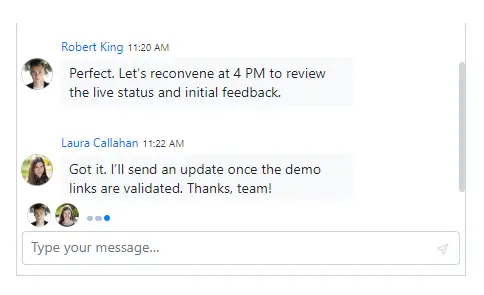
Typing indicator template
The typing indicator template customizes the display of users currently typing a message. It allows the styling and positioning of the typing indicator, enhancing the user experience.
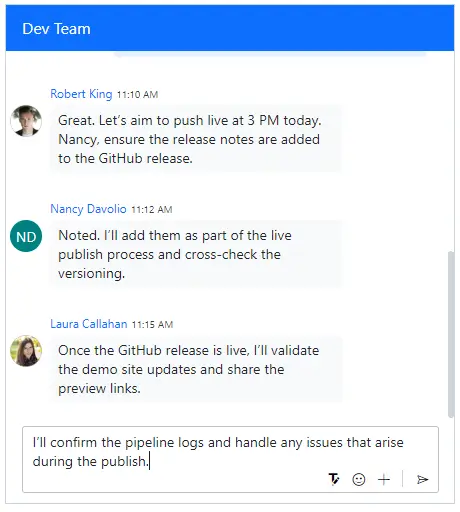
Footer template
Use the footer template to customize the default footer area and manage message send actions with a personalized design. This flexibility allows users to create unique footers that meet their specific needs.
Built-in themes
The Blazor Chat UI supports these built-in themes: Tailwind CSS, Bootstrap 5, Bootstrap 4, Bootstrap, Material, Fabric, Fluent, and high contrast. Users can customize these built-in themes or create new themes to achieve their desired look and feel by overriding SASS variables or using the Theme Studio application.
Accessibility
- Full support for WAI-ARIA practices for screen readers and assistive devices.
- UI visual elements such as foreground color, background color, line spacing, text, and images are designed based on WCAG 2.0 standards.
- Right-to-left (RTL) text direction can be set for users of RTL languages like Hebrew, Arabic, or Persian.
Developer-friendly APIs
The Blazor Chat UI component offers APIs and templates for customizing its appearance and behavior. With these APIs, developers can create a unique and highly customized Chat UI that fits seamlessly into their applications.
 145+ UI components
1200+ interactive Blazor demos
9.7M+ downloads
145+ UI components
1200+ interactive Blazor demos
9.7M+ downloads

Other supported frameworks
The Chat UI is available for the React, Angular, JavaScript, Vue, ASP.NET Core, and ASP.NET MVC frameworks. Explore its platform-specific options through the following links:
Supported browsers
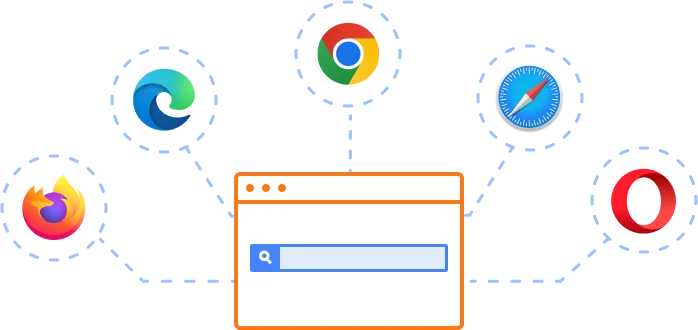
The Blazor Chat UI works well with all modern web browsers, including Chrome, Firefox, Edge, Safari, and Opera.
Not sure how to create your first Blazor Chat UI? Our documentation can help.
I’d love to read it nowBlazor Components – 145+ UI and DataViz Components
ALL COMPONENTS
SMART COMPONENTS
GRIDS
DATA VISUALIZATION
FILE VIEWERS & EDITORS
DROPDOWNS
NAVIGATION
INPUTS
BUTTONS
INTERACTIVE CHAT
Standalone UI SDKs
Integrate the DataGrid, Chart, Scheduler, Gantt, Rich Text Editor, File Manager, and Diagram UI components into applications to enable rich interaction and visualization, delivering a seamless user experience.
Document Solutions
Integrate the PDF Viewer, DOCX Editor, Spreadsheet Editor, and document-processing libraries into the Blazor applications to enable a smooth user experience.
Frequently Asked Questions
Why should you choose Syncfusion Essential Studio Blazor Chat UI?
- Provides a flexible chat UI designed for modern real-time messaging applications.
Includes features like real-time typing indicators and message suggestions.
Supports time breaks and on-demand message loading.
Offers extensive customization for messages, headers, and footers.
- One of the best Blazor Chat UI in the market that offers feature-rich UI to interact with the software.
Simple configuration and API.
- Support for all modern browsers.
- Mobile-touch friendly and responsive.
Extensive learning resources such as demos and documentation to learn quickly and get started with Blazor Chat UI.
Where can I find the Syncfusion Blazor Chat UI demo?
You can find our Blazor Chat UI demo here, which demonstrates how to render and configure the Chat UI.
How can I integrate my chat with a chatbot or AI service?
To integrate your chat, capture user input using the OnSend event in Syncfusion Blazor Chat and call your AI service (e.g., Azure OpenAI or Dialogflow) from the backend. Then, append the AI response to the chat message collection to display it in the UI.
Can I download and utilize the Syncfusion Blazor Chat UI for free?
No, this is a commercial product and requires a paid license. However, a free community license is also available for companies and individuals whose organizations have less than $1 million USD in annual gross revenue, 5 or fewer developers, and 10 or fewer total employees.
How do I get started with Syncfusion Blazor Chat UI?
A good place to start would be our comprehensive getting started documentation.
How do I implement real-time messaging in a Blazor Chat UI application?
Syncfusion Blazor Chat UI provides the front-end for chat interfaces. To enable real-time messaging, integrate it with SignalR or any WebSocket-based service. SignalR handles live message broadcasting, while the Chat UI displays messages in a structured format.
Our Customers Love Us
Having an excellent set of tools and a great support team, Syncfusion® reduces customers’ development time.Here are some of their experiences.

Blazor components
The speed how they adding new Blazor controls and update theirs functionality.
I am using Blazor components. Searching for Blazor components I found that Syncfusion very fast adopted theirs controls for new development platform. Tech support is fast and excellent. The best of best is that they provide free controls for small business.

Igor L,

CEO, Small-Business
Syncfusion objects with a Blazor
I have used some of the Syncfusion objects with a Blazor application. The support group has always been very helpful.

Kris B,
Software Development Consultant, Small-Business
See Real Success Stories
Developers around the world trust Syncfusion’s Essential Studio to simplify complex projects and speed up delivery. With a vast library of UI controls, powerful SDKs, and reliable support, Essential Studio helps teams build enterprise-ready applications with confidence.
Read Our Customer StoriesIndustry
Software development
75% Cost reduction
50% Faster development
Industry
Utilities (oil and gas)

450+ hours saved
Streamlined processes and hours of development effort saved.

Advanced, flexible features
Empowered users through robust and versatile functionality.
Industry
Software and technology
1000+ of hours saved
Accelerated development with enterprise-ready UI components.

Efficient file management
Streamlined workflows with document libraries without building them from scratch.
Industry
Software and technology

2 Years of delay avoided
Two years of delays prevented with proactive planning.

On-time delivery
Projects delivered on schedule using trusted controls.
Industry
IT services and IT consulting

Improved performance
Large datasets handled with easy customization and quick debugging.

Highly customizable
Plug-and-play controls with quick template integration.
Industry
Professional services
Instant access
Quick availability of features and resources.
Reduced dependencies
Fewer dependencies for faster development.
Rated by users across the globe
Syncfusion Blazor Chat UI Resources


UI Kits
 Figma Download
Figma Download
Awards
Greatness—it’s one thing to say you have it, but it means more when others recognize it. Syncfusion® is proud to hold the following industry awards.









