
React Data Grid - A Flexible Data Table with Rich UI
- React Data Grid is a high-performance, enterprise-ready data table for building dashboards, data-driven apps, and line-of-business systems.
- Load large datasets fast by using virtualization and analyze them with advanced filtering, grouping, column customization, and data summaries.
- Use built-in exporting to Excel, CSV, and PDF formats to share data in preferred formats.


Trusted by the world’s leading companies

Overview
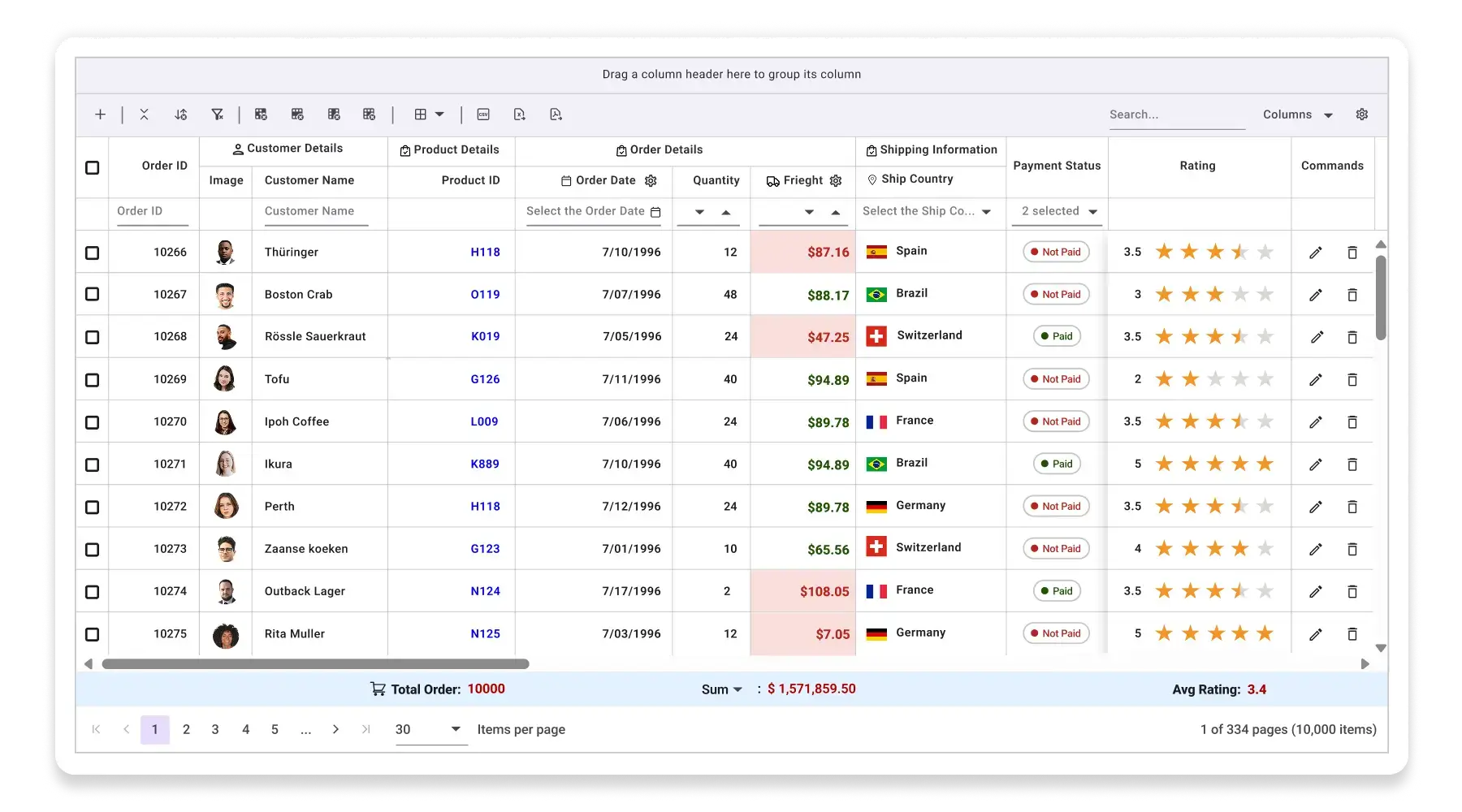
The React Data Grid is a feature-rich grid component for displaying data in a tabular format. Its wide range of functionalities includes data binding, editing, Excel-like filtering, custom sorting, aggregating rows, selection, and support for Excel, CSV, and PDF formats.
Interact with the Live React Data Grid
Runs in-browser. No installation required.
Why choose the Syncfusion Essential Studio® React Data Grid?
High performance
The component focuses on fast-paced performance to load millions of records in just a second.
Seamless data binding
Bind data with various local and remote data sources such as JSON, OData, WCF, and RESTful web services with the help of data manager.
AI-Assisted Development
Build sophisticated grid experiences faster with the Agentic UI Builder and Syncfusion Agent Skills. Generate layouts, column configurations, filtering, CRUD workflows, and dashboard interfaces with minimal manual effort.
Attractive customizable themes
Create a cutting-edge design with built-in themes such as Fluent, Tailwind CSS, Bootstrap, Material, and Fabric. Utilize the online Theme Studio tool to customize themes easily.
Easy export and printing
Export the Data Grid in various file formats, including PDF, Excel, and CSV. Print all the rows, regardless of the number of pages, as well as just the currently viewed page.
Globalization and localization
Users from different locales can use the component by formatting dates, currency, and numbering to suit preferences.
Installation & Quick Start
Follow these three steps to integrate the DataGrid into your React application.
1
Install the DataGrid Package
Install the Syncfusion React DataGrid package by using npm.
npm install @syncfusion/ej2-react-grids --save2
Import the required CSS styles
The following CSS files are available in the ../node_modules/@syncfusion package folder. Add these as references in src/App.css.
@import '../node_modules/@syncfusion/ej2-base/styles/tailwind3.css';
@import '../node_modules/@syncfusion/ej2-buttons/styles/tailwind3.css';
@import '../node_modules/@syncfusion/ej2-calendars/styles/tailwind3.css';
@import '../node_modules/@syncfusion/ej2-dropdowns/styles/tailwind3.css';
@import '../node_modules/@syncfusion/ej2-inputs/styles/tailwind3.css';
@import '../node_modules/@syncfusion/ej2-navigations/styles/tailwind3.css';
@import '../node_modules/@syncfusion/ej2-popups/styles/tailwind3.css';
@import '../node_modules/@syncfusion/ej2-splitbuttons/styles/tailwind3.css';
@import '../node_modules/@syncfusion/ej2-notifications/styles/tailwind3.css';
@import '../node_modules/@syncfusion/ej2-react-grids/styles/tailwind3.css';
3
Initialize the DataGrid component
Configure and render the React Data Grid by using this code. Define the component in the src/App.tsx file and manage the data source in the src/datasource.ts file. Explore the React Data Grid example to learn more.
import { GridComponent, ColumnsDirective, ColumnDirective } from '@syncfusion/ej2-react-grids';
import { data } from './datasource';
import './App.css';
function App() {
  return (
      <GridComponent dataSource={data}>
        <ColumnsDirective>
          <ColumnDirective field="OrderID" headerText="Order ID" width="180" textAlign="Right" ></ColumnDirective>
          <ColumnDirective field="CustomerName" headerText="Customer Name" width="150" ></ColumnDirective>
          <ColumnDirective field="OrderDate" headerText="Order Date" width="130" format="yMd" textAlign="Right" />
          <ColumnDirective field="Freight" width="120" format="C2" textAlign="Right" />
          <ColumnDirective field="ShipCountry" headerText="Ship Country" width="150" ></ColumnDirective>
        </ColumnsDirective>
      </GridComponent>
  );
}
export default App;
export let data: Object[] = [
{ OrderID: 10248, CustomerName: 'Yang Wang', OrderDate: new Date('2025-06-25'), Freight: 32.38, ShipCountry: 'France' },
{ OrderID: 10249, CustomerName: 'Ana Trujillo', OrderDate: new Date('2025-06-25'), Freight: 11.61, ShipCountry: 'Germany' },
{ OrderID: 10250, CustomerName: 'Antonio Moreno', OrderDate: new Date('2025-07-20'), Freight: 65.83, ShipCountry: 'Brazil' },
{ OrderID: 10251, CustomerName: 'Thomas Hardy', OrderDate: new Date('2025-08-02'), Freight: 41.34, ShipCountry: 'France' },
{ OrderID: 10252, CustomerName: 'Christina Berglund', OrderDate: new Date('2025-08-24'), Freight: 51.3, ShipCountry: 'Belgium' }
];No credit card required.
AI-assisted development
Build feature-rich React DataGrid experiences faster
Accelerate grid development with Syncfusion AI tools that turn requirements into fully configured datagrid experiences with minimal manual setup.
Agentic UI Builder
Turn prompts into ready-to-use UI screens, layouts, and workflows with Syncfusion React components.
Example Prompt Create an order management dashboard with a datagrid, charts, filters, and export actions.
Agent Skills
Accelerate development with Syncfusion AI Agent Skills for faster implementation and integration.
Example Prompt Generate a React DataGrid with grouping, Excel-style filtering, toolbar actions, and PDF export.
AI Coding Assistant
Accelerate development with AI that generates, configures, and troubleshoots component code directly in your IDE.
Example Prompt Show how to bind remote data and enable virtualization in the Syncfusion React DataGrid.
AI-ready Data Grid for faster insights
Our Data Grid comes AI-ready out of the box. Easily extend it with semantic search, anomaly detection, or any other AI operation you need. Get fast answers and smarter data exploration, all in one grid.
-
Semantic search: Plug in your preferred NLP model to let users query with natural phrases, no exact keywords required.
- See how to add semantic search
-
Anomaly detection: Connect an ML service to find unusual trends or errors quickly and keep business on track.
- See how to add anomaly detection

Editing
The React Data Grid component supports create, read, update, and delete operations (CRUD). In addition to built-in editor components for editing a particular column value, custom editor components can be created using templates. With the help of a data manager, you can perform editing operations with array collection or a remote data service.
Sorting
Sort rows either in ascending or descending order in a column by simply clicking the header in the React DataGrid. Sort multiple columns’ data by holding the Ctrl key and clicking the header. In addition, define your own custom sorting logic.


Filtering
Filtering helps view particular or related records that meet given criteria in the Data Grid. The Data Grid supports various filter types, including powerful Excel-like filters. Choose the appropriate filter type, define your own custom filtering logic, and customize the filtering UI based on the application’s needs. Diacritic characters can also be filtered.
Paging
Paging is used to view a segment of data from the assigned data source. The React DataGrid has a built-in pager UI with options to customize its entire UI. It also has an on-demand paging mode for effective data retrieval from remote web services.


Selection
Select rows or cells using a checkbox or by simply clicking them. Select more than one row or cell by holding Ctrl, Shift, or Command while clicking, or programmatically.
Grouping
Group rows to display the data in an organized, hierarchical structure in ascending or descending order to facilitate easier expansion and collapse of records. There is an option to group records of a desired column by dragging and dropping that column into an interactive drop area.


Aggregation
Aggregates for column values can be easily displayed using the aggregate feature. Aggregates can be customized to show their value in individual summary rows, individual group summary rows, or group caption rows.
Columns
Columns define the schema of the data source in the React Data Grid. They support formatting, auto-generating columns, column definitions, freezing rows and columns, column spanning, text wrapping, column chooser, column menu, and other features.

Frozen rows and columns
Frozen rows and columns are visible at the top and on the left, right, both, or in a fixed position, leaving the remaining grid content scrollable. This feature is mainly used to compare cell values.
Pinned rows
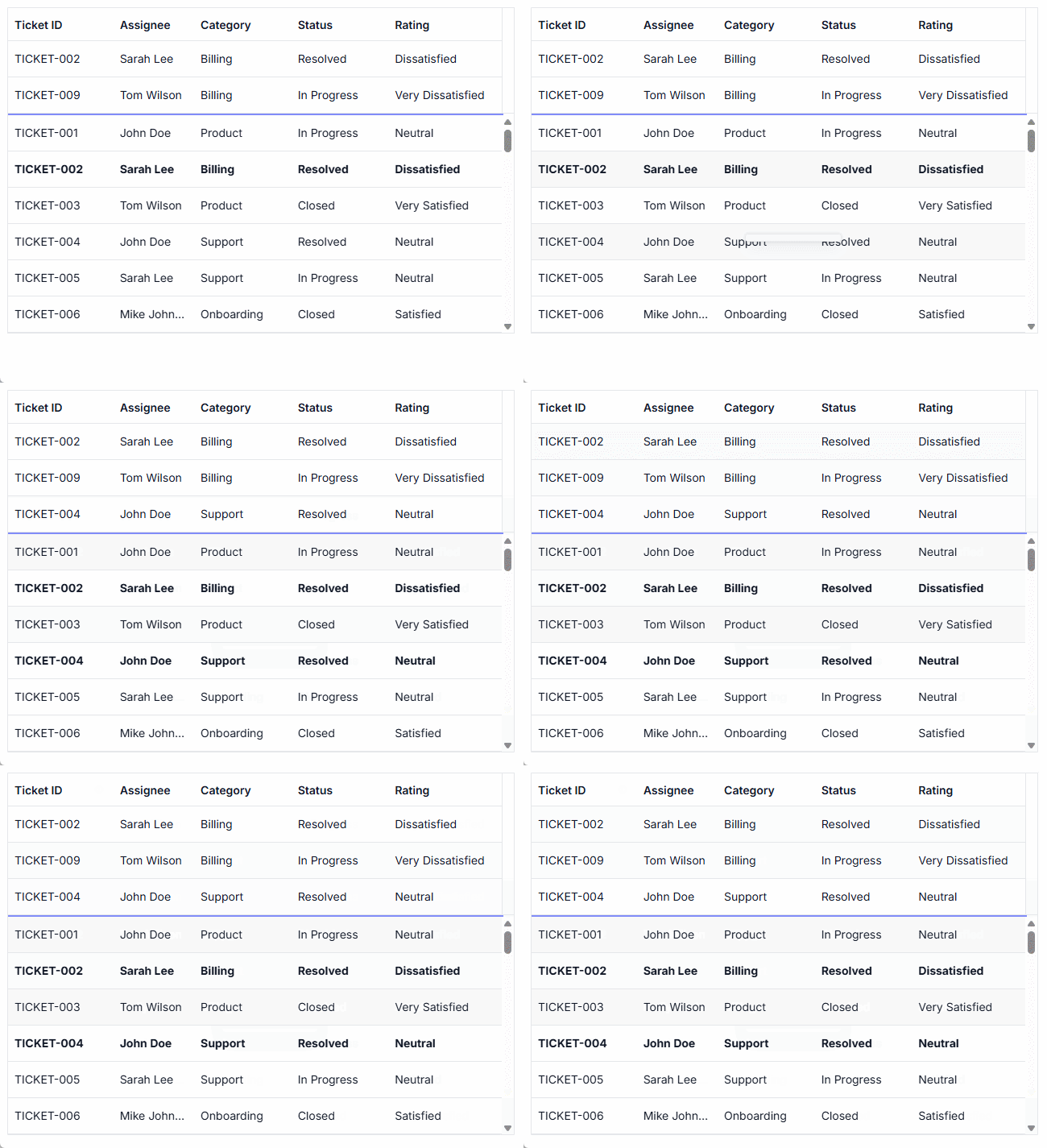
Pinned rows keep specific rows fixed at the top of the grid. This enhancement ensures that key records remain visible during operations such as paging, sorting, and filtering, providing continuous accessibility across all data interactions.
Sticky headers
The React Data Grid header is in a fixed position when scrolling a document vertically to visualize the Data Grid content along with the column header.
Row drag and drop
The React Data Grid allows users to drag and drop rows to another Data Grid or custom component. Users can also drag and drop rows within the same Data Grid using the drag icon and transfer rows between different groups.


Master-detail grid
A React master-detail grid is a use-case scenario in which a record’s details are viewed in a separate Data Grid by clicking a particular row.
Adaptive UI layout
The React Data Grid user interface is customized and redesigned for great views and usability on small screens. Filter, sort, search, and edit dialogs adaptive to the screen size and also render row elements vertically.

Skeleton loading indicator
The React Data Grid control shows an effect as a loading indicator while fetching data and binding it to the grid during initial rendering, refreshing, or after performing grid actions like sorting. The Data Grid offers two types of loading indicator effects: spinner and shimmer.
State management
The state management in the React Data Grid component allows you to maintain the grid’s state even after a browser refresh or when navigating to a different page within the same browser session. This feature is beneficial for retaining the grid’s configuration and data following a page reload.


Live update
The Data Grid updates live data in its cells at specific time intervals. These updates occur without causing any lag or slowdown, ensuring that the system remains highly responsive and efficient.
Charts Integrated with Data Grid
The Data Grid now integrates with the Charts component, transforming selected grid data into dynamic, interactive visualizations. This powerful combination of tables and charts empowers users to gain clearer insights at a glance. Customize the chart types, axes, and visuals.
Grid interaction & layout features

Row height
Row height is a major factor when displaying records in the viewport. It is easily customizable and can also be set conditionally.

Copy to clipboard
The clipboard allows users to copy data from selected rows or cells into it. The Ctrl+C and Ctrl+Shift+H key combinations copy data with and without headers, respectively.

Context menu
Perform various actions in a Data Grid using the pop-up menu that appears when the cell, header, or pager is right-clicked. In addition to built-in default menu items, custom context menu items can be added.

Width and height
Set the width and height properties to change the size of the Data Grid. When the content overflows the grid element, horizontal and vertical scrollbars will appear. To fill the Data Grid’s parent container, simply set the height and width to 100%.

Stacked headers
Stacked headers allow grouping and visualizing column headers in a stacked manner. The number of columns that can be stacked is unlimited. Perform all Data Grid actions even when the columns are stacked.
Accessibility & Responsive User Experience

Keyboard navigation
The React Data Grid ensures that every cell is accessible using the keyboard. Major features like sort, select, and edit can be performed using keyboard commands alone; no mouse interaction is required. This helps in creating highly accessible applications using this component.

Screen reader
The React Data Grid view has complete WAI-ARIA accessibility support. Its UI includes high-contrast visual elements that help visually impaired people to have the best viewing experience. Also, valid UI descriptions are easily accessible through assistive technologies such as screen readers.

Right to left (RTL)
Right-to-left rendering allows users to display the text and layout of the Data Grid from right to left. This improves the user experience and accessibility for RTL languages.

Touch support
User-friendly touch gestures and an interactive UI design provide the best user experience. All React Data Grid features work on touch devices with zero configuration.

Responsive pager
The React Data Grid pager acts intelligently and changes its complete UI responsively based on the dimension. Its optimized design provides the best UI interaction on different devices.
Not sure how to create your first React Data Grid? Our tutorial videos and documentation can help.
I’d love to watch it now I’d love to read it now


Discover Syncfusion’s Complete React Component Ecosystem
Explore over 150+ React UI components featuring established, production-ready controls and the latest pure React components built natively for modern web app development.
-
React Components
-
Pure React Components
-
SMART COMPONENTSGRIDSDATA VISUALIZATIONDROPDOWNSFILE VIEWERS & EDITORSBUTTONSINTERACTIVE CHATINPUTSNAVIGATIONFORMSNOTIFICATIONS
-
GRIDSDATA VISUALIZATIONNAVIGATIONINPUTS
Build Document Workflows in React
Embed PDF viewing, Word document editing, and Excel-like spreadsheet processing in your React app to streamline document workflows and help teams collaborate on files without context switching or external dependencies.
Frequently Asked Questions
Why should you choose the Syncfusion® React DataGrid?
The Syncfusion React DataGrid offers the following features:
Millions of records load in just a second.
- Mobile-first design that adapts to any resolution.
Flexible data binding with support to use local and remote data sources such as JSON, RESTful services, OData services, and WCF services.
Out-of-the-box, Excel-like filtering and grouping options.
Data exporting options like PDF, CSV, and Excel.
Simple configuration and API.
- Support for all modern browsers.
Expansive learning resources such as demos, documentation, and videos let you get started quickly with the React Data Grid.
Where can I find the Syncfusion React Data Grid demo?
You can find our React Data Grid demo here. It demonstrates how to render and configure the Data Grid.
What is a React Data Grid?
How do you enable filtering in the React Data Grid?
To enable filtering in the Syncfusion® React Data Grid, set the allowFiltering property to true and inject the Filter module. This renders a filter bar beneath the column headers, allowing users to enter filter criteria. The Data Grid offers multiple filtering modes, which are configurable using the filterSettings.type property.
What’s the best way to handle large datasets in a React Data Grid?
The best way to handle large datasets is by using paging, virtual scrolling, and infinite scrolling. These options optimize performance by rendering only visible records and fetching data on demand as users scroll or navigate through the grid.
What are the types of Data Grid available in React?
Syncfusion’s React Data Grid supports basic grid, virtual grid, hierarchical grid, and Excel‑like grid, each optimized for high performance, scalability, and customization.
Is the Syncfusion React Grid responsive?
Yes. The Syncfusion React Data Grid is fully responsive by default, adapting to various screen sizes and supporting mobile‑friendly layouts.
Can I download and utilize the Syncfusion React Data Grid for free?
No, this is a commercial product and requires a paid license. However, a free community license is also available for companies and individuals whose organizations have less than $1 million USD in annual gross revenue, 5 or fewer developers, and 10 or fewer total employees.
How do I get started with Syncfusion React Data Grid?
A good place to start would be our comprehensive getting started documentation.
What are the features of the React Data Grid?
The React Data Grid offers features like sorting, filtering, pagination, editing, aggregates, grouping, exporting to Excel/PDF, column resizing, and virtualization.
How can sorting be implemented in a React Data Grid?
Sorting can be enabled in the Data Grid component by setting the allowSorting property to true and injecting the Sort module. You can define columns with sortable fields and customize sorting using the sortSettings.
Is real-time data supported in a React Data Grid?
Yes, the grid supports real-time data updates through WebSocket, SignalR, or polling. You can refresh the grid or update specific rows dynamically to reflect changes in the data source.
How do I add a Data Grid in React?
Install the Syncfusion React Data Grid package using npm, then import the component and configure it within your React application.
What is an Excel‑like grid in React?
The Syncfusion React Data Grid offers an Excel‑like grid experience with features such as cell editing, formulas, copy‑paste, keyboard navigation, and more, closely mimicking Excel‑style interactions within React applications.
Our Customers Love Us




See Real Success Stories
Developers around the world trust Syncfusion’s Essential Studio to simplify complex projects and speed up delivery. With a vast library of UI controls, powerful SDKs, and reliable support, Essential Studio helps teams build enterprise-ready applications with confidence.
Read Our Customer StoriesIndustry
Software development
75% Cost reduction
50% Faster development

Industry
Utilities (oil and gas)

450+ hours saved
Streamlined processes and hours of development effort saved.

Advanced, flexible features
Empowered users through robust and versatile functionality.
Industry
Software and technology
1000+ of hours saved
Accelerated development with enterprise-ready UI components.

Efficient file management
Streamlined workflows with document libraries without building them from scratch.
Industry
Software and technology

2 Years of delay avoided
Two years of delays prevented with proactive planning.

On-time delivery
Projects delivered on schedule using trusted controls.
Industry
IT services and IT consulting

Improved performance
Large datasets handled with easy customization and quick debugging.

Highly customizable
Plug-and-play controls with quick template integration.
Industry
Professional services
Instant access
Quick availability of features and resources.
Reduced dependencies
Fewer dependencies for faster development.
Rated by users across the globe



Transform your applications today by downloading our free evaluation version
No credit card required | 3M+ downloads


 Figma download
Awards
Greatness—it’s one thing to say you have it, but it means more when others recognize it. Syncfusion® is proud to hold the following industry awards.


Recent activities in the React Data Grid tutorials and blogs
The React Data Grid tutorial videos and blog posts will guide you in building your first app with React components. They provide problem-solving strategies, describe features and functionalities, announce new feature releases, explain best practices, and showcase example scenarios. Explore our latest posts on our blog and tutorial video channels for React Data Grid updates.







