Overview
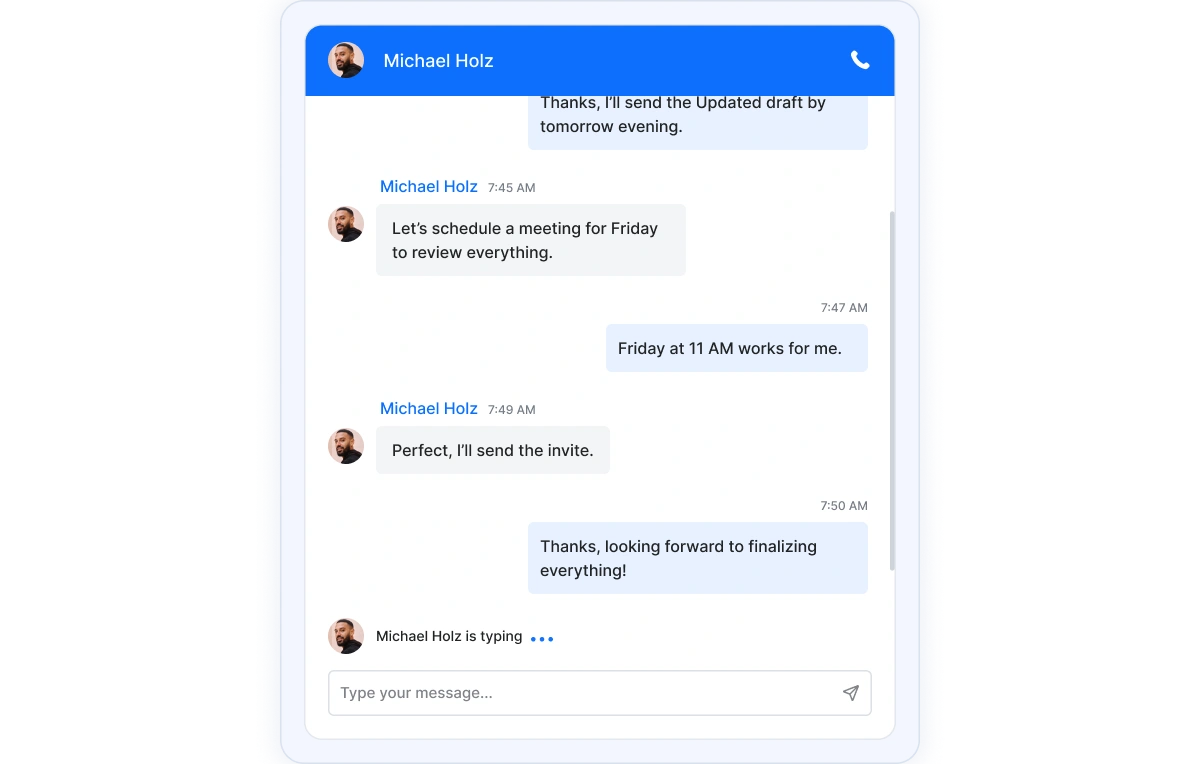
Deliver real time chats in Angular with a lightweight, customizable UI that’s compatible with SignalR and other back ends. Get built in typing indicators, message statuses, adaptive time breaks, lazy loading, and a responsive layout, plus deep control via templates for messages, headers, and footers.
Why choose Syncfusion Essential Studio® Angular Chat UI?
Real-Time & Interactive Design
Native support for live messaging features like real-time typing indicators (single or group), message delivery statuses (sent/delivered/read with icons & tooltips), and smart message suggestions perfect for dynamic, engaging conversations.
AI-Assisted Development
Build modern messaging and conversational experiences faster with the Agentic UI Builder and Syncfusion Agent Skills. Generate chat layouts, message templates, and interaction workflows with minimal manual effort.
Accessibility compliant
Built with accessibility best practices, including keyboard navigation and screen reader support, ensuring inclusive user experiences.
Fully responsive
Adaptive layout delivers a consistent chatting experience across desktops, tablets, and mobile devices without additional configuration.
Customizable themes
Personalize the Chat UI’s appearance using built-in themes or custom styling to match your application’s design and branding. Utilize the online Theme Studio tool to customize chat themes easily.
Globalization support
Supports multiple languages, time zones, and regional formats, enabling developers to build chat conversation for global users.
Angular Chat UI Code Example
Easily get started with the Angular Chat UI using a few simple lines of TS code example as demonstrated below. Also explore our Angular Chat UI Example that shows you how to render and configure the Chat UI in Angular.
<div ejs-chatui id='chatui' [user]="currentUserModel"></div>import { Component } from '@angular/core';
import { ChatUIModule, UserModel } from '@syncfusion/ej2-angular-interactive-chat';
@Component({
imports: [ ChatUIModule ],
standalone: true,
selector: 'app-root',
templateUrl: './app.component.html',
styleUrls: ['./app.component.css']
})
export class AppComponent {
public currentUserModel: UserModel = { user: 'Albert', id: 'user1' };
}Messages and Avatar
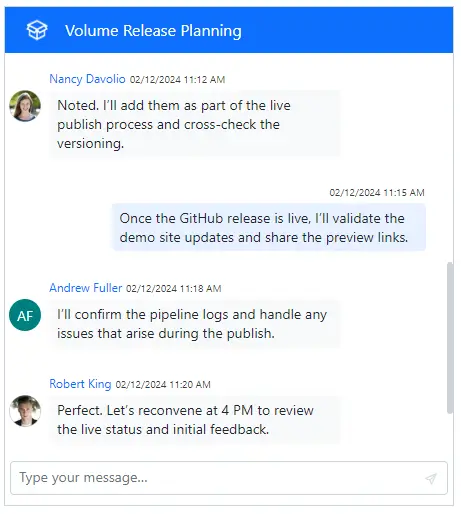
Display conversation participants with avatars or fallback initials. Current user messages align right by default. Bind your own schema to render custom or WhatsApp style layouts in the Angular Chat UI
Message status
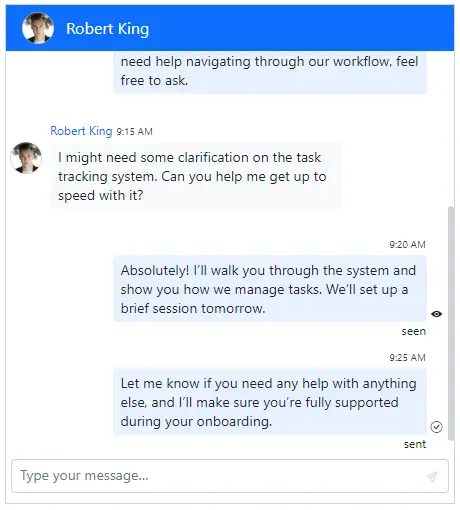
Add delivery clarity with sent, delivered, and read states. Customize icons and tooltips so users always know a message’s status.
Typing indicator
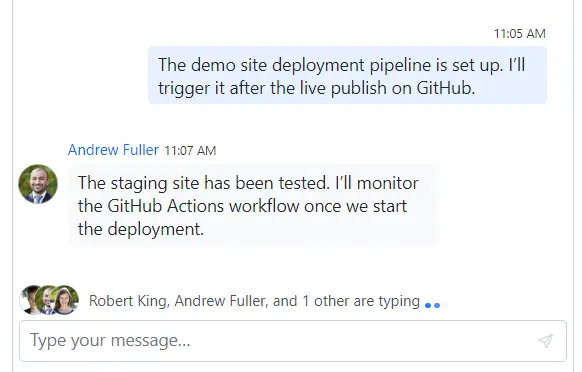
The typing indicator template customizes the display of users currently typing a message. It allows the styling and positioning of the typing indicator, enhancing the user experience.
Smart suggestions
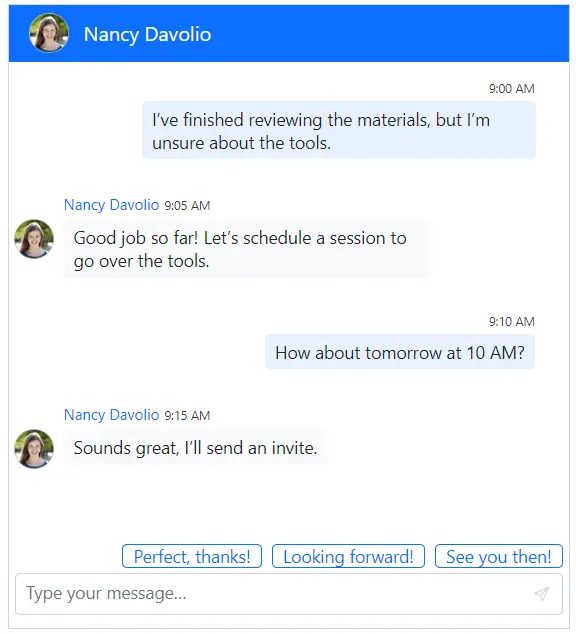
Speed up replies with quick reply buttons and predefined suggestions. Guide conversation flow and reduce typing effort.
File attachments
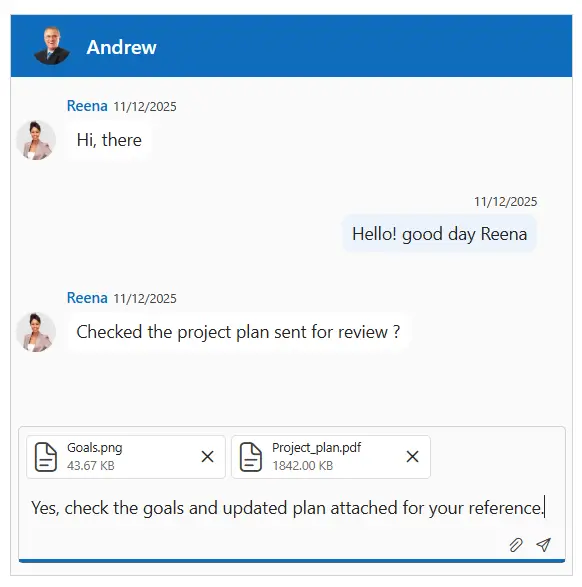
Users can share their images, docs, and more without leaving the chat. Keep messages and files together to streamline collaboration.
Adaptive Time breaks
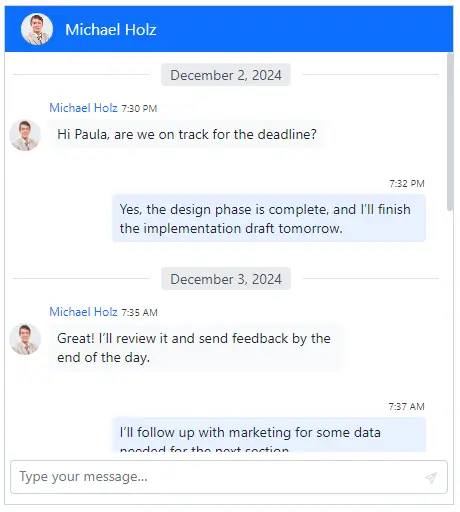
Improve readability with contextual separators like Today or Yesterday auto inserted from time stamps and fully customizable.
On-demand messages loading
Scroll back seamlessly with the lazy loading of older messages. Reduce initial payloads and keep long running chats fast.

Header toolbar
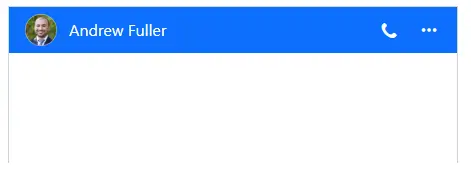
Add call buttons, settings, and new chat actions to a custom header toolbar. Control icons, alignment, and behaviors.
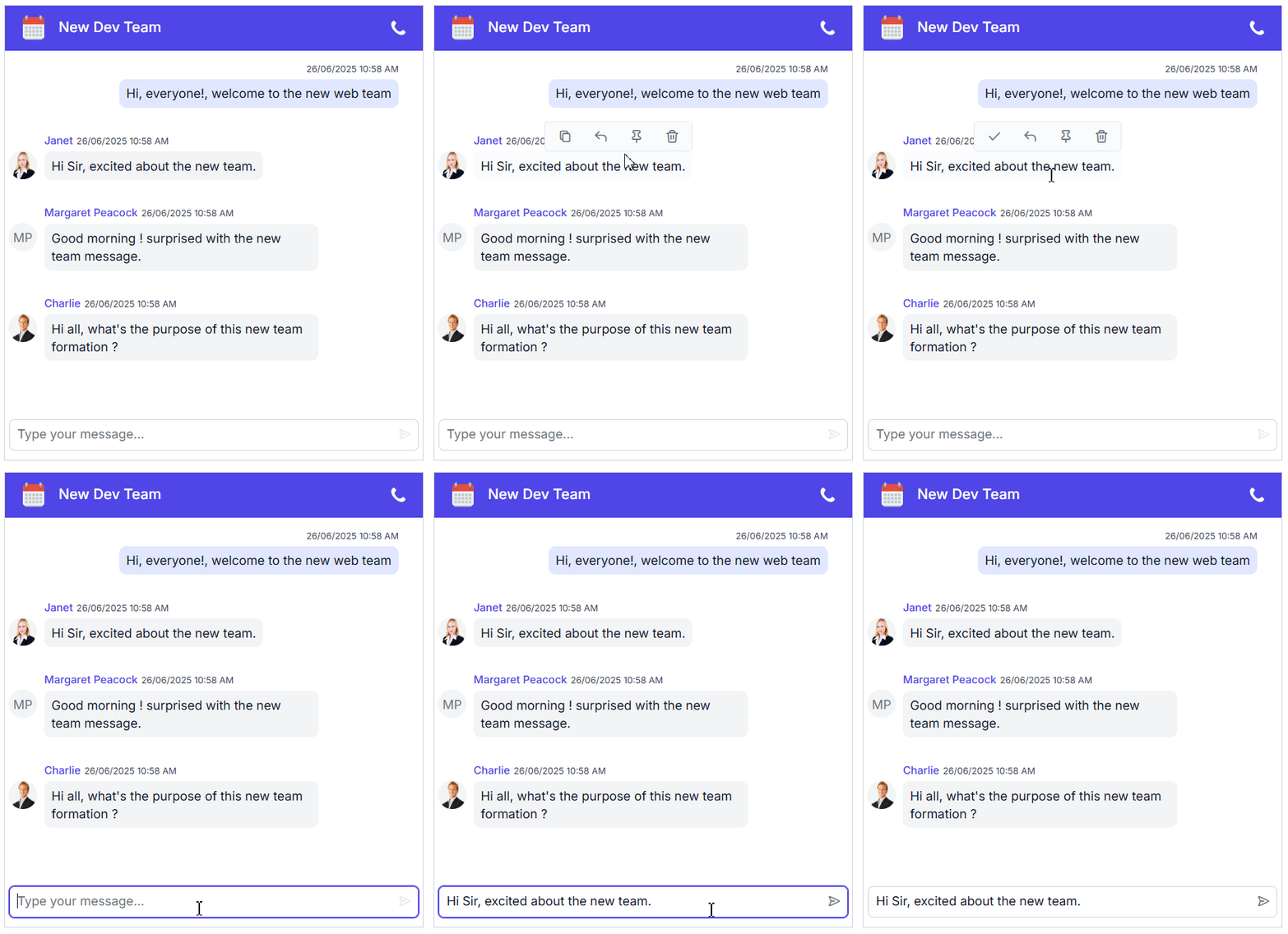
Message options
Enhance user interaction with intuitive message-level actions that make conversations more engaging and organized by using the built-in options like copy, reply, pin, and delete.
Copying message
The copy option allows users to quickly duplicate the content of any message, making it easy to reference or reuse important information across conversations or applications.
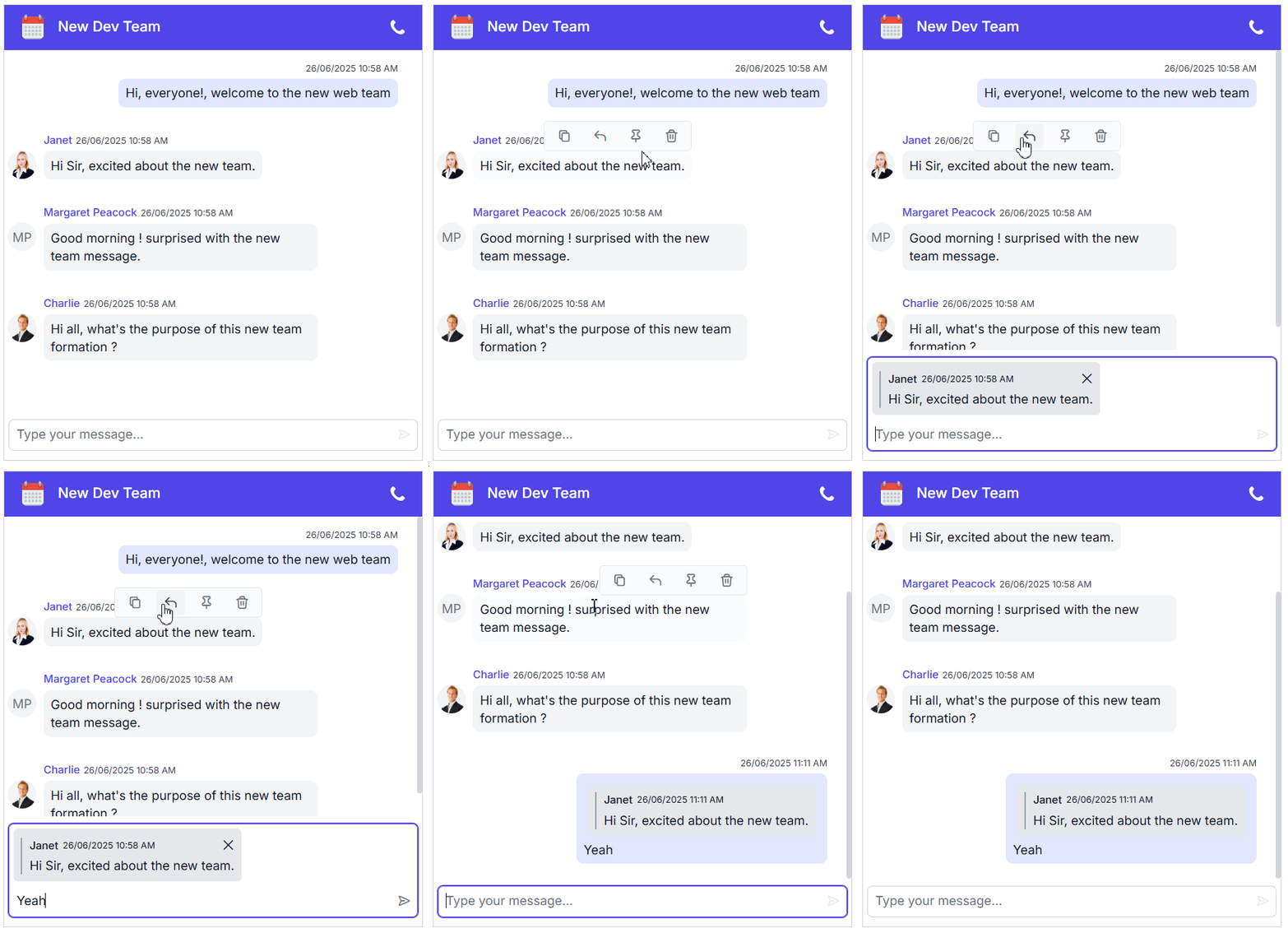
Replying message
The reply option enables users to respond directly to a specific message, preserving context and creating a threaded conversation flow that enhances clarity and engagement.
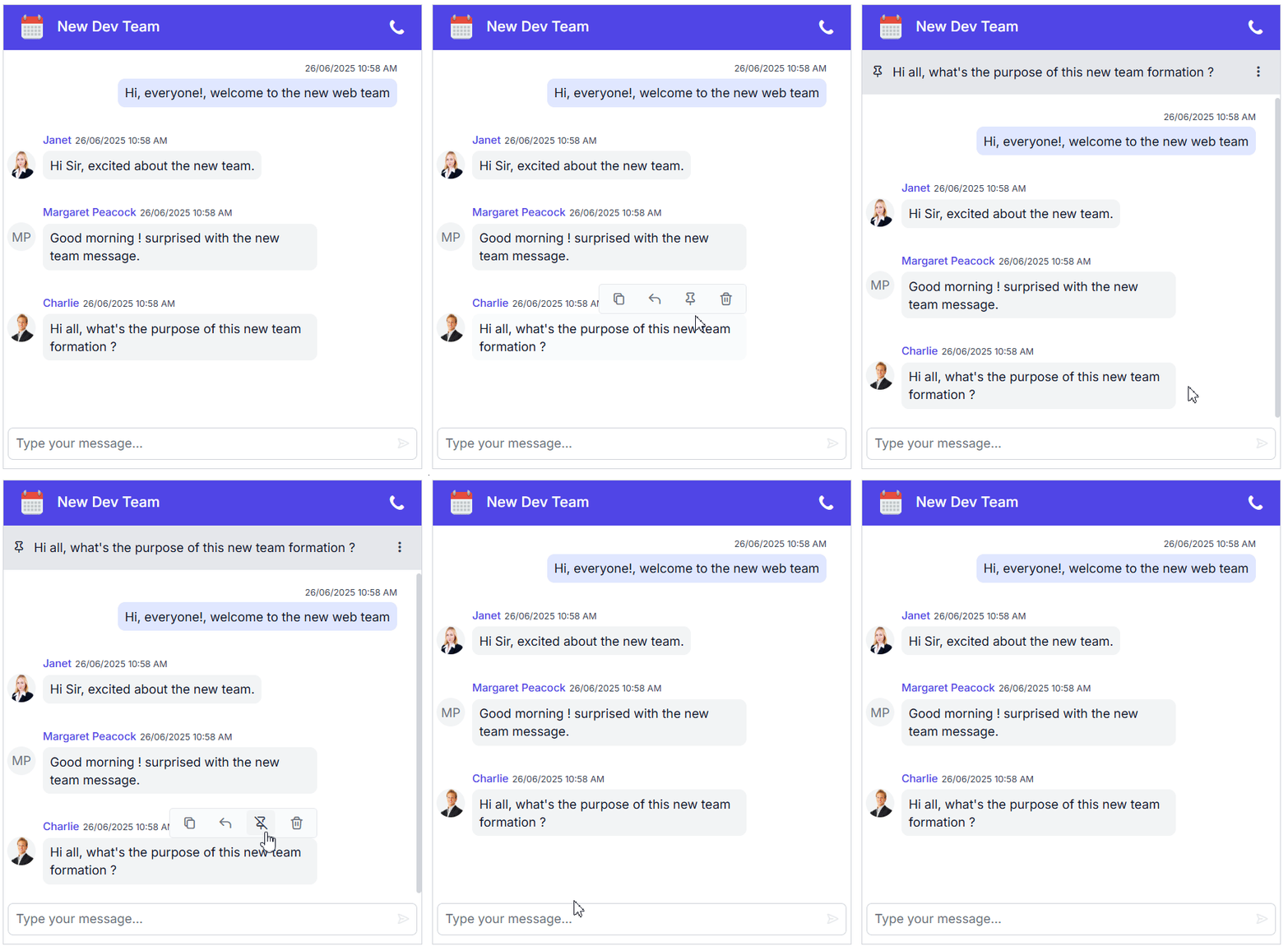
Pin message
The pin option highlights important messages by keeping them fixed and easily accessible, helping users quickly revisit key information without scrolling through the chat.
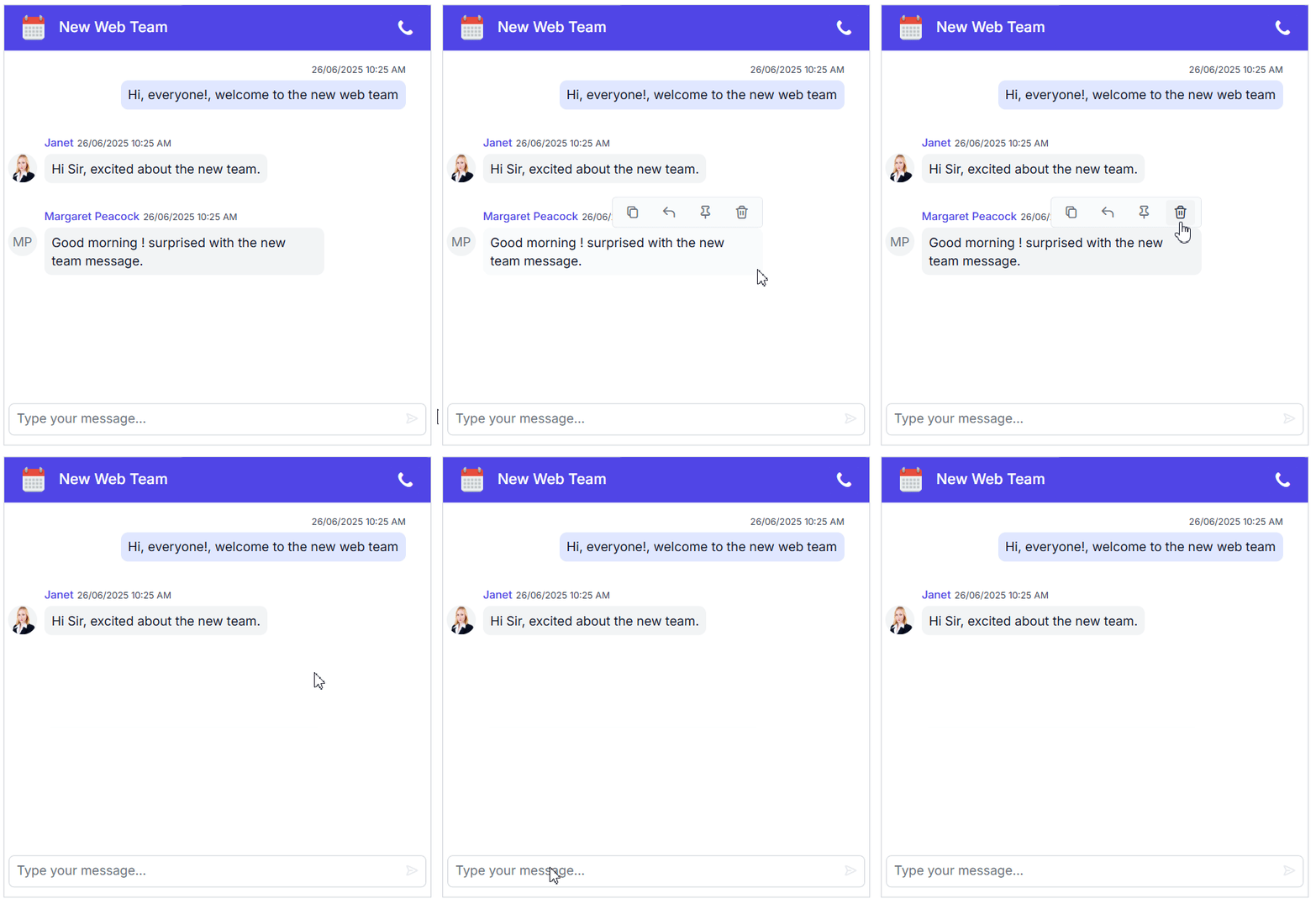
Delete message
The delete option allows users to remove messages from the conversation, helping maintain a clean and focused chat environment by eliminating unnecessary or outdated content.
Forward message
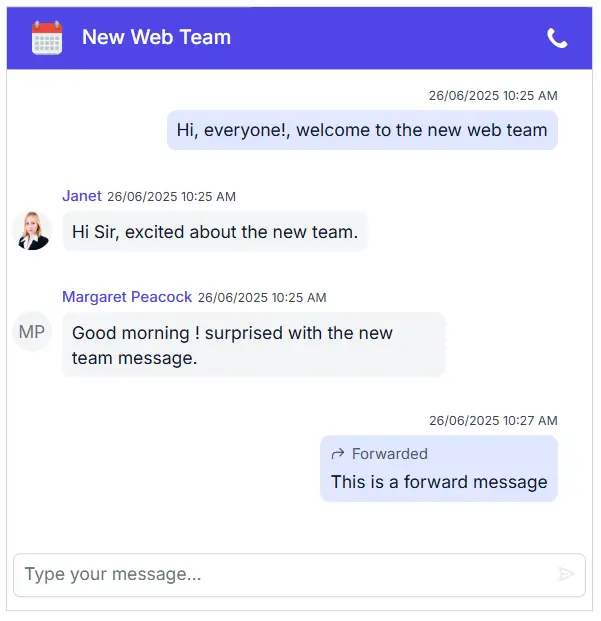
The forward option lets users share messages across different chats, clearly marking them as forwarded to maintain transparency and streamline content redistribution.
Message templates
Redesign bubbles with custom layouts, colors, fonts, and embedded content, from simple text to rich cards.
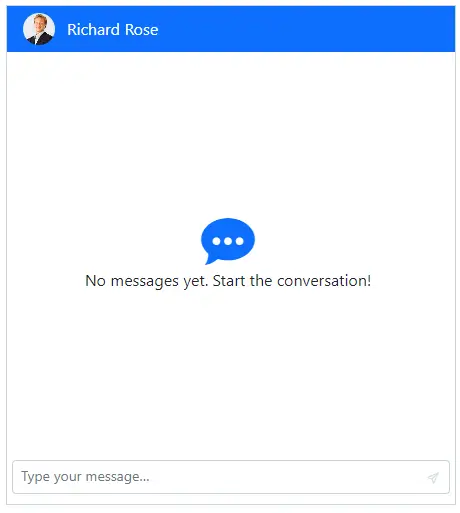
Empty chat template
Welcome users with branded onboarding, intro text, graphics, or helpful prompts when the thread is empty.
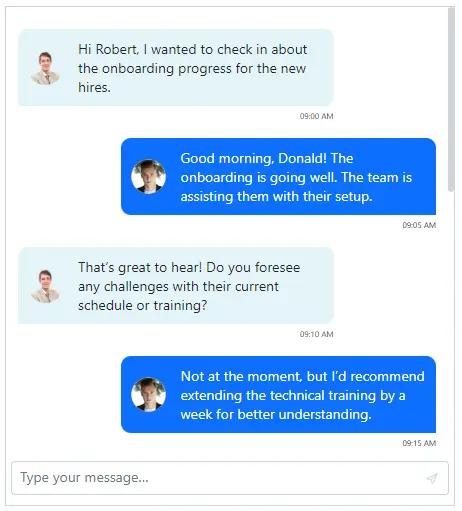
Message template
The message template provides flexibility to customize the appearance and styling of each message. Modify text styling, layout, and other design elements to ensure a personalized chat experience.
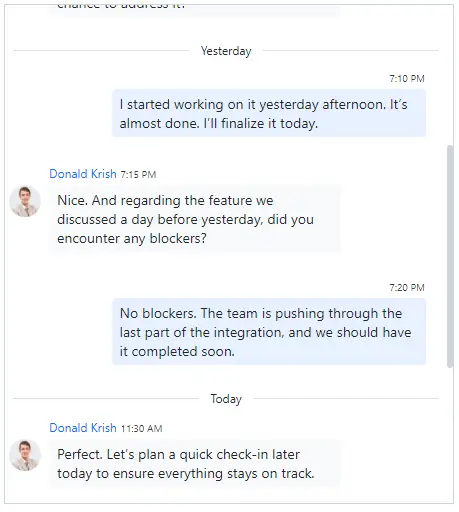
Time break template
Customize how time breaks are displayed with the time break template, such as showing “today,” “yesterday,” or specific dates. This enhances conversation organization by clearly separating messages based on time, improving readability and user experience.
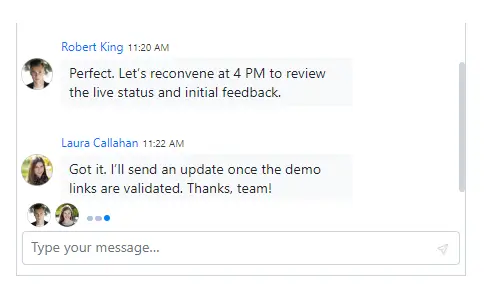
Typing indicator template
The typing indicator template customizes the display of users currently typing a message. It allows the styling and positioning of the typing indicator, enhancing the user experience.
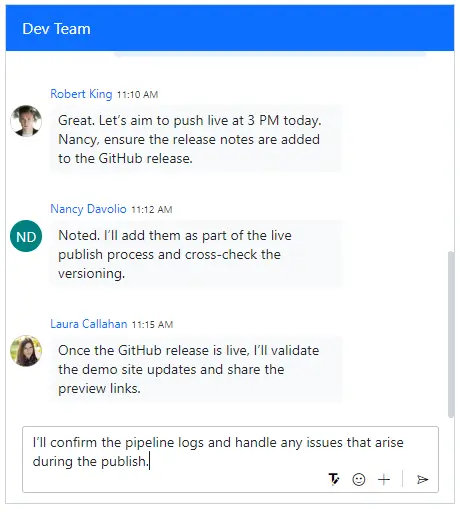
Footer template
Replace the default composer with your own emoji pickers, rich text inputs, or attachment flows to fit your UX.
Accessibility
- Full support for WAI-ARIA accessibility practices for screen readers and assistive devices.
- UI visual elements such as foreground color, background color, line spacing, text, and images are designed based on WCAG 2.0 standards.
- Right-to-left (RTL) text direction can be set for users of RTL languages like Hebrew, Arabic, or Persian.
Developer-friendly APIs
The Angular Chat UI component offers APIs and templates for customizing its appearance and behavior. With these APIs, developers can create a unique and highly customized Chat UI that fits seamlessly into their applications.
Other supported frameworks
The Chat UI is available for the Blazor, React, JavaScript, Vue, ASP.NET Core and ASP.NET MVC frameworks. Explore its platform-specific options through the following links:




Supported browsers
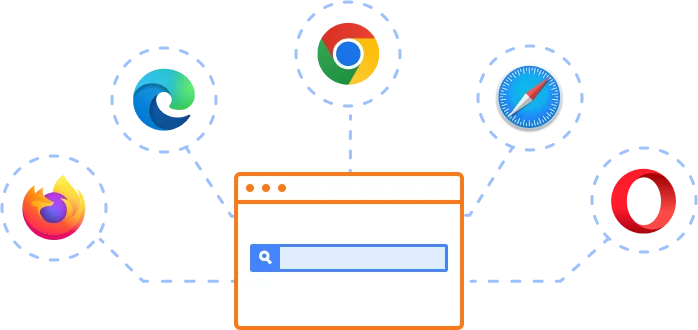
The Angular Chat UI works well with all modern web browsers, including Chrome, Firefox, Edge, Safari, and Opera.
AI-assisted development
Build feature-rich Angular Chat UI experiences faster
Accelerate messaging interface development with Syncfusion AI tools that turn requirements into fully configured chat experiences with minimal setup.
Agentic UI Builder
Turn prompts into ready-to-use UI screens, layouts, and workflows with Syncfusion Angular components.
Example Prompt Create a team messaging interface with reactions, typing indicators, and grouped conversations.
Agent Skills
Accelerate development with Syncfusion AI Agent Skills for faster implementation and integration.
Example Prompt Generate a Angular chat UI with grouped messages, timestamps, and typing indicators.
MCP Server
Accelerate development with AI that generates, configures, and troubleshoots component code directly in your IDE.
Example Prompt Show how to dynamically load chat history in the Syncfusion Angular Chat UI.
Not sure how to create your first Angular Chat UI? Our documentation can help.
I’d love to read it nowFrequently Asked Questions
Why should you choose Syncfusion Essential Studio Angular Chat UI?
- Provides a flexible chat UI designed for modern real-time messaging applications.
Includes features like real-time typing indicators and message suggestions.
Supports time breaks and on-demand message loading.
Offers extensive customization for messages, headers, and footers.
- One of the best Angular Chat UI in the market that offers feature-rich UI to interact with the software.
Simple configuration and API.
- Support for all modern browsers.
- Mobile-touch friendly and responsive.
Extensive learning resources such as demos and documentation to learn quickly and get started with Angular Chat UI.
Where can I find the Syncfusion Angular Chat UI demo?
You can find our Angular Chat UI demo here, which demonstrates how to render and configure the Chat UI.
Can I customize the appearance of the Angular Chat UI component?
Yes. Syncfusion’s Angular Chat UI component is fully customizable. You can modify themes, colors, message styles, avatars, and layouts to match your application’s branding and design requirements.
How does the typing indicator works in group chats of Angular Chat UI?
The typing indicator updates in real-time and can be customized per user or group context to show who is currently typing.
Can I lazy-load older messages in Angular Chat UI?
Yes. On-demand loading allows users to fetch older messages when scrolling upward, improving initial load performance in your Chat widget.
Which features improve chat readability and UX in Angular Chat UI component?
Adaptive time breaks(e.g., Today or Yesterday), typing indicators, message statuses (sent, delivered, read), avatars, initials, and lazy loading are available.
Are file attachments supported in Angular Chat UI?
Yes — use the attachment configuration (e.g., attachmentSettings, enableAttachments) exposed in the Chat UI API to handle uploads and limits.
Can I download and utilize the Syncfusion Angular Chat UI for free?
No, this is a commercial product and requires a paid license. However, a free community license is also available for companies and individuals whose organizations have less than $1 million USD in annual gross revenue, 5 or fewer developers, and 10 or fewer total employees.
How do I get started with Syncfusion Angular Chat UI?
A good place to start would be our comprehensive getting started documentation.
How do I implement features like typing indicators and read receipts?
The Syncfusion Chat UI supports real-time interaction features. You can easily enable typing indicators and read receipts by using the component’s event hooks and state management.
Is RTL (Right-to-Left) layout supported in Angular Chat UI?
Yes. The Angular Chat UI fully supports RTL layouts , ensuring proper alignment, message flow, and text direction for languages such as Arabic, Hebrew, and Persian. It automatically flip layout and text direction when you enable RTL mode.
Can I use the Angular Chat UI for customer support?
Definitely. Its extensibility, real-time data binding, and accessibility make it ideal for building live chats for support systems within Angular applications.
Can I pair the Angular Chat UI with AI responses?
You can integrate Chat UI with other Syncfusion components, like AI AssistView, to display prompt/response flows and streaming outputs, then wire your AI backend.
How can I customize message data and collections in Angular Chat UI?
The Messages documentation explains message collections, properties (ID, text, author, time stamps), and advanced options like pinning.
Trusted by the world’s leading companies

Our Customers Love Us




Transform your applications today by downloading our free evaluation version
No credit card required | 44K+ downloads
Syncfusion Angular Chat UI Resources


 Figma Download
140+ ANGULAR UI COMPONENTS
Standalone UI SDKs
Integrate the DataGrid, Chart, Scheduler, Gantt, Rich Text Editor, File Manager, and Diagram UI components into applications to enable rich interaction and visualization, delivering a seamless user experience.
Document Solutions
Integrate the PDF Viewer, DOCX Editor, Spreadsheet Editor, and document-processing libraries into the Angular applications to enable a smooth user experience.







