

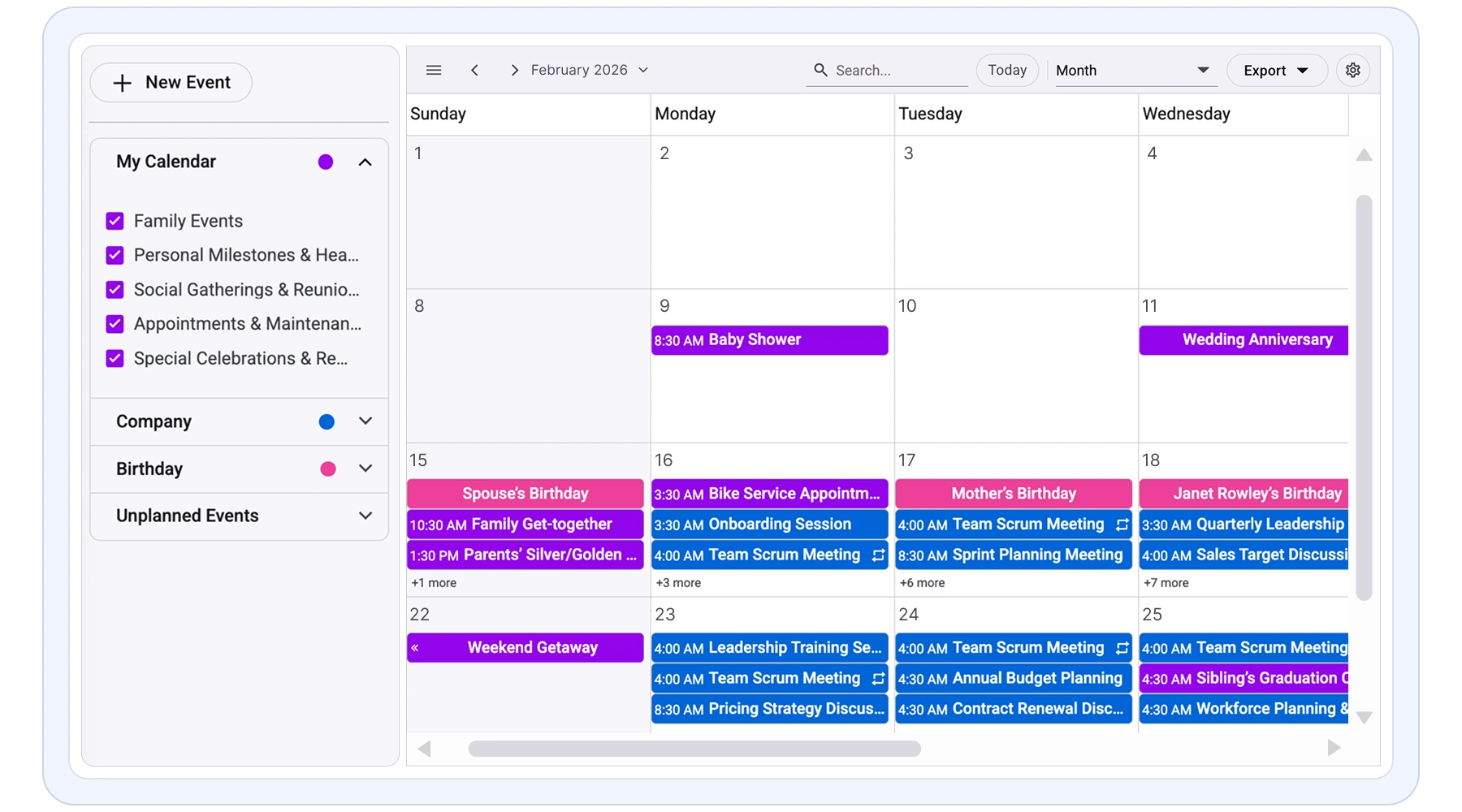
Overview
The Syncfusion React Scheduler is a flexible and high-performance event calendar component built for managing time-based data and resources in React applications. It is commonly used to build booking systems, appointment scheduling solutions, and resource planning applications where accuracy, usability, and scalability matter. Designed to handle complex scheduling scenarios, it helps teams deliver rich, user-friendly calendar experiences without extensive custom UI work.
Interact with the Live React Scheduler
Runs in-browser. No installation required.
Why choose Syncfusion React Scheduler?
High performance
Optimized rendering and efficient data handling ensure fast load times and smooth scheduling, even when managing large volumes of events in enterprise applications.
Flexible data binding
Connect easily to REST APIs, JSON, or cloud data sources. Supports real-time updates and seamless integration with modern application backends.
AI-Assisted Development
Build scheduling and calendar experiences faster with the Agentic UI Builder and Syncfusion Agent Skills. Generate appointment workflows, recurring events, resource scheduling, and timeline views with minimal manual effort.
Fully responsive
Adaptive layout delivers a consistent scheduling experience across desktops, tablets, and mobile devices without additional configuration.
Customizable themes
Personalize the scheduler’s appearance using built-in themes or custom styling to match your application’s design and branding. Utilize the online Theme Studio tool to customize themes of Scheduler easily.
Globalization support
Supports multiple languages, time zones, and regional formats, enabling developers to build scheduling applications for global users.
React Scheduler Use Cases
Build powerful scheduling and booking applications using the Syncfusion React Scheduler. It supports real-world scenarios such as healthcare scheduling, resource booking, hospitality reservations, and workforce management.
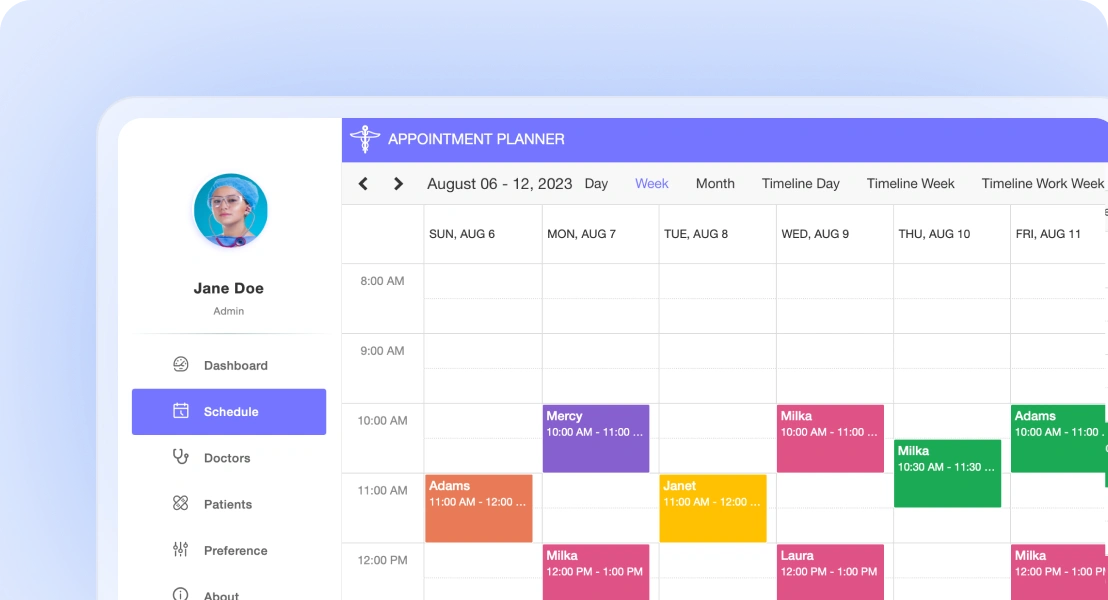
Healthcare scheduling
Manage patient appointments, doctor availability, and recurring visits efficiently. Prevent conflicts and support accurate scheduling across departments and locations.
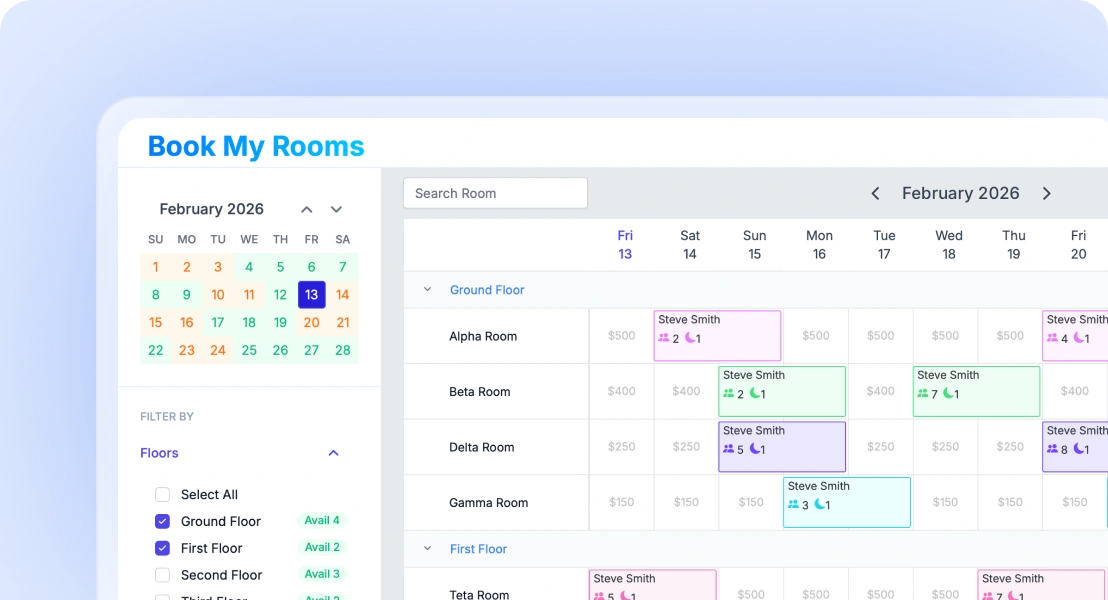
Resource and room booking
Enable users to reserve meeting rooms, equipment, or shared spaces. Prevent double bookings and manage resource availability with ease.
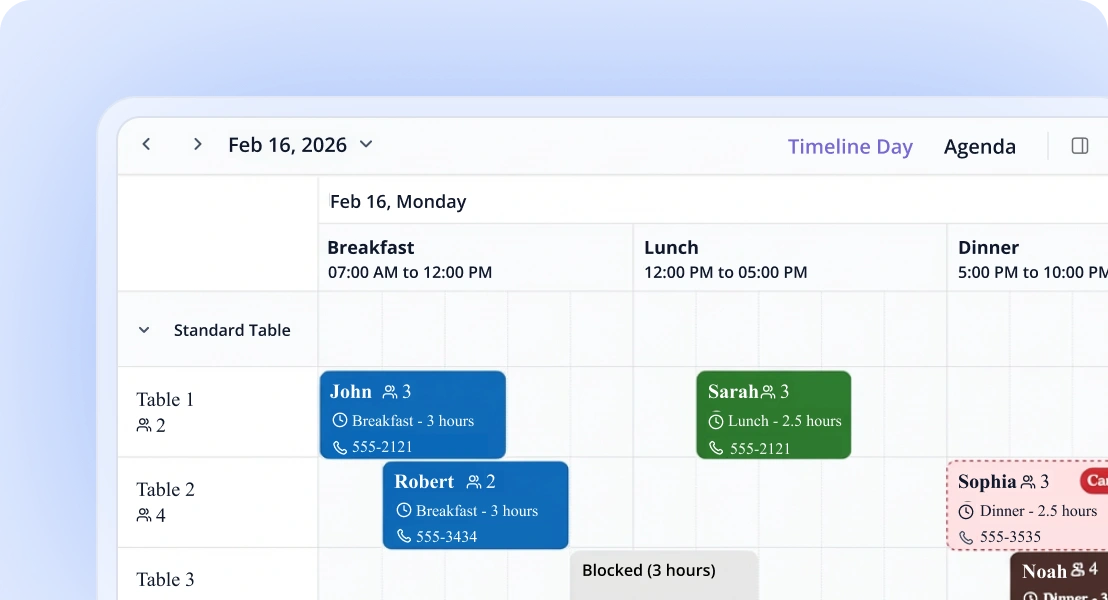
Hotel reservations
Handle room bookings and guest schedules efficiently. Easily update and reschedule reservations using intuitive scheduling interactions.
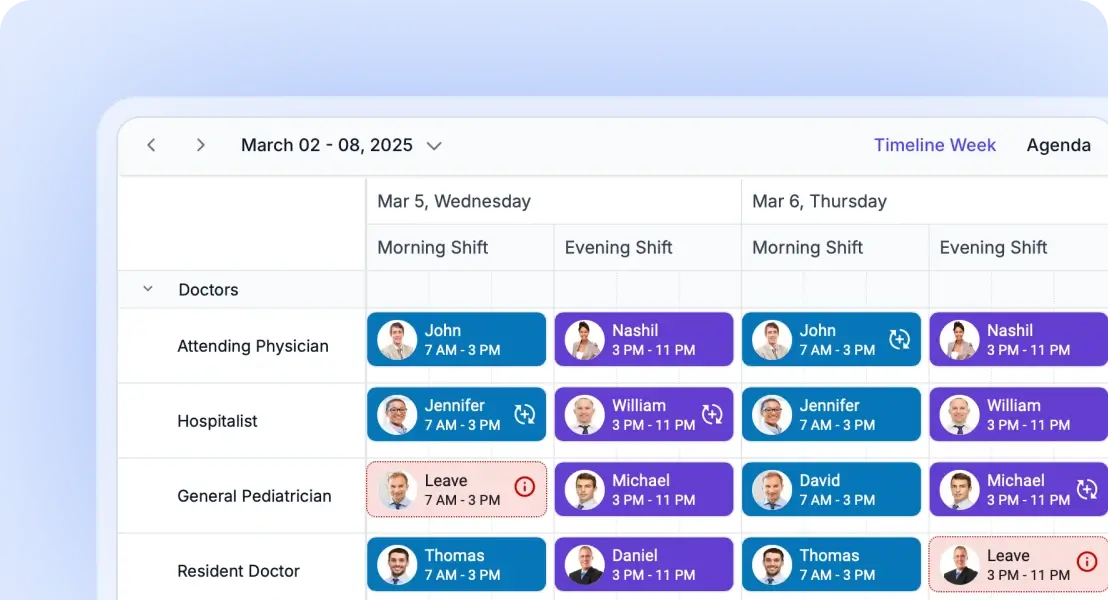
Employee shift scheduling
Plan employee shifts, assign roles, and manage workforce availability. Simplify staff coordination and scheduling operations.
AI Scheduler for Smarter Planning
The AI Scheduler organizes your calendar with ease. Just type instructions like, “Meet the team every Friday at 10 AM”, and it handles the rest. It checks for conflicts, suggests optimal times, and organizes your calendar visually.
React Scheduler Code Example
Easily get started with the React Scheduler using a few simple lines of TSX code example as demonstrated below. Also explore our React Scheduler Example that shows you how to render and configure a Scheduler in React.
import { ScheduleComponent, Day, Week, WorkWeek, Month, Agenda, Inject, type EventSettingsModel } from '@syncfusion/ej2-react-schedule';
import './App.css'
import { data } from './datasource'
function App() {
    const eventSettings: EventSettingsModel = { dataSource: data }
    return (<ScheduleComponent selectedDate={new Date(2026, 1, 15)} eventSettings={eventSettings}>
        <Inject services={[Day, Week, WorkWeek, Month, Agenda]} />
    </ScheduleComponent>);
}
export default App;
const data: object [] = [
{
Id: 1, Subject: 'Scrum', StartTime: new Date(2026, 1, 16, 10, 0),
EndTime: new Date(2026, 1, 16, 12, 30), IsAllDay: false, Status: 'Completed', Priority: 'High'
},
{
Id: 2, Subject: 'Demo meeting', StartTime: new Date(2026, 1, 18, 10, 0),
EndTime: new Date(2026, 1, 18, 12, 30), IsAllDay: false, Status: 'Completed', Priority: 'High'
},
]React Scheduler views: day, week, month and timeline
A wide variety of built-in view modes are available: day, week, workweek, month, agenda, month-agenda, year, and timeline. Easily configure each individual view with different, view-specific options.
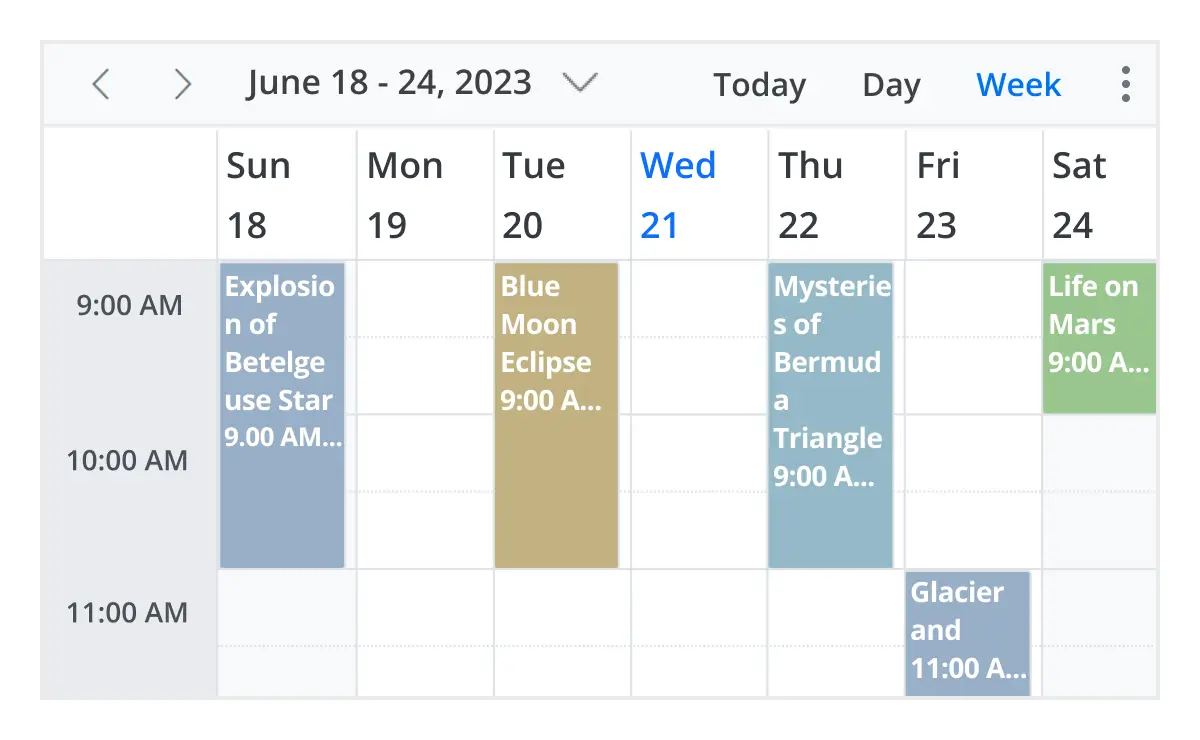
Calendar views
Several built-in calendar views are available, including day, week, workweek, month, agenda, month agenda, and year. Each view presents appointments and events in a format tailored to different scheduling needs. Visual indicators, grouped schedules, and interactive event details help users efficiently organize, track, and navigate activities across dates and time periods.
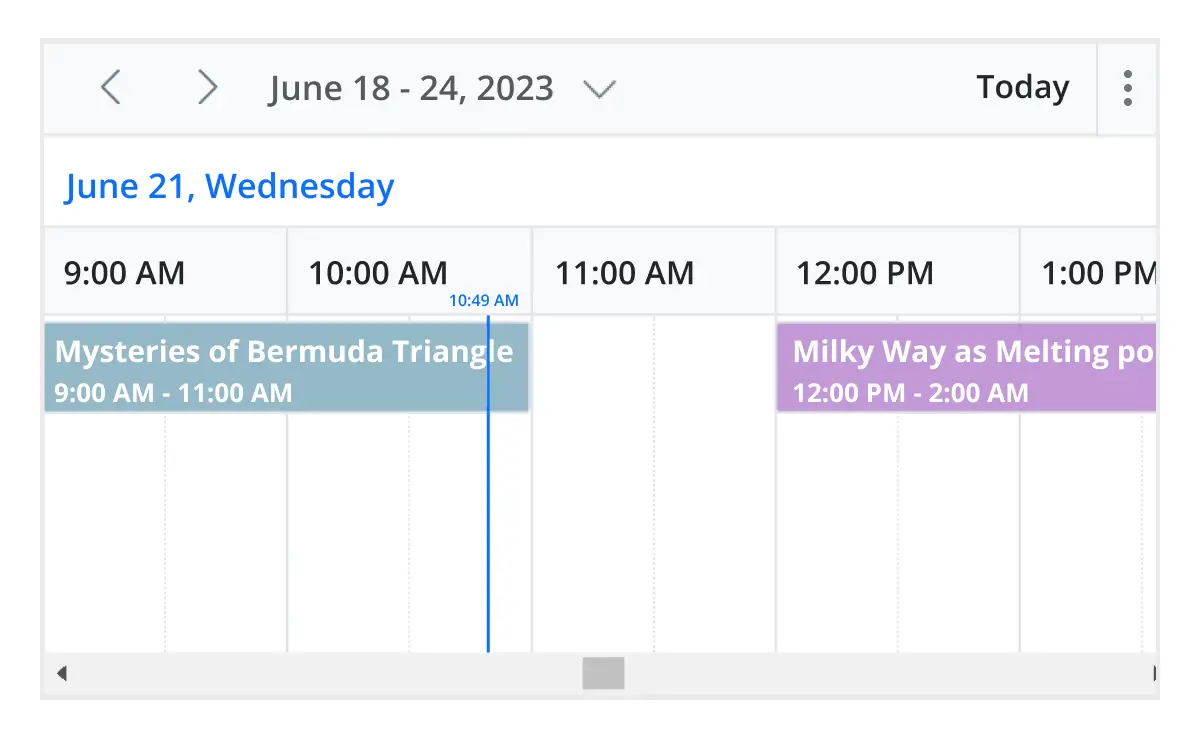
Timeline calendar views
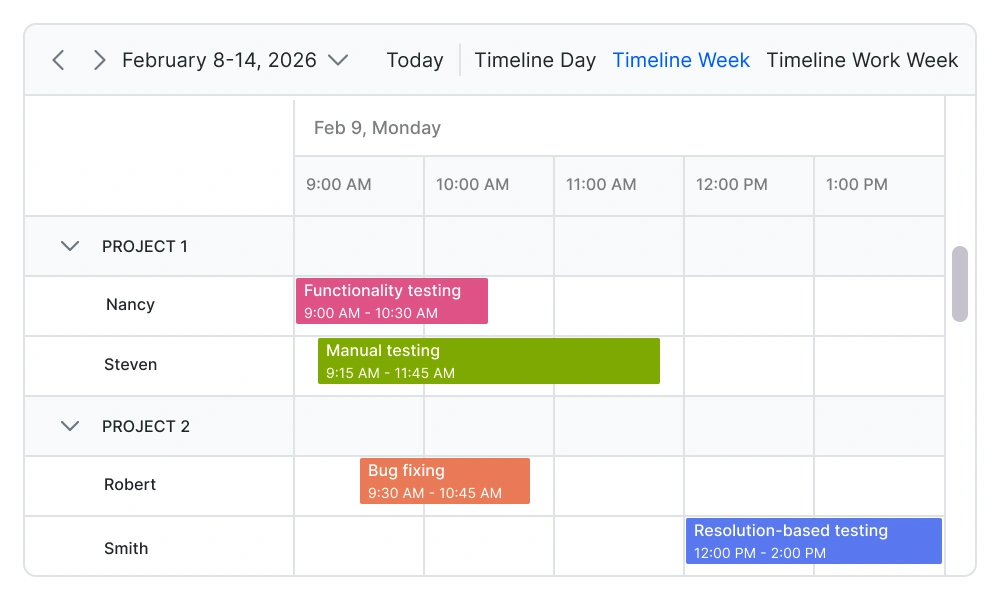
As a timeline scheduler, React Scheduler provides five built-in timeline views: timeline day, timeline week, timeline workweek, timeline month, and timeline year. Each view displays events accurately across a horizontal time axis for a single day or multiple days. To provide better performance, timeline views load resources and appointments virtually on every scroll action.
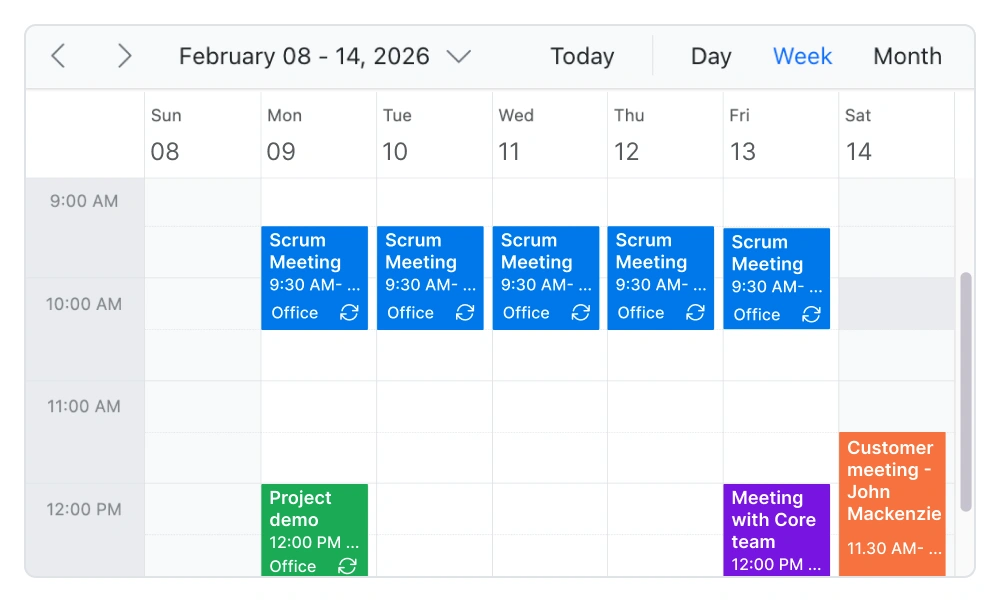
Recurring event scheduling
Easily create and manage recurring appointments with flexible recurrence rules. Schedule daily, weekly, monthly, or custom recurring events, and handle exceptions or modifications without affecting the entire series. This makes it ideal for applications such as appointment booking systems, healthcare scheduling, and workforce planning tools.
Resource calendar and resource scheduling
Use the React Scheduler as a resource calendar to efficiently manage and schedule multiple resources such as meeting rooms, employees, equipment, or service providers. Group events by resource, track availability, and prevent scheduling conflicts—essential for resource planning, workforce management, and reservation systems.
Drag-and-drop scheduling
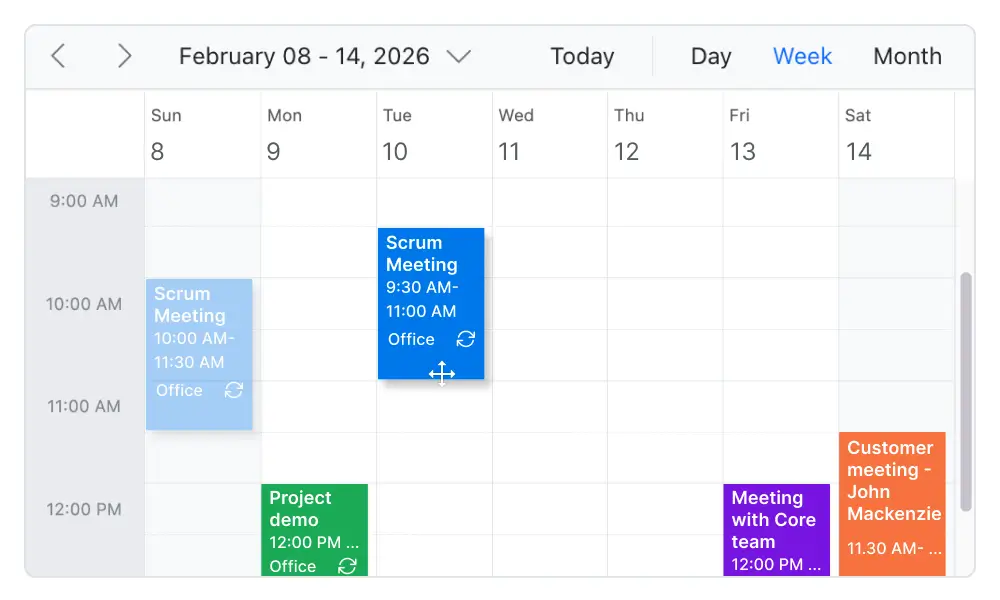
Enable intuitive scheduling with built-in drag-and-drop and resizing capabilities. Users can quickly move appointments, adjust durations, or update schedules directly from the interface. This improves scheduling efficiency and provides a seamless user experience in calendar and scheduling applications.
Event resize
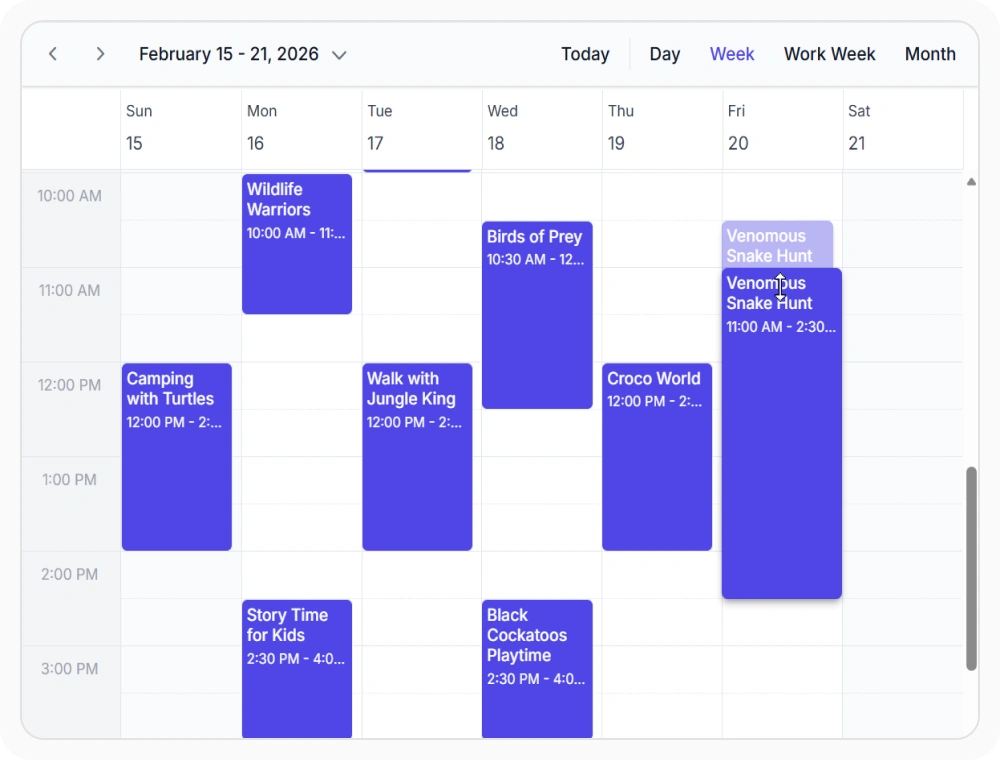
Resize appointments directly within the calendar by dragging event boundaries to extend or reduce durations. Event resizing is supported across day, week, and timeline views, with configurable snap intervals, resize lifecycle events for validation, and touch-friendly gestures for real-time feedback on desktop and mobile devices.
Time zone support
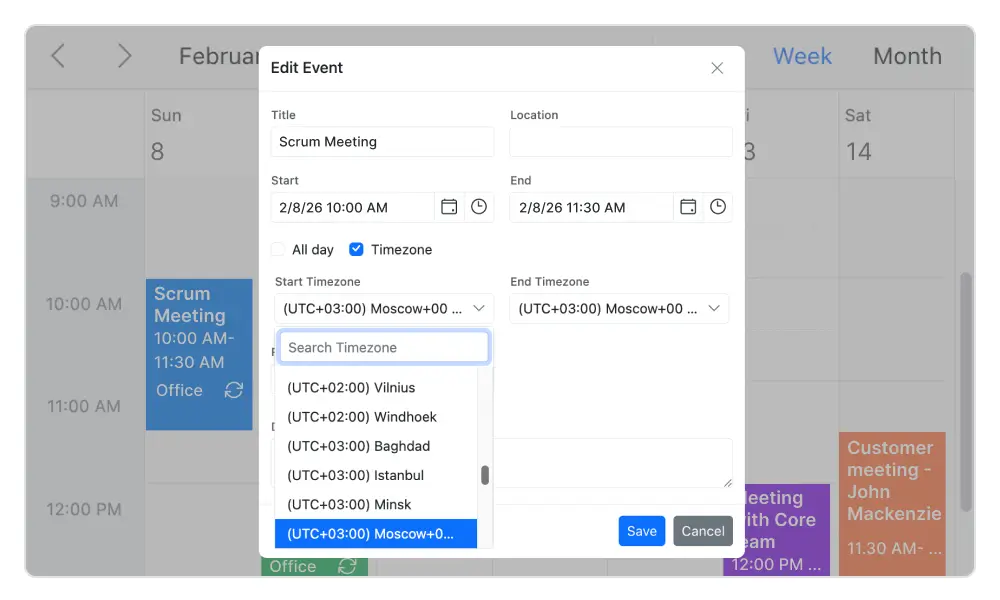
Regardless of the system time zone, the scheduler supports setting the required time zone for both the control and its events.
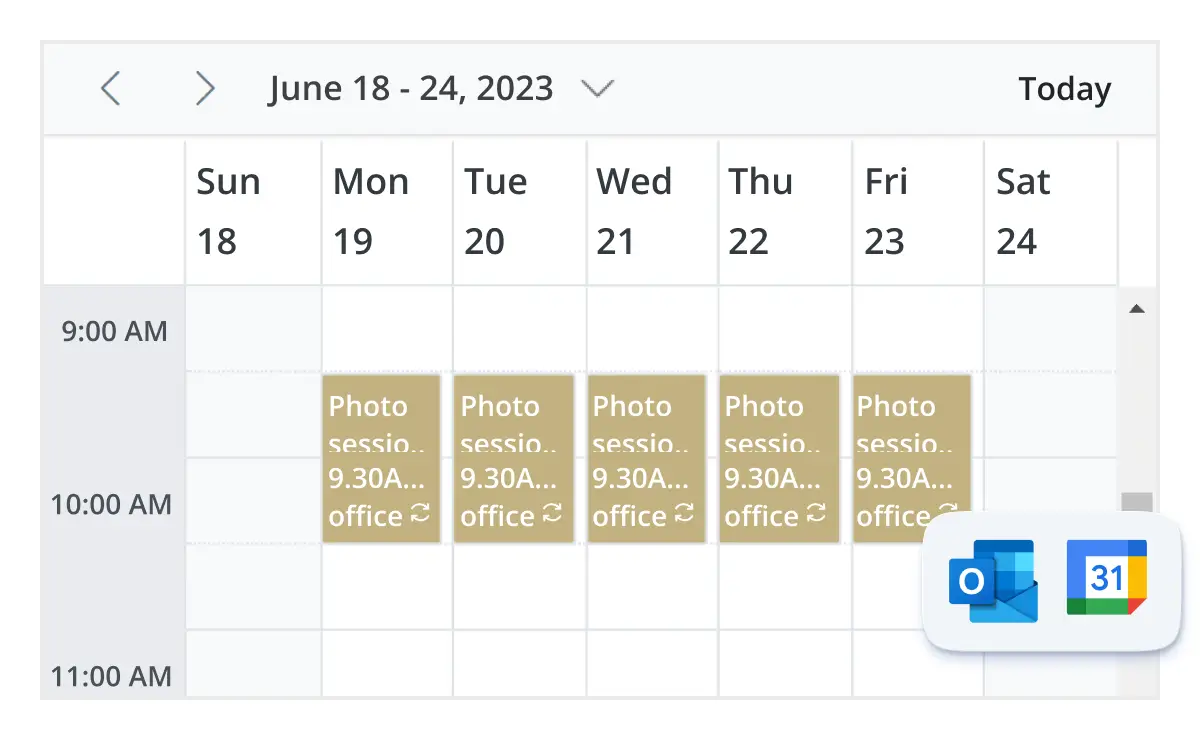
Real-time data synchronization
Real-time appointment data accurately synchronizes with our React Scheduler.
Data Binding
Bind the React Scheduler to local JSON arrays, remote APIs, and cloud services to keep appointment information synchronized. It supports CRUD operations, resource data integration, custom field mapping, and on-demand loading for scalable scheduling applications.
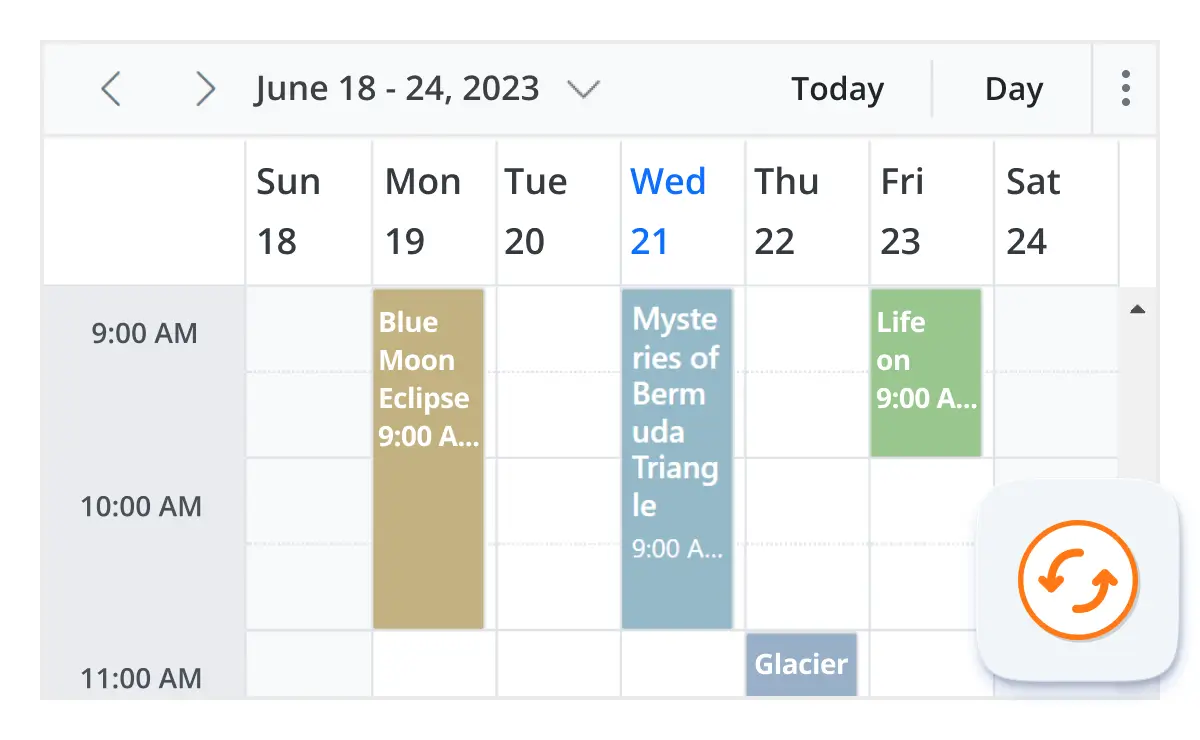
Real-time updates
The React Scheduler supports real-time appointment synchronization through integration with messaging services like SignalR and WebSockets. When connected users modify appointments, the changes appear instantly across all devices and sessions without manual refresh.
Advanced event-handling options
The Scheduler provides clear, vibrant, exact representations of events and appointments across the timeline based on their assigned time duration.

Add and edit capabilities
There is built-in support for better event handling, such as easier appointment creation and editing using the default event editor or through intuitive drag-and-resize actions. In addition, you can also add custom data fields to both the events and resource data source.

Multi-event selection
Easily select multiple events at once by pressing and holding the Ctrl key while clicking on events. On mobile devices, do the same by tapping and holding an event, and continue selecting by single-tapping other events. After successfully selecting events, delete or reposition them simultaneously.

Tooltip
The customizable tooltip displays event information while the mouse pointer is hovering over the event. Do the same on mobile devices by tapping and holding an event.

Appearance customization
Change the look and feel of React Scheduler events and appointments by customizing their default appearance and style using any HTML or CSS.

Clipboard
The React Scheduler supports clipboard functionality, allowing users to manage events efficiently. Users can copy selected events using the Ctrl+C shortcut, cut events with Ctrl+X, and paste events into different time slots using Ctrl+V.

Inline appointment
With this feature enabled, users can create or edit appointments inline with a single click on a Scheduler cell or an appointment subject. Pressing Enter after typing the new subject will update and save the appointment.
Customizable scheduler views
Real-time appointment data accurately synchronizes with our React Scheduler.
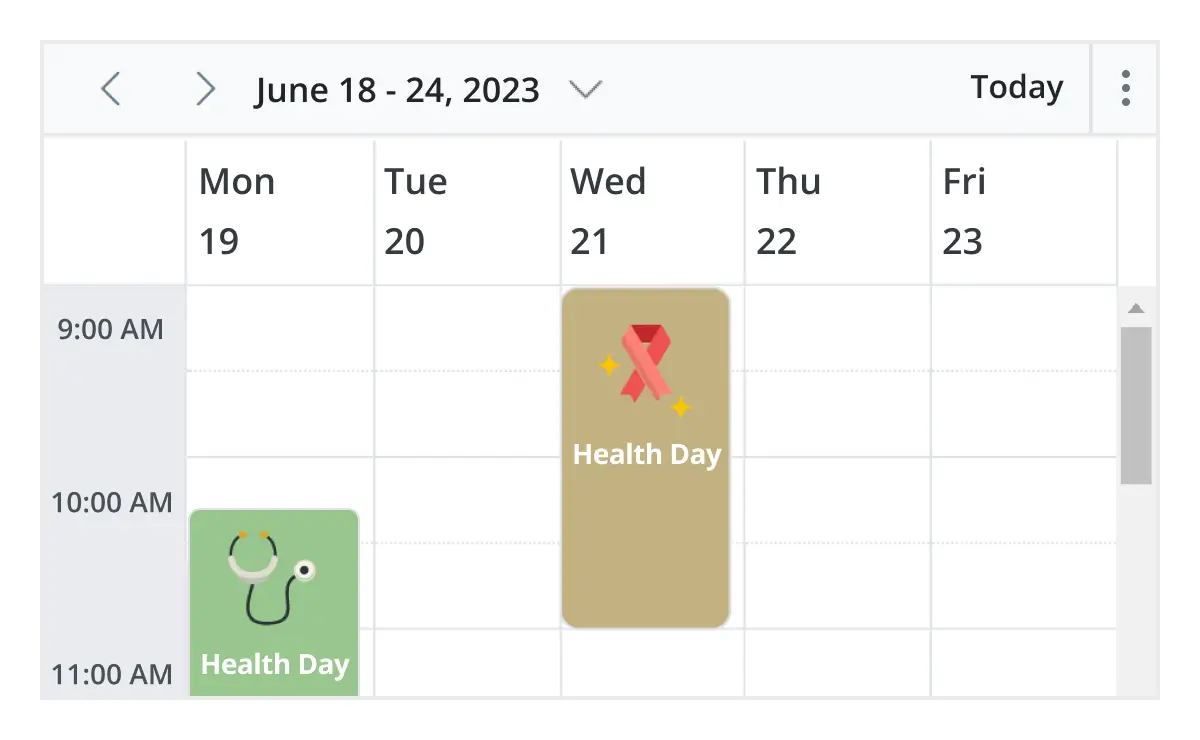
Unique view configurations
Easily configure each individual view mode with different calendar settings. For example, you can enable the grouping feature in month view and apply event templates in week view.
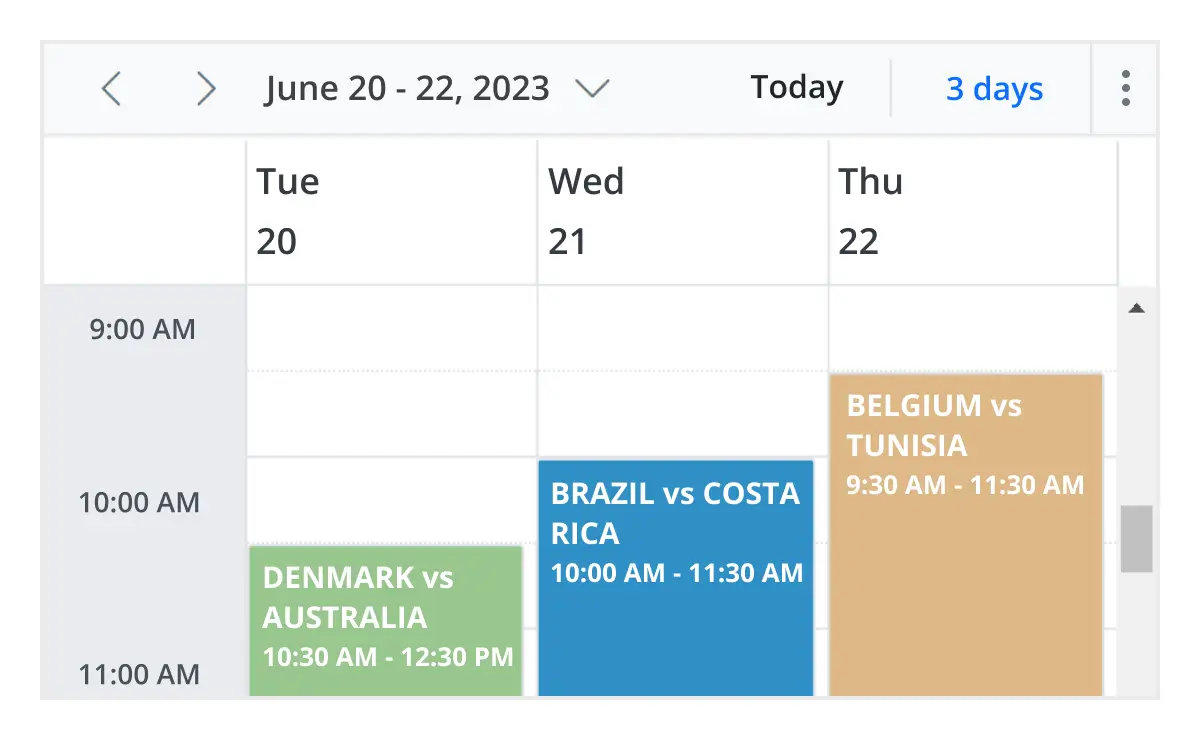
Extensible view intervals
Display multiple days, weeks, and months by extending each view mode based on the provided interval count.
Availability Management
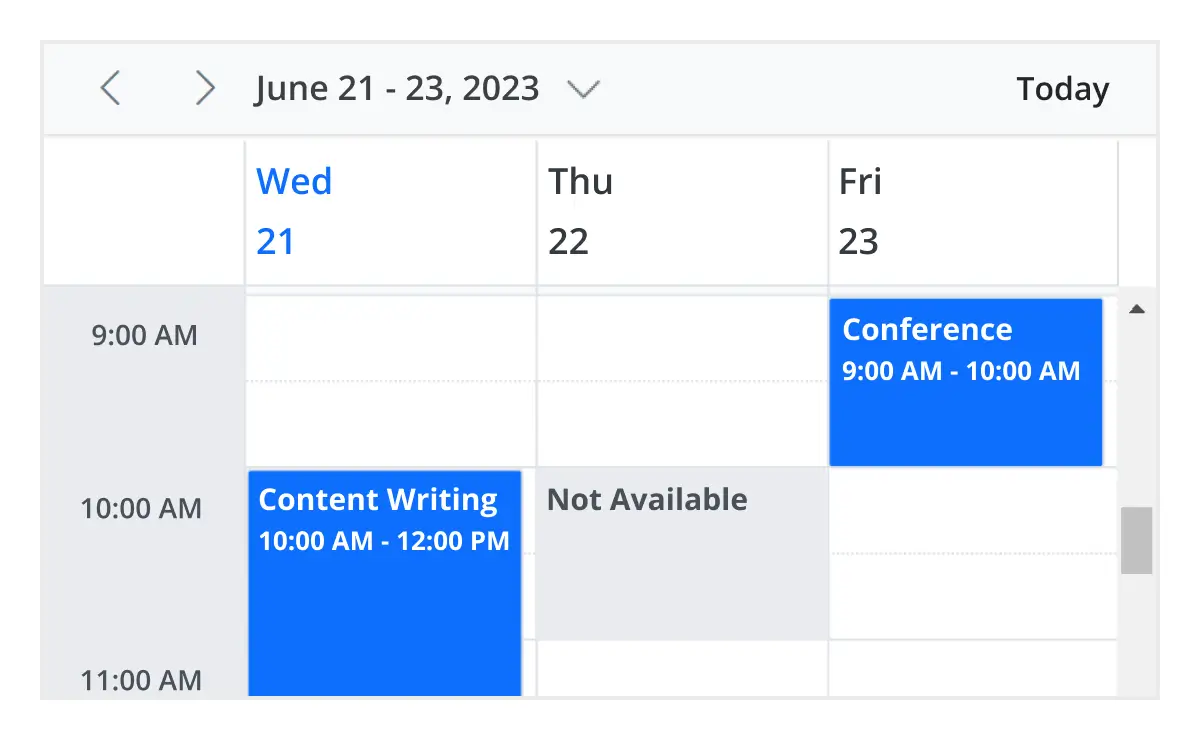
Availability management enables control over when appointments can be scheduled by setting available time slots, blocking unavailable periods, and preventing conflicting bookings. It supports customizable working hours, holidays, maintenance windows, resource-specific availability rules, and automatic conflict detection to maintain schedule accuracy.
Adaptive rows
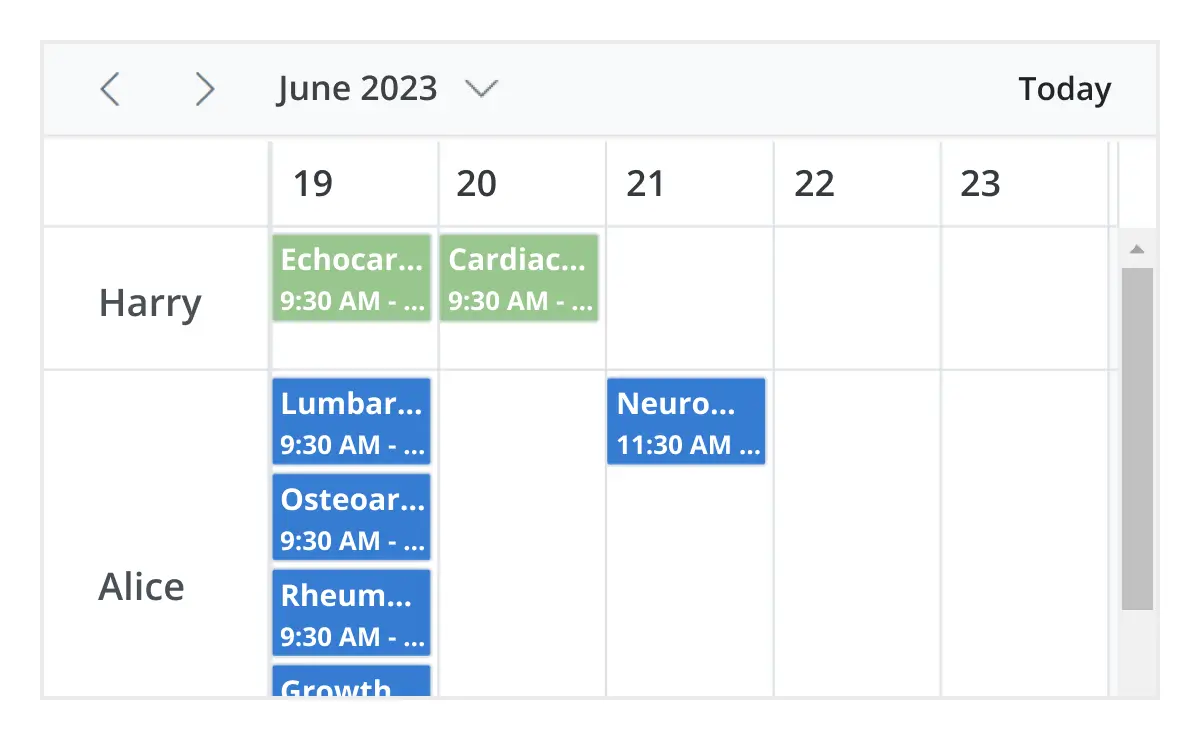
A built-in option has been added to the React Scheduler to automatically increase the height of the rows in month and timeline views when new concurrent events or appointments are added.
Context menu
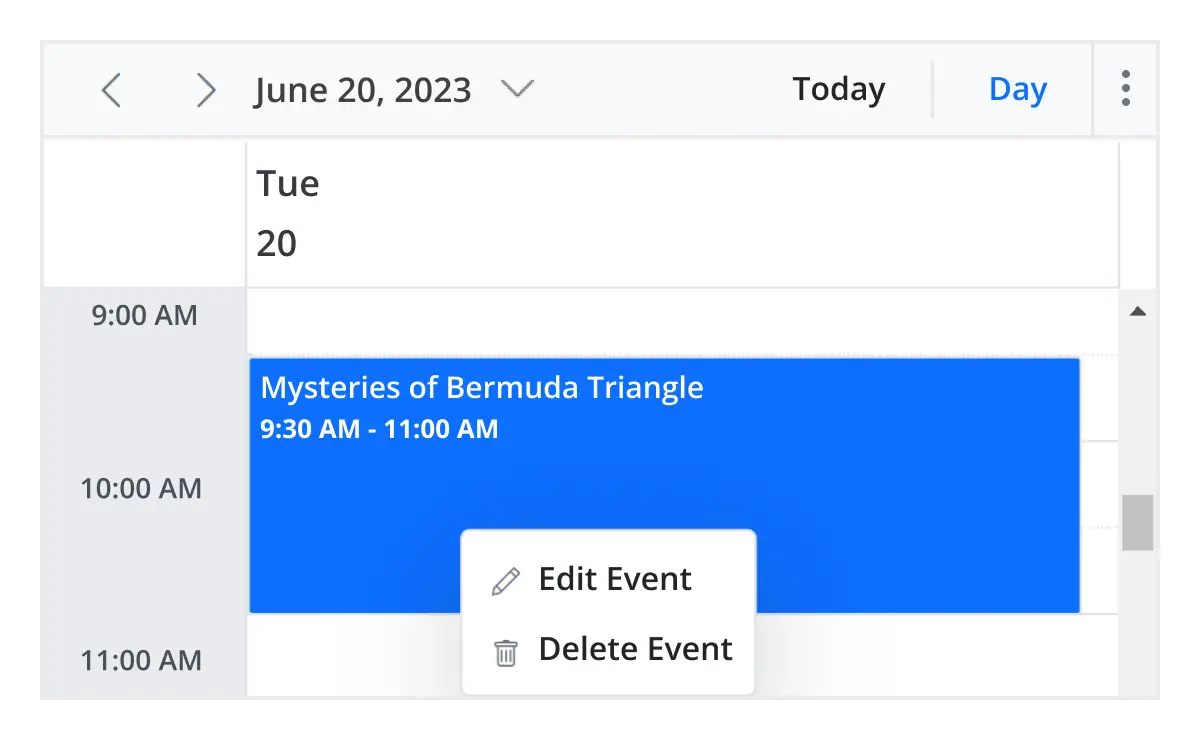
Context menu integrated with React Scheduler opens when a cell or appointment is right-clicked.
Feature-rich calendar options
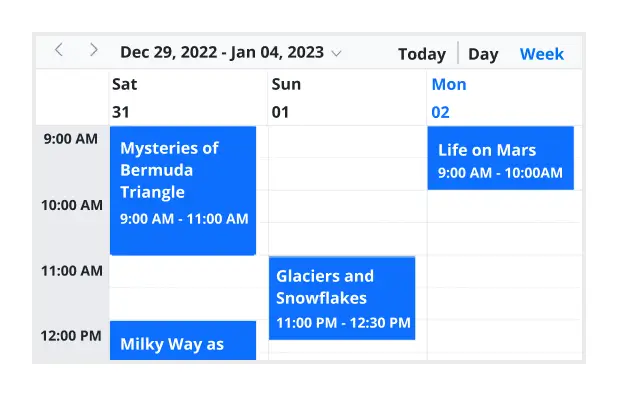
The React Scheduler inherits almost all the calendar-specific features, such as first day of the week and timescale.
First day of the week
Customize the first day of the week, which defaults to Sunday, as per the default locale. You can utilize this option for individual views, also.
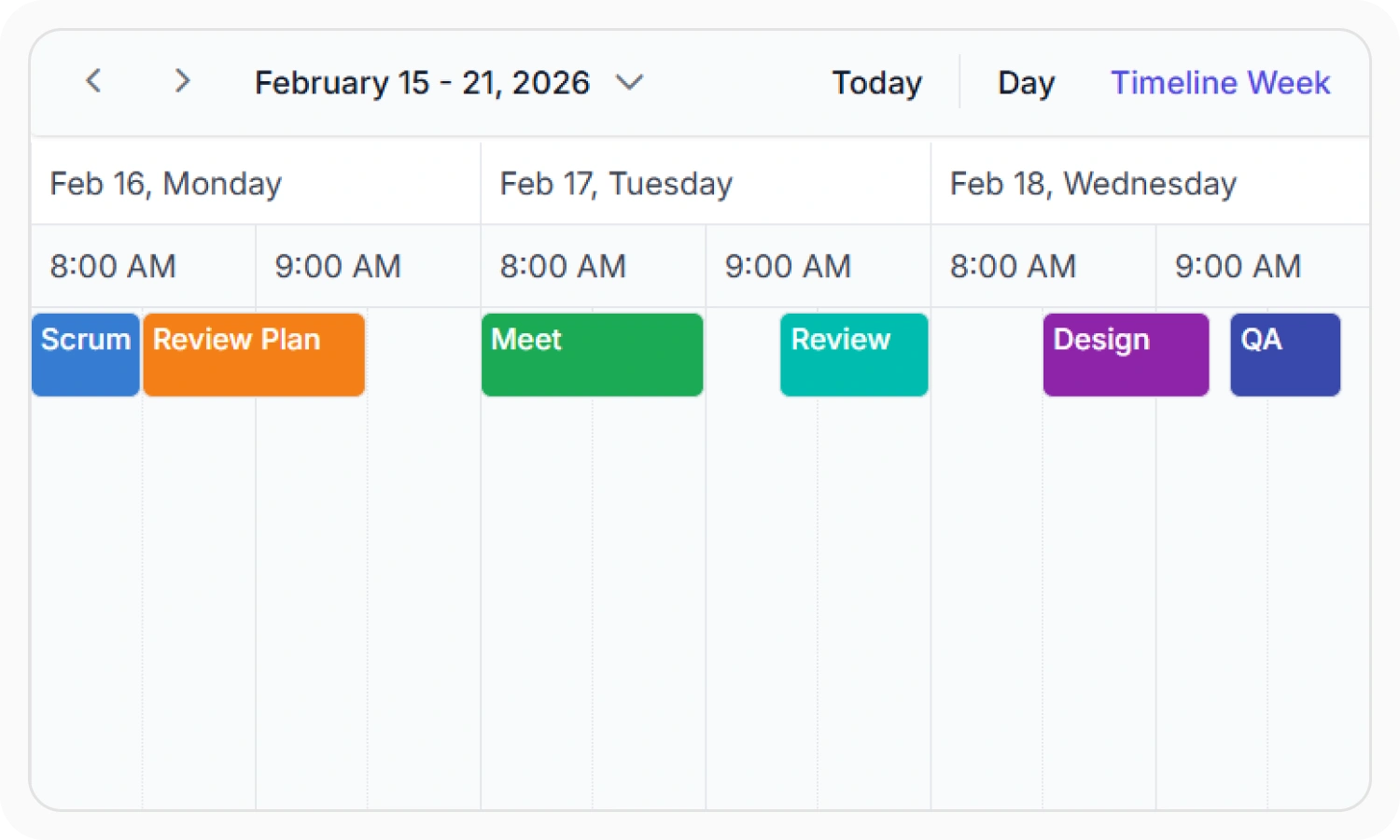
Custom start and end hours
Display the event scheduler layout with specific time durations by hiding the unwanted hours.
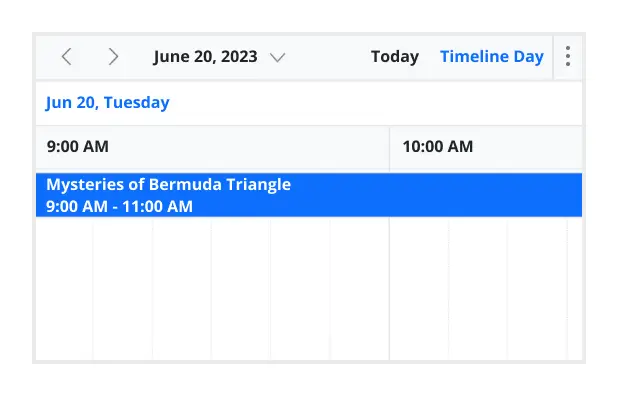
Flexible timescale
Use customizable timescale options to view a timeline of events clearly and set a different duration.
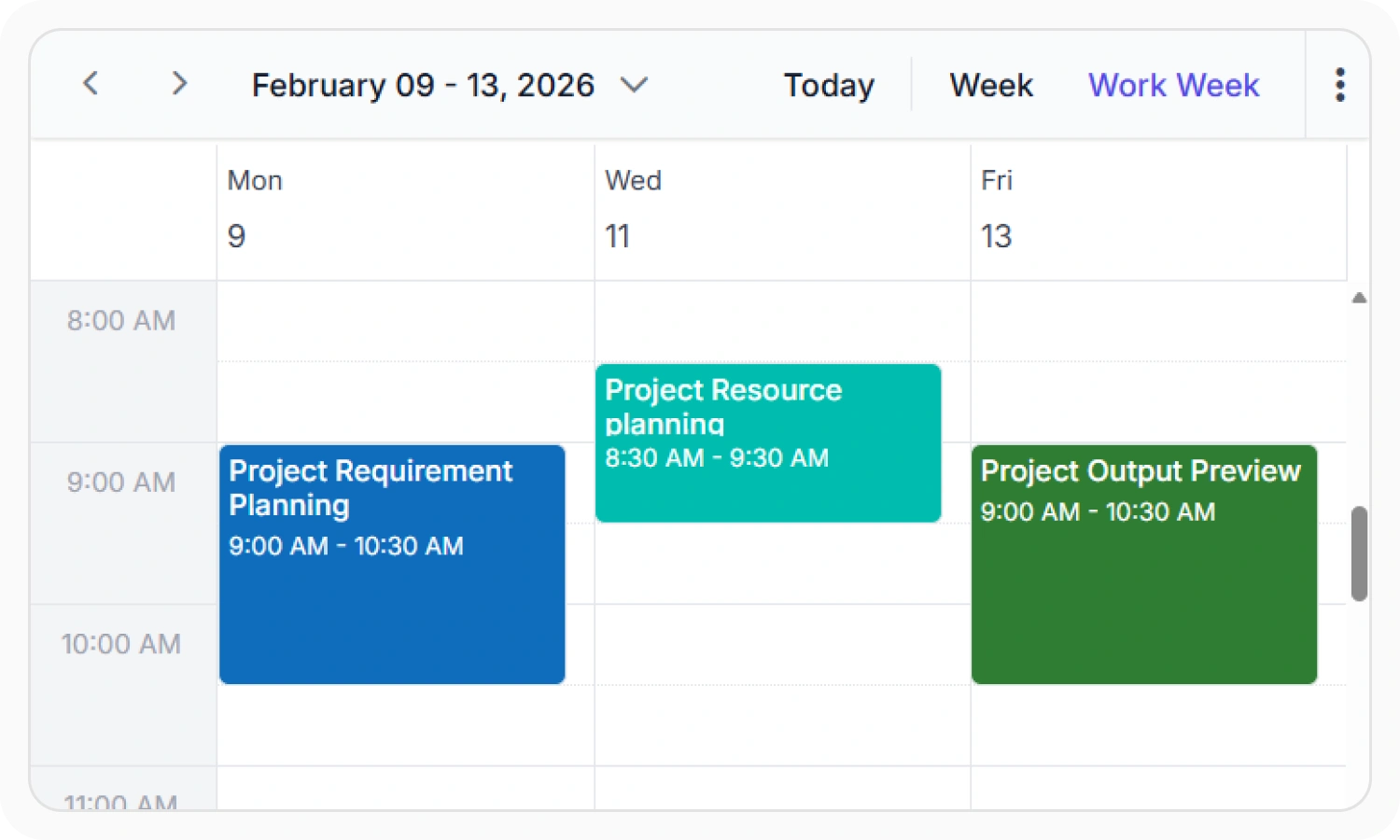
Working time
The active cells of the scheduler (displayed in white) visually represent the work days and working hours.
Highlighting current time
Indicate the current date with a highlighted date header. Mark accurately the current time on all views.
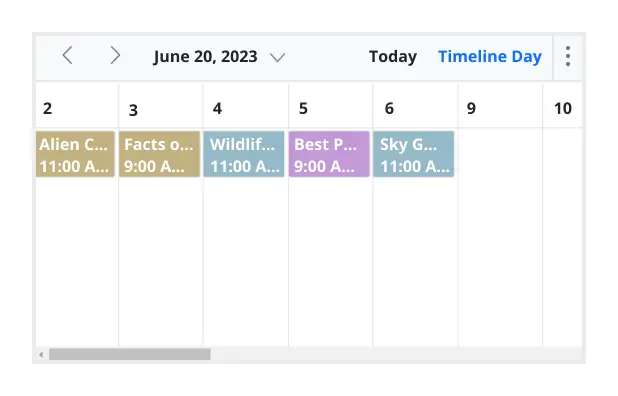
Hiding weekend days
Hiding weekend days from the Scheduler allows you to display only working days across all views.
Week number display
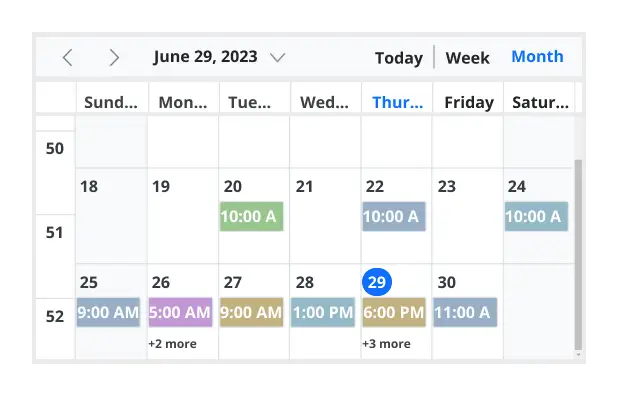
Display the week number of the current date range beside the date header in day, week, and workweek views. Also display the week number in the month view as the first column. The week number is determined by the first day of the week and week rules (first day or first full week, or first four day week).
Time mode
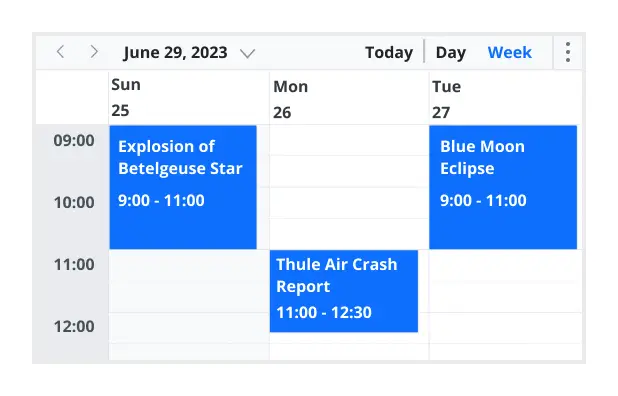
The Scheduler control supports both 12-hour and 24-hour time formats.
Completely customizable UI
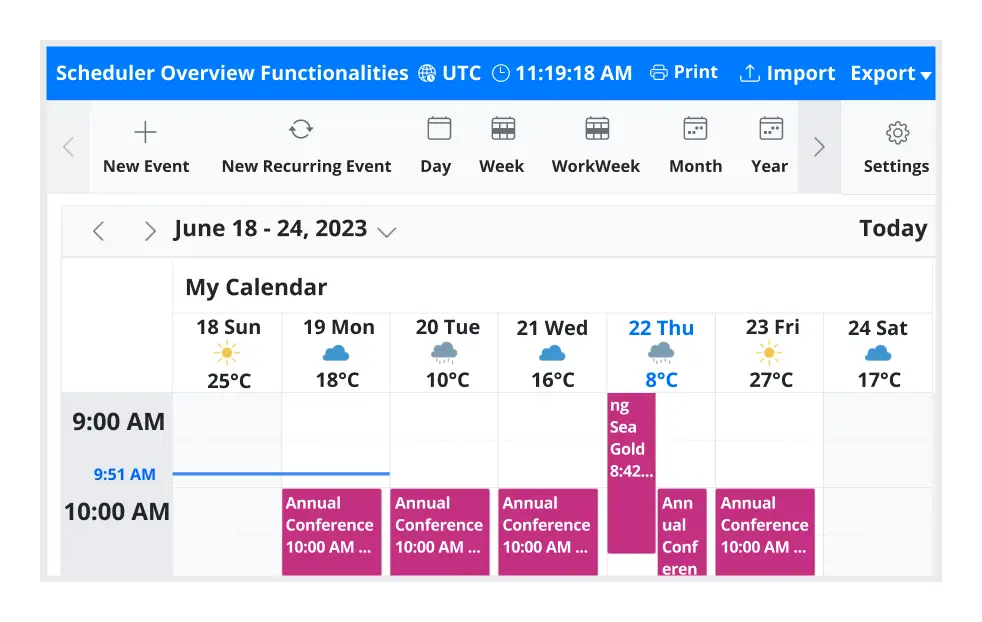
Customize the appearance of any part of the Scheduler interface using HTML and CSS styles. A built-in client-side event also allows end users to customize any part of the Scheduler user interface, such as the date header, header bar, cells, quick pop-ups, and event editor.
User-friendly interactions
The modern and trendy UI design of the React Scheduler makes the user interactions simpler and more efficient.
Quick event overview
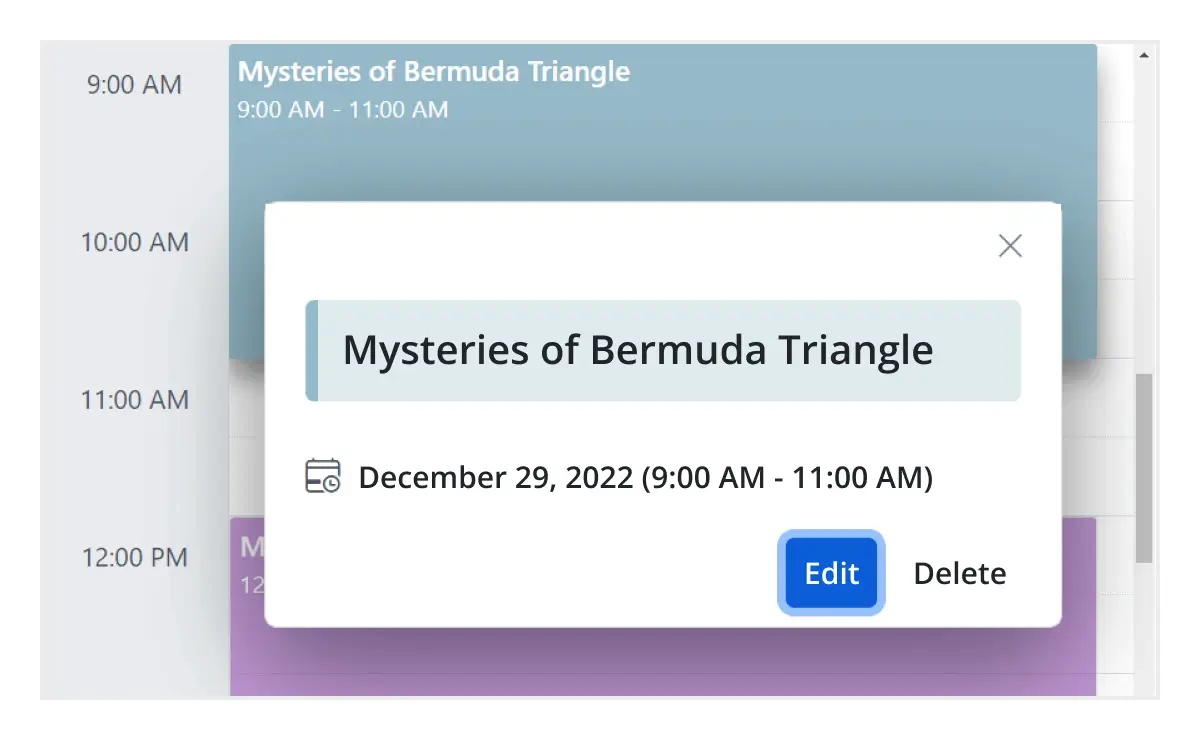
Clicking or tapping on events displays their important details, such as subject and time, along with edit and delete options.
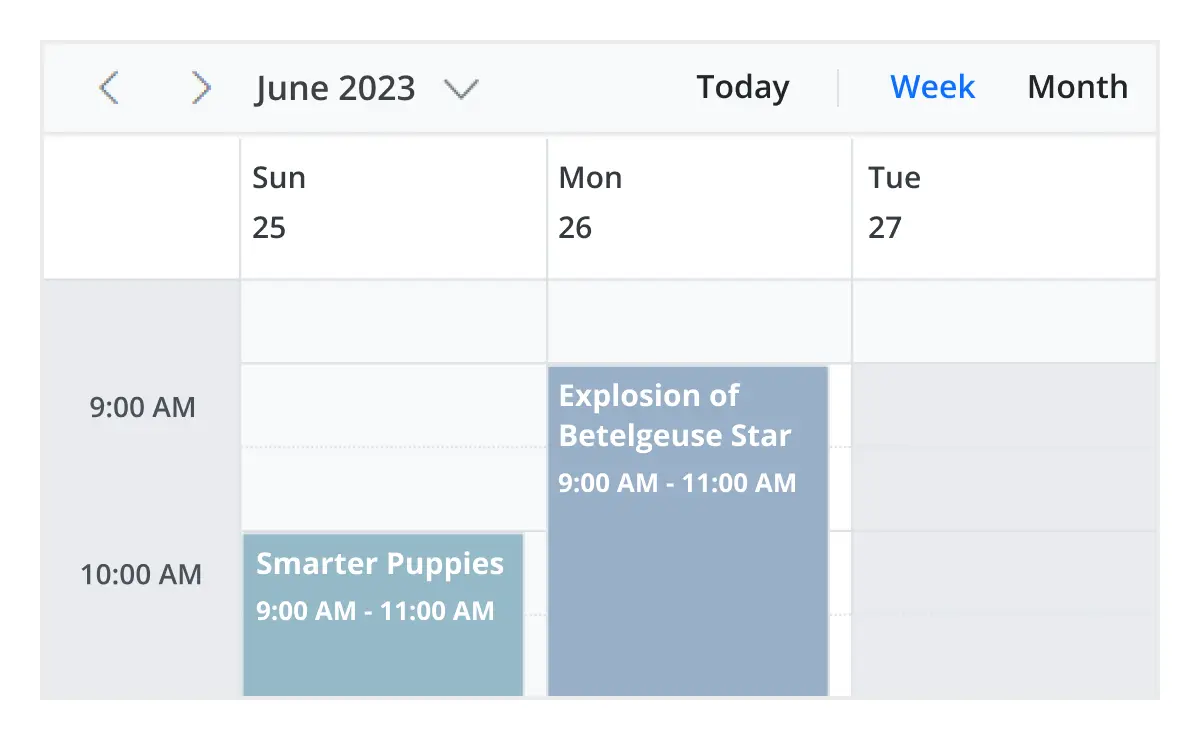
Cell selection
Click and drag the pointer over the Scheduler cells for multiple-cell selection. You can do the same with keyboard shortcuts.
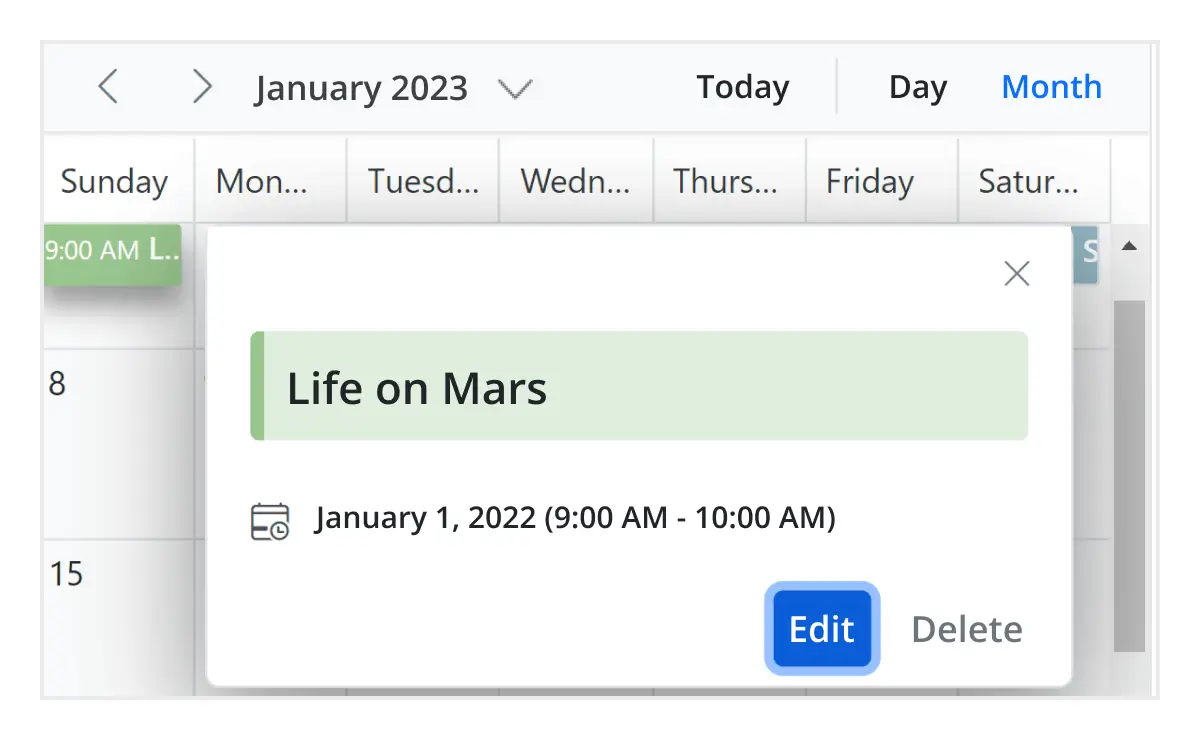
Event container
Clicking on the text indicator (+n more) in month and timeline views will open an event container listing all the hidden event and appointment details of a day.
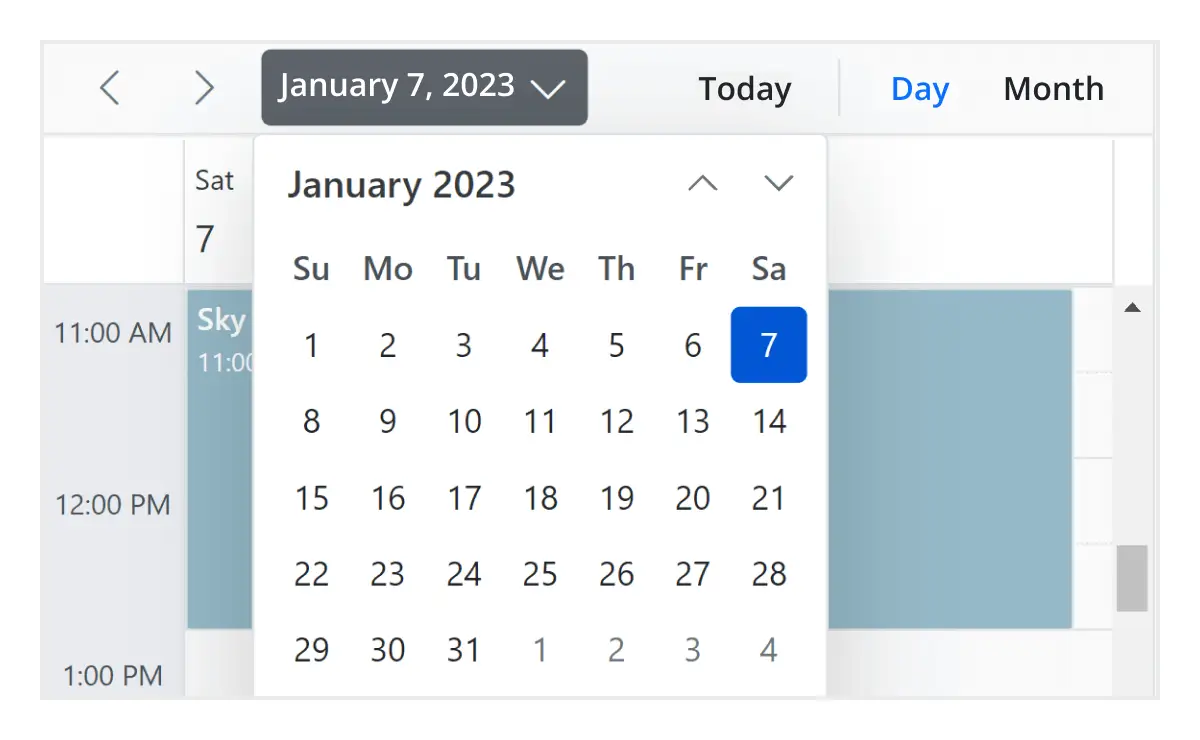
Quick navigation
The React Scheduler provides an intuitive way to navigate back and forth among the date ranges using an inline calendar, and also to navigate between different view modes.
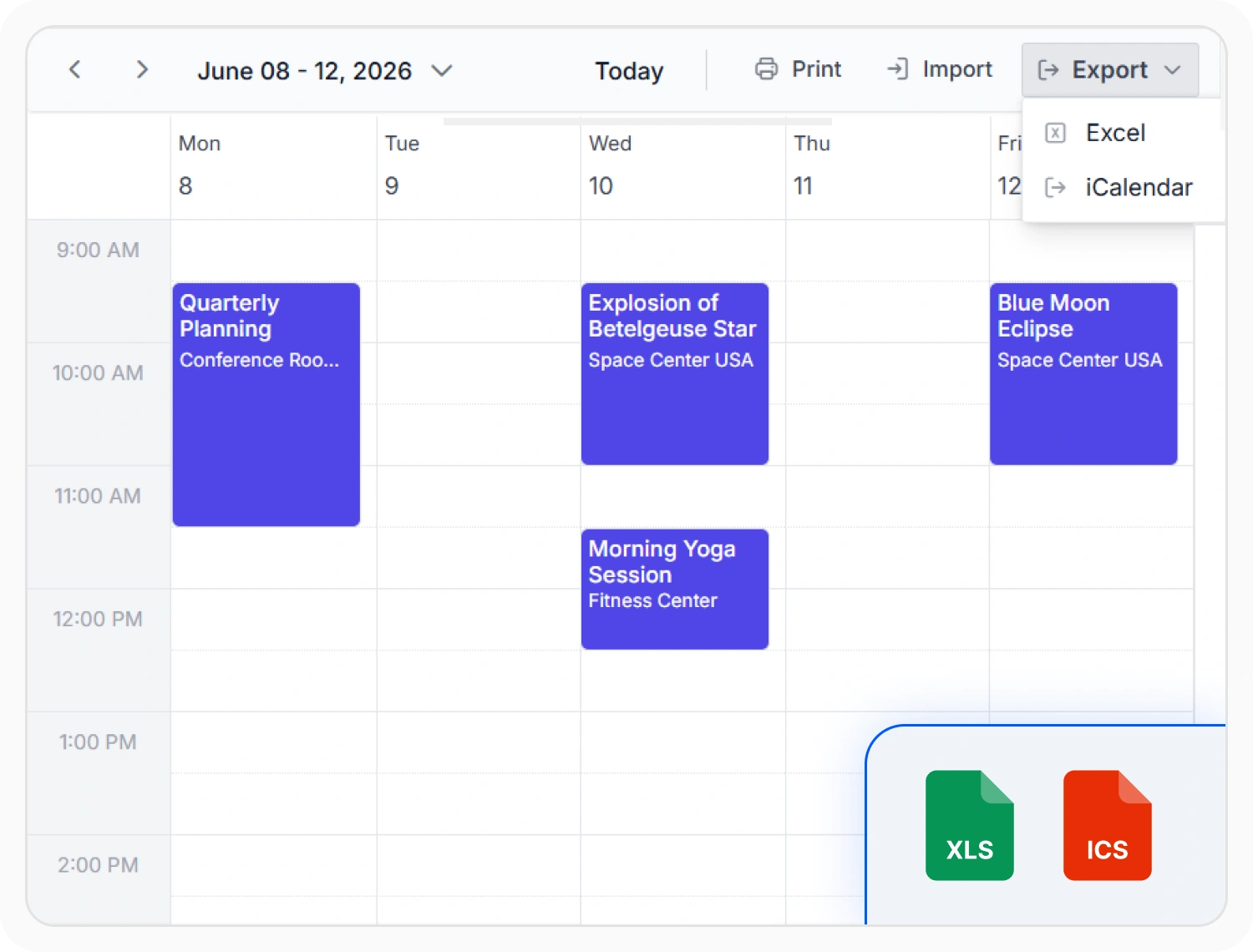
Print and Export
Print schedules, export appointment data to Excel or iCalendar, and import events from external calendars. These capabilities support reporting, schedule sharing, offline access, and calendar synchronization across applications.
Scheduler Essentials for Every Application
The React Scheduler goes beyond scheduling with enterprise-ready capabilities — meet web accessibility and localization standards, and apply flexible theming to match your brand.

Web Standards and Localization
The React Scheduler supports accessibility standards, globalization, localization, keyboard navigation, screen reader compatibility, and responsive layouts to deliver inclusive and consistent scheduling experiences worldwide.

Theming and Styling
Align the scheduler with your application design and brand through flexible theming options. Choose built-in themes, and customize colors, enable dark mode, or apply CSS overrides to create a tailored scheduling experience.
AI-assisted development
Build feature-rich React Scheduler experiences faster
Accelerate scheduling application development with Syncfusion AI tools that turn requirements into fully configured calendar and event management experiences with minimal manual setup.
Agentic UI Builder
Turn prompts into ready-to-use UI screens, layouts, and workflows with Syncfusion React components.
Example Prompt Create a doctor appointment scheduler with recurring events and timeline views.
Agent Skills
Accelerate development with Syncfusion AI Agent Skills for faster implementation and integration.
Example Prompt Generate a React scheduler with recurring appointments, resource grouping, and drag-and-drop editing.
MCP Server
Accelerate development with AI that generates, configures, and troubleshoots component code directly in your IDE.
Example Prompt Show how to bind remote appointments and enable timeline views in the Syncfusion React Scheduler.
Not sure how to create your first React Scheduler? Our tutorial videos and documentation can help.
I’d love to watch it now I’d love to read it nowFrequently Asked Questions
What is the difference between a Scheduler and a Calendar?
Syncfusion React Calendar is a lightweight date picker for selecting single or multiple dates. It focuses on displaying dates and basic navigation between months and years. Syncfusion React Scheduler is a full-featured appointment manager that supports events, resources, recurring appointments, multiple views (Day, Week, Month, Timeline), drag-and-drop, and integration with external calendars like Google and Outlook.
Can I download and utilize the Syncfusion React Scheduler for free?
No, this is a commercial product and requires a paid license. However, a free community license is also available for companies and individuals whose organizations have less than $1 million USD in annual gross revenue, 5 or fewer developers, and 10 or fewer total employees.
How do I get started with Syncfusion React Scheduler?
A good place to start would be our comprehensive getting started documentation.
What is the Scheduler component in React?
The React Scheduler is a fully featured appointment management tool that enables event display, resource management, drag-and-drop interactions, and customizable views. It also supports recurring events, time zone handling, and integration with external calendars like Google and Outlook.
How do I add events and appointments to a React Scheduler?
You can programmatically add events to the Syncfusion React Scheduler component using the addEvent() method. This method allows you to add either a single event or a collection of events simultaneously to the schedule. For more information, refer to our detailed documentation on adding, editing, and removing events in React Scheduler.
You can also perform CRUD operations on events using these methods:
- addEvent() - To add new events
- saveEvent() - To update existing events
- deleteEvent() - To remove events
These methods enable you to programmatically manage events in your React Scheduler component without directly manipulating the data source.
How do I implement drag-and-drop scheduling in React?
You can reschedule appointments by simply dragging and dropping them. To enable this functionality, inject the DragAndDrop module and set the allowDragAndDrop property to true.
On mobile devices, events can be moved by tapping and holding an appointment, then dragging it to the desired time or location.
To learn more about dragging external items and advanced drag-and-resize capabilities, watch this video. For additional details, refer to our comprehensive documentation on drag-and-drop appointments in the React Scheduler.
How do I handle recurring events in the React Scheduler?
The Syncfusion React Scheduler fully supports recurring appointments, allowing you to easily create events that repeat on a daily, weekly, monthly, or yearly basis with integrated recurrence options.To configure recurring appointments in the React Scheduler component, set the RecurrenceRule property in your event data. The RecurrenceRule follows the iCalendar (RFC 5545) specifications.For additional details, refer to our comprehensive documentation on recurring events in the React Scheduler.
Can a React Scheduler support multiple resources like rooms, people, and equipment?
Resource and grouping support enables the Scheduler to be shared across multiple resources. Appointments associated with each resource are displayed under their corresponding resource.
Resources in the Scheduler are arranged in rows or columns, with dedicated spacing to ensure all related appointments are clearly visible on a single page. The Scheduler also supports multilevel resource grouping, allowing for hierarchical organization of resources.
Depending on the view, resources can be displayed as expandable groups in timeline views or as a vertical hierarchy in calendar views, providing flexible and intuitive scheduling layouts.
For additional details, refer to the comprehensive documentation on resources and grouping in the React Scheduler.
How can I optimize performance for large datasets using virtual scrolling in the React Scheduler?
Virtual scrolling is a powerful feature in the Syncfusion React Scheduler component that significantly improves performance when working with large datasets. This feature allows the component to load only visible items in the viewport and load remaining items as you scroll, which is especially beneficial when handling numerous resources and appointments.
To enable virtual scrolling in your React Scheduler component, set the allowVirtualScrolling property to true within view-specific settings.
For more information, refer to our detailed documentation available on Virtual scrolling in React Scheduler.
Why should you choose Syncfusion React Scheduler?
The Syncfusion React Scheduler provides the following features:
- Highly responsive layout and a finely optimized design for desktops, tablets, and mobile phones.
Different basic views like day, week, workweek, month, and year of calendar mode and timeline mode.
Virtual scrolling allows you to load large numbers of resources and events dynamically.
- Adapts with different time zones instantly.
Multiple resource grouping based on the timeline, horizontal, hierarchical, and date views.
- One of the best React Scheduler in the market that offers feature-rich UI to interact with the software.
- Easy synchronization of events with Google and Outlook Calendars.
Simple configuration and API.
- Supports all modern browsers.
Expansive learning resources such as demos, documentation and videos to learn quickly and get started with React Scheduler.
Where can I find the Syncfusion React Scheduler demo?
You can find our React Scheduler demo, which demonstrates how to render and configure the Scheduler.
How do I create a Scheduler in React?
You can create a Scheduler in React using Syncfusion’s React Scheduler component Getting Started. Install the @syncfusion/ej2-react-schedule package, import the ScheduleComponent, and configure views, data sources, and event settings.
What is the best free appointment scheduler?
Syncfusion offers a free community license for individuals and small businesses, making its React Scheduler one of the best free options. It provides enterprise-grade features like multiple views, resource grouping, and event editing without limitations.
How do I enable day/week/month views in a React Scheduler?
To configure day, week, and month views in the React Scheduler component, you need to properly import and inject the required modules for each view. For more information, refer to our detailed documentation on module injection in the React Scheduler component.
How do I resize appointments in a React Scheduler?
To enable resizing functionality in the React Scheduler, inject the resize module and ensure that the allowResizing property is set to true. For more information, refer to our detailed documentation appointment resizing in the React Scheduler.
How do I manage time zones in React Scheduler?
By default, the React Scheduler component operates using the system’s current timezone. To schedule appointments in a different timezone, set the timezone property in the Scheduler.In addition to configuring a global timezone, you can assign timezones to individual appointments by specifying the startTimezone and endTimezone properties within the event fields collection.For additional details, refer to our comprehensive documentation on timezones in the React Scheduler.
Is it possible to reorder events in the Syncfusion React Scheduler?
Yes, events can be reordered using the sortComparer property. By default, the Scheduler renders overlapping events based on their start and end times. You can customize the display order of overlapping events by defining a custom sorting logic through the sortComparer property within eventSettings, allowing events to be ordered based on custom fields. For more information, refer to our detailed documentation on reordering events in the React Scheduler.
Trusted by the world’s leading companies

Our Customers Love Us





Transform your applications today by downloading our free evaluation version
No credit card required | 2.37M+ downloads
Syncfusion React Scheduler Resources


 Figma Download








