

Overview
The AI-powered .NET MAUI Text Editor is a multiline editor enhanced with AI-assisted sentence autocompletion. It can display suggestions inline over the text or in an unintrusive pop-up, reducing typing effort and improving productivity.
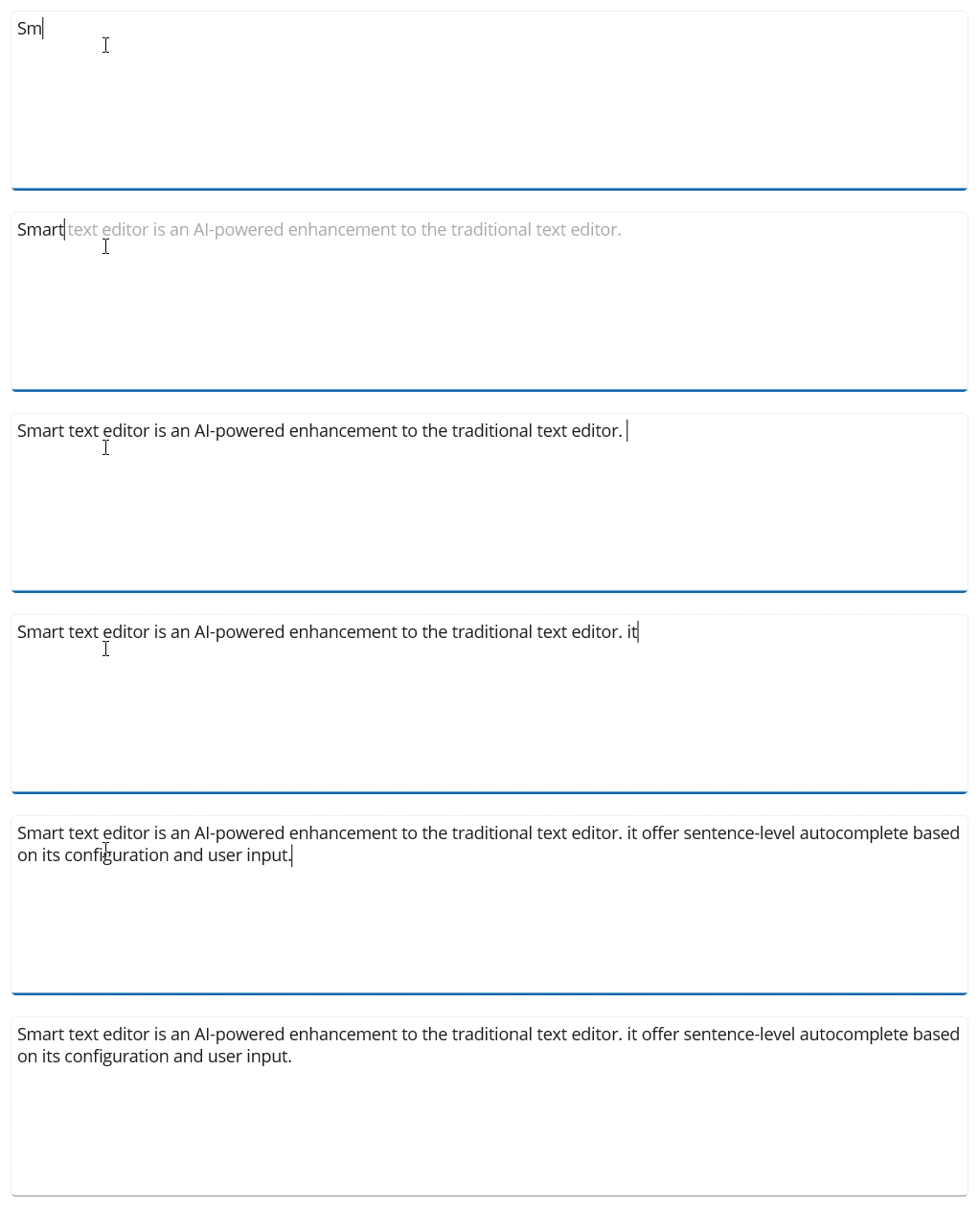
.NET MAUI Smart Text Editor code example
Easily get started with the .NET MAUI Smart Text Editor by using a few lines of XAML and C# code. Register an AI inference service to enable intelligent suggestions or provide user phrases for offline fallback.
<?xml version="1.0" encoding="utf-8" ?>
<ContentPage
    xmlns="http://schemas.microsoft.com/dotnet/2021/maui"
    xmlns:x="http://schemas.microsoft.com/winfx/2009/xaml"
    xmlns:smarttexteditor="clr-namespace:Syncfusion.Maui.SmartComponents;assembly=Syncfusion.Maui.SmartComponents"
    x:Class="YourApp.MainPage">

    <Grid Padding="16">
        <smarttexteditor:SfSmartTextEditor
            x:Name="SmartEditor"
            Placeholder="Type your message..."
            UserRole="Employee communicating with internal team"
            MaxLength="500"
            SuggestionDisplayMode="Popup"
            SuggestionTextColor="#611c1b1f"
            PlaceholderColor="#49454F">
            <smarttexteditor:SfSmartTextEditor.TextStyle>
                <smarttexteditor:SmartTextEditorStyle
                    FontSize="14"
                    TextColor="#1C1B1F"
                    FontFamily="OpenSansRegular"
                    FontAttributes="None"
                    FontAutoScalingEnabled="False" />
            </smarttexteditor:SfSmartTextEditor.TextStyle>
        </smarttexteditor:SfSmartTextEditor>
    </Grid>
</ContentPage>
public partial class MainPage : ContentPage
{
public MainPage()
{
InitializeComponent();
SmartEditor.UserPhrases = new List<string>
{
"Please find the attached report.",
"Let's schedule a meeting to discuss this further.",
"Can you provide an update on this task?",
"I appreciate your prompt response.",
"Let's collaborate to ensure timely delivery."
};
SmartEditor.TextChanged += (s, e) =>
{
// React to text changes if needed
};
}
}Intelligent autocomplete
The AI-powered Text Editor goes beyond simple word suggestions by predicting full sentences based on user input. This AI-driven autocomplete reduces typing time with precise, context-aware suggestions. Suggestions are generated for the active line and appear only when a caret is at the end of the text and the maximum length limit has not been exceeded. When no AI suggestion is available, it gracefully falls back to set user phrases to maintain a smooth input experience.
User role
Guide the tone and context of AI suggestions by setting the user role. Examples:
- Customer service agent responding to client inquiries.
- Project manager writing a status update.
- Developer replying to GitHub issues.
User phrases
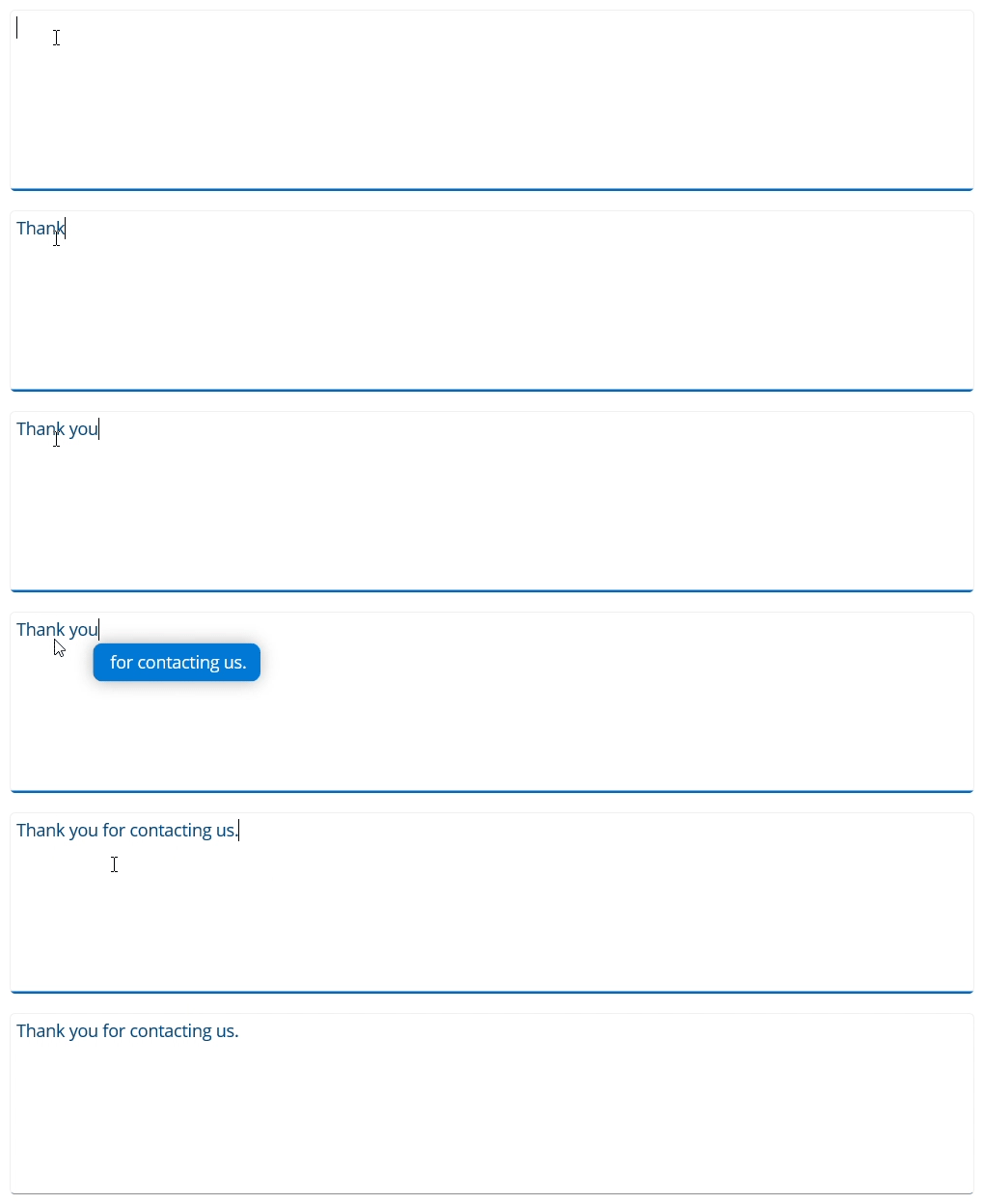
User phrases let you seed the editor with predefined expressions that reflect frequently used content. These are used as a fallback when the AI has no suggestion, and to provide quick completions for frequently used sentences.
For example:
- “Thank you for contacting us.”
- “Please let me know if you have any further questions.”
Suggestion display modes
The AI-powered Text Editor supports two display modes for showing completions as you type:
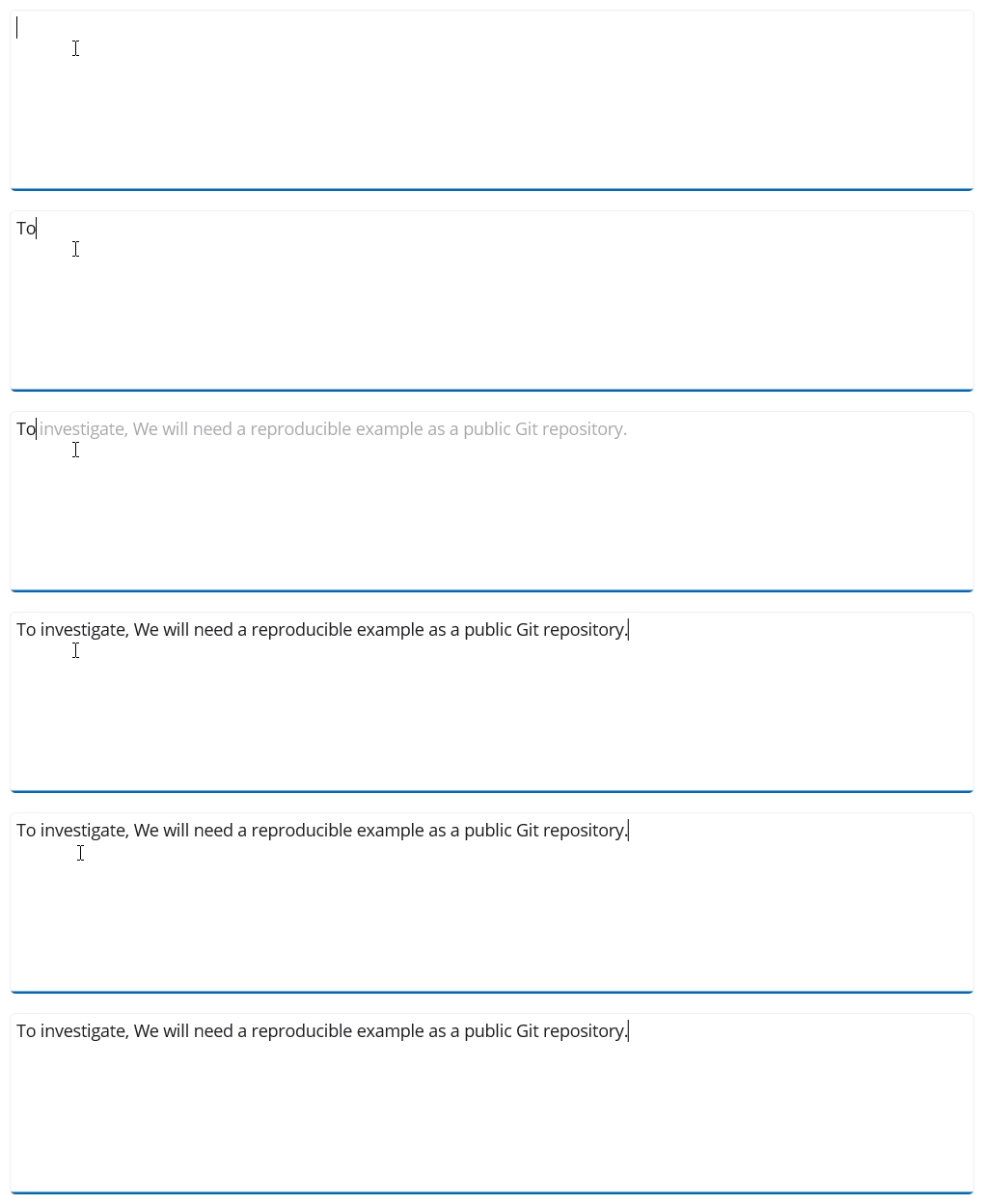
Inline suggestion mode
Display suggestions inline.
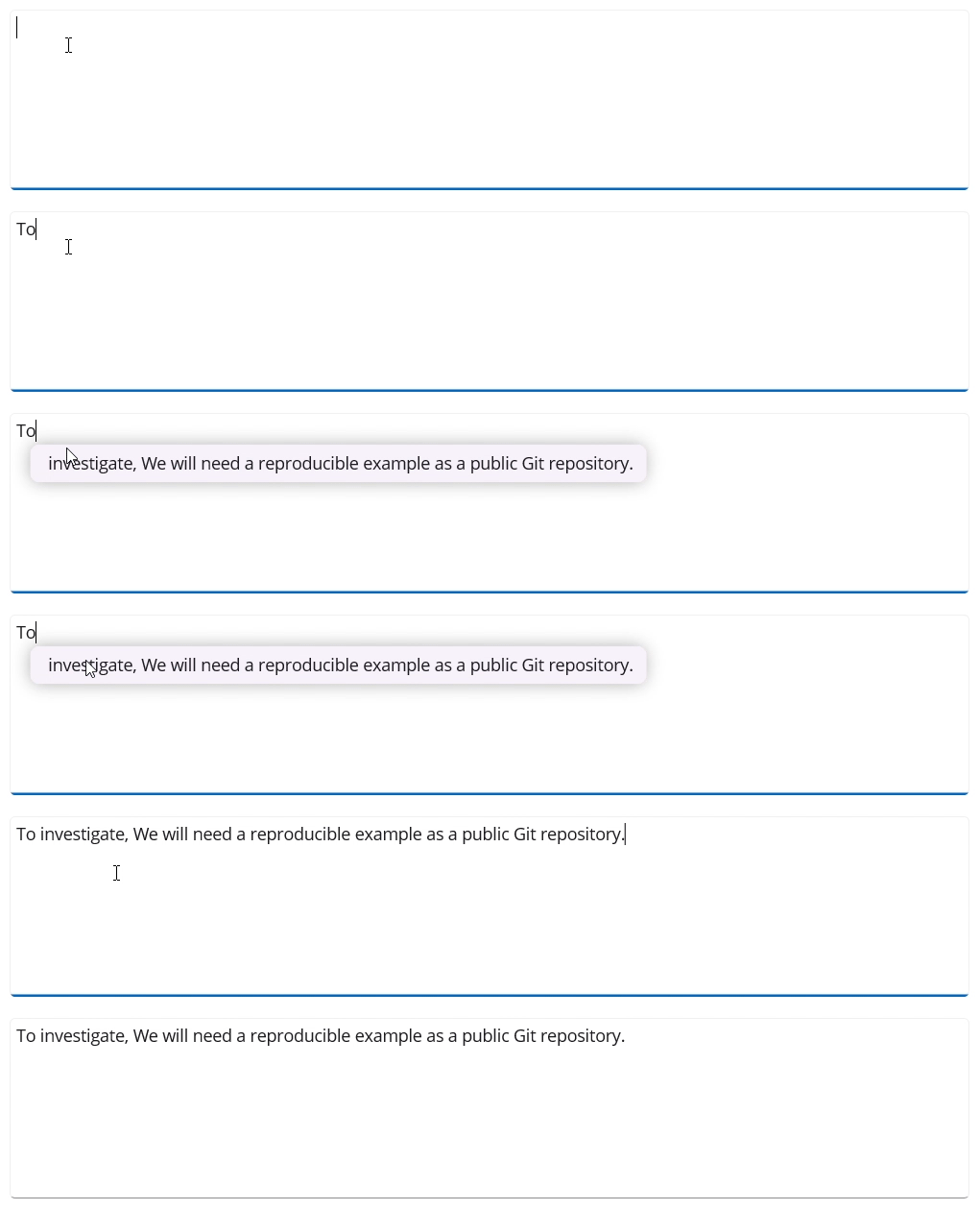
Pop-up suggestion mode
Display suggestions in the pop-up window.
Keyboard and touch interactions
To accept a suggestion, you can use the Tab key or the right arrow key. On touch devices, simply tap the suggestion to insert it. Note that on Android and iOS, accepting inline suggestions using Tab or the right arrow key is not supported when using platform keyboards.
Customization
You can enhance the appearance of the AI-powered Text Editor by allowing customization of its visual elements. This includes options to adjust text styling such as font size, font family, and attributes, along with autoscaling for better readability. Users can also personalize text color for both inline and pop-up suggestions, modify placeholder text color, and style the background of suggestion pop-ups to match their preferred theme or branding.
 95+ UI controls
200+ interactive .NET MAUI demos
3.5M+ downloads
95+ UI controls
200+ interactive .NET MAUI demos
3.5M+ downloads
.NET MAUI DataViz & UI Controls
Standalone UI SDKs
Integrate the DataGrid, Chart, Scheduler, and Rich Text Editor UI components into applications to enable rich interaction and visualization, delivering a seamless user experience.
Document Solutions
Integrate the PDF Viewer, DOCX Editor, Spreadsheet Editor, and document-processing libraries into the .NET MAUI applications to enable a smooth user experience.
Frequently Asked Questions
Why should you choose the Syncfusion .NET MAUI Smart Text Editor?
The Syncfusion .NET MAUI Smart Text Editor:
- Provides intelligent, sentence-level suggestions for faster typing and improved efficiency.
- Supports inline and pop-up display modes tailored to desktop and mobile experiences.
- Adapts suggestions based on user role and set user phrases for contextual results.
- Offers simple configuration through a pluggable IChatInferenceService for AI integrations.
- Features a fast, debounced prediction pipeline designed for responsiveness.
- Falls back gracefully to set user phrases when no AI suggestion is available.
- Is keyboard- and touch-friendly. Accept suggestions with keystrokes on desktops and taps on mobile devices.
- Provides rich styling and customization options for suggestion presentation.
- Includes developer-friendly APIs and events to observe changes and tailor behavior.
- Has cross-platform support: Android, iOS, Windows, and Mac Catalyst.
Can I use the Smart Text Editor without an AI service?
Yes. If no IChatInferenceService is registered or it returns no suggestion, the control falls back to predefined user phrases to provide helpful completions.
How do I accept suggestions?
Press Tab or the right arrow key on a desktop to accept inline or pop-up suggestions. On touch devices, tap the pop-up suggestion to insert it. Note that Tab acceptance for inline suggestions is not supported by Android or iOS keyboards.
Can I download and utilize the Syncfusion .NET MAUI Smart Text Editor for free?
No, this is a commercial product and requires a paid license. However, a free community license is also available for companies and individuals whose organizations have less than US $1 million in annual gross revenue, 5 or fewer developers, and 10 or fewer total employees.
How does the AI-powered .NET MAUI Smart Text Editor work?
It monitors user input, and after a brief pause it requests a context-aware completion from an AI inference service. If no AI generated suggestion is available, it generates alternatives based on predefined user phrases.
Does the Smart Text Editor support both mobile and desktop platforms?
Yes. It supports Android, iOS, Windows, and Mac Catalyst. By default, desktop platforms use inline suggestions, and mobile platforms use pop-up suggestions.
Where can I find the Syncfusion .NET MAUI Smart Text Editor demo?
You can find our .NET MAUI Smart Text Editor demo here. It demonstrates how to render and configure the control.
Our Customers Love Us




See Real Success Stories
Developers around the world trust Syncfusion’s Essential Studio to simplify complex projects and speed up delivery. With a vast library of UI controls, powerful SDKs, and reliable support, Essential Studio helps teams build enterprise-ready applications with confidence.
Read Our Customer StoriesIndustry
Software development
75% Cost reduction
50% Faster development

Industry
Utilities (oil and gas)

450+ hours saved
Streamlined processes and hours of development effort saved.

Advanced, flexible features
Empowered users through robust and versatile functionality.
Industry
Software and technology
1000+ of hours saved
Accelerated development with enterprise-ready UI components.

Efficient file management
Streamlined workflows with document libraries without building them from scratch.
Industry
Software and technology

2 Years of delay avoided
Two years of delays prevented with proactive planning.

On-time delivery
Projects delivered on schedule using trusted controls.
Industry
IT services and IT consulting

Improved performance
Large datasets handled with easy customization and quick debugging.

Highly customizable
Plug-and-play controls with quick template integration.
Industry
Professional services
Instant access
Quick availability of features and resources.
Reduced dependencies
Fewer dependencies for faster development.
Rated by users across the globe



Syncfusion .NET MAUI Resources


Awards
Greatness—it’s one thing to say you have it, but it means more when others recognize it. Syncfusion® is proud to hold the following industry awards.









