





Transform your applications today by downloading our free evaluation version
Overview
The React Splitter is a layout user interface (UI) that provides resizable, expandable, collapsible, and nestable panes. It is useful for constructing different layouts in web apps such as Outlook style, Windows Explorer style, code editor UI, and more. The component can integrate other JavaScript UI controls inside its split panes.
Resizable splitter panels
The React Splitter component has built-in resizable support that helps widen or shrink the panes. Users can control the resize behavior for individual panes with min and max size validation.


Collapsible panes
Built-in support is available for expanding and collapsing the panes by interaction.
Multiple panes
Users can configure more than 2 panes to construct different layouts using React Splitter component such as Outlook-style, Windows explorer-style, Visual Studio code-style, and more.
Content as React UI component
Users can integrate other React UI component (For example: TreeView, ListView, Rich Text Editor), HTML markup, or plain text content in the React split panes.
Vertical or horizontal orientation
The orientation of the split panes can either be horizontal or vertical inside the React Splitter component.
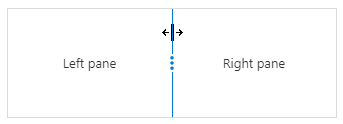
Separator (Divider)
The React Splitter component has a split bar to visually split the panes that contains resize gripper.
Nested React Splitter
Splitters can be nested in various levels within the pane to create complex layout such as code editor-style layout.
Right-to-Left (RTL)
The React Splitter component supports right-to-left (RTL) rendering. Users can change the text direction and layout of the Splitter component from right to left. It improves the user experience and accessibility for users who use RTL languages.
Themes
The React Splitter component has several built-in themes such as Material, Bootstrap, Fabric (Office 365), Tailwind CSS, and High Contrast. Users can customize any one of these built-in themes or create new themes to achieve their own desired look and feel either by simply overriding SASS variables or using our Theme Studio application.
Sizing to content
Users can specify pane size either in pixels or in percentage values including min and max range values to accommodate the sizing to its child component or content.
React Splitter Code Example
Easily get started with the React Splitter Component using a few simple lines of TSX code example as demonstrated below. Also explore our React Splitter Example that shows you how to render and configure a Splitter in React.
import { PaneDirective, PanesDirective, SplitterComponent } from '@syncfusion/ej2-react-layouts';
import * as React from "react";

class App extends React.Component {
  public render() {
return (
  <div className="App">
  <SplitterComponent id="splitter" height="250px" width="600px">
      <PanesDirective>
        <PaneDirective/>
        <PaneDirective/>
        <PaneDirective/>
      </PanesDirective>
  </SplitterComponent>
  </div>
  );
  }
}
export default App;Not sure how to create your first React Splitter? Our tutorial videos and documentation can help.
I’d love to watch it now I’d love to read it nowExplore all Syncfusion React components
Explore over 140+ React UI components featuring established, and production-ready controls built for modern web app development.
-
SMART COMPONENTSGRIDSDATA VISUALIZATIONDROPDOWNSFILE VIEWERS & EDITORSBUTTONSINTERACTIVE CHATINPUTSNAVIGATIONNOTIFICATIONS
Standalone UI SDKs
Integrate the DataGrid, Chart, Scheduler, Gantt, Rich Text Editor, File Manager, and Diagram UI components into applications to enable rich interaction and visualization, delivering a seamless user experience.
Document Solutions
Integrate the PDF Viewer, DOCX Editor, Spreadsheet Editor, and document-processing libraries into the React applications to enable a smooth user experience.
Our Customers Love Us
Having an excellent set of tools and a great support team, Syncfusion® reduces customers’ development time.Here are some of their experiences.

Aweseome, enough said. really
Easy usability, solving real life problems. easy to implement. most of the cases has the operators and settings possibilities you right away need. never fails to impress

Oliver O,

Geschäftsführung Kreation/Artdirektion, Small-Business
A giant framework with great pricing options
I have loved the components and options that Syncfusion has, besides, its documentation, demos, and Support are excellent.

Alejandro Javier V,
CEO, Small-Business
See Real Success Stories
Developers around the world trust Syncfusion’s Essential Studio to simplify complex projects and speed up delivery. With a vast library of UI controls, powerful SDKs, and reliable support, Essential Studio helps teams build enterprise-ready applications with confidence.
Read Our Customer StoriesIndustry
Software development
75% Cost reduction
50% Faster development
Industry
Utilities (oil and gas)

450+ hours saved
Streamlined processes and hours of development effort saved.

Advanced, flexible features
Empowered users through robust and versatile functionality.
Industry
Software and technology
1000+ of hours saved
Accelerated development with enterprise-ready UI components.

Efficient file management
Streamlined workflows with document libraries without building them from scratch.
Industry
Software and technology

2 Years of delay avoided
Two years of delays prevented with proactive planning.

On-time delivery
Projects delivered on schedule using trusted controls.
Industry
IT services and IT consulting

Improved performance
Large datasets handled with easy customization and quick debugging.

Highly customizable
Plug-and-play controls with quick template integration.
Industry
Professional services
Instant access
Quick availability of features and resources.
Reduced dependencies
Fewer dependencies for faster development.
Rated by users across the globe
Syncfusion React Resources
Learning
 Documentation
 Documentation


Awards
Greatness—it’s one thing to say you have it, but it means more when others recognize it. Syncfusion® is proud to hold the following industry awards.









