





Transform your applications today by downloading our free evaluation version
Overview
The WPF Map control is a powerful data visualization component that displays statistical information for a geographical area. Its highly interactive and customizable features include zooming, panning, selecting, markers, legends, bubbles, and color mapping. Use this control, to render sales, political-boundary, weather, electoral, and route maps.
WPF Maps code example
Easily get started with the WPF Maps using a few simple lines of XAML or C# code, as demonstrated below. Also explore this WPF Map example, which shows how to render and configure the control.
<Window xmlns:local="clr-namespace:MapsExample"
        xmlns:syncfusion="http://schemas.syncfusion.com/wpf">
    <syncfusion:SfMap>
        <syncfusion:SfMap.DataContext>
            <local:ViewModel />
        </syncfusion:SfMap.DataContext>
        <syncfusion:SfMap.Layers>
            <syncfusion:ShapeFileLayer ItemsSource="{Binding ElectionResults}"
                                       ShapeIDPath="State"
                                       ShapeIDTableField="STATE_NAME"
                                       Uri="GettingStarted.ShapeFiles.usa_states.shp">
                <syncfusion:ShapeFileLayer.ShapeSettings>
                    <syncfusion:ShapeSetting ShapeValuePath="Electors" />
                </syncfusion:ShapeFileLayer.ShapeSettings>
            </syncfusion:ShapeFileLayer>
        </syncfusion:SfMap.Layers>
    </syncfusion:SfMap>
</Window>
public class Model
{
public string State { get; set; }
public string Candidate { get; set; }
public double Electors { get; set; }
}
public class ViewModel
{
public ObservableCollection<Model> ElectionResults { get; set; }
public ViewModel()
{
ElectionResults = new ObservableCollection<Model>
{
new Model { State = "Alabama", Candidate = "Romney", Electors = 9 },
new Model { State = "Alaska", Candidate = "Romney", Electors = 3 },
new Model { State = "Arizona", Candidate = "Romney", Electors = 11 },
new Model { State = "Arkansas", Candidate = "Romney", Electors = 6 },
new Model { State = "California", Candidate = "Obama", Electors = 55 }
};
}
}Shape layers
Render geographical shapes or custom shapes in the WPF Maps component.

Data
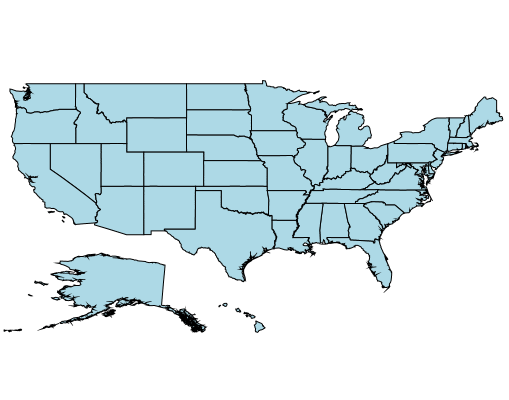
Bind shapefiles (.shp) and GeoJSON (.json) data to maps to render any geometric shape.
Customization
Customize the default style of a shape using color, stroke, and thickness properties.

Custom shapes
Render any custom shape to represent building infrastructure, sports stadiums, plane or bus seat arrangements, and more.

Sublayer
Load multiple shape files in a single map view. For example, add a sublayer over a main shape layer to view geographic features of a country such as rivers, valleys, and cities in a map.
Imagery layers
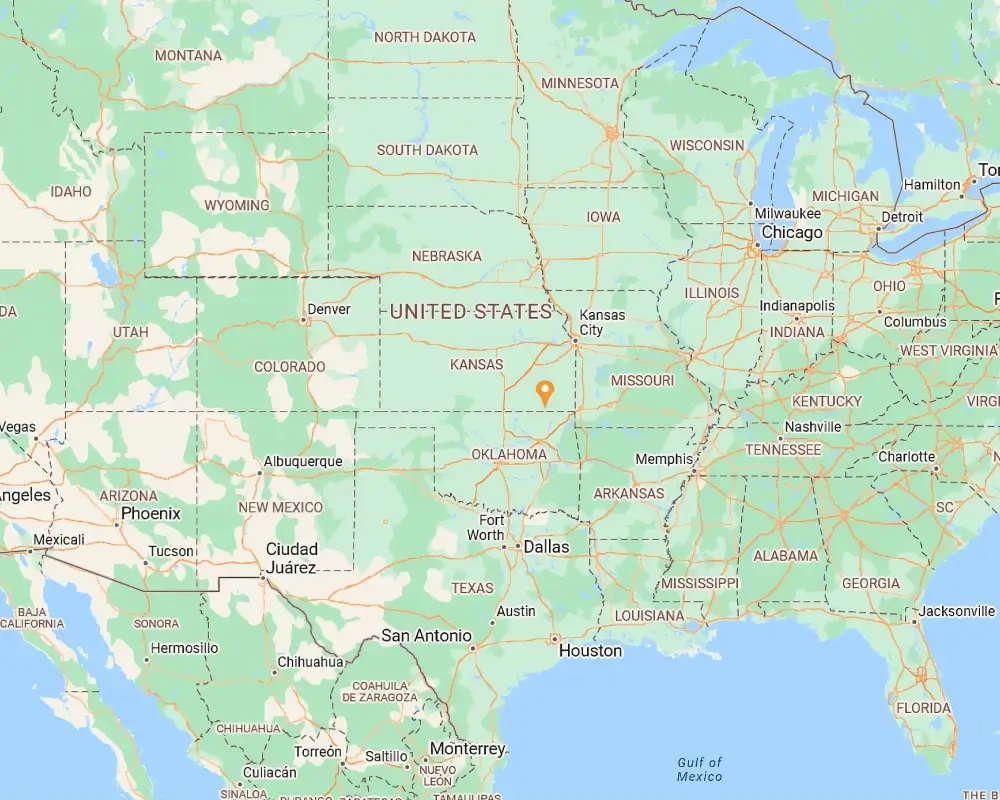
Built-in support for external imagery services, such as Bing Maps and OpenStreetMap, to visualize satellite, aerial, street map, and other imagery tiles without using shapefiles. Apart from Bing Maps and OpenStreetMap, render maps from other map providers such as Google Maps, Azure Maps, and TomTom.

OpenStreetMap (OSM)
OpenStreetMap (OSM) is a map of the world built by a community of mapmakers. It is free to use under an open license. It allows users to view geographical data from anywhere on the earth.

Bing Maps
Bing Maps, owned by Microsoft, is a map of the entire world. It supports three types of map views: aerial, aerial with labels, and road.
Azure Maps
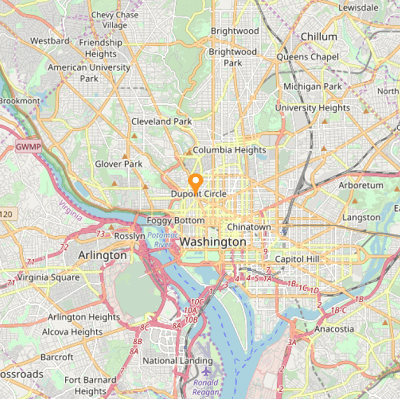
Enable users to view interactive maps that load smoothly and display detailed map regions.
Auto zoom
Set the initial zoom level automatically based on map geo-bounds or distance (km/miles) from the geopoint center value.
Data labels
Easily annotate WPF Map shapes with labels to improve the readability of a particular shape’s name. Customize the look and feel of default labels using font style, size, and color properties.

Heat map
Produce a heat map by customizing shape colors based on the underlying shape value.

Equal color mapping
Equal color mapping differentiates a shape’s fill color based on its underlying value and color. For example, apply colors to states based on their winning political candidates.

Range color mapping
Apply colors to shapes by comparing their values with desired numeric ranges. For example, apply colors to states based on their population density.
Map markers
Markers denote a place with symbols, like pins, or display a message at specific coordinates on a map.

Marker types
Set the marker type to built-in shapes such as circles, diamonds, rectangles, or squares to highlight a place.

Custom markers
Customize markers by adding images or any custom shape to highlight a location.
Map bubbles
Bubbles are used to add information to shapes, such as population density and land area. They are rendered with various magnitudes and colors based on the underlying data values of the shapes.

Color customization
Customize the default color of a bubble and its transparency using fill and opacity properties.

Size customization
Customize the minimum and maximum bubble size to enhance its readability.
Map legend
Legends provide valuable information for interpreting map colors, shapes, and other identifiers.

Legend position
Move a legend to any position inside the WPF Map control.

Icon customization
The default size of a legend icon can be customized.
User interactions
Interactive features, such as selecting, zooming, and panning, greatly enhance the user experience.

Selection
Select or highlight an area or shape to center the view over that area on a map.

Zooming and panning
Zooming allows users to get a closer look at a particular area, and panning allows users to move a map around to focus on a specific area.
Tooltip

Display a pop-up with additional information about the shapes, markers, and bubbles when hovering over map elements.
Not sure how to create your first WPF Map control? Our documentation can help.
I’d love to read it now140+ WPF CONTROLS
ALL CONTROLS
SMART COMPONENTS
DATA VISUALIZATION
MODERN THEMES
LAYOUT
NAVIGATION
INPUT CONTROLS
BUTTON
BUSINESS INTELLIGENCE
MISCELLANEOUS
LISTS & DROPDOWNS
NOTIFICATION
FILE VIEWERS & EDITORS
CONVERSATIONAL UI
Standalone UI SDKs
Integrate the DataGrid, Chart, Scheduler, Gantt, and Diagram UI components into applications to enable rich interaction and visualization, delivering a seamless user experience.
Document Solutions
Integrate the PDF Viewer, DOCX Editor, Spreadsheet Editor, and document-processing libraries into the WPF applications to enable a smooth user experience.
Frequently Asked Questions
Why should you choose the Syncfusion WPF Map control?
The Syncfusion WPF Maps control provides:- The ability to render geometric or custom shapes using the shapefile data(.shp).- Support to render maps from various web map tile providers like Bing, OSM, and Google Maps.- Support to add markers on maps at specified latitude and longitude positions.- Smooth zooming and panning.- Simple configuration and APIs.- A touch-friendly and responsive UI.- Expansive learning resources such as demos and documentation to let you get started quickly with the control.
Where can I find the Syncfusion WPF Maps demo?
Can I download and utilize the Syncfusion WPF Maps for free?
No, this is a commercial product and requires a paid license. However, a free community license is also available for companies and individuals whose organizations have less than $1 million USD in annual gross revenue, 5 or fewer developers, and 10 or fewer total employees.
How do I get started with Syncfusion WPF Maps?
A good place to start would be our comprehensive getting started documentation.
Our Customers Love Us
Having an excellent set of tools and a great support team, Syncfusion® reduces customers’ development time.Here are some of their experiences.

Excellent experience with Syncfusion!
Syncfusion is a product that makes life easier! I use it to create Blazor applications (server side and webassembly) and the controls speed up development a lot. Furthermore, if needed, it is possible to ask for direct support that is never long in coming!

Andrea Scarpante,

Sydea srl
The complete component set
It is the most complete component set available. Also very handy is the fact that there is a community edition, this gives me the opportunity to test thing at home without buying a separate license.

Johan Visser,

H and T Pawnbrokers
See Real Success Stories
Developers around the world trust Syncfusion’s Essential Studio to simplify complex projects and speed up delivery. With a vast library of UI controls, powerful SDKs, and reliable support, Essential Studio helps teams build enterprise-ready applications with confidence.
Read Our Customer StoriesIndustry
Software development
75% Cost reduction
50% Faster development
Industry
Utilities (oil and gas)

450+ hours saved
Streamlined processes and hours of development effort saved.

Advanced, flexible features
Empowered users through robust and versatile functionality.
Industry
Software and technology
1000+ of hours saved
Accelerated development with enterprise-ready UI components.

Efficient file management
Streamlined workflows with document libraries without building them from scratch.
Industry
Software and technology

2 Years of delay avoided
Two years of delays prevented with proactive planning.

On-time delivery
Projects delivered on schedule using trusted controls.
Industry
IT services and IT consulting

Improved performance
Large datasets handled with easy customization and quick debugging.

Highly customizable
Plug-and-play controls with quick template integration.
Industry
Professional services
Instant access
Quick availability of features and resources.
Reduced dependencies
Fewer dependencies for faster development.
Rated by users across the globe
Syncfusion WPF Resources
Learning
 Documentation
 Documentation


Awards
Greatness—it’s one thing to say you have it, but it means more when others recognize it. Syncfusion® is proud to hold the following industry awards.









