





Transform your applications today by downloading our free evaluation version
Overview
The WPF Docking Manager (DockPanel) control provides an interface to create Visual Studio-like dockable windows in your applications. Dock panels support many interactions like docking, floating, tabbing, autohiding and grouping document tabs. Tab groups split the workspace and allow users to work with two or more open documents. Users can resize, move, and change the behavior of windows to create a layout that suits various development models.
WPF Dock Window Data Binding
Data Binding is the process of establishing a connection between the application UI and business logic. Data binding can be unidirectional or bidirectional. The WPF Docking Window has data-binding support to work with popular data sources like SQL Server, Oracle, data tables, and more..
Different kind of docking window
Dockable windows can be dragged by users, can float around the screen, and be pinned and unpinned by users. As in Visual Studio, Docking Manager offers different kinds of windows:
- Docking window
- Floating window
- Tabbed window
- Pinnable window
- Tabbed MDI Window

WPF AutoHide window
In the auto-hide state, tool windows display tabs along the tray area on the side of their dock host. The content of the corresponding tool window is displayed in an animated popup when a tab is clicked.
Close window
Users can close windows interactively through the close option in the UI. Close the active window alone or all tabbed windows.

Resizing windows
Users can interactively resize windows using a splitter between windows. Restrict resizing to minimum and maximum sizes for views.

Maximize view
Display the dock windows in maximized view to get more readability and restore interactively.

Transparent window dragging
The WPF Docking Manager control allows you to turn on or off the option to show a window’s contents while dragging it. When it is set off, a transparent dragging visual effect is used.

Snap and move multiple windows
Snap the float windows and move them together. Separate the snapped float windows by pressing the CTRL key and dragging the float window away from the group.

Restrict docking
End users can restrict windows to docking on specific sides of the target dock windows or edges of a form. They can customize the dock hints’ visibility to show dock hints only on a specific side.

Redock to previous location
Built-in redock support saves the previous state of dock or float windows and moves the windows to previous dock or float states after double-clicking on a caption.

Scroll tabs
Bring the overflow tabs into view through scroll options in the UI. Scroll to the next, previous, first, or last tabs.

Docking guides
Display docking guides to indicate the valid drop location for docking panels while dragging the float window. Also customize the appearance of the docking guides.

MDI/TDI functionalities
The MDI and TDI functionalities are applicable for the Document window in the DockingManager. So you can change Document window as both Multiple Document Interface and Tabbed Document Interface.
MDI
Allows multiple windows to reside under a single parent window in the Docking Manager.
TDI
Allows adding a child window as a document tab in the Docking Manager.
Context menu
The WPF Docking Manager control provides the support to improve the user experience with a built-in context menu. It helps users to float, close, pin, and move the dock window to a tabbed document and more.

Hide caption
Hide the visibility of a dock window caption to make the dock window appearance a flat panel.

Save and restore
Built-in serialization options support saving a dock layout upon closing and restoring it upon opening the application in different formats.
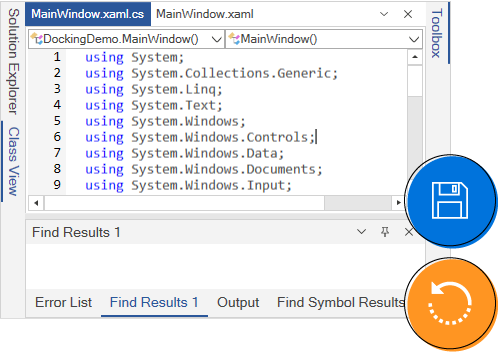
Complex docking layout
Users can create nested docking layouts with docked windows inside other docked windows, or directly dock them to the main form.

Linked docking
Easily drag the child windows from one docking manager to another by linking different docking managers together.

Style
Customize the style of each part of the WPF Docking Manager, such as its dock window header style and tabs styles. Use a rich set of built-in themes inspired by popular interfaces such as Visual Studio, Microsoft Office, and Expression Blend.

Localization
The WPF Docking Manager supports localization to translate the static text to any supported language.

Right to left
Right-to-left (RTL) direction setting is available for users working in right-to-left languages like Hebrew, Arabic, or Persian.

WPF Docking Window Code Example
Easily get started with the WPF Docking Window using a few simple lines of XAML and C# code example as demonstrated below. Also explore our WPF Docking Manager Example that shows you how to render and configure the docking window in WPF.
<syncfusion:DockingManager x:Name="dockingManager">
            <ContentControl x:Name="SolutionExplorer"/>
            <ContentControl x:Name="ToolBox"/>
            <ContentControl x:Name="Properties"/>
            <ContentControl x:Name="Output"/>
            <ContentControl x:Name="StartPage"/>
        </syncfusion:DockingManager>
using System.Windows;
using Syncfusion.Windows.Tools.Controls;
namespace DockingManager_SampleWpfApp1
{
public partial class MainWindow : Window
{
public MainWindow()
{
InitializeComponent();
DockingManager dockingManager = new DockingManager();
ContentControl SolutionExplorer = new ContentControl();
ContentControl ToolBox = new ContentControl();
ContentControl Properties = new ContentControl();
ContentControl Output = new ContentControl();
ContentControl StartPage = new ContentControl();
//Add content controls as child of DockingManager
dockingManager.Children.Add(SolutionExplorer);
dockingManager.Children.Add(ToolBox);
dockingManager.Children.Add(Properties);
dockingManager.Children.Add(Output);
dockingManager.Children.Add(StartPage);
this.Content = dockingManager;
}
}
}Not sure how to create your first WPF Docking? Our documentation can help.
I’d love to read it now140+ WPF CONTROLS
ALL CONTROLS
SMART COMPONENTS
DATA VISUALIZATION
MODERN THEMES
LAYOUT
NAVIGATION
INPUT CONTROLS
BUTTON
BUSINESS INTELLIGENCE
MISCELLANEOUS
LISTS & DROPDOWNS
NOTIFICATION
FILE VIEWERS & EDITORS
CONVERSATIONAL UI
Standalone UI SDKs
Integrate the DataGrid, Chart, Scheduler, Gantt, and Diagram UI components into applications to enable rich interaction and visualization, delivering a seamless user experience.
Document Solutions
Integrate the PDF Viewer, DOCX Editor, Spreadsheet Editor, and document-processing libraries into the WPF applications to enable a smooth user experience.
Frequently Asked Questions
Why should you choose Syncfusion WPF Docking?
Syncfusion WPF Docking provides the following:
- Rich, Visual Studio clone-like UI.
- Multiple docking states.
- Complete customization from container to pin.
Excellent drag and dock support.
Inbuilt, full-screen float window.
State-of-the-art state persistence support.
- Complete localization support to add new languages.
- Has a simple configuration and APIs.
- Is touch-friendly and responsive.
Learn quickly and get started with WPF Docking using its extensive demos and documentation.
Can I download and utilize the Syncfusion WPF Docking for free?
No, this is a commercial product and requires a paid license. However, a free community license is also available for companies and individuals whose organizations have less than $1 million USD in annual gross revenue, 5 or fewer developers, and 10 or fewer total employees.
How do I get started with Syncfusion WPF Docking?
A good place to start would be our comprehensive getting started documentation.
Our Customers Love Us
Having an excellent set of tools and a great support team, Syncfusion® reduces customers’ development time.Here are some of their experiences.

Excellent experience with Syncfusion!
Syncfusion is a product that makes life easier! I use it to create Blazor applications (server side and webassembly) and the controls speed up development a lot. Furthermore, if needed, it is possible to ask for direct support that is never long in coming!

Andrea Scarpante,

Sydea srl
The complete component set
It is the most complete component set available. Also very handy is the fact that there is a community edition, this gives me the opportunity to test thing at home without buying a separate license.

Johan Visser,

H and T Pawnbrokers
See Real Success Stories
Developers around the world trust Syncfusion’s Essential Studio to simplify complex projects and speed up delivery. With a vast library of UI controls, powerful SDKs, and reliable support, Essential Studio helps teams build enterprise-ready applications with confidence.
Read Our Customer StoriesIndustry
Software development
75% Cost reduction
50% Faster development
Industry
Utilities (oil and gas)

450+ hours saved
Streamlined processes and hours of development effort saved.

Advanced, flexible features
Empowered users through robust and versatile functionality.
Industry
Software and technology
1000+ of hours saved
Accelerated development with enterprise-ready UI components.

Efficient file management
Streamlined workflows with document libraries without building them from scratch.
Industry
Software and technology

2 Years of delay avoided
Two years of delays prevented with proactive planning.

On-time delivery
Projects delivered on schedule using trusted controls.
Industry
IT services and IT consulting

Improved performance
Large datasets handled with easy customization and quick debugging.

Highly customizable
Plug-and-play controls with quick template integration.
Industry
Professional services
Instant access
Quick availability of features and resources.
Reduced dependencies
Fewer dependencies for faster development.
Rated by users across the globe
Syncfusion WPF Resources
Learning
 Documentation
 Documentation


Awards
Greatness—it’s one thing to say you have it, but it means more when others recognize it. Syncfusion® is proud to hold the following industry awards.









