




Transform your applications today by downloading our free evaluation version
Overview
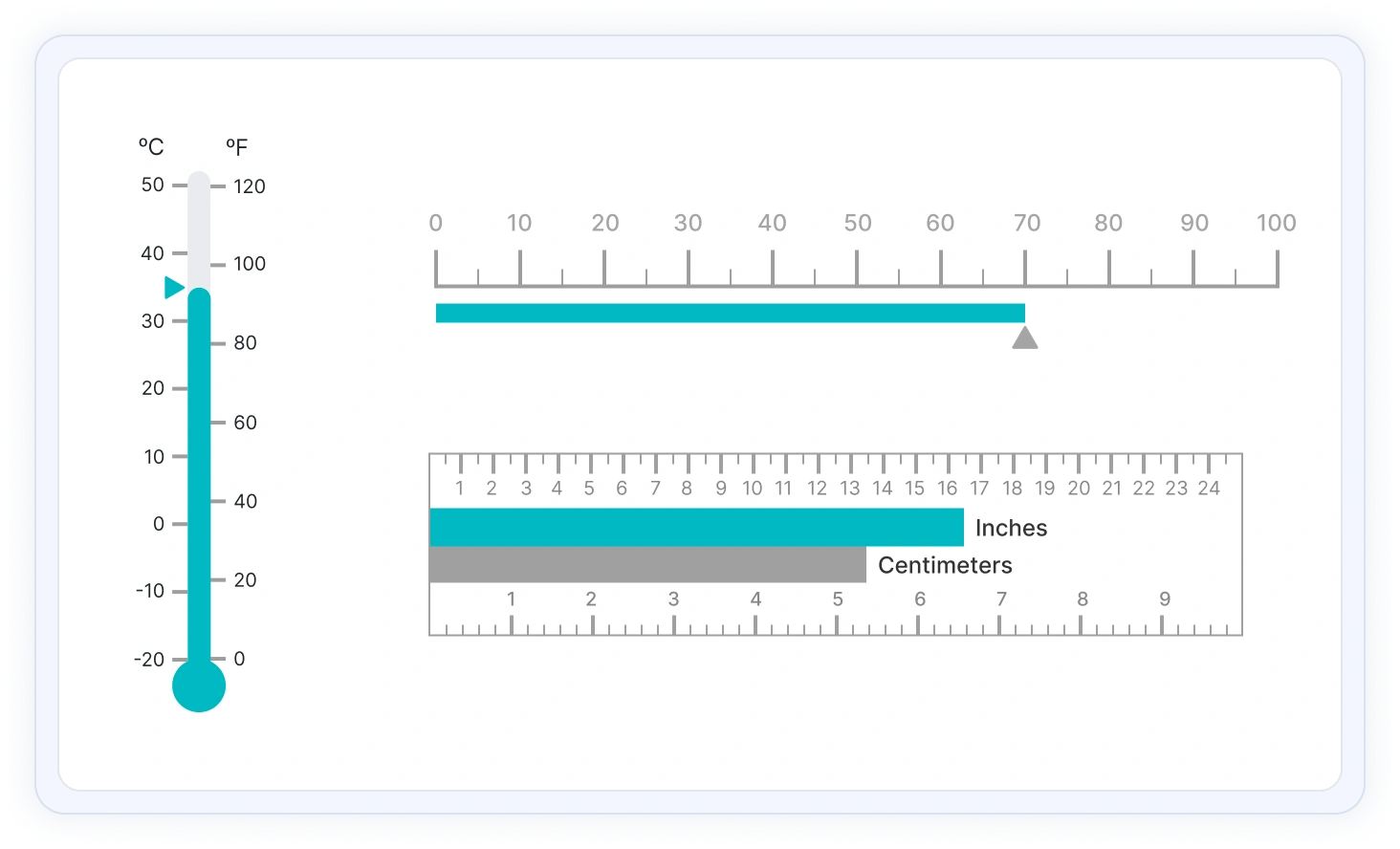
The ASP.NET Core Linear Gauge is ideal control for visualizing numeric values in a linear scale with features like multiple axes, different orientations, and more. Customize the appearance of the gauge to simulate a thermometer, pressure gauge, ruler, and more.
Orientation
Position the Linear Gauge in vertical or horizontal orientation. This is helpful when viewing the gauge on mobile devices.
Containers
A container holds the ranges and pointers in Linear Gauge. Customize the container to be shaped as a rectangle, rounded rectangle, or thermometer.
Axes customization
The gauge axes are linear scales where a set of values can be plotted based on any business logic. Users can also easily customize the appearance of the axes.
Label customization
Customize the look and feel of the default labels in the Linear Gauge by changing the font style, size, and color. Prefix or suffix text can also be added to the labels.
Ticks’ customization
Define the desired style for major ticks and minor ticks in a gauge by changing their height, width, and color.
Offset
To enhance readability, change the position of the default axes in the gauge by setting the offset value for labels, ticks, and axis lines.

Axis line
Add a border to the gauge by using axis lines. The appearance of the default axis in the Linear Gauge can also be customized.

Multiple axes
The ASP.NET Core Linear Gauge allows users to add multiple axes to a gauge to design it like a thermometer, ruler and more.

Inverse axis
Values in the Linear Gauge axes can be reversed.
Range customization
A range in an ASP.NET Core Linear Gauge is a visual element that helps to quickly visualize where a value falls on the axis.

Range position
Change the position of a range or move to any place inside the gauge.

Range width
The range width varies based on the values to enhance usage and readability.

Multiple ranges
Add multiple ranges inside the axes to show color variations.
Pointer types
Indicate the values on an axis using pointers. The ASP.NET Core Linear Gauge control supports two types of pointers: marker and bar.
Marker pointer
Point out the current value by using different types of marker pointers.

Pointer type
Change the marker pointer type to built-in shapes such as a triangle, inverted triangle, square, or circle to highlight a value.

Marker pointer position
Change or move the marker pointers to any place inside the gauge.

Text pointer
Change the marker pointer type to text to indicate axis value.
Bar pointer
Use bar pointer to point the current value from the start value of the axes.

Pointer position
Change or move the bar pointers to any place inside the gauge.

Multiple pointers
Add more than one bar pointer to the axes to indicate multiple values.
Pointer animation
The ASP.NET Core Linear Gauge provides a visually appealing way to view its pointers with animated transitions for a certain duration. Experience smooth pointer transitions by moving the pointer from one place to another.

Pointer interaction
The interactive ASP.NET Core Linear Gauge provides an option to drag the pointer from one place to another. Swipe gestures are used to control the pointer, and the value is changed at runtime.

Tooltips
Display details about the pointer value on a tooltip when hovering over the pointer.

Annotations
Display any HTML element as an annotation at a specific point of interest in the Linear Gauge. You can also add multiple annotations in a gauge.

Appearance
The appearance of each element in a Linear Gauge, such as axes, ranges, axes intervals, pointer positions, label positions, tick positions, and more can be customized easily.
Gradient color
Colors applied to the range and pointer can vary gradually to create a smooth color transition.

Gauge title
Add a title to visualize additional information on the Linear Gauge. Users can also customize the font of the title in the gauge.

Width and Height
The Linear Gauge control allows you to change its size by setting the width and height. Also make the gauges to fill its parent container by simply setting the height and width as 100%.
Touch and Browser support
The interactive ASP.NET Core Linear Gauge also supports touch interactions.

Touch support
All the features in a Linear Gauge will work on touch devices with zero configuration. Use the touch features such as tooltip and pointer drag without any customization.

Responsive
Users can view the Linear Gauge on various devices. It is also possible to hide specific elements in the gauges for a particular screen size by making a very minimal change in the gauge events.

Cross browser support
You can render the Linear Gauge in all modern browsers.
Other supported frameworks
Linear Gauge is also available in Blazor, Angular, React, Vue, and JavaScript frameworks. Check out the different Linear Gauge platforms from the links below,
ASP.NET Core Linear Gauge code example
Easily get started with the ASP.NET Core Linear Gauge using a few simple lines of CSHTML code example as demonstrated below. Also explore our ASP.NET Core Linear Gauge example that shows you how to render and configure a Linear Gauge in ASP.NET Core.
<div class="col-md-8 control-section">
        <div class="content-wrapper">
            <ejs-lineargauge id="linear" load="gaugeLoad" title='Temperature Measure'>
                <e-lineargauge-axes>
                    <e-lineargauge-axis minimum="0" maximum="180">
                        <e-axis-line width="0"></e-axis-line>
                        <e-axis-labelstyle font="labelFont"></e-axis-labelstyle>
                        <e-axis-majorticks interval="20" color="#9e9e9e" height="20"></e-axis-majorticks>
                        <e-axis-minorticks height="10" color="#9e9e9e"></e-axis-minorticks>
                    </e-lineargauge-axis>
                    <e-lineargauge-axis minimum="0" maximum="180" opposedPosition="true">
                        <e-axis-line width="0"></e-axis-line>
                        <e-axis-labelstyle font="labelFont"></e-axis-labelstyle>
                        <e-axis-majorticks interval="20" height="20"></e-axis-majorticks>
                    </e-lineargauge-axis>
                </e-lineargauge-axes>
            </ejs-lineargauge>
        </div>
    </div>
Not sure how to create your first ASP.NET Core Linear Gauge? Our documentation can help.
I’d love to read it now140+ ASP.NET CORE UI CONTROLS
SMART COMPONENTS
GRIDS
DATA VISUALIZATION
FILE VIEWERS & EDITORS
DROPDOWNS
NAVIGATION
INPUTS
BUTTONS
NOTIFICATION
INTERACTIVE CHAT
Standalone UI SDKs
Integrate the DataGrid, Chart, Scheduler, Gantt, Rich Text Editor, File Manager, and Diagram UI components into applications to enable rich interaction and visualization, delivering a seamless user experience.
Document Solutions
Integrate the PDF Viewer, DOCX Editor, Spreadsheet Editor, and document-processing libraries into the ASP.NET Core applications to enable a smooth user experience.
Frequently Asked Questions
Why should you choose Syncfusion ASP.NET Core Linear Gauge control?
The Syncfusion ASP.NET Core Linear Gauge provides the following features:
- Easily visualize the numeric values in linear scale with the features like multiple axes, orientation, and more.
- Customize the appearance of gauges completely to simulate thermometer, pressure gauge, ruler, etc.
- Display Linear Gauge in vertical or horizontal orientation.
- One of the best ASP.NET Core Linear Gauge in the market that offers feature-rich UI to interact with the software.
- Support for all modern browsers.
Simple configuration and APIs. Expansive learning resources such as demos and documentation to let you get started quickly with the ASP.NET Core Linear Gauge control.
Where can I find the Syncfusion ASP.NET Core Linear Gauge demo?
You can find our ASP.NET Core Linear Gauge demo, which demonstrates how to render and configure the Linear Gauge.
Can I download and utilize the Syncfusion ASP.NET Core Linear Gauge for free?
No, this is a commercial product and requires a paid license. However, a free community license is also available for companies and individuals whose organizations have less than $1 million USD in annual gross revenue, 5 or fewer developers, and 10 or fewer total employees.
How do I get started with Syncfusion ASP.NET Core Linear Gauge control?
A good place to start would be our comprehensive getting started documentation.
Our Customers Love Us
Having an excellent set of tools and a great support team, Syncfusion® reduces customers’ development time.Here are some of their experiences.

Great and flexible controls to build web applications
Controls meet specifications to develop web applications (ASP.NET MVC and Core in my case) and provide a lot of features to develop world-class software. There are options for other frameworks/platforms. Support is excellent which makes me feel very confident when facing trouble, they provide answers in 24 hours. Support team will make a big effort to solve your issues and they are ready for a phone call and to remotely connect to your PC.

Jorge M,

Founder and Software Architect, Small-Business
Great tool, saves alot of time, and great support
Syncfusion really makes it simple to implement features that would take a ton of time and effort to create. When you're building your site, the UI can take a ton of time away from building the core app. With Syncfusion's tools it reduces that effort significantly so you can get back to building the core elements.

Walter T,
Founder, Small-Business
See Real Success Stories
Developers around the world trust Syncfusion’s Essential Studio to simplify complex projects and speed up delivery. With a vast library of UI controls, powerful SDKs, and reliable support, Essential Studio helps teams build enterprise-ready applications with confidence.
Read Our Customer StoriesIndustry
Software development
75% Cost reduction
50% Faster development
Industry
Utilities (oil and gas)

450+ hours saved
Streamlined processes and hours of development effort saved.

Advanced, flexible features
Empowered users through robust and versatile functionality.
Industry
Software and technology
1000+ of hours saved
Accelerated development with enterprise-ready UI components.

Efficient file management
Streamlined workflows with document libraries without building them from scratch.
Industry
Software and technology

2 Years of delay avoided
Two years of delays prevented with proactive planning.

On-time delivery
Projects delivered on schedule using trusted controls.
Industry
IT services and IT consulting

Improved performance
Large datasets handled with easy customization and quick debugging.

Highly customizable
Plug-and-play controls with quick template integration.
Industry
Professional services
Instant access
Quick availability of features and resources.
Reduced dependencies
Fewer dependencies for faster development.
Rated by users across the globe
Syncfusion ASP.NET Core Resources
Learning
 Documentation
 Documentation


Awards
Greatness—it’s one thing to say you have it, but it means more when others recognize it. Syncfusion® is proud to hold the following industry awards.









