Overview
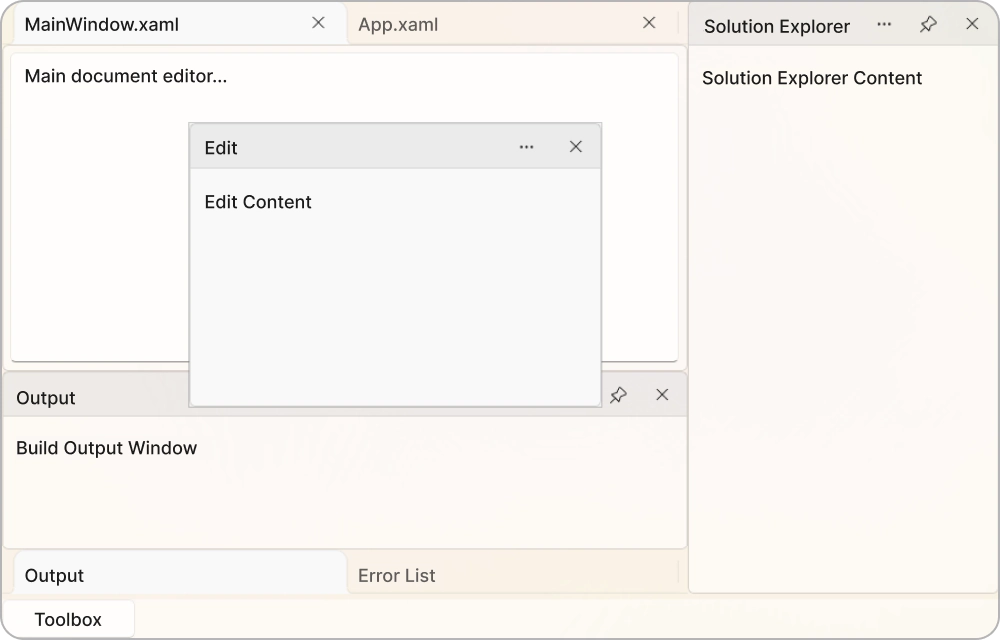
The WinUI Docking Manager control provides a Visual Studio-style docking interface for modern desktop applications. Organize content into docked, floating, auto-hidden, and tabbed windows to create flexible, productive workspaces. Users can easily customize layouts by arranging panes, managing documents, and adjusting window behavior.
WinUI Docking Manager code example
Get started with the WinUI Dock Layout control using a few simple lines of XAML and C# code, as shown below. This control helps organize application content into docked, floating, auto-hidden, and tabbed windows, allowing users to build customizable workspace layouts.
<syncfusion:SfDockingManager>
    <syncfusion:DockPane Header="Solution Explorer" />
    <syncfusion:DockPane Header="Toolbox" />
    <syncfusion:DockPane Header="Properties" />
    <syncfusion:DockPane Header="Output" />
    <syncfusion:DockPane Header="Start Page" />
</syncfusion:SfDockingManager>
using Microsoft.UI.Xaml;
using Syncfusion.UI.Xaml.Docking;
namespace DockLayoutSample
{
public sealed partial class MainWindow : Window
{
public MainWindow()
{
this.InitializeComponent();
SfDockingManager dockingManager = new SfDockingManager();
DockPane solutionExplorer = new DockPane()
{
Header = "Solution Explorer"
};
DockPane toolbox = new DockPane()
{
Header = "Toolbox"
};
DockPane properties = new DockPane()
{
Header = "Properties"
};
DockPane output = new DockPane()
{
Header = "Output"
};
DockPane startPage = new DockPane()
{
Header = "Start Page"
};
dockingManager.Children.Add(solutionExplorer);
dockingManager.Children.Add(toolbox);
dockingManager.Children.Add(properties);
dockingManager.Children.Add(output);
dockingManager.Children.Add(startPage);
this.Content = dockingManager;
}
}
}Different types of docking windows
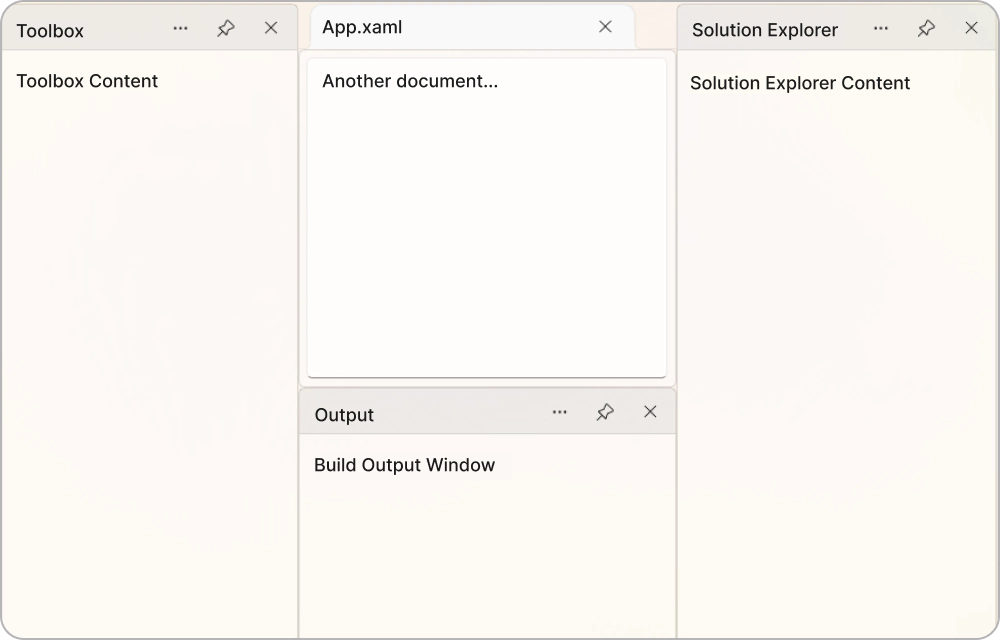
Create adaptable workspaces with multiple docking window types. Display content as docked panels, document tabs, floating windows, auto-hidden panes, or tabbed groups. Users can switch between different window types to organize their workspace and access information efficiently.
Auto-hide panels
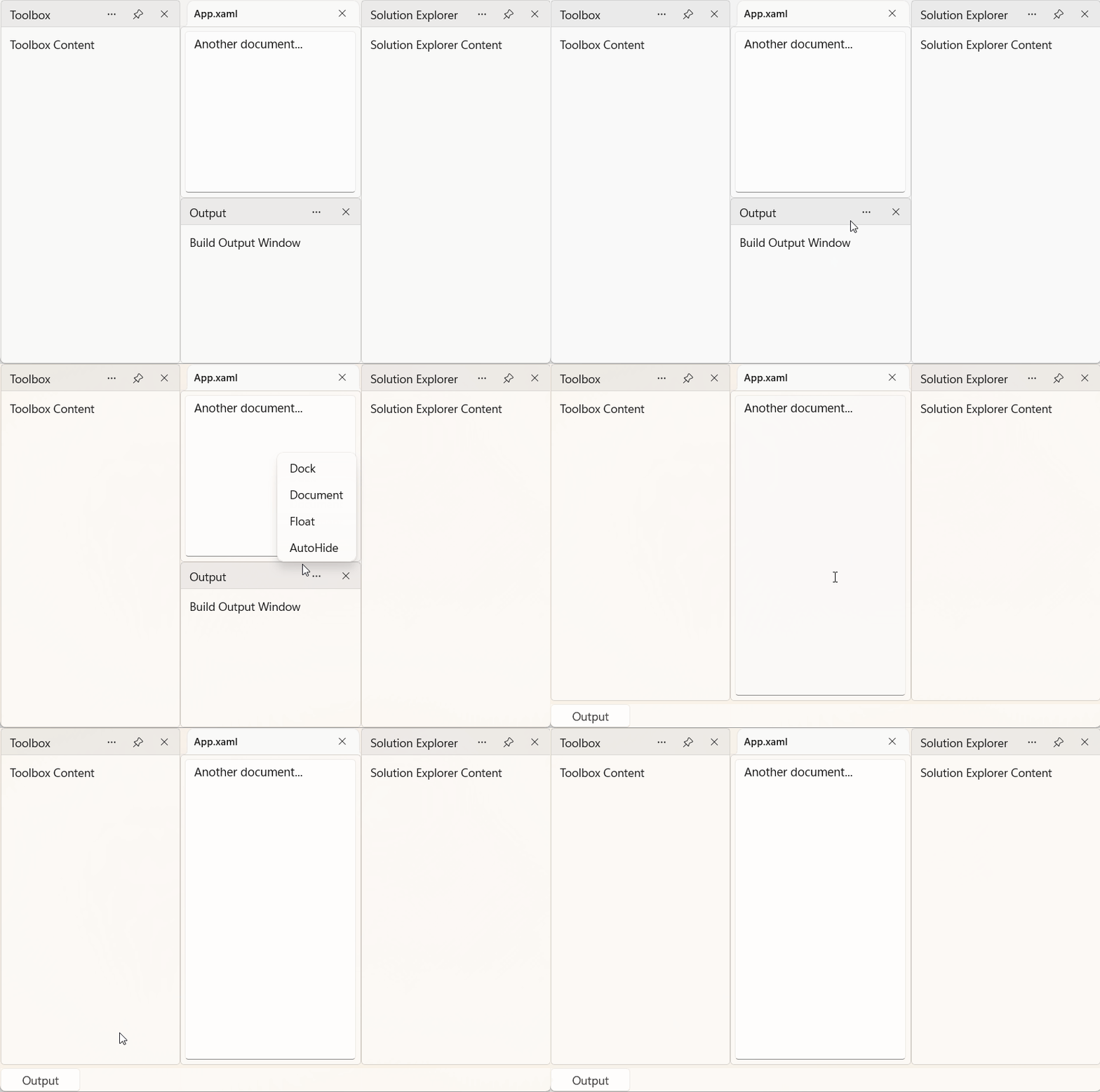
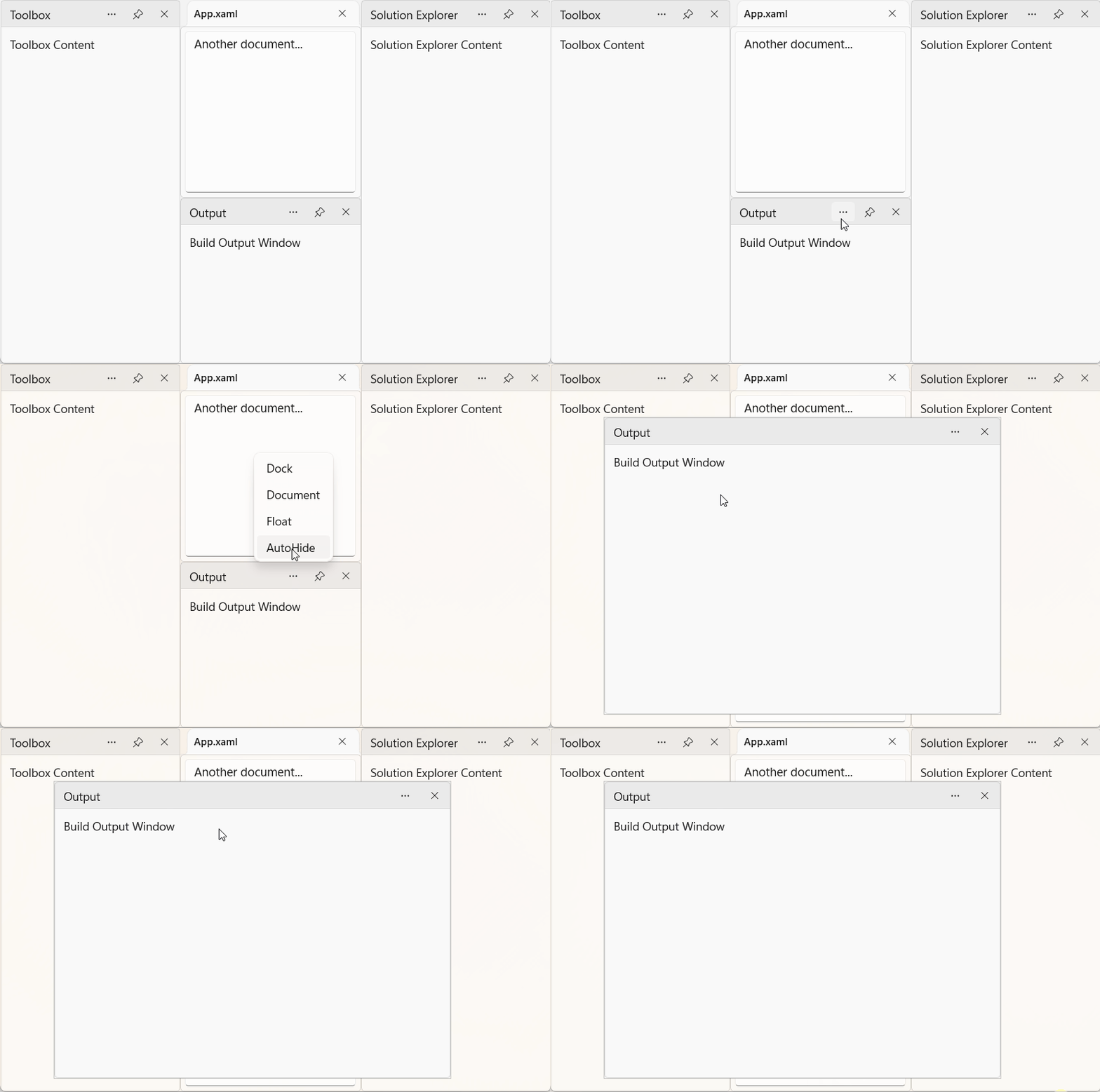
Maximize workspace by automatically hiding tool windows when they are not in use. Auto-hidden panels remain accessible through edge tabs and can be quickly revealed when required. This helps users focus on their primary content while keeping important tools within easy reach.
Floating windows
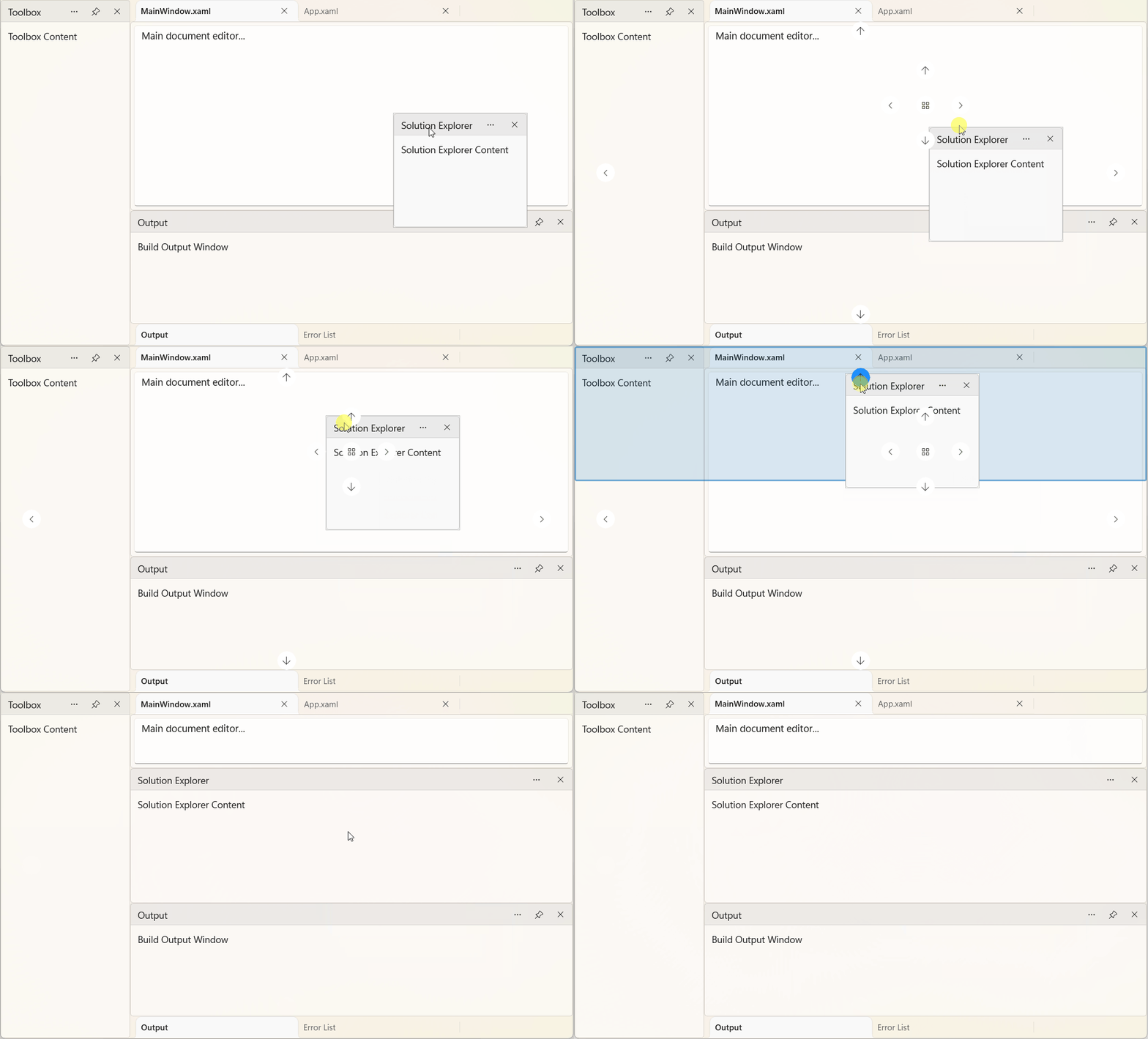
Detach docked panes into independent floating windows and position them anywhere on the screen. Floating windows offer greater workspace flexibility and are especially useful in multi-monitor environments. Users can easily move windows between displays and return them to the docking layout whenever needed.
Drag-and-drop docking
Customize layouts through intuitive drag-and-drop interactions. Move panes between docking regions, convert docked panels into floating windows, and reorganize content at runtime. Interactive docking lets users create custom workspaces without additional configuration.
Dock indicators
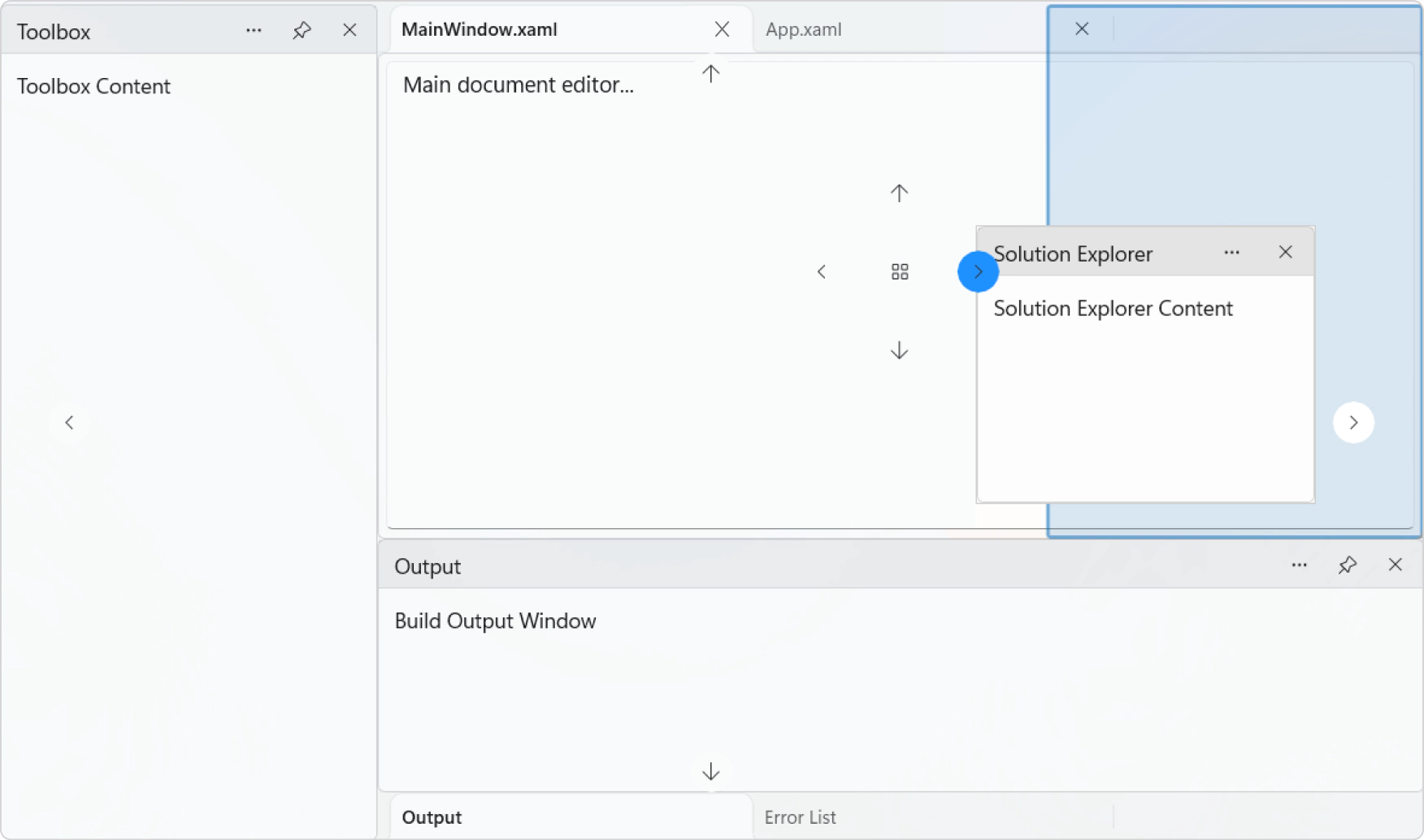
Built-in dock indicators provide visual guidance during drag operations. They clearly highlight available docking locations and help users position panes accurately within the layout. This simplifies workspace customization.
Tab groups and documents
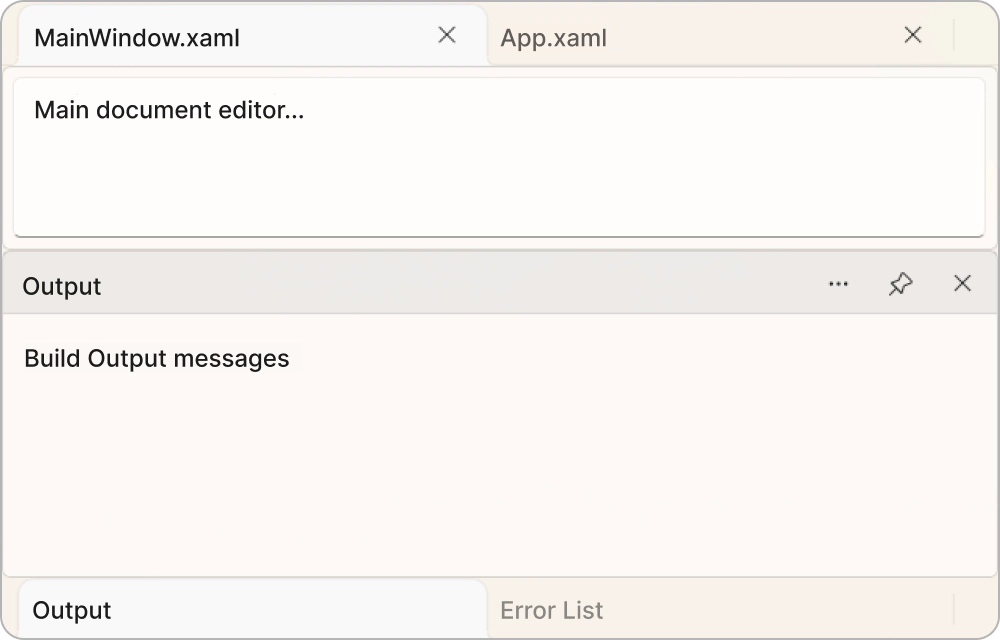
Organize multiple tools and documents using tabbed groups. Group related content within the same region and manage documents with a familiar tabbed interface. Quickly switch between open views and maintain a clean, organized, and productive workspace.
Flexible placement
Create layouts using the approach that best fits your application. Define pane positions in XAML, manage layouts programmatically, bind layouts using MVVM patterns, or allow users to arrange panes interactively. This flexibility supports a wide range of application designs and development workflows.
Resizable dock layout
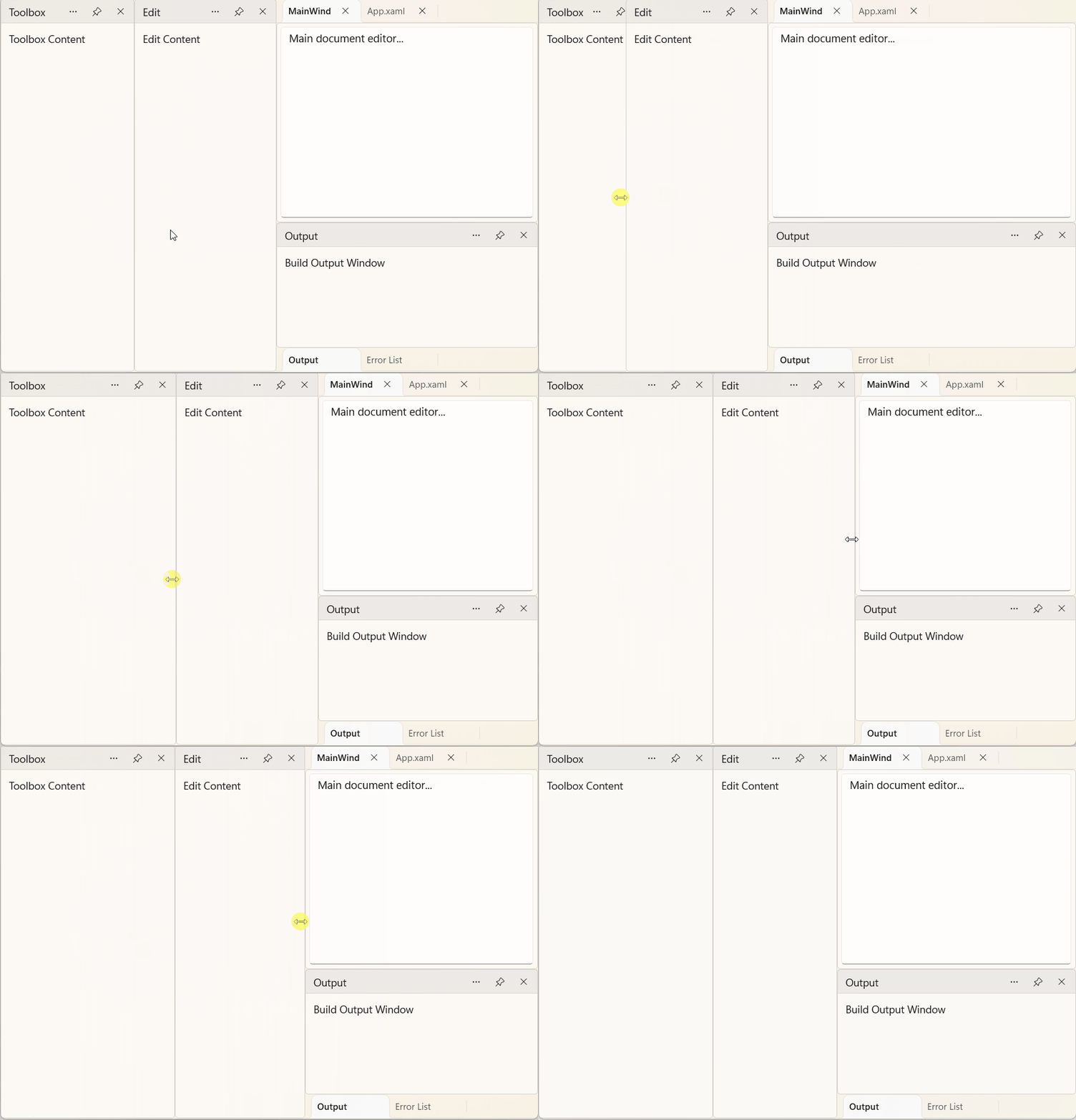
Adjust workspace proportions with interactive resizing. Users can resize docking regions using splitters to allocate more space to the content that matters most. This enables efficient use of screen space.
MVVM data binding
Build dynamic docking layouts with built-in MVVM support. Bind panes to collections and manage workspace content with ViewModels, maintaining a clear separation between the user interface and application logic.
Syncfusion WinUI DataViz & UI Controls
Standalone UI SDKs
Integrate the DataGrid, Chart, and Scheduler UI components into applications to enable rich interaction and visualization, delivering a seamless user experience.
Document Solutions
Integrate the PDF Viewer, DOCX Editor, Spreadsheet Editor, and document-processing libraries into the WinUI applications to enable a smooth user experience.
Our Customers Love Us





See Real Success Stories
Developers around the world trust Syncfusion’s Essential Studio to simplify complex projects and speed up delivery. With a vast library of UI controls, powerful SDKs, and reliable support, Essential Studio helps teams build enterprise-ready applications with confidence.
Read Our Customer StoriesIndustry
Software development
75% Cost reduction
50% Faster development

Industry
Utilities (oil and gas)

450+ hours saved
Streamlined processes and hours of development effort saved.

Advanced, flexible features
Empowered users through robust and versatile functionality.
Industry
Software and technology
1000+ of hours saved
Accelerated development with enterprise-ready UI components.

Efficient file management
Streamlined workflows with document libraries without building them from scratch.
Industry
Software and technology

2 Years of delay avoided
Two years of delays prevented with proactive planning.

On-time delivery
Projects delivered on schedule using trusted controls.
Industry
IT services and IT consulting

Improved performance
Large datasets handled with easy customization and quick debugging.

Highly customizable
Plug-and-play controls with quick template integration.
Industry
Professional services
Instant access
Quick availability of features and resources.
Reduced dependencies
Fewer dependencies for faster development.
Rated by users across the globe



Syncfusion WinUI Resources


Awards
Greatness—it’s one thing to say you have it, but it means more when others recognize it. Syncfusion® is proud to hold the following industry awards.