

Overview
The WinUI TreeGrid, also known as a multicolumn tree view, is a data-oriented control that displays self-relational data in a tree structure UI. Its rich feature set includes editing with different column types; selection; data loaded on demand; and node selection with checkboxes, sorting, and filtering.
Data binding
- Bind hierarchical data by specifying child mapping.
- Display self-relational data in a tree structure by specifying the parent and child mappings.
- Use the unbound mode, where the data is loaded on demand through events.

Editing
- Utilize built-in column types such as text, date, and combo box.
- Embed controls such as a progress bar and rating to view or edit data.
- Commit or roll back changes when a data object implements IEditableObject.
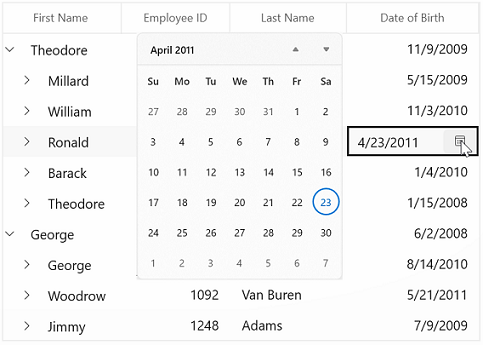
Built-in data error indication and validation
Validate cells and display error information based on the following validation types:
- INotifyDataErrorInfo
- Data annotations
Or use:
- Cell validation
- Row validation

Data shaping
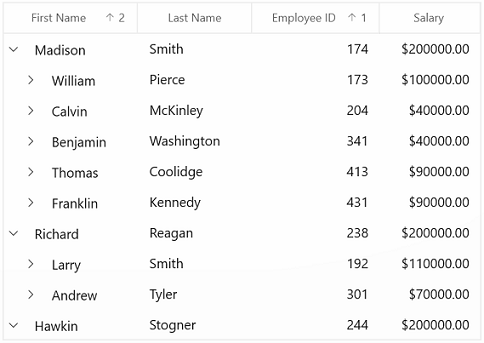
Sorting
Sort data against one or more columns with multiple customization operations. You can also sort by writing custom logic.

Filtering
Filter nodes using an intuitive, built-in, Excel-inspired filtering UI or programmatically with various filter-level options.
Selection
Users can perform row-based selection with extensive support for keyboard navigation. Users can also select rows using intuitive checkboxes.
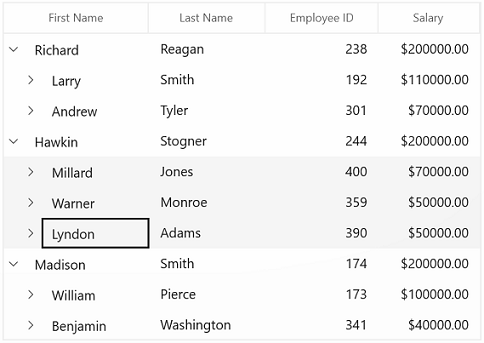
Column sizing
Column width can be adjusted (autofit) based on the content of any column or column header. All the columns can be fit within the viewport of the TreeGrid.
Row and column customization

Freeze panes
Freezes columns on the left and right sides of the grid, similar to in Excel.

Stacked headers
Stacked headers (column header span) allow users to show unbound header rows. They span the stacked header columns across multiple rows and columns.

Cell merging
Dynamically merge data in adjacent cells in a row across columns and present that data in a single cell. Merge data based on content by writing your own custom logic.
Appearance style
The appearance of a WinUI TreeGrid and its inner elements, such as rows, cells, columns, and headers, can be customized.

Context menu
The WinUI TreeGrid control provides an entirely custom context menu to expose functionality on the user interface. Users can create context menus for different rows such as record rows, header rows, and expander rows.

Clipboard operations
The WinUI TreeGrid allows you to perform clipboard operations such as cut, copy, and paste within the control and between it and other applications such as Notepad or Excel.
Row drag and drop
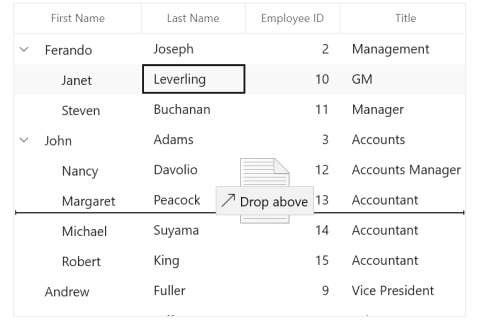
The WinUI TreeGrid allows you to drag and drop nodes between TreeGrid and other controls such as ListView, TreeView, and DataGrid. You can also select and drag multiple nodes when the SelectionMode is multiple or extended.
Right to left (RTL)
The WinUI TreeGrid supports right-to-left rendering for users who are working with RTL languages like Hebrew, Arabic, or Persian.

Excel exporting
Export the TreeGrid data to Microsoft Excel with a variety of appearance customization options. Exclude and include specific columns, set custom row heights and column widths, and much more. You can further customize the exported Excel file using Essential XlsIO.

Localization
Localize all the static default strings in the WinUI TreeGrid to any supported language.

WinUI TreeGrid code example
Easily get started with the WinUI TreeGrid using a few simple lines of XAML and C# code, as demonstrated in the following. Also explore our WinUI TreeGrid example, which shows you how to render and configure the TreeGrid in WinUI.
<Page
    x:Class="GettingStarted.MainPage"
    xmlns="http://schemas.microsoft.com/winfx/2006/xaml/presentation"
    xmlns:x="http://schemas.microsoft.com/winfx/2006/xaml"
    xmlns:local="using:GettingStarted"
    xmlns:d="http://schemas.microsoft.com/expression/blend/2008"
    xmlns:mc="http://schemas.openxmlformats.org/markup-compatibility/2006"
    xmlns:treeGrid="using:Syncfusion.UI.Xaml.TreeGrid"
    mc:Ignorable="d"
    Background="{ThemeResource ApplicationPageBackgroundThemeBrush}">
    <Page.DataContext>
        <local:ViewModel/>
    </Page.DataContext>
    <Grid x:Name="rootGrid">
        <treeGrid:SfTreeGrid x:Name="sfTreeGrid" />
    </Grid>
</Page>
using Syncfusion.UI.Xaml.TreeGrid;
namespace GettingStarted
{
/// <summary>
/// An empty page that can be used on its own or navigated to within a Frame.
/// </summary>
public sealed partial class MainPage : Page
{
public MainPage()
{
this.InitializeComponent();
SfTreeGrid sfTreeGrid = new SfTreeGrid();
rootGrid.Children.Add(sfTreeGrid);
}
}
}Not sure how to create your first WinUI TreeGrid? Our documentation can help.
I’d love to read it nowSyncfusion WinUI DataViz & UI Controls
Standalone UI SDKs
Integrate the DataGrid, Chart, and Scheduler UI components into applications to enable rich interaction and visualization, delivering a seamless user experience.
Document Solutions
Integrate the PDF Viewer, DOCX Editor, Spreadsheet Editor, and document-processing libraries into the WinUI applications to enable a smooth user experience.
Frequently Asked Questions
Why should I choose the Syncfusion WinUI TreeGrid?
Syncfusion WinUI TreeGrid provides the following features:
Flexible data binding with support to bind any collection that implements the IEnumerable interface.
- An unbound mode where the data is loaded on demand through events.
- Instant loading of self-relational data and rich UI interaction.
- A bunch of features with customization options suitable for building complex, large-scale applications.
- CRUD operations using various modes of editing and built-in validation rules.
- One of the best WinUI TreeGrid in the market that offers feature-rich UI to interact with the software.
- High-performance.
- Simple configuration and APIs.
- Touch-friendly and responsive UI.
Extensive demos and documentation to get started quickly with TreeGrid for WinUI.
Where can I find the Syncfusion WinUI TreeGrid demo?
You can find our WinUI TreeGrid demo, which demonstrates how to render and configure the TreeGrid.
Can I download and utilize the Syncfusion WinUI TreeGrid for free?
No, this is a commercial product and requires a paid license. However, a free community license is also available for companies and individuals whose organizations have less than $1 million USD in annual gross revenue, 5 or fewer developers, and 10 or fewer total employees.
How do I get started with Syncfusion WinUI TreeGrid?
A good place to start would be our comprehensive getting started documentation.
Our Customers Love Us





See Real Success Stories
Developers around the world trust Syncfusion’s Essential Studio to simplify complex projects and speed up delivery. With a vast library of UI controls, powerful SDKs, and reliable support, Essential Studio helps teams build enterprise-ready applications with confidence.
Read Our Customer StoriesIndustry
Software development
75% Cost reduction
50% Faster development

Industry
Utilities (oil and gas)

450+ hours saved
Streamlined processes and hours of development effort saved.

Advanced, flexible features
Empowered users through robust and versatile functionality.
Industry
Software and technology
1000+ of hours saved
Accelerated development with enterprise-ready UI components.

Efficient file management
Streamlined workflows with document libraries without building them from scratch.
Industry
Software and technology

2 Years of delay avoided
Two years of delays prevented with proactive planning.

On-time delivery
Projects delivered on schedule using trusted controls.
Industry
IT services and IT consulting

Improved performance
Large datasets handled with easy customization and quick debugging.

Highly customizable
Plug-and-play controls with quick template integration.
Industry
Professional services
Instant access
Quick availability of features and resources.
Reduced dependencies
Fewer dependencies for faster development.
Rated by users across the globe



Syncfusion WinUI Resources


Awards
Greatness—it’s one thing to say you have it, but it means more when others recognize it. Syncfusion® is proud to hold the following industry awards.









