Overview
The React Rich Text Editor is a powerful component designed for building blogs, CMS platforms, email composers, documentation tools, messaging applications, and knowledge bases. It enables developers to create, edit, and format HTML and Markdown content using an intuitive rich text editing experience with clean HTML output.
Interact with the Live React RTE
Runs in-browser. No installation required.
Why choose the Syncfusion React Rich Text Editor component?
Powerful WYSIWYG HTML Editor
It delivers rich HTML and Markdown editing with text formatting, lists, tables, colors, media insertion, hyperlinks, and optional iframe editing.
AI-Assisted Development
Build advanced content editing experiences faster with the Agentic UI Builder and Syncfusion Agent Skills. Generate formatting tools, editor layouts, templates, and media-rich workflows with minimal manual effort.
Advanced Media & Content Support
Supports inserting images, videos, tables, hyperlinks, cell merging, clipboard actions, undo/redo, and Markdown editing.
HTML Source Editing & Live Preview
Use the React HTML Rich Text Editor to edit content visually or switch to HTML source view for direct HTML editing with an instant live preview, ensuring clean and accurate markup.
Fully Responsive & Mobile Optimized
Responsive UI that adapts seamlessly to desktop, tablet, and mobile screens. Optimized for smooth editing experiences across iOS, Android, and Windows devices.
Accessibility, Localization & Global Readiness
Built with WAI-ARIA compliance and full keyboard accessibility for inclusive usage. Supports localization and globalization, including RTL rendering and culture-specific formatting for dates and numbers.
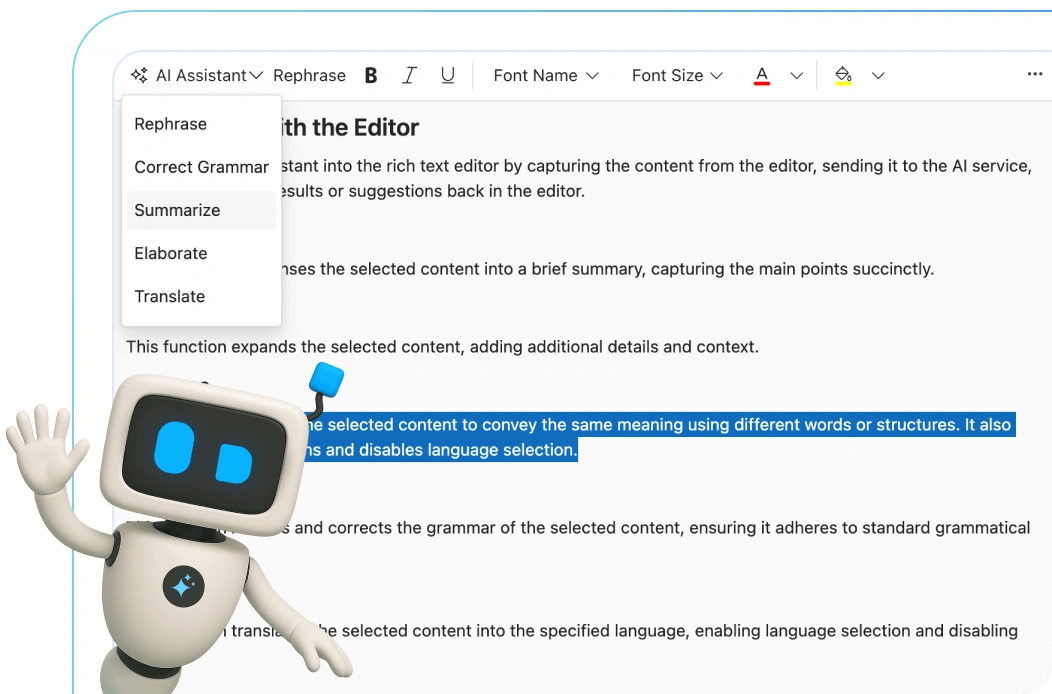
AI-ready Rich Text Editor for smarter writing
Enhance your writing with the AI-ready Rich Text Editor. Fix grammar, rephrase content, switch languages, and summarize text instantly, all within the editor.
React Rich Text Editor code example
Get started with the React Rich Text Editor using a few simple lines of TSX cod, as demonstrated below. Also, explore this React Rich Text Editor example which shows how to render and configure the component in React.
import { HtmlEditor, Image, Inject, Link, QuickToolbar, RichTextEditorComponent, Toolbar } from '@syncfusion/ej2-react-richtexteditor';
import './App.css';
function App() {
    return (
        <RichTextEditorComponent>
            <Inject services={[Toolbar, Image, Link, HtmlEditor, QuickToolbar]} />
        </RichTextEditorComponent>
    );
}
export default App;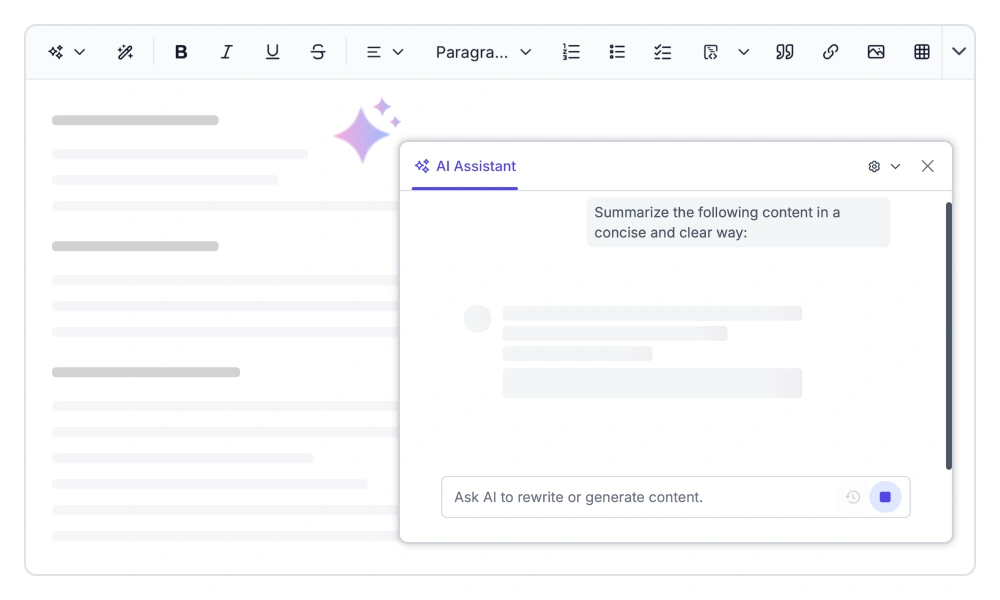
AI writing assistant
Enhance content creation with AI-powered writing tools that generate, rewrite, summarize, translate, and refine text directly within the editor. Integrate with popular AI providers, apply commands to selected content, and maintain conversation history to streamline writing workflows and improve productivity across content-driven applications.
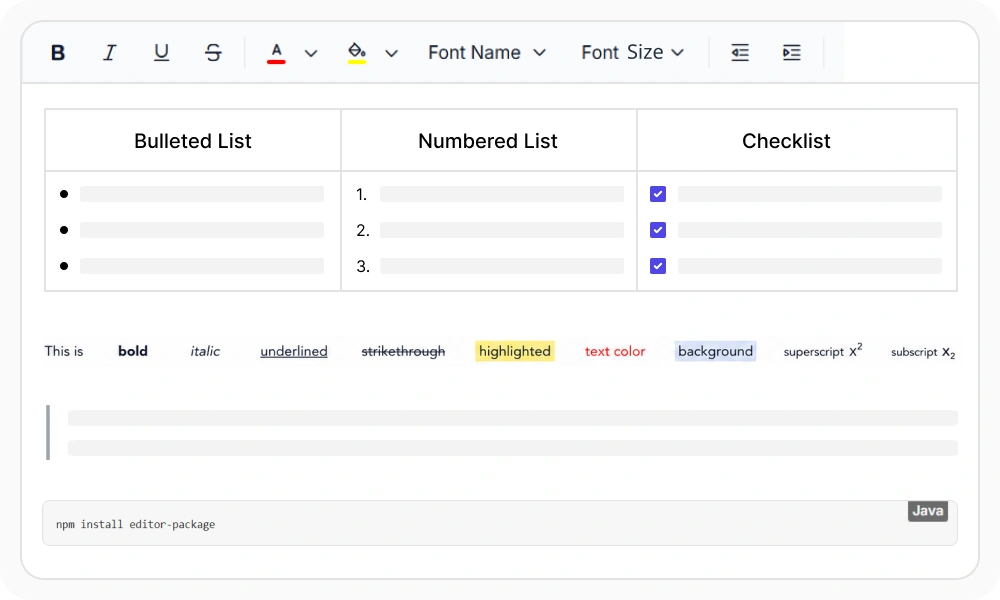
Rich text formatting
Create professional, well-structured content with rich text formatting options, including headings, fonts, colors, lists, alignment, spacing, block quotes, and inline code. Apply multiple styles with ease and generate readable, accessible content for documentation, reports, blogs, and business applications.
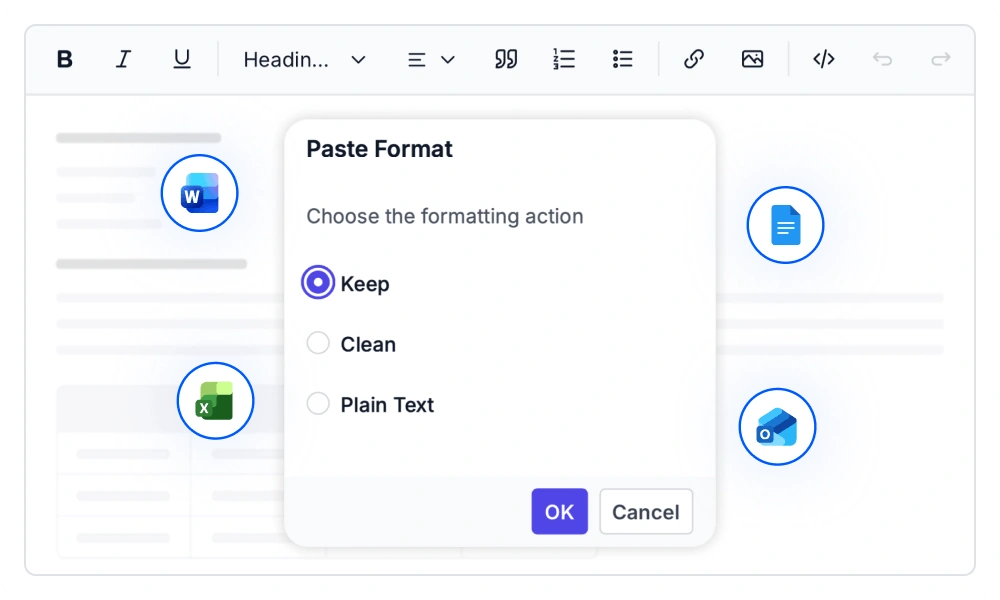
Paste cleanup
Control how content is pasted into the editor with flexible paste cleanup options. Preserve original formatting, remove unwanted styles, or paste as plain text while maintaining content structure and readability. Configure styles and HTML tags filtering to ensure clean, consistent content from Word, Excel, Google Docs, and other external sources.
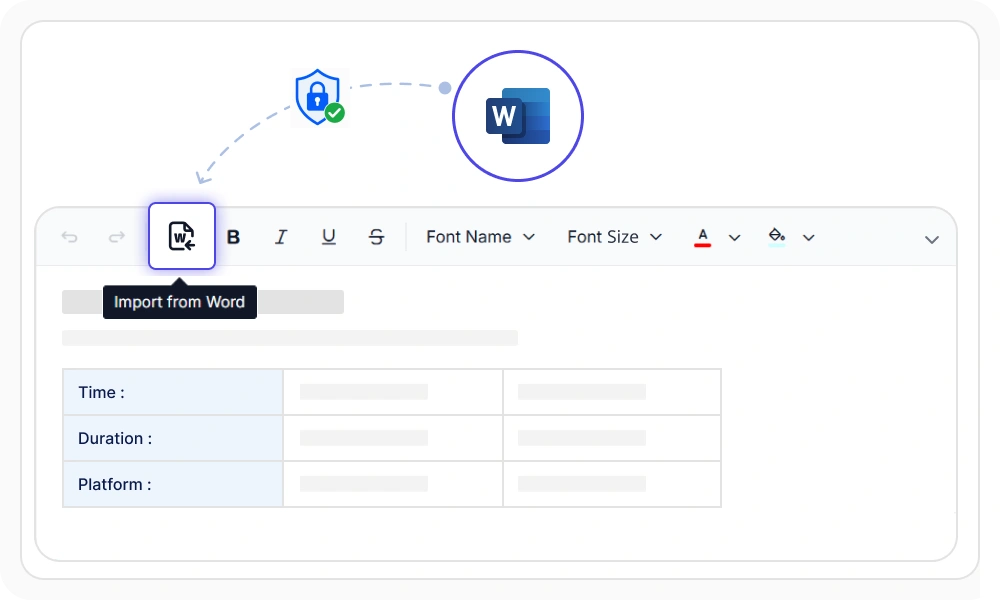
Import Word documents
Import Word, RTF, and template files directly into the editor while preserving headings, lists, tables, images, and document structure. Simplify content migration from existing documents, maintain formatting fidelity, and secure imports with configurable authentication for efficient editing and document management workflows.
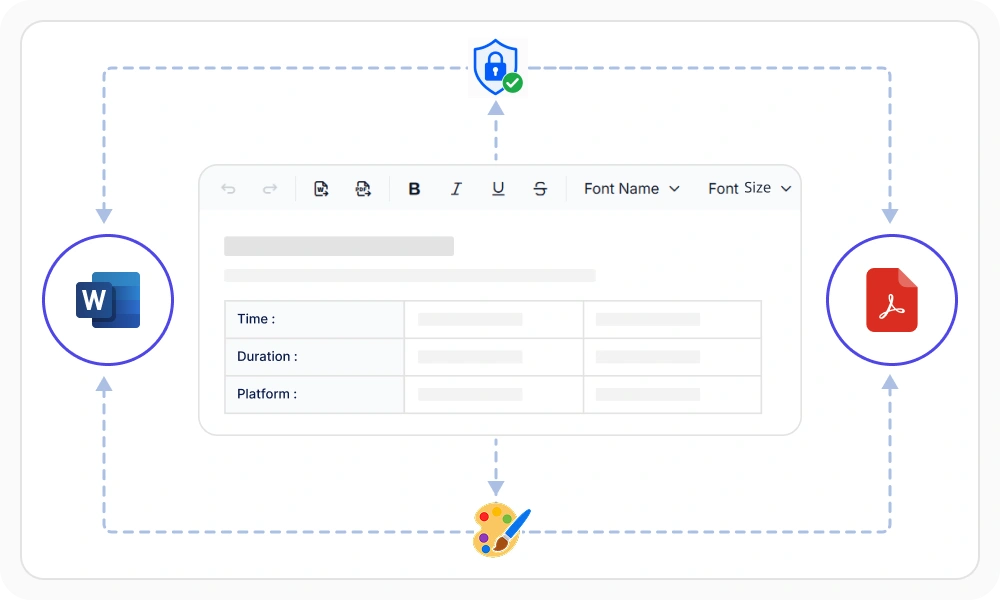
Export to Word and PDF
Export rich text content to PDF and Word documents while preserving formatting, tables, images, and document structure. Generate print-ready PDFs, create editable DOCX files, apply custom branding, and secure export workflows with authentication for seamless sharing, collaboration, and document management.
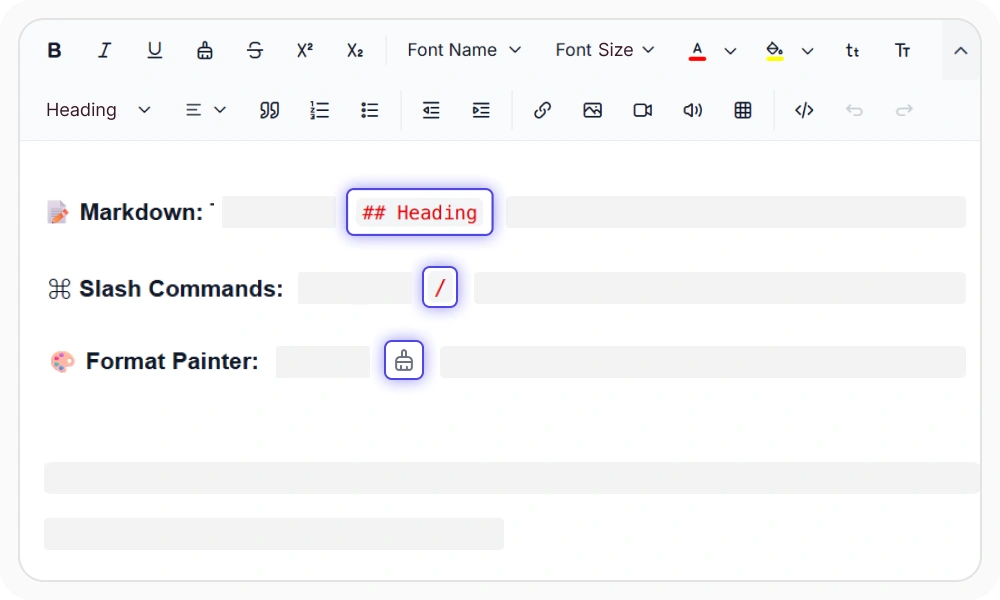
Quick content formatting
Enable fast styling with Markdown-style shortcuts, slash commands, and format painter. Users can type Markdown syntax like # for headings or * for lists to apply formatting instantly. Type / to insert content blocks without navigating toolbar menus. The format painter copies styles from one section and applies them elsewhere, keeping formatting consistent across long documents without manual repetition.
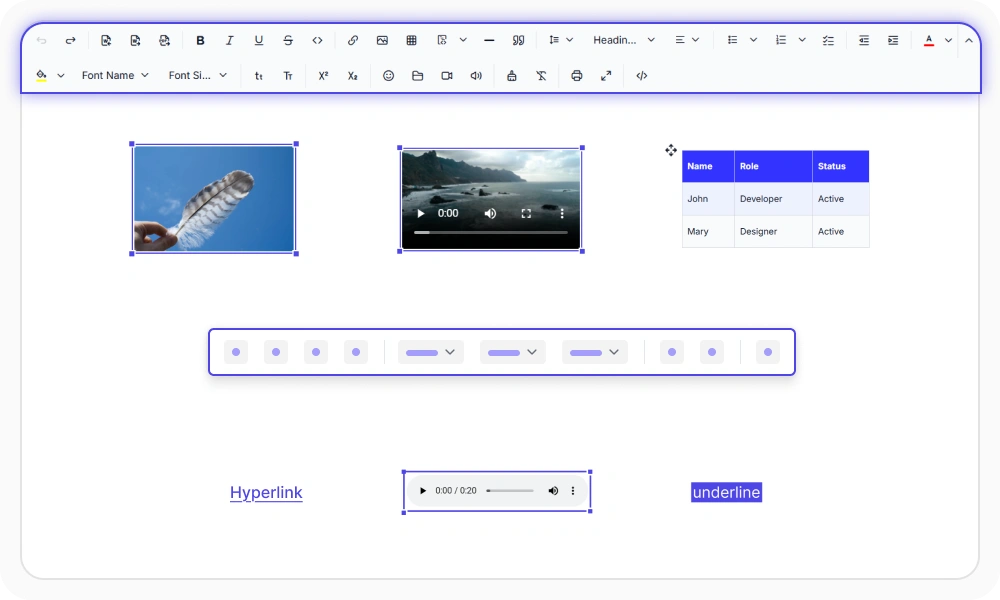
Toolbar Customization
Configure toolbar layouts, positioning, floating behavior, and inline editing tools to match any workflow. Use context-aware quick actions for images, tables, links, and media, and add custom toolbar items to create responsive content authoring experiences across desktop and mobile devices.
Content security
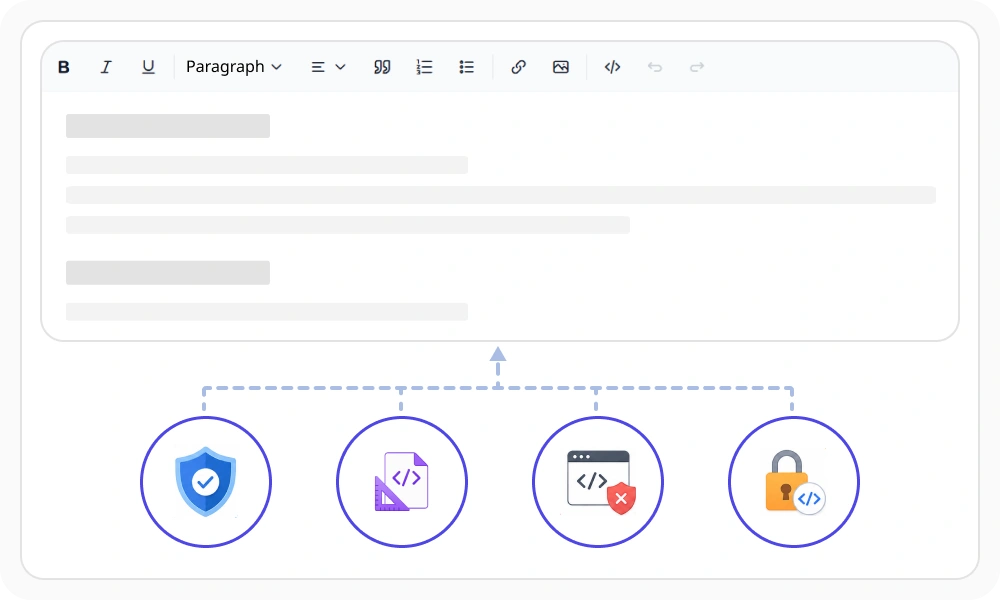
Protect editor content with built-in security features, including HTML sanitization, XSS prevention, Content Security Policy (CSP) support, XHTML-compliant output, and HTML encoding. Ensure safe content handling, storage, and rendering while maintaining clean, standards-compliant markup across web applications and content management workflows.
Mention and hashtag
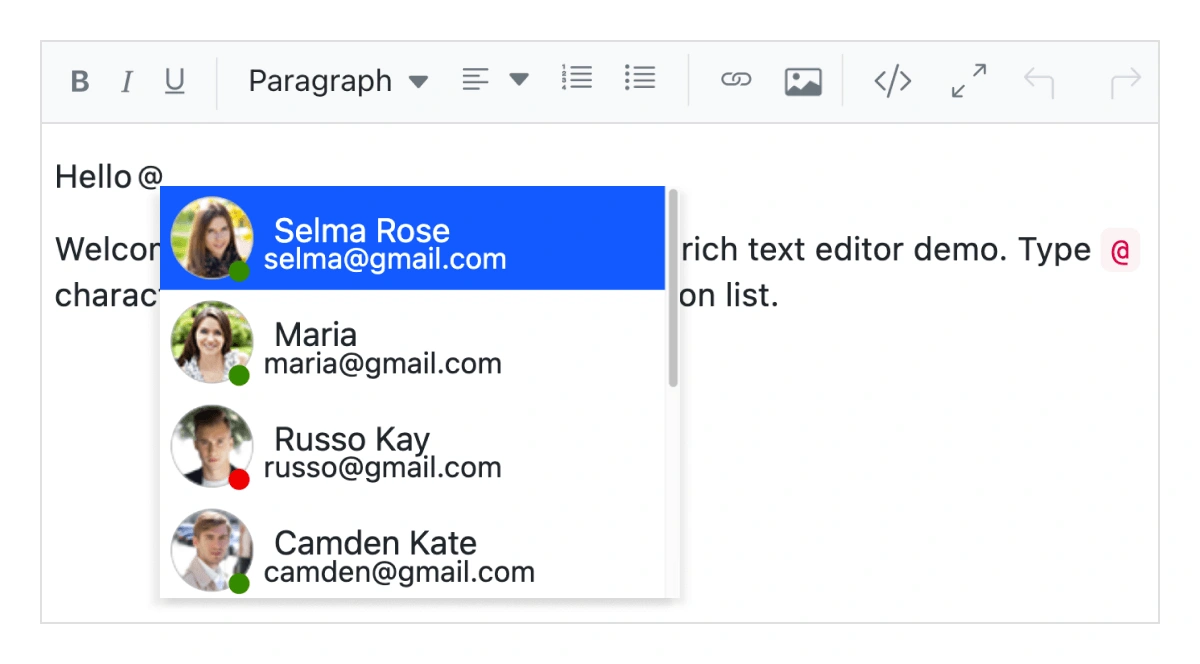
Enable social-style mentions within the editor by providing intelligent suggestion lists as users type @ or #. Tag users, groups, or topics, customize suggestion templates, control search behavior and result counts, and create interactive mentions for collaborative content creation, discussions, comments, and workflow-driven applications.
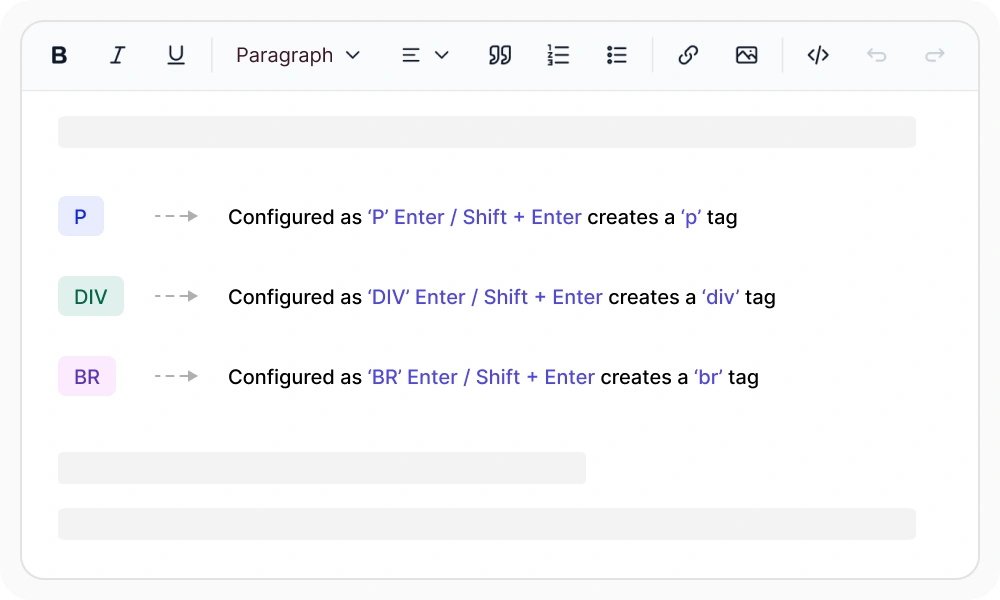
Enter and Shift+Enter key configuration
Customize how the Enter and Shift+Enter keys behave in the editor by inserting paragraph (<p>), division (<div>), or line break (
) elements. Control content structure, match application-specific formatting requirements, and even prevent default Enter actions to create tailored editing experiences for documents, messaging, and content authoring workflows.
Insert and edit images
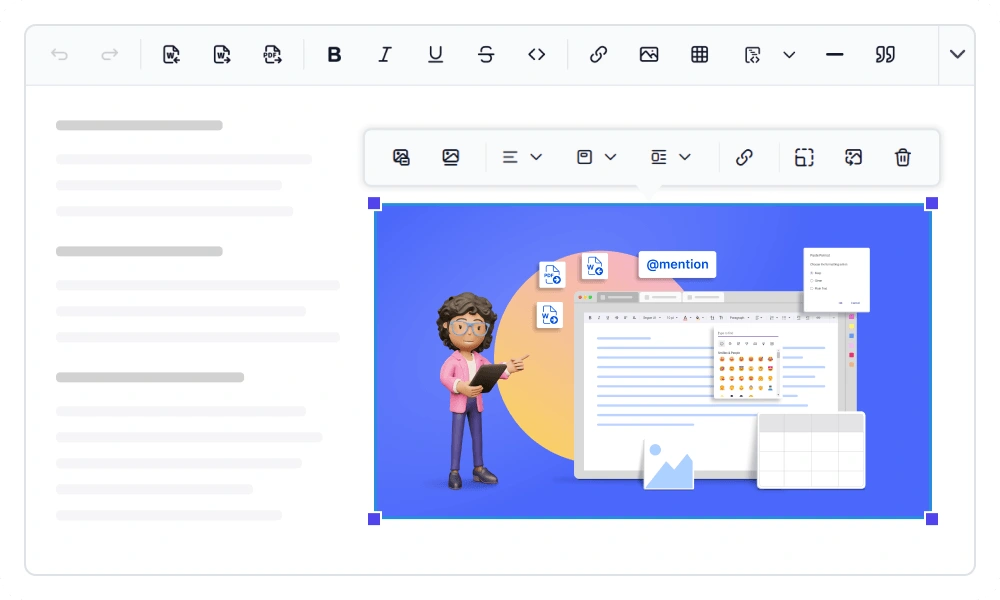
Insert, format, and manage images with flexible layouts, text wrapping, captions, and alt text. Support secure image uploads, configurable storage options, and integrated file browsing to simplify content creation while maintaining accessibility, consistency, and control across web applications.
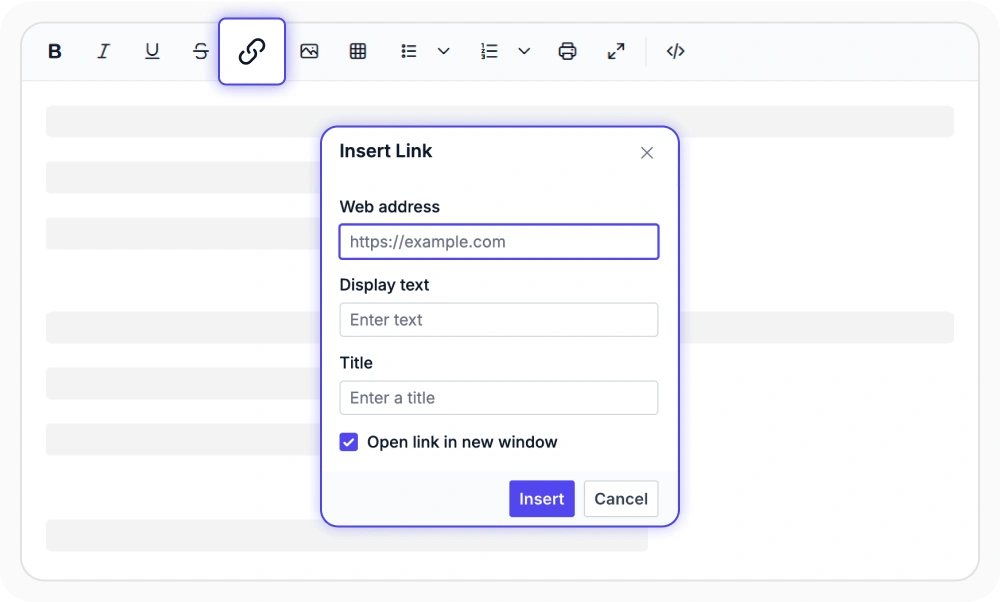
Insert hyperlinks
Insert, edit, and manage hyperlinks with options for display text, title, and opening links in new windows. Support automatic link generation and flexible URL handling to create connected, interactive content for websites, documentation, blogs, and business applications.
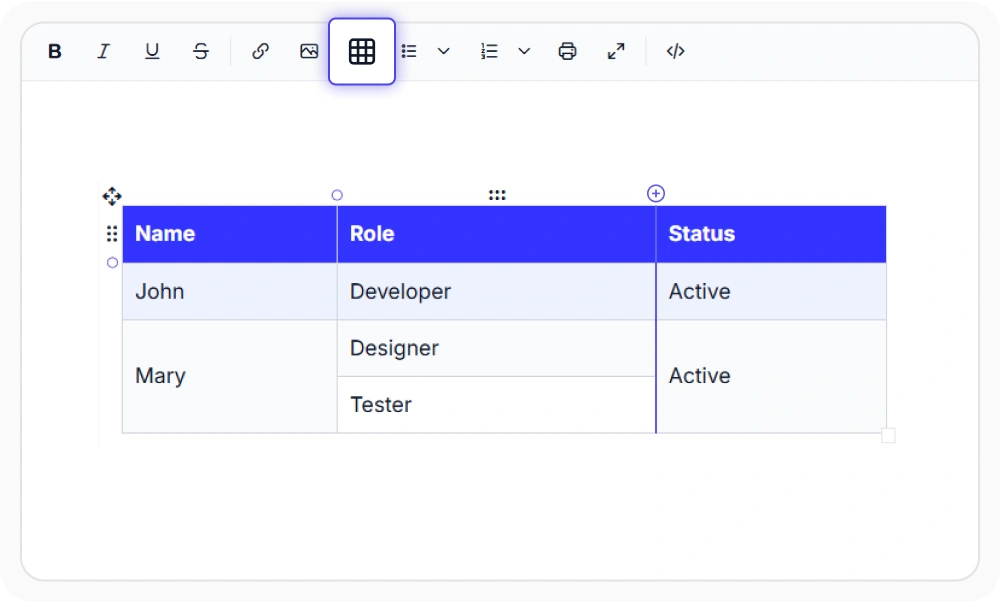
Insert and edit tables
Create, edit, and format tables with tools for merging and splitting cells, adding rows and columns, resizing table elements, and applying rich formatting. Use quick selection and contextual table actions to build structured, readable, and professional content for business documents, reports, and data-driven applications.
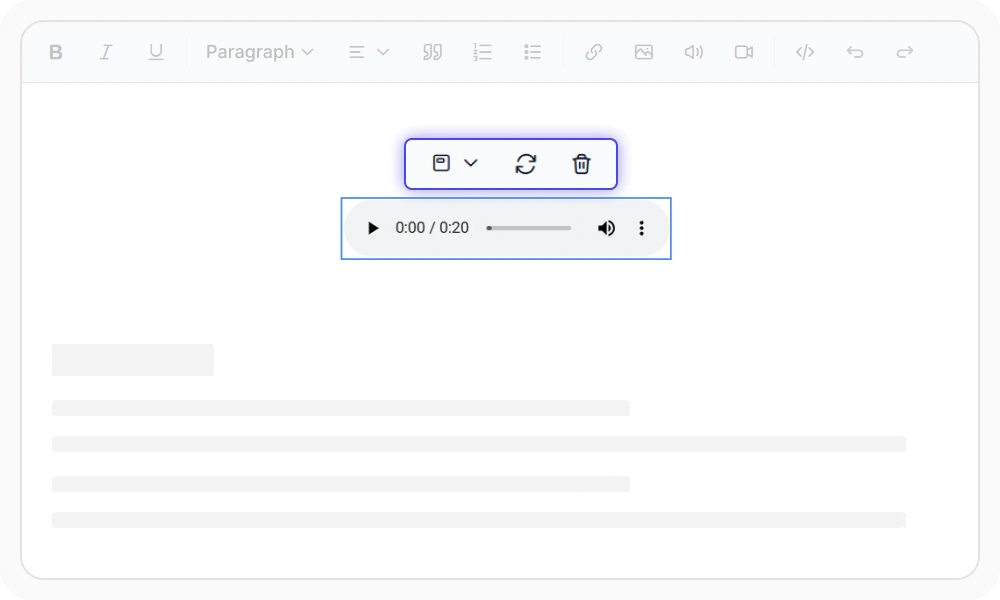
Insert audios
Enable audio integration with flexible insertion and playback options. Add audio files from web URLs or local uploads, configure secure storage and file size limits, customize playback layouts, and manage audio replacement, drag-and-drop interactions, authentication, and deletion workflows for a seamless content creation experience.
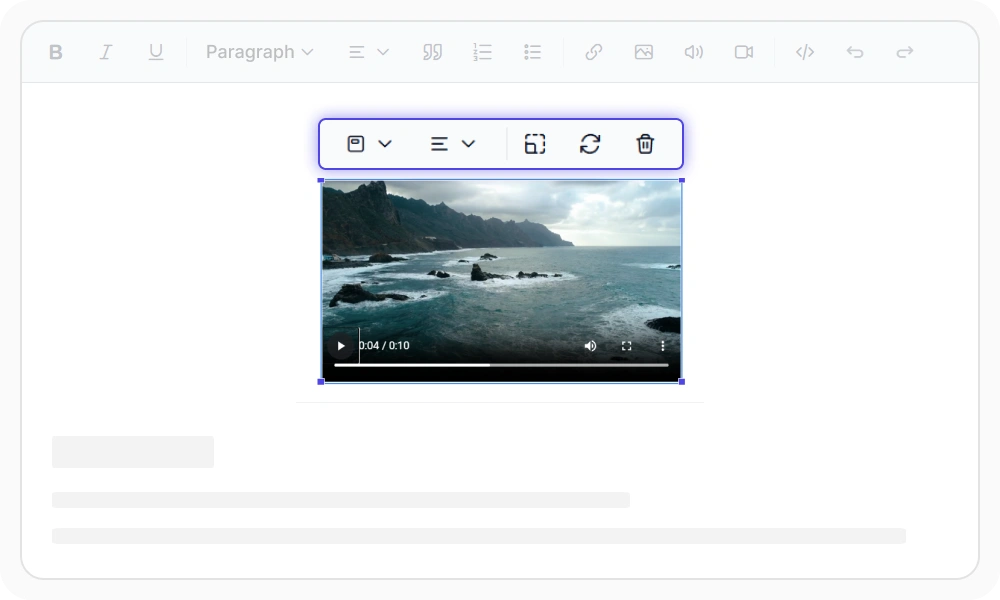
Insert videos
Insert, embed, and manage videos with flexible sourcing and display options. Add videos using embed codes, web URLs, or local uploads, customize dimensions and layouts, support interactive resizing, configure secure storage, and manage video replacement, drag-and-drop actions, and removal workflows while maintaining consistency and control across web applications.
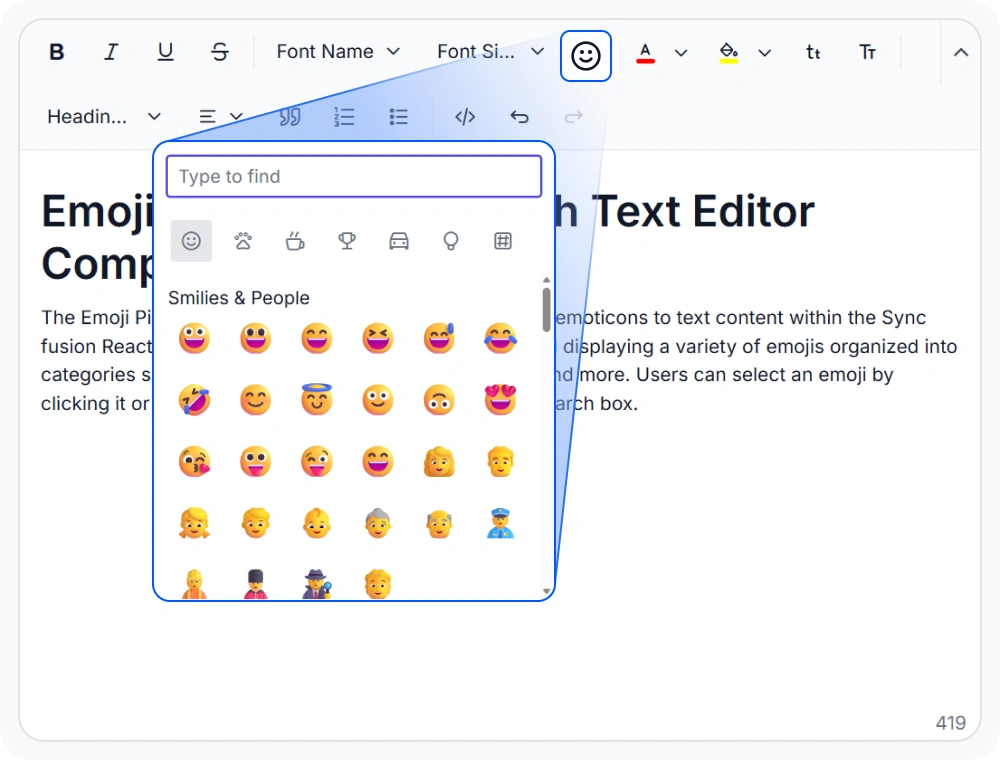
Emoji Picker
Enhance content creation with an integrated emoji picker that lets users quickly search, browse, and insert emojis directly into the editor. Improve engagement and expressiveness in chats, comments, social posts, customer communications, and collaborative content while delivering a modern and intuitive text editing experience.
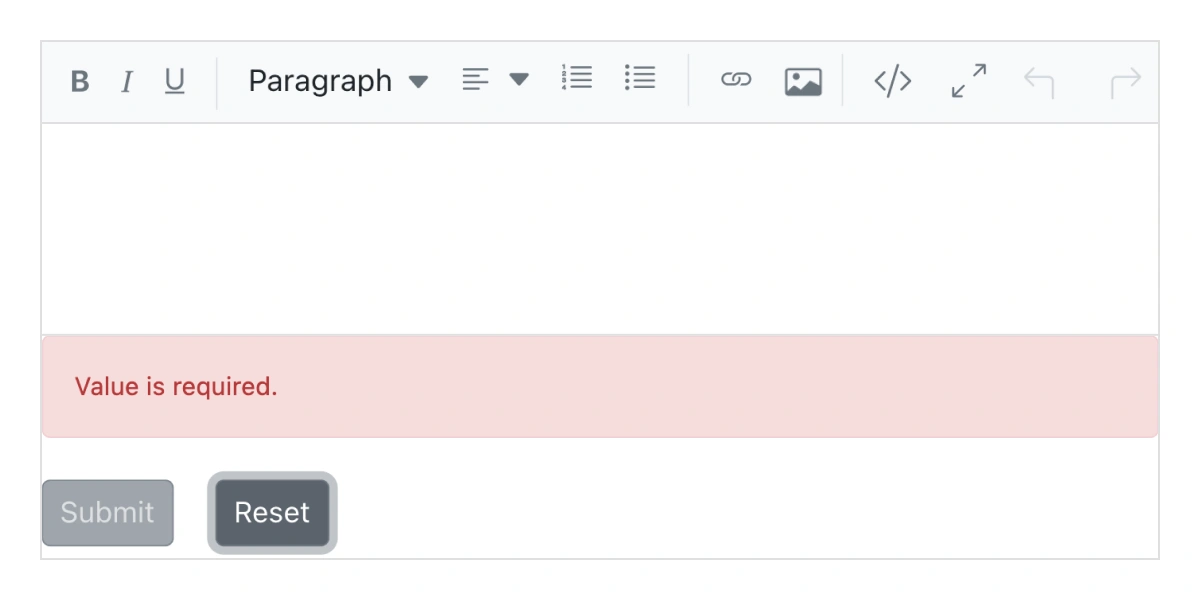
React form validations
Integrate the editor with HTML forms and validation workflows to enforce required fields, character limits, and content length rules. Retrieve editor content during form submission, validate user input, and ensure consistent data capture for forms, surveys, applications, and content management systems.
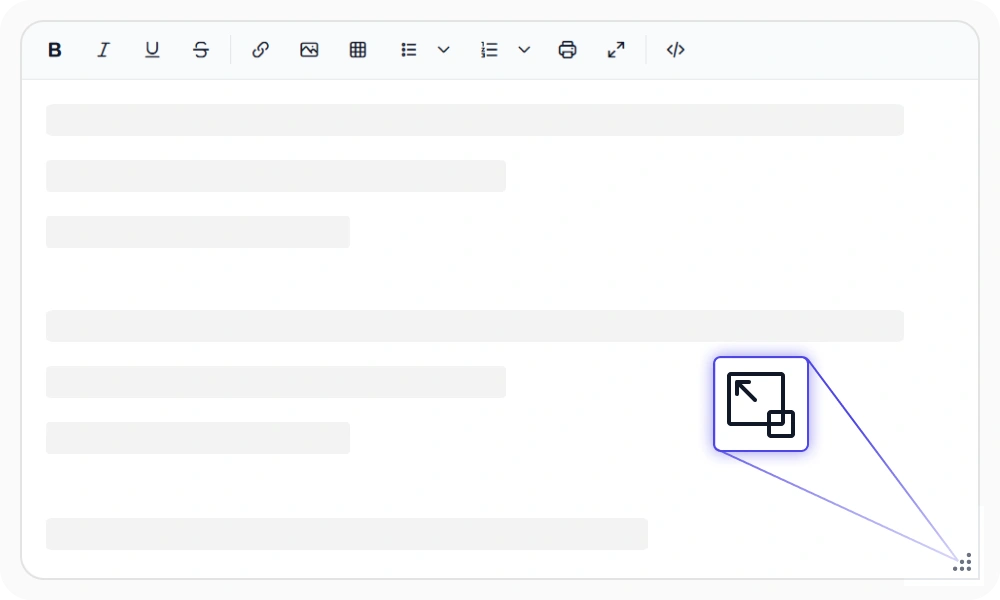
Resizable editor
Allow users to resize the editor dynamically to match their content and workflow needs. Enable drag-to-resize functionality, adjust the editing area for better visibility, and define minimum and maximum size limits to maintain responsive layouts and consistent user experiences across desktop and web applications.
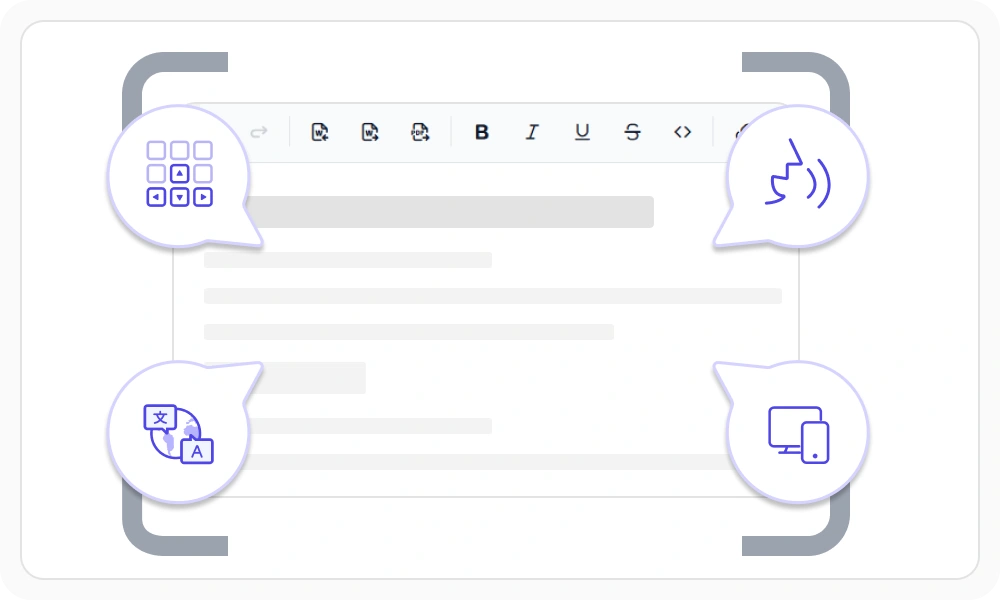
Web Standards and Localization
Deliver accessible and global-ready editing experiences with WCAG-compliant accessibility, keyboard navigation, screen reader support, RTL layouts, and multi-language localization. Responsive design ensures a consistent authoring experience across desktop, tablet, and mobile devices while meeting modern web standards and accessibility requirements.

Cut, copy, and paste
Use clipboard operations (cut, copy, and paste).

Undo and redo manager
The React Rich Text Editor manages the history of undo and redo actions, enabling users to customize the steps involved in undoing edits.

Print the text editor content
Print the WYSIWYG Rich Text Editor content with applied formatting either by using the print option from the toolbar or programmatically.

Responsive React Rich Text Editor
Supports touch gestures, allowing users to swipe left or right to move the toolbar. The responsive design delivers a smooth experience across mobile, tablet, and desktop devices.

Built-in and customizable themes
Offers multiple built-in themes such as Tailwind CSS, Bootstrap, Material, Fluent, and high contrast, along with customization options.

Developer-friendly React Rich Text Editor APIs
There are sufficient client-side APIs available to enhance the process of content editing.
HTML editor accessibility

Keyboard navigation
The Rich Text Editor ensures that every cell is accessible using the keyboard. Major features like sort, select, and edit can be performed using keyboard commands alone; no mouse interaction is required. This helps in creating highly accessible applications using this component.

Screen reader
The Rich Text Editor view has complete WAI-ARIA accessibility support. Its UI includes high-contrast visual elements that help visually impaired people to have the best viewing experience. Also, valid UI descriptions are easily accessible through assistive technologies such as screen readers.

Right to Left (RTL)
The Rich Text Editor supports right-to-left rendering, allowing the text and layout of the text editor to be displayed from right to left. This improves the user experience and accessibility for users of RTL languages such as Arabic, Farsi, and Hebrew.
AI-assisted development
Build feature-rich React Rich Text Editor experiences faster
Accelerate content editor development with Syncfusion AI tools that turn requirements into fully configured editing experiences with minimal manual setup.
Agentic UI Builder
Turn prompts into ready-to-use UI screens, layouts, and workflows with Syncfusion React components.
Example Prompt Create a blog editor with formatting tools, mentions, and preview mode.
Agent Skills
Accelerate development with Syncfusion AI Agent Skills for faster implementation and integration.
Example Prompt Generate a React rich text editor with Markdown support and custom toolbar actions.
MCP Server
Accelerate development with AI that generates, configures, and troubleshoots component code directly in your IDE.
Example Prompt Show how to enable autosave and image uploading in the Syncfusion React Rich Text Editor.
Not sure how to create your first React Rich Text Editor? Our tutorial videos and documentation can help.
I’d love to watch it now I’d love to read it nowFrequently Asked Questions
Why should you choose the Syncfusion React Rich Text Editor?
The Syncfusion React Rich Text Editor component is a production-ready WYSIWYG HTML and Markdown editor for building modern content editing experiences in React applications. It allows you to:
Edit WYSIWYG HTML and Markdown content with a comprehensive set of formatting tools.
Integrate the React Text Editor component into blog editors, messaging applications, HTML email composers, documentation tools, CMS platforms, and discussion forums.
Use floating toolbar and inline editing modes to edit content directly on the page.
- Customize the editor with simple configuration options and developer-friendly APIs.
- Build responsive applications with support for all modern browsers and mobile devices.
Get started quickly with comprehensive documentation, demos, and enterprise support.
Where can I find the Syncfusion React Rich Text Editor demo?
You can find our React Rich Text Editor demo here, which demonstrates how to render and configure the Rich Text Editor.
Does the React Rich Text Editor support Markdown editing?
Yes. Syncfusion’s React Rich Text Editor supports both HTML (WYSIWYG) and Markdown editing modes. You can switch to Markdown by setting editorMode=”Markdown” and injecting the MarkdownEditor module.
Can the React Rich Text Editor auto-format Markdown symbols as I type?
Yes. The editor includes a feature to autoformat Markdown patterns (for example, patterns related to bold, strikethrough, code, etc.).
Does the React Rich Text Editor include undo/redo and clipboard features?
Yes. It supports:
- Undo/Redo via toolbar and keyboard shortcuts (Ctrl/Cmd + Z, etc.)
Clipboard-related features like Clipboard Cleanup to remove unwanted inline styles during copying and cutting while keeping table, list, and image structures.
Can I add mentions (@user) or hashtags using the React Rich Text Editor?
- Yes for mentions: Syncfusion supports integrating the React Mention component with the Rich Text Editor, where typing @ can open a suggestion list for tagging users and items. (dev.to)
- For hashtags (#topic): you can typically implement it using the same Mention integration pattern (trigger character customization) in your app logic, but confirm your exact hashtag UX with the Mention component configuration you choose.
Is a full screen editing mode available in the React Rich Text Editor?
Yes. The editor includes a Fullscreen mode that expands to the full browser viewport, typically triggered via the FullScreen toolbar button.
Does Syncfusion provide a React Rich Text Editor library?
Yes, Syncfusion provides a production-ready React Rich Text Editor component that serves as a complete rich text editing solution for React applications. It supports WYSIWYG HTML and Markdown editing, customizable toolbars, image and media insertion, accessibility, and extensive APIs for building modern content editing experiences.
Can I download and utilize the Syncfusion React Rich Text Editor for free?
No, this is a commercial product and requires a paid license. However, a free community license is also available for companies and individuals whose organizations have less than $1 million USD in annual gross revenue, 5 or fewer developers, and 10 or fewer total employees.
How do I get started with Syncfusion React Rich Text Editor?
A good place to start would be our comprehensive getting started documentation.
How do I install the React Rich Text Editor in my project?
- You can install the React Rich Text Editor using npm: npm install @syncfusion/ej2-react-richtexteditor
- After installation, add the required Syncfusion CSS files in your app and inject modules like Toolbar, HtmlEditor, Image, Link, and QuickToolbar to enable essential editing features.
Is the React Rich Text Editor accessible and keyboard-friendly?
Yes. The React Rich Text Editor follows WAI ARIA guidelines and supports assistive technologies and full keyboard navigation, enabling accessible interaction with the editor, toolbar, dialogs, and content.
Does the React Rich Text Editor support editing in full HTML source mode?
It supports HTML editing (WYSIWYG) by default, and for a code or source editing experience, Syncfusion offers third-party integration (e.g., CodeMirror) to add an HTML source editor button and workflow.
Does the React Rich Text Editor offer full undo/redo history tracking?
It provides an undo/redo stack with configurable history behavior:
undoRedoSteps controls the maximum stored actions (documented limit up to 30 in the guide)
undoRedoTimer controls how frequently actions are captured
You can also clear history via clearUndoRedo() when loading or resetting content
Trusted by the world’s leading companies

Our Customers Love Us
Here are some of their experiences.




Transform your applications today by downloading our free evaluation version
No credit card required | 1.9M+ downloads
Syncfusion React Rich Text Editor Resources


 Figma Download