Try Our Live Demo
Flexible toolbar experiences in Rich Text Editor
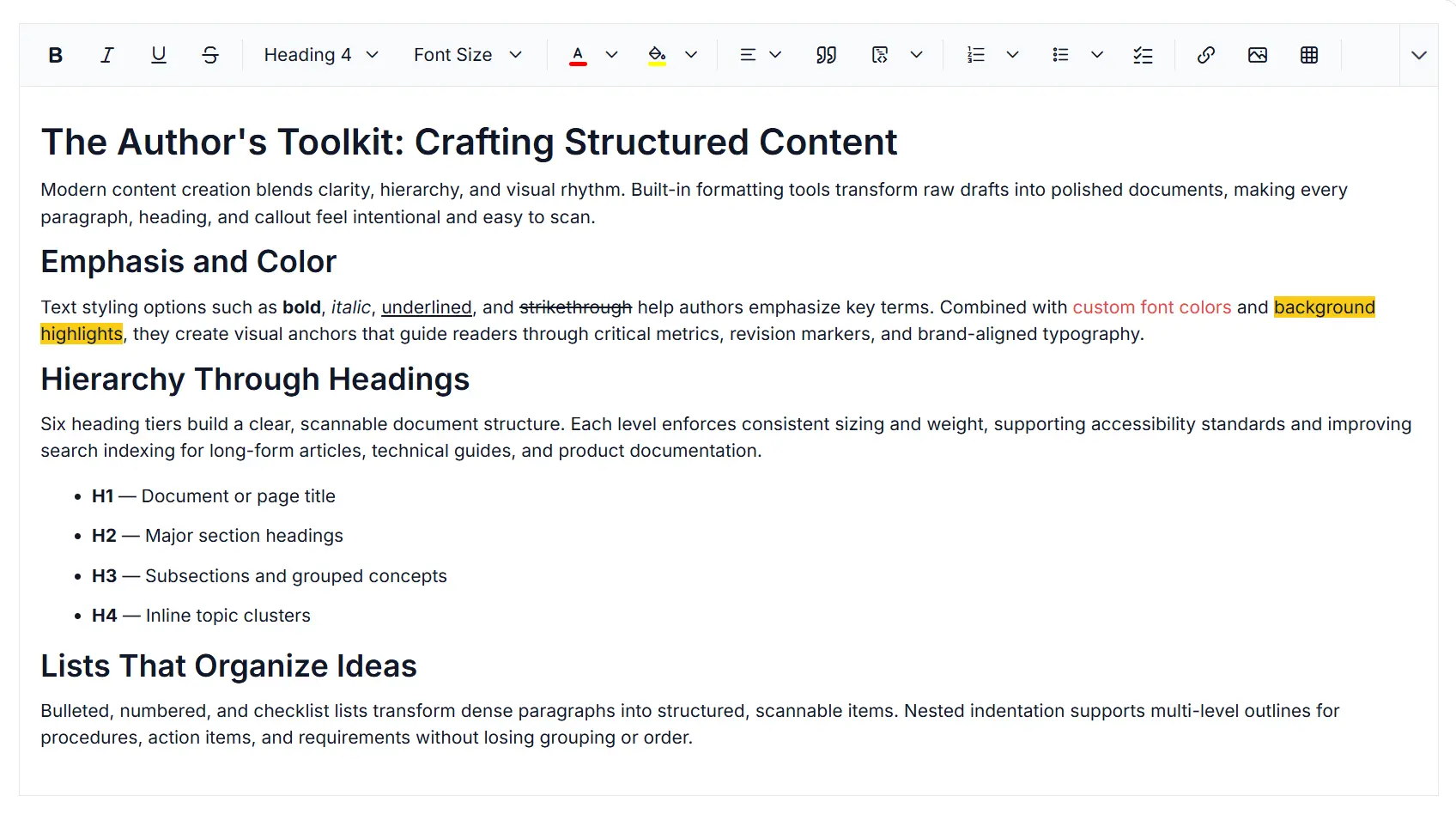
Customize the React Rich Text Editor with multirow, popup, floating, inline, and context-aware toolbars. Provide quick access to relevant formatting actions, custom tools, and editing controls for images, tables, links, media, and text content.
Flexible toolbar layouts
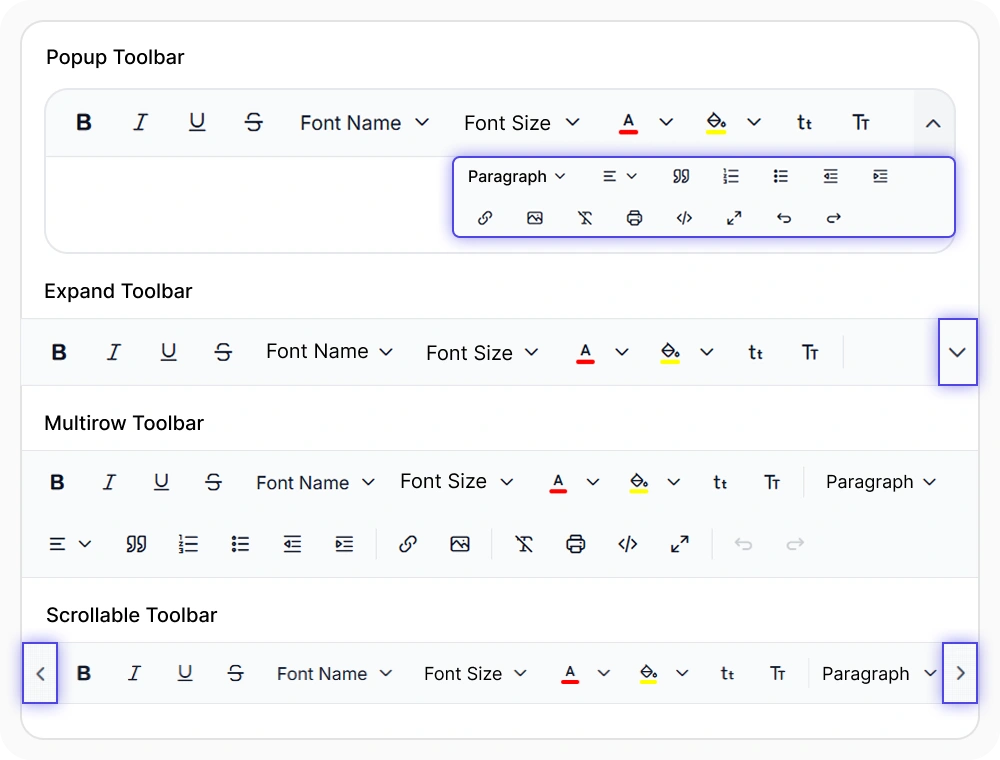
Render the editor toolbar in expand, multirow, scrollable, or popup modes through declarative configuration that emits clean, accessible markup. Use it to ship consistent editing experiences across desktop, tablet, and mobile surfaces without runtime overrides.
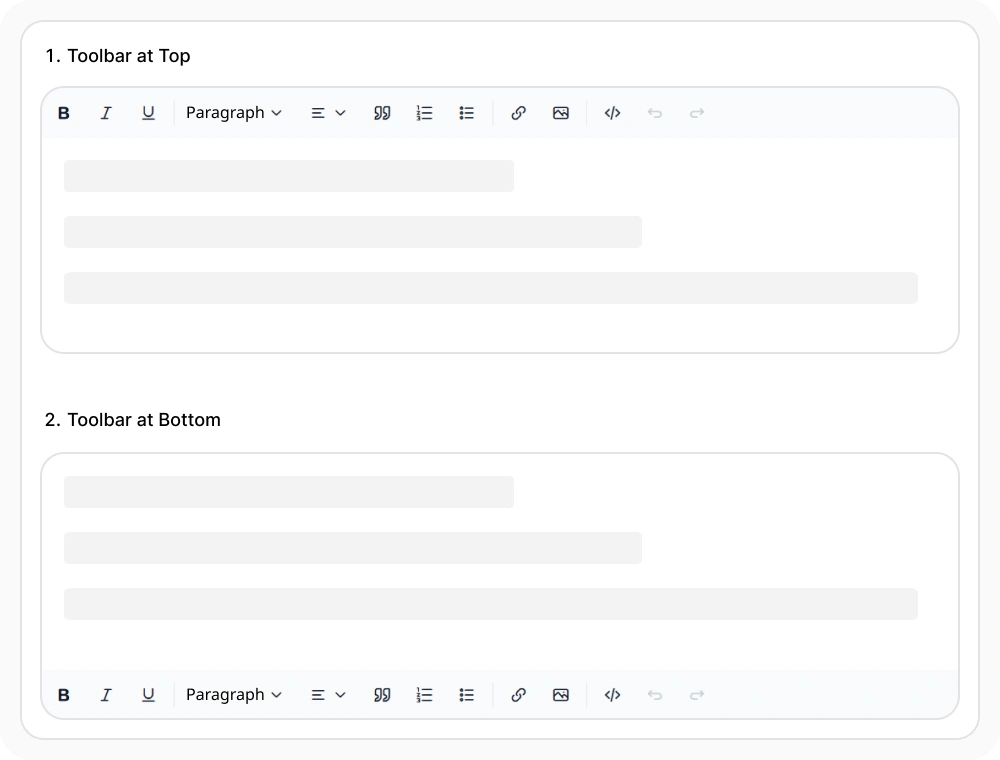
Flexible toolbar positioning
Customize toolbar placement to position editing controls at the top or bottom of the editor. Use toolbar positioning when applications require seamless integration with existing navigation patterns, page layouts, or responsive user interfaces.
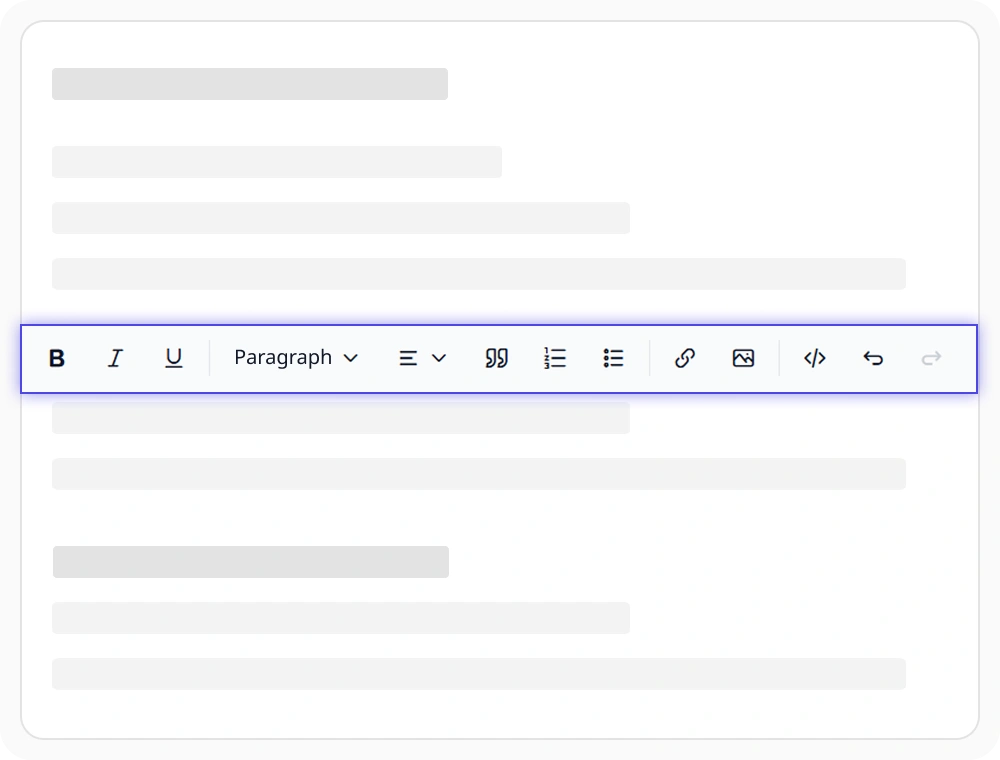
Floating toolbar
Configure a floating toolbar with adjustable offsets, toggle behavior, and dismiss controls that remain accessible while editing. Use it to keep formatting actions within reach when working with long-form documents and rich content.
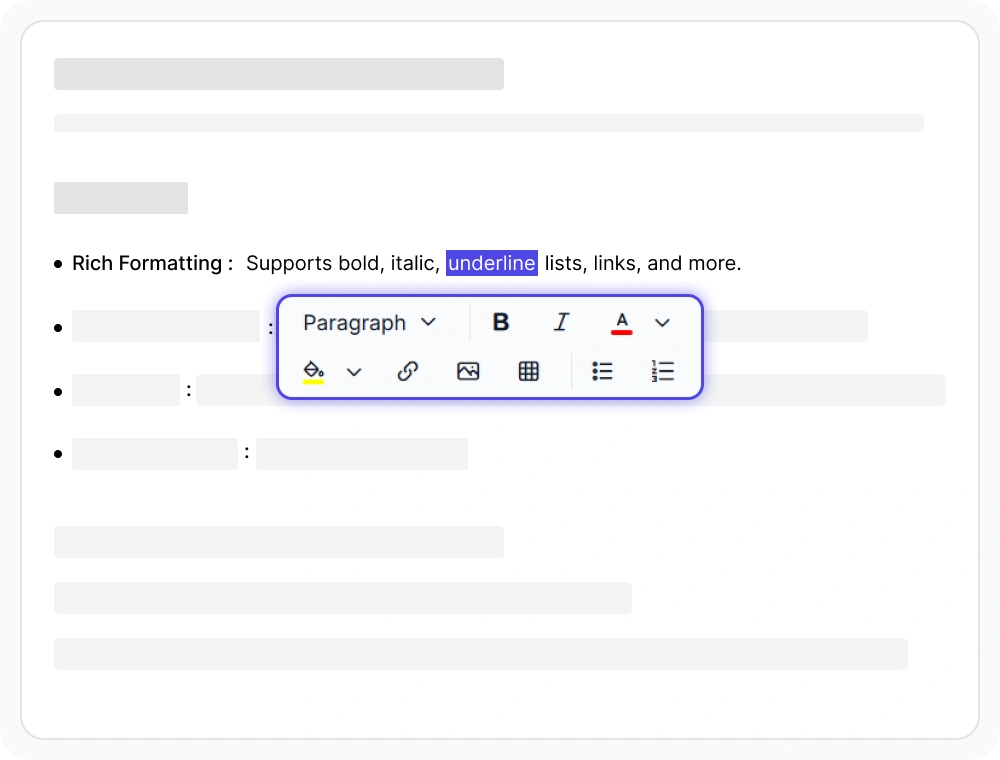
Inline formatting toolbar
Display an inline formatting toolbar when text is selected to provide quick access to commonly used formatting options. Use it to apply text styles efficiently while maintaining a focused editing experience.
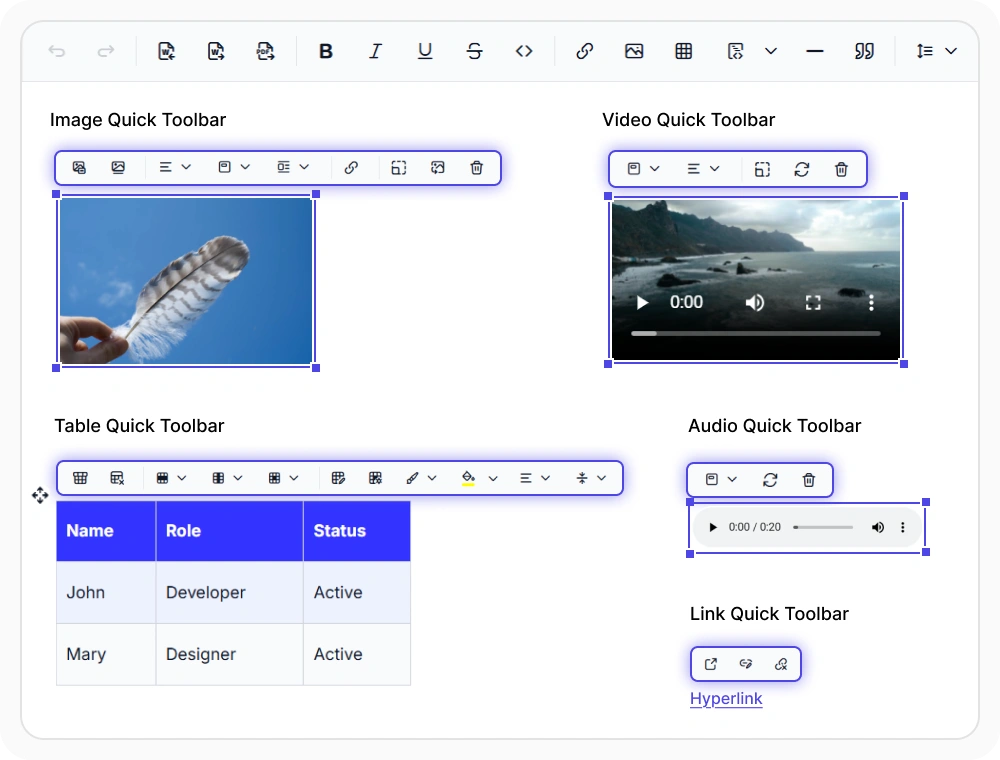
Contextual quick toolbar
Trigger context-aware quick toolbars for images, links, tables, and media with content-specific actions. Use quick toolbars to provide instant access to relevant formatting options while editing rich documents with mixed content types.
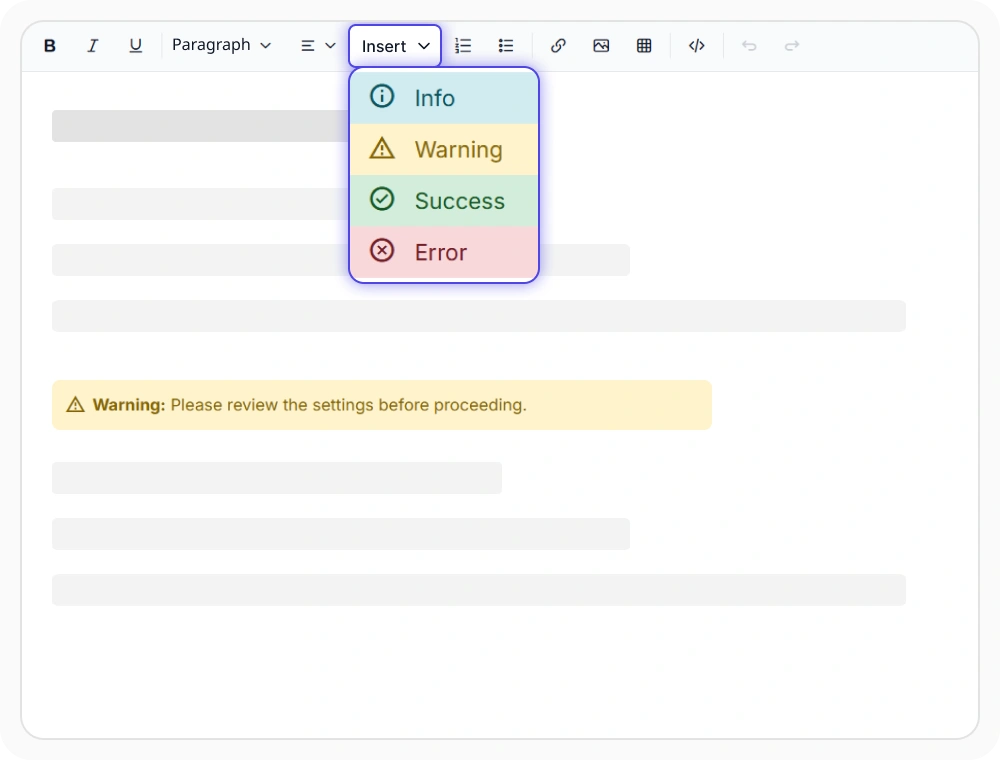
Custom tools and templates
Add custom toolbar items with configurable icons and actions alongside built-in editing controls. Use custom toolbar items to provide domain-specific commands such as snippet insertion, approval workflows, and brand asset shortcuts.
See Why Developers Love Syncfusion
Our Customers Love Us
Having an excellent set of tools and a great support team, Syncfusion reduces customers’ development time. Here are some of their experiences.




Frequently Asked Questions
How many toolbar layout options are available in React Rich Text Editor?
The React Rich Text Editor offers four toolbar layouts: Expand, MultiRow, Scrollable, and Popup. Teams can choose the layout that best fits their editing experience while maintaining accessibility and usability.
Does the React Rich Text Editor support floating toolbars?
Yes. The React Rich Text Editor floating toolbar keeps formatting tools visible while users scroll through long documents. Developers can configure the offset, toggle behavior, and dismiss controls without writing custom scroll listeners.
Can I display an inline toolbar in the React Rich Text Editor?
Yes. The React Rich Text Editor inline toolbar appears when authors select text and surfaces formatting actions directly within the content area. This mode keeps the editing flow uninterrupted on long-form documents and is fully keyboard-accessible.
Does the React Rich Text Editor allow the toolbar to be repositioned?
Yes. The React Rich Text Editor toolbar can be positioned at the top or bottom of the editor through toolbar configuration. Use the top placement for desktop authoring surfaces and the bottom placement for mobile-first editing experiences.
Are there content-specific quick toolbars available in React Rich Text Editor?
Yes. The React Rich Text Editor provides quick toolbars for images, tables, links, and media. These context-aware toolbars appear automatically when the corresponding element is selected, reducing the need to use the main toolbar.
Can I add custom items to the React Rich Text Editor toolbar?
Yes. The React Rich Text Editor toolbar supports custom tools, templates, and quick actions across all layout modes. Developers can add custom items alongside built-in controls to create a tailored editing experience.
Resources
Learn more about our React Rich Text Editor
Explore demos, KB articles, and documentation to get the most out of the React Rich Text Editor.
Explore guides, APIs, and quick-start tips
See live use cases in action
Ask, share, and connect with peers
Find solutions and best practices fast
Get expert help when needed
Feature requests and bug reports
Track issues and suggest improvements
Awards
Greatness—it’s one thing to say you have it, but it means more when others recognize it. Syncfusion® is proud to hold the following industry awards.