
 Thangavel E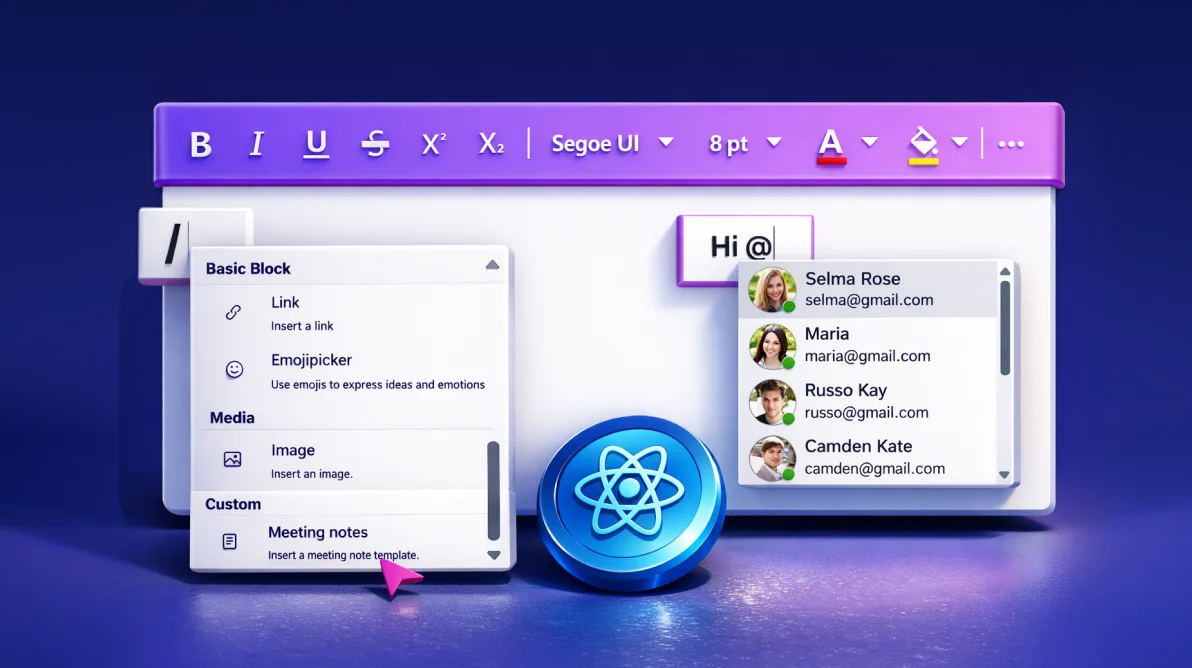
TL;DR: Enhance your React Rich Text Editor with Smart Suggestions and mentions. Slash-triggered commands streamline formatting and editing workflows, while @ mentions enable structured tagging and collaboration. Together, these features create faster, more intuitive content editing experiences in modern web apps.
Are you building a modern application that demands powerful, collaborative content tools? In today’s fast-paced digital landscape, content creation must be intuitive and efficient to meet workflow demands. The Syncfusion® Rich Text Editor makes content simple and efficient. Its Smart Suggestions and Mentions features improve formatting and collaboration, making it a great fit for blogs, forums, and messaging apps.
In this blog post, we’ll explore how Smart Suggestions and Mentions work, their key benefits, and share sample code to help you implement them.
Why Smart Suggestions and Mentions matter
Modern users expect:
- Fast actions without hunting through toolbars.
- Structured formatting with minimal effort.
- Accurate tagging inside collaborative environments.
Smart Suggestions and Mentions help achieve all of this by providing context-aware menus right where users type.
Configuring Smart Suggestions (Slash Menu) in React Rich Text Editor
Smart Suggestions, also known as the Slash Menu, allow users to type / in the editor to open a quick command popup for actions such as applying headings, creating lists, or inserting media. This removes friction from formatting and makes content creation feel natural, especially for blogging and note-taking.
How Smart Suggestions work
- Trigger: Type
/inside the editor. - Options: A customizable list of commands (e.g., Paragraph, Headings, lists, media insertion, and more).
- Customization: Configure via the slashMenuSettings class:
- Enabling/disabling the feature.
- Define custom items using the items property.
- Handle custom actions with the slashMenuItemSelect event.
Enabling Smart Suggestions in React Rich Text Editor
Here’s a quick example showing how to enable and customize the Slash Menu using Syncfusion’s React Rich Text Editor.
/**
   * Initialize Rich Text Editor from React element
   */
import {
    HtmlEditor,
    Image,
    Table,
    Inject,
    Link,
    QuickToolbar,
    RichTextEditorComponent,
    Toolbar,
    EmojiPicker,
    PasteCleanup,
    SlashMenu
} from '@syncfusion/ej2-react-richtexteditor';
import * as React from 'react';
import './App.css';

function App() {
    var editorObj;
    const meetingNotes = '
        <p><strong>Meeting Notes</strong></p>
        <table class="e-rte-table" style="width: 100%; min-width: 0px; height: 150px;">
            <tbody>
                <tr style="height: 20%;">
                    <td style="width: 50%;"><strong>Attendees</strong></td>
                    <td style="width: 50%;" class=""><br></td>
                </tr>
                <tr style="height: 20%;">
                    <td style="width: 50%;"><strong>Date & Time</strong></td>
                    <td style="width: 50%;"><br></td>
                </tr>
                <tr style="height: 20%;">
                    <td style="width: 50%;"><strong>Agenda</strong></td>
                    <td style="width: 50%;"><br></td>
                </tr>
                <tr style="height: 20%;">
                    <td style="width: 50%;"><strong>Discussed Items</strong></td>
                    <td style="width: 50%;"><br></td>
                </tr>
                <tr style="height: 20%;">
                    <td style="width: 50%;"><strong>Action Items</strong></td>
                    <td style="width: 50%;"><br></td>
                </tr>
            </tbody>
        </table>
    ';

    const toolbarSettings = {
        items: [
            'Bold', 'Italic', 'Underline', 'StrikeThrough', '|',
            'FontName', 'FontSize', 'FontColor', 'BackgroundColor', '|',
            'Formats', 'Alignments', 'Blockquote', '|', 'NumberFormatList', 'BulletFormatList', '|','CreateLink', 'Image', 'CreateTable', '|', 'EmojiPicker', '|',
            'SourceCode', '|', 'Undo', 'Redo'
        ]
    };
    // Define custom Slash Menu items
    const slashMenuSettings = {
        enable: true,
        items: [
            'Paragraph', 'Heading 1', 'Heading 2', 'Heading 3', 'Heading 4',
            'OrderedList', 'UnorderedList', 'Blockquote', 'Link', 'Image',
            'Table', 'Emojipicker',
            {
                text: 'Meeting notes',
                description: 'Insert a meeting note template.',
                iconCss: 'e-icons e-description',
                type: 'Custom',
                command: 'MeetingNotes'
            }
        ]
    };

    // Handle custom Slash Menu item selection

    function onSlashMenuItemSelect(args) {
        if (args.itemData.command  === 'MeetingNotes') {
            // Insert custom meeting note
            editorObj.executeCommand('insertHTML', meetingNotes);
        }
    }

    return (
        <RichTextEditorComponent
            ref={(scope) => { editorObj = scope; }}
            placeholder="Type '/' and choose format"
            toolbarSettings={toolbarSettings}
            slashMenuSettings={slashMenuSettings}
            slashMenuItemSelect={onSlashMenuItemSelect.bind(this)}
        >
            <Inject
                services={[
                    HtmlEditor,
                    SlashMenu,
                    Toolbar,
                    Link,
                    QuickToolbar,
                    Image,
                    PasteCleanup,
                    Table,
                    EmojiPicker
                ]}
            />
        </RichTextEditorComponent>
    );
}

export default App;
Code explanation
- slashMenuSettings
- The
enable: trueproperty activates the Slash Menu and injects theSlashMenuservice into the editor. - The items array defines the available commands, including default options like Paragraph and Heading 1, as well as custom items (e.g.,
MeetingNotes).
- The
- slashMenuItemSelect
- This event handler runs when a user selects an item from the Slash Menu.
- In the above code example, we check if the selected command is
MeetingNotesand use executeCommand method to insert a predefined HTML snippet. - Developers can extend this logic to handle other custom actions, such as inserting templates, signatures, or dynamic content.
For example, a content creator can type / select Heading 1 to format a title, or choose MeetingNotes to insert a predefined note, streamlining their workflow as shown below.

Benefits of Smart Suggestions
Here are the key features that make this feature efficient.
- Faster formatting: Skip toolbars and format inline.
- Contextual workflow: Suggestions appear exactly where users type.
- Customizability: Tailor the Slash Menu to include app-specific commands, like inserting signatures or templates.
Ready to level up your editor? Explore the Smart Suggestions demo and documentation to start implementing and customizing it.
Configuring Mentions in React Rich Text Editor
The Mentions feature allows users to tag people, groups, or entities by typing @, triggering a suggestion list populated from a data source. This is perfect for collaborative applications like messaging apps, comment sections, or project management tools, ensuring accurate and efficient tagging.
How Mentions work
- Trigger: Type
@followed by a character to display the suggestion list. - Data Source: A list of objects (e.g., employee records with names, emails, and profile images).
- Customization:
- Use itemTemplate to style the suggestion list.
- Use displayTemplate to format tagged values.
- Properties like suggestionCount, popupWidth, and allowSpaces provide further control.
Integrating Mentions in React Rich Text Editor
Below is a React example showing how to integrate and customize the Mentions feature using Syncfusion’s React Rich Text Editor.
/**
   * Initialize Rich Text Editor from React element
   */
import {
    HtmlEditor,
    Image,
    Table,
    Inject,
    Link,
    QuickToolbar,
    RichTextEditorComponent,
    Toolbar,
    EmojiPicker,
    PasteCleanup,
    SlashMenu
} from '@syncfusion/ej2-react-richtexteditor';
import { MentionComponent } from '@syncfusion/ej2-react-dropdowns';
import * as React from 'react';
import './App.css';

function App() {
    // Sample data for Mentions
    const mentionData = [
        { Name: 'Selma Rose', EmailId: '[email protected]' },
        { Name: 'Maria Smith', EmailId: '[email protected]' },
        { Name: 'John Doe', EmailId: '[email protected]' }
    ];

    const fieldsData = { text: 'Name' };
    const toolbarSettings = {
        items: [
            'Bold', 'Italic', 'Underline', 'StrikeThrough', '|',
            'FontName', 'FontSize', 'FontColor', 'BackgroundColor', '|',
            'Formats', 'Alignments', 'Blockquote', '|', 'NumberFormatList', 'BulletFormatList', '|', 'CreateLink', 'Image', 'CreateTable', '|', 'EmojiPicker', '|',
            'SourceCode', '|', 'Undo', 'Redo'
        ]
    };

    return (
        <div>
            <RichTextEditorComponent
                id="mentionRTE"
                toolbarSettings={toolbarSettings}
                height={400}
                placeholder="Type @ to tag a name" toolbarSettings={toolbarSettings}
            >
                <Inject
                    services={[
                        HtmlEditor,
                        Toolbar,
                        Link,
                        QuickToolbar,
                        Image,
                        PasteCleanup,
                        Table,
                        EmojiPicker
                    ]}
                />
            </RichTextEditorComponent>
            <MentionComponent
                target="#mentionRTE_rte-edit-view"
                dataSource={mentionData}
                fields={fieldsData}
                suggestionCount={5}
                popupWidth="250px"
                itemTemplate="<span>${Name} - ${EmailId}</span>"
            />
        </div>
    );
}

export default App;
Code explanation
- mentionData: A sample dataset containing objects with
NameandEmailIdfields for populating the suggestion list. - fieldsData: Specifies which field (Name) should be displayed in the suggestion list.
- MentionComponent:
- The target property binds the Mentions feature to the Rich Text Editor’s editable area (e.g.,
#mentionRTE_rte-edit-view). - dataSource and fields properties link the component to the dataset.
- suggestionCount limits the number of suggestions displayed.
- popupWidth sets the width of the suggestion list.
- itemTemplate customizes the suggestion list to show both name and email.
- The target property binds the Mentions feature to the Rich Text Editor’s editable area (e.g.,
Example: In a team messaging app, typing @Maria displays a suggestion list with Maria Smith - [email protected], ensuring accurate tagging.
Refer to the following image.

Benefits of Mentions
- Collaboration: Simplifies tagging team members, improving communication in collaborative tools.
- Accuracy: Selecting from a predefined list reduces typing errors and ensures correct tagging.
- Enhanced UI: Customizable suggestion lists with images or status indicators improve the visual experience.
Note: Explore the Mentions demo and documentation for detailed steps on implementing and customizing this feature.
Real-world applications
The combination of Smart Suggestions and Mentions makes the Rich Text Editor ideal for:
- Blogging platforms: Use Smart Suggestions to format posts quickly and Mentions to tag contributors.
- Collaboration tools: Tag team members in comments or notes for seamless communication.
- Support ticket systems: Assign tasks with Mentions and insert predefined responses with Smart Suggestions.
Frequently Asked Questions
Smart Suggestions are triggered by typing What is the difference between Smart Suggestions (Slash Menu) and Mentions?
/ and help with formatting actions like adding headings, lists, or inserting templates. Mentions are triggered by typing @ and are used to tag people, entities, or items from a data source within the editor.
Yes. You can fully customize the Slash Menu by adding your own items with text, icons, descriptions, and actions. Using the Can I create my own custom Smart Suggestion (Slash Menu) commands?
slashMenuSettings.items property and handling the slashMenuItemSelect event, you can insert templates, dynamic HTML, signatures, or any custom content.
Absolutely. Mentions can use any data source, static arrays, remote data, REST APIs, or databases. Bind the Does the Mentions feature work with dynamic data from APIs?
dataSource of the MentionComponent to your dynamic data and map fields like text, value, or email using the fields property.
Yes. Mentions support multiple presentation options: Custom Can I customize how Mention items appear in the suggestion list?
itemTemplate for list appearance and Custom displayTemplate for how selected mentions appear inside the editor
You can include profile images, roles, email IDs, statuses, or any custom UI element.

Conclusion
Thanks for reading! The Smart Suggestions and Mentions features in Syncfusion Rich Text Editor transform content creation by making it faster, more intuitive, and collaborative.
- Smart Suggestions reduce clicks with quick formatting commands.
- Mentions ensure accurate, structured tagging in collaborative environments.
Both features are highly customizable, flexible, and ready for real-world applications.
Try them out to elevate your content creation experience today!
If you’re a Syncfusion user, you can download the setup from the license and downloads page. Otherwise, you can download a free 30-day trial.
You can also contact us through our support forum, support portal, or feedback portal for queries. We are always happy to assist you!




 No spam, just valuable updates.