
Overview
The WPF DataGrid control provides support to filter data with an intuitive, built-in, Excel filter user interface and filter row. It’s also possible to filter data in code behind. Sort the columns in ascending or descending order easily using the filter UI itself. Also display text-based filtering.
Excel-inspired check list box filter UI
An Excel-inspired filter UI filters records. The filter UI contains a check list box for selecting items so users can filter records easily.

Advanced Excel-inspired filter UI
Users can filter data easily by using multiple options provided in the filter UI. Built-in filter types:
- Text filters
- Number filters
- Date filters using date picker
Text filter
Text filter menu options are loaded when the column’s underlying property is string or dynamic. The following options are available:
- Equals
- Does Not Equal
- Begins With
- Ends With
- Contains
- Does Not Contain
- Empty
- Not Empty
- Null
- Not Null

Number filter
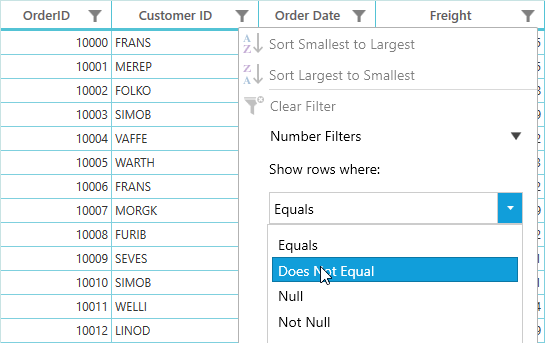
When the column’s underlying property is integer, double, short, decimal, byte, or long, number filter menu options are loaded. The following number filter options are available:
- Equals
- Does Not Equal
- Null
- Not Null
- Less Than
- Less Than or Equal
- Greater Than
- Greater Than or Equal
Date filter
Load various date filter options when the column’s underlying property is date-time. The date-time can be selected intuitively by using a date picker. The following date filter options are available:
- Equals
- Does Not Equal
- Before
- Before or Equal
- After
- After or Equal
- Null
- Not Null

Instant filtering
You can allow users to update the filters immediately whenever updating the filter UI pop-up.

Filter row
The WPF DataGrid control provides a built-in row called a filter row to filter the individual column values. Editors for the filter row can be loaded based on the underlying column property type to filter data easily. Built-in editors:
- TextBox
- Numeric
- ComboBox
- Multiselect ComboBox
- CheckBox
- DateTime

Our Customers Love Us




See Real Success Stories
Developers around the world trust Syncfusion’s Essential Studio to simplify complex projects and speed up delivery. With a vast library of UI controls, powerful SDKs, and reliable support, Essential Studio helps teams build enterprise-ready applications with confidence.
Read Our Customer StoriesIndustry
Software development
75% Cost reduction
50% Faster development

Industry
Utilities (oil and gas)

450+ hours saved
Streamlined processes and hours of development effort saved.

Advanced, flexible features
Empowered users through robust and versatile functionality.
Industry
Software and technology
1000+ of hours saved
Accelerated development with enterprise-ready UI components.

Efficient file management
Streamlined workflows with document libraries without building them from scratch.
Industry
Software and technology

2 Years of delay avoided
Two years of delays prevented with proactive planning.

On-time delivery
Projects delivered on schedule using trusted controls.
Industry
IT services and IT consulting

Improved performance
Large datasets handled with easy customization and quick debugging.

Highly customizable
Plug-and-play controls with quick template integration.
Industry
Professional services
Instant access
Quick availability of features and resources.
Reduced dependencies
Fewer dependencies for faster development.
145+ WPF CONTROLS







