




Transform your applications today by downloading our free evaluation version
Overview
The ASP.NET Core Kanban Board is a task management board used to manage the flow of work, giving teams flexible planning options, clear focus, and transparency throughout the development cycle. You can easily organize and visualize the workflow of your project.
Data binding
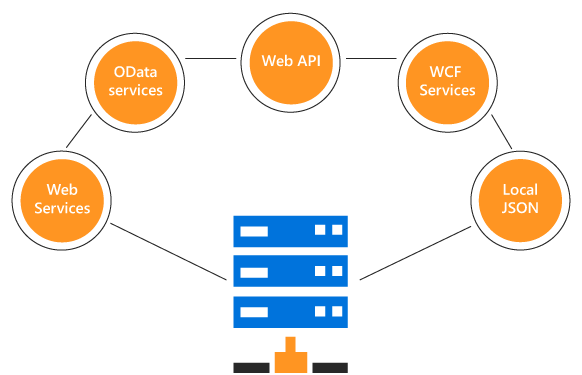
Data binding in Kanban Board is adaptable to various data sources such as local JSON data, any remote services, and to any other applicable data source that best suit the project needs.
Adaptive rendering
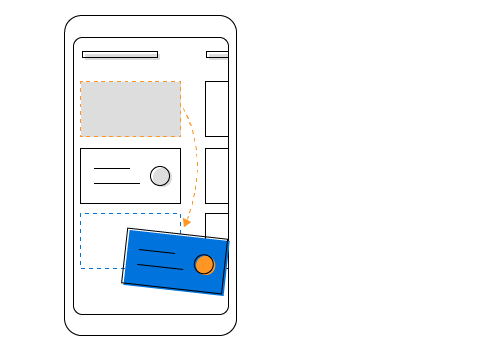
The Kanban Board will adaptively render itself with optimal user interfaces for phone, tablet, or desktop form factors. Responsive Kanban will help your application scale elegantly across all form factors without any additional effort. It allows the ASP.NET Core Kanban Board to adapt to the screen size. The swim lane group, filtering, and searching also provides clear display in the mobile view.
Drag and drop in ASP.NET Core Kanban Board
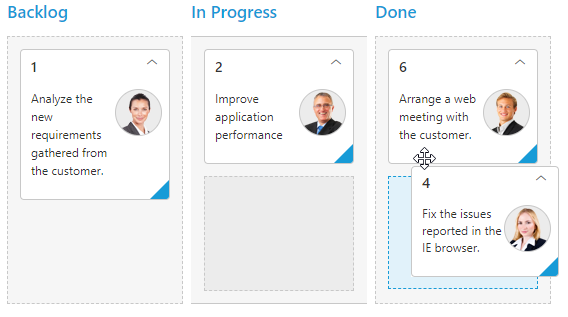
The ASP.NET Core Kanban Board supports drag and drop of cards from one column to another using a mouse or touch device. It also has an enhanced drop position indicator, which enables easy positioning of cards.
Workflow
The Kanban workflow feature is a set of transitions that a card moves through during its process cycle. Users can define their own flow of transition between column statuses. If a card is dragged, possible drop column cells are highlighted in the dotted line border based on the workflow specified.

Cards

Customization
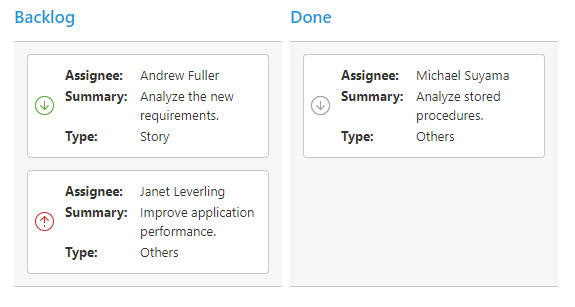
The card is an interactive visual element for task details. It is customizable to give more visual information as required, like type, priority, etc. The database fields and values can be mapped to the Kanban card visual elements such as colors, images, tags(labels), and title.
Template
To create custom card layout including text, images, or styles customization use well-defined Kanban card template support.
Tooltip
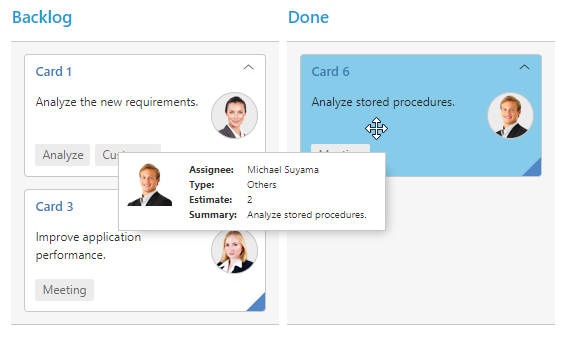
The ASP.NET Core Kanban Board supports tooltip to pop out with the card information on hovering the mouse over a card. It allows customization of the tooltip content with well-defined template support.
Collapsible
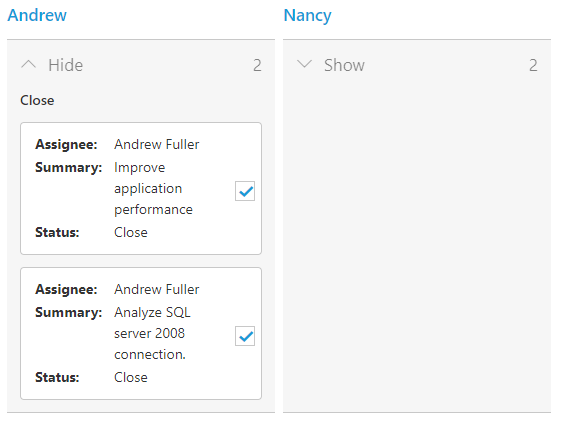
A group of cards can be set to a collapsible state in each column to view priority cards in a viewable state, while the other cards are hidden in the collapsed group.

Columns
Columns are vertical categorization of Kanban board which is used to define the mapping statues from the data source and represents the workflow of cards. It supports multiple key binding, constraints, toggle columns and other features.
Swim lanes
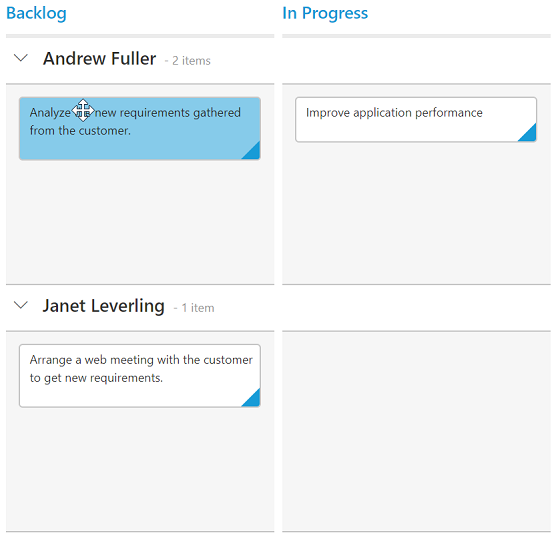
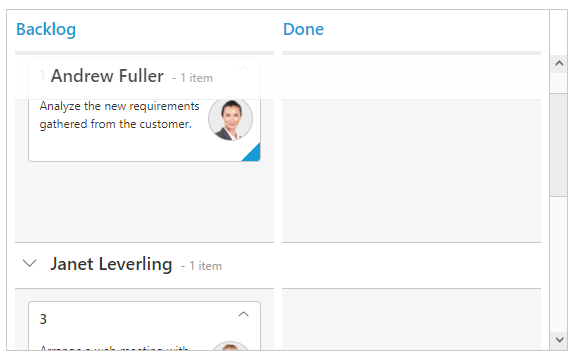
Swim lanes allow you to categorize your current workflow by different projects, teams, users, or whatever the user needs as horizontal categorization in Kanban board. You can design scrum/agile board like applications to manage any task/project management using swim lanes and cards.
Filter and search
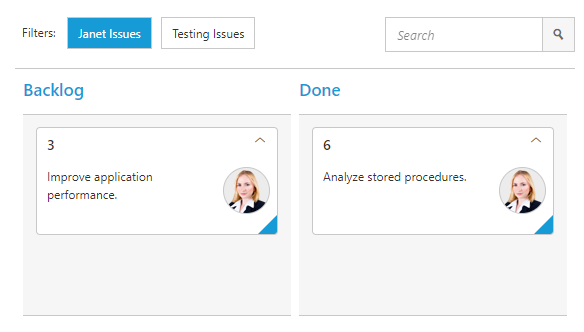
Filtering allows you to narrow down and focus on issues that fit specific criteria, such as bugs or users, and gives a quick view of specific items. Searching provides a built-in search text box to search for a given string within the Kanban’s contents.
Editing
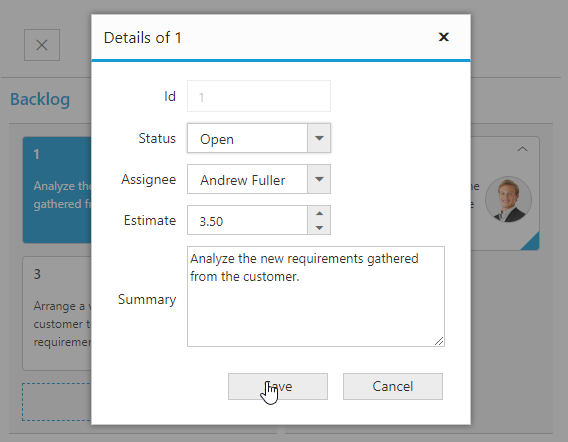
You can enable and customize editing with a few simple property settings. There are two editing options available in Kanban board: dialog editing and external editing. Dialog edit and external edit modes enable users to add, edit, and delete cards.
Scrolling
Scrolling makes Kanban more compatible for scenarios in which huge data needs to be bound with horizontal and vertical scrolling. You can freeze the current swim lane row to highlight it while scrolling.
Stacked headers
Stacked headers enable you to categorize and group the column headers in a separate row of Kanban. It supports N number of stacked header rows.

User Interactions
Selection
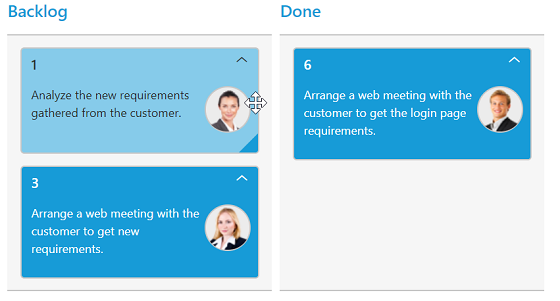
Select cards using mouse, keyboard, or touch interfaces. By pressing the Ctrl key, you can make multiple selection of cards.

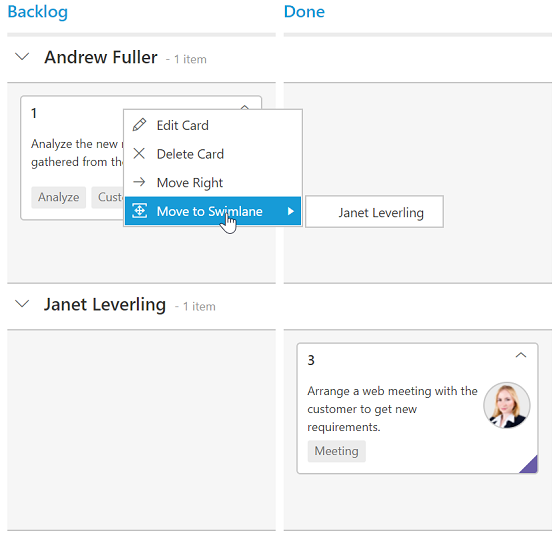
Context menu
A rich set of built-in context menu options are provided to enhance user interaction of Kanban and cards. Context menu items are fully customizable.
Internationalization
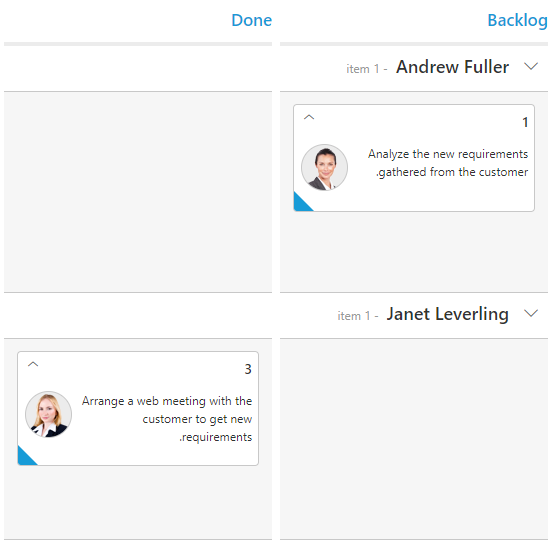
Kanban can easily be adapted to any language and culture. It also has support to render in the right-to-left (RTL) direction.
Right to left (RTL)
The Kanban Board supports right-to-left rendering, allowing the text direction and layout to be displayed from right to left. This improves user experience with RTL languages.
Localization
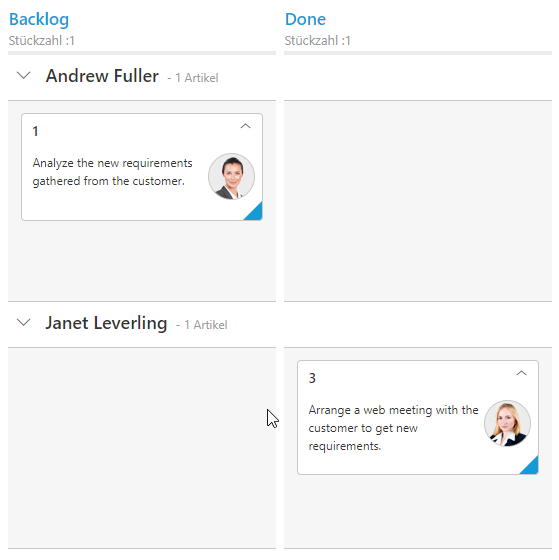
All the ASP.NET Core Kanban Board constant strings in the user interface can be localized as needed.
Printing
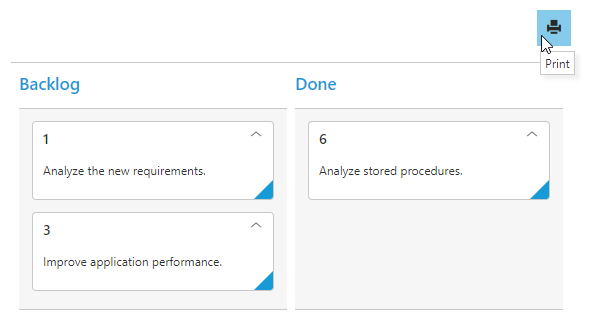
Kanban can be printed easily by using the print feature. The print icon is available in the Kanban toolbar: simply click the print icon to print Kanban.
85+ ASP.NET CORE UI CONTROLS
ALL CONTROLS
Business Intelligence
GRIDS
DATA VISUALIZATION
DATA SCIENCE
NOTIFICATION
EDITORS
NAVIGATION
Rated by users across the globe
Awards
Greatness—it’s one thing to say you have it, but it means more when others recognize it. Syncfusion® is proud to hold the following industry awards.









