








Transform your applications today by downloading our free evaluation version
Overview
The ASP.NET Core Rich Text Editor is a feature-rich content editing component designed for creating blogs, forum posts, notes, support tickets, comment sections, messaging apps, and more. It offers an intuitive interface for smooth content creation with full mobile support. The editor provides a robust set of tools for formatting and managing rich content, delivering clean HTML or Markdown output. With its modular architecture, users can easily insert and manage images, links, tables, and lists, enabling flexible, scalable content editing.
Why choose the Syncfusion ASP.NET Core Rich Text Editor?
WYSIWYG editor
The ASP.NET Core Rich Text Editor control can be used as a WYSIWYG HTML editor or a Markdown editor, and it also supports iframe editing with configurable iframe characteristics.
Easy interaction
Users can easily format the text and paragraphs. Set the foreground and background colors, font type, italicization, underlining, strikethrough, and bolding. You can also add ordered (numbered) or unordered (bulleted) custom lists and change the editor’s size.
Flexible editing
For a better editing experience, the ASP.NET Core Rich Text Editor control offers a variety of tools to enhance the editing experience. Users can quickly insert images, videos, hyperlinks, and tables; merge table cells; and configure keys.
Preview the HTML code
Examine and edit the HTML code directly in the source code and view the preview result in the (HTML live editor).
AI-Assisted Development
Build advanced content editing experiences faster with the AI Coding Assistant and Syncfusion Agent Skills. Generate formatting tools, editor layouts, templates, and media-rich workflows with minimal manual effort.
Adapts to any resolution
The Rich Text Editor has a highly responsive layout and an optimized design for desktops, tablets, and smartphones. It works well on all mobile phones that use iOS, Android, or Windows OS.
Integrate with third-party libraries
It’s easy to integrate third-party libraries like a spell checker, code mirror, etc., with the Rich Text Editor to improve the content.
Globalization and localization
Enable users from different locales to use the Rich Text Editor by formatting dates, currency, and numbering to suit preferences.
ASP.NET Core Rich Text Editor code example
Get started with the ASP.NET Core Rich Text Editor using a few simple lines of CSHTML and C# code, as demonstrated below. Also, explore this ASP.NET Core Rich Text Editor example, which shows how to render and configure the Rich Text Editor in ASP.NET Core.
<ejs-richtexteditor id="defaultRTE">
<e-content-template>
<div>
<p>The Rich Text Editor is a WYSIWYG ('what you see is what you get') editor, useful to create and edit content and return valid <a href='https://ej2.syncfusion.com/aspnetcore/RichTextEditor/Overview'>HTML markup</a> or <a href='https://ej2.syncfusion.com/aspnetcore/RichTextEditor/DefaultMode'>Markdown</a> of the content</p>
<p><b>Key features:</b></p>
<ul>
<li>
<p>Provides <IFRAME> and <DIV> modes</p>
</li>
<li>
<p>Capable of handling Markdown editing.</p>
</li>
</ul>
</div>
</e-content-template>
</ejs-richtexteditor>public class HomeController : Controller
{
public ActionResult Index()
{
return View();
}
}HTML editor toolbar
The ASP.NET Core WYSIWYG text editor toolbar offers a wide range of commands for editing and formatting content. It allows users to format text and paragraphs as well as insert images, hyperlinks, tables, lists, and more. The commands are grouped based on related functionality.
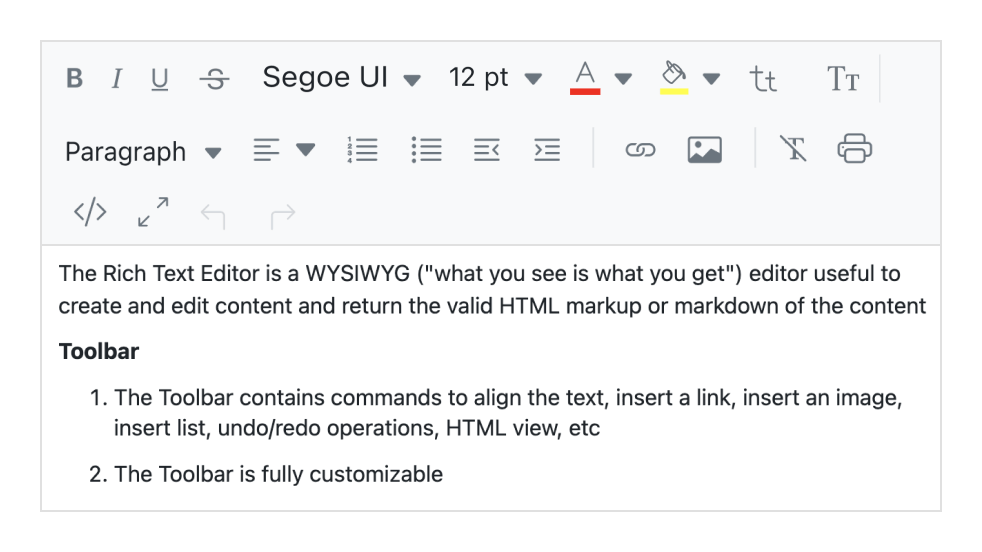
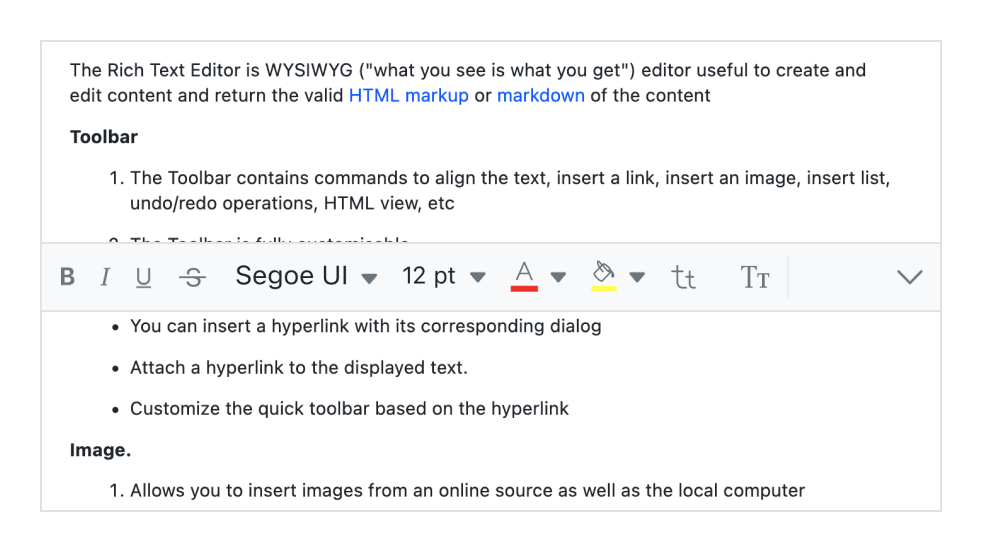
Multirow toolbar
Toolbar commands that exceed the available space are automatically wrapped into additional rows within the toolbar.
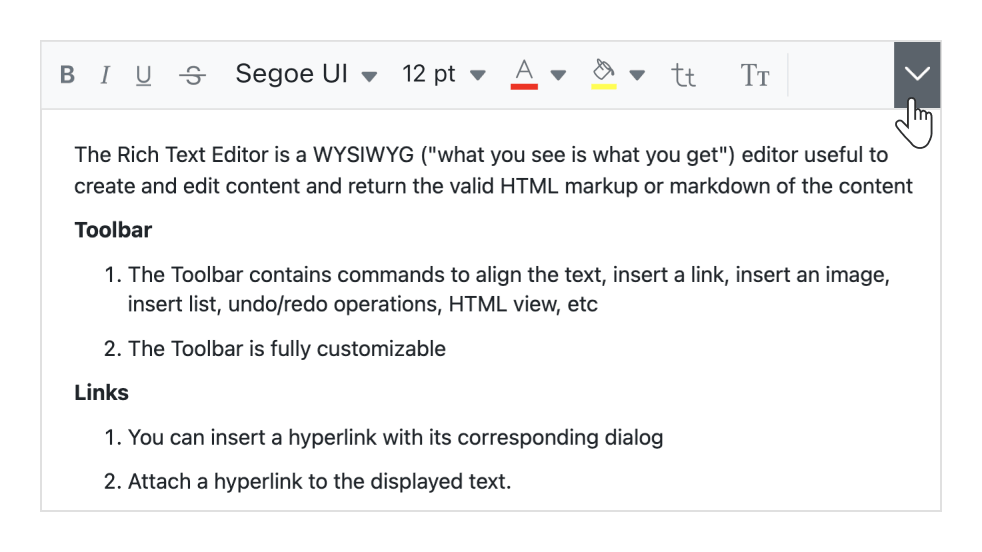
Expand toolbar
Hidden overflow commands in subsequent rows become visible when the toolbar is expanded using the expand icon.
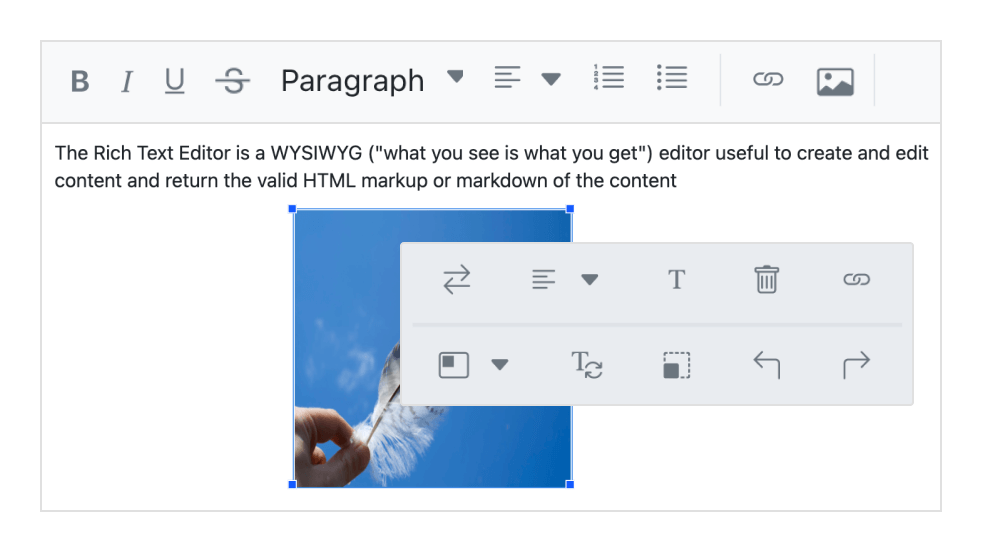
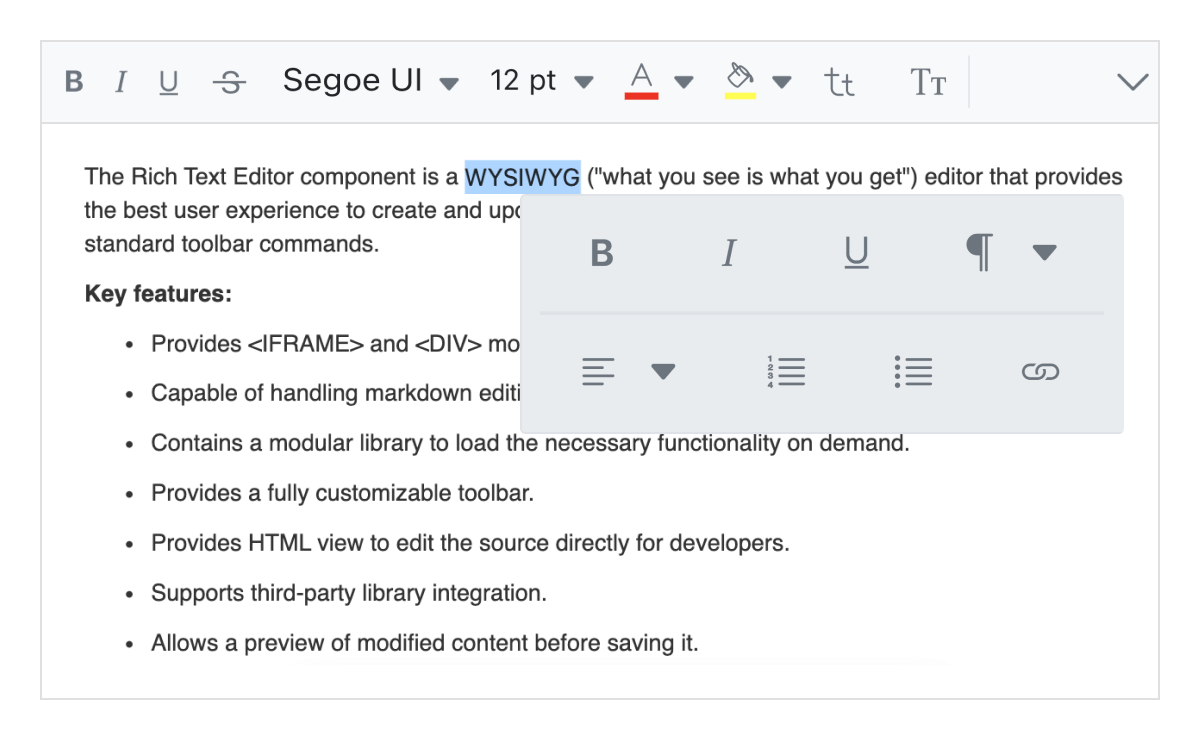
Quick toolbar
This toolbar includes frequently used commands for text, images, tables, and links, enabling quick access to format these elements efficiently.
Floating toolbar
The HTML editor toolbar does not remain fixed at the top; instead, it floats within the editor area as the page scrolls.
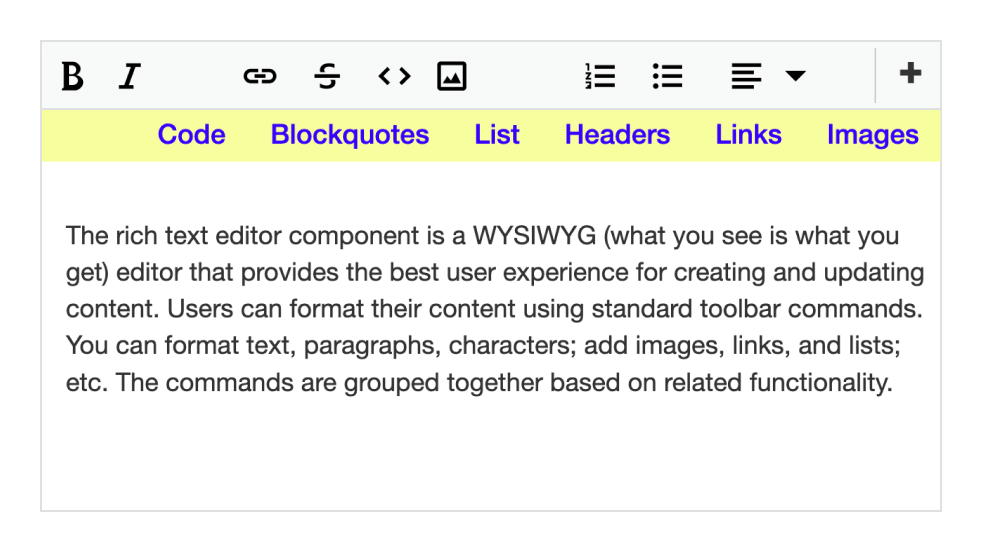
Fully customizable
The ASP.NET Core Rich Text Editor toolbar buttons are fully customizable. Users can add or remove buttons and organize commands by category to meet application requirements, such as blog editors or email composers.
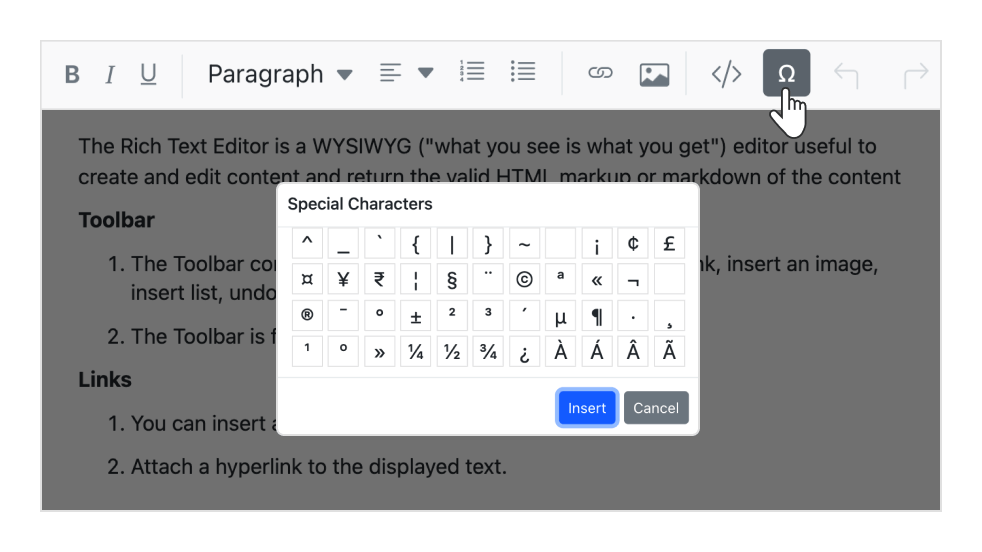
Custom tools
Custom commands with specific actions can be added to the toolbar alongside the built-in tools.
Inline mode
The ASP.NET Core Rich Text Editor displays an inline HTML editor when content within an editable area is clicked or selected.
Mention and hashtag
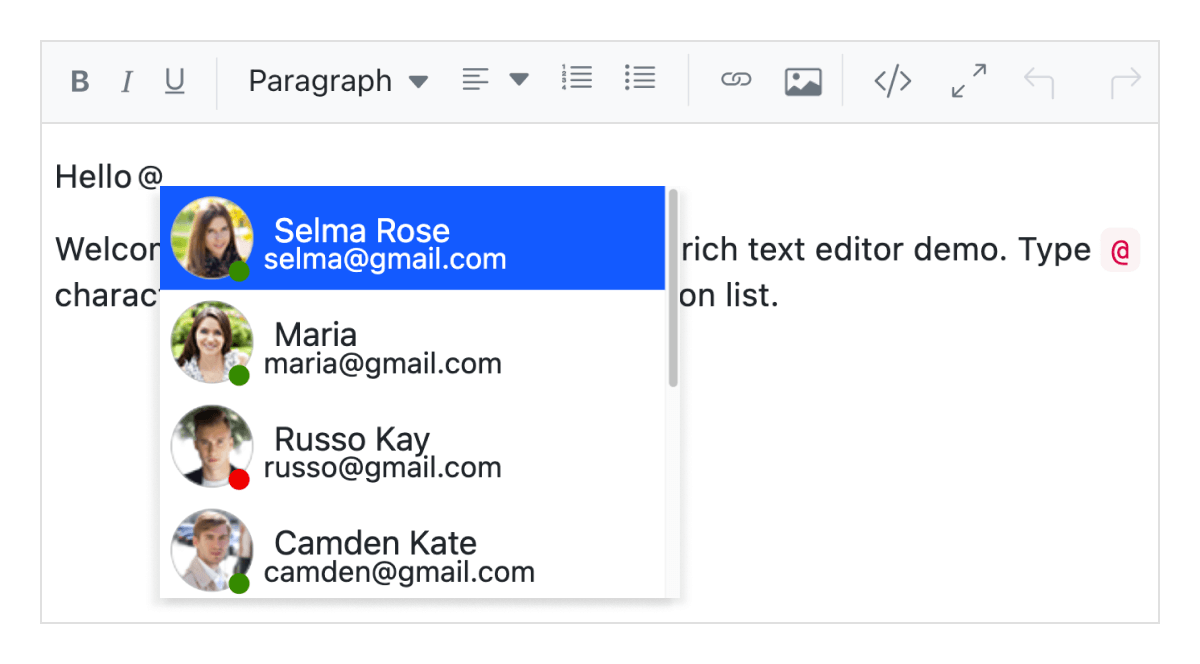
While composing content in the ASP.NET Core Rich Text Editor, users or groups can be tagged or selected from a suggestion list.
Enter and Shift+Enter key configurations
Users can configure which tags are inserted when pressing the Enter and Shift+Enter keys. Options include using P to create a <p> tag, DIV to create a <div> tag, or BR to insert a line break when either key combination is used.
Editing experience
The ASP.NET Core Rich Text Editor control provides a comprehensive set of tools and options to improve the editing experience.
Insert images
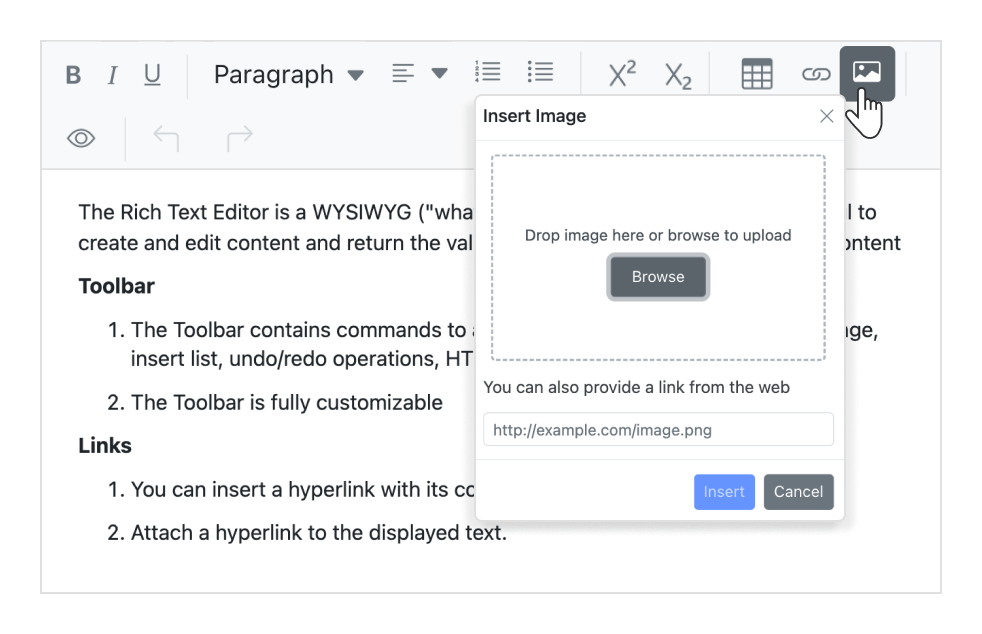
Images can be added from local or server paths with captions, and URLs can be linked to them. Upload images to a server using drag-and-drop or file upload functionality. The editor also supports inserting images in BLOB or Base64 formats.
Insert hyperlinks
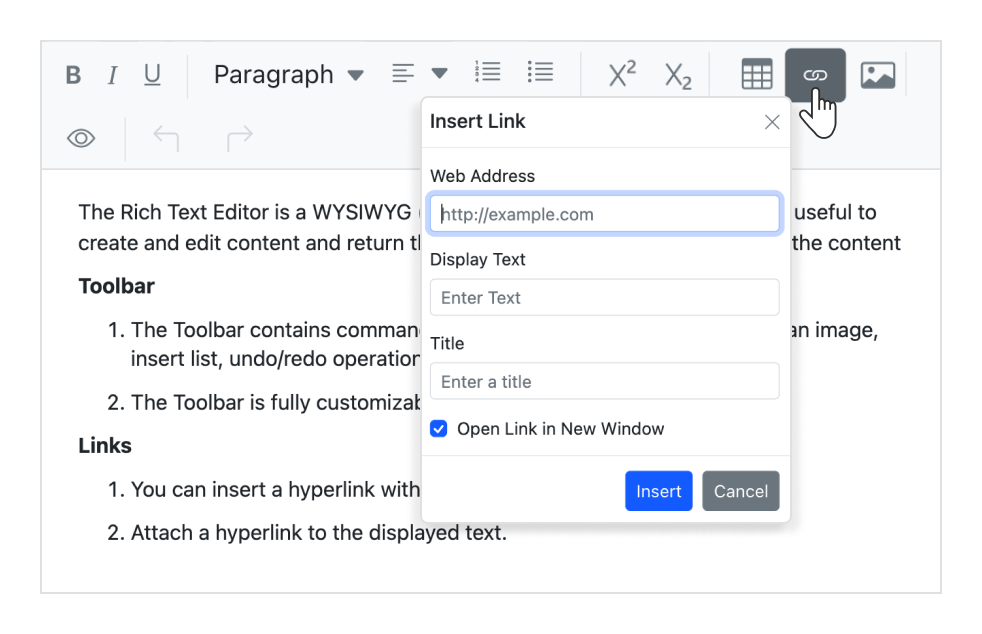
Hyperlinks can be added or modified with options such as display text, tooltips, and opening links in a new window.
Insert tables
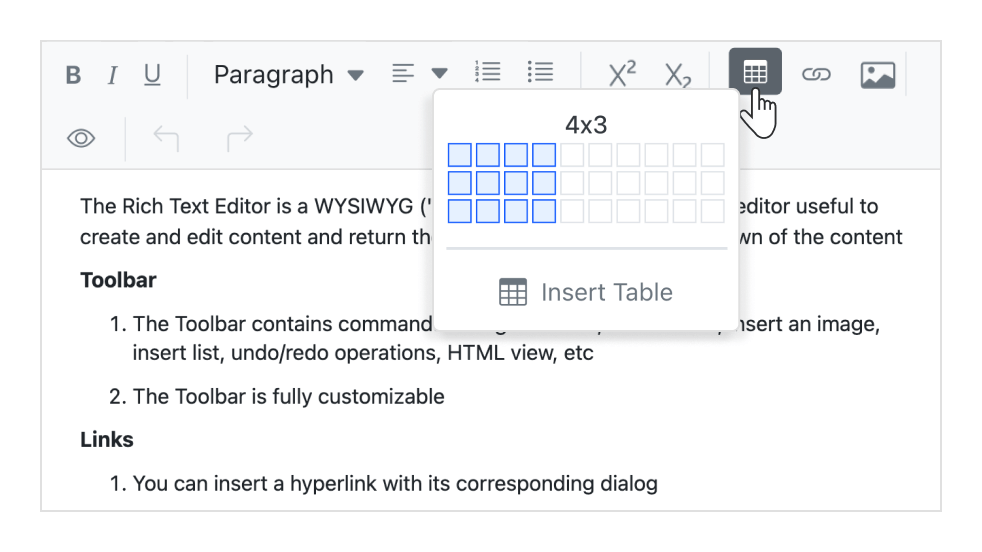
HTML tables can be created and edited to display structured tabular data within the editor. Users can dynamically manage tables by inserting or removing rows and columns, resizing tables or their elements, and deleting tables.
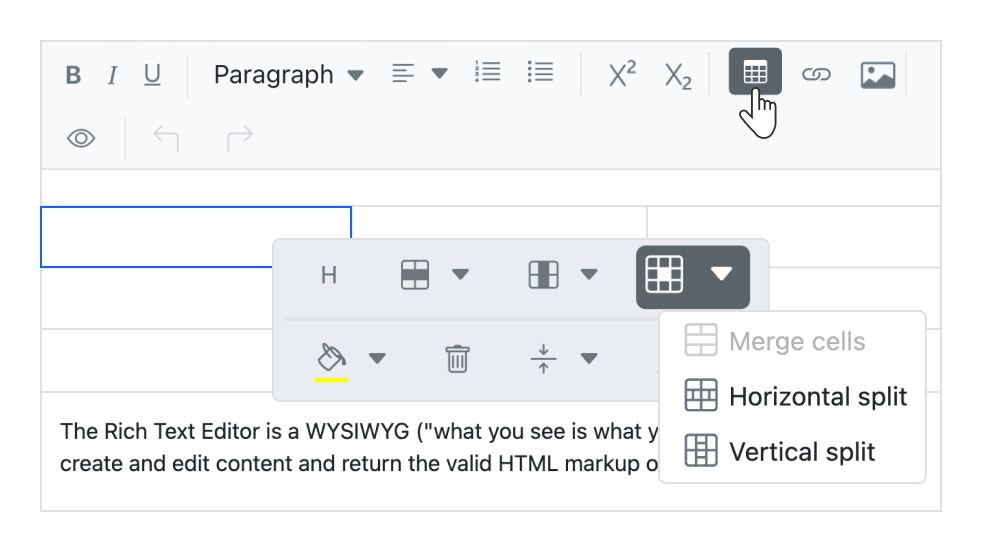
Table cell merge and split
Two or more row or column cells can be merged into a single cell containing their content. A single cell can also be split horizontally or vertically.
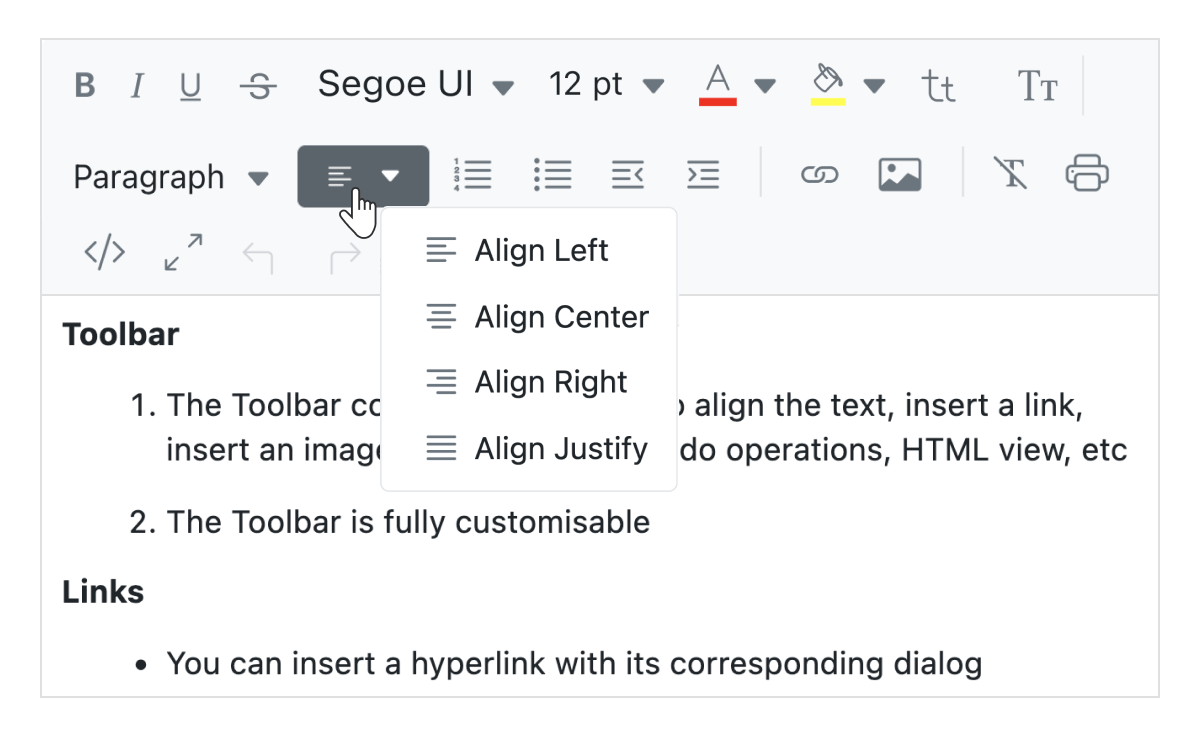
Text alignment
Built-in options allow content to be aligned to the left, center, or right, or justified as needed by the layout.
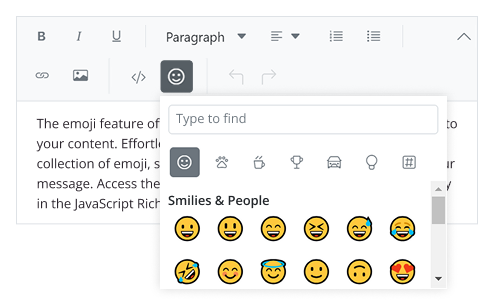
Insert emoji
Users can add emojis to their content from an extensive collection. The emoji picker can be accessed by typing the colon (:) key in the ASP.NET Core Rich Text Editor.
Formatting text
- Apply formatting to selected content, entire paragraphs, or specific words and characters.
- Style headings, quotations, code blocks, paragraphs, and more.
- Use bold, italics, underline, strikethrough, or adjust letter casing.
- Modify paragraph indentation and spacing.
- Select fonts and define font sizes.
- Apply subscript and superscript formatting.
- Choose font color and background color for the content.
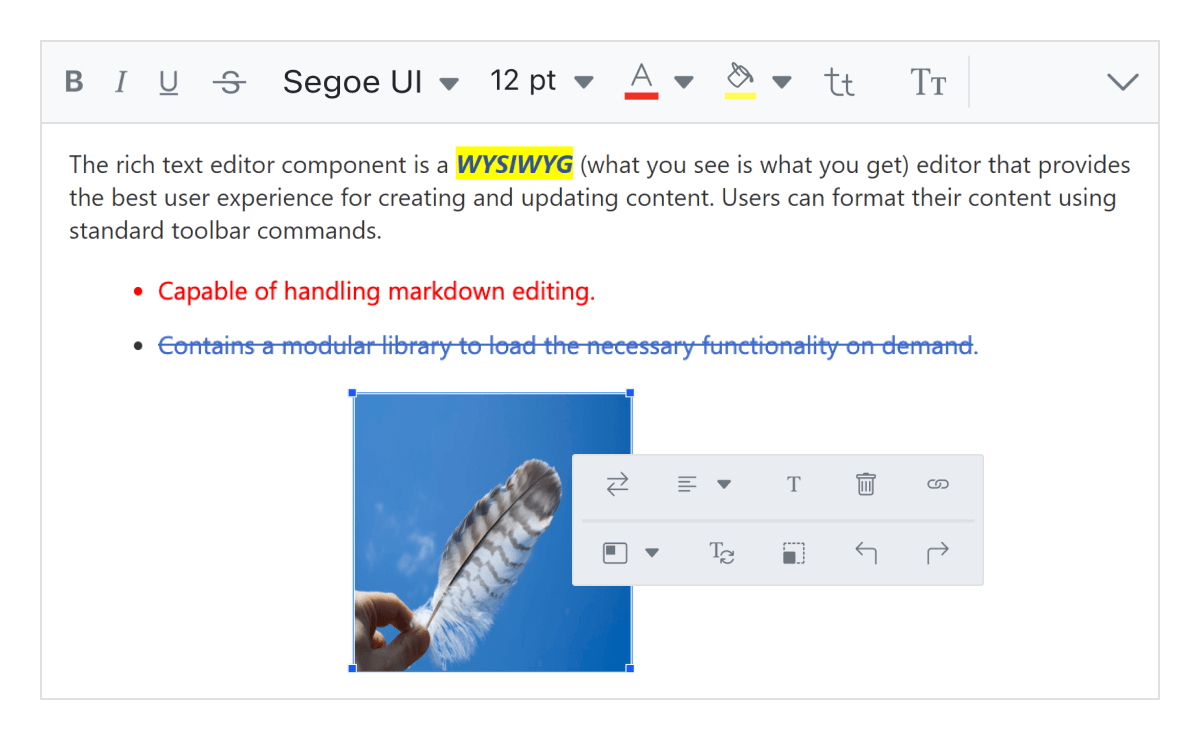
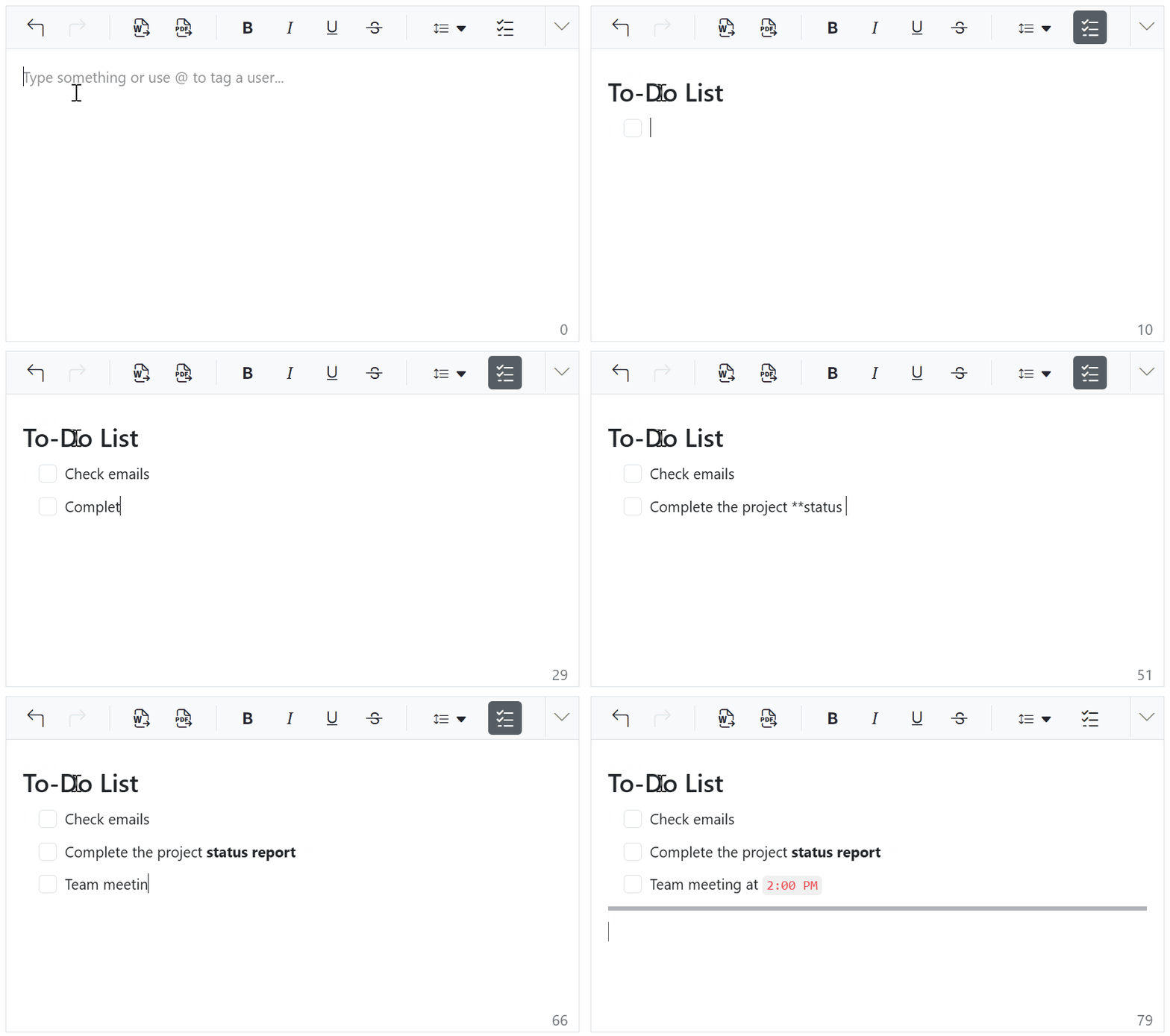
Auto-formatting for Markdown syntax
Autoformatting enables quick content styling using Markdown-like shortcuts, eliminating the need for toolbar buttons or dropdowns for common formatting. When users type syntax such as # for headings, ** for bold, or * for italics, the editor automatically converts it into corresponding HTML elements.
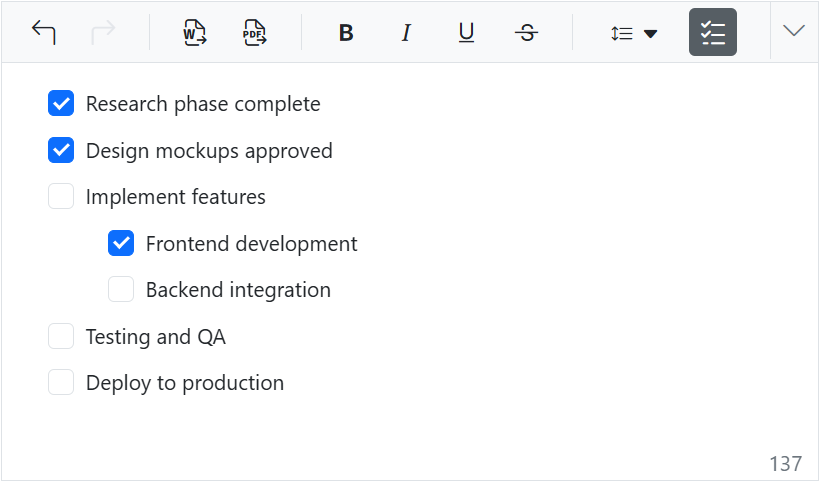
Checklists
Checklists (to-do lists) can be created directly within the editor. Users can easily add interactive checkbox items to their content, enabling task tracking and management within documents.
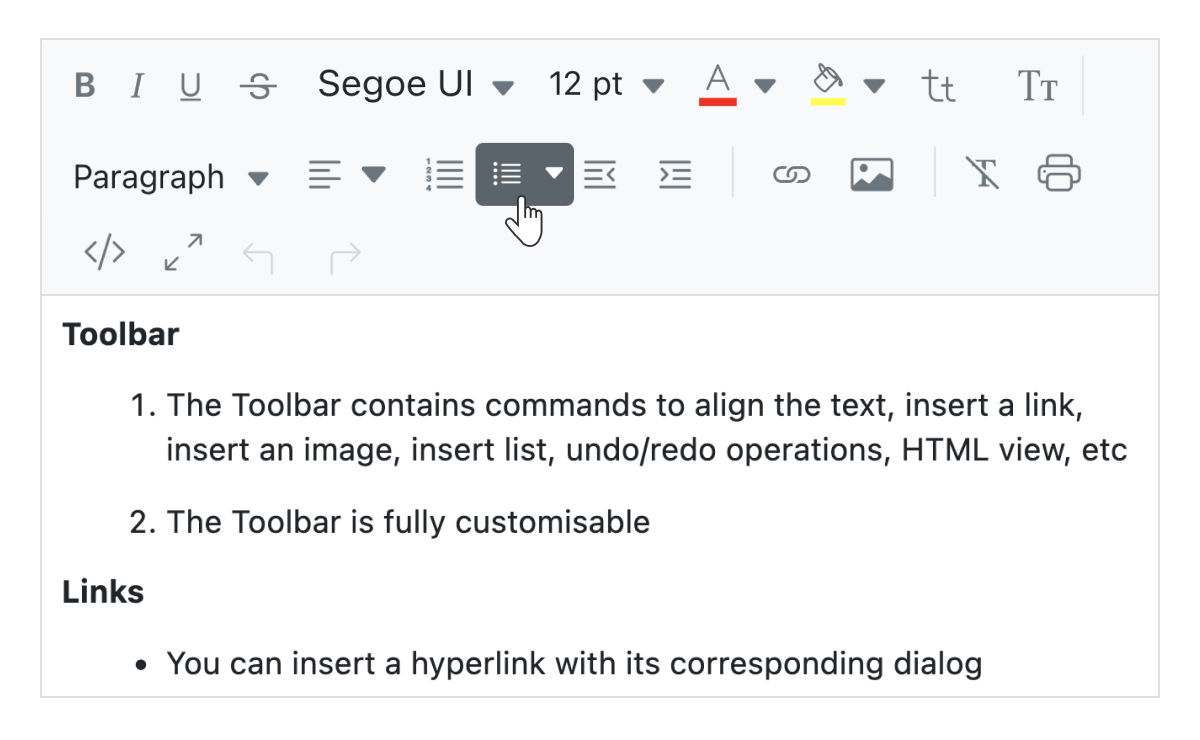
Adding lists
Create ordered (numbered) or unordered (bulleted) lists to organize content effectively.
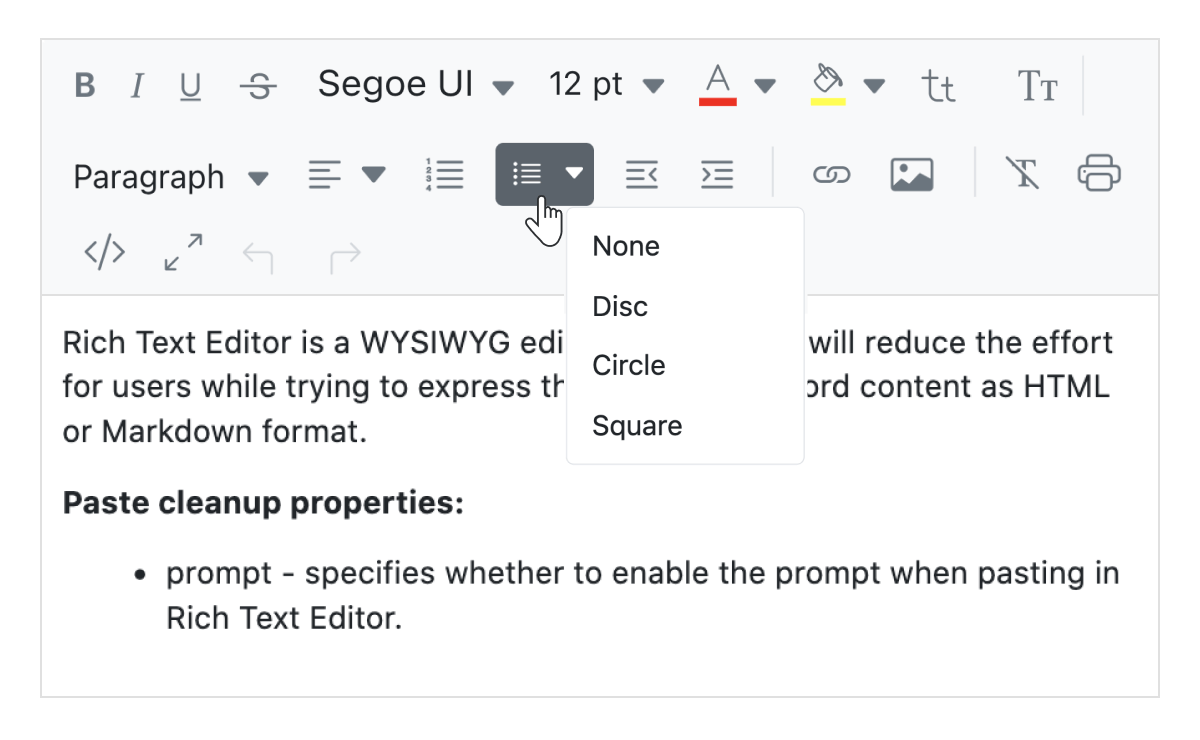
Custom lists
Customize the appearance of unordered list bullets with styles like circles or squares. Use different numbering formats for ordered lists, such as lowercase Greek letters or uppercase Roman numerals.
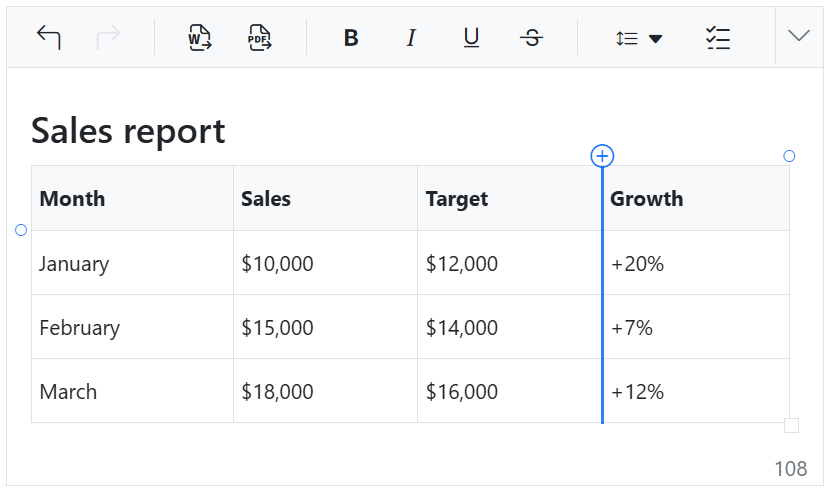
Quick insert for table rows and columns
Users can quickly add rows and columns to tables. When hovering near table edges, a “+” icon appears, allowing insertion with a single click.
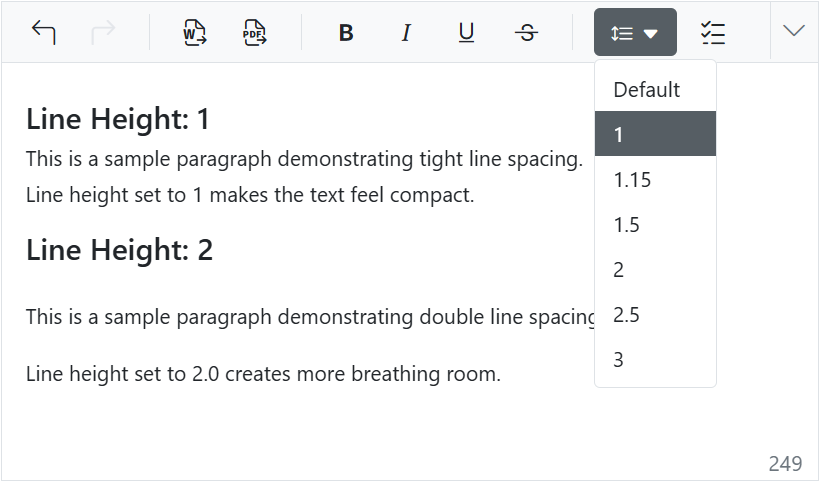
Line height
Users can modify the vertical spacing between lines of text, controlling how compact or spacious the content appears, which improves readability and visual balance.
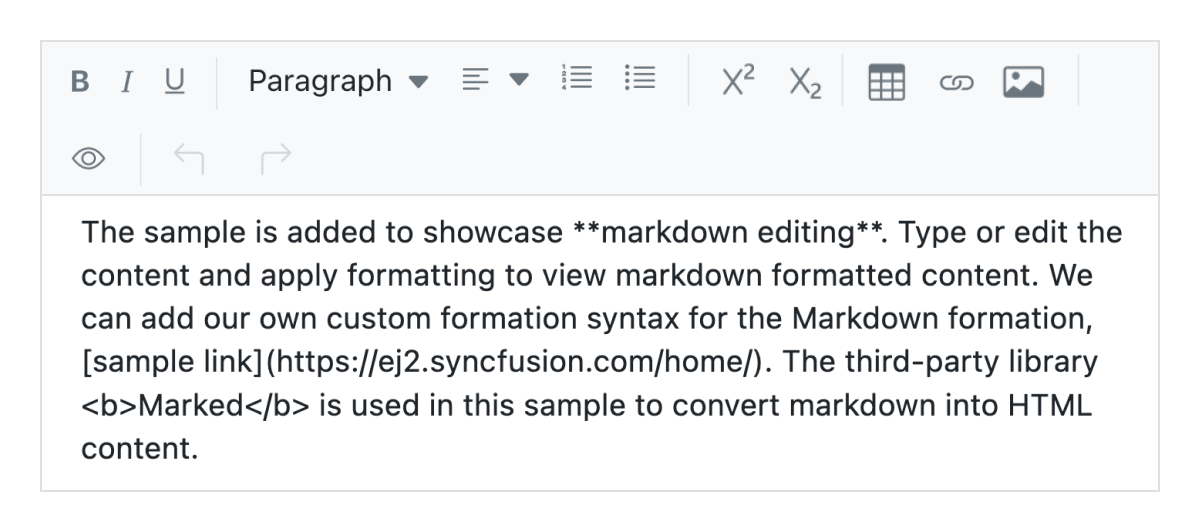
Full-screen text editor
Enable full-screen mode to expand the HTML editor into a full-page view for focused content editing.
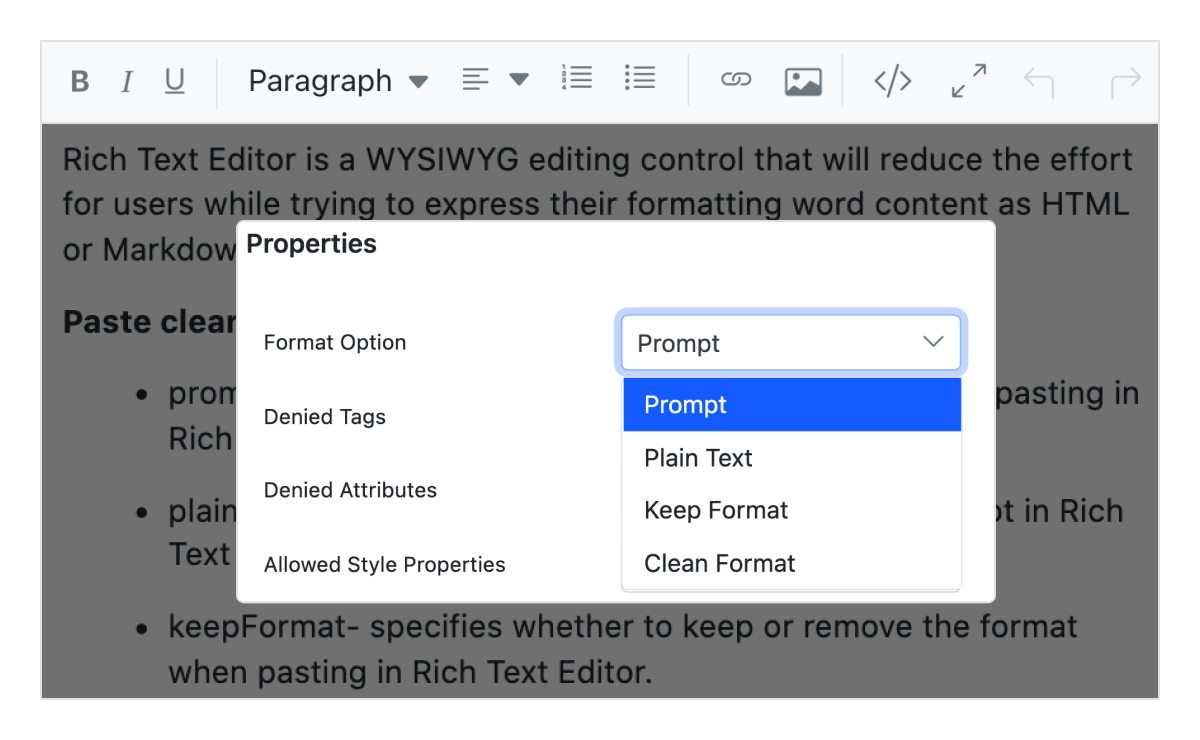
Paste from Microsoft Word and Excel
Provides built-in options to paste content, including images, from Microsoft Word, Outlook, and Excel while removing unnecessary tags, attributes, and styles. You can choose to paste content as plain text, with cleaned formatting, or retain the original formatting.
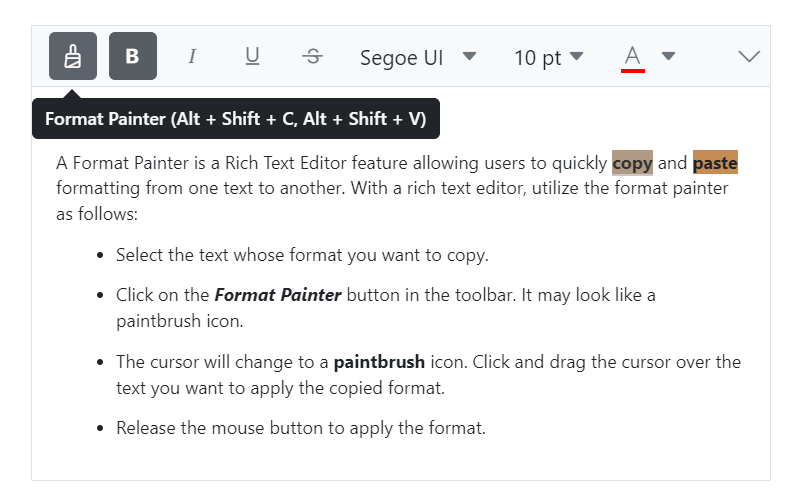
Format painter
The format painter allows users to copy formatting and apply it to content easily, reducing manual reformatting. It can be accessed via the toolbar or keyboard shortcuts. The sticky mode, activated by double-clicking the toolbar button, enables formatting to be applied across multiple sections.
Auto-hyperlink URLs
The ASP.NET Core Rich Text Editor automatically converts plain text URLs into clickable hyperlinks when they are typed.
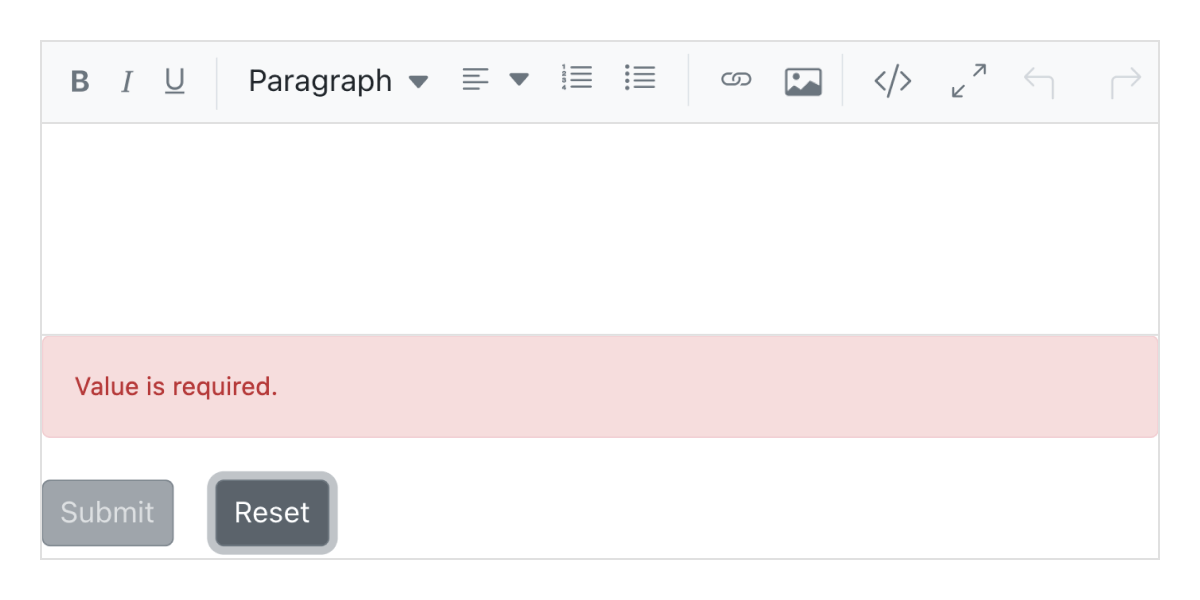
ASP.NET Core form validation
The Rich Text Editor integrates seamlessly with forms and captures values during form submission. It supports the following validation types:
- Required validation
- Maximum length validation
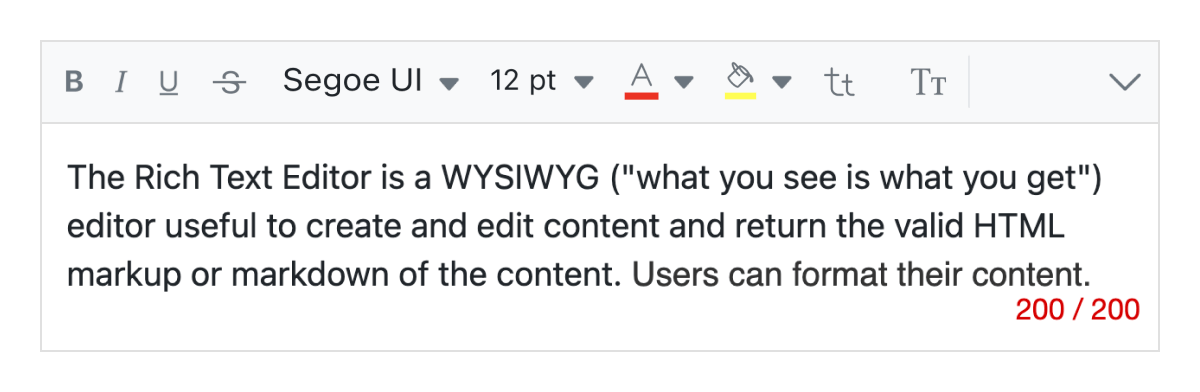
Limit content length
Users can define a character limit for specific sections, enabling control over the amount of content entered.
Resizable editor
The ASP.NET Core Rich Text Editor is resizable, allowing users to expand or reduce the content area as needed.
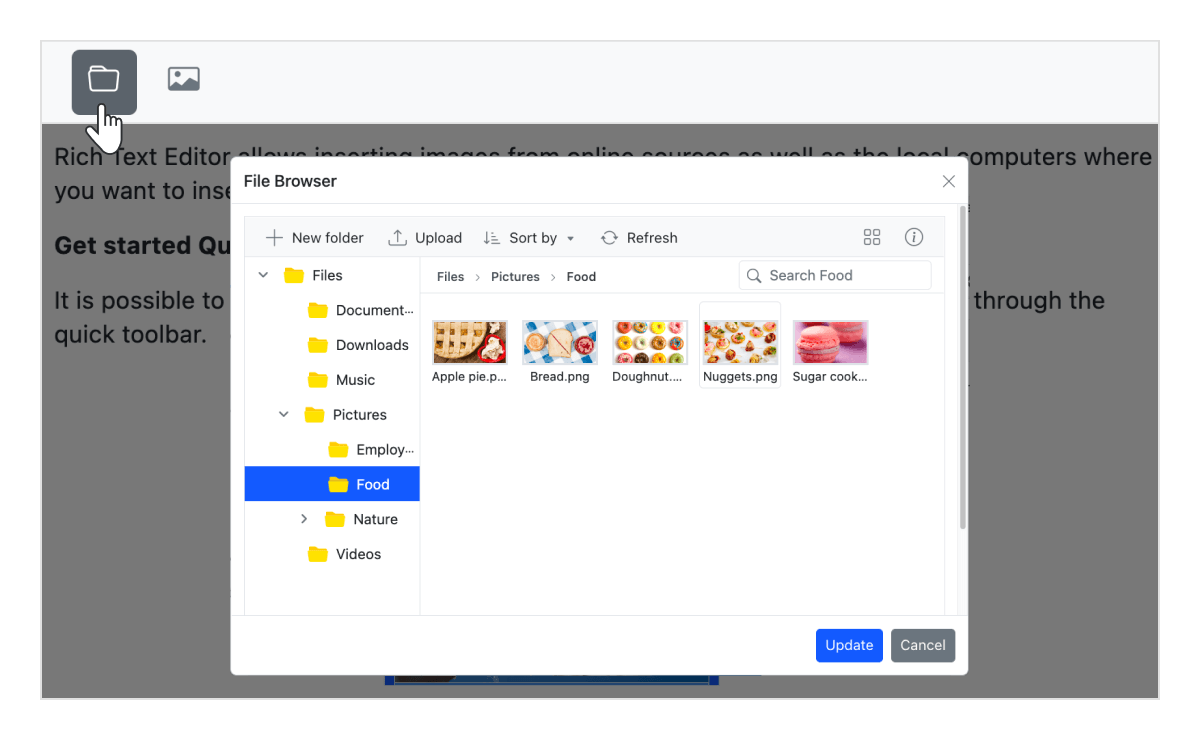
Insert an image through the file manager
The built-in file manager allows users to upload and insert images directly from cloud storage or a server.

Cut, copy, and paste
Use clipboard operations (cut, copy, and paste).

Undo redo manager
The ASP.NET Core Rich Text Editor manages the history of undo and redo actions, enabling users to experiment with editing.

Print the text editor content
Print formatted content directly using the toolbar or programmatically.

Touch-friendly and responsive WYSIWYG editor
The editor recognizes touch gestures, allowing users to swipe left or right to move the toolbar. The responsive, mobile-friendly design provides the best user experience on all mobile, tablet, and desktop form factors.

Built-in and customizable themes
Includes multiple built-in themes such as Tailwind CSS, Bootstrap 5, Bootstrap 4, Bootstrap, Material, Fabric, Fluent, and high contrast.

Developer-friendly APIs
There are sufficient client-side APIs available to enhance the process of content editing.
HTML editor accessibility

Keyboard navigation
The Rich Text Editor ensures that every cell is accessible using the keyboard. Major features like sort, select, and edit can be performed using keyboard commands alone; no mouse interaction is required. This helps in creating highly accessible applications using this component.

Screen reader
The Rich Text Editor view has complete WAI-ARIA accessibility support. The Rich Text Editor UI includes high-contrast visual elements that help visually impaired people to have the best viewing experience. Also, valid UI descriptions are easily accessible through assistive technologies such as screen readers.

Right to left (RTL)
The Rich Text Editor supports right-to-left rendering, allowing the text and layout of the text editor to be displayed from right to left. This improves the user experience and accessibility for users of RTL languages such as Arabic, Farsi, and Hebrew.
Other supported frameworks
The Rich Text Editor is also available for the Blazor, React, Angular, JavaScript, Vue, and ASP.NET MVC frameworks. Explore its platform-specific options through the following links:
Supported browsers
The ASP.NET Core Rich Text Editor works well with all modern web browsers, including Chrome, Firefox, Edge, Safari, and Opera.

Not sure how to create your first ASP.NET Core Rich Text Editor? Our documentation can help.
I’d love to read it nowFrequently Asked Questions
Why should you choose the Syncfusion ASP.NET Core Rich Text Editor?
Edit WYSIWYG HTML and Markdown content with a rich set of tools for modern web and mobile applications.
Easily incorporate into blogs editor, message apps, HTML email composers, and discussion forum-like applications.
Make a floating toolbar or inline editor that allows you to select any editable element on the page and edit-in-place.
- Simple configuration and APIs.
- Supports all modern browsers.
- Mobile-touch friendly and responsive.
Take advantage of expansive learning resources such as demos and documentation to get started quickly with the ASP.NET Core Rich Text Editor.
Where can I find the Syncfusion ASP.NET Core Rich Text Editor demo?
You can find our ASP.NET Core Rich Text Editor demo here. It demonstrates how to render and configure the Rich Text Editor.
Can I download and utilize the Syncfusion ASP.NET Core Rich Text Editor for free?
No, this is a commercial product and requires a paid license. However, a free community license is also available for companies and individuals whose organizations have less than $1 million USD in annual gross revenue, 5 or fewer developers, and 10 or fewer total employees.
How do I get started with the Syncfusion ASP.NET Core Rich Text Editor?
A good place to start would be our comprehensive getting started documentation.
Our Customers Love Us
Having an excellent set of tools and a great support team, Syncfusion® reduces customers’ development time.
Here are some of their experiences.
Here are some of their experiences.

Nice suite of components
A very complete set of components, that has an edge on other major vendors which offer components. A lot less code required to use and code samples for more complete components. Integrates well with other 3rd party components.

John A.
C# Developer (Contract)
Perfect for any developer
The Syncfusion Essential Studio has excellent features that are updated or added constantly on a regular basis. The support is exceptional—fast and professional responses. The support team provides you with code samples. As for the bugs, they always try to include the fix in the next release.

Dejan D.
Chief Executive Officer
See Real Success Stories
Developers around the world trust Syncfusion’s Essential Studio to simplify complex projects and speed up delivery. With a vast library of UI controls, powerful SDKs, and reliable support, Essential Studio helps teams build enterprise-ready applications with confidence.
Read Our Customer StoriesIndustry
Software development
75% Cost reduction
50% Faster development
Industry
Utilities (oil and gas)

450+ hours saved
Streamlined processes and hours of development effort saved.

Advanced, flexible features
Empowered users through robust and versatile functionality.
Industry
Software and technology
1000+ of hours saved
Accelerated development with enterprise-ready UI components.

Efficient file management
Streamlined workflows with document libraries without building them from scratch.
Industry
Software and technology

2 Years of delay avoided
Two years of delays prevented with proactive planning.

On-time delivery
Projects delivered on schedule using trusted controls.
Industry
IT services and IT consulting

Improved performance
Large datasets handled with easy customization and quick debugging.

Highly customizable
Plug-and-play controls with quick template integration.
Industry
Professional services
Instant access
Quick availability of features and resources.
Reduced dependencies
Fewer dependencies for faster development.
Rated by users across the globe
Syncfusion ASP.NET Core Rich Text Editor resources


UI Kits  Figma download
Figma downloadAwards
Greatness—it’s one thing to say you have it, but it means more when others recognize it. Syncfusion® is proud to hold the following industry awards.