





Transform your applications today by downloading our free evaluation version
Overview
The WinUI Scheduler control is used to schedule and manage appointments through an intuitive user interface, similar to the Windows calendar. It supports eight different views: day, week, workweek, month, timeline day, timeline week, timeline workweek, and timeline month. The control’s rich feature set includes:
- A built-in appointment editor for modifying appointments.
- On-demand appointment loading .
- Localization to meet the needs of different regions.
Views
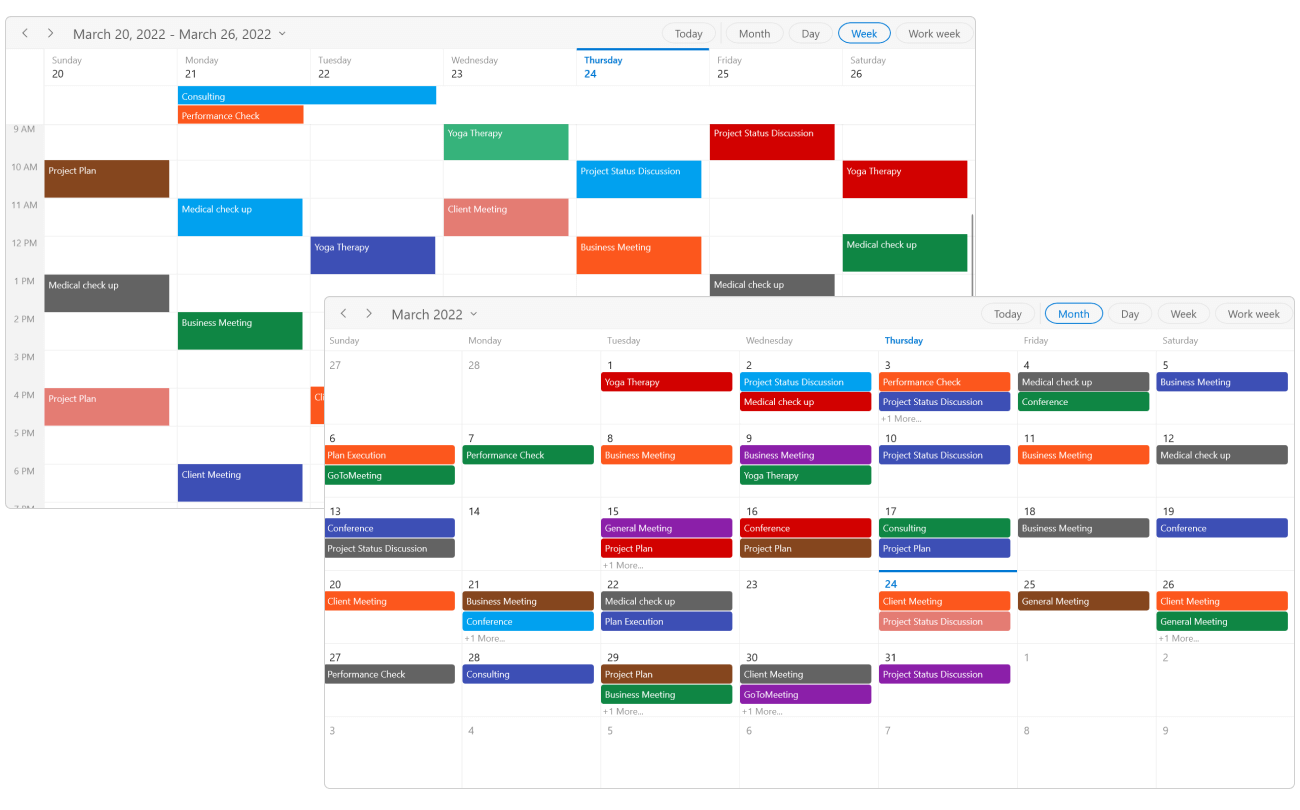
A wide range of built-in view modes are available: day, week, workweek, month, timeline day, timeline week, timeline workweek, and timeline month.
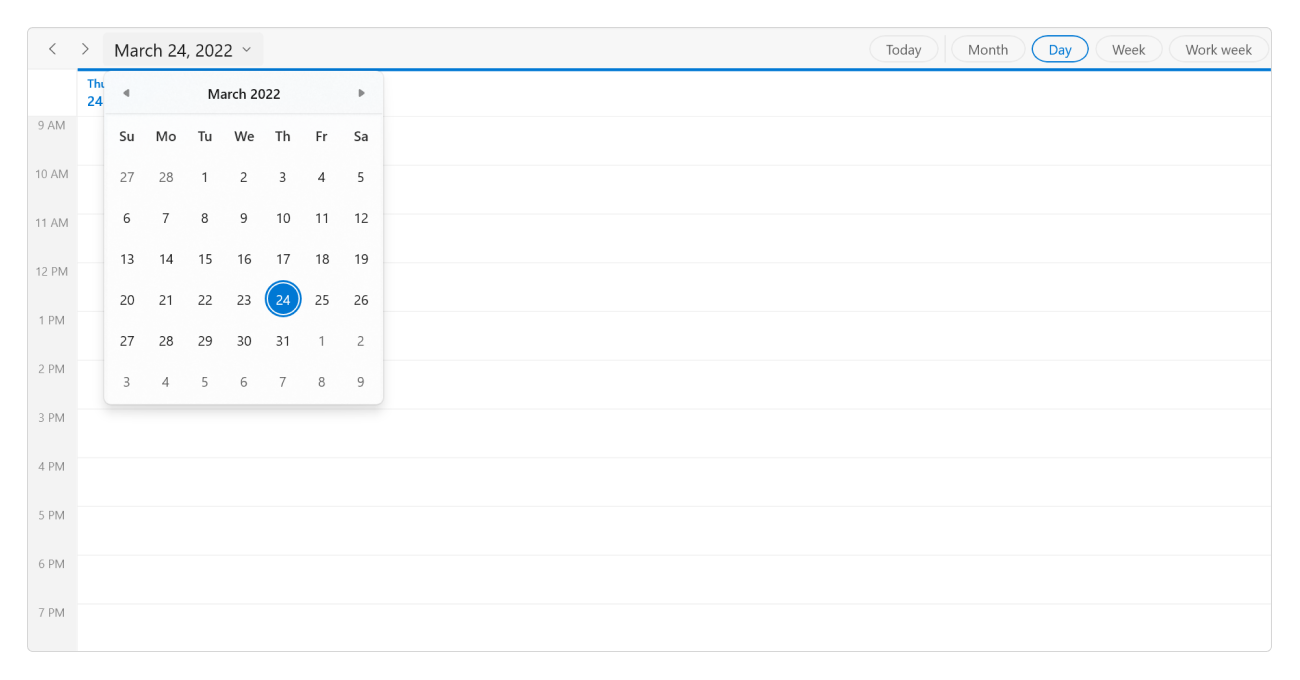
Day
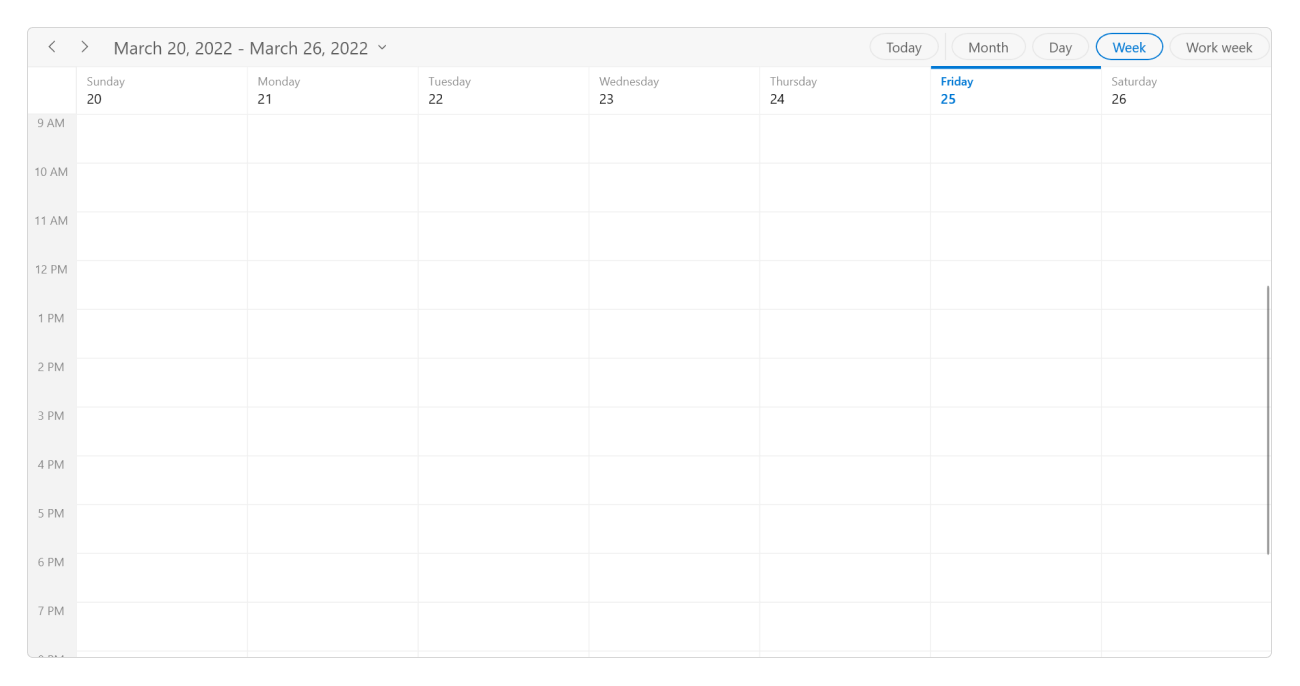
Week
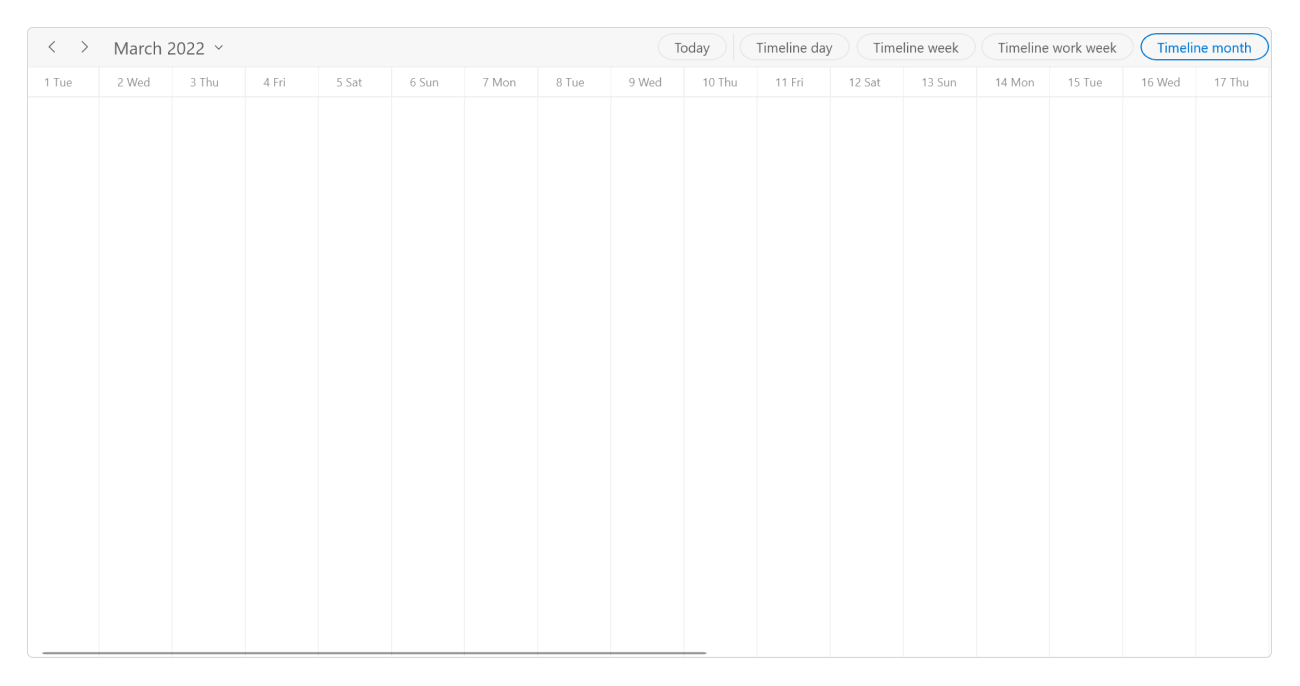
Timeline month
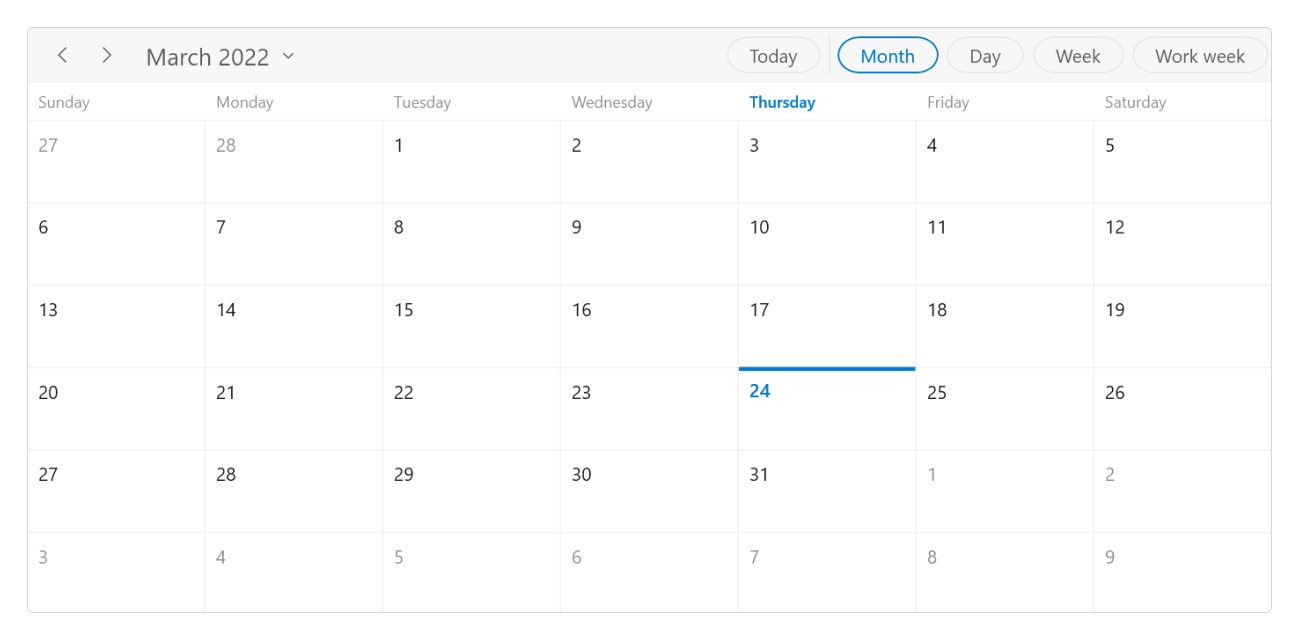
Month
Events
Render recurring, all-day, and spanned appointments to visualize your schedules and events easily. Appointments contain information on events scheduled at specific times. In addition to default appointments, users can use their own collections to connect a business entity to an appointment by mapping its fields, such as start time, end time, subject, notes, and recurrence.
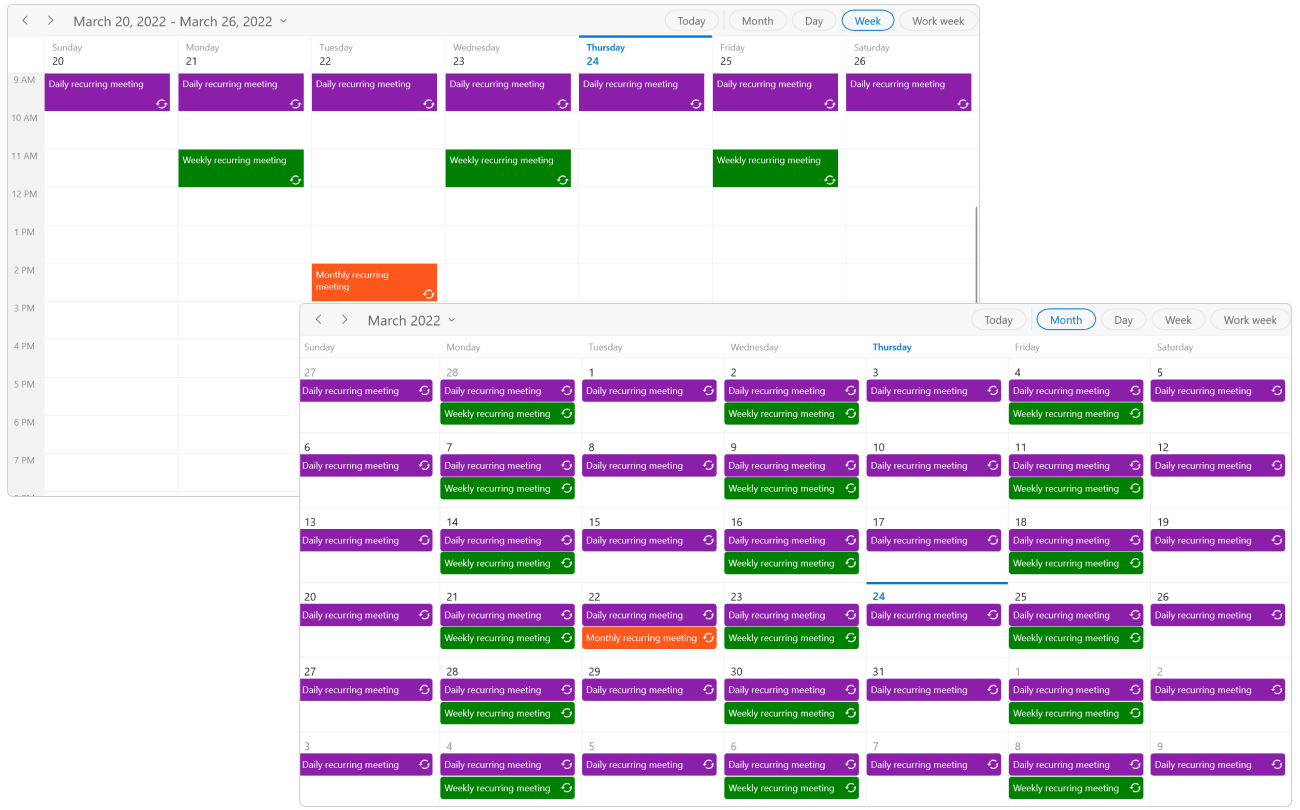
Recurring events
Easily configure recurring events on a daily, weekly, monthly, or yearly basis. You can also skip or change an occurrence of a recurring appointment.
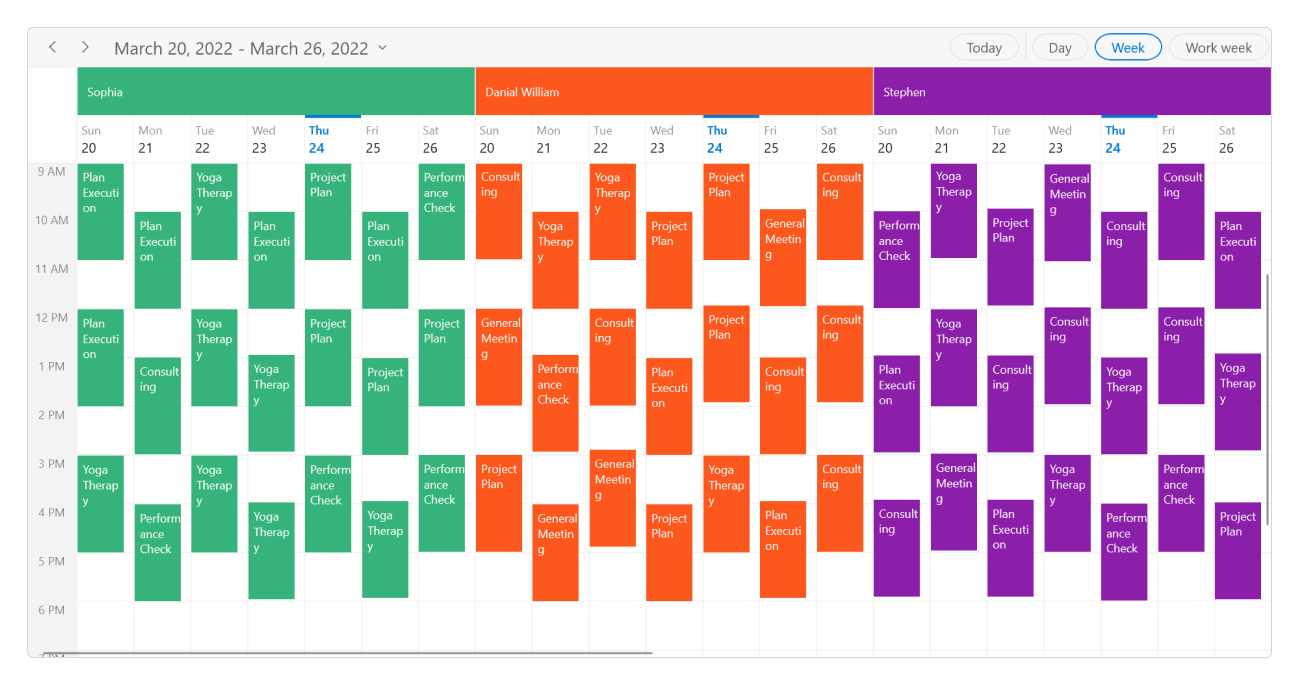
Resource grouping
Group appointments based on the resources associated with them in day, week, workweek, timeline day, timeline week, timeline workweek, and timeline month views.
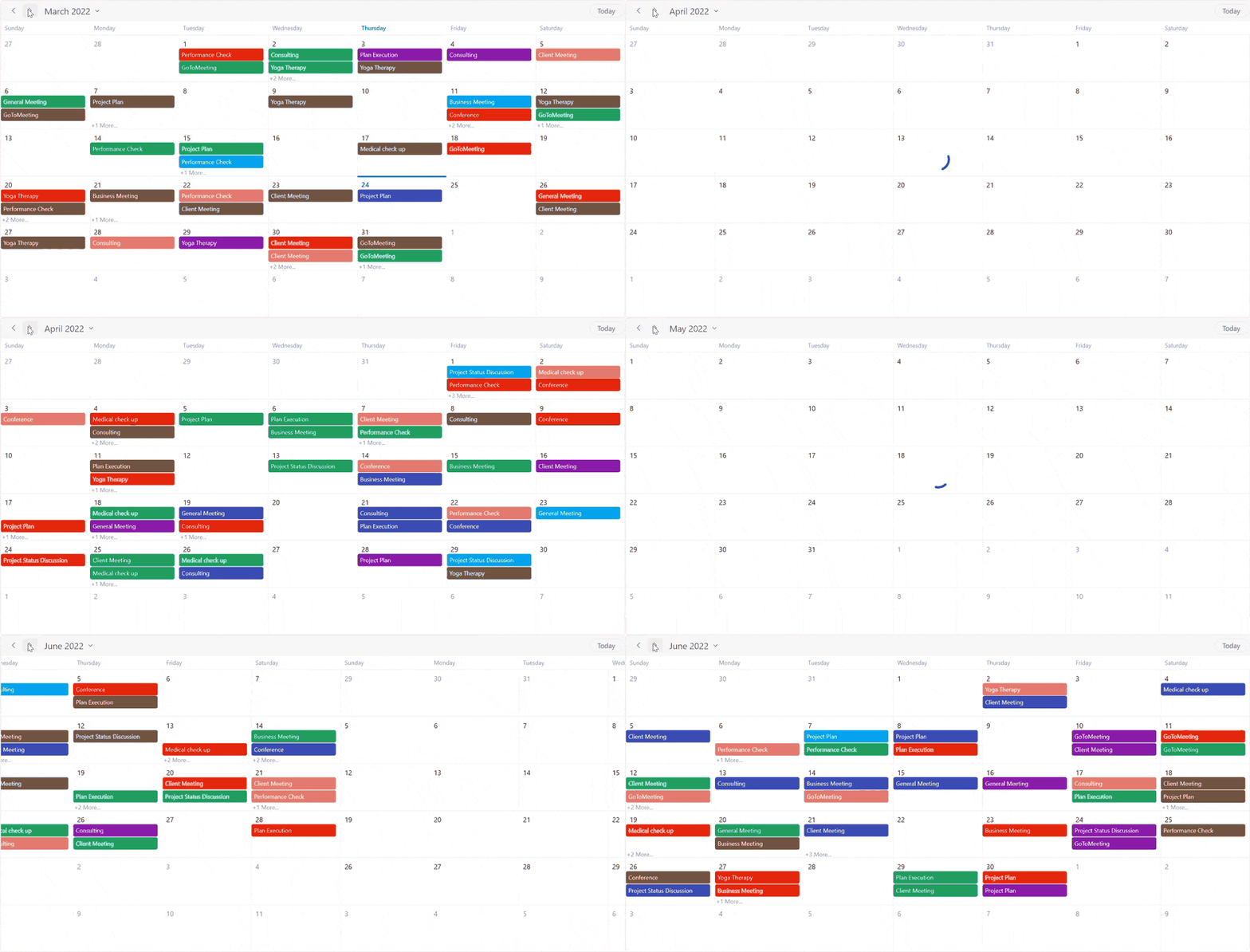
Load on demand
Load appointments on demand in the visible date range and display a loading indicator for end users. Loading on demand improves the loading performance of appointments across multiple years.
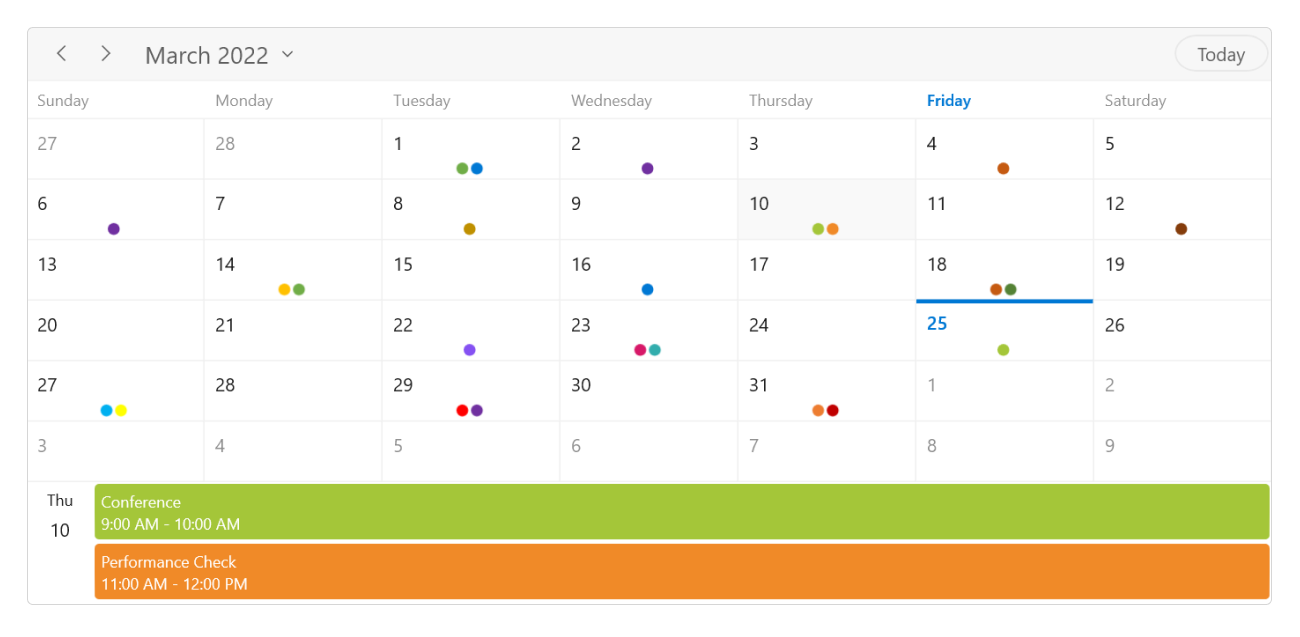
Month agenda view
Display appointments in a list below the month view by clicking a day.
Calendar types
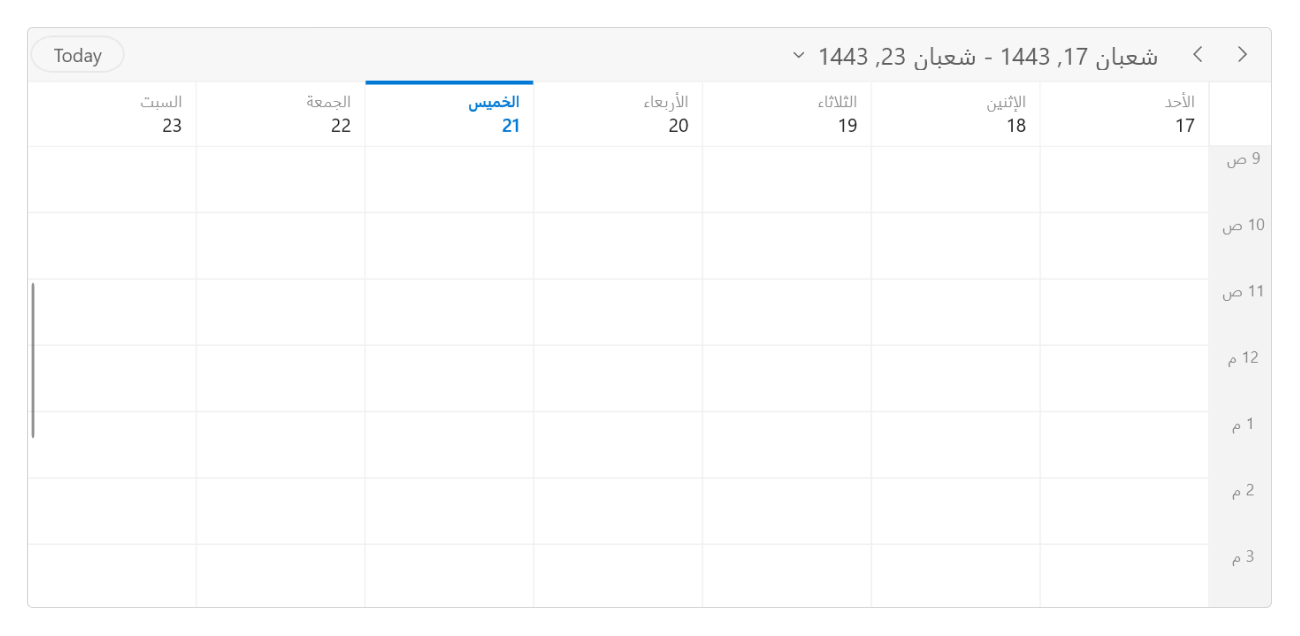
Supports different types of calendars such as Gregorian, Korean, Hebrew, Hijri, Taiwan, Thai, Umm al-Qura, Persian, and Julian. The default calendar type is Gregorian.
Appointment editing and rescheduling
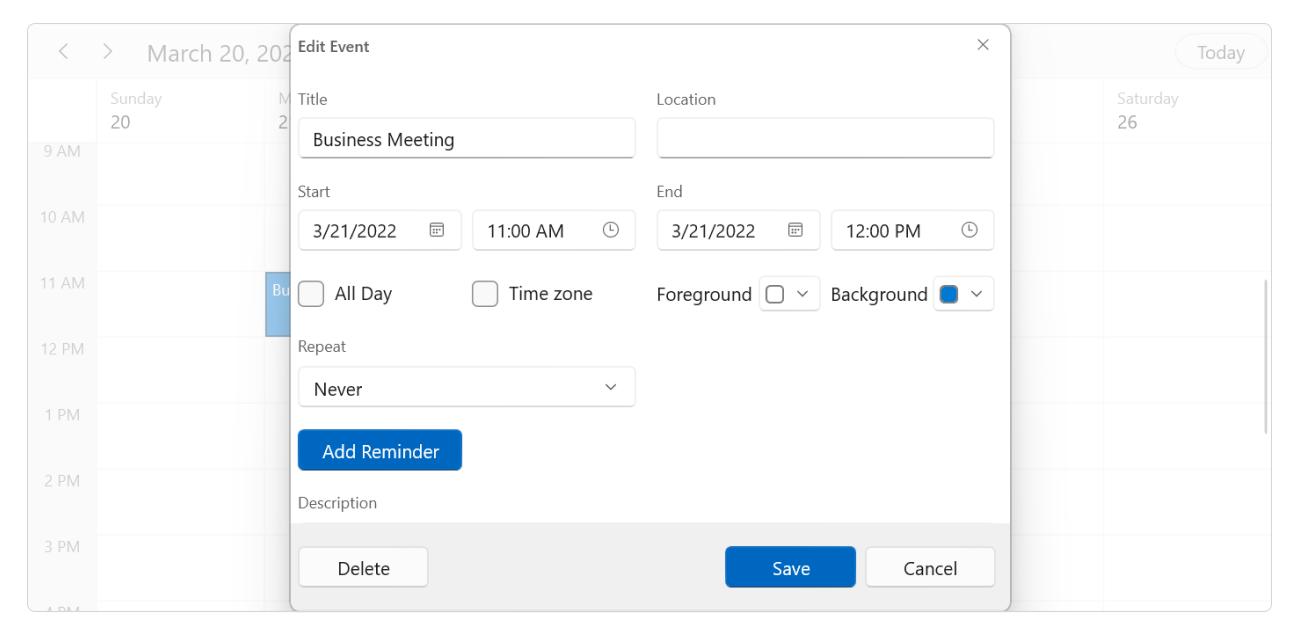
Built-in appointment editor
You can easily create, edit, or delete appointments using the built-in appointment editor.
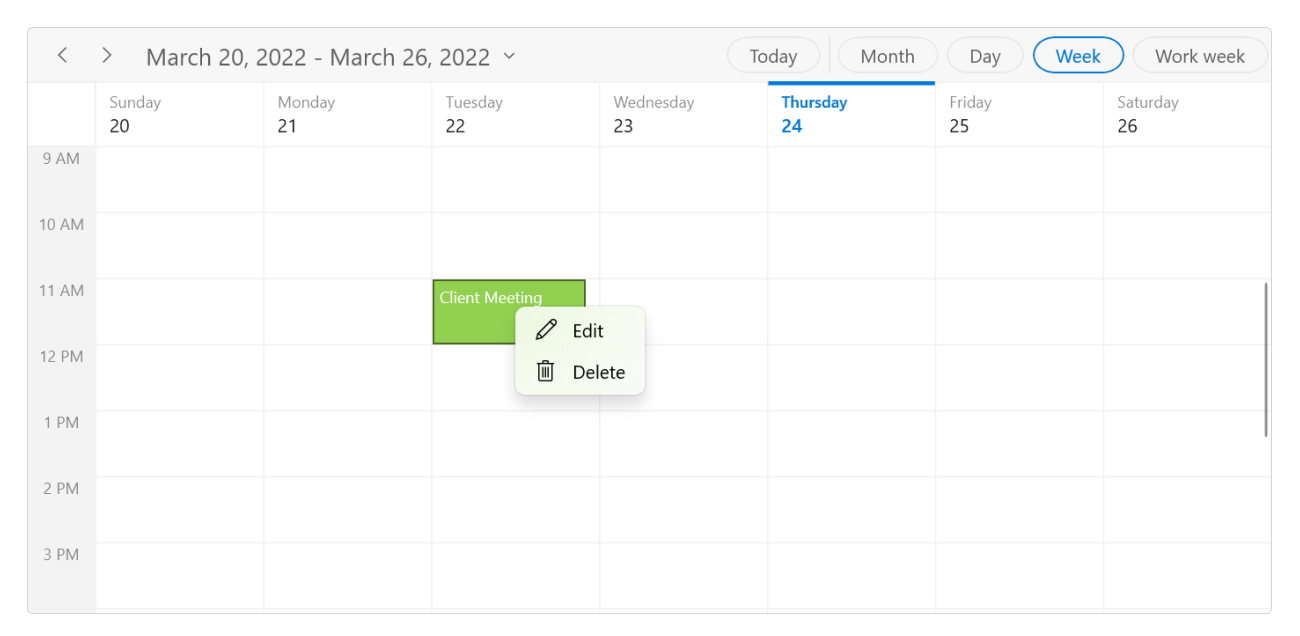
Context menu and commands
The WinUI Scheduler context menu displays shortcut options to add, edit, and delete appointments during user interactions, such as right-clicking appointments, time slots, and month cells. Use built-in RoutedUICommands to handle the context menu options.
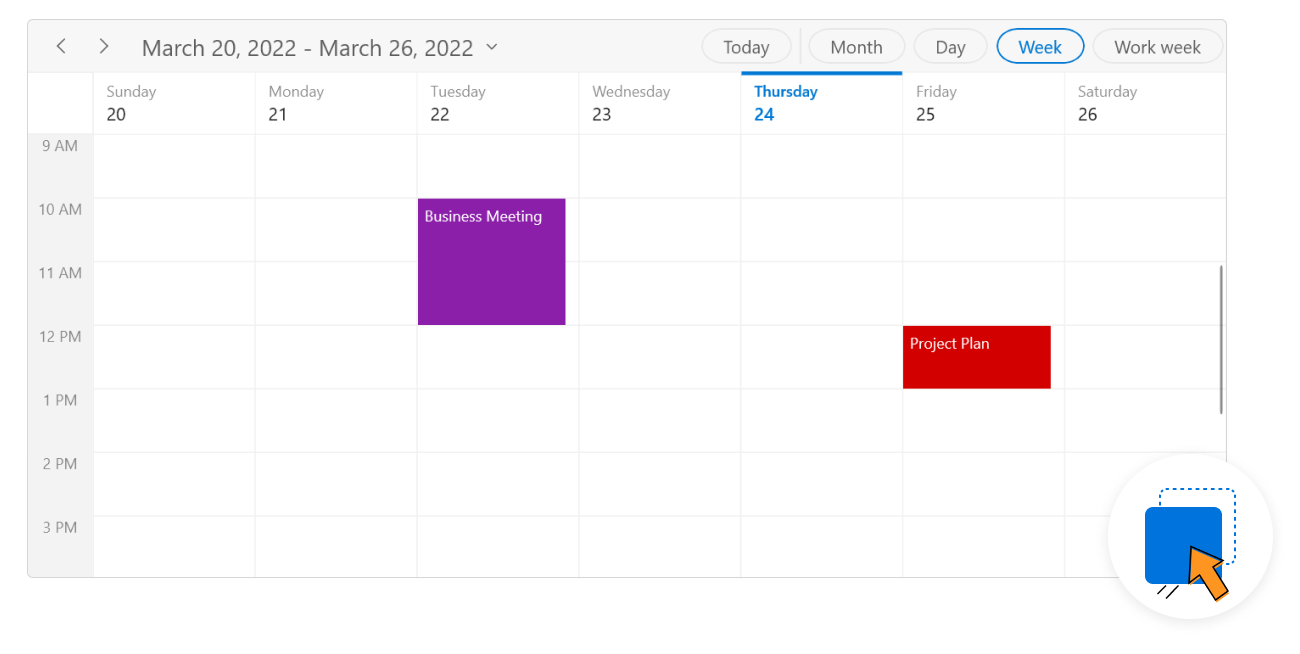
Drag and drop
- Easily reschedule an appointment by dragging it from one time slot or month cell and dropping it into a different time slot or month cell.
- Restrict the rescheduling of certain appointments and prevent appointments from being dropped in specific slots.
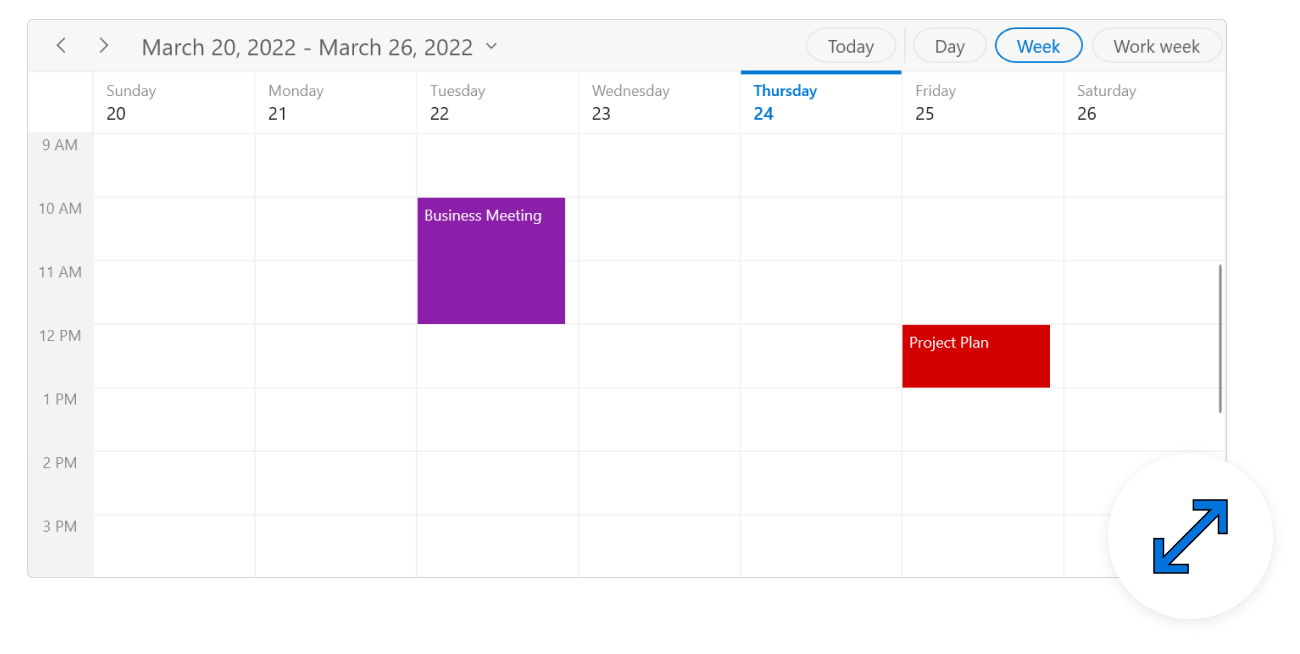
Resizing
You can quickly extend or reduce an appointment’s start and end times by resizing the appointment.
Time zones
Display appointments created in various time zones in a single system. Appointment start and end times are also automatically adjusted and displayed based on daylight saving time.

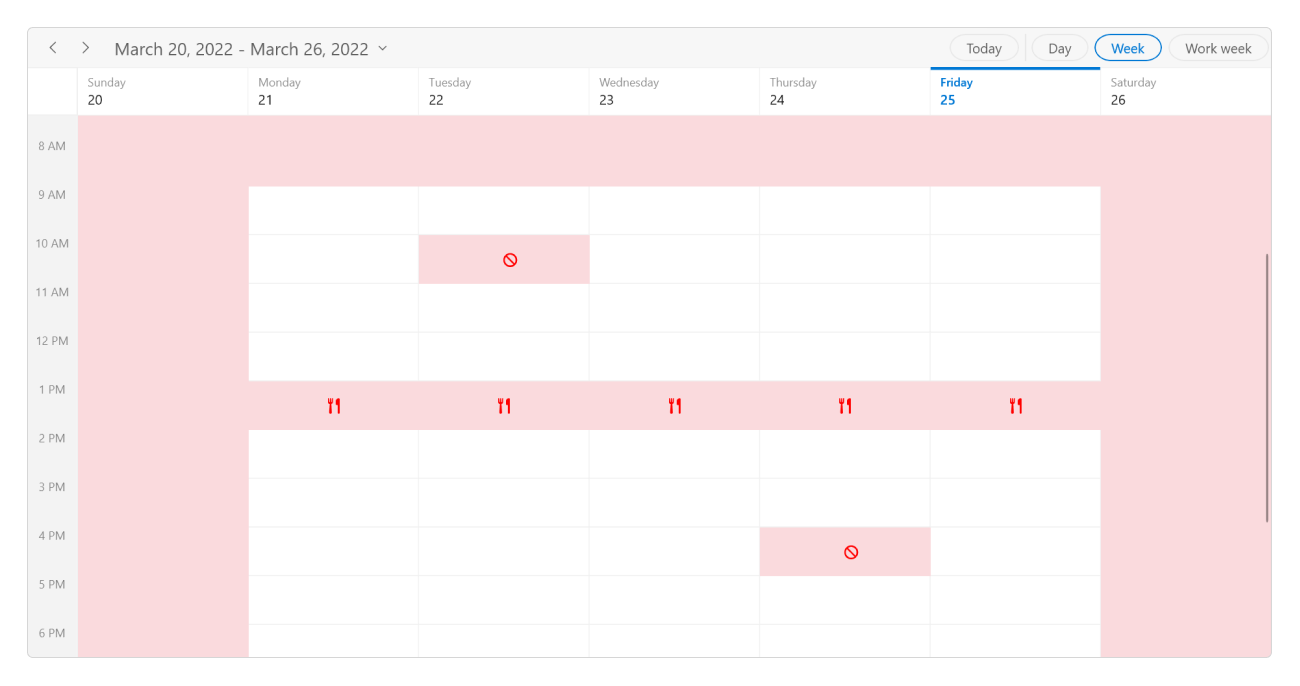
Special time region
Create special time regions to highlight time slots in day, week, workweek, timeline day, timeline week, and timeline workweek views. Merge adjacent special time regions and show them as a single region instead of separately for each day in the week and workweek views.
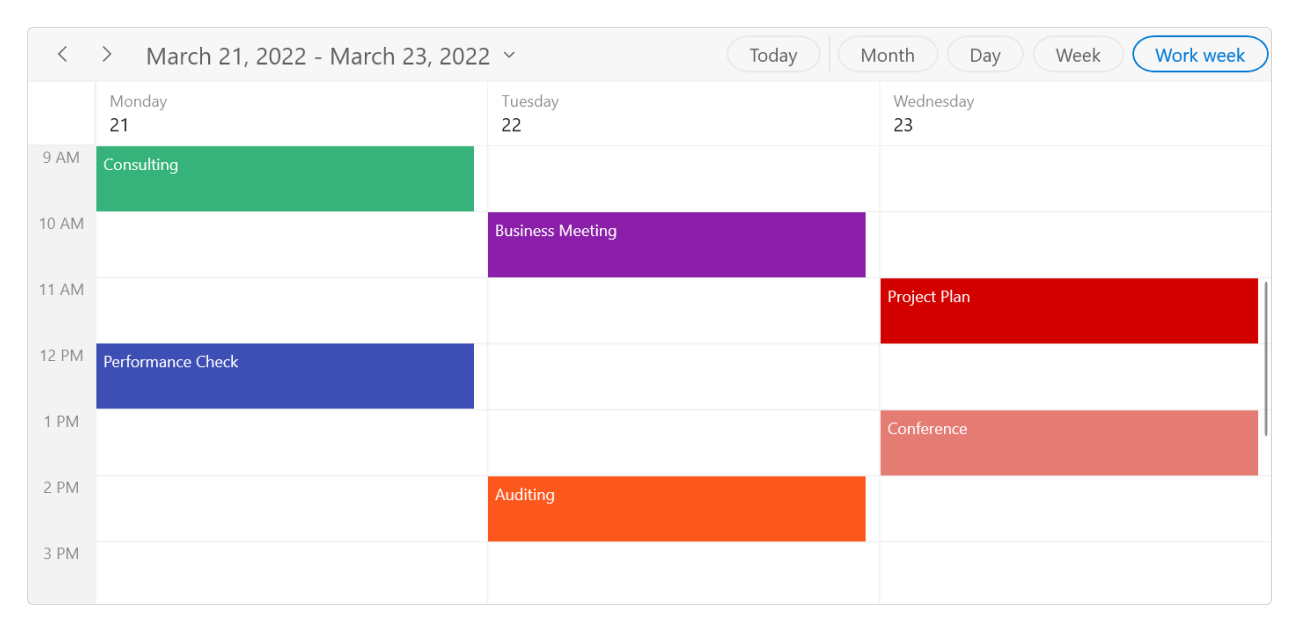
Flexible working days
Customize the workdays in a workweek so that the remaining days will be hidden from the view.
First day of the week
Customize the first day of the week as needed. The default first day is Sunday.
Date restriction
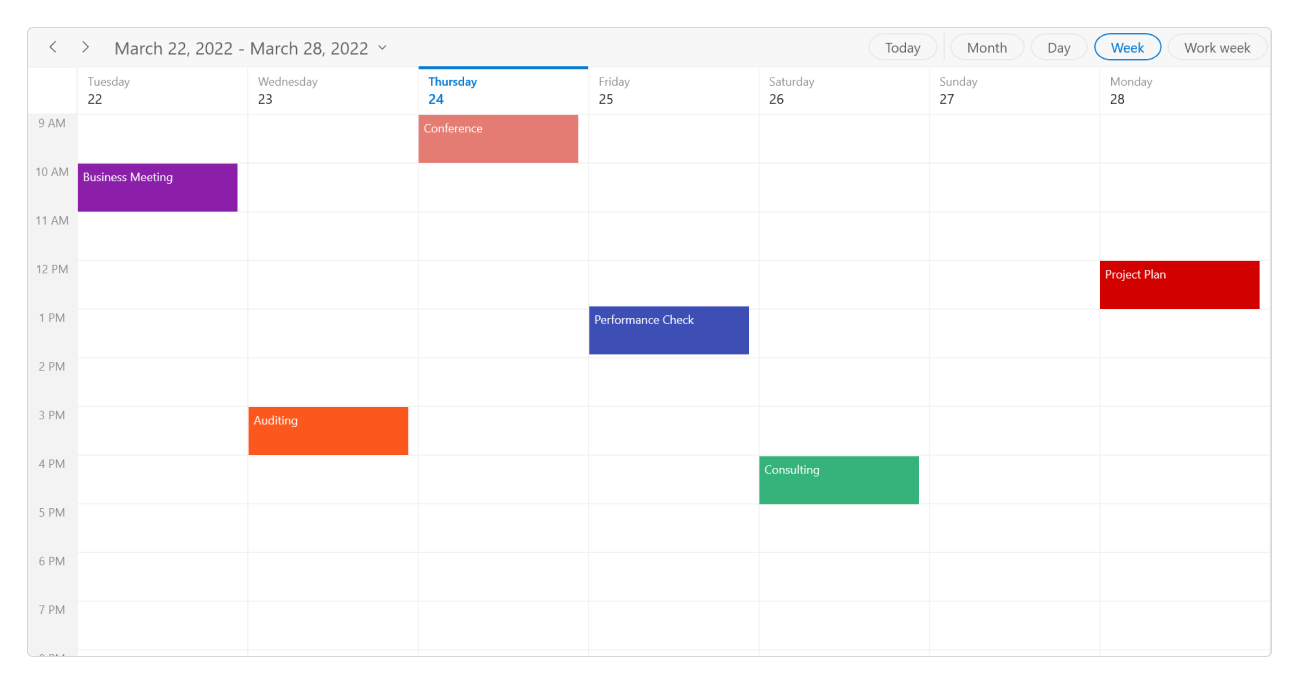
Prevent navigation before a minimum date and beyond a maximum date. This restricts users from selecting dates outside the specified time range.
Appearance customization
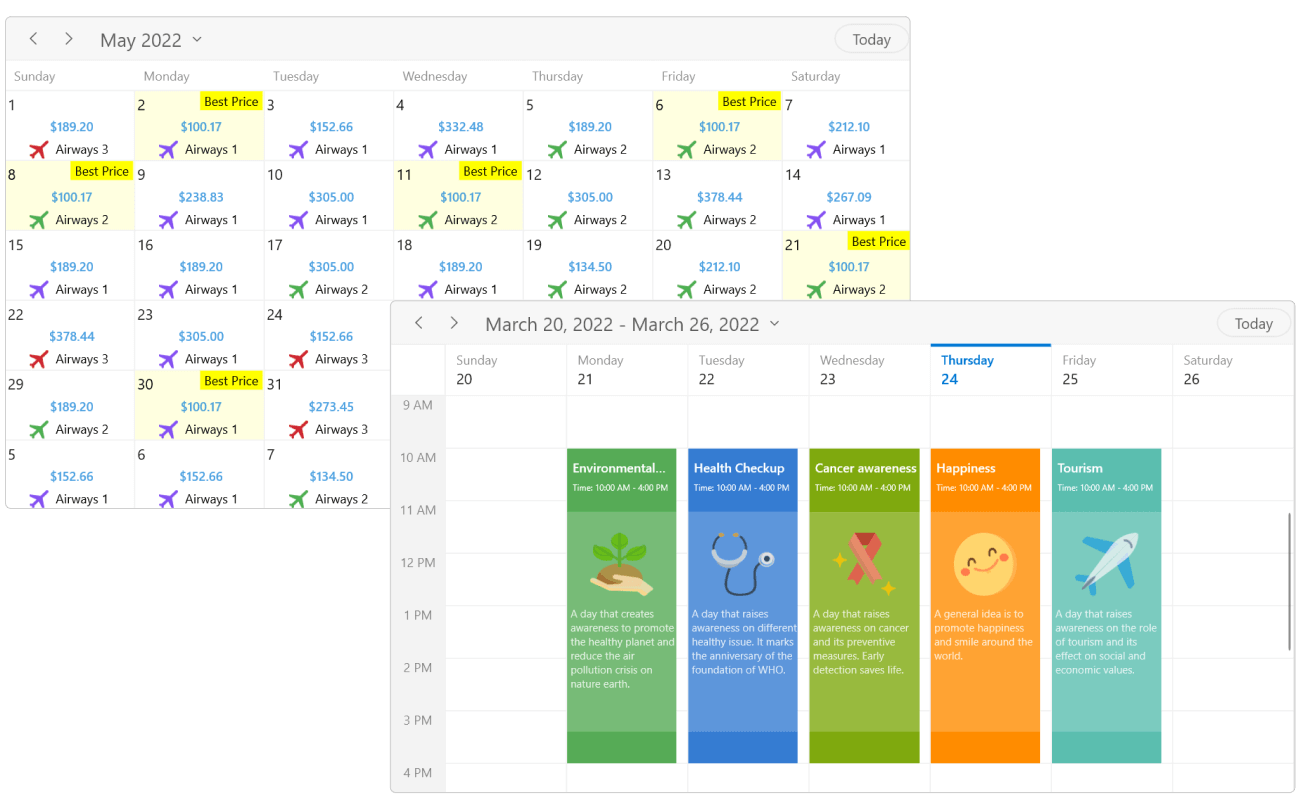
Provide a unique and consistent look to your scheduler with appearance customization using styles, data templates, and theme support.
Localization and globalization
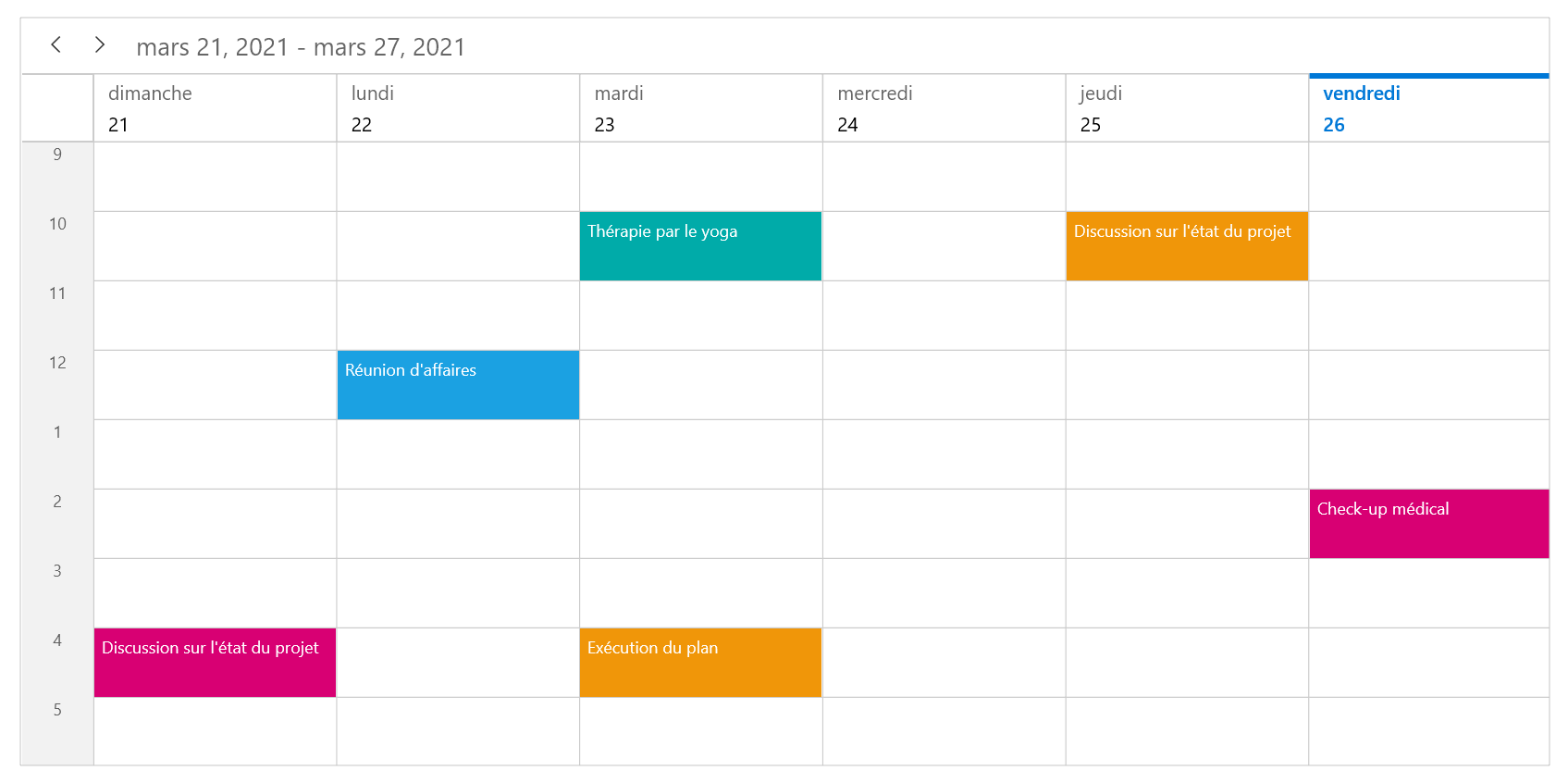
Display the current date and time by following globalized date and time formats. Localize all available static text in the WinUI Scheduler.
WinUI Scheduler Code Example
Easily get started with the WinUI Scheduler using a few simple lines of C# code as demonstrated below. Also explore our WinUI Scheduler Example that shows you how to render and configure the scheduler.
<syncfusion:SfScheduler x:Name="Schedule" ViewType="Week" />ScheduleAppointmentCollection appointments = new ScheduleAppointmentCollection();
ScheduleAppointment appointment = new ScheduleAppointment();
appointment.Subject = "Meeting";
appointment.StartTime = new DateTime(2021, 10, 5, 9, 0, 0);
appointment.EndTime = new DateTime(2021, 10, 5, 10, 0, 0);
appointments.Add(appointment);
this.Schedule.ItemsSource = appointments;Not sure how to create your first WinUI Scheduler? Our documentation can help.
I’d love to read it nowFrequently Asked Questions
Why should you choose Syncfusion WinUI Scheduler?
Syncfusion WinUI Scheduler provides the following features:
- Eight different types of view modes: day, work week, week, month, timeline day, timeline week, timeline work week, and timeline month.
- Render recurring, all-day, and spanned appointments to visualize schedules and events easily.
- Load appointments on-demand to improve performance when loading appointments spanning multiple years.
Resource Grouping that groups appointments based on the resources or dates in timeslot views.
- One of the best WinUI Schedulers in the market that offers a feature-rich UI to interact with the software.
- Adapts to different time zones and cultures instantly.
Set appointment reminders by using the ReminderAlertOpening event.
- Appointment editing (CRUD operations) can be done using the appointment editor and context menu.
- Customize the appearance easily.
- Simple configuration and APIs.
Extensive demos, documentation to learn quickly and get started with the WinUI Scheduler.
Where can I find the Syncfusion WinUI Scheduler demo?
You can find our WinUI Scheduler demo here.
Can I download and utilize the Syncfusion WinUI Scheduler for free?
No, this is a commercial product and requires a paid license. However, a free community license is also available for companies and individuals whose organizations have less than $1 million USD in annual gross revenue, 5 or fewer developers, and 10 or fewer total employees.
How do I get started with Syncfusion WinUI Scheduler?
A good place to start would be our comprehensive getting started documentation.
Our Customers Love Us
Having an excellent set of tools and a great support team, Syncfusion® reduces customers’ development time.Here are some of their experiences.

Good Library with lot of features that are very helpful
We needed a clear picture of our schedule for the day across our organization, and Scheduler in Syncfusion helped us get to it with ease.

Nishanth Kiran J,

Great Enterprise product for complex scenarios.
The customer needed a complex implementation of a Calendar (Scheduler Component) with drag and drop functionalities, custom fields, colors and so on. The Scheduler component from Syncfusion allowed me to implement what I needed without spending a lot of hours to develop it.

Juan Cruz B,

Web developer
See Real Success Stories
Developers around the world trust Syncfusion’s Essential Studio to simplify complex projects and speed up delivery. With a vast library of UI controls, powerful SDKs, and reliable support, Essential Studio helps teams build enterprise-ready applications with confidence.
Read Our Customer StoriesIndustry
Software development
75% Cost reduction
50% Faster development
Industry
Utilities (oil and gas)

450+ hours saved
Streamlined processes and hours of development effort saved.

Advanced, flexible features
Empowered users through robust and versatile functionality.
Industry
Software and technology
1000+ of hours saved
Accelerated development with enterprise-ready UI components.

Efficient file management
Streamlined workflows with document libraries without building them from scratch.
Industry
Software and technology

2 Years of delay avoided
Two years of delays prevented with proactive planning.

On-time delivery
Projects delivered on schedule using trusted controls.
Industry
IT services and IT consulting

Improved performance
Large datasets handled with easy customization and quick debugging.

Highly customizable
Plug-and-play controls with quick template integration.
Industry
Professional services
Instant access
Quick availability of features and resources.
Reduced dependencies
Fewer dependencies for faster development.
Rated by users across the globe
Awards
Greatness—it’s one thing to say you have it, but it means more when others recognize it. Syncfusion® is proud to hold the following industry awards.









