



Transform your applications today by downloading our free evaluation version
Overview
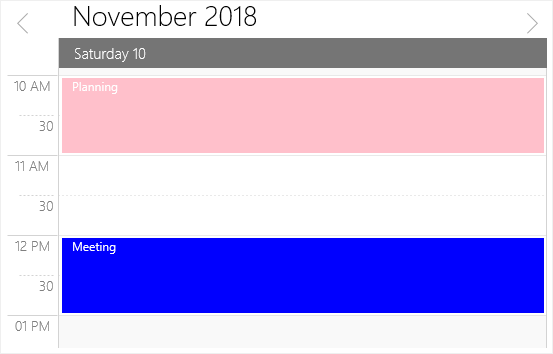
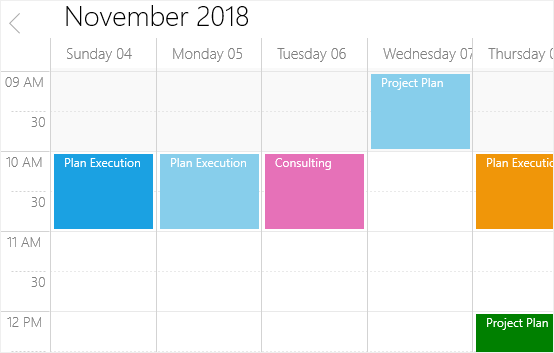
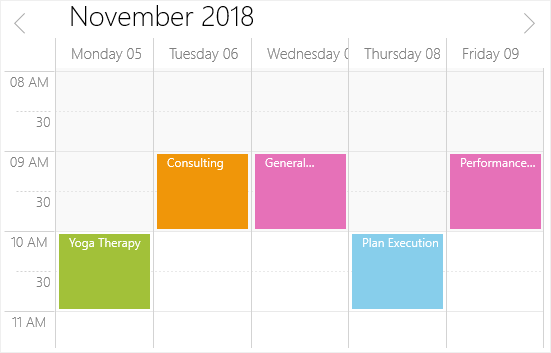
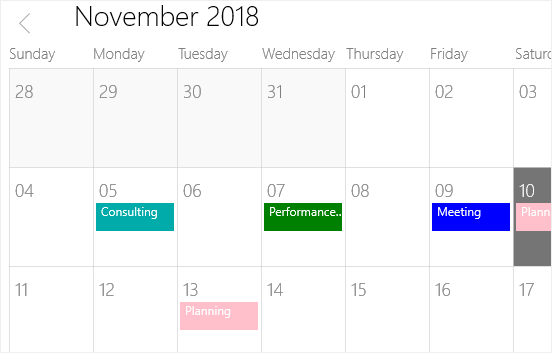
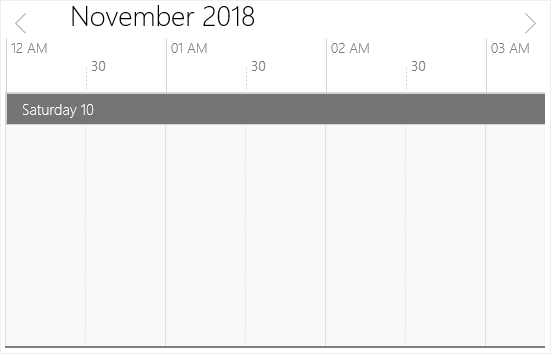
The UWP Scheduler control is used to schedule and manage appointments through an intuitive user interface, similar to Outlook calendar. Five different view modes are supported: day, week, work week, month, and timeline. Its rich feature set includes:
- Assigning resources for appointments.
- Built-in appointment editor to manipulate appointments.
- Built-in context menu for improving end-user experience.
- Appearance customization.
- Appointment rescheduling through resizing and drag and drop.
- Restricting navigation beyond specified minimum and maximum dates.
- Localization to meet the needs of different regions.
Views
Display appointments using five types of built-in views:
- Day view
- Week view
- Workweek view
- Month view
- Timeline view
Resources
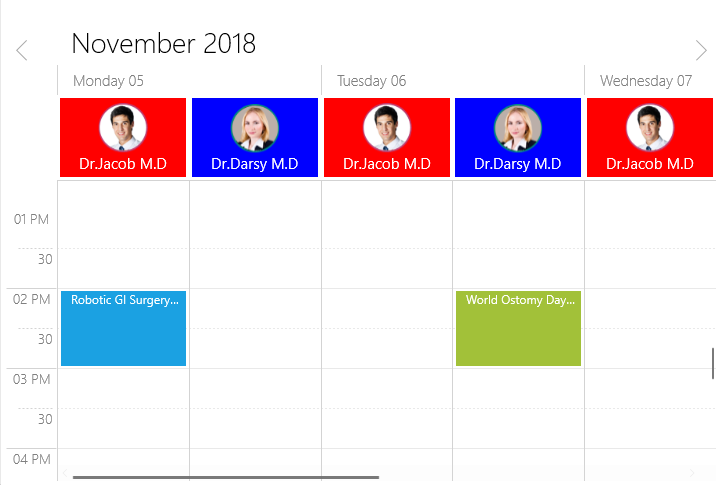
Define resources based on associated appointments with grouping support. Headers will also be displayed based on the defined resources and sub resources.
- Built-in support for assigning resources to appointments.
- Appointments can be grouped based on resources. The resources themselves can be grouped based on date for a quick overview of each resource’s availability.
- Headers will be displayed based on the defined resources and sub-resources.
- Sub-resources enable users to view appointments based on their subcategory in day and week views.
- In timeline and day views, you can specify the resource count that needs to be displayed per view.
Appointments
Appointments provide information about events to occur at specified times.
Data binding
-
In addition to default schedule appointments, users can use their own collection and bind a business object to an appointment. This is done by mapping its fields such as start time, end time, subject, notes, and recurrence.
-
Any type of IEnumerable data binding is supported.
Recurring appointments
-
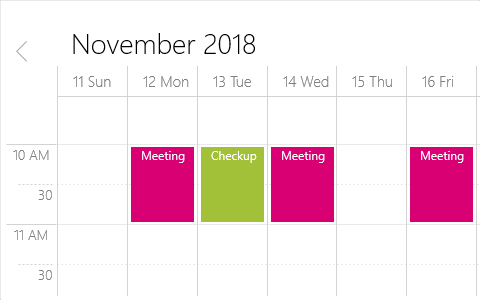
Recurring appointments are used to repeat events on a regular basis.
-
It supports daily, weekly, monthly, and yearly recurrence patterns.
All day and spanned appointments
-
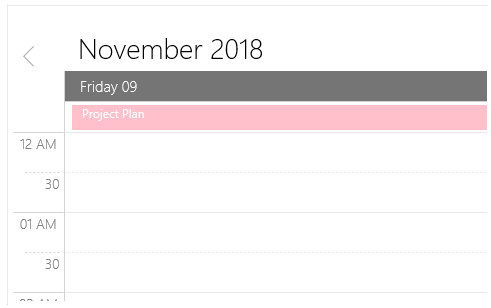
Show appointments that occur over an entire day and spanned appointments that last more than 24 hours in a separate panel.
-
Customize the all-day appointment panel.

Time zones
- Display appointments created in various time zones in the system time zone.
- Appointment start, and end times are also automatically adjusted and displayed based on daylight saving time.
Appointment customization
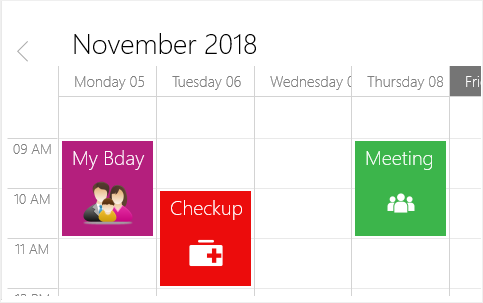
Add different views such as images and text for each appointment.
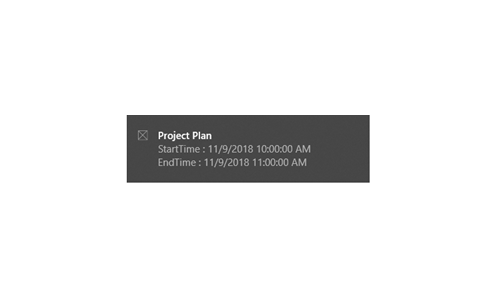
Reminders
Send alerts at specified times to remind you of appointment.
Selection and navigation
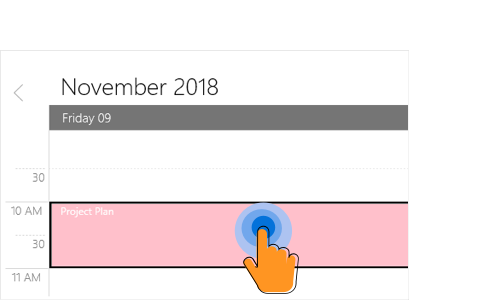
Selection
Select time slots and appointments through mouse and touch interactions.
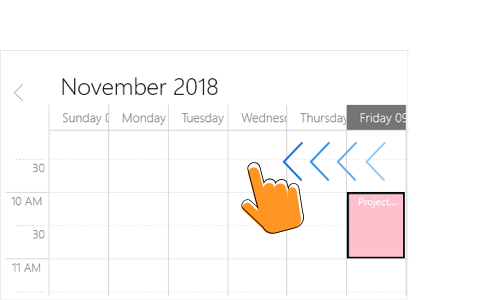
Navigation
- Navigate to schedule views using touch swipe gestures and navigation buttons. Schedule supports programmatic navigation also.
- Bring the required time slot into view in day, week, workweek, and timeline views.

Date restriction
Prevent navigation beyond a specified minimum and maximum dates. This restricts users from selecting certain dates or creating appointments.
Rich user experience
A friendly user interface lets you perform various operations using the context menu and editor.
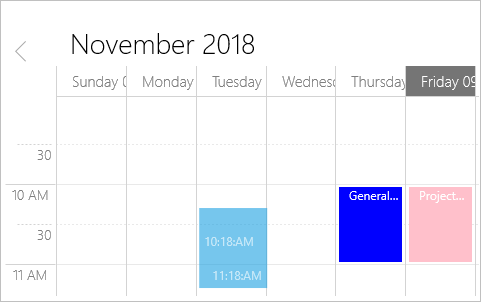
Appointment drag and drop
- Easily reschedule an appointment by dragging it from one time slot/month cell and dropping it into a different time slot/month cell.
- Restrict the rescheduling of certain appointments and prevent the dropping of an appointment at a certain time.
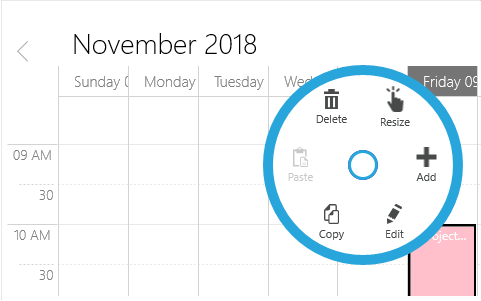
Context menu
- Use provided default user interface for adding, editing, deleting appointments. You can reschedule, copy, and paste the appointments as well.
- You can also use a custom context menu.
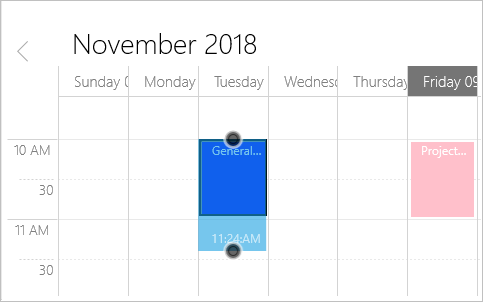
Appointment resizing
You can quickly extend or reduce an appointment’s start and end time by resizing
Built-in appointment editor
You can easily create, edit, or delete appointments using the built-in appointment editor.
Globalization and localization

Globalization
- Display date-time formats and headers in different cultures, meeting the needs of different regions.
- UWP Scheduler supports to change the first day of the week.

Localization
Localize all static text in the UWP scheduler to a particular language.
Our Customers Love Us
Having an excellent set of tools and a great support team, Syncfusion® reduces customers’ development time.Here are some of their experiences.

Good Library with lot of features that are very helpful
We needed a clear picture of our schedule for the day across our organization, and Scheduler in Syncfusion helped us get to it with ease.

Nishanth Kiran J,

Great Enterprise product for complex scenarios.
The customer needed a complex implementation of a Calendar (Scheduler Component) with drag and drop functionalities, custom fields, colors and so on. The Scheduler component from Syncfusion allowed me to implement what I needed without spending a lot of hours to develop it.

Juan Cruz B,

Web developer
See Real Success Stories
Developers around the world trust Syncfusion’s Essential Studio to simplify complex projects and speed up delivery. With a vast library of UI controls, powerful SDKs, and reliable support, Essential Studio helps teams build enterprise-ready applications with confidence.
Read Our Customer StoriesIndustry
Software development
75% Cost reduction
50% Faster development
Industry
Utilities (oil and gas)

450+ hours saved
Streamlined processes and hours of development effort saved.

Advanced, flexible features
Empowered users through robust and versatile functionality.
Industry
Software and technology
1000+ of hours saved
Accelerated development with enterprise-ready UI components.

Efficient file management
Streamlined workflows with document libraries without building them from scratch.
Industry
Software and technology

2 Years of delay avoided
Two years of delays prevented with proactive planning.

On-time delivery
Projects delivered on schedule using trusted controls.
Industry
IT services and IT consulting

Improved performance
Large datasets handled with easy customization and quick debugging.

Highly customizable
Plug-and-play controls with quick template integration.
Industry
Professional services
Instant access
Quick availability of features and resources.
Reduced dependencies
Fewer dependencies for faster development.
Rated by users across the globe
Awards
Greatness—it’s one thing to say you have it, but it means more when others recognize it. Syncfusion® is proud to hold the following industry awards.