


Transform your applications today by downloading our free evaluation version
Overview
The .NET MAUI Scheduler (SfScheduler) has nine built-in, configurable view modes that provide functionality for scheduling, managing, and presenting appointments efficiently. It has been designed with a clean and convenient user interface for custom working days and hours and basic calendar operations, such as date navigation and selection.
.NET MAUI Scheduler code example
Get started with the .NET MAUI Scheduler using a few simple lines of XAML and C# code, as shown in the following examples. Also, explore this .NET MAUI Scheduler example, which shows you how to render and configure the control.
<ContentPage
    . . .
    xmlns:scheduler="clr-namespace:Syncfusion.Maui.Scheduler;assembly=Syncfusion.Maui.Scheduler">

    <scheduler:SfScheduler />
</ContentPage>
using Syncfusion.Maui.Scheduler;
. . .
public partial class MainPage : ContentPage
{
public MainPage()
{
InitializeComponent();
SfScheduler scheduler = new SfScheduler();
this.Content = scheduler;
}
}Different scheduler views
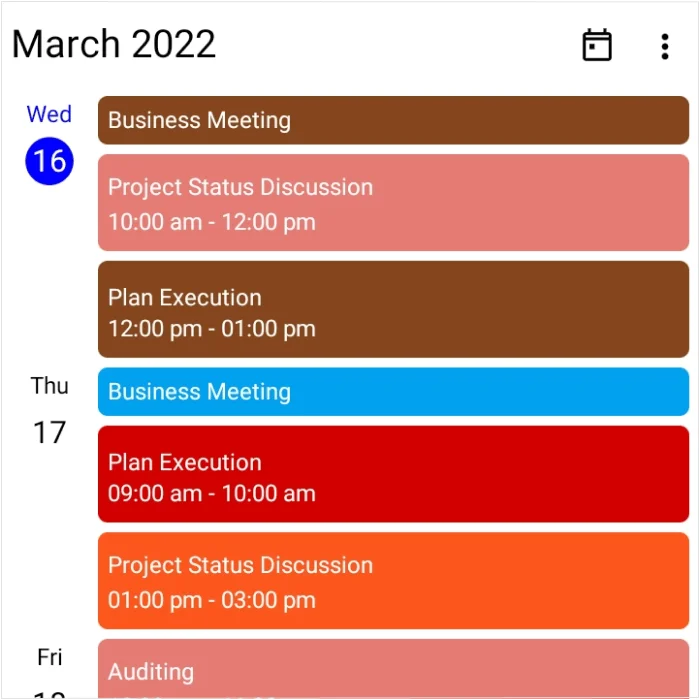
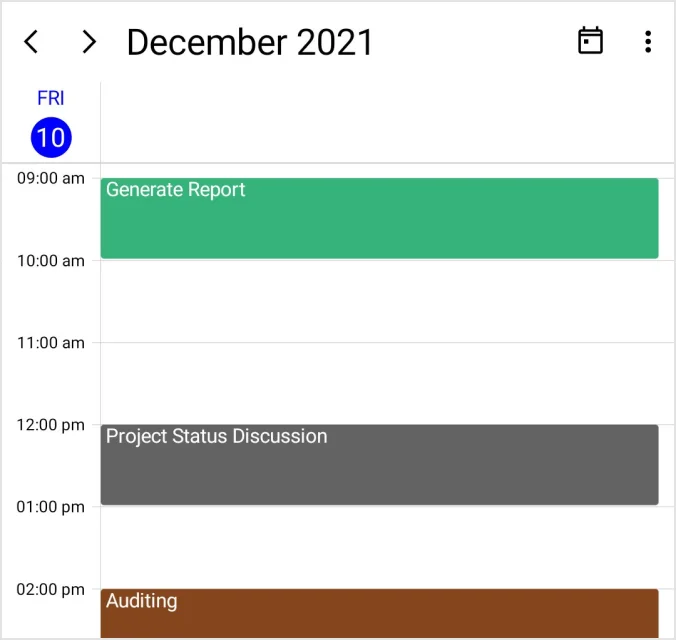
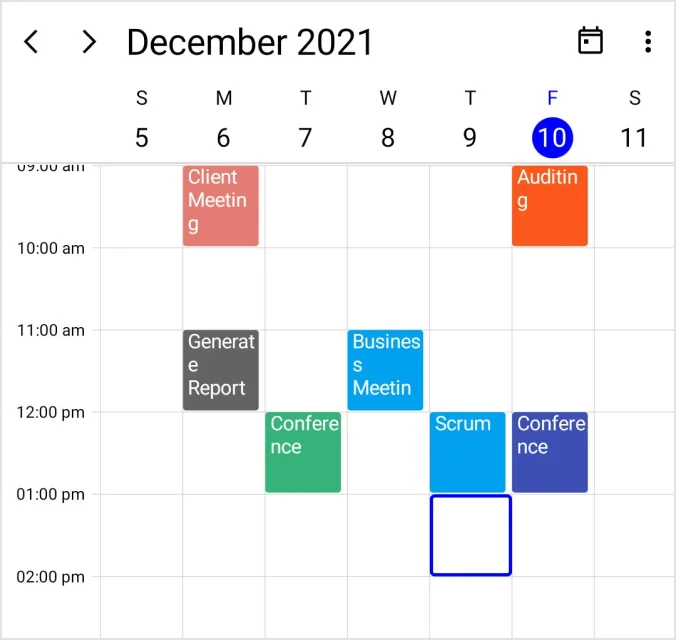
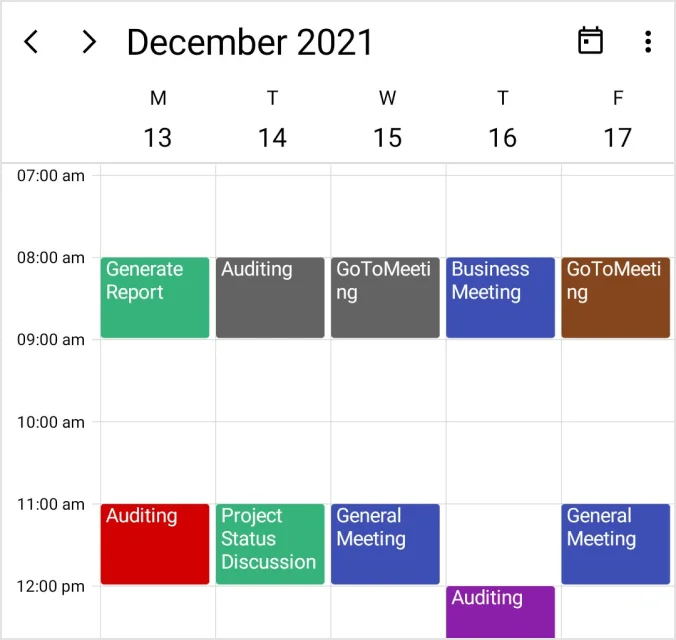
A wide range of built-in view modes are available: day., week., workweek, month, timeline day, timeline week, timeline workweek, timeline month, and agenda.
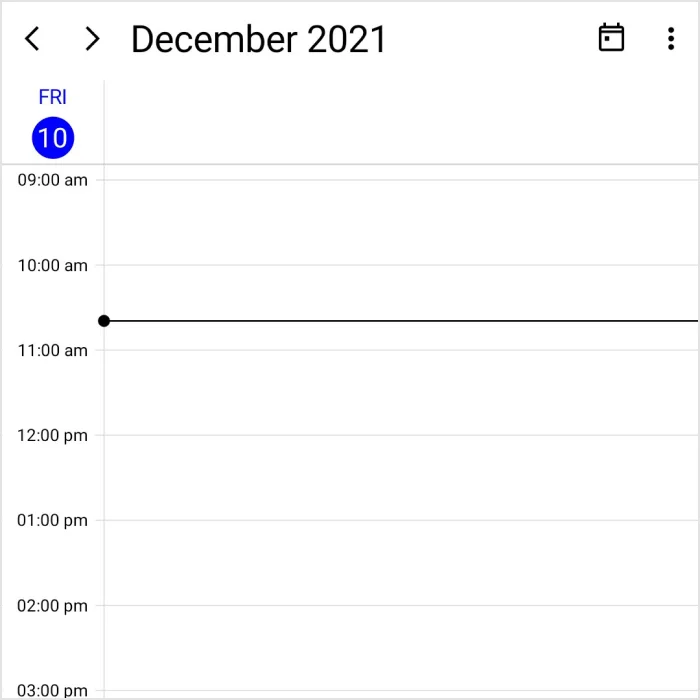
Day
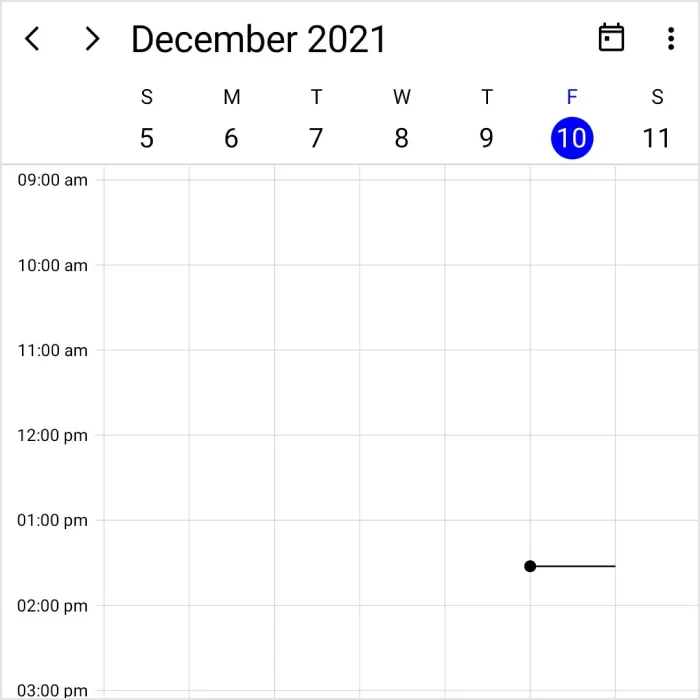
Week
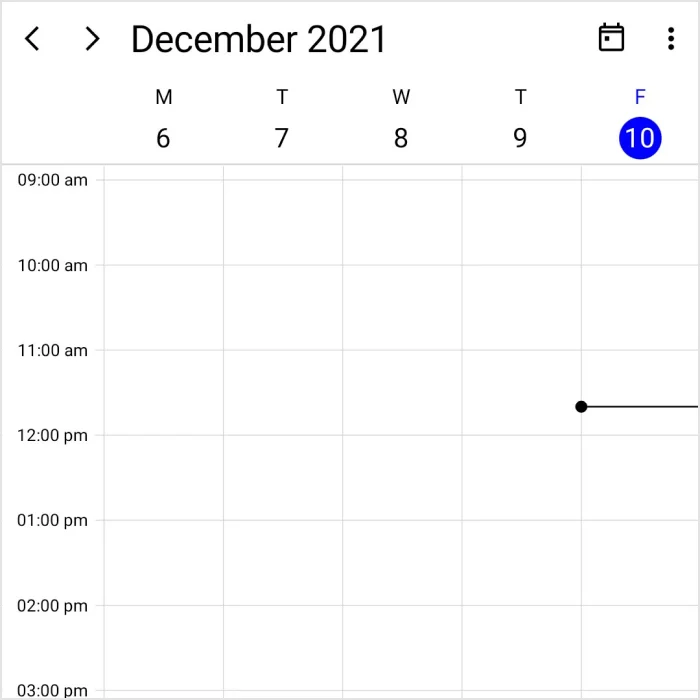
Workweek
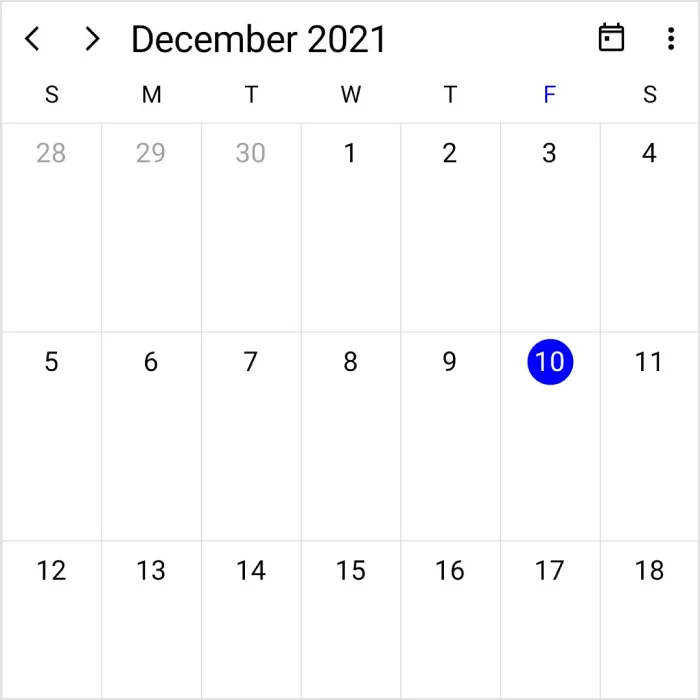
Month
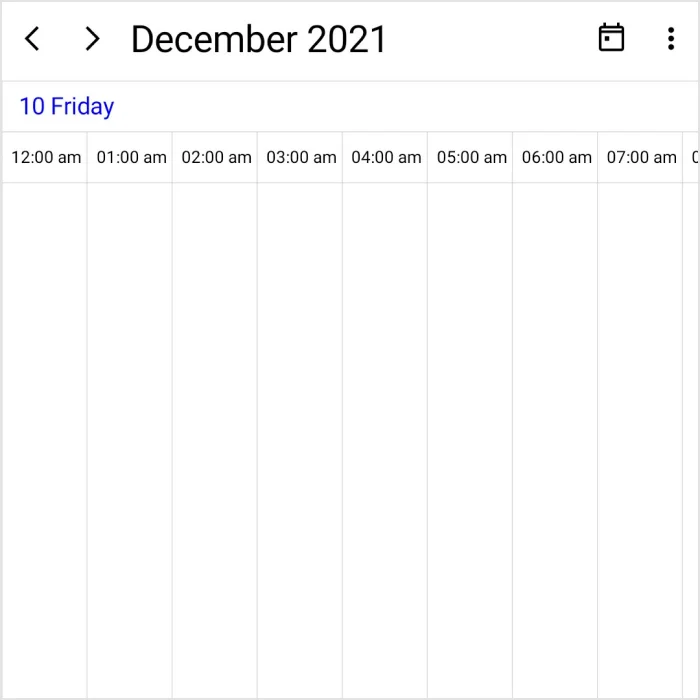
Timeline day
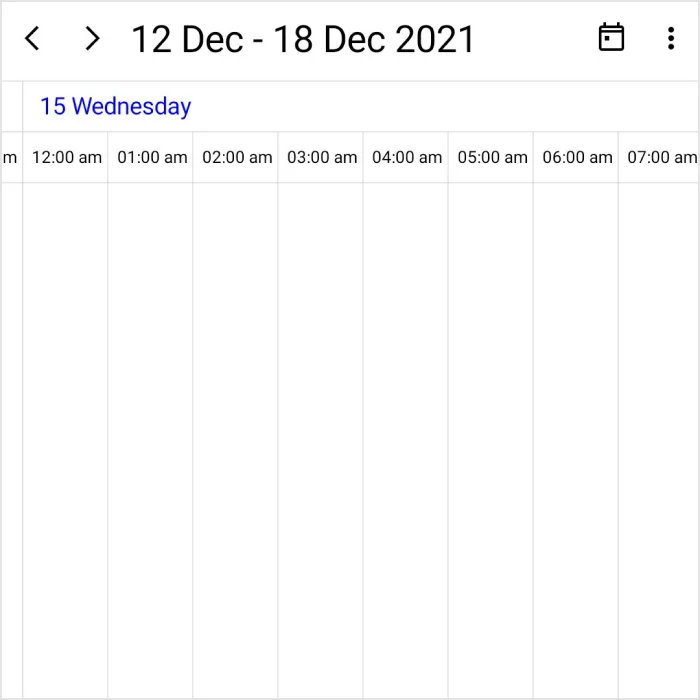
Timeline week
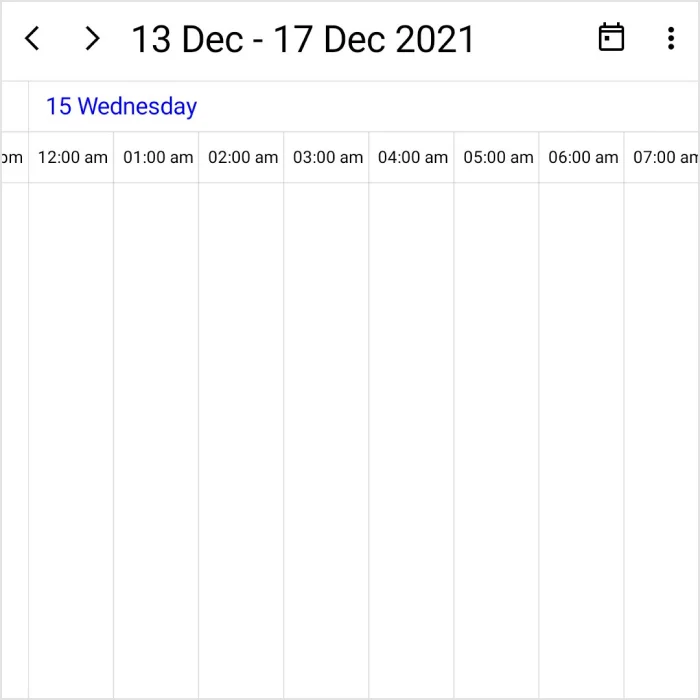
Timeline workweek
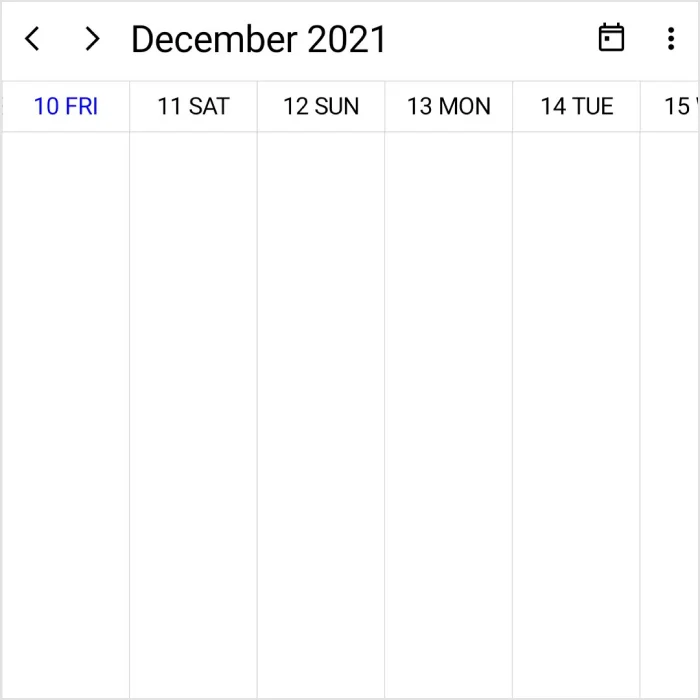
Timeline month
Agenda
Events
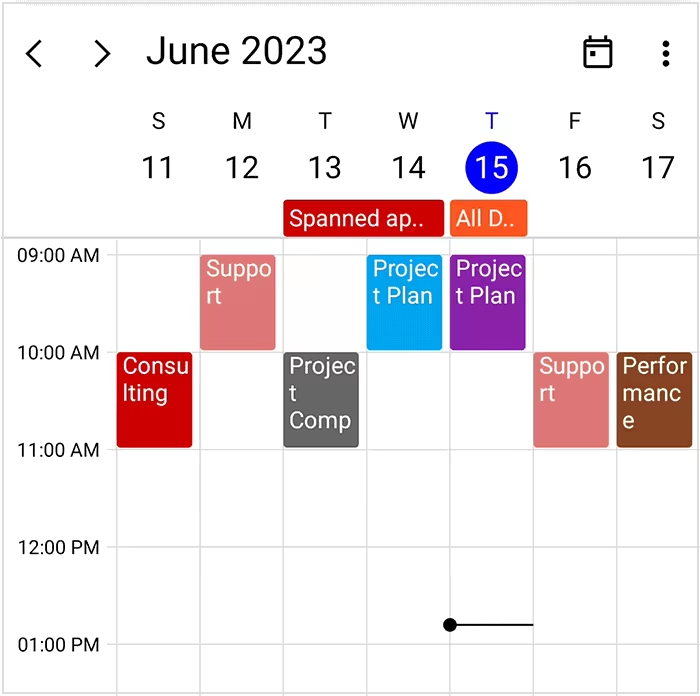
Render recurring, all-day, and spanning appointments to visualize your complete schedule. Appointments contain information on events scheduled at specific times. In addition to default appointments, users can use their own collections to connect a business entity to an appointment by mapping their fields, such as start time, end time, subject, notes, and recurrence.
Day view
Week view
Workweek view
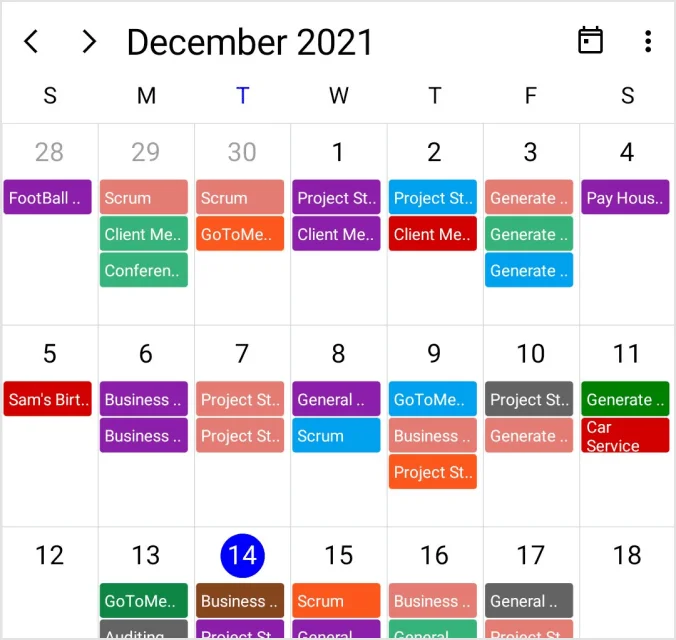
Month view
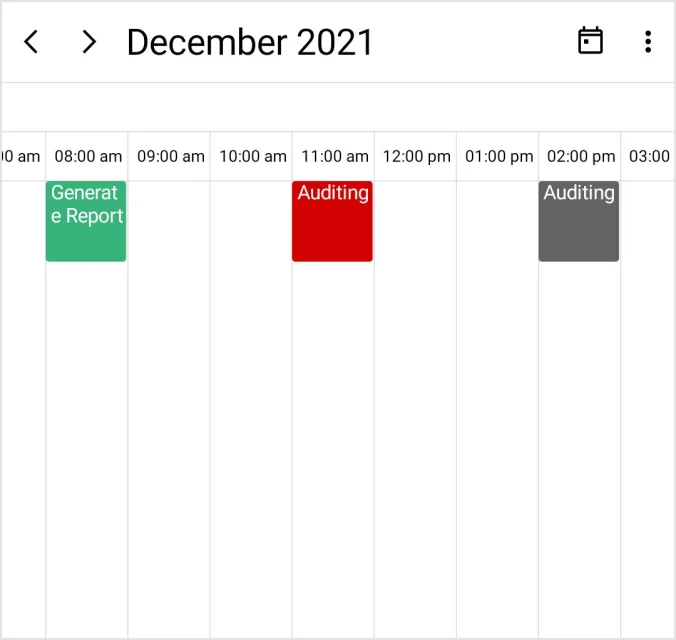
Timeline day view
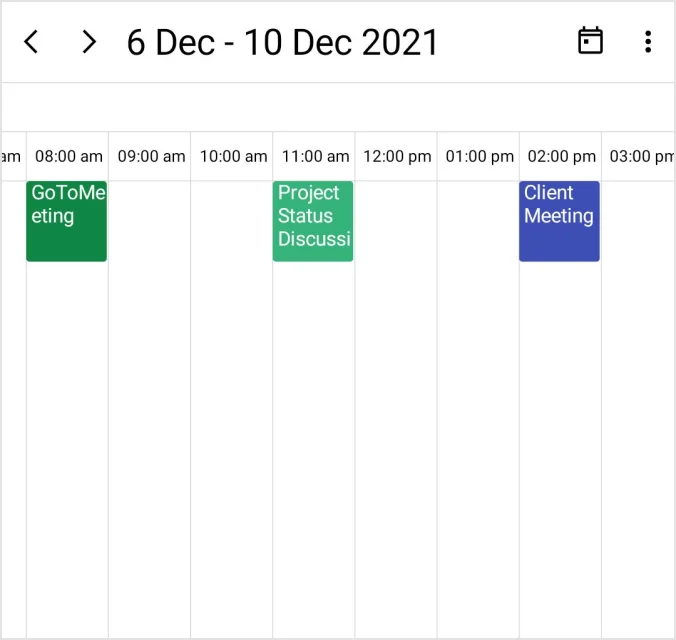
Timeline week view
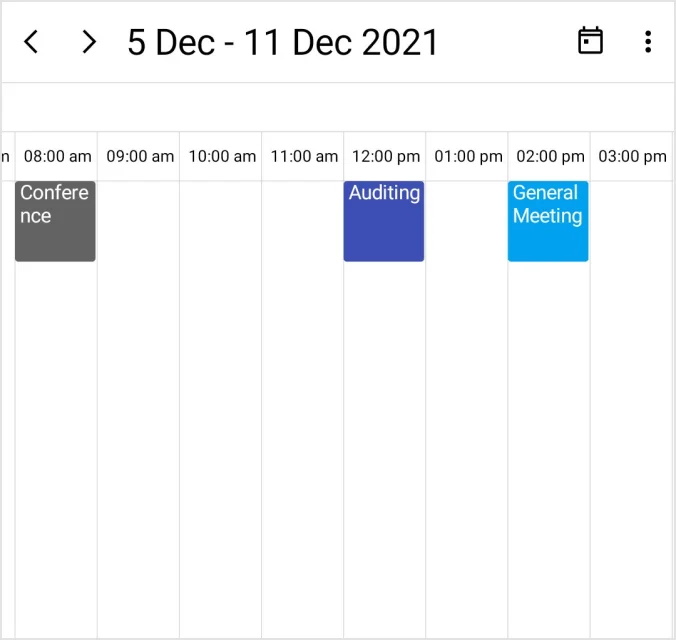
Timeline workweek view
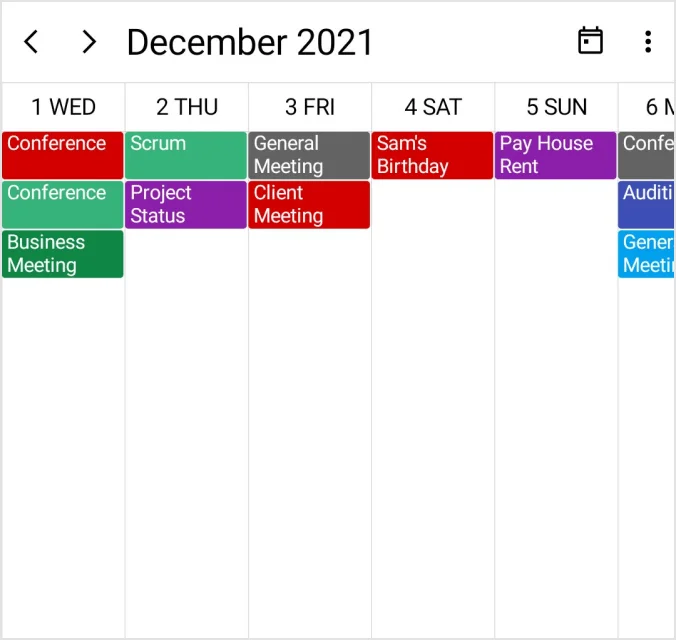
Timeline month view
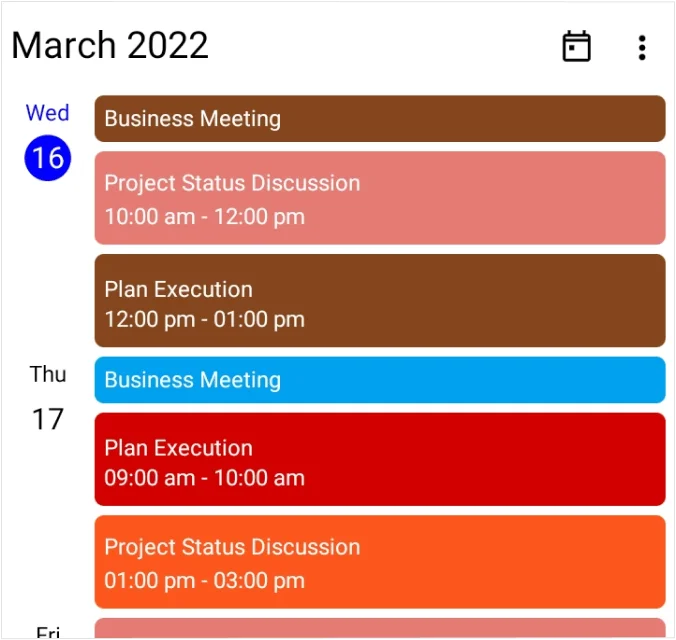
Agenda view
Recurring events
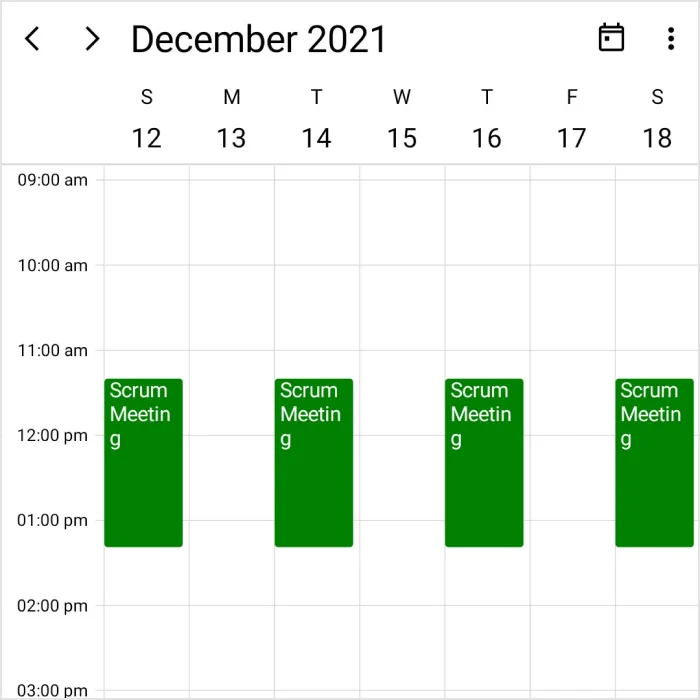
Easily configure recurring events daily, weekly, monthly, or yearly. Users can skip or change an occurrence of a recurring appointment.
Appointment rescheduling
Quickly reschedule an appointment in any view by dragging and dropping it.
Built-in appointment editor
A dedicated appointment editor simplifies event management. With an interactive pop-up interface, users can quickly add, modify, or remove appointments, making scheduling more organized and efficient.
Drag-to-resize appointments
Adjust appointment durations effortlessly on desktop platforms by dragging the start or end edges. This direct resizing updates events instantly in the scheduler view.
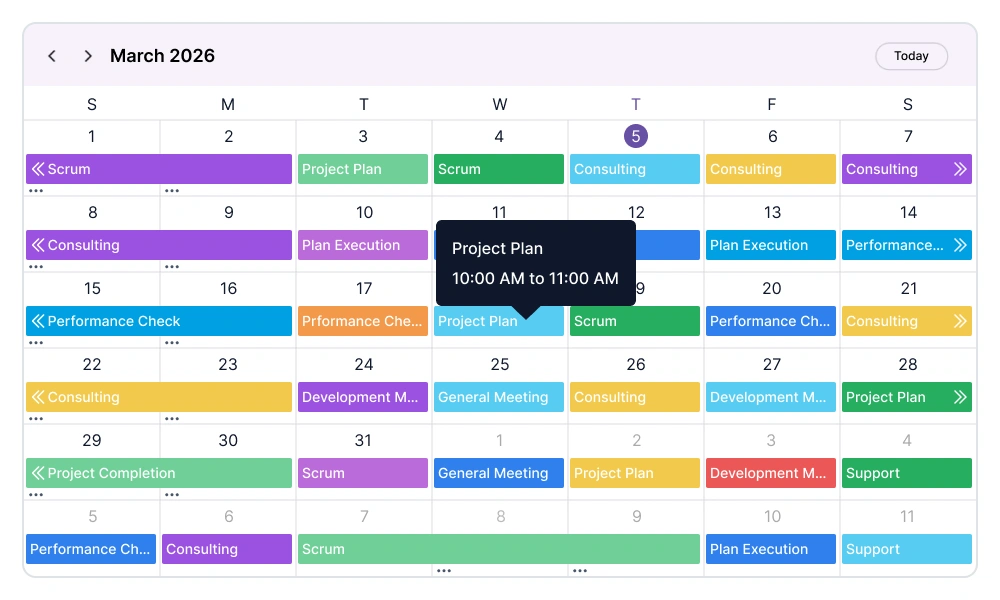
Informative appointment tooltip
View essential event details instantly with an appointment tooltip. When users hover over or tap an appointment, key information such as the subject and scheduled time appears for quick reference.
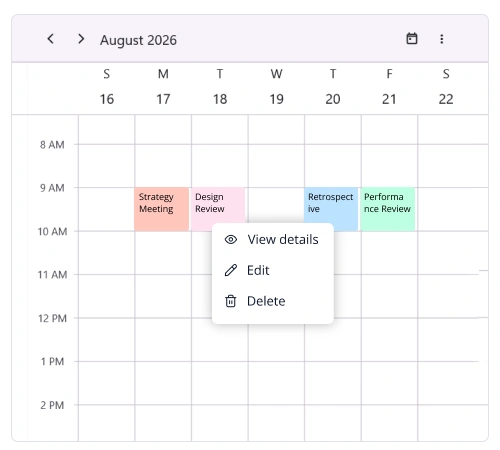
Context menu
Open a context menu for time slot cells and appointments by right-clicking them on desktop platforms (Windows and macOS) or long pressing them on mobile devices (Android and iOS).
Restrict overlapping appointments
Prevent appointments from being scheduled in a time range already occupied by another appointment to avoid schedule conflicts.
Limit concurrent appointments
Control the number of appointments that can be displayed simultaneously within the same time slot in day, week, and workweek views. The remaining appointments can be viewed in a popup.
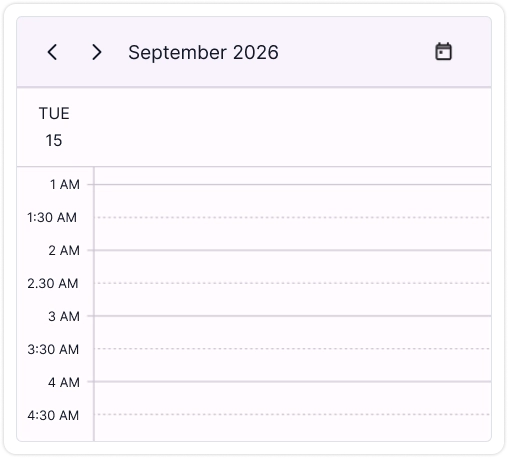
Major and minor time slot ticks
Display major and minor ticks within time slots across day, week, workweek, and timeline views, providing a detailed visual representation of time intervals. The time format and appearance of the minor tick labels can be customized as needed.

Time zone
Regardless of the time zone on the device, users can set the time zone for the Scheduler as well as its events.
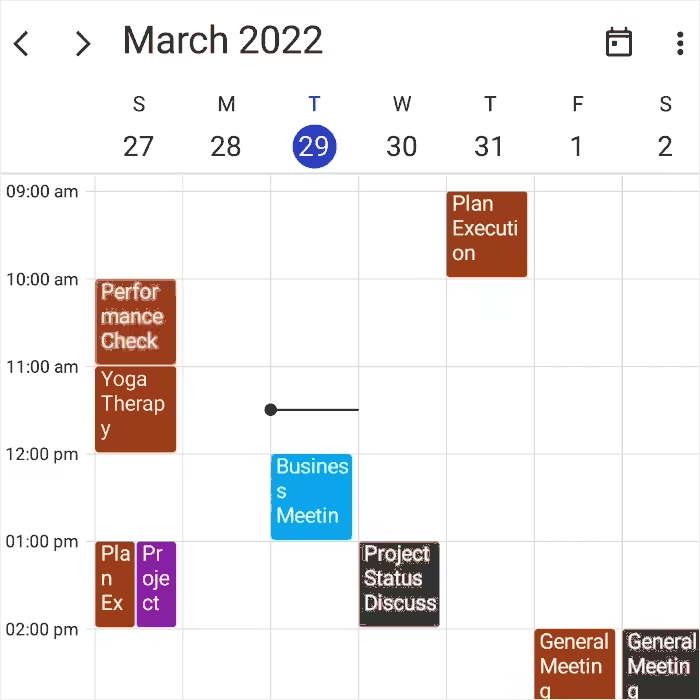
Load more appointments
Load a large number of appointments dynamically by rendering only the events in the visible date range to improve performance, and display a loading indicator as more events load.
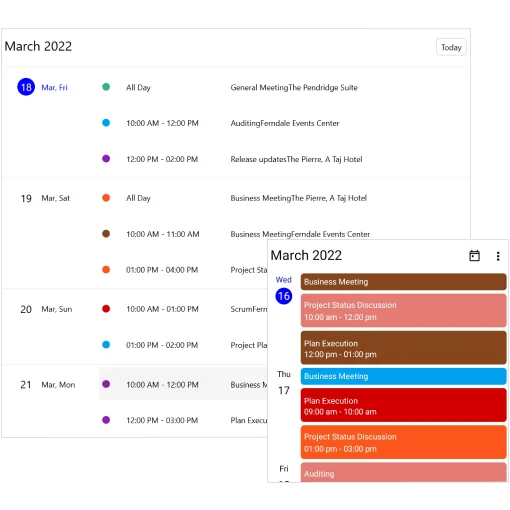
Agenda view
Display the appointments (normal, all day, recurring, and spanning) in chronological order, grouped by date.
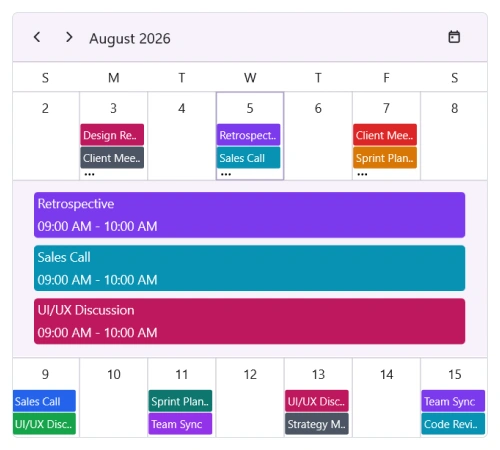
Inline appointments in month view
Appointments appear inline below date cells when tapped, providing a clear view of daily schedules directly within the month layout. Inline appointments also support custom styling.
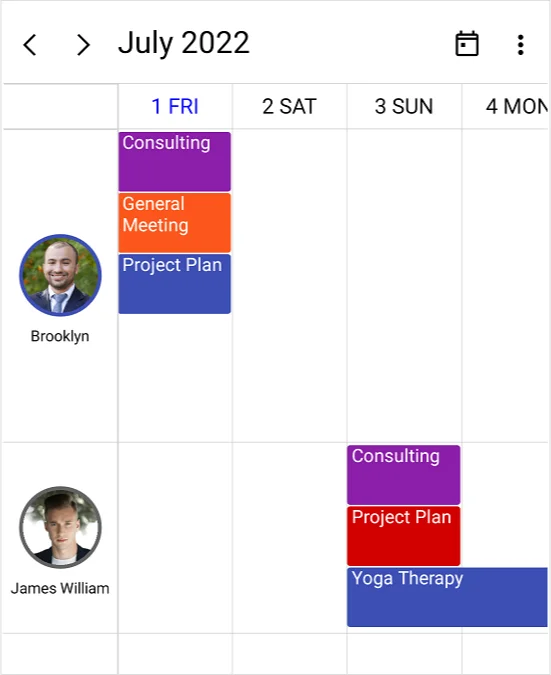
Resource view
Group appointments based on the associated resources using two grouping types: timeline and horizontal. Horizontal grouping supports resource and date types on desktops (Windows and Mac), as well as adaptive headers on mobile devices (Android and iOS).
Timeline grouping
People or resources are listed in rows in the timeline day, timeline week, timeline workweek, and timeline month views. Their schedules are displayed along a horizontal timeline, making it easy to track what is happening over time for each person or resource.
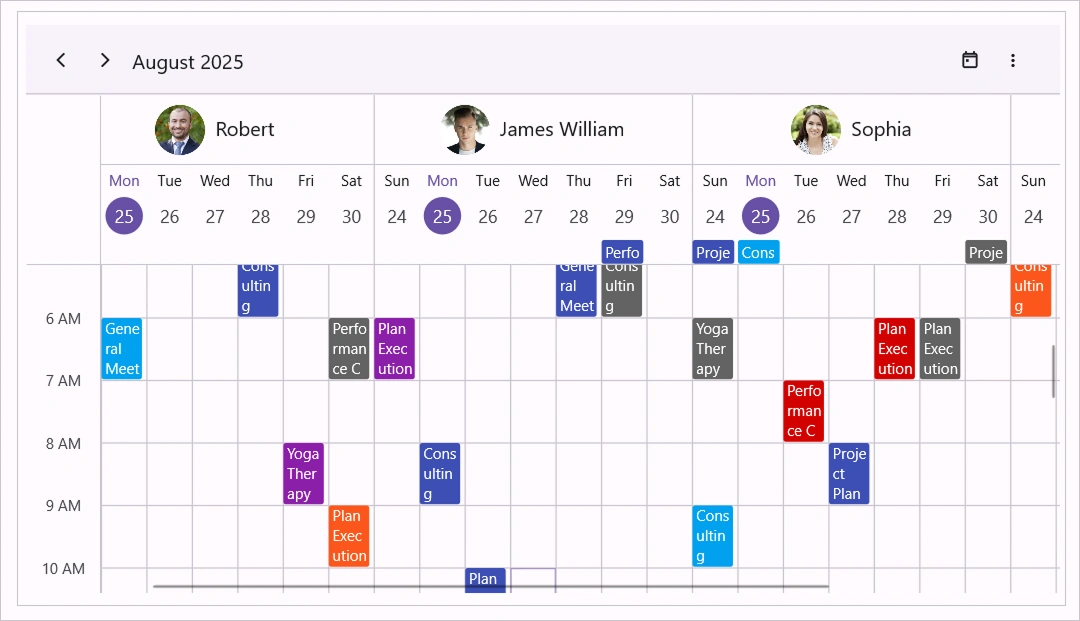
Horizontal grouping by resource (Windows and Mac)
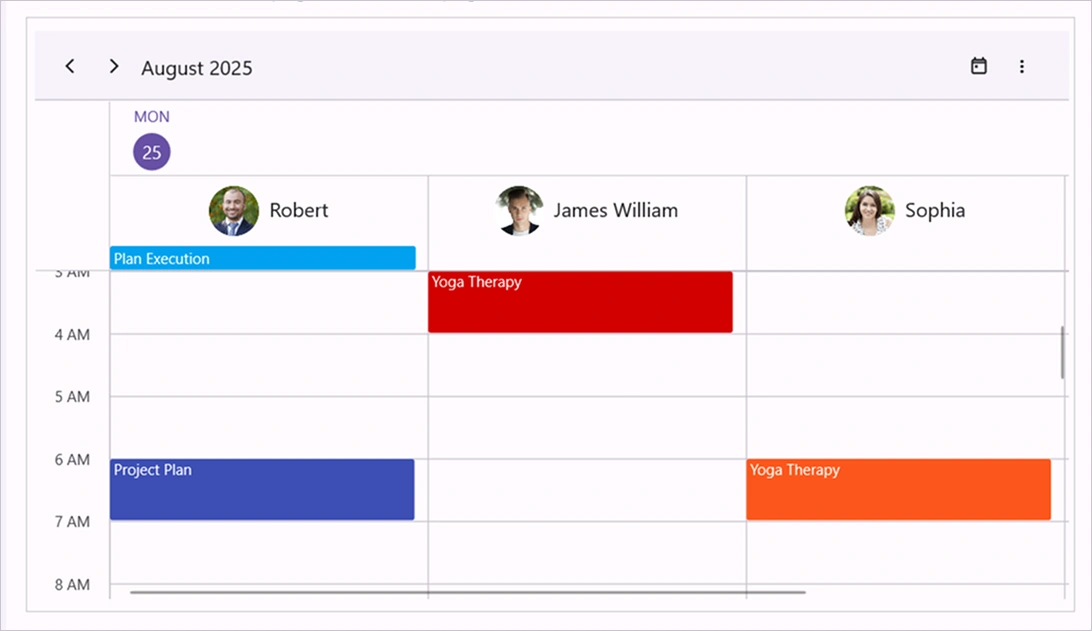
This layout displays each resource (such as a person, room, or equipment) in separate columns, side by side, in day, week, workweek, and month views. The time axis remains fixed on the left, making it easy to compare schedules for multiple resources.
Horizontal grouping by date (Windows and Mac)
In this view, each date appears as a separate column on Windows and Mac. For each date, the associated resources are displayed in day, week, and workweek views. This helps users quickly see what is scheduled for each resource on a specific day.
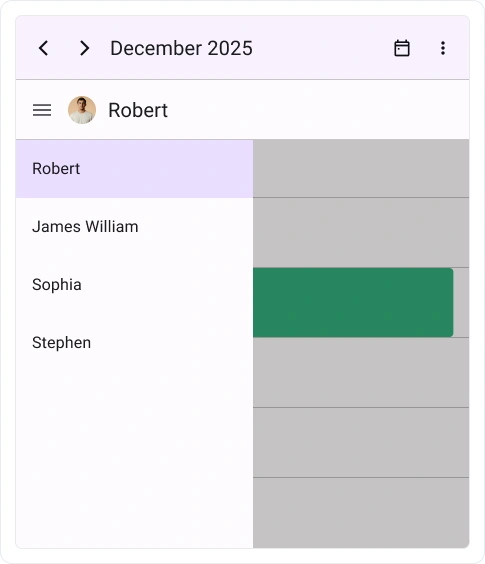
Adaptive header grouping (Android and iOS)
On mobile platforms, resources (such as people, rooms, or equipment) are displayed in an adaptive header, keeping the layout clear and easy to read. As users move through dates in day, week, workweek, or month views, the adaptive header updates to show the resource for the selected day.
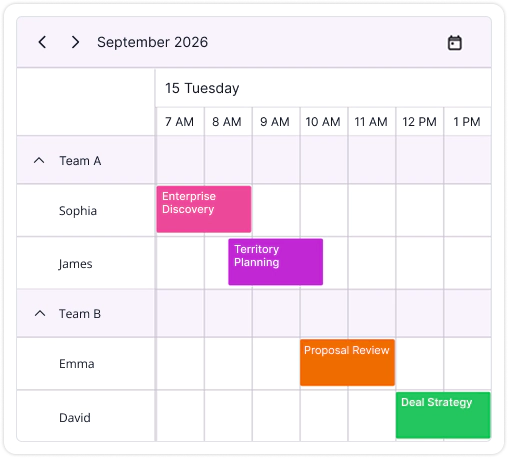
Hierarchical resource view
Organize resources into multiple levels by defining parent-child relationships. This groups related resources and displays them in a clear hierarchical structure within the Scheduler.
Calendar types
Use these calendar types: Gregorian, Hebrew, Hijri, Korean, Persian, ROC, Thai lunar, Japanese, and Umm al-Qura.
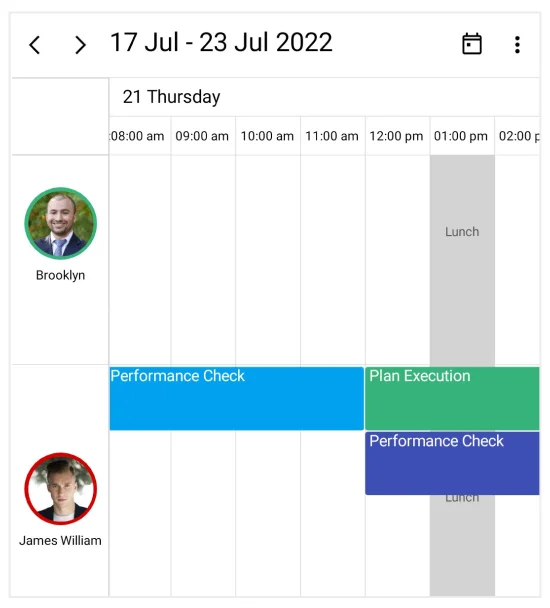
Special time regions
Disable interaction and selection for specific time ranges. This is useful for blocking user interactions during holidays or other special events and for highlighting those time ranges.
Customize visible days and weeks
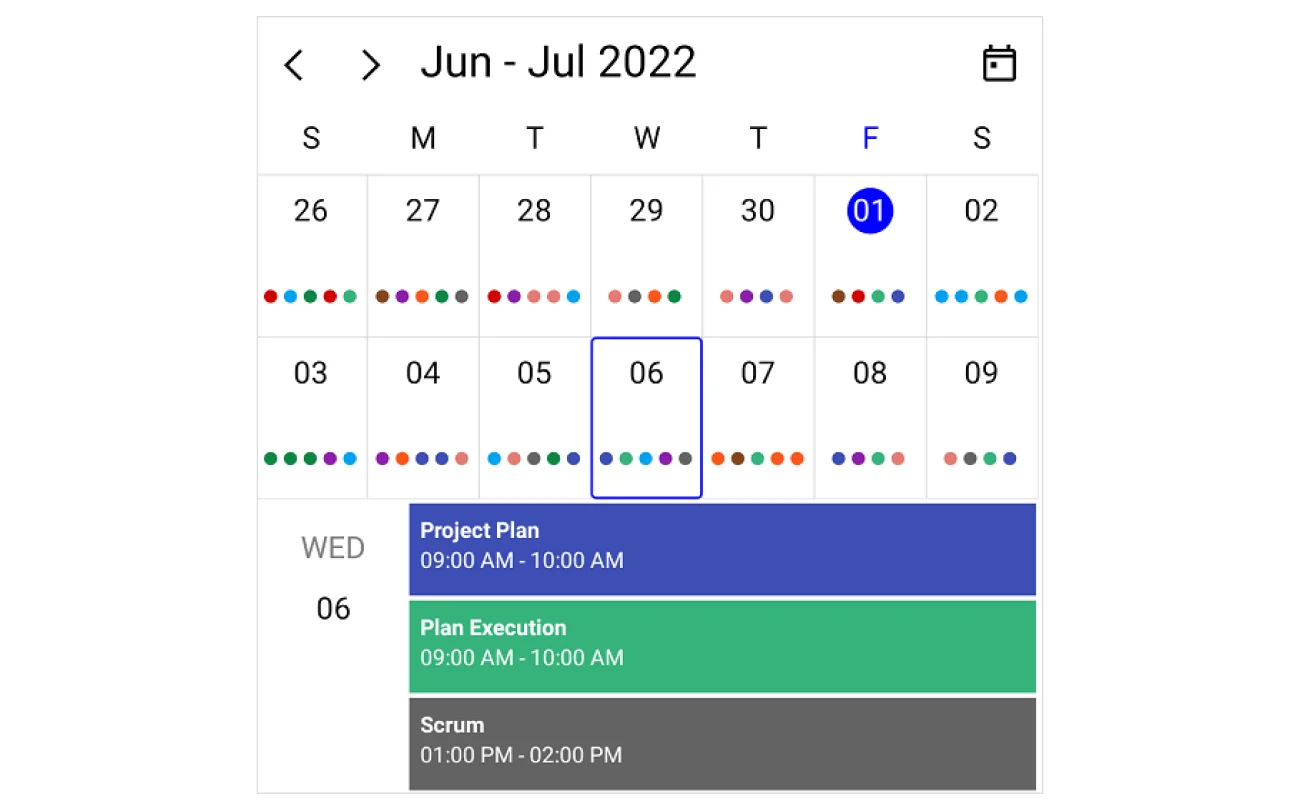
Customize visible weeks in month view
Customize the number of weeks visible in the month view. By default, the .NET MAUI Scheduler displays six weeks.
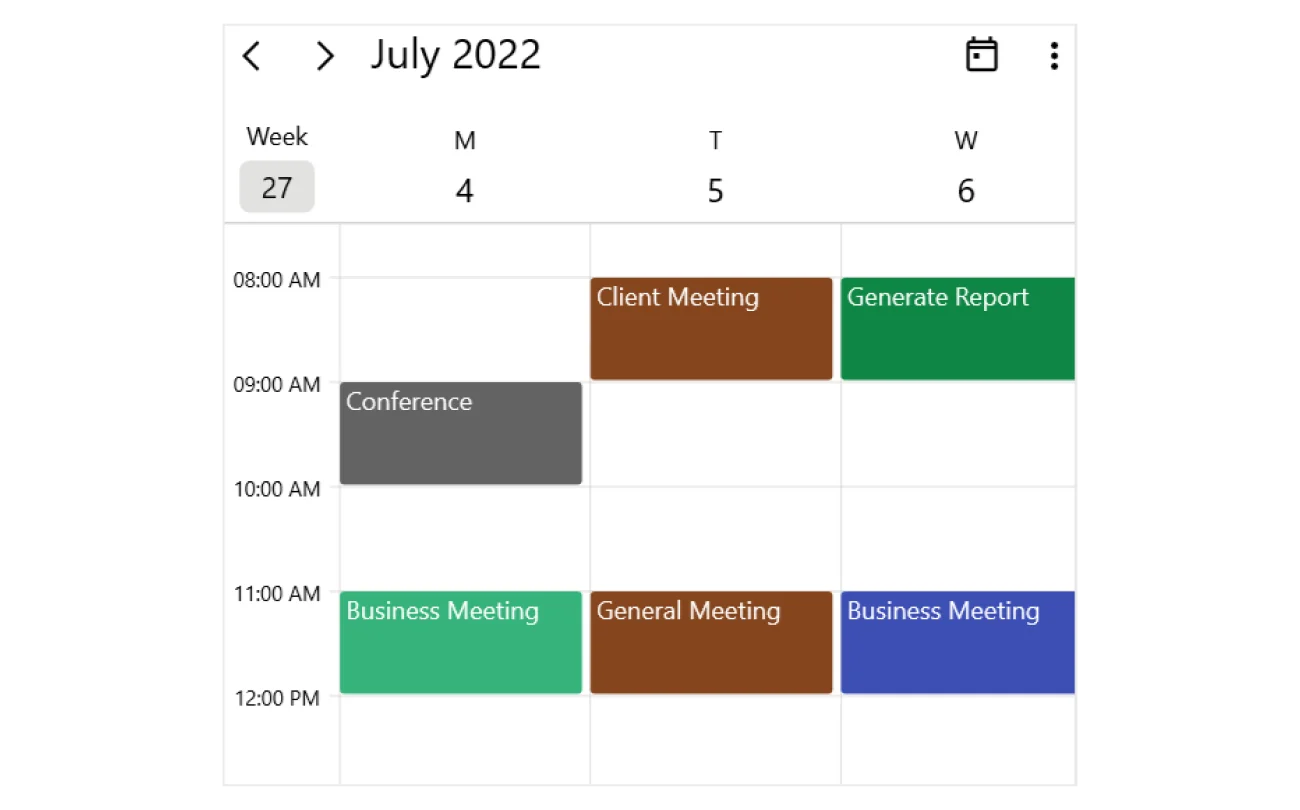
Customize visible days in time slot views
Customize the number of days visible in the day, week, workweek, timeline day, timeline week, and timeline workweek views.
Flexible working days
Customize workdays in a workweek to hide the remaining days from the calendar view.
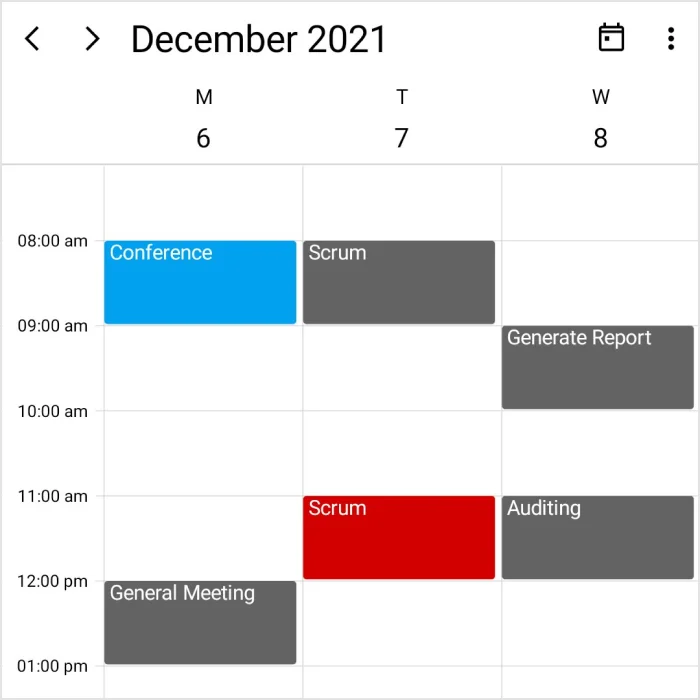
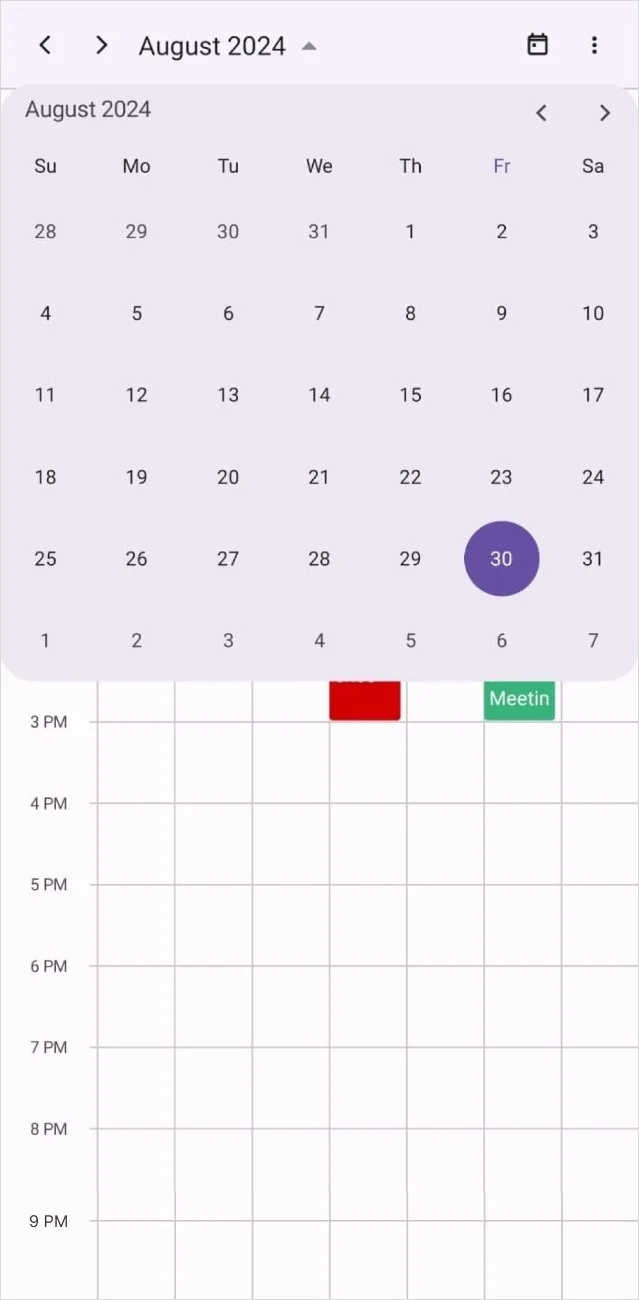
Show date picker button
Users can navigate dates with a calendar date picker to quickly switch between months, years, decades, or centuries. Users can also jump directly to a specific date by selecting it from a date picker.
Date restriction
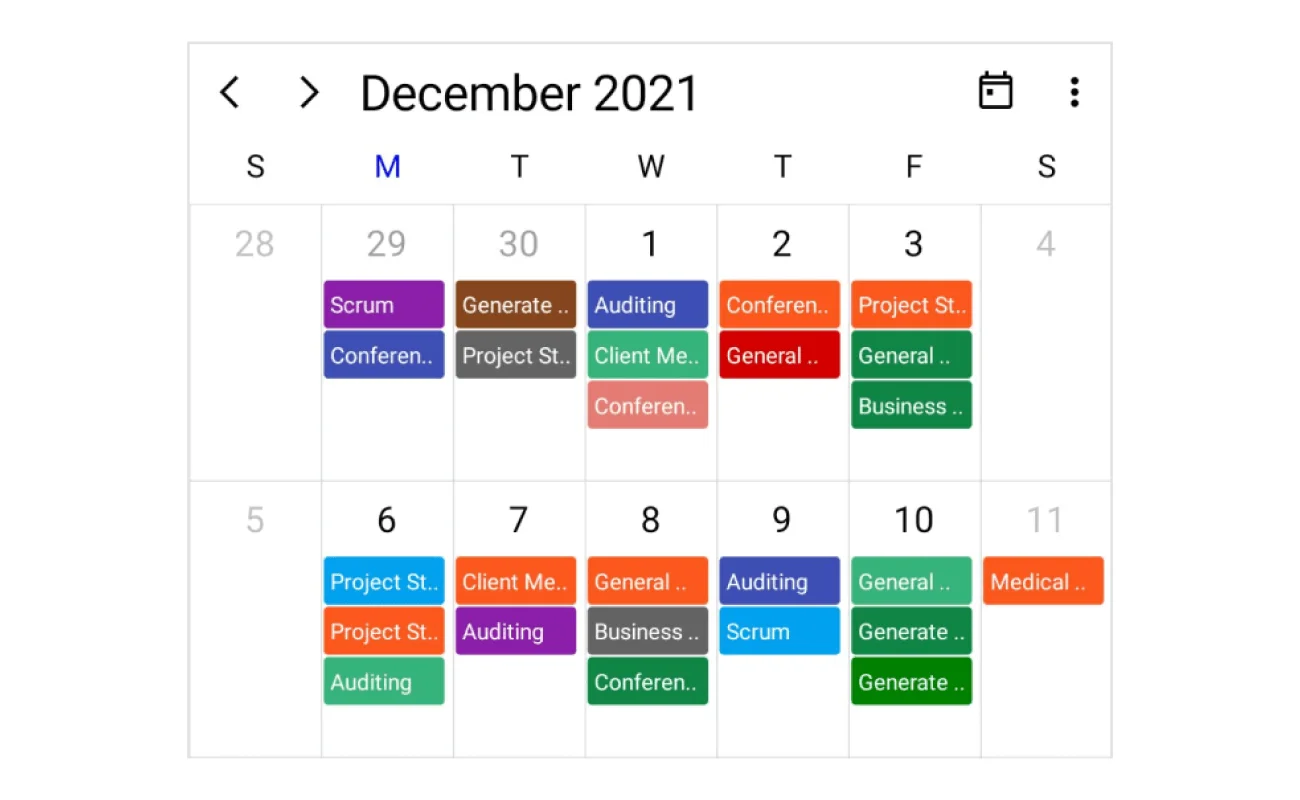
Blackout dates
Disable any date in the Scheduler. Easily prevent users from selecting weekends and holidays by disabling them.
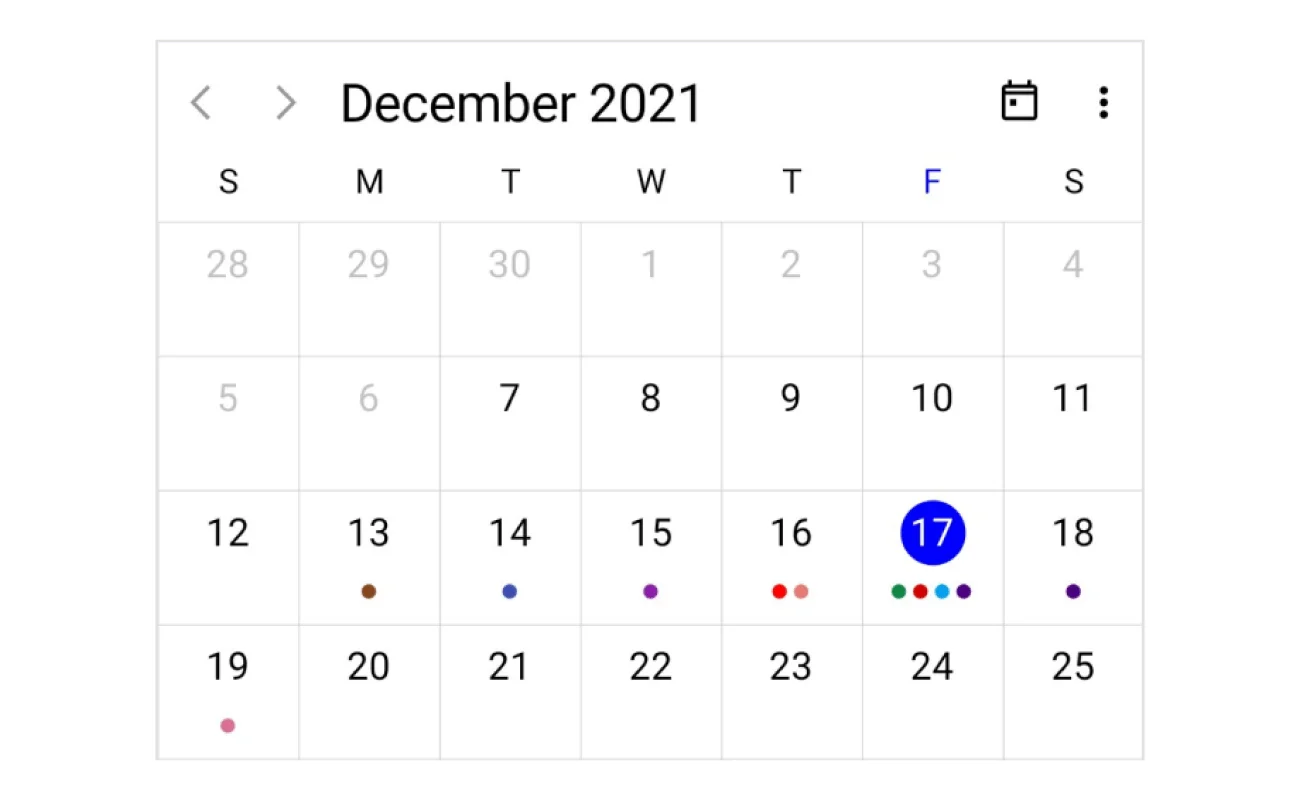
Minimum and maximum dates
Prevent navigation beyond the specified minimum and maximum dates. This prevents users from selecting dates outside this range.
Appearance customization
Provide a unique look to your Scheduler by using a data template for the following Scheduler UIs:
- Month cell
- Appointments
- View header
- Header
- Special time region
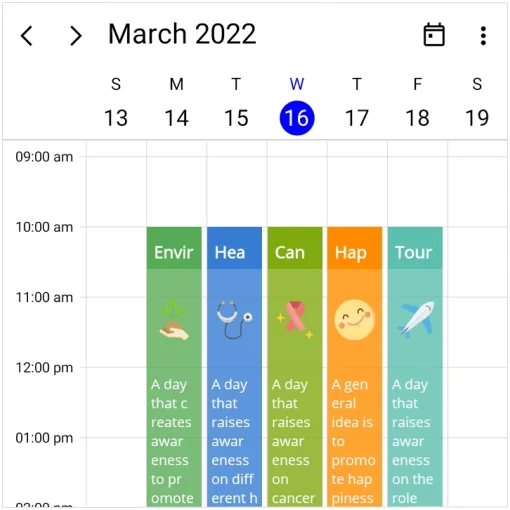
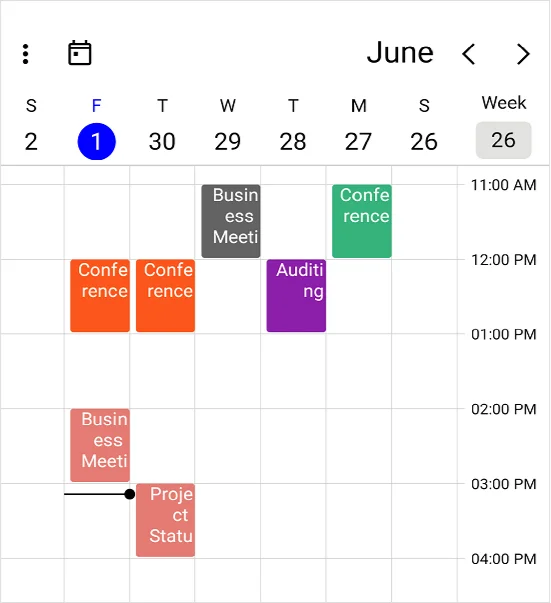
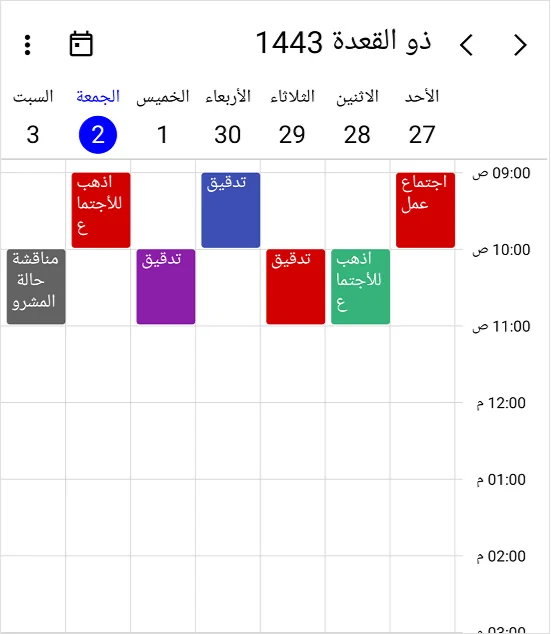
Right to left (RTL)
Display the .NET MAUI Scheduler component from right to left for users working with RTL languages like Hebrew and Arabic.
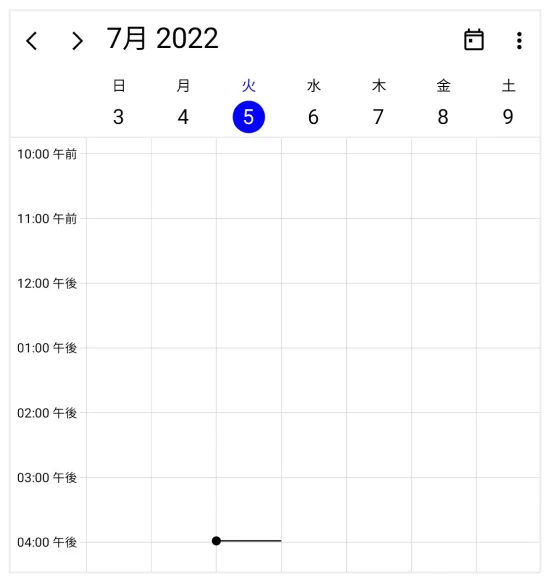
Localization and globalization
Set the date and time to the formats of multiple cultures. Display static text in supported languages to fit a specific locale.
Import and export ICS files
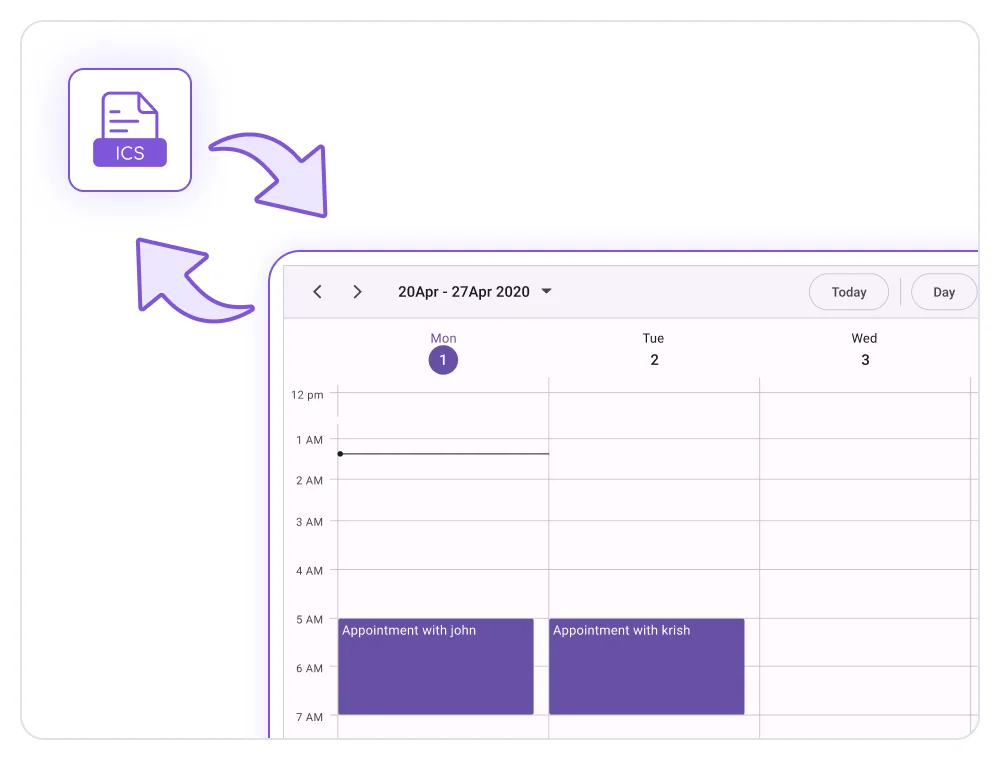
Transfer appointment data using the iCalendar (.ics) format. Import appointments from an ICS file into the Scheduler or export existing Scheduler appointments to an ICS file for use in other compatible applications.
Not sure how to create your first .NET MAUI Scheduler? Our tutorial videos and documentation can help.
I’d love to watch it now I’d love to read it nowFrequently Asked Questions
Why should I choose the Syncfusion® .NET MAUI Scheduler?
The Syncfusion .NET MAUI Scheduler supports the following features:
Nine versatile views, like day, week, and agenda, offer flexible options for displaying appointments.
Appointments can be created in various time zones, with automatic adjustments for daylight saving time, enhancing global usability.
Appointments can be grouped by resources in timeline views. Bind business objects, share multiple resources, and customize the UI.
Users can set minimum and maximum dates, preventing navigation beyond the specified date range.
Interactions and selection can be disabled for specific time ranges, which is useful for blocking user interaction during holidays or special events.
Simple configuration and APIs.
- A touch-friendly UI.
Extensive demos, documentation, and videos let you get started quickly with the .NET MAUI Scheduler.
Where can I find the Syncfusion .NET MAUI Scheduler demo?
You can find our .NET MAUI Scheduler demo here.
What is the .NET MAUI Scheduler?
The .NET MAUI Scheduler (SfScheduler) is a control with built-in daily, weekly, monthly, and timeline calendar views for efficient appointment scheduling and management.
Can I configure the view settings in the .NET MAUI Scheduler?
Yes, the .NET MAUI Scheduler provides customizable view settings, including day, week, workweek, month, timeline, and agenda views.
What is the agenda view in the .NET MAUI Scheduler?
The agenda view lists all scheduled appointments, grouped by week. It allows customization of the date and time formats and provides an overview of upcoming events.
Can I download and utilize the Syncfusion .NET MAUI Scheduler for free?
No, this is a commercial product and requires a paid license. However, a free community license. is also available for companies and individuals whose organizations have less than US $1 million in annual gross revenue, 5 or fewer developers, and 10 or fewer total employees.
How do I get started with the Syncfusion .NET MAUI Scheduler?
A good place to start would be our comprehensive getting started documentation.
How do I add appointments to the .NET MAUI Scheduler?
In addition to default appointments, users can create appointments with a custom class by mapping their collections, including fields like start time, end time, subject, notes, and recurrence.
How can I disable dates in the .NET MAUI Scheduler?
You can disable dates by setting conditions to mark specific dates, such as weekends or holidays, as inactive, preventing user interaction with them.
How does the .NET MAUI Scheduler manage different time zones?
The .NET MAUI Scheduler supports all time zones, ensuring appointments appear correctly according to the system’s time zone and daylight saving time changes.
Our Customers Love Us
Having an excellent set of tools and a great support team, Syncfusion® reduces customers’ development time.
Here are some of their experiences.
Here are some of their experiences.

Good Library with lot of features that are very helpful
We needed a clear picture of our schedule for the day across our organization, and Scheduler in Syncfusion helped us get to it with ease.

Nishanth Kiran J,
Great Enterprise product for complex scenarios.
The customer needed a complex implementation of a Calendar (Scheduler Component) with drag and drop functionalities, custom fields, colors and so on. The Scheduler component from Syncfusion allowed me to implement what I needed without spending a lot of hours to develop it.

Juan Cruz B,
Web developer
See Real Success Stories
Developers around the world trust Syncfusion’s Essential Studio to simplify complex projects and speed up delivery. With a vast library of UI controls, powerful SDKs, and reliable support, Essential Studio helps teams build enterprise-ready applications with confidence.
Read Our Customer StoriesIndustry
Software development
75% Cost reduction
50% Faster development
Industry
Utilities (oil and gas)

450+ hours saved
Streamlined processes and hours of development effort saved.

Advanced, flexible features
Empowered users through robust and versatile functionality.
Industry
Software and technology
1000+ of hours saved
Accelerated development with enterprise-ready UI components.

Efficient file management
Streamlined workflows with document libraries without building them from scratch.
Industry
Software and technology

2 Years of delay avoided
Two years of delays prevented with proactive planning.

On-time delivery
Projects delivered on schedule using trusted controls.
Industry
IT services and IT consulting

Improved performance
Large datasets handled with easy customization and quick debugging.

Highly customizable
Plug-and-play controls with quick template integration.
Industry
Professional services
Instant access
Quick availability of features and resources.
Reduced dependencies
Fewer dependencies for faster development.
Rated by users across the globe
Syncfusion .NET MAUI Scheduler resources


UI Kits  .NET MAUI UI Kit
.NET MAUI UI KitAwards
Greatness—it’s one thing to say you have it, but it means more when others recognize it. Syncfusion® is proud to hold the following industry awards.


Recent activities in .NET MAUI Scheduler tutorials and blogs
These .NET MAUI Scheduler blog posts will guide you in building your app with the .NET MAUI Scheduler. They provide problem-solving strategies, describe features and functionalities, announce new feature releases, explain best practices, and showcase example scenarios.