See the ASP.NET Core PPTX Editor in action
Keep presentations inside your .NET web app instead of scattered across downloads.
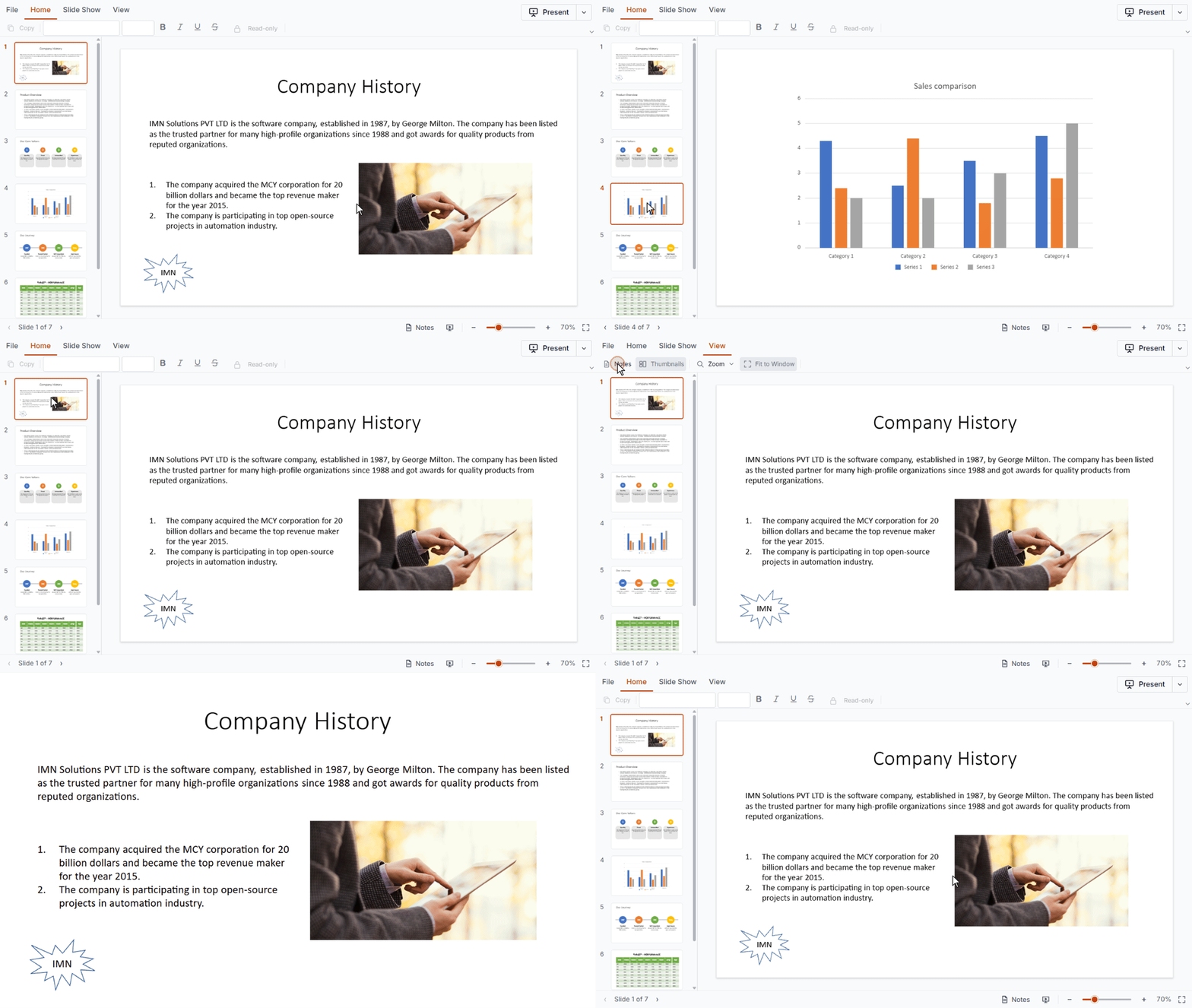
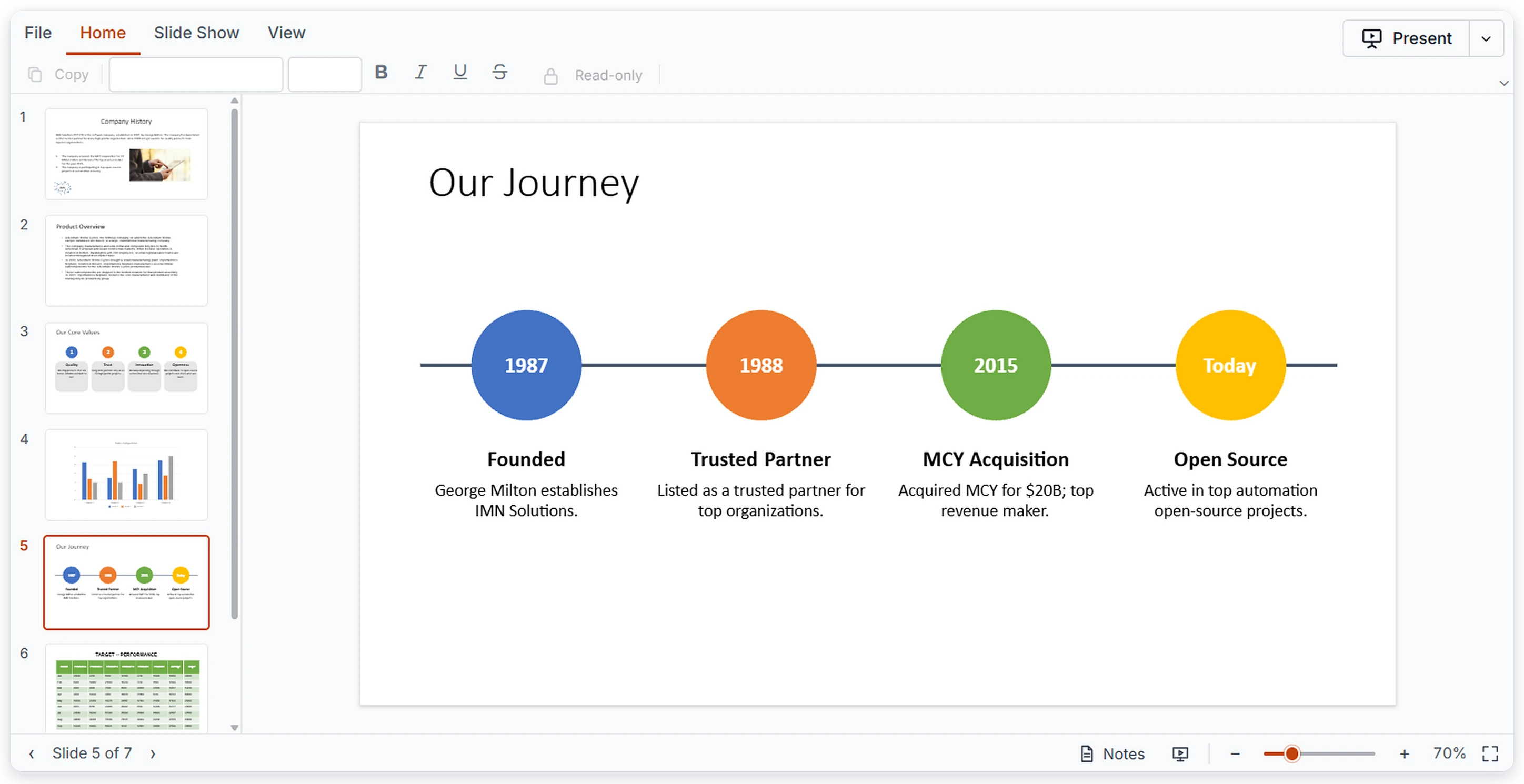
Use the demo to navigate slides with thumbnails, zoom in and out, present in full-screen slideshow mode, read speaker notes, and print or export as PPTX.
Get started with the ASP.NET Core PPTX Editor in minutes
Follow these four steps to integrate the PPTX Editor into your ASP.NET Core web application.
1
Install the ASP.NET Core package
Install the Syncfusion ASP.NET Core NuGet package.
Install-Package Syncfusion.EJ2.AspNet.Core -Version XX.X.X2
Add the Tag Helper
Import the Syncfusion.EJ2 tag helper in the Pages/_ViewImports.cshtml file.
@addTagHelper *, Syncfusion.EJ23
Add stylesheet, script resources, and register the script manager
Include the required stylesheet and script references, then register the script manager in Pages/Shared/_Layout.cshtml to apply proper layout and theme styling.
<head>
    ...
    <!-- Syncfusion ASP.NET Core control styles -->
    <link rel="stylesheet" href="https://cdn.syncfusion.com/ej2/XX.X.X/tailwind3.css" />
    <!-- Syncfusion ASP.NET Core control scripts -->
    <script src="https://cdn.syncfusion.com/ej2/XX.X.X/dist/ej2.min.js"></script>
</head>

<body>
    ...
    <!-- Syncfusion ASP.NET Core Script Manager -->
    <ejs-scripts></ejs-scripts>
</body>
4
Add the PPTX Editor
Add the PPTX Editor tag helper in Pages/Index.cshtml. The control is called pptxeditor in the code. Start building!
<ejs-pptxeditor id="pptxeditor"
                documentPath="https://document.syncfusion.com/content/pptxeditor-resources/Sample.pptx">
</ejs-pptxeditor>

@section Scripts {
    <script>
        ej.pptxeditor.PptxEditor.Inject(ej.pptxeditor.Toolbar, ej.pptxeditor.ThumbnailView, ej.pptxeditor.Magnification, ej.pptxeditor.Navigation, ej.pptxeditor.Print, ej.pptxeditor.SlideShow);
    </script>
}Enterprise-ready PPTX Editor for ASP.NET Core
Reliable PPTX rendering for ASP.NET Core apps
Presentations appear the way their authors designed them. The ASP.NET Core PPTX Editor renders the elements that make up business decks, so users review content clearly without leaving your application.
- Text boxes, placeholders, and all auto shapes
- Images, tables, and charts rendered in place
- Paragraph and text formatting preserved
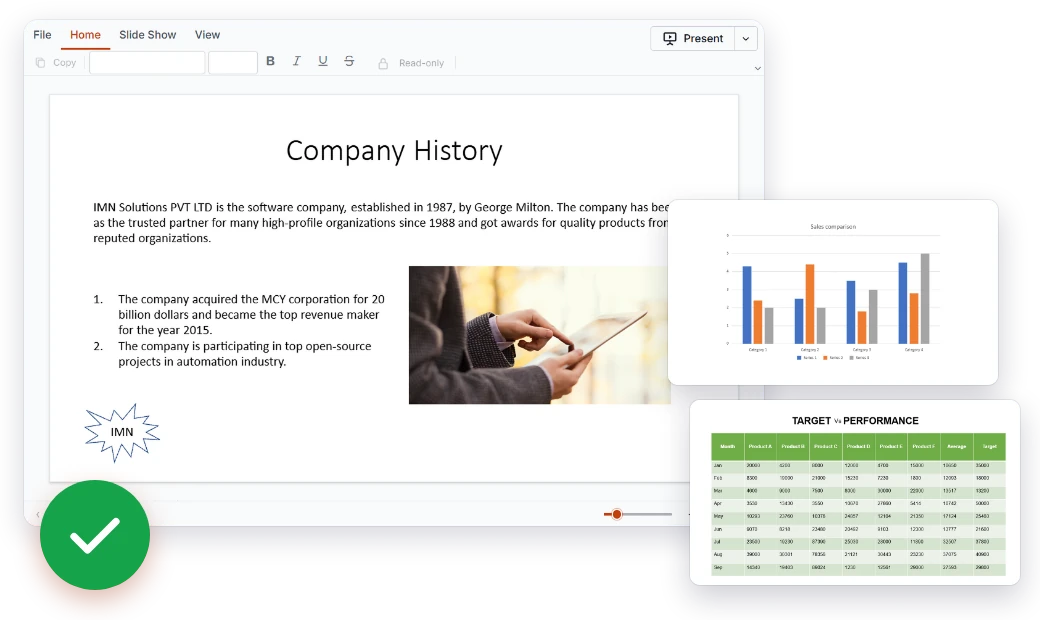
An Office-style viewer for your .NET web app
Users get a ribbon modeled on PowerPoint, with everyday actions arranged into clear tabs. Themes, localization, and RTL layouts let you align it with your product and audience.
- Home, Slide Show, and View tabs
- Zoom in and zoom out on any slide
- Built-in themes, localization, and RTL layouts
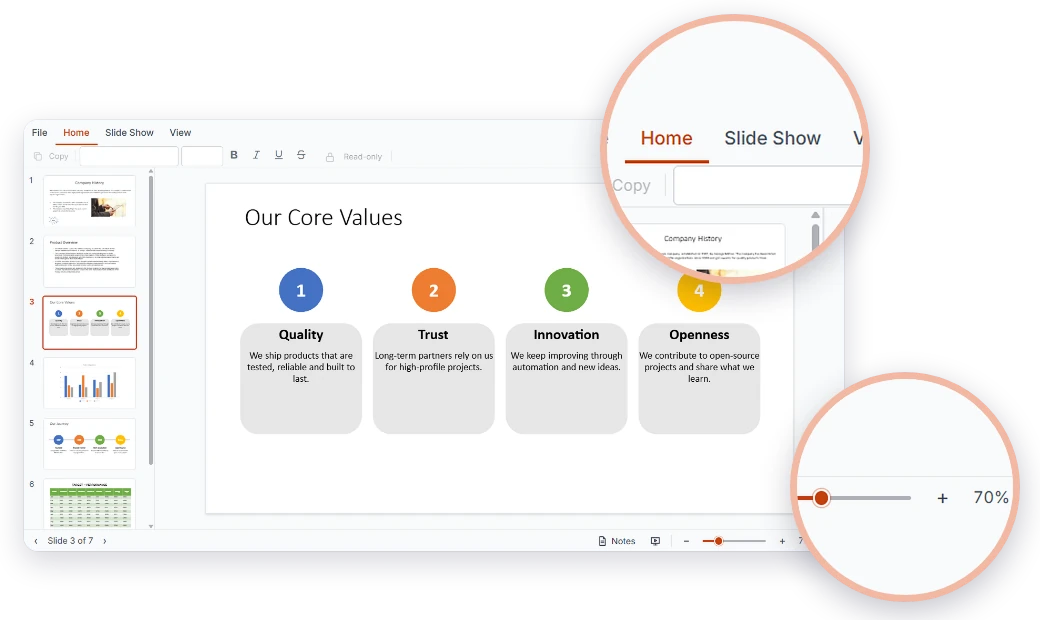
Built to handle large ASP.NET Core presentations
Long decks are no problem. Virtualization keeps the viewer responsive, and thumbnails let users jump to any slide with one click.
- Slide virtualization for large presentations
- Thumbnails for quick slide navigation
- Smooth navigation with touch, keyboard, and mouse
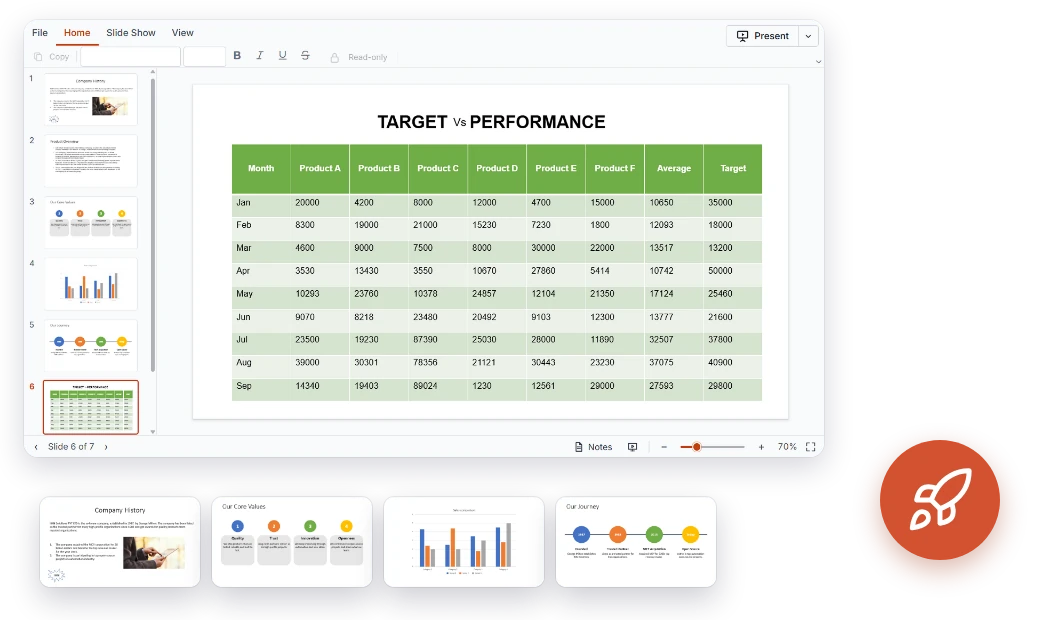
Present and share from your ASP.NET Core application
Users can present in full screen, refer to their speaker notes, and print or export the deck as PPTX, all without switching tools.
- Full-screen slideshow mode
- Speaker notes viewing
- Print and export as PowerPoint (*.pptx)

Comprehensive PowerPoint viewing for ASP.NET Core
The Syncfusion® ASP.NET Core PPTX Editor brings slide rendering, navigation, slideshow mode, and export together in one control for modern .NET web applications.
Display each slide element accurately and consistently.
Textboxes and Placeholders – View text content in textboxes and layout placeholders.
Auto Shapes – Display all auto shapes on your slides.
Images – View pictures placed on slides.
Tables – Read tabular data with its structure intact.
Charts – View charts embedded in presentations.
Text Formatting – Basic paragraph and text formatting is preserved.
Present live, or print and export for offline sharing.
Slideshow Mode – Present slides in full-screen mode.
Speaker Notes – View the notes attached to each slide.
Print – Print presentations directly from the viewer.
Export – Export the presentation as a PowerPoint (*.pptx) file.
Accessibility and global readiness
Keyboard navigation
Users can review an entire presentation with the keyboard, no mouse needed.
Multilingual support
Localize the ribbon labels and controls for each region your application serves.
RTL layouts
For right-to-left languages, the viewer UI mirrors to keep reading natural.
Familiar integration for ASP.NET Core developers
Install from NuGet, register a Tag Helper, and add the control to a Razor Page. The ASP.NET Core PPTX Editor fits the way .NET teams already build.
- Customizable UI with themes, localization, and right-to-left (RTL) layouts
- Load presentation data locally or integrate with your backend
- Detailed documentation, live demos, and getting-started guides for quick onboarding
ASP.NET Core PPTX Editor use cases by industry
ASP.NET Core teams in education, sales and marketing, finance, and healthcare use the PPTX Editor to view, present, and share decks inside their web applications.
No credit card required.
Education
Student portals can display lecture decks and speaker notes for self-paced review. Institutions can present slides full screen and print handouts from the portal.
Sales and marketing
Partner and customer portals can host approved pitch decks for browsing, presenting, and printing. Marketing teams can export current decks for quick sharing.
Finance
Line-of-business apps can open board decks, investor updates, and quarterly reports with charts and tables intact. Reviewers navigate by thumbnail and print or export ahead of meetings.
Healthcare
Staff intranets can host training decks, clinical education material, and case presentations. Presenters use slideshow mode with speaker notes, and staff can review large decks smoothly.
Trusted by the world’s leading companies

One ASP.NET Core control for every presentation
Lecture decks, sales pitches, board reports, and training material all fit the ASP.NET Core PPTX Editor. Give your users fast, familiar PowerPoint viewing with present, print, and export built into your app.
No credit card required.
ASP.NET Core PPTX Editor FAQs
Answers to the most common questions about the ASP.NET Core PPTX Editor.
What is the ASP.NET Core PPTX Editor?
An ASP.NET Core control for viewing, navigating, presenting, printing, and exporting PowerPoint presentations in web applications. It is currently available as a viewer.
Can users edit presentations in ASP.NET Core?
Not yet. The first release is viewer-only; editing will be considered in a future phase.
Which PPTX elements does the ASP.NET Core viewer render?
Text boxes, placeholders, all auto shapes, images, tables, charts, and basic paragraph and text formatting.
How does the ASP.NET Core PPTX Editor handle large files?
Slides are virtualized for better performance, and thumbnails support quick navigation.
Can I present PowerPoint slides in ASP.NET Core?
Yes. Use full-screen slideshow mode and view speaker notes.
Can I print or export presentations from ASP.NET Core?
Yes. You can print presentations or export them as PowerPoint (*.pptx) files.
Is the PPTX Editor available for other platforms?
Yes. It is also available for React, Angular, Vue, JavaScript (ES6 and ES5), and ASP.NET MVC.
Where can I find ASP.NET Core demos and documentation?
Try the live demo and follow the getting-started guide.
Resources
Learn more about our ASP.NET Core PPTX Editor
Use ASP.NET Core demos, KB articles, and documentation to get the most from the PPTX Editor.
Explore guides, APIs, and quick-start tips
See live use cases in action
Ask, share, and connect with peers
Find solutions and best practices fast
Get expert help when you need it
Feature requests and bug reports
Track issues and suggest improvements