
 Sumathi Uthayakumar
TL;DR: Syncfusion 2026 Volume 2 delivers performance and usability upgrades across document processing:
- PDF Viewer SDK: Up to 92% faster annotation processing, partial ink erasing, comment filtering, and improved bookmark rendering.
- DOCX Editor SDK: Accurate bidirectional (RTL/LTR) text formatting and modern hashing for reliable document protection.
- Spreadsheet Editor SDK: AI-powered natural language operations, quicker bulk updates with suspend/resume APIs, subscript/superscript support, ribbon customization, conditional formatting, export options, and quick auto-aggregation.
Built to fix real production bottlenecks so that large documents, multilingual content, and data-heavy spreadsheets behave reliably at scale.
Ever watched a PDF with 500+ annotations slow to a crawl? Opened a multilingual Word document only to find the text direction completely off? Or worked with a spreadsheet that seemed fine until a bulk update turned the UI unresponsive?
These aren’t the kind of problems you see in demos; they only show up in production.
Document-heavy apps tend to accumulate a specific kind of technical debt:
- Performance drops only when file size and complexity grow.
- Formatting breaks in multilingual or edge-case content.
- Missing controls force you to build custom workarounds just to ship.
The Syncfusion® 2026 Volume 2 release is built around fixing those exact issues without adding noise. It delivers practical, high-impact improvements across three core SDKs: PDF Viewer, DOCX Editor, and Spreadsheet Editor, targeting real bottlenecks in Web, Blazor, and .NET MAUI platforms.
Whether you’re building:
- A document review tool handling annotation-heavy PDFs,
- A content editor with mixed-language support, or
- A data-heavy spreadsheet interface,
these changes are designed to remove the friction you’ve likely already run into.
Let’s break down what’s changed, and more importantly, see where it makes your development experience smoother.
PDF Viewer SDK
The 2026 Volume 2 release brings meaningful improvements to the PDF Viewer SDK across Web, Blazor, and .NET MAUI platforms.
Web PDF Viewer
Let’s first explore the latest improvements in the Web PDF Viewer:
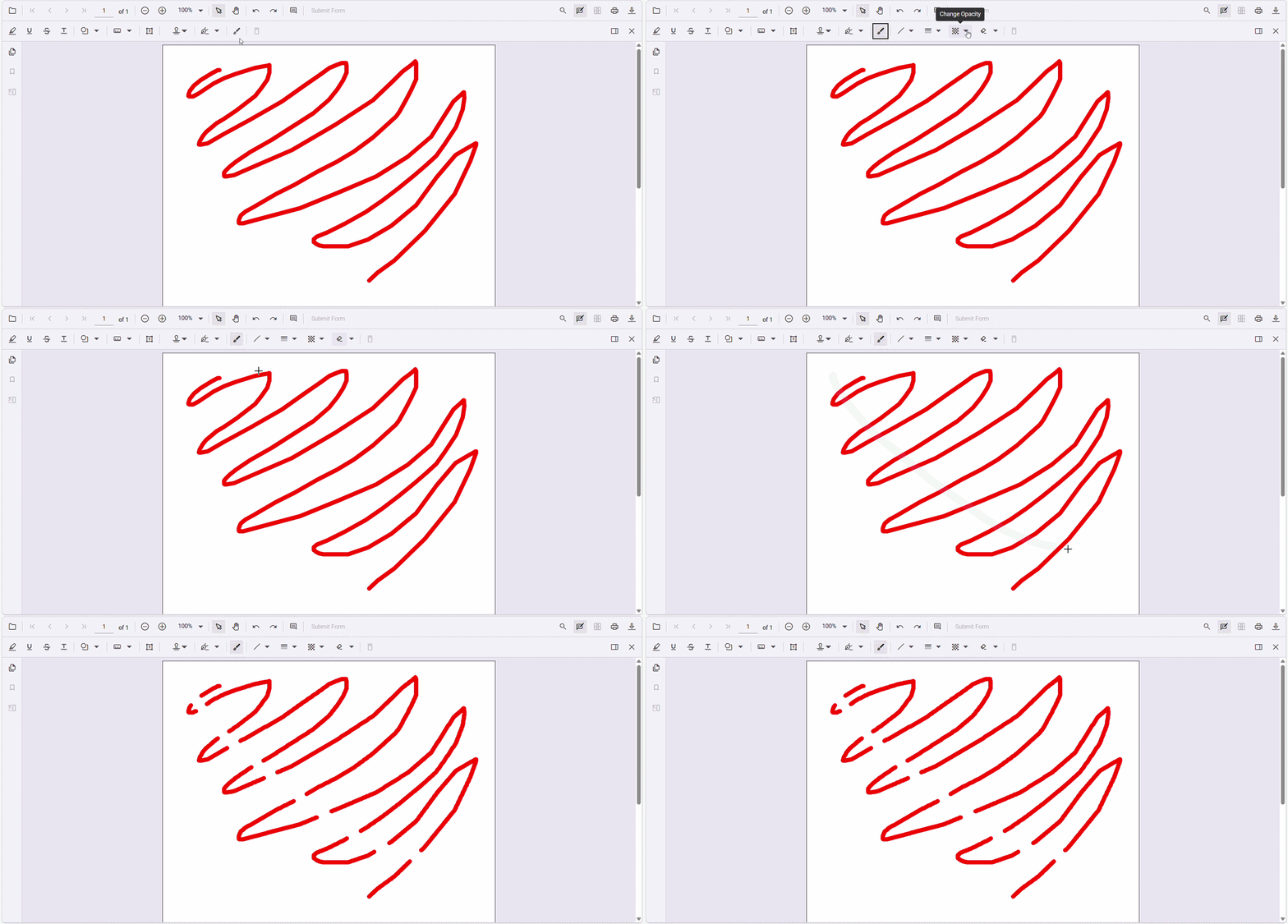
1. Erase specific portions of ink annotations
A small mistake in an ink annotation used to mean deleting the entire stroke and starting over.
The new ink eraser tool lets users erase only the part that needs fixing while keeping the rest intact.
For developers, it’s flexible too. The eraser appears when users interact with ink annotations, can be controlled programmatically, and fits easily into custom setups, such as enabling it only in review mode or for specific user roles.
2. Filter annotation comments for focused review
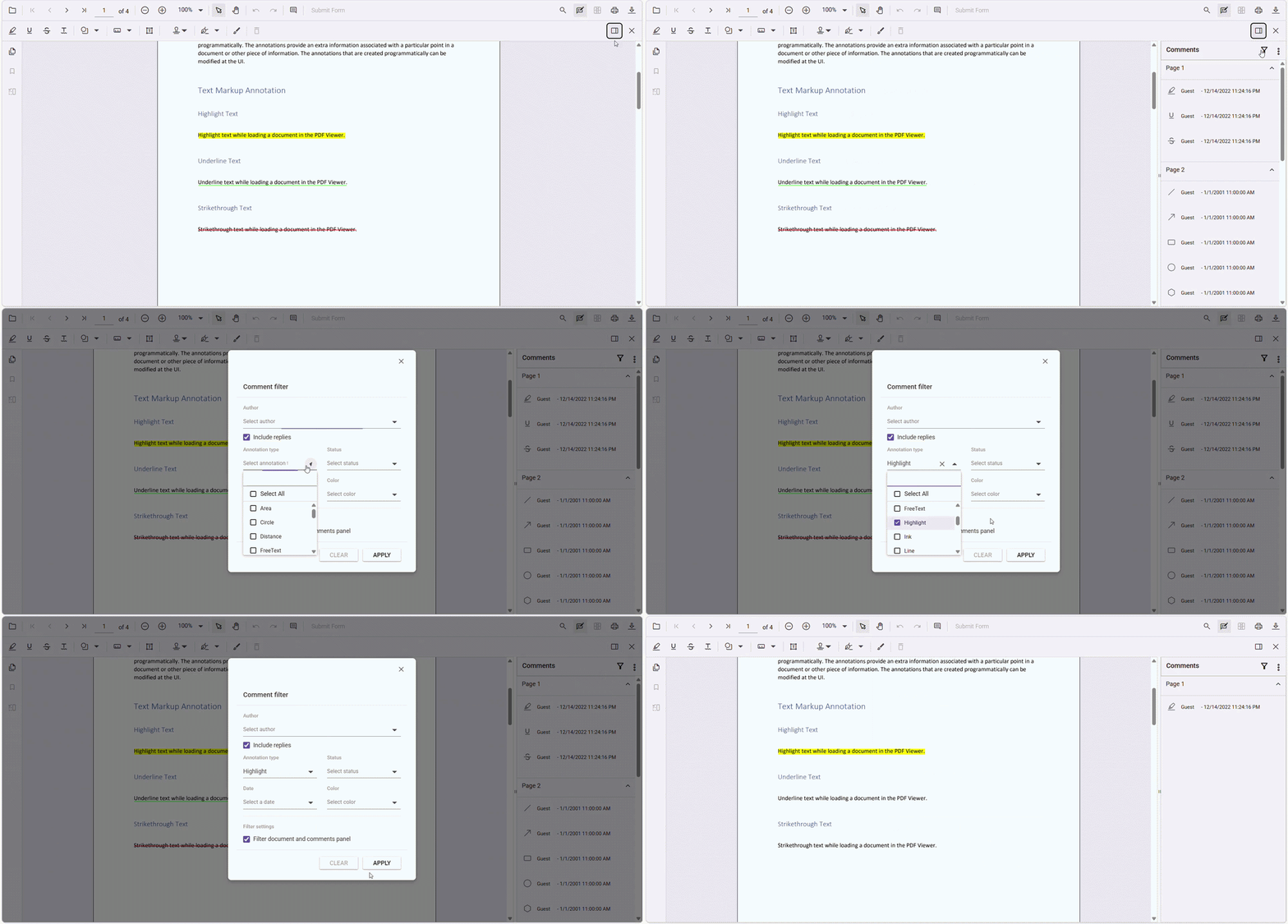
Once documents start accumulating feedback, the real problem isn’t adding comments; it’s navigating them.
The new comment filtering option enables you to:
- Filter annotation comments based on specific criteria and
- See those filtered results reflected directly in the document.
Instead of building and synchronizing your own comment filtering logic with the document view, the behavior is already built in and consistent.
It’s one of those features that directly improves usability without adding complexity to your implementation.
3. Up to 92% faster downloads for annotation-heavy PDFs
Downloads often stay fast at first, but as annotations grow, performance starts to drop. With hundreds of comments, even simple updates can feel slow.
The Web PDF Viewer now makes download performance more predictable by improving annotation handling, especially in large, heavily annotated PDFs.
What does that mean in simple terms:
- Small files → Slightly faster, smoother updates.
- Medium-sized documents → Noticeably quicker response.
- Large, heavily annotated PDFs → Massive speed improvement.
The following table shows the annotation download performance before and after optimization.
| Scenario | Previous performance | Current performance |
| Document with 1 annotation (updating 1 annotation) | 24.88 ms | 19.63 ms |
| Document with 30 annotations (updating 1 annotation) | 54.53 ms | 26.72 ms |
| Document with 400 annotations (updating 1 annotation) | 1,649.25 ms | 152.79 ms |
For large documents, that’s up to 92% faster, while smaller ones see around 35% improvement.
Blazor PDF Viewer
While the Web PDF Viewer improvements focus on annotations and performance, the Blazor PDF Viewer addresses a different challenge: making large documents easier to navigate.
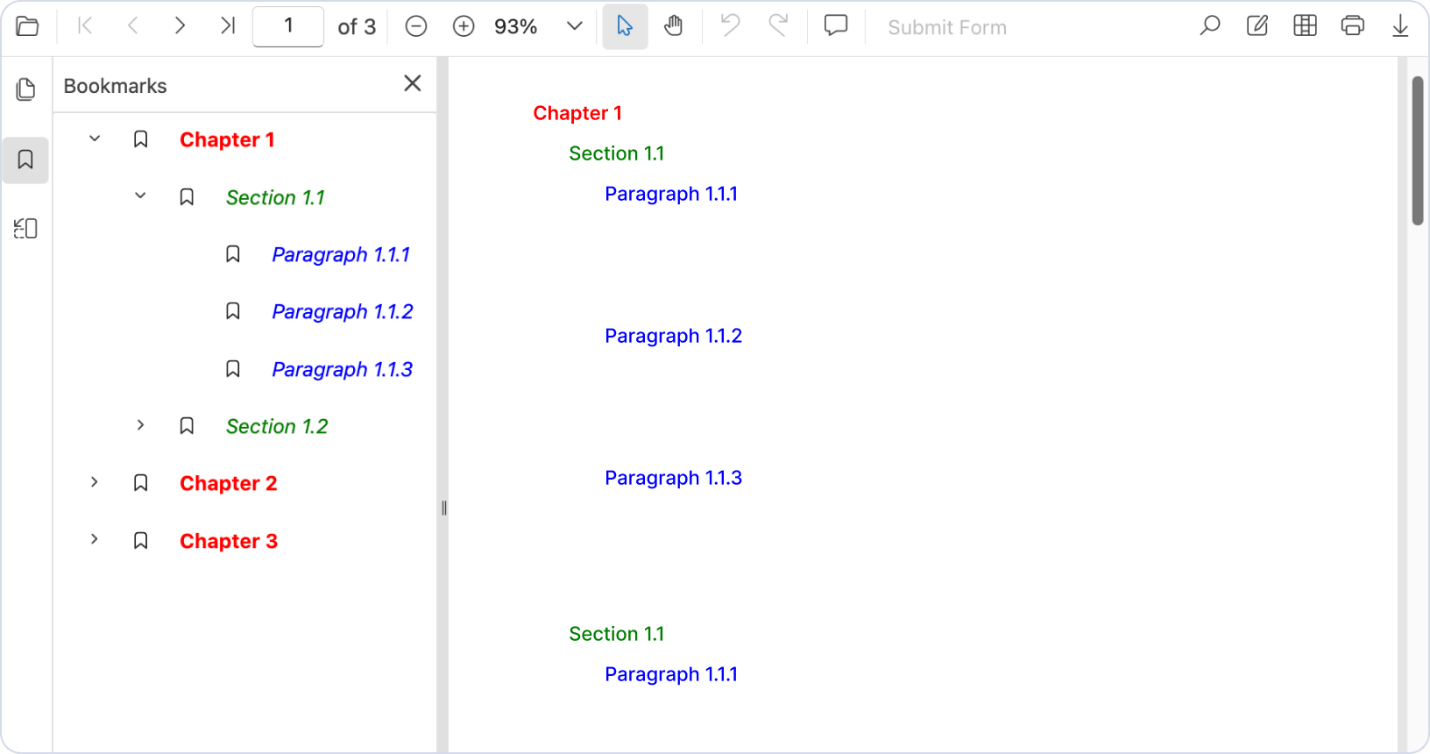
When users rely on bookmarks to move through lengthy reports or technical documents, formatting helps reinforce the document hierarchy. With 2026 Volume 2, bookmark styling is now preserved in view-only mode.
- Preserve original bookmark styling, including bold text.
- Maintain document structure and hierarchy.
- Improve navigation in large PDF files.
.NET MAUI PDF Viewer
The .NET MAUI PDF Viewer includes the following practical improvements:
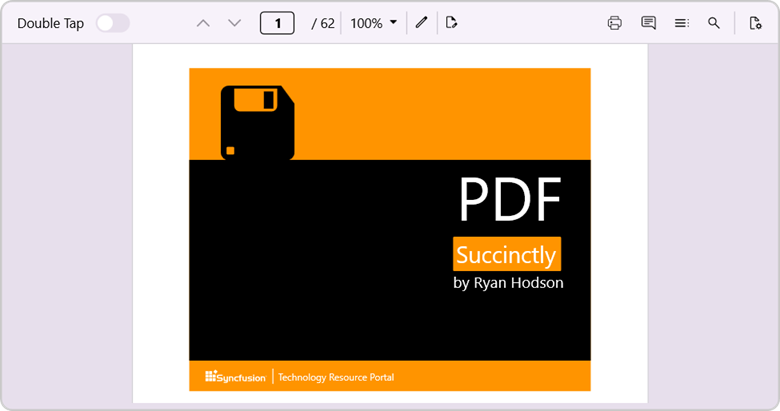
1. Disable or enable double-tap zoom programmatically
On mobile devices, gestures can sometimes compete with each other. While double-tap zoom is useful in many scenarios, it may not fit apps that use custom navigation or selection interactions.
You can now enable or disable double-tap zoom behavior programmatically, giving you more control over the viewing experience.
- Disable double-tap zoom when using custom navigation or selection gestures.
- Enable it when document zooming is a priority.
- Integrate the behavior directly into your app’s functionality.
2. Mark all form fields read-only using a single setting
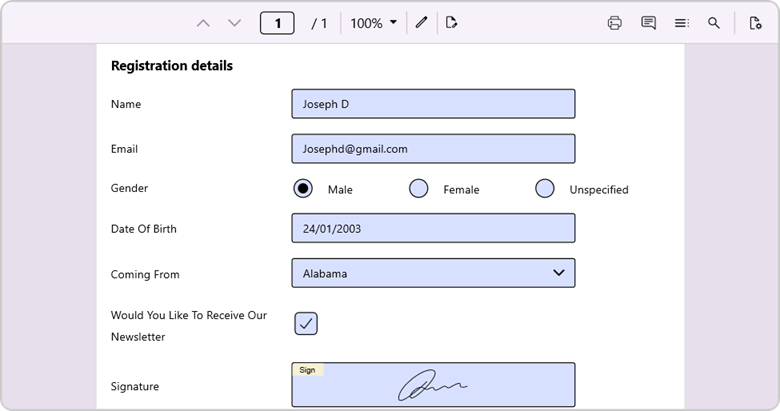
Not every document is meant to stay editable. For review, approval, or finalized documents, you can now mark all form fields as read-only using a single setting.
- Prevent accidental edits.
- Avoid field-by-field configuration.
- Keep form behavior consistent across the document.
This makes it easier to protect data and maintain document integrity.
DOCX Editor SDK
The DOCX Editor SDK receives major improvements across Web and Blazor platforms.
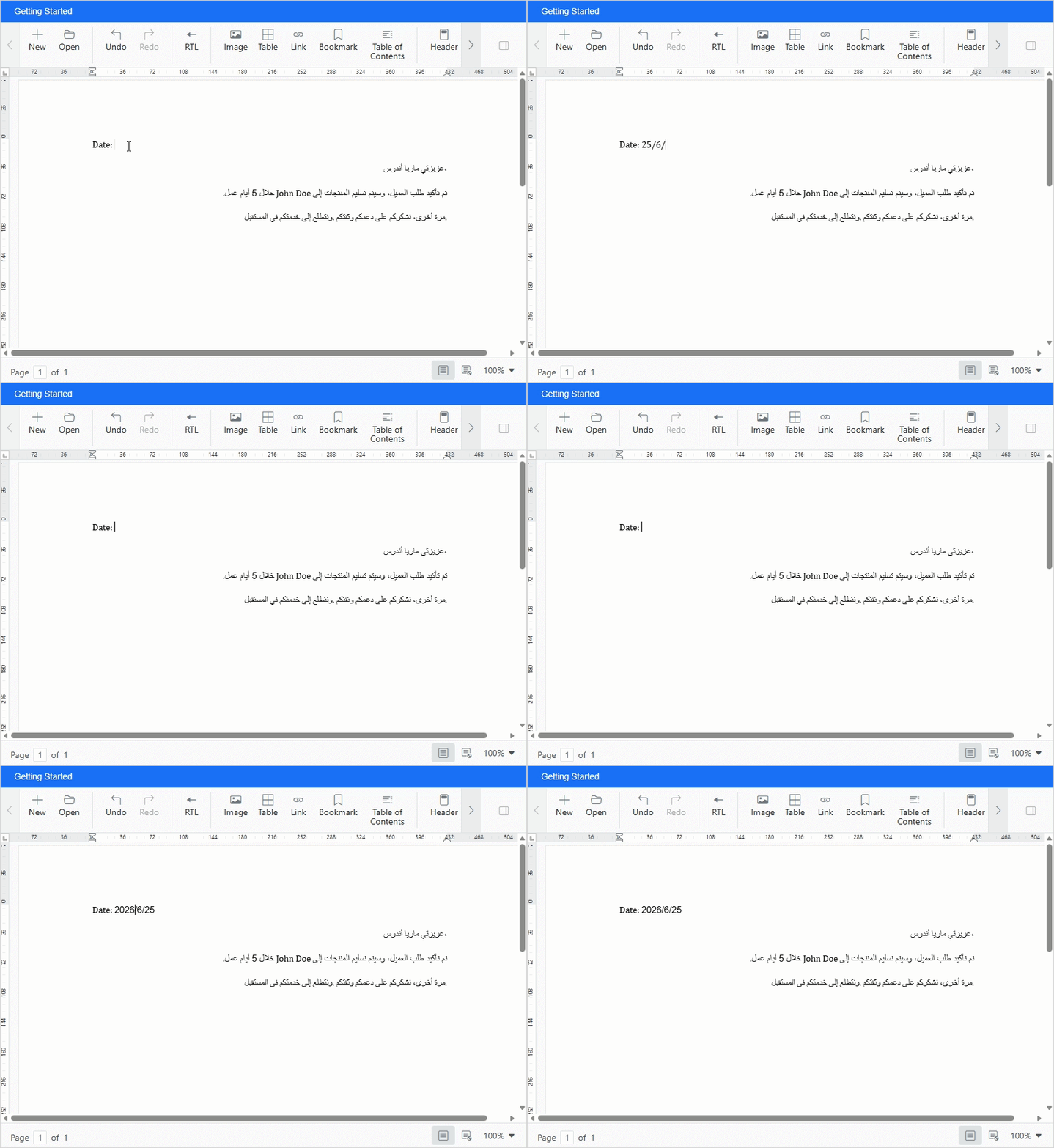
1. Bidirectional character formatting for RTL/LTR documents
For apps that generate legal contracts, government forms, or multilingual business documents, mixed RTL and LTR content can quickly lead to formatting inconsistencies and manual cleanup.
The DOCX Editor lets you control text direction at the character level, making mixed-language editing more predictable and easier to manage.
- Set RTL or LTR formatting for specific text ranges.
- Edit RTL content without disrupting layout or cursor flow.
- Reduce manual fixes and styling workarounds.
2. Enhanced hash computation with Algorithm SID
If you’ve worked with protected Word documents, you’ve probably run into cases where password validation fails for no obvious reason, especially when files come from newer Word versions. Most of the time, it comes down to outdated hashing behavior.
This update brings that layer up to date.
The ComputeHash API now supports Algorithm SID, enabling the use of modern hashing algorithms such as SHA-1 and SHA-256:
- More reliable password validation when opening or verifying documents.
- Better compatibility with documents generated by newer Word clients.
- Fewer edge-case failures in protection and unprotection scenarios.
With text handling and document security tightened up, the next set of updates shifts focus toward handling large datasets more efficiently in the Spreadsheet Editor.
Spreadsheet Editor SDK
The Spreadsheet Editor SDK also receives major improvements across Web and Blazor platforms.
Web Spreadsheet Editor
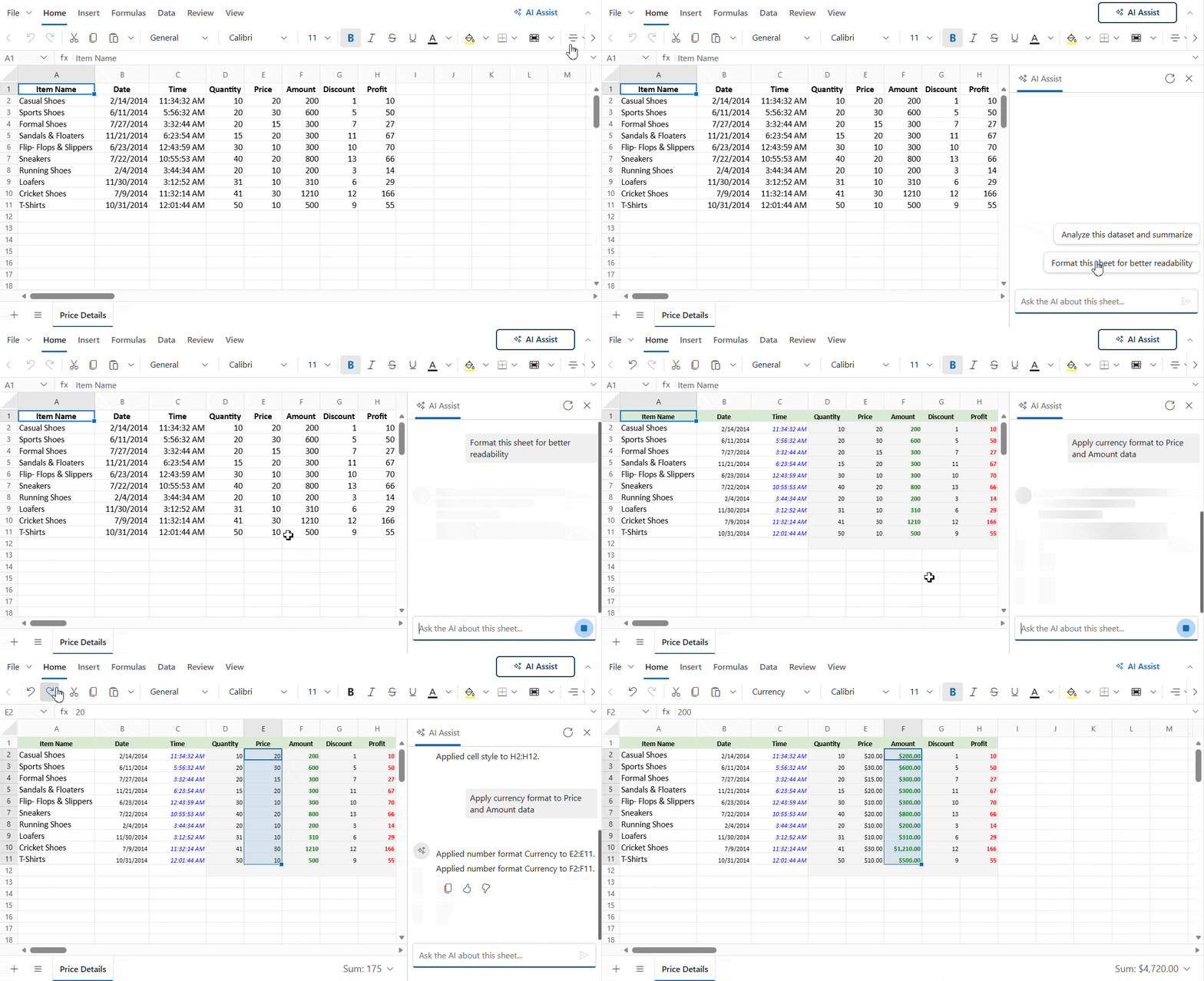
1. Spreadsheet operations via natural language with AI Assist
The Web Spreadsheet Editor includes AI Assist with natural language capabilities, making common spreadsheet tasks much easier.
Instead of repeating routine tasks like writing formulas or cleaning data, you can simply describe what you need.
- Type your request in plain language and see it applied instantly.
- Handle editing, formatting, analysis, and visualizations from a single prompt.
- Stay in control with built-in prompt suggestions and full undo/redo support.
No need to switch between menus or write formulas; just ask and get it done.
2. Subscript and superscript formatting
For scientific or technical data, formatting isn’t optional; it’s clarity.
Use the subscript and superscript directly inside cells to display formulas, units, and expressions like CO₂ or x² without hacks or workarounds.
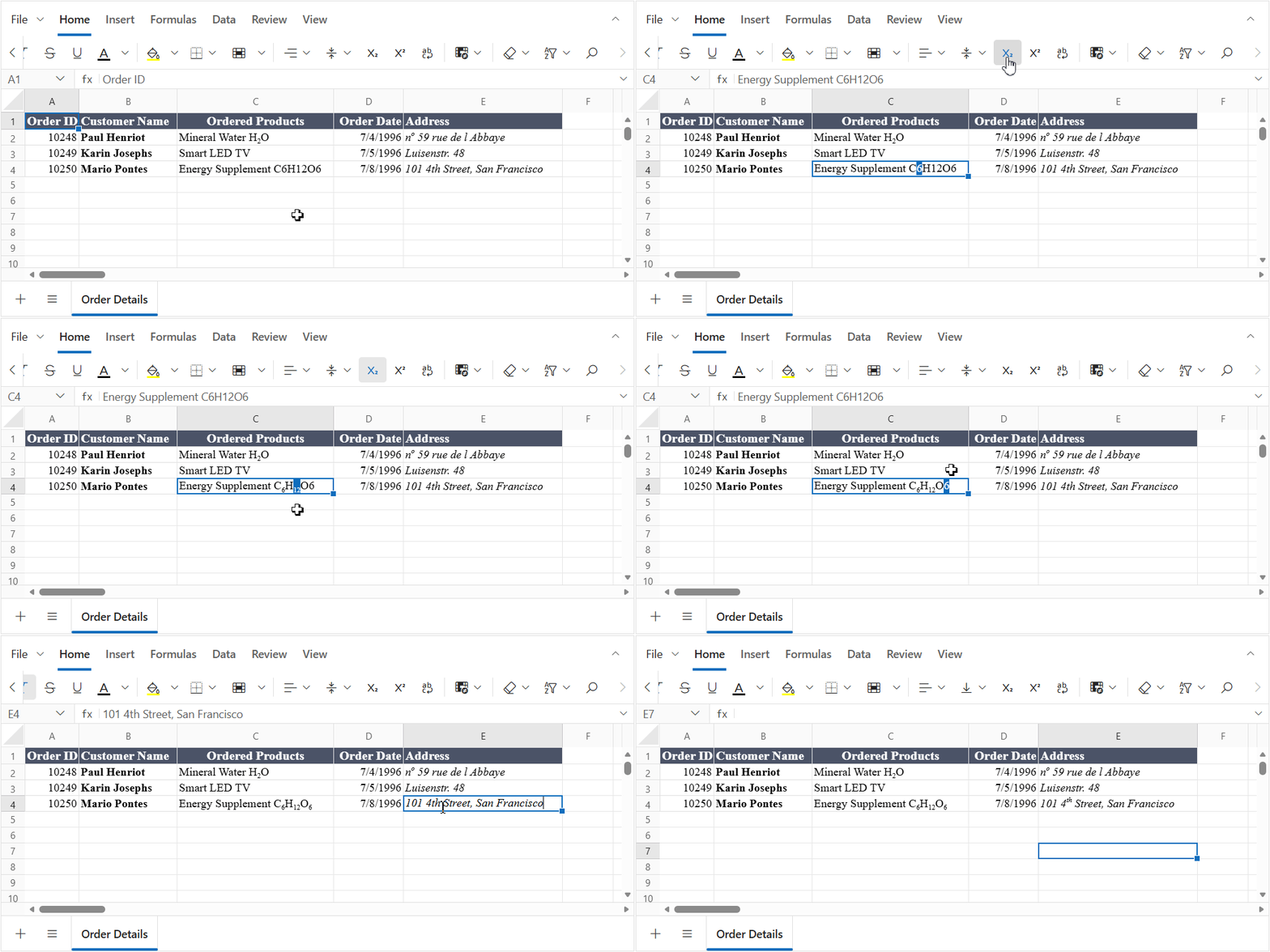
Note: Explore this functionality in action through the available demo.
3. Suspend and resume UI refresh for bulk operations
When you perform multiple updates on large datasets, the UI often refreshes repeatedly. This can slow performance and disrupt operations.
In the 2026 Volume 2 release, the Web Spreadsheet Editor introduces two new APIs to improve rendering efficiency during bulk operations:
suspendRefresh()resumeRefresh()
With these APIs, developers can temporarily pause UI updates using suspendRefresh(), execute multiple changes efficiently, and then apply all updates at once with resumeRefresh(). This reduces unnecessary re-rendering and significantly boosts performance, especially during initialization, data processing, and large-scale updates.
Performance improvements
| Cells | Without Suspend/Resume | With Suspend/Resume |
| 25K cells | 0.6 s | 0.06 s |
| 50K cells | 0.8 s | 0.09 s |
| 1M cells | 8.8 s | 1.3 s |
What changes when you scale to 1 million cells?
At scale, the performance gains are substantial. For example, a financial analyst processing 1 million cells can reduce execution time from 8.8 seconds to 1.3 seconds, an improvement of approximately 85%.
These APIs are particularly valuable for initialization, bulk data import, and large-scale formatting operations, where repeated rendering would otherwise add significant overhead.
Blazor Spreadsheet Editor
The Blazor Spreadsheet Editor offers the following key improvements:
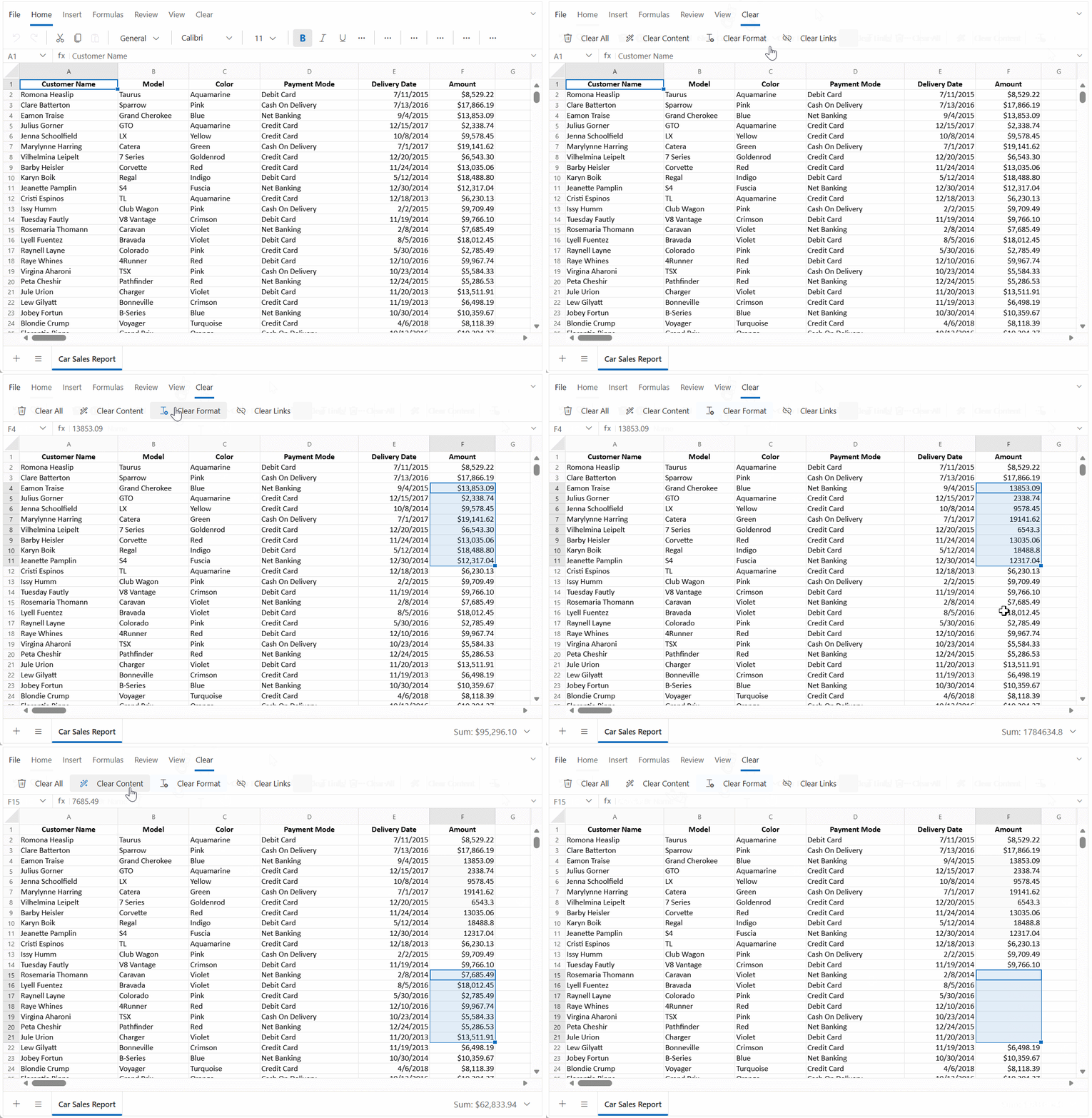
1. Ribbon customization
Many business apps only expose a subset of spreadsheet functionality. Ribbon customization makes it easier to simplify the UI and surface only the commands your users need.
You can now tailor the ribbon to match your app’s needs by:
- Adding custom tabs and groups,
- Introducing your own controls and commands,
- Modifying existing tabs,
- Reordering, replacing, or removing ribbon elements.
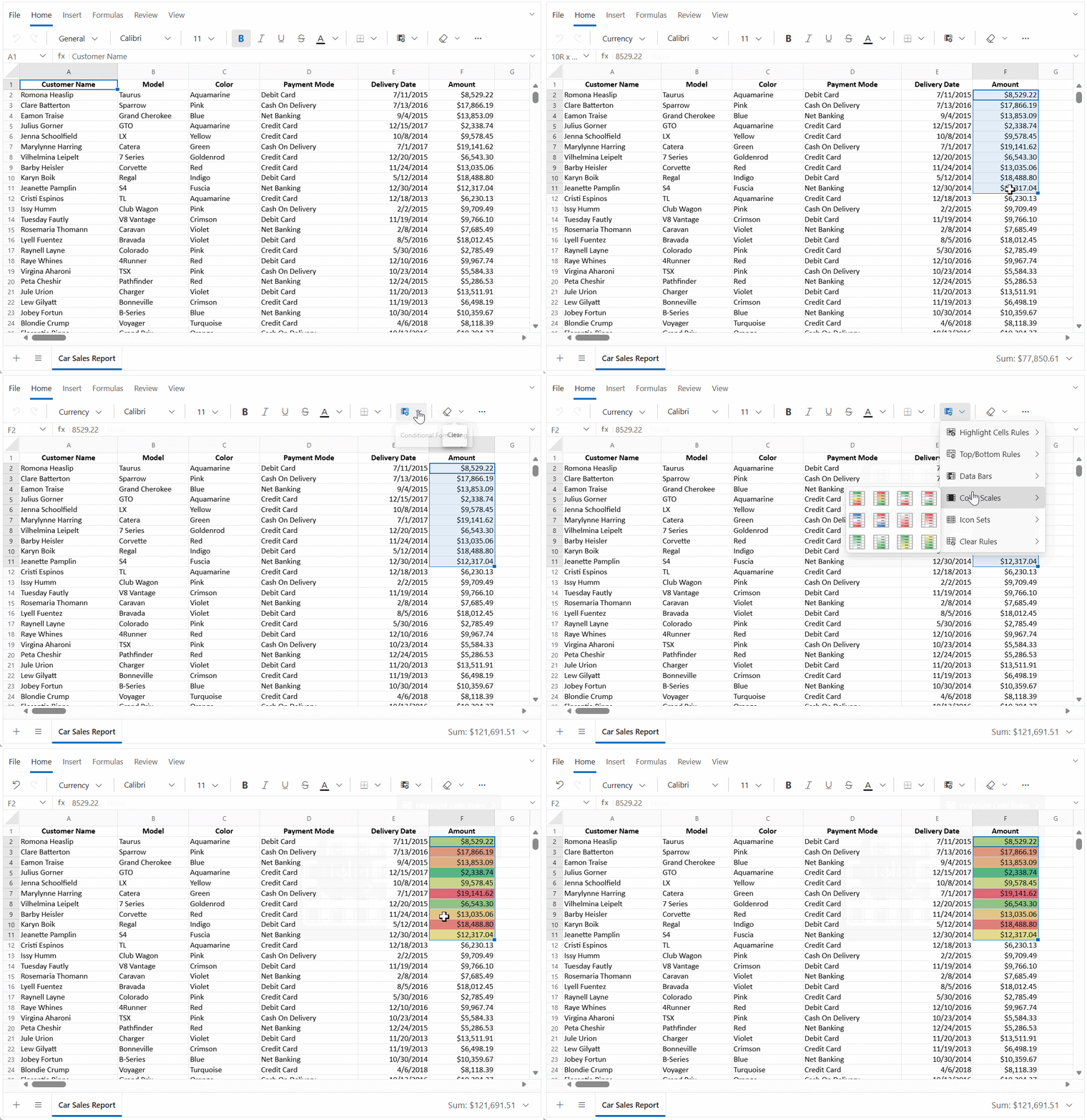
2. Conditional formatting
Instead of manually analyzing numbers or building custom charts, use built-in conditional formatting to surface insights directly in the grid.
- Apply color scales, data bars, and icon sets to highlight patterns.
- Works on selected ranges, no complex setup needed.
- Updates automatically as data changes.
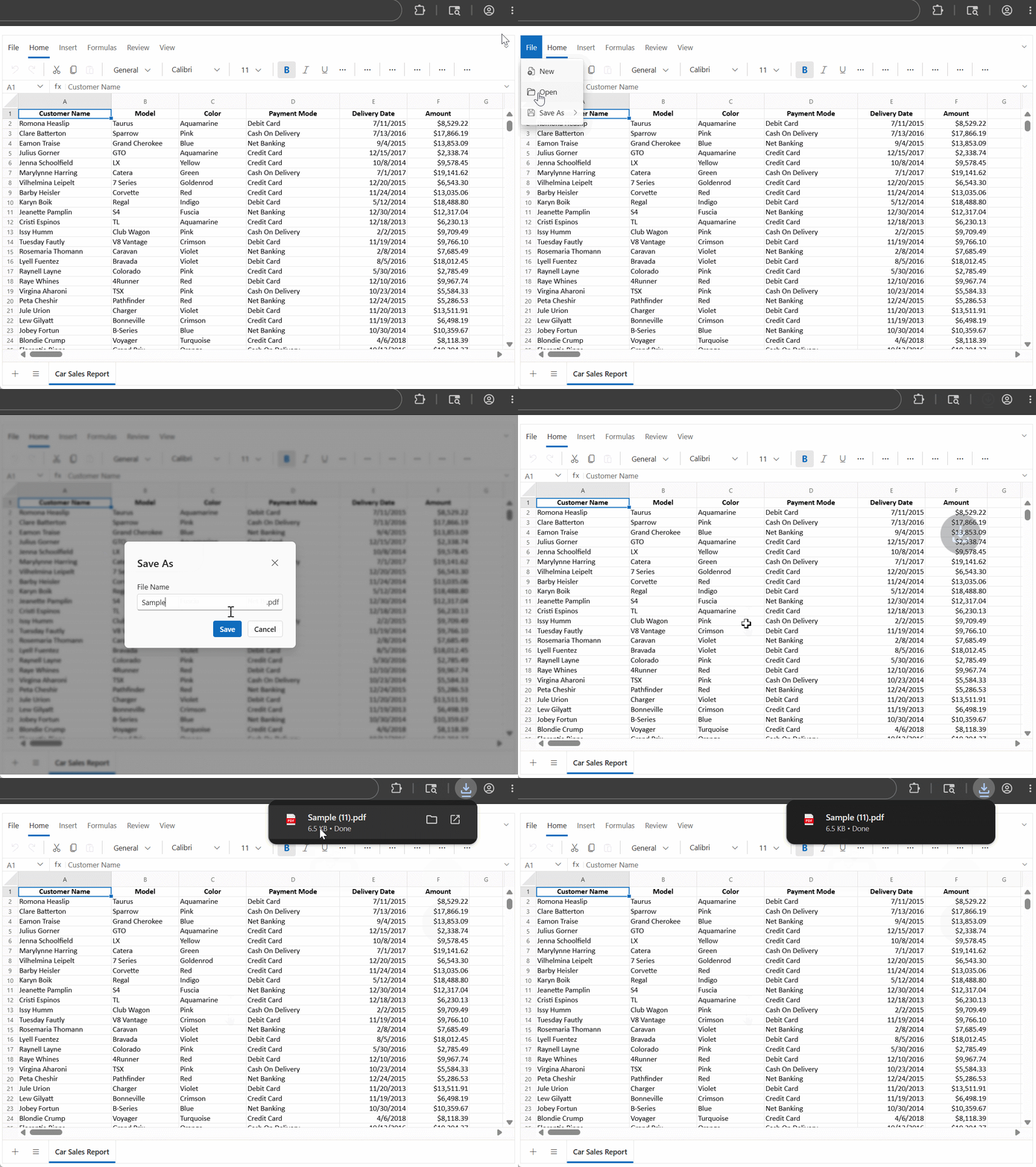
3. Export spreadsheet data to XLS, CSV, and PDF
Export spreadsheet data directly to XLS, CSV, or PDF through the UI or API, without worrying about formatting changes or layout rework.
For PDF exports, you get a little extra flexibility:
- Adjust the layout with fit-to-page and orientation options.
- Keep formatting and structure intact, so the exported file looks just like the grid.
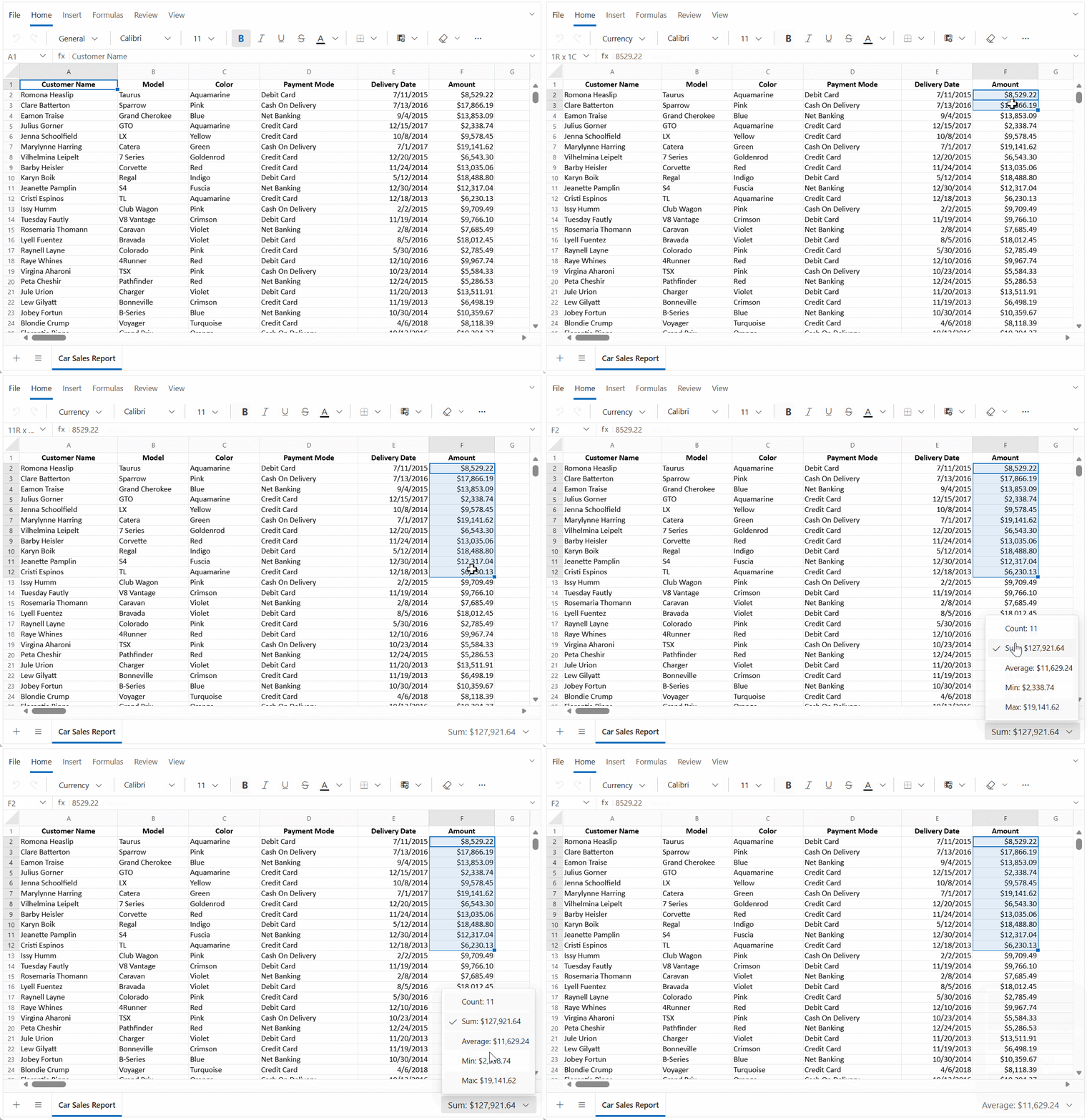
4. Quick calculations with auto aggregation
Working with large datasets often means performing the same calculations repeatedly. With auto aggregation, you can get instant results directly from the footer, no formulas required.
- Supports sum, average, count, min, and max.
- Works on any selected range with no setup required.
- Updates automatically as data changes.
5. Enhanced API coverage
If you’re building spreadsheet solutions with custom business logic, the expanded API coverage gives you more control without relying on workarounds.
You can:
- Manage named ranges programmatically.
- Handle custom calculations and formulas.
- Extend and customize context menus.
- Control sheet behavior and user interactions.
- Automate repetitive actions and tasks.
This added flexibility makes it easier to build spreadsheet experiences tailored to your app’s specific requirements.
Frequently Asked Questions
Yes. It lets users erase selected portions of ink annotations for precise editing and can be enabled or disabled programmatically through the API.Does the ink eraser tool in the Web PDF Viewer work on all ink annotation types?
Yes. These APIs help improve performance during initialization and bulk imports by preventing repeated UI refreshes. This release shows up to 85% faster rendering in large-scale scenarios.Can I use the suspendRefresh() and resumeRefresh() APIs in the Syncfusion Web Spreadsheet Editor for data import scenarios?
AI Assist includes the chat interface, prompt suggestions, and undo/redo support. To process prompts, it must be connected to an AI service of your choice.Is the AI Assist feature in the Web Spreadsheet Editor available out of the box, or does it require a separate AI service integration?
It applies only to selected text ranges at the character level. Paragraph direction is controlled separately through paragraph formatting settings.Does the bidirectional character formatting in the DOCX Editor affect paragraph-level text direction or only inline text?
Yes. You can programmatically enable or remove read-only restrictions based on document state or application requirements.Can the read-only form field setting in the .NET MAUI PDF Viewer be toggled dynamically at runtime?
Yes. PDF exports retain formatting such as fonts, colors, borders, and number formats, while also supporting options like fit-to-page and page orientation.Does the Blazor Spreadsheet Editor's PDF export maintain cell formatting such as fonts, colors, and borders?
Wrap-up: Fix the problems you usually notice too late
Most document-related issues don’t break immediately; they show up slowly. A bit of lag here, a formatting glitch there, a document process that feels slightly off under load. Over time, those small gaps turn into real friction.
The Syncfusion 2026 Volume 2 release is clearly aimed at solving those “you only see it in production” problems:
- PDF documents that remain responsive even with heavy annotations.
- DOCX editing that handles multilingual content without layout issues.
- Spreadsheet interactions that are faster, smarter, and less manual.
- Large data operations that don’t drag UI performance down.
For review tools, internal dashboards, and document-heavy applications, improvements like these reduce custom development effort and deliver a smoother, more reliable user experience.
If these pain points sound familiar, it’s worth evaluating these updates in your current environment. Explore the Release Notes and What’s New pages and try them where performance or complexity is already pushing your limits.
Are you already a Syncfusion user? Download the latest version of Essential Studio® from the License and Downloads page. We also offer new users a 30-day free trial to explore the features and capabilities of all our components.
For further assistance, contact us via our support forums, support portal, or feedback portal. We’re always here to help you!




 No spam, just valuable updates.