










Transform your applications today by downloading our free evaluation version
Vue Block Editor overview
The Vue Block Editor is a modern, block-based content editor designed for Vue applications. It provides an intuitive and flexible interface for creating rich, structured documents using modular blocks. Developers can easily integrate this Vue component to enable drag-and-drop block management, rich text formatting, and media embedding, making it ideal for blogs, CMS platforms, documentation tools, and note-taking apps.
Vue Block Editor code example
Get started with the Vue Block Editor using a few simple lines of code, as shown below. Also, explore this Vue Block Editor example, which shows how to render and configure the component in Vue.
<template>
  <div id="defaultBlockeditor">
    <ejs-blockeditor id='block-editor'></ejs-blockeditor>
  </div>
</template>
<script>
    import Vue from 'vue';
    import { BlockEditorPlugin } from '@syncfusion/ej2-vue-blockeditor';

    Vue.use(BlockEditorPlugin);

    export default {
       data() {
            return {
            }
        }
    }
</script>
Different block types
The Vue Block Editor supports a comprehensive range of block types to create structured, rich content. Each block type serves a specific purpose and can be easily inserted, formatted, and managed within the editor:
- Paragraph: Standard text block with full rich text support.
- Heading (H1-H4): Semantic headings for structured documents.
- Collapsible paragraph: Collapsible paragraph sections for progressive disclosure.
- Collapsible heading (H1-H4): Collapsible headings combining structure with space-saving.
- Checklist: Interactive to-do lists with checkbox states.
- Bullet list: Unordered lists with nesting and list blocks support.
- Numbered list: Ordered lists for steps and sequences.
- Quote: Styled blocks for quotations and testimonials.
- Code: Formatted code snippets for technical content.
- Image: Image blocks let users add and resize images with format support and alt text for accessibility.
- Callout: Important notes or warnings highlighted with icons and colors.
- Divider: Horizontal separators for section breaks.
Real-time collaborative editing
The Vue Block Editor supports real-time collaborative editing, allowing multiple users to work on the same document simultaneously. With seamless collaboration provider integration and YJS adapter configuration, teams can create, edit, and review content together while keeping document changes synchronized in real time.
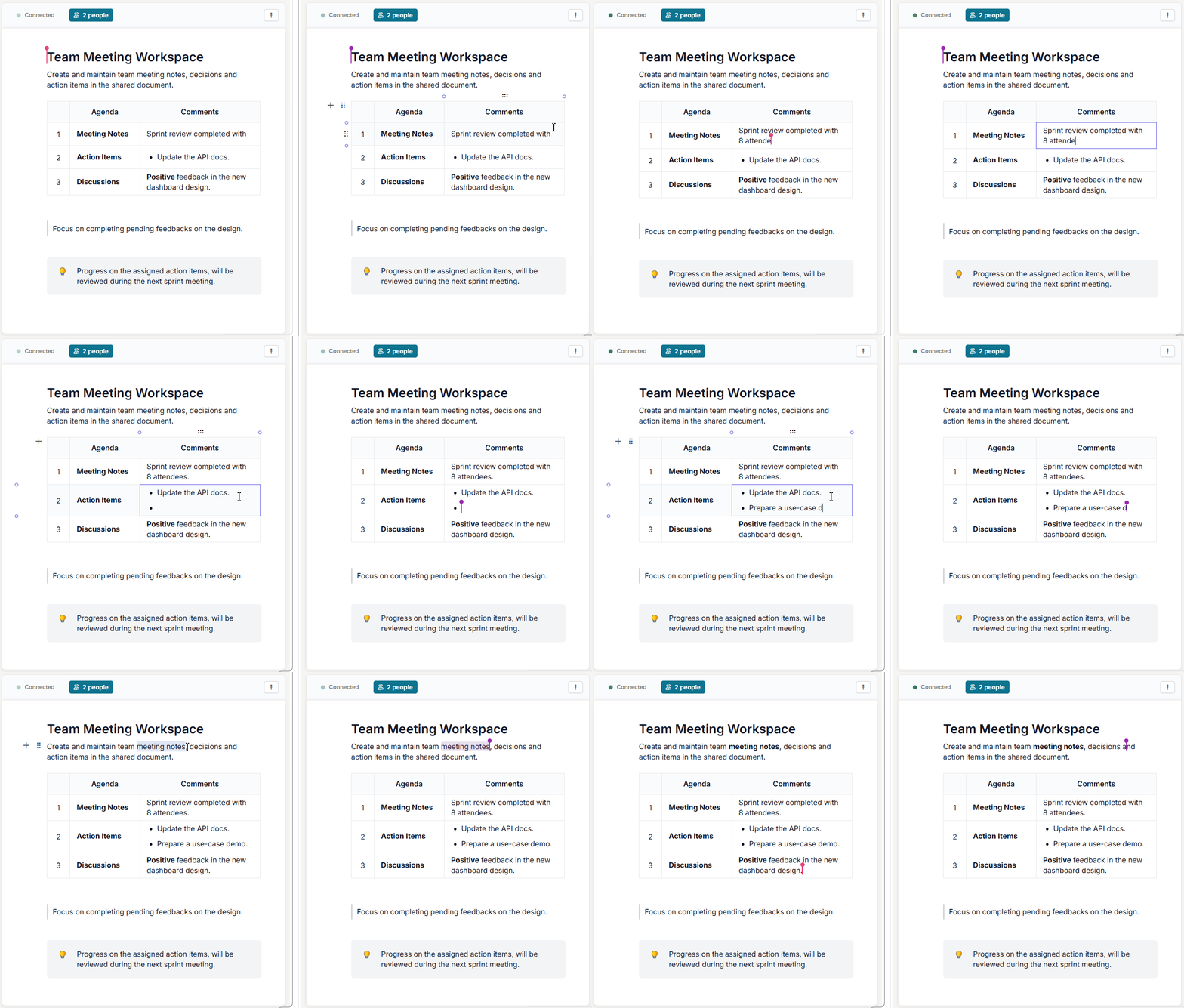
Table block
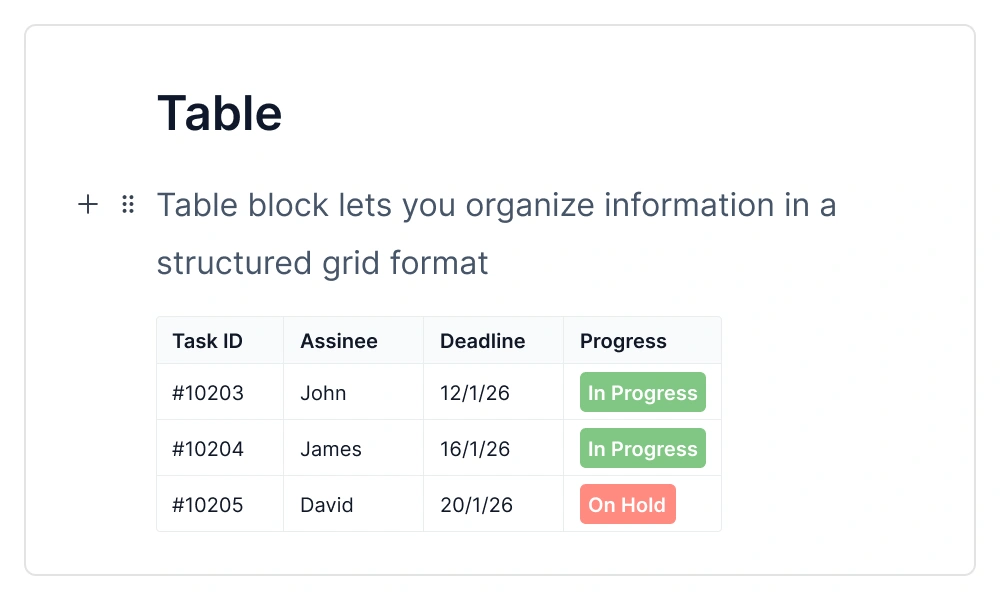
The table block organizes data in a structured grid format for comparisons, schedules, and tabular content. It provides clarity and readability for complex information in Vue applications.
- Rich text in cells: Apply bold, italic, underline, hyperlinks, mentions, and more inside table cells.
- Dynamic row and column management: Add or remove rows and columns with intuitive controls.
- Slash menu: Quickly insert or transform blocks inside cells using the slash command.
- Context-aware quick actions: Access dedicated keyboard shortcuts for faster navigation and editing.
Inline content
The Block Editor offers rich inline content types like text, link, mention, and label, making the text blocks interactive and well-organized.
- Text – Plain text forms the foundation of all blocks and supports full formatting options like bold, italic, underline, and color styling.
- Link – Insert clickable hyperlinks pointing to external URLs, internal pages, or email addresses for connected and interactive content.
Mention
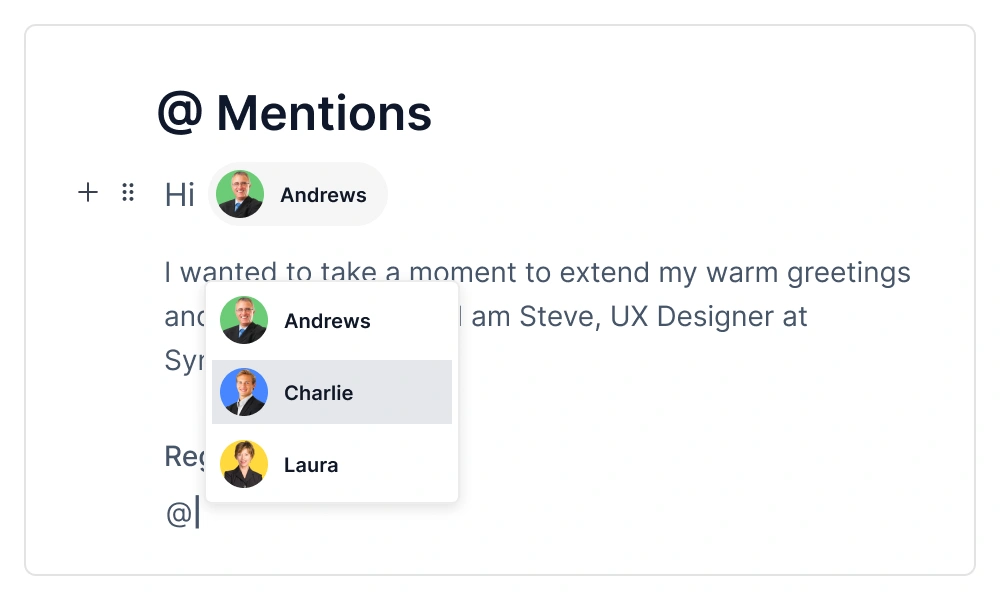
Tag users or entities inline using the @ symbol, making collaboration easier and adding context to the content. When the @ symbol is typed, a suggestion list appears to let you quickly select relevant users or items. This feature helps teams communicate effectively, link related information, and create interactive documents.
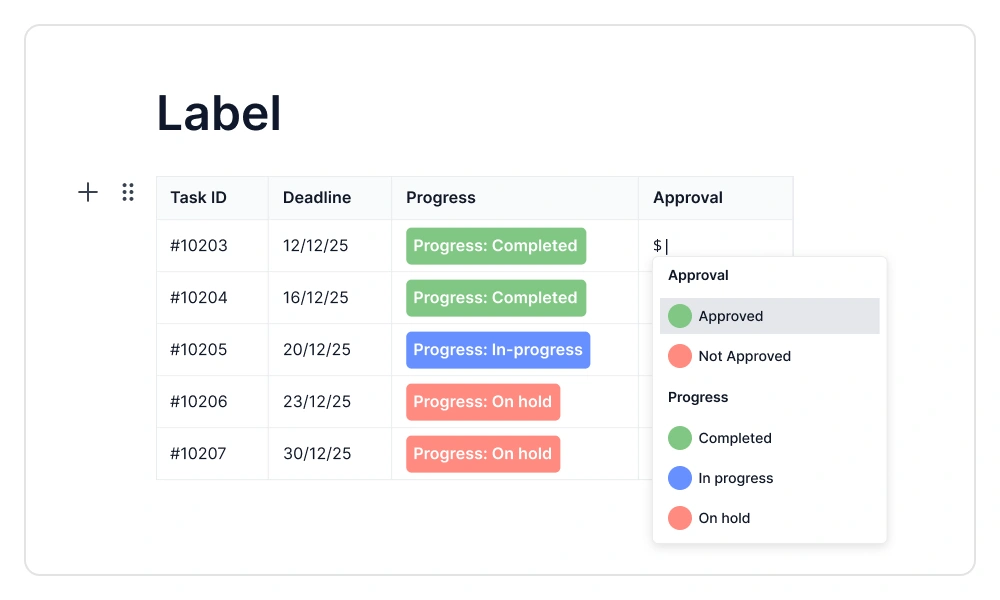
Label
Labels act as inline tags that classify and organize content segments for better structure and searchability. By adding labels, users can highlight important sections, group related content, and make filtering easier. This feature suits workflows that require categorization, ensuring the content remains well-organized and easy to navigate.
Built-in toolbar
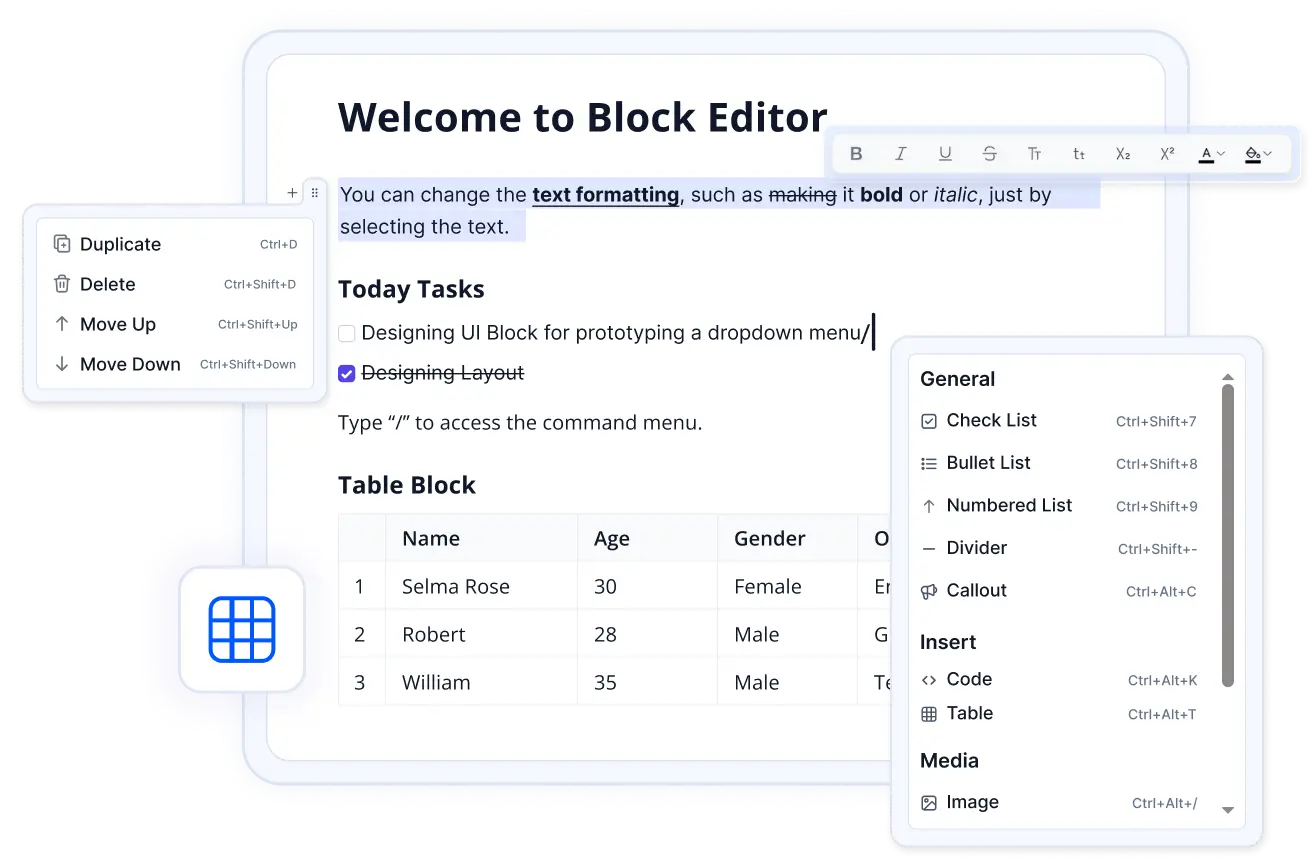
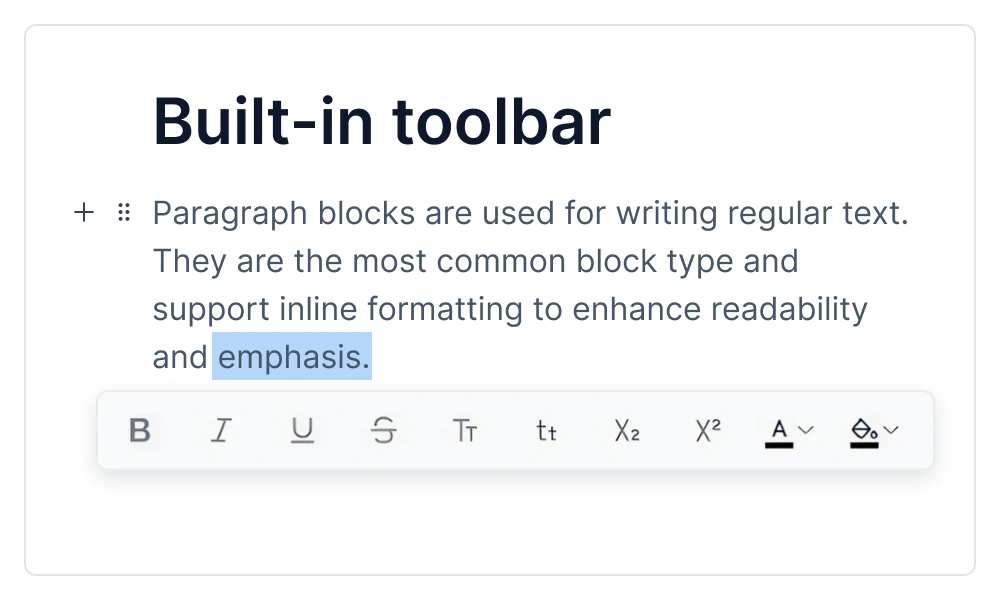
A built-in toolbar enables effortless text formatting. When text is selected, an inline toolbar appears, offering quick access to essential tools, such as bold, italic, underline, subscript, superscript, and text case transformations (uppercase and lowercase). It also provides color customization for text and background, streamlining the editing experience.
Paste cleanup
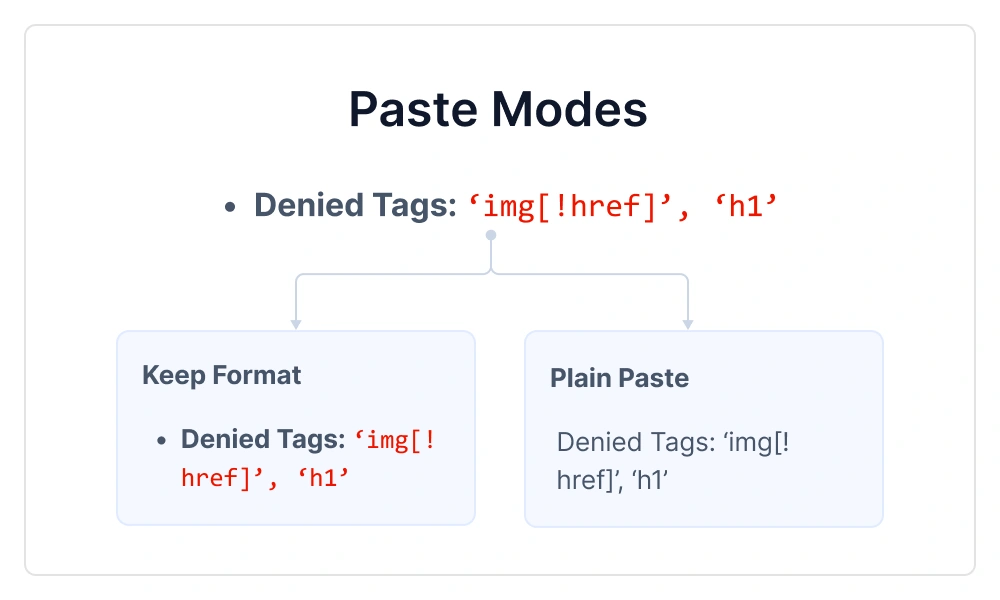
The built-in paste cleanup provides clean, consistent content when copying from external sources. It automatically removes unnecessary tags, attributes, and inline styles while preserving essential formatting. Users can choose to paste as plain text, with cleaned-up styles, or with source-formatting, making content integration smooth and efficient.
Formatting text
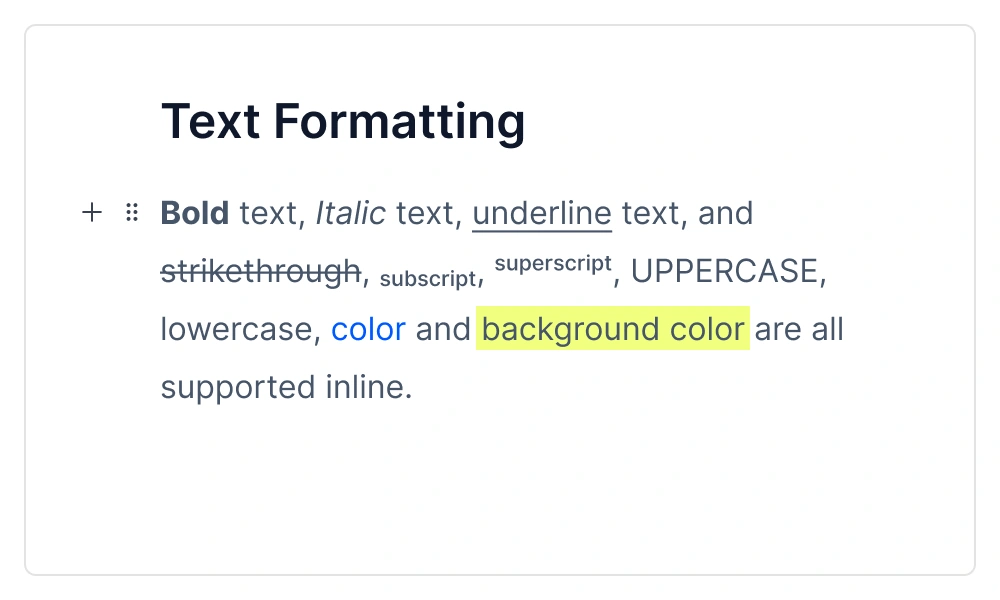
The Block Editor provides comprehensive text formatting options for an intuitive editing experience. Users can easily apply styles such as bold, italic, underline, and strikethrough within content blocks. These inline formatting tools make it simple to create rich, styled content without disrupting the writing flow.
Editor menus
The editor features an intuitive menu system that provides quick access to essential content management options. These menus improve productivity by keeping frequently used tools within easy reach.
Slash command menu
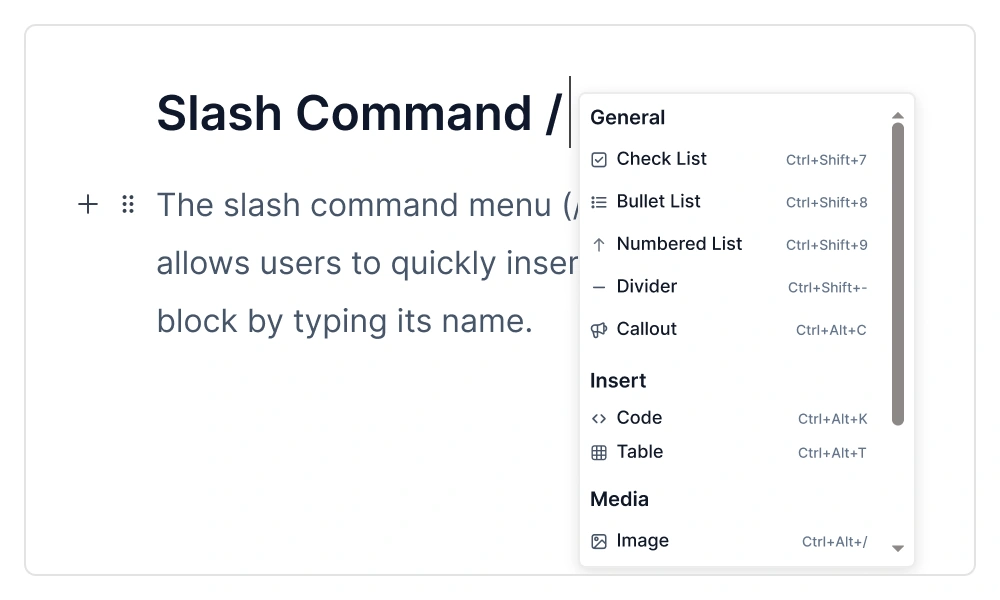
Type “/” to open the slash command menu, giving access to quick block insertion and transformation options. This feature accelerates content creation by allowing users to add headings, images, lists, and more without breaking the writing flow. Stay focused and productive with these intuitive shortcuts.
Block action menu
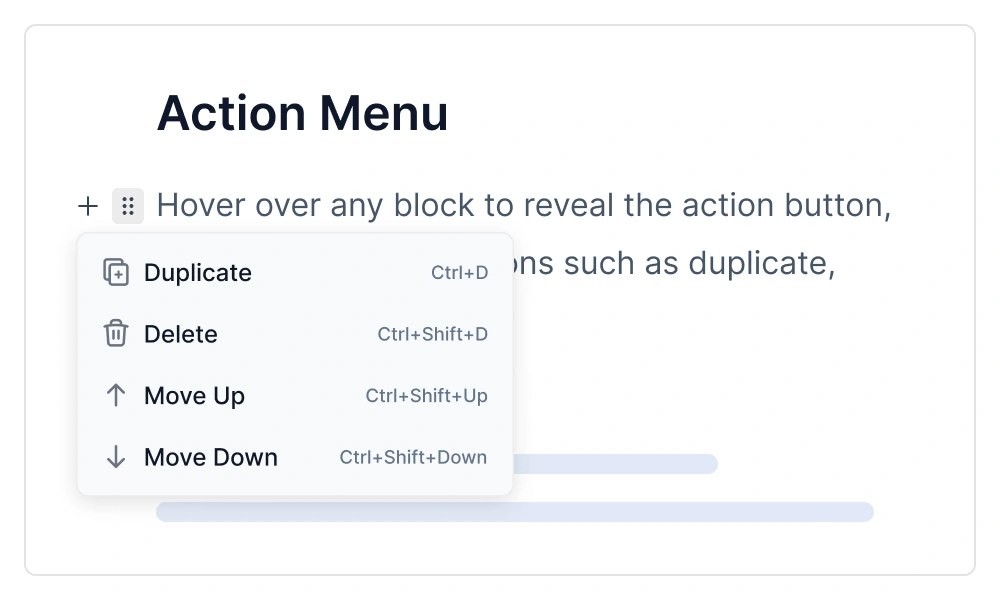
The block-level operations allow users to duplicate, delete, and transform blocks. This menu can be accessed by clicking the action button that appears when hovering over a block.
Context menu
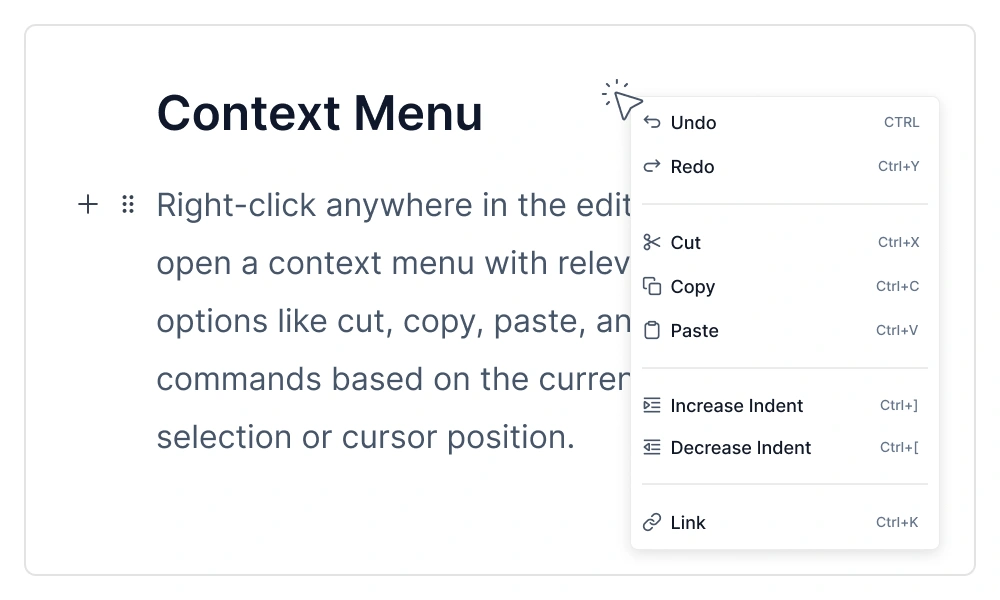
Right-click context menus provide quick access to additional functionality based on the current selection or cursor position. Options include cut, copy, paste, and other relevant actions, making content editing more efficient with familiar interaction patterns.
Drag and drop
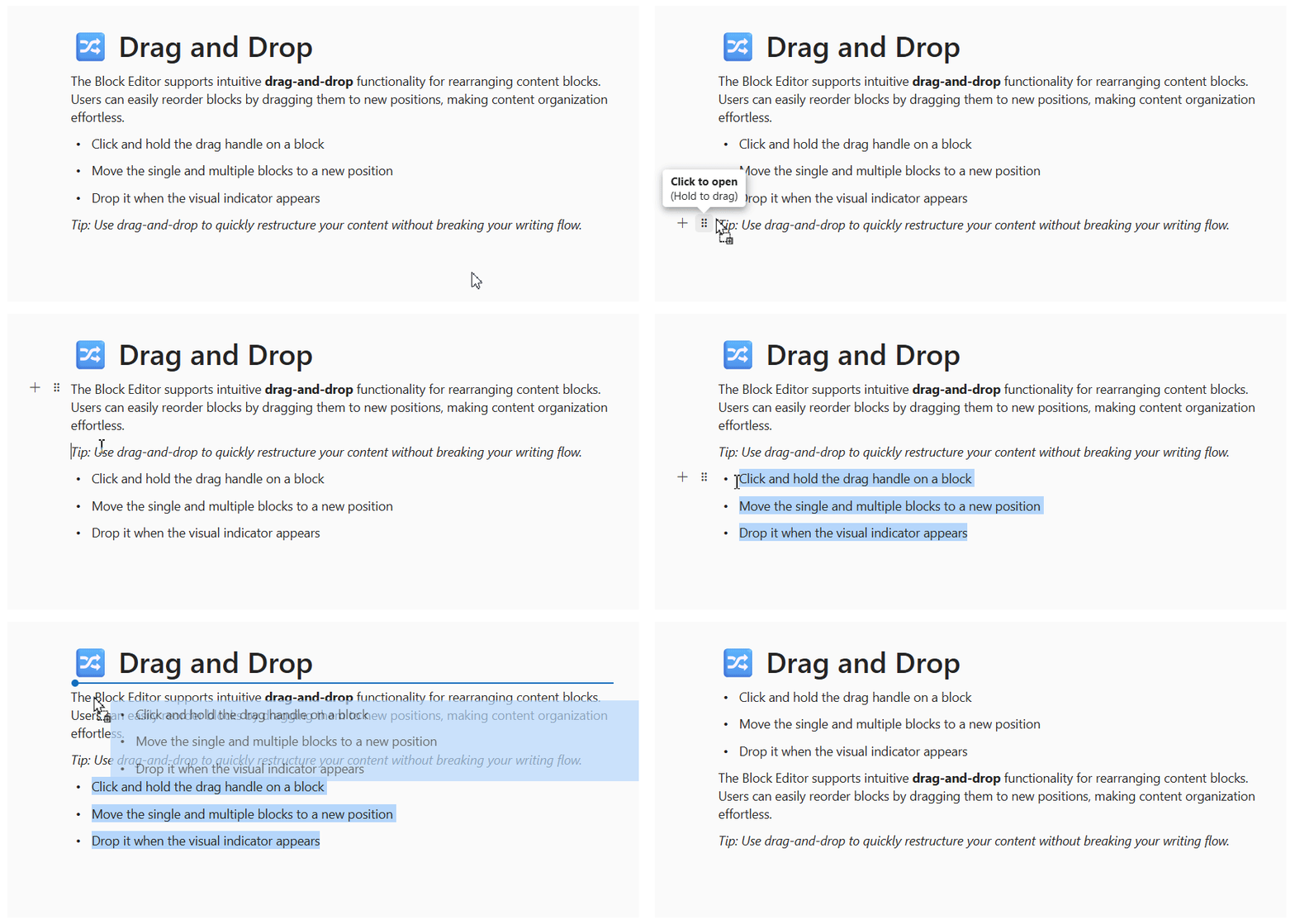
Users can reorder blocks by simply dragging them to new positions, making content organization smooth and efficient. Visual indicators highlight valid drop zones during the drag operation, for a clear and user-friendly experience.
Additional features

Cut, copy, and paste
Users can perform standard clipboard operations including cut, copy, and paste for efficient content editing.

Undo/redo manager
The Block Editor in Vue manages the undo/redo action history, which stores editing actions and allows customization of the undo steps.

Print block editor content
Print the Block Editor content programmatically with all applied formatting and styles preserved for professional documentation.

Touch-friendly and responsive
The Block Editor recognizes touch gestures, allowing users to format content using the inline and slash menu toolbars. This responsive, mobile-friendly design provides the best user experience on all mobile, tablet, and desktop form factors.

Built-in and customizable themes
The Vue Block Editor is shipped with several built-in themes: Tailwind CSS, Bootstrap 5, Bootstrap 4, Bootstrap, Material, Fabric, Fluent, and high contrast.

Developer-friendly APIs
There are sufficient client-side APIs available to optimize content editing.
Block Editor accessibility

Keyboard navigation
This component is accessible using the keyboard. Major features like block addition, block actions, indent, select, and formatting can be performed using keyboard commands. This helps create highly accessible applications.

Screen readers
The Vue Block Editor view has complete WAI-ARIA accessibility support. The UI includes high-contrast visual elements that help visually impaired people to have the best viewing experience. Also, valid UI descriptions are easily accessible through assistive technologies such as screen readers.

Right to left (RTL)
The Vue Block Editor supports RTL rendering, allowing the text and layout of the editor to be displayed from right to left. This improves the user experience and accessibility for users of RTL languages such as Arabic, Farsi, and Hebrew.
Other supported frameworks
The Block Editor is also available for the Blazor, Angular, JavaScript, React, ASP.NET MVC, and ASP.NET Core frameworks. Explore its platform-specific options through the following links:
Supported browsers
The Vue Block Editor works well with all modern web browsers, including Chrome, Firefox, Edge, Safari, and Opera.

Our Customers Love Us
Having an excellent set of tools and a great support team, Syncfusion® reduces customers’ development time.Here are some of their experiences.

Excellent support
Most helpful part of Syncfusion experience is the support team, they even spent lots of time building a functional demo solution created based on our process flow. Never seen this on other providers. Integrating RTEditor with Word Editor, in a process similar to mail merge, but with html data from RTE.

Catalin B.

Senior VBA / Excel consultant
Rich text editor is especially useful
I'm using it to design the frontend for a forum. The rich text editor is especially useful.
G2 User
See Real Success Stories
Developers around the world trust Syncfusion’s Essential Studio to simplify complex projects and speed up delivery. With a vast library of UI controls, powerful SDKs, and reliable support, Essential Studio helps teams build enterprise-ready applications with confidence.
Read Our Customer StoriesIndustry
Software development
75% Cost reduction
50% Faster development
Industry
Utilities (oil and gas)

450+ hours saved
Streamlined processes and hours of development effort saved.

Advanced, flexible features
Empowered users through robust and versatile functionality.
Industry
Software and technology
1000+ of hours saved
Accelerated development with enterprise-ready UI components.

Efficient file management
Streamlined workflows with document libraries without building them from scratch.
Industry
Software and technology

2 Years of delay avoided
Two years of delays prevented with proactive planning.

On-time delivery
Projects delivered on schedule using trusted controls.
Industry
IT services and IT consulting

Improved performance
Large datasets handled with easy customization and quick debugging.

Highly customizable
Plug-and-play controls with quick template integration.
Industry
Professional services
Instant access
Quick availability of features and resources.
Reduced dependencies
Fewer dependencies for faster development.
Rated by users across the globe
Awards
Greatness—it’s one thing to say you have it, but it means more when others recognize it. Syncfusion® is proud to hold the following industry awards.









