.NET PDF Examples
Create Tables in PDFs in C# with the .NET PDF Library
The Syncfusion® .NET PDF Library offers powerful capabilities for creating, reading, and editing PDF documents. Users can create structured PDF tables, enabling clear data presentation, enhanced readability, and professional document layout.
Watch this video to see how to create tables in PDFs using the Syncfusion .NET PDF Library.
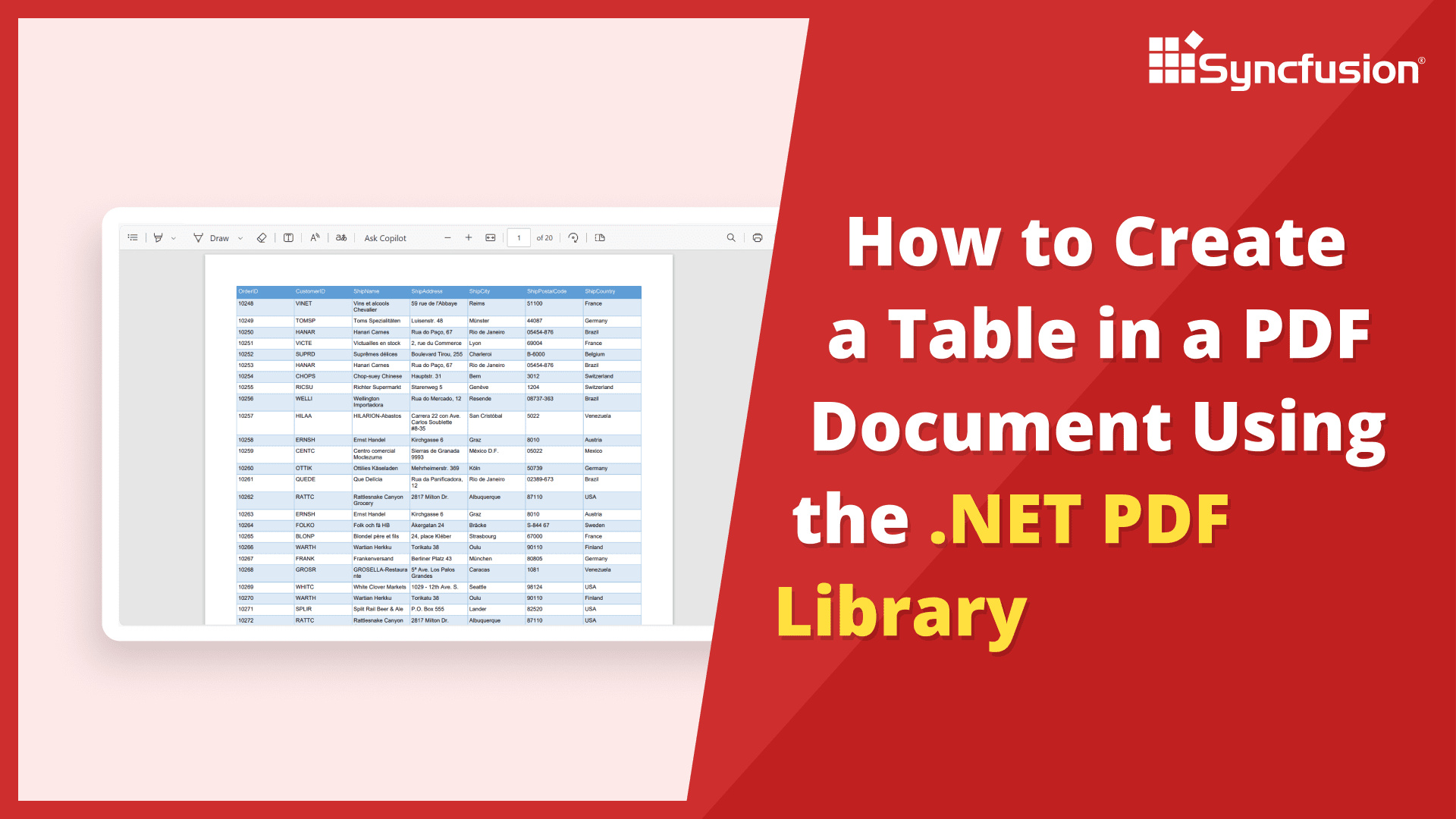
Create tables in PDF documents using C#
Learn how to programmatically create structured tables and grids in PDF documents using C# with the Syncfusion .NET PDF Library. This guide demonstrates data table creation with customizable formatting.
Step 1: Create a new C# Console Application project
Begin by creating a new C# Console Application project in Visual Studio or your preferred IDE to implement PDF table creation functionality.
Step 2: Install Syncfusion PDF NuGet package
Install the Syncfusion.Pdf.Net.Core NuGet package in your C# project from NuGet.org. This package provides APIs for creating tables and grids in PDF documents.
Step 3: Add required namespaces for PDF table creation
Import the following namespaces in your Program.cs file to access PDF grid classes and table formatting methods:
using Syncfusion.Drawing;
using Syncfusion.Pdf;
using Syncfusion.Pdf.Grid;
Step 4: Create a new PDF document and add a page
Create a new PdfDocument object and add a page where you’ll draw the table.
// Create a new PDF document
using (PdfDocument document = new PdfDocument())
{
    //Add a page to the document
    PdfPage page = document.Pages.Add();
}
Step 5: Create a PdfGrid for table structure
Initialize a PdfGrid object which provides the table framework for displaying structured data in the PDF.
// Create a PdfGrid
PdfGrid pdfGrid = new PdfGrid();
Step 6: Prepare data source and bind to the grid
Create a list of objects containing the data you want to display in the table. Assign the data list to the grid’s DataSource property, which automatically generates columns based on the object properties.
// Add values to the list
List<object> data = new List<object>
   {
       new { ID = "E01", Name = "Clay" },
       new { ID = "E02", Name = "Thomas" },
       new { ID = "E03", Name = "John" }
   };
// Assign the data source to the grid
pdfGrid.DataSource = data;
Step 7: Draw the table and save the document
Draw the grid on the PDF page at the specified position and save the document with the structured table.
// Draw the grid on the PDF page
pdfGrid.Draw(page, new PointF(10, 10));
// Save the PDF document
document.Save(Path.GetFullPath(@"Output/Output.pdf"));
GitHub project
NuGet installation
Get started quickly by downloading the installer and checking license information on the Downloads page.
Table of contents
Syncfusion .NET PDF Library Resources
Explore these resources for comprehensive guides, knowledge base articles, insightful blogs, and ebooks.
Learning


Technical Support








