.NET PDF Examples
Create Accessible PDFs in C# with the .NET PDF Library
The Syncfusion® .NET PDF Library offers powerful capabilities for creating, reading, and editing PDF documents. Users can generate accessible PDFs that comply with standards of inclusivity, readability, and compatibility with assistive technologies.
Watch this video to learn how to create accessible PDF files using the Syncfusion .NET PDF Library.
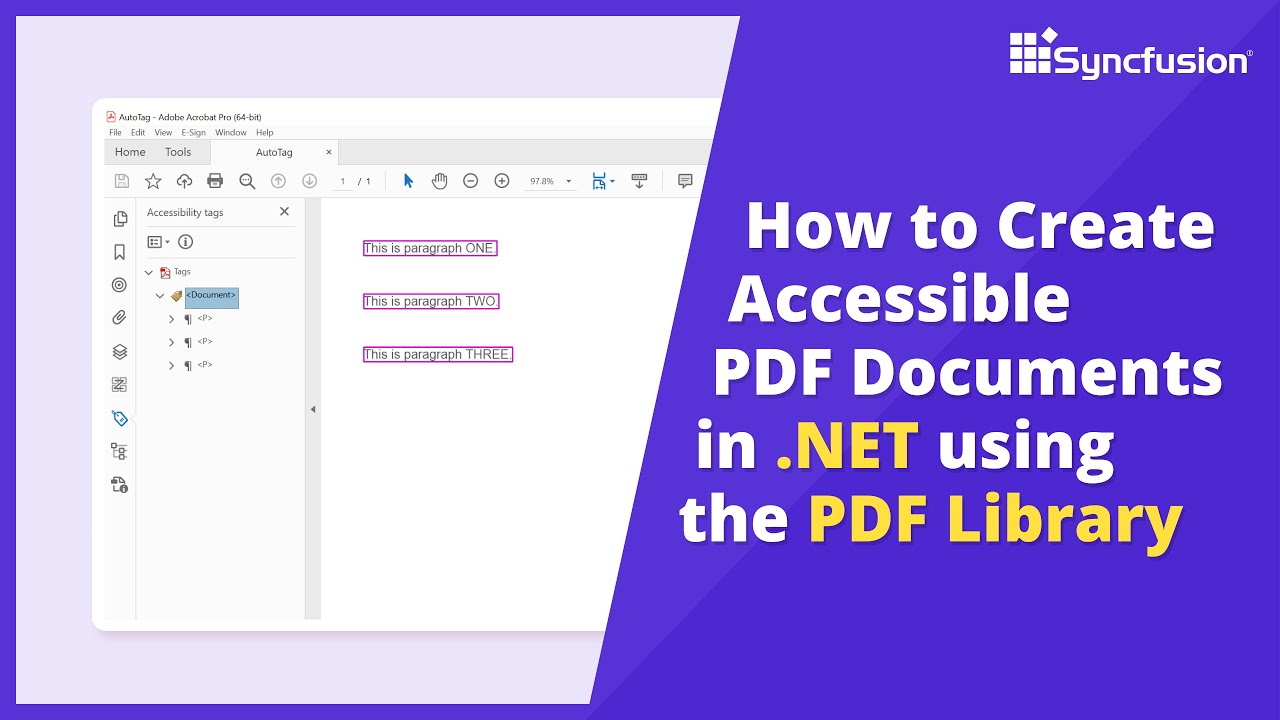
Create accessible PDF documents in C#
Learn how to programmatically create accessible PDF/UA-compliant documents in C# using the Syncfusion .NET PDF library. This step-by-step guide demonstrates tagged PDF creation for improved accessibility.
Step 1: Create a new C# Console Application project
Begin by creating a new C# Console Application project in Visual Studio or your preferred IDE to implement accessible PDF functionality.
Step 2: Install Syncfusion PDF NuGet package
Install the Syncfusion.Pdf.Net.Core NuGet package in your C# project from NuGet.org. This package provides the necessary APIs for creating accessible PDF documents.
Step 3: Add required namespaces for accessible PDF creation
Import the following namespaces in your Program.cs file to access PDF accessibility classes and methods:
using Syncfusion.Drawing;
using Syncfusion.Pdf;
using Syncfusion.Pdf.Graphics;
Step 4: Create a new PDF document and add a page
Create a new PdfDocument object and set the document title for accessibility. Add a new page to the document to add tagged content.
// Create a new PDF document
using (PdfDocument document = new PdfDocument())
{
    // Set the document title
    document.DocumentInformation.Title = "Accessible PDF document";
    // Create a new page
    PdfPage page = document.Pages.Add();
}
Step 5: Create a structure element with paragraph tag
Initialize a PdfStructureElement with the PdfTagType.Paragraph type. This creates a semantic tag that helps screen readers understand the content structure. Set the actual text that describes the element.
// Initialize the structure element with tag type paragraph
PdfStructureElement paragraphStructure = new PdfStructureElement(PdfTagType.Paragraph);
// Set the actual text content
paragraphStructure.ActualText = "Simple paragraph element";
Step 6: Create and configure the text element
Define the paragraph text content and create a PdfTextElement with this content. Assign the paragraph structure tag to the text element for accessibility compliance.
// Define the text content for the paragraph
string paragraphText = "Adventure Works Cycles, the fictitious company on which the AdventureWorks sample databases are based, is a large, multinational manufacturing company. The company manufactures and sells metal and composite bicycles to North American, European, and Asian commercial markets. While its base operation is located in Washington with 290 employees, several regional sales teams are located throughout their market base.";
// Initialize the PDF text element with the paragraph content
PdfTextElement textElement = new PdfTextElement(paragraphText);
// Assign the tag to the text element
textElement.PdfTag = paragraphStructure;
// Set the font for the text element
textElement.Font = new PdfStandardFont(PdfFontFamily.TimesRoman, 12);
// Set the brush color for the text element
textElement.Brush = new PdfSolidBrush(new PdfColor(89, 89, 93));
Step 7: Draw the text element and save the document
Draw the formatted text element on the PDF page at the specified location. Save the accessible PDF document with proper structure tags.
// Draw the text element on the PDF page
textElement.Draw(page, new RectangleF(0, 0, page.Graphics.ClientSize.Width, 200));
// Save the PDF document
document.Save(Path.GetFullPath(@"Output/Output.pdf"));
GitHub project
NuGet installation
Get started quickly by downloading the installer and checking license information on the Downloads page.
Table of contents
Syncfusion .NET PDF Library Resources
Explore these resources for comprehensive guides, knowledge base articles, insightful blogs, and ebooks.
Learning


Technical Support








