.NET PDF Examples
Convert PDF to PDF/A in C# with the .NET PDF Library
The Syncfusion® .NET PDF Library offers powerful capabilities for creating, reading, and editing PDF documents. One of its robust features is the ability to convert standard PDF documents into long‑term, archive‑friendly PDF/A formats, ensuring durability, compliance, and reliable preservation of digital content.
Watch this video to see how to convert PDF files into PDF/A archival‑compliant documents using Syncfusion .NET PDF Library.
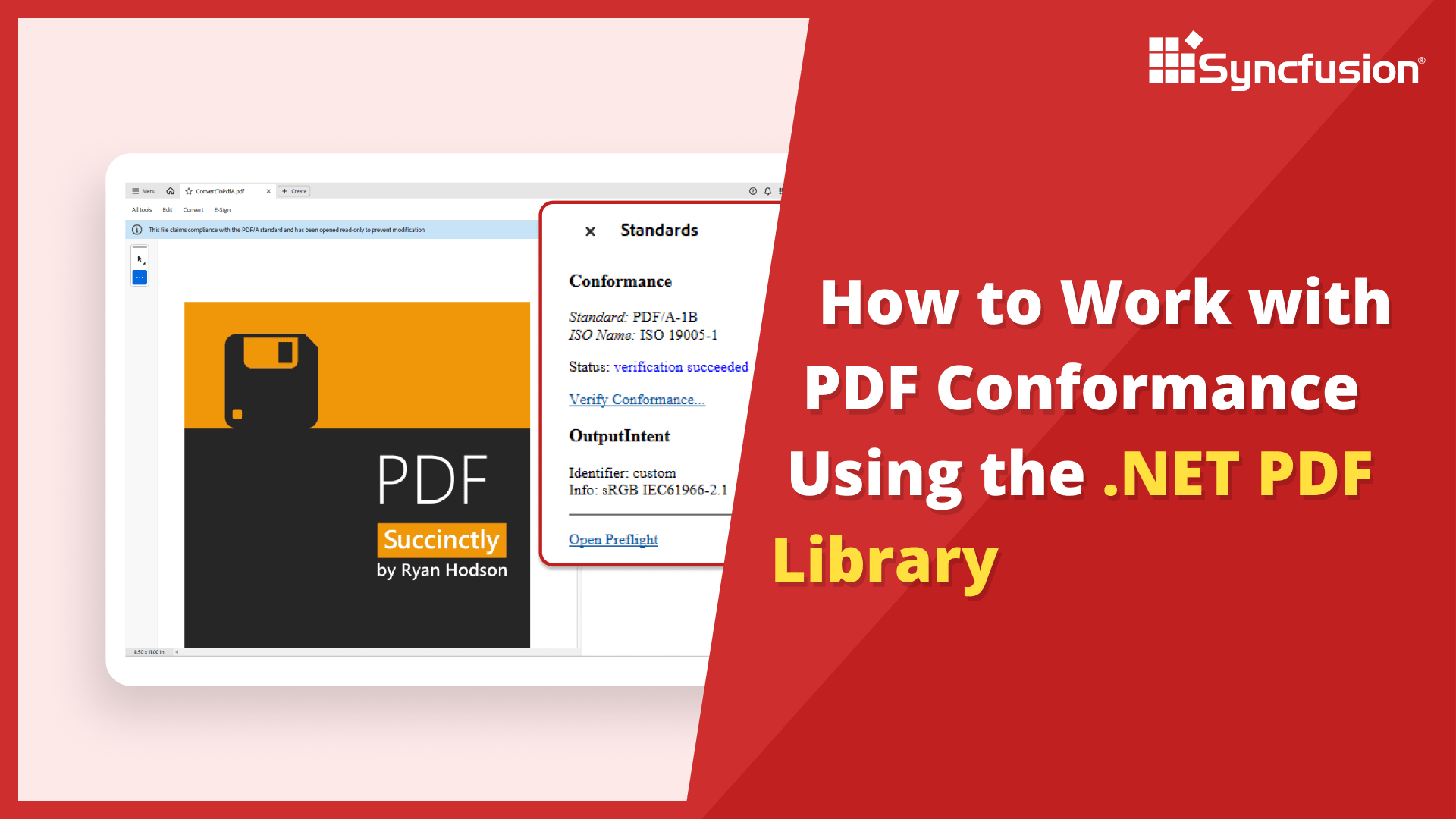
Convert PDF to PDF/A for long-term archiving in C#
Learn how to programmatically convert standard PDF documents to archival PDF/A format in C# using the Syncfusion .NET PDF Library. This guide demonstrates PDF/A-1B conversion with font embedding and compliance validation.
Step 1: Create a new C# Console Application project
Begin by creating a new C# Console Application project in Visual Studio or your preferred IDE to implement PDF to PDF/A conversion functionality.
Step 2: Install Syncfusion PDF Imaging NuGet package
Install the Syncfusion.Pdf.Imaging.Net.Core NuGet package in your C# project from NuGet.org. This package provides PDF/A conversion and compliance features.
Step 3: Add required namespaces for PDF/A conversion
Import the following namespaces in your Program.cs file to access PDF/A conformance classes and conversion methods:
using SkiaSharp;
using Syncfusion.Pdf;
using Syncfusion.Pdf.Graphics;
using Syncfusion.Pdf.Parsing;
Step 4: Load the PDF document for conversion
Use the PdfLoadedDocument class to load your existing PDF file that you want to convert to PDF/A archival format.
// Load the PDF document
using (PdfLoadedDocument loadedDocument = new PdfLoadedDocument(Path.GetFullPath(@"Data/Input.pdf")))
Step 5: Subscribe to the font substitution event
Attach an event handler to the SubstituteFont event. This ensures missing fonts are properly replaced during the PDF/A conversion process for full compliance.
// Handle font substitution during PDF/A conversion
loadedDocument.SubstituteFont += LoadedDocument_SubstituteFont;
Step 6: Convert the document to PDF/A-1B format
Use the ConvertToPDFA method to transform the standard PDF into a PDF/A-1B compliant document. This ensures long-term archival compatibility.
// Convert the document to PDF/A-1B format
loadedDocument.ConvertToPDFA(PdfConformanceLevel.Pdf_A1B);
{
}
Step 7: Save the PDF/A compliant document
Save the converted PDF/A document using the Save method. The output file will comply with archival standards.
// Save the PDF document
loadedDocument.Save(Path.GetFullPath(@"Output/Output.pdf"));
Step 8: Implement the font substitution event handler
Create the event handler method that substitutes missing fonts during conversion. This method uses SkiaSharp to load system fonts and provides them as streams for PDF/A embedding.
// Event handler to substitute missing fonts during conversion
void LoadedDocument_SubstituteFont(object sender, PdfFontEventArgs args)
{
    // Extract the font name (ignoring style suffixes)
    string fontName = args.FontName.Split(',')[0];
    // Determine the font style
    PdfFontStyle fontStyle = args.FontStyle;
    SKFontStyle skFontStyle = SKFontStyle.Normal;
    // Map PDF font styles to SkiaSharp font styles
    if (fontStyle == PdfFontStyle.Bold)
        skFontStyle = SKFontStyle.Bold;
    else if (fontStyle == PdfFontStyle.Italic)
        skFontStyle = SKFontStyle.Italic;
    else if (fontStyle == (PdfFontStyle.Bold | PdfFontStyle.Italic))
        skFontStyle = SKFontStyle.BoldItalic;
    // Load the typeface using SkiaSharp
    SKTypeface typeface = SKTypeface.FromFamilyName(fontName, skFontStyle);
    SKStreamAsset typeFaceStream = typeface.OpenStream();
    // Create a memory stream from the font data
    MemoryStream memoryStream = null;
    if (typeFaceStream != null && typeFaceStream.Length > 0)
    {
        byte[] fontData = new byte[typeFaceStream.Length];
        typeFaceStream.Read(fontData, fontData.Length);
        typeFaceStream.Dispose();
        memoryStream = new MemoryStream(fontData);
    }
    // Assign the font stream to the event arguments
    args.FontStream = memoryStream;
}
GitHub project
NuGet installation
Get started quickly by downloading the installer and checking license information on the Downloads page.
Syncfusion .NET PDF Library Resources
Explore these resources for comprehensive guides, knowledge base articles, insightful blogs, and ebooks.
Learning


Technical Support








