.NET PDF Examples
Edit PDFs in C# with the .NET PDF Library
The Syncfusion® .NET PDF Library offers powerful capabilities for creating, reading, and editing PDF documents. Users can edit PDF files with watermarks, page manipulation, and form‑field updates.
Watch this video to see how to edit PDF files using the Syncfusion .NET PDF Library:
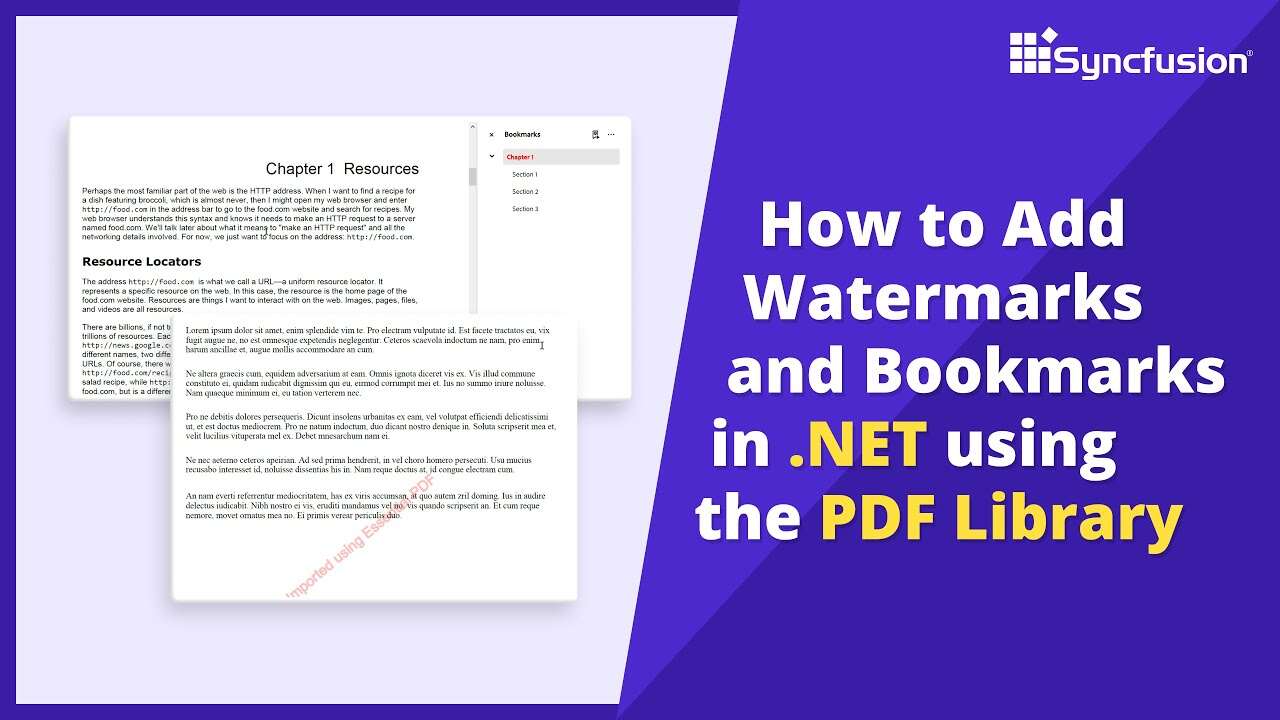
Edit PDF documents and add watermarks in C#
Learn how to programmatically edit PDF documents, add watermarks, and modify content in C# using the Syncfusion .NET PDF Library. This guide demonstrates PDF editing with text, graphics, and watermark operations.
Step 1: Create a new C# Console Application project
Begin by creating a new C# Console Application project in Visual Studio or your preferred IDE to implement PDF editing functionality.
Step 2: Install Syncfusion PDF NuGet package
Install the Syncfusion.Pdf.Net.Core NuGet package in your C# project from NuGet.org. This package provides the necessary APIs for PDF editing and modification operations.
Step 3: Add required namespaces for PDF editing
Import the following namespaces in your Program.cs file to access PDF editing classes and graphics methods:
using Syncfusion.Drawing;
using Syncfusion.Pdf;
using Syncfusion.Pdf.Graphics;
using Syncfusion.Pdf.Parsing;
Step 4: Load the PDF document and get the page
Use the PdfLoadedDocument class to load your existing PDF file that you want to edit. Access the first page of the document where you want to add the watermark.
//Load the PDF document
using (PdfLoadedDocument loadedDocument = new PdfLoadedDocument(Path.GetFullPath(@"Data/Input.pdf")))
{
// Get the first page of the PDF document
PdfPageBase loadedPage = loadedDocument.Pages[0];
}
Step 5: Create and apply the watermark
Create a font and define the watermark text. Position the graphics at the center of the page, rotate it 45 degrees, set transparency, draw the watermark, and restore the graphics state.
//Create the standard font
PdfStandardFont font = new PdfStandardFont(PdfFontFamily.Helvetica, 32);
// Measure the watermark text and get the size
string watermarkText = "Created using Syncfusion PDF library";
SizeF watermarkTextSize = font.MeasureString(watermarkText);
// Move the graphics to the center of the page
loadedPage.Graphics.Save();
loadedPage.Graphics.TranslateTransform(loadedPage.Size.Width / 2, loadedPage.Size.Height / 2);
// Rotate the graphics to 45 degrees
loadedPage.Graphics.RotateTransform(-45);
//Set transparency
loadedPage.Graphics.SetTransparency(0.25f);
// Draw the watermark text
loadedPage.Graphics.DrawString(watermarkText, font, PdfBrushes.Red, new PointF(-watermarkTextSize.Width / 2, -watermarkTextSize.Height / 2));
// Restore the graphics
loadedPage.Graphics.Restore();
Step 6: Save the PDF document
Save the edited PDF document with the watermark applied.
//Save the PDF document
loadedDocument.Save(Path.GetFullPath(@"Output/Output.pdf"));
GitHub project
NuGet installation
Get started quickly by downloading the installer and checking license information on the Downloads page.
Table of contents
Syncfusion .NET PDF Library Resources
Explore these resources for comprehensive guides, knowledge base articles, insightful blogs, and ebooks.
Learning


Technical Support








