
 Prakash Raj Kumar
TL;DR: Learn how to build an Excel‑like spreadsheet UI inside a .NET MAUI app using Blazor Hybrid to deliver consistent cross‑platform data editing, reusable web components, and a maintainable app architecture with native performance and better UX.
Delivering a consistent and modern user experience across mobile and desktop platforms has become essential for today’s business applications. With .NET MAUI Blazor Hybrid, you can build apps for web, desktop, Android, iOS, and macOS using a single shared codebase. This reduces duplication, simplifies maintenance, and significantly accelerates development.
In this blog, we’ll explore how to integrate the Syncfusion® Blazor Spreadsheet component into a .NET MAUI Blazor Hybrid application to deliver an Excel-like experience across all platforms.
Why use a Spreadsheet UI in a .NET MAUI App?
A spreadsheet interface makes sense when users need flexible, cell-based editing rather than row-by-row data entry. Compared to a standard DataGrid, a spreadsheet UI is better suited for:
- Financial or budgeting apps where formulas are required
- Data entry tools with copy/paste operations
- Reporting or planning screens where users expect Excel-like behavior
- Scenarios where users work with files rather than records
Using Blazor inside .NET MAUI also brings architectural benefits. The UI logic lives in reusable Razor components, while MAUI handles native shell features like navigation, lifecycle, and platform APIs. This approach reduces duplication and keeps the app easier to maintain as it grows.
Prerequisites
Before starting, make sure you have the following set up:
- Visual Studio 2026 with .NET MAUI and ASP.NET workloads installed
- Latest .NET SDK
- Basic familiarity with .NET MAUI and Blazor
Once your environment is ready, the next step is to create a .NET MAUI Blazor Hybrid app and configure it to host a spreadsheet UI.
Create a .NET MAUI Blazor Hybrid App
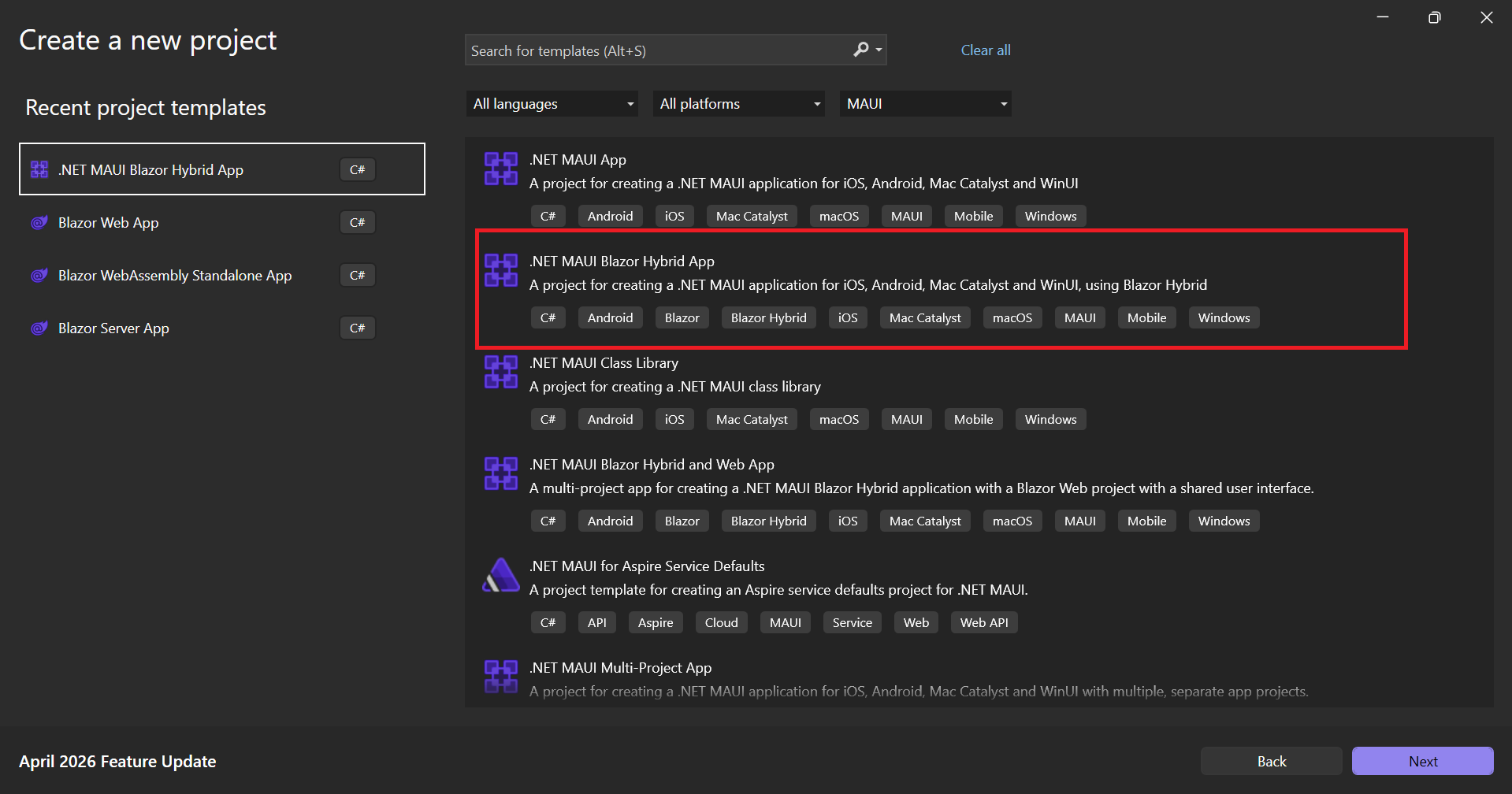
Let’s begin by creating a new .NET MAUI Blazor Hybrid application. In Visual Studio, create a new project and select the .NET MAUI Blazor Hybrid App template.
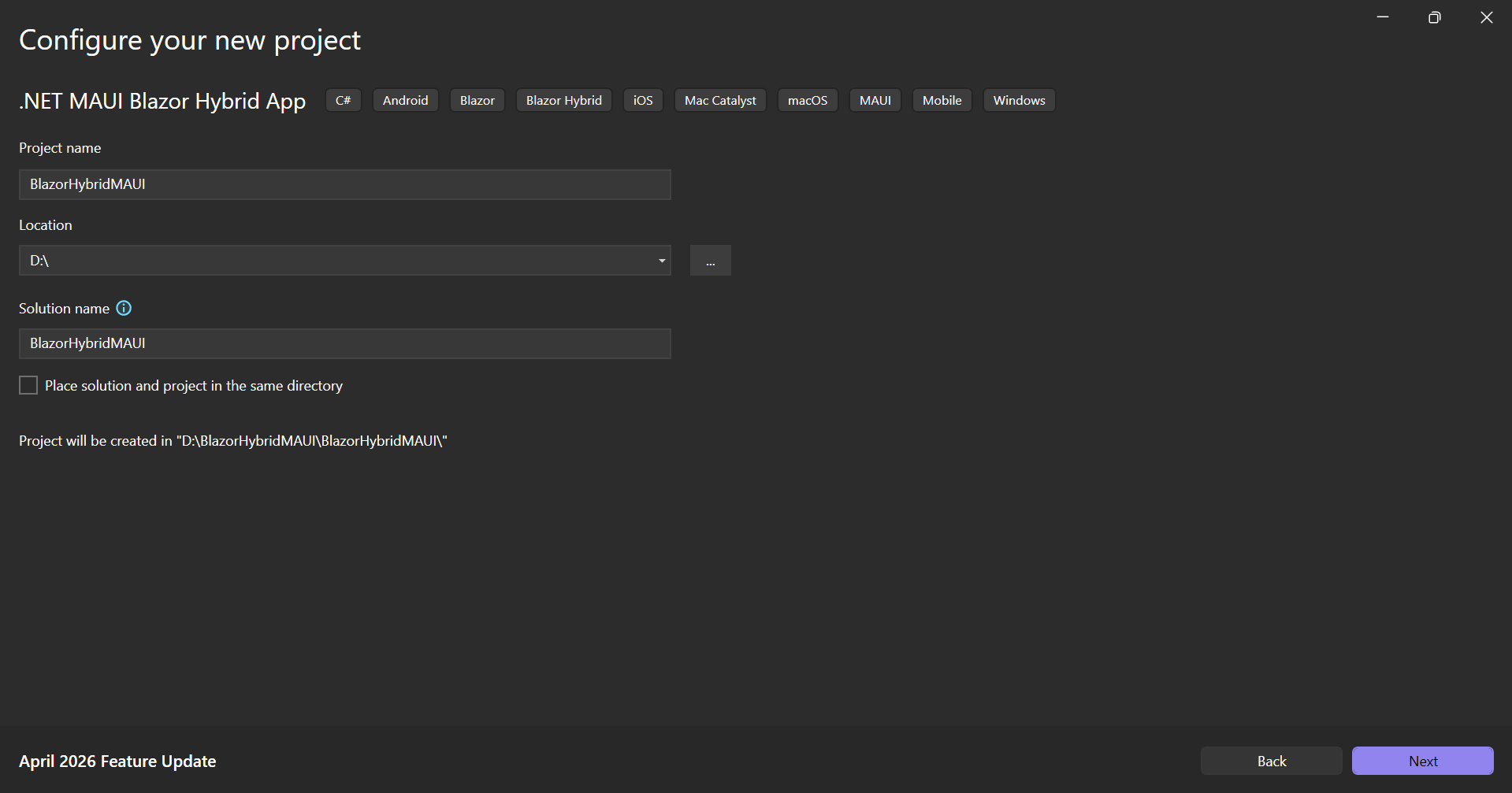
Enter your project name, choose a location, configure the solution details, and then click Next.
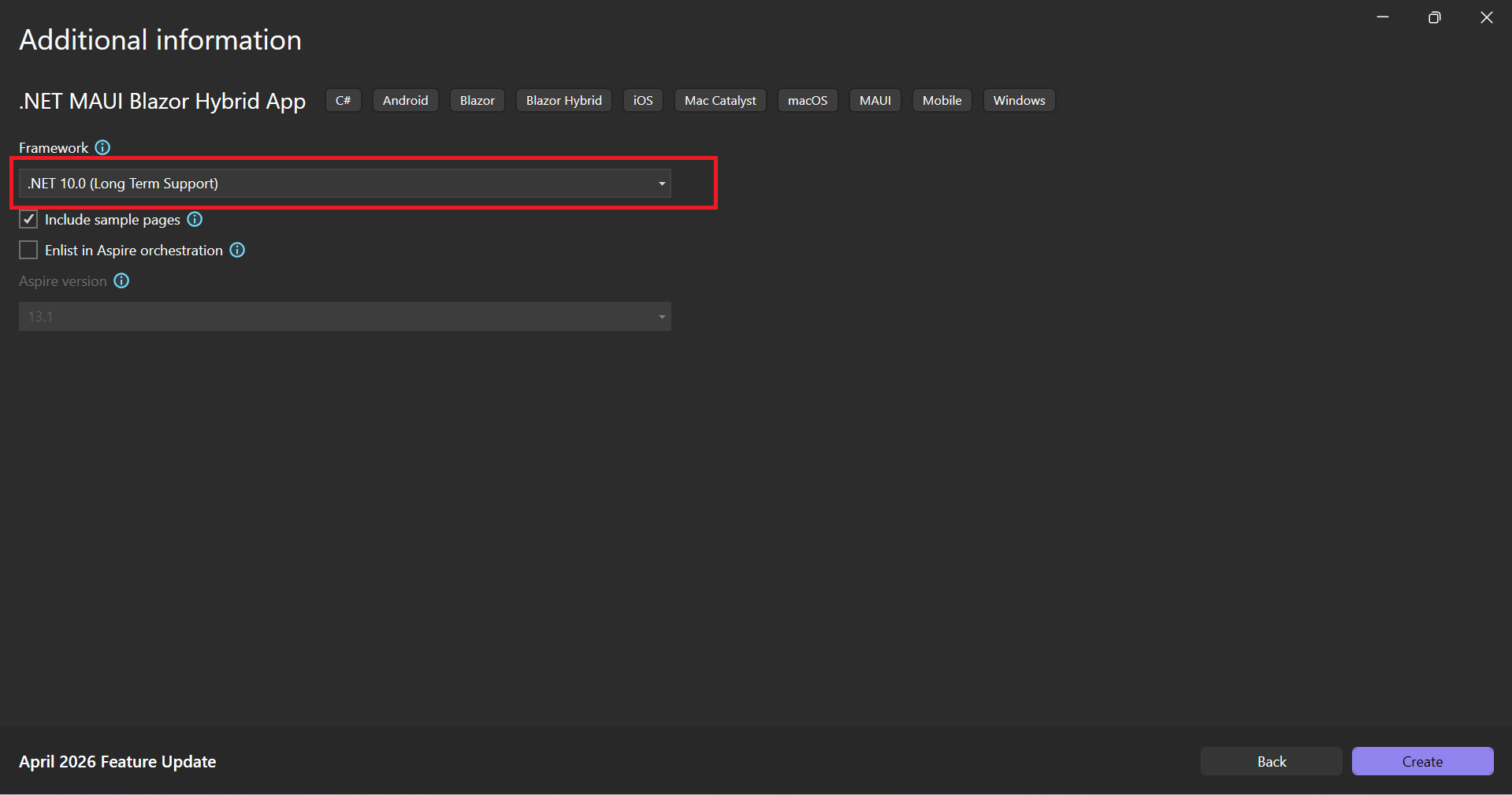
On the next screen, select the target .NET Framework version you want to use and finish creating the project.
Once the project is created, you’ll see the standard MAUI Blazor Hybrid project structure. This includes:
- A standard .NET MAUI project layout
- A
wwwrootfolder for web assets - Razor components rendered through
BlazorWebView
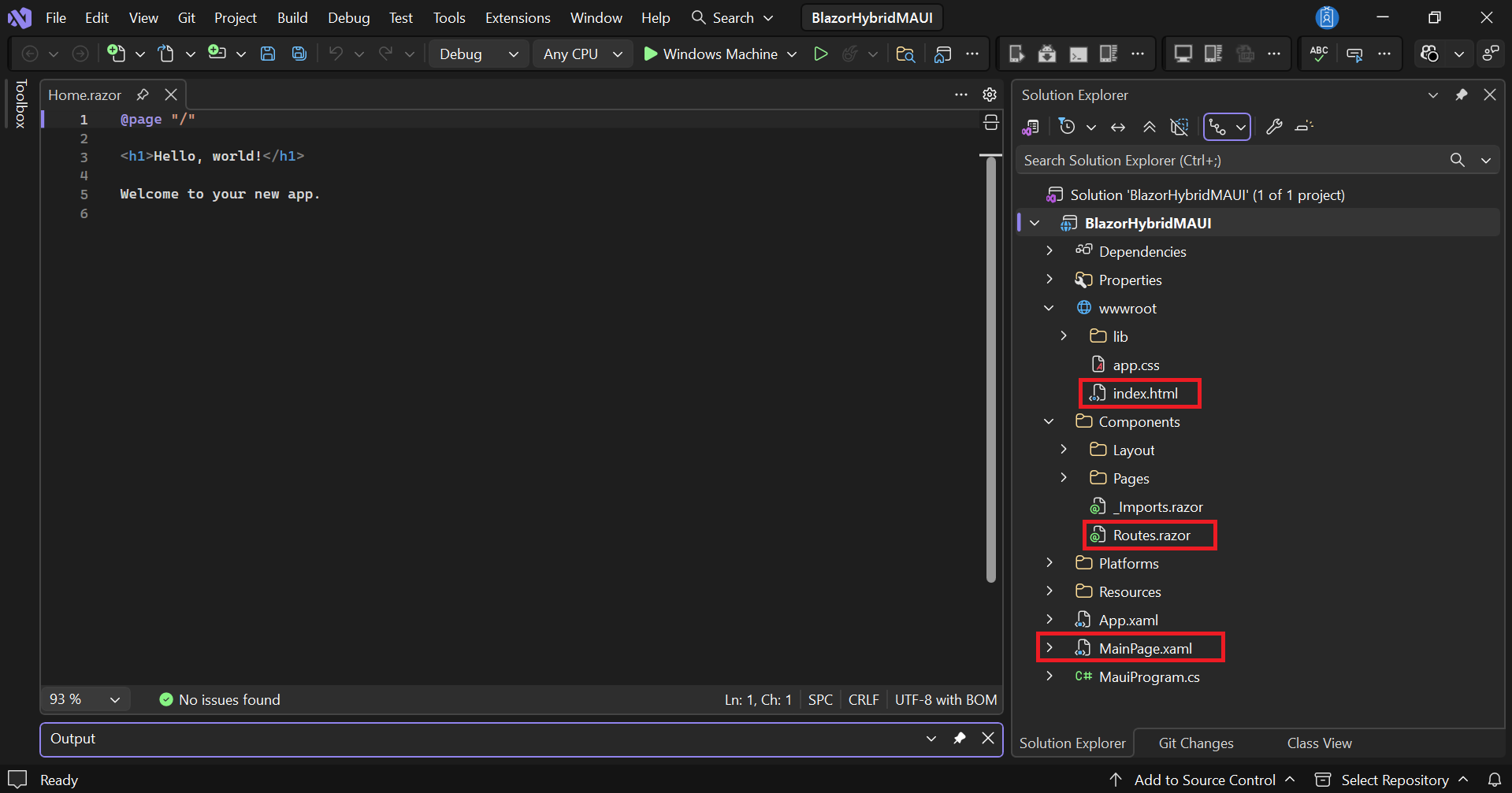
This project serves as the foundation for hosting Blazor-based UI components inside a native .NET MAUI application.
Install the required NuGet packages
With the project ready, the next step is to add the packages required for the Spreadsheet component. Install the following NuGet packages:
These packages provide the Spreadsheet control itself along with the theme files required for proper styling.
You can install them through the NuGet Package Manager or run the following commands in the Package Manager Console:
Install-Package Syncfusion.Blazor.Spreadsheet
Install-Package Syncfusion.Blazor.Themes
After the installation is complete, you’re ready to register the services required by the Spreadsheet component.
Register Syncfusion services
Before using the Spreadsheet component, you need to register the Syncfusion Blazor services in your MAUI application. Open the MauiProgram.cs file and add the AddSyncfusionBlazor() service registration inside the CreateMauiApp method:
using Syncfusion.Blazor;

public static class MauiProgram
{
    public static MauiApp CreateMauiApp()
    {
        var builder = MauiApp.CreateBuilder();
        builder.Services.AddSyncfusionBlazor();
        ...
    }
}
This registration ensures that the required Syncfusion services are available when your application starts.
Add the required script and styles
Now that the services are registered, let’s add the resources required to render the Spreadsheet component correctly.
Open the wwwroot/index.html file and add the following CSS and JavaScript references inside the <head> section:
<head>
  ...
  <link href="_content/Syncfusion.Blazor.Themes/fluent2.css" rel="stylesheet" />
  <script src="_content/Syncfusion.Blazor.Spreadsheet/scripts/syncfusion-blazor-spreadsheet.min.js"></script>
</head>
The stylesheet provides the visual appearance of the component, while the JavaScript file enables the Spreadsheet’s interactive functionality.
Create the Spreadsheet page
With the application configured, it’s time to add the Spreadsheet component to your UI.
Open Home.razor and add the following code:
@page "/"
@using Syncfusion.Blazor.Spreadsheet

<SfSpreadsheet @ref="Spreadsheet" DataSource="@DataSourceBytes">
    <SpreadsheetRibbon></SpreadsheetRibbon>
</SfSpreadsheet>

@code {
    private SfSpreadsheet? Spreadsheet;
    public byte[]?DataSourceBytes{ get; set; }

    protected override void OnInitialized()
    {
        var filePath = “wwwroot/Sample.xlsx”;
        DataSourceBytes= File.ReadAllBytes(filePath);
    }
}
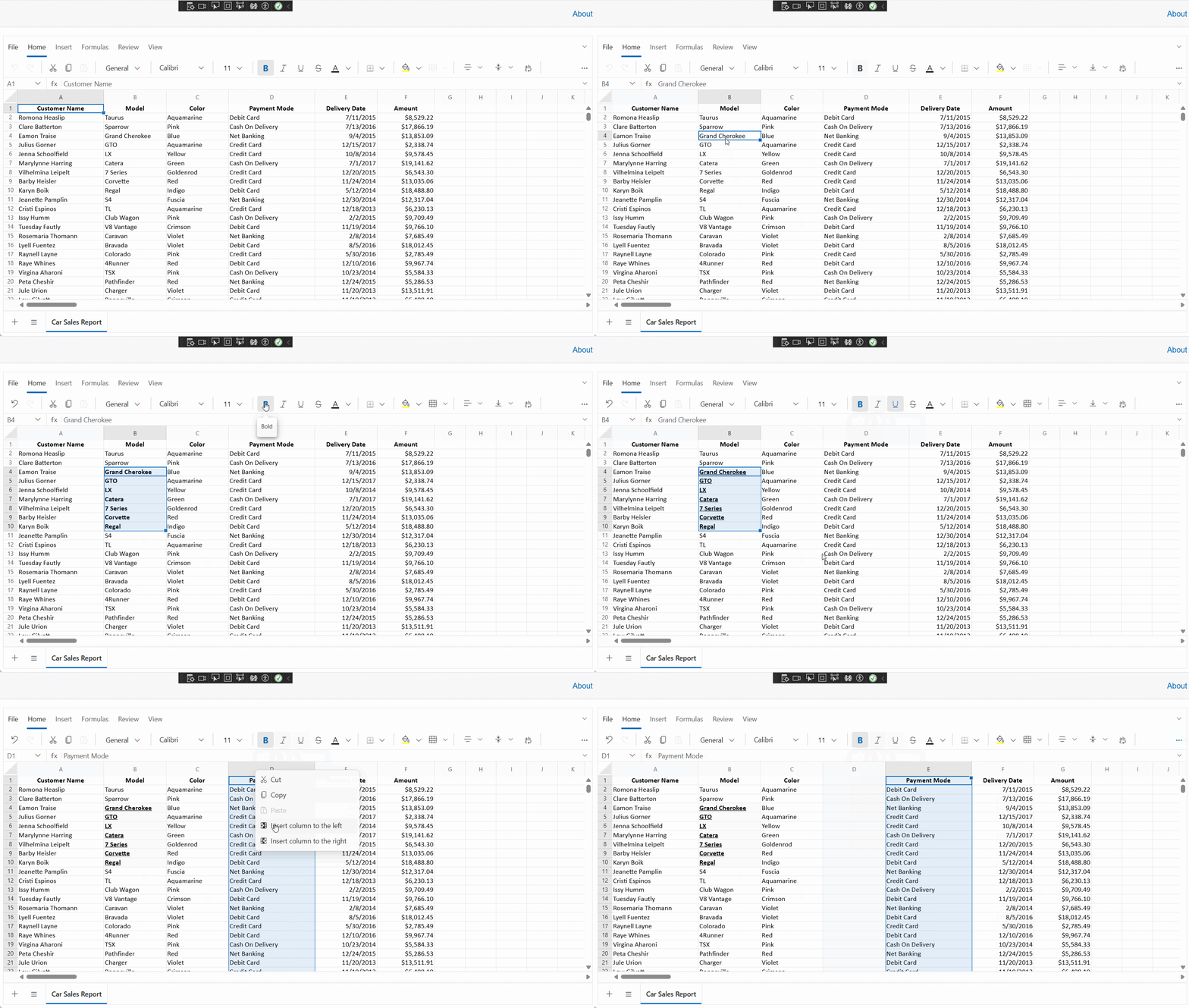
In this example, the Spreadsheet component loads an Excel file and displays it directly inside the MAUI Blazor application.
Once the application runs, users can interact with the spreadsheet just as they would in a traditional spreadsheet application. Features include:
- Cell editing
- Formula calculations
- Sorting and filtering
- Import and export support
- Ribbon-based commands
All of these capabilities run inside a native .NET MAUI app while allowing you to reuse the same Blazor-based UI across multiple platforms.
Common issues to watch for
If the Spreadsheet doesn’t appear as expected, here are a few common issues to check:
- Blank page or missing styles: Verify that the required CSS and JavaScript references have been added correctly to
index.html. - File not found errors: Make sure the Excel file is located in the
wwwrootfolder and configured with the appropriate build action. - Licensing issues: Ensure that your Syncfusion license key or trial configuration has been set up before running the application.
Checking these items early can help you avoid some of the most common setup issues and make the integration process much smoother.
GitHub reference
Want to see everything in action? Check out our GitHub sample for creating a Syncfusion Blazor Spreadsheet in .NET MAUI.
Frequently Asked Questions
Use a spreadsheet UI when users need Excel‑like interactions such as free‑form cell editing, formulas, copy/paste workflows, or file‑based data entry rather than row‑based records.When should I use a spreadsheet UI instead of a DataGrid in .NET MAUI?
Blazor Hybrid allows web-based UI components to run inside a native .NET MAUI app using a shared codebase, combining Blazor UI reuse with native performance and platform access.How does Blazor Hybrid help in building spreadsheet UIs for .NET MAUI?
Yes. The same Blazor components run consistently across Android, iOS, Windows, and macOS, while MAUI handles native app hosting and lifecycle management.Can this approach be used across mobile and desktop platforms?
The most common issues are missing CSS or JavaScript references, incorrect Excel file paths, and licensing or initialization issues during app startup.What are common issues when hosting a spreadsheet UI in a MAUI Blazor app?

Conclusion
Embedding a spreadsheet UI into a .NET MAUI app using Blazor Hybrid is a practical way to deliver Excel-like data editing across platforms from a single codebase. By combining MAUI’s native capabilities with Blazor’s reusable web components, you can build applications that are easier to maintain, faster to develop, and more familiar to end users.
This approach works especially well for data-heavy business apps where flexibility, consistency, and productivity matter more than simple tabular display.
Additionally, Syncfusion’s Spreadsheet Editor SDK is available across multiple platforms, including Angular, ASP.NET Core, JavaScript, ASP.NET MVC, Vue, WPF, WinForms, and UWP, as well as Document SDK libraries.
If you’re a Syncfusion user, you can download the setup from the license and downloads page. Otherwise, you can download a free 30-day trial.
You can also contact us through our support forum, support portal, or feedback portal for queries. We are always happy to assist you!







 No spam, just valuable updates.