
 Parthipan R
TL;DR: Use Blazor Hybrid to host a single PDF Viewer across WinForms, WPF, and .NET MAUI using components from Syncfusion. This approach lets you ship native applications from a single shared codebase while supporting annotations, form filling, digital signatures, printing, and downloads. This guide covers setup, platform-specific considerations, and best practices to help you go from prototype to production quickly.
Modernizing desktop applications is no longer just about updating the UI. It’s about building scalable, cross-platform apps while preserving native performance. One question the team asks repeatedly is:
“How do we modernize our applications without rewriting everything for each platform?”
Blazor Hybrid has quickly become the answer. It blends the best of both worlds:
- The native power of WinForms, WPF, and .NET MAUI.
- The flexibility and rapid development of web technologies like Razor, HTML, and CSS.
And when you combine Blazor Hybrid with the Syncfusion® Blazor PDF Viewer, you unlock a fully interactive, cross‑platform PDF experience that feels native on every device. This article shows you exactly how.
What is Blazor Hybrid?
Blazor Hybrid is a hosting model within the Blazor framework that allows Razor components to run inside a native desktop or mobile application rather than in the browser.
Unlike Blazor WebAssembly or Blazor Server apps:
- The UI runs inside the native application process.
- No WebAssembly sandboxing.
- No network round-trip for UI updates.
- Full access to native APIs.
Key benefits
Choosing Blazor Hybrid offers significant benefits, including:
- Unified codebase: Shared UI and logic across MAUI, WinForms, and WPF.
- Access to native APIs: Use platform-specific features such as file system and camera access.
- Modern UI: Leverage HTML, CSS, and Blazor components for rich interfaces.
- Better performance: Fast, lightweight deployment and Consistent UX across devices.
Blazor Hybrid is supported in the following host platforms:
Why modern desktop apps need a Hybrid PDF Viewer
Traditional PDF viewers are often:
- Tied to a single platform.
- Limited in UI flexibility.
- Difficult to scale across multiple app types.
- Expensive to maintain in multiple codebases
Blazor Hybrid solves this instantly:
- One PDF Viewer → Three native hosts (WinForms/WPF/MAUI).
- Responsive, modern UI powered by Razor.
- Advanced PDF features baked in:
- Annotations
- Form designer
- Form filling
- Redaction
- Digital signatures
- Zooming & navigation
- Print/download
This means faster development, less maintenance, and more consistent user experience.
Embed a fast, secure PDF viewer into your Blazor apps with Syncfusion Blazor PDF Viewer SDK. Display documents accurately, navigate pages, search text, annotate PDFs, fill forms, and handle large files with smooth performance.
Add Blazor PDF ViewerPrerequisites
Before getting started, make sure you have:
- System requirements for Blazor components
- .NET SDK: .NET 8 (recommended)
- Syncfusion PDF Viewer SDK license: Register at startup
- Platform SDKs: MAUI workloads for .NET MAUI; desktop SDKs for WPF/WinForms
- NuGet packages:
- Blazor WebView (platform-specific)
- Syncfusion Blazor packages
Host the PDF Viewer in a .NET MAUI Blazor Hybrid app
Let’s dive into the steps to create a .NET MAUI Blazor Hybrid app.
Step 1: Create a .NET MAUI Blazor project
Start by creating a new .NET MAUI Blazor Hybrid application, which provides a cross-platform foundation for building hybrid apps. Ensure you’re targeting .NET 8.0 or later, as the Syncfusion PDF Viewer component is supported only from version 8.0 onward.
Step 2: Install Blazor PDF Viewer NuGet packages
To integrate the Blazor PDF Viewer component into your app, we need to install the required Syncfusion packages in our project. These packages provide the necessary functionalities to render and interact with PDF files within our Blazor Hybrid app.
Step 3: Register Syncfusion Blazor service
In the ~/_Imports.razor file, add the necessary namespaces to enable Syncfusion components and Blazor functionality throughout your app. Add the following lines to simplify usage across Razor components:
@using Syncfusion.Blazor
@using Syncfusion.Blazor.SfPdfViewer
In the ~/MauiProgram.cs file, register the Syncfusion Blazor service to enable PDF Viewer functionality across your Blazor components. This step ensures that the Syncfusion Blazor PDF Viewer component is properly initialized when the app starts.
using Microsoft.Extensions.Logging;
using MauiBlazorWindow.Data;
using Syncfusion.Blazor;

namespace MauiBlazorWindow;

public static class MauiProgram
{
    public static MauiApp CreateMauiApp()
    {
        var builder = MauiApp.CreateBuilder();
        builder
            > .UseMauiApp<App>()
            > .ConfigureFonts(fonts =>
            {
                fonts.AddFont("OpenSans-Regular.ttf", "OpenSansRegular");
            });

        builder.Services.AddMauiBlazorWebView();
        builder.Services.AddMemoryCache();

        #if DEBUG
        builder.Services.AddBlazorWebViewDeveloperTools();
        builder.Logging.AddDebug();
        #endif
        builder.Services.AddSingleton<WeatherForecastService>();
        builder.Services.AddSyncfusionBlazor();
        return builder.Build();
    }
}
Step 4: Adding stylesheet and script
In the ~/wwwroot/index.html file, add the required stylesheet and script references to the <head> section. These assets are essential for rendering the Syncfusion Blazor PDF Viewer component correctly and ensuring proper styling and functionality.
Refer to the following code example.
<head>
    <!-- Syncfusion Blazor PDF Viewer control's theme style sheet -->
    <link href="_content/Syncfusion.Blazor.Themes/bootstrap5.css" rel="stylesheet" />
</head>
<body>
    <!-- Syncfusion Blazor PDF Viewer control's scripts -->
    <script src="_content/Syncfusion.Blazor.SfPdfViewer/scripts/syncfusion-blazor-sfpdfviewer.min.js" type="text/javascript"></script>
</body>
Step 5: Add the Blazor PDF Viewer to the .NET MAUI app
To display the PDF Viewer in your .NET MAUI Blazor Hybrid app, add the Syncfusion PDF Viewer (Next-Gen) component to the ~/Pages/Index.razor file. This component renders the PDF document within the Blazor UI and provides interactive features like zooming, navigation, form designer, redaction, and annotations.
Here’s the code you need:
@page "/"

@using Syncfusion.Blazor.SfPdfViewer

<SfPdfViewer2 DocumentPath="@DocumentPath"
              Height="100%"
              Width="100%">
</SfPdfViewer2>

@code {
    public string DocumentPath { get; set; } = "https://cdn.syncfusion.com/content/pdf/pdf-succinctly.pdf";
}
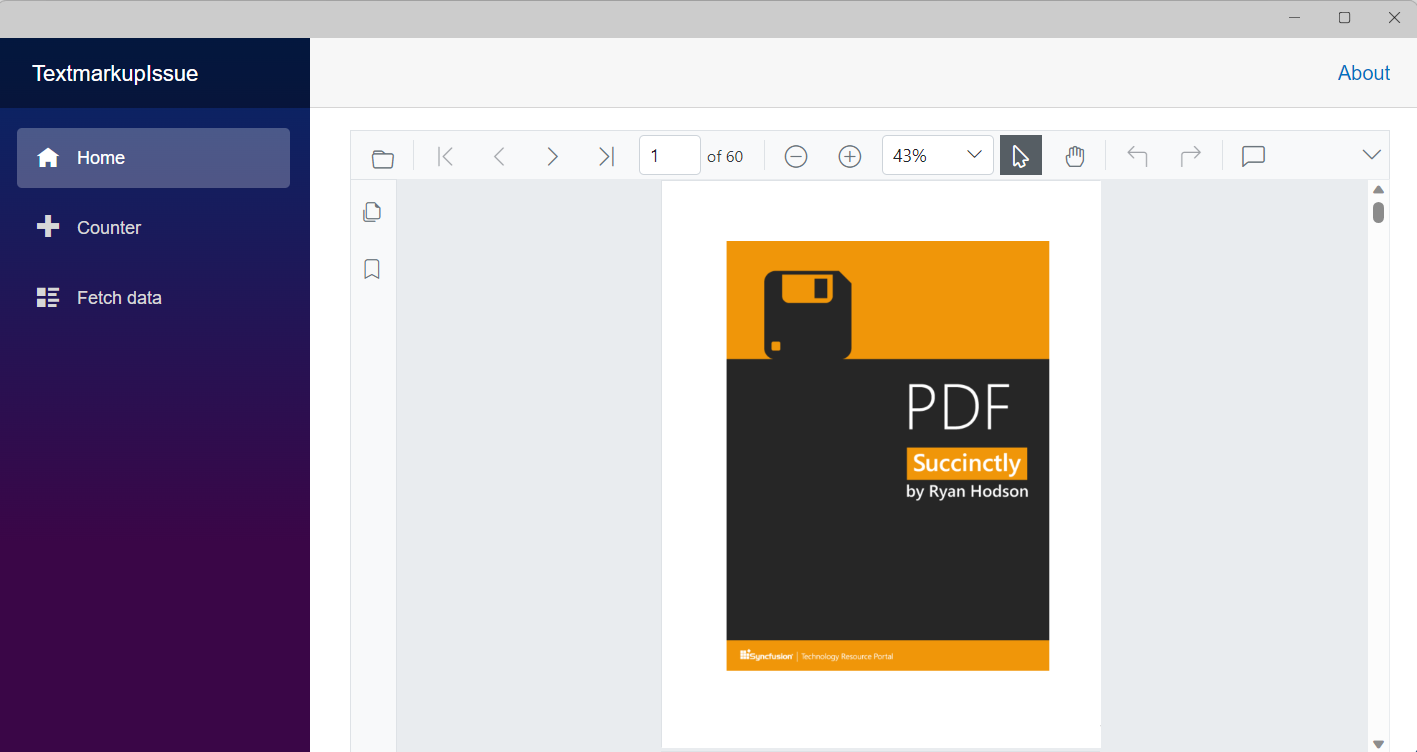
See the output image.
Note: For more details on setup, refer to our GitHub demo section.
Host the PDF Viewer in a WPF Blazor Hybrid app
Step 1: Create a WPF project
To get started, create a WPF application using either Visual Studio 2022 or the .NET CLI in Visual Studio Code with the WPF project template. This app will later host Blazor components using BlazorWebView, enabling hybrid UI capabilities.
For setup guidance and tooling support, refer to the official Microsoft Blazor tooling documentation or explore the Syncfusion Blazor Extension for streamlined integration.
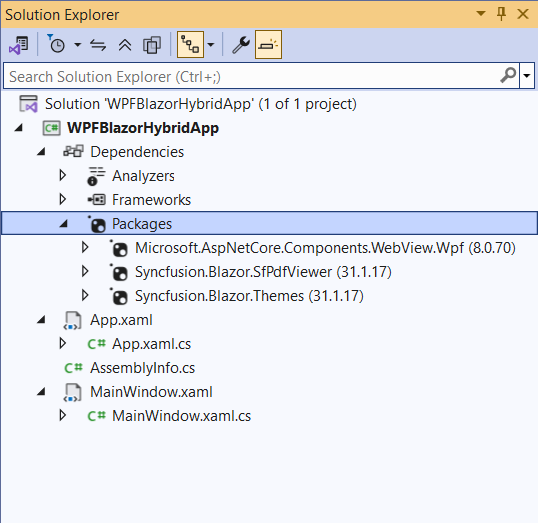
Step 2: Install Blazor PDF Viewer NuGet packages
To integrate the Blazor PDF Viewer component into your WPF app, begin by installing the required packages in your project.
Step 3: Register Syncfusion Blazor service
Ensure that your WPF project targets Windows and has WPF enabled. A typical project file configuration would resemble the following:
<Project Sdk="Microsoft.NET.Sdk.Razor">

    ....

</Project>
Next, create an _Imports.razor file in your WPF project and include the namespace of the PDF Viewer component to make it accessible throughout your Razor files.
@using Microsoft.AspNetCore.Components.Web
@using Syncfusion.Blazor.SfPdfViewer
To host Blazor components within a WPF window, register the Syncfusion Blazor services and configure BlazorWebView in the MainWindow.xaml.cs file.
Here’s how you can do it in code:
using Microsoft.Extensions.DependencyInjection;
using Syncfusion.Blazor;
        ....
            InitializeComponent();
            ServiceCollection services = new ServiceCollection();
            services.AddWpfBlazorWebView();
            services.AddMemoryCache();
            services.AddSyncfusionBlazor();
            Resources.Add("services", services.BuildServiceProvider());
            ....
Step 4: Create the wwwroot folder and add the index.html file
To enable Blazor UI rendering in a WPF Blazor Hybrid app, create a new folder named wwwroot in the root of your WPF project. Inside the folder, add an index.html file, which serves as the host page for the Blazor UI. This host page is essential for the BlazorWebView control to initialize the Blazor runtime and load required static assets such as themes and scripts.
A basic index.html typically includes references to CSS and JavaScript files and sets up the root element where Blazor components will be rendered.
See the code snippet to achieve this:
<!DOCTYPE html>
<html>
<head>
    <meta charset="utf-8" />
    <meta name="viewport" content="width=device-width, initial-scale=1.0, maximum-scale=1.0, user-scalable=no" />
    <title>WPF Blazor Hybrid App</title>
    <base href="/" />
    <link href="_content/Syncfusion.Blazor.Themes/bootstrap5.css" rel="stylesheet" />
</head>
<body>
    <div id="app">Loading...</div>
    <script src="_framework/blazor.webview.js"></script>
    <script src="_content/Syncfusion.Blazor.SfPdfViewer/scripts/syncfusion-blazor-sfpdfviewer.min.js" type="text/javascript"></script>
</body>
</html>
Step 5: Adding the Blazor PDF Viewer component
Now, create a Razor component (e.g., Main.razor) in your project. Add the Syncfusion PDF Viewer component to it to load and interact with PDF files within your Blazor Hybrid application.
@using Syncfusion.Blazor.SfPdfViewer;

<SfPdfViewer2 DocumentPath="https://cdn.syncfusion.com/content/pdf/pdf-succinctly.pdf"
              Height="100%"
              Width="100%">
</SfPdfViewer2>
Step 6: Integrate Blazor into MainWindow.xaml
Finally, open the MainWindow.xaml file, add Microsoft.AspNetCore.Components.WebView.Wpf namespace, and embed the BlazorWebView control. Next, set its HostPage property to wwwroot/index.html, and define a RootComponent that maps to your Razor component and matches the selector (e.g., #app) used on the host page.
Here’s the code you need:
<Window x:Class="WPFBlazorHybridApp.MainWindow"
        ....
        xmlns:blazor="clr-namespace:Microsoft.AspNetCore.Components.WebView.Wpf;assembly=Microsoft.AspNetCore.Components.WebView.Wpf"
        ....
        Title="MainWindow" Height="450" Width="800">
    <Grid>
        <blazor:BlazorWebView HostPage="wwwroot\index.html" Services="{DynamicResource services}">
            <blazor:BlazorWebView.RootComponents>
                <blazor:RootComponent Selector="#app" ComponentType="{x:Type local:YourRazorFileName}" />
                <!-- Replace 'YourRazorFileName' with the actual Razor component class (e.g., Main) in your project's namespace -->
            </blazor:BlazorWebView.RootComponents>
        </blazor:BlazorWebView>
    </Grid>
</Window>
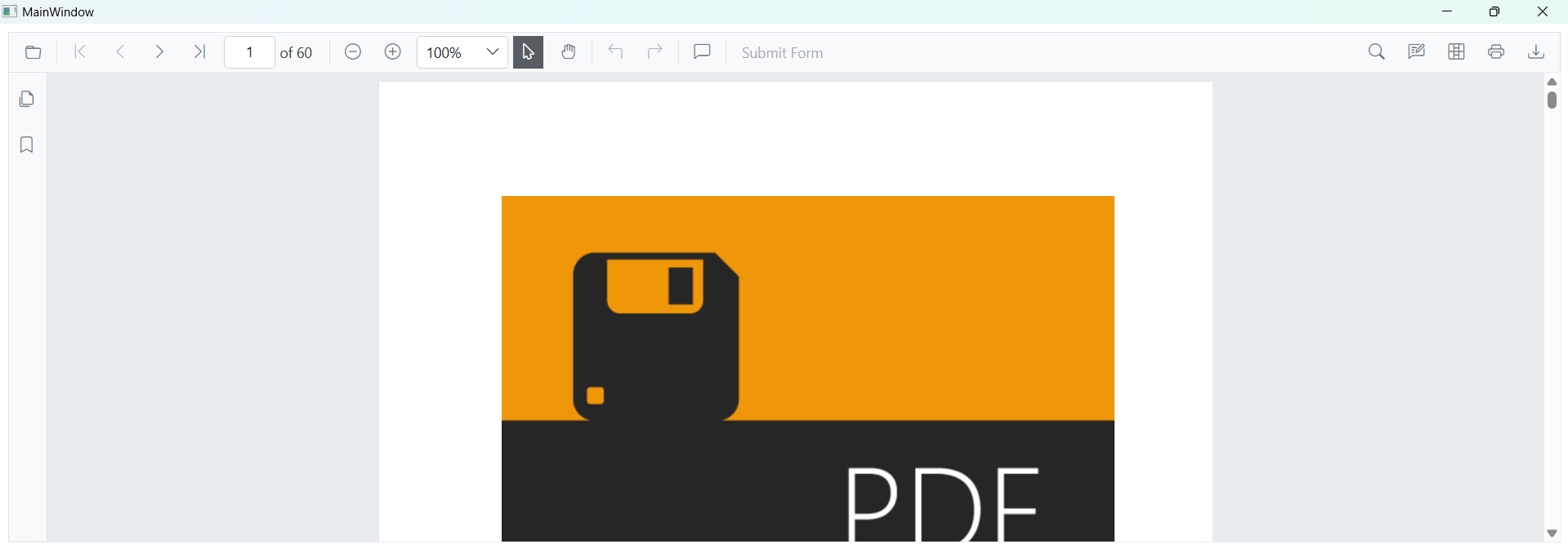
After executing the code examples above, our output will look like the image below.
Note: For step-by-step guidance on Blazor Hybrid WPF app setup, refer to our GitHub demo.
Host the PDF Viewer in a WinForms Blazor app
Step 1: Create a WinForms project
Begin by creating a WinForms app using Visual Studio 2022 or the .NET CLI with the WinForms project template. This application will later host Blazor components using BlazorWebView. For setup guidance, refer to Microsoft Blazor tooling or the Syncfusion Blazor Extension.
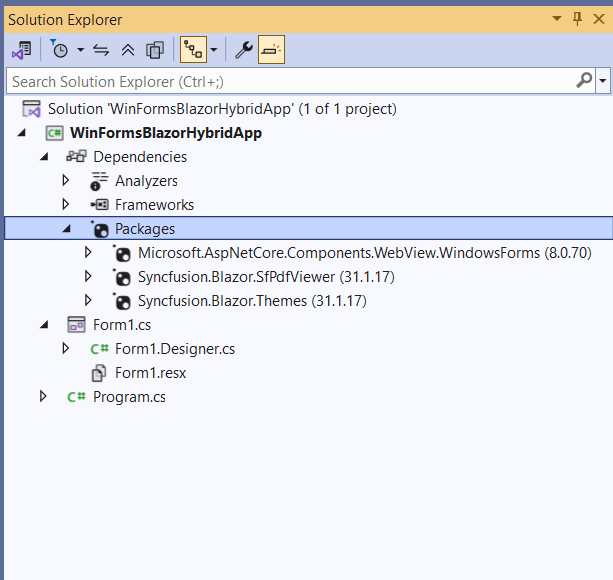
Step 2: Install Blazor PDF Viewer NuGet packages
Next, add the Blazor PDF Viewer component to your WinForms app by installing the necessary NuGet packages in your project.
- Syncfusion.Blazor.SfPdfViewer
- Syncfusion.Blazor.Themes
- Microsoft.AspNetCore.Components.WebView.WindowsForms
Refer to the following image.
Step 3: Register Syncfusion Blazor service
Now, ensure that your WinForms project targets Windows and has WinForms enabled. A typical project file configuration would look like the following:
<Project Sdk="Microsoft.NET.Sdk.Razor">

    ....

</Project>
Then, create a Components folder in your WinForms project, and add an _Imports.razor file inside it. Within this file, include the necessary namespaces for the Syncfusion components to ensure they are available throughout the Razor components in that folder.
@using Microsoft.AspNetCore.Components.Web
@using Syncfusion.Blazor.SfPdfViewer
To enable hosting Blazor components in a WinForms window, register the Syncfusion Blazor services and configure BlazorWebView in Form1.cs file as shown in the code example below.
namespace WinFormsBlazorHybridApp;
using Microsoft.AspNetCore.Components.WebView.WindowsForms;
using Microsoft.Extensions.DependencyInjection;
using Syncfusion.Blazor;
using WinFormsBlazorHybridApp.Components;

....
        InitializeComponent();
        ServiceCollection services = new ServiceCollection();
        services.AddWindowsFormsBlazorWebView();
        services.AddMemoryCache();
        services.AddSyncfusionBlazor();
        BlazorWebView blazorWebView = new BlazorWebView()
        {
            HostPage = "wwwroot\\index.html",
            Services = services.BuildServiceProvider(),
            Dock = DockStyle.Fill
        };
        blazorWebView.RootComponents.Add<YourRazorFileName>("#app");
        <!-- Replace 'YourRazorFileName' with the actual Razor component class (e.g., Main) in your project's namespace -->
        this.Controls.Add(blazorWebView);
....
Step 4: Create the wwwroot folder and add the index.html file
To set up Blazor UI rendering in a WinForms Blazor Hybrid application, create a folder named wwwroot in the root of your project. Inside this folder, add an index.html file that serves as the host page for the Blazor UI. This file is essential for initializing the Blazor runtime via BlazorWebView and for loading static assets such as stylesheets and scripts. A basic index.html file typically includes a root element (e.g., <div id="app"></div>) where your Razor components will be rendered.
Code example for quick integration:
<!DOCTYPE html>
<html>
<head>
    <meta charset="utf-8" />
    <meta name="viewport" content="width=device-width, initial-scale=1.0" />
    <title>WinForms Blazor Hybrid App</title>
    <base href="/" />
    <link href="_content/Syncfusion.Blazor.Themes/bootstrap5.css" rel="stylesheet" />
</head>
<body>
    <div id="app">Loading...</div>
    <script src="_framework/blazor.webview.js"></script>
    <script src="_content/Syncfusion.Blazor.SfPdfViewer/scripts/syncfusion-blazor-sfpdfviewer.min.js" type="text/javascript"></script>
</body>
</html>
Step 5: Add the Blazor PDF Viewer component
Create a Razor component, for example, PDFViewer.razor, inside the Components folder of your WinForms project. Then, add the Syncfusion PDF Viewer component to enable PDF rendering and interaction within your WinForms Blazor Hybrid app.
Add this to your project:
@using Syncfusion.Blazor.SfPdfViewer;

<SfPdfViewer2 DocumentPath="https://cdn.syncfusion.com/content/pdf/pdf-succinctly.pdf"
              Height="100%"
              Width="100%">
</SfPdfViewer2>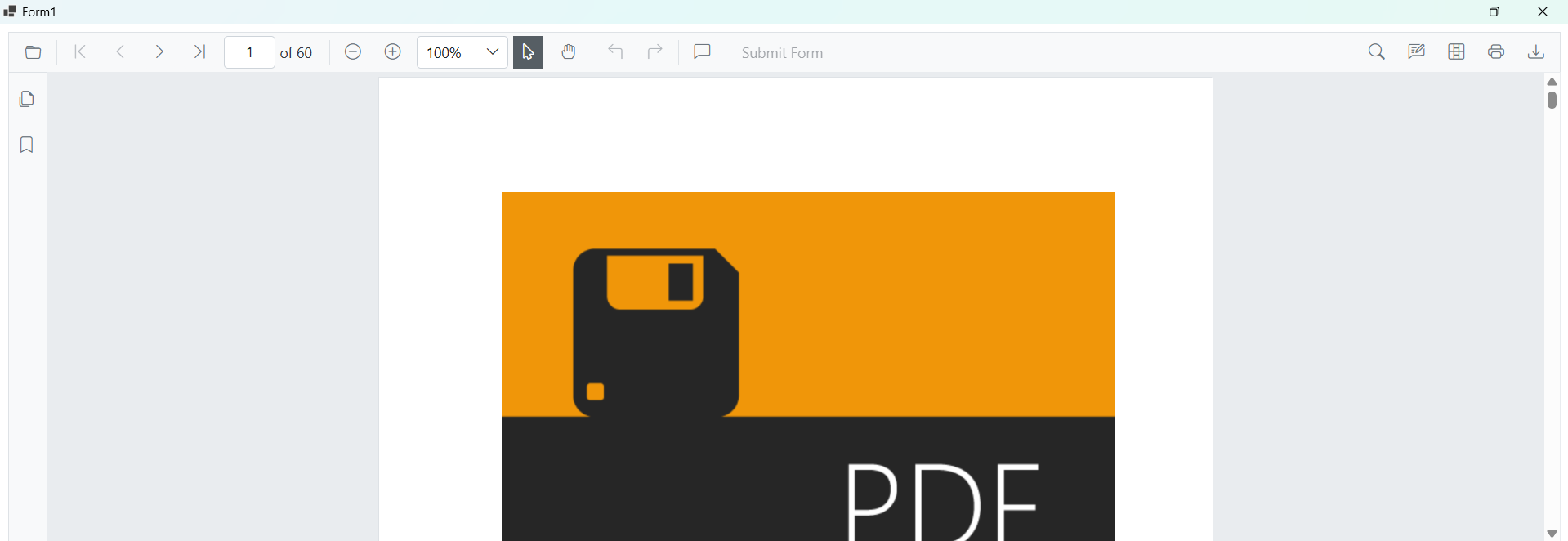
Note: For a quick WinForms Blazor Hybrid setup, refer to our GitHub demo section.
Frequently Asked Questions
Do I need a Syncfusion license to use the PDF Viewer in Blazor Hybrid apps?
Yes, a valid Syncfusion PDF Viewer SDK license is required. You must register the license key at application startup. Refer to Syncfusion’s licensing guide for instructions.
Can I customize the toolbar or UI of the PDF Viewer component?
Yes, the Syncfusion Blazor PDF Viewer supports custom toolbar configuration, allowing you to show/hide buttons, add custom toolbar items in the primary toolbar, and style the viewer to match your app’s theme. This can be done via component parameters and event handlers to the primary toolbar.
Is offline PDF viewing supported in Blazor Hybrid apps?
Yes, you can load local PDF files in Blazor Hybrid apps. Instead of using a URL, set the DocumentPath to a local file path or stream, ensuring the file is accessible within the app’s runtime environment.
What are the key differences between using the PDF Viewer in MAUI vs. WPF or WinForms?
MAUI supports cross-platform deployment (Windows, Android, macOS, iOS). On the hand other, WPF and WinForms are Windows-only but offer deeper integration with desktop-specific features. The setup steps are similar, but platform-specific packages and UI hosting methods differ.
How do I troubleshoot rendering issues with the PDF Viewer in Blazor Hybrid apps?
All required scripts and style sheets must be correctly referenced in the index.html file, and the Syncfusion services should be registered properly. Additionally, the BlazorWebView needs to be configured with the correct HostPage and RootComponent. To ensure everything is functioning as expected, use browser developer tools or Visual Studio diagnostics to inspect and resolve any errors.
Can I use annotations, form filling, and digital signatures in the PDF Viewer?
Yes, the Syncfusion Blazor PDF Viewer supports annotations, form designer, form filling, redaction, and digital signatures. These features are available out of the box and can be enabled or customized via component settings.
Stop choosing between native power and modern UI: Blazor Hybrid delivers both
Thanks for reading! With Blazor Hybrid, you get native performance and modern web‑style UI in a single development model. Combine it with the Syncfusion Blazor PDF Viewer, and you can ship fast, interactive PDF experiences across WPF, WinForms, and .NET MAUI, complete with annotations, form filling, signatures, and smooth navigation.
Blazor Hybrid helps you:
- Cut maintenance across platforms.
- Deliver responsive, modern interfaces.
- Add advanced PDF tools instantly.
- Keep your apps future‑ready.
Whether modernizing existing software or creating new apps, Blazor Hybrid + Syncfusion PDF Viewer offers a powerful, streamlined path forward.
The latest version of Essential Studio, along with the newly modular SDKs for the PDF Viewer, Word Editor, and Spreadsheet Editor, is now available on the license and downloads page. We offer our new users a free 30-day trial to explore all our components’ features and capabilities.
Need help? Reach us through the support forum, support portal, or feedback portal.
Start modernizing your PDF workflows today!







 No spam, just valuable updates.