
Overview
The WinForms Spreadsheet is an Excel-inspired control that allows you to create, edit, view, and format Microsoft Excel files without having Excel installed. It provides an integrated ribbon to cover any possible business scenario. In addition, it has a built-in calculation engine with more than 400+ of the most widely used formulas. It was built with .NET Excel Library (Essential XlsIO), which features a full-fledged object model similar to the Microsoft Office Automation libraries.
Read, edit, and write Excel files, compatible with versions 97 to 2016
Read and write all popular Excel file formats, including XLS and XLSX. A file can be opened in one format and saved in another format.

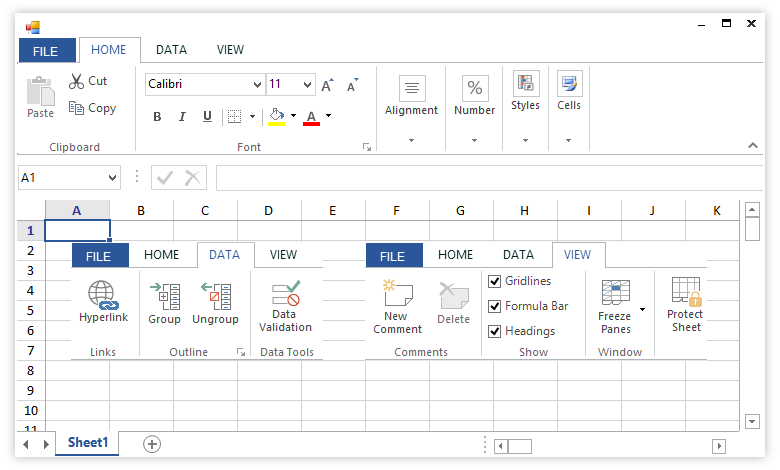
Experience Excel-like ribbon UI
- The WinForms Spreadsheet ribbon provides a familiar, Excel-like user interface to help end users work with Excel files.
- The ribbon can easily be customized to manipulate Excel workbooks based on application requirements.
- You can create your own ribbon or toolbar to manipulate Excel workbooks using predefined commands.
High performance

Instant loading
Load and manipulate Excel-like workbooks with a large amount of data and any number of worksheets in less time with minimal memory consumption.

Smooth scrolling
Enjoy a smooth scrolling experience even with many cells in the view.

Formula calculation
Comes with a fast and efficient calculation engine with more than 400 Excel-compatible functions.
Data editing
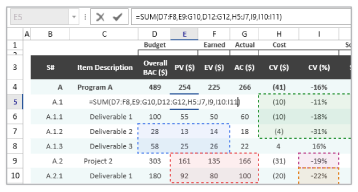
Data editing
Add, edit, and remove formulas in a cell. Additionally in WinForms Spreadsheet, you can select the range reference directly using a mouse or keyboard when entering formulas, just like in Excel.
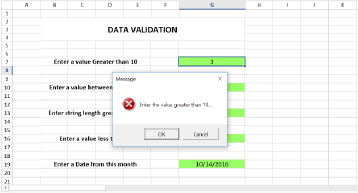
Data validation
Validate the edited values based on the data validation rules defined for a cell or range of cells. Data validation can be applied with operators, alert messages, custom formulas, and drop-down lists.
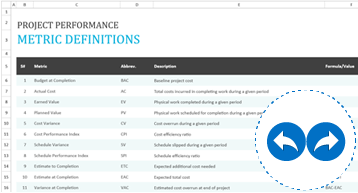
Undo and redo
Undo and redo changes can be made in an Excel workbook. There is no limit to the number of undo and redo operations in a spreadsheet.
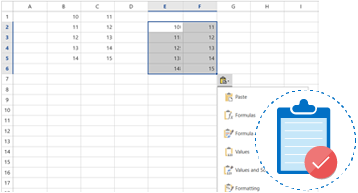
Clipboard operations
Users can enable an Excel-like paste option to paste a value or formula with or without formatting.
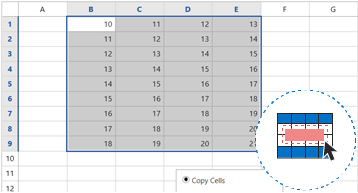
Drag-fill
Easily fill or copy a series or pattern of values and formats in the neighboring cells in any direction.
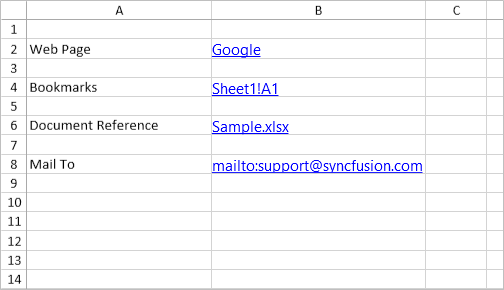
Hyperlinks and bookmarks
The WinForms Spreadsheet control provides built-in support for hyperlinks and bookmarks. Additionally, users can navigate through bookmarks to a specific cell or range of cells in a workbook, like in Excel.
Efficient formula calculations
A wide range of formulas is available with cross-sheet references, named ranges, table formulas, and array formula support.

Built-in functions
The built-in calculation engine is preloaded with more than 400+ Excel-compatible functions covering a broad range of business scenarios.

Auto calculation
Cell values are recalculated when a preceding cell is edited.

Named ranges
Named ranges can be used in formulas as substitutes for cell references. The built-in name manager allows you to add, edit, and delete names.
Styles and data formatting
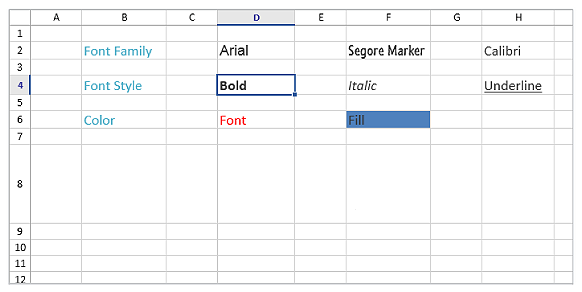
Font
Import and modify various font formatting options like font size, font family, font styles, font color, and fill color.
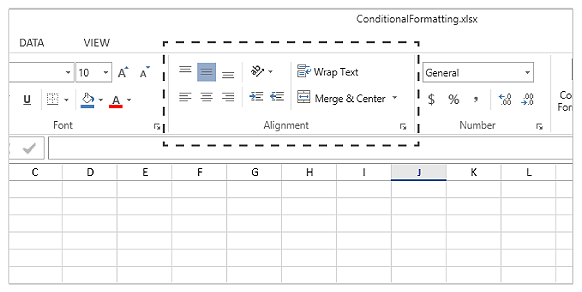
Align and merge cells
Import and modify various alignments, merged cells, and wrap settings from Excel.
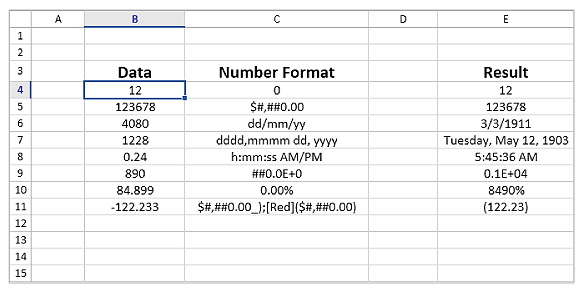
Number formats
Import and modify number formats such as currency, percentage, short date, long date, time, fraction, scientific, and custom number formats similar to Excel.
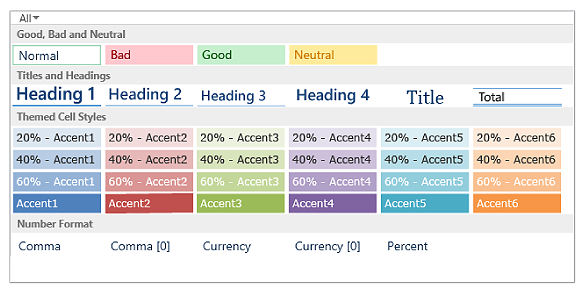
Table formats and built-in styles
Import table formats and predefined cell styles from Excel. You can also format a range as a table and define cell styles at runtime.
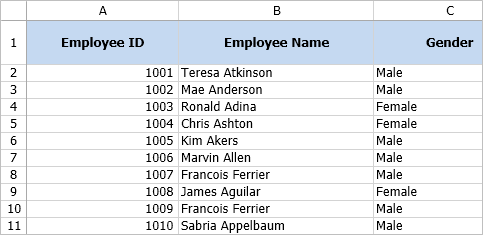
Cell formatting
Insert, delete, hide, and unhide one or more rows and columns in worksheets. Adjust the row height and column width, import the adjusted row height and column width from Excel, and fit rows and columns based on the content. Additionally, you can freeze one or more rows and columns in worksheets.
Conditional formatting
Conditional formatting helps you visually explore and analyze data, detect critical issues, and identify patterns and trends.
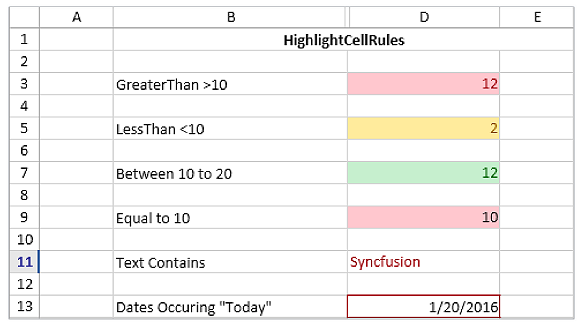
Conditional styling
Format the appearance of cells based on their value or the values of other cells.
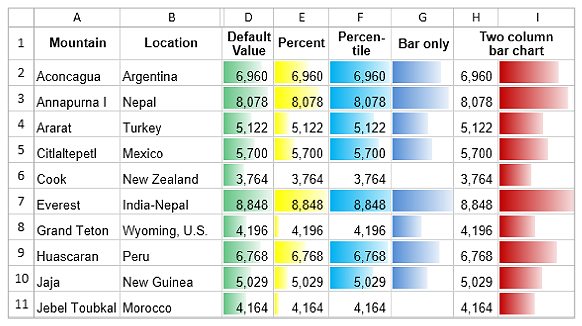
Data bars
Use gradient or solid data bars to spot the largest to the smallest numbers easily.

Color scales
Use color scales to understand data distribution and variations.
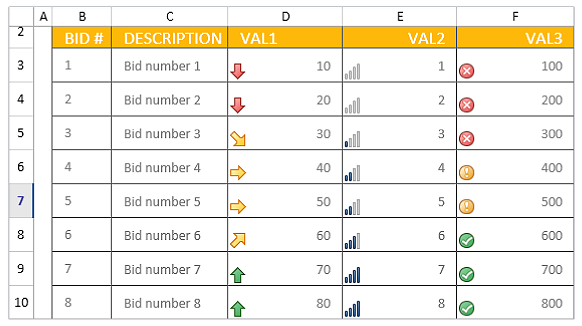
Icon sets
Icon sets distinguish data in three to five categories based on the threshold value.
Outline (group)
Import outlines and group or ungroup rows and columns at runtime.
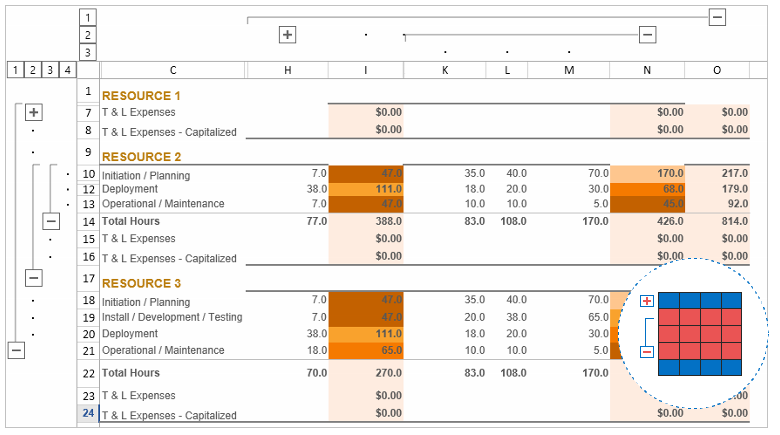
Data shapes
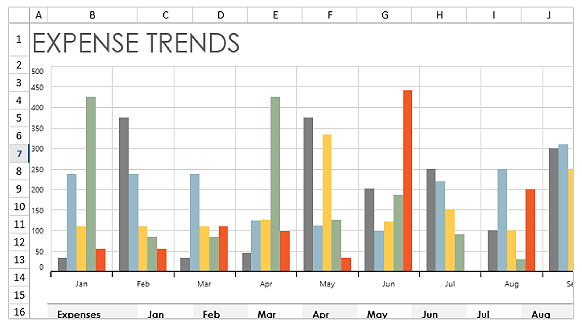
Charts
Import charts from Excel that can be defined at runtime. This helps visually enhance the represented data.
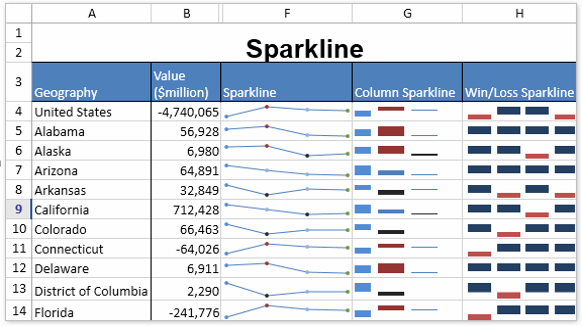
Sparklines
Import sparklines from Excel to visually represent data in a row.
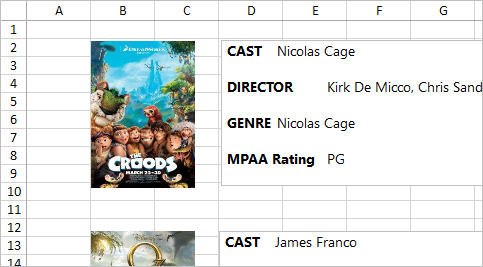
Pictures
Import images from Excel and add images at runtime to the spreadsheet. You can resize and reposition the images.
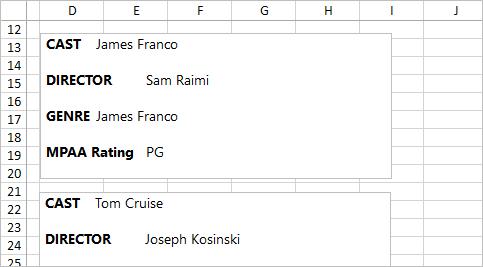
Text boxes
Import a rich text box from Excel and add it at runtime for editing and formatting content. You can reposition the rich text box.
User-friendly UI Interactions
Touch-optimized
The Spreadsheet control is touch-optimized for all user interactions.
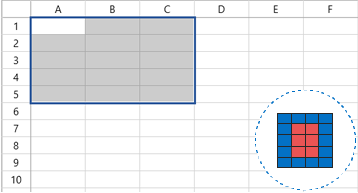
Excel-like selection
Select a range of cells, rows, columns, and tables. The Spreadsheet control also supports all keyboard interactions with cell selection.
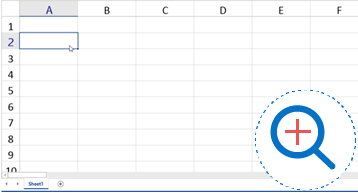
Zooming
Zoom in and out of the worksheet content. Additionally, the zoom level can be imported and exported to and from Excel.
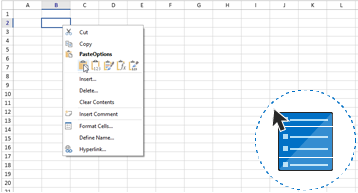
Context menu
There’s built-in support for cell and tab context menus. You can also add your own custom context menu items.
Data management
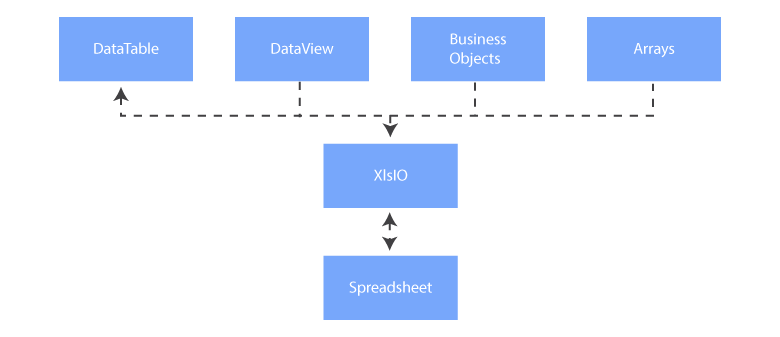
Import and export data from various sources with the help of XlsIO as an intermediary.

Worksheet management
- Insert, delete and rename: Insert and delete worksheets in a workbook. You can rename the worksheet by editing the UI or programmatically.
- Hide and unhide: Hide and show worksheets in a workbook.
- Gridlines: Customize the visibility and color of gridlines.
- Headings: Control the visibility of row and column headers in a worksheet.
Protection and encryption
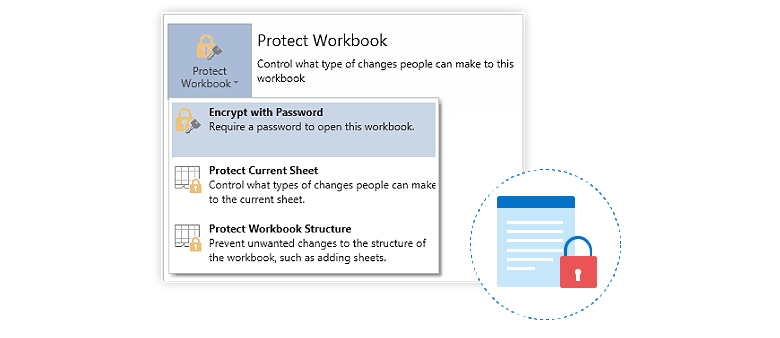
- Protect worksheets with or without a password. Restrict user actions like row and column insertion, deletion, and resizing.
- Protect the structure of a workbook.
- Encrypt workbooks with a password to prevent users from opening them.

Conversion and printing
- PDF: Convert a spreadsheet workbook or worksheet to PDF format. Various customization options are provided, like embedding fonts, ignoring empty pages or worksheets, and showing or hiding headers and footers.
- Image: Worksheets can be converted to BMP, JPEG, PNG and other image formats, with content such as data, formatting, spreadsheet, tables, and shapes.
- HTML: Convert a spreadsheet workbook or worksheet to a HTML file.
- Print the spreadsheet workbook using PDF Viewer.
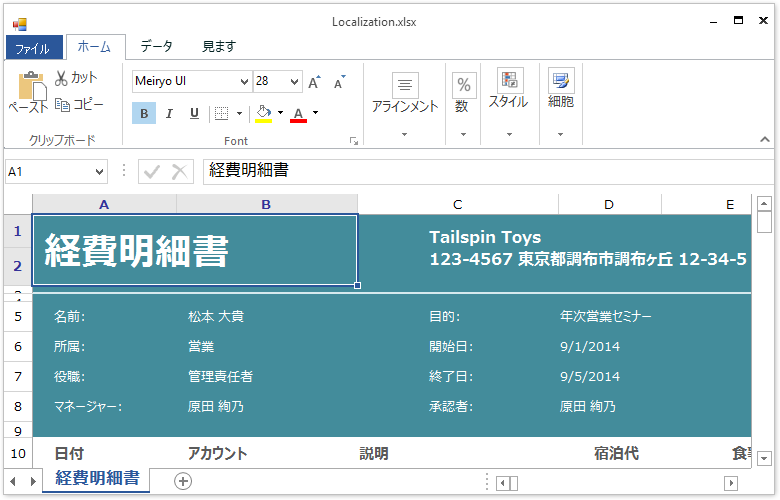
Localization
Localize all static text in the ribbon and built-in dialogs to any supported language.
WinForms Spreadsheet Code Example
Easily get started with the WinForms Spreadsheet using a few simple lines of C# code example as demonstrated below. Also explore our WinForms Spreadsheet Example that shows you how to render and configure the Spreadsheet in WinForms.
using Syncfusion.Windows.Forms.Spreadsheet;
namespace Syncfusion
{
    public partial class Form1 : Form
    {
        public Form1()
        {
            InitializeComponent();
            Spreadsheet spreadsheet = new Spreadsheet();
            SpreadsheetRibbon spreadsheetRibbon = new SpreadsheetRibbon() { Spreadsheet = spreadsheet };
            spreadsheet.Dock = DockStyle.Fill;
            spreadsheet.Anchor = AnchorStyles.Left | AnchorStyles.Top;
            this.Controls.Add(spreadsheet);
            this.Controls.Add(spreadsheetRibbon);
        }
     }
}
Not sure how to create your first WinForms Spreadsheet? Our documentation can help.
I’d love to read it nowFrequently Asked Questions
Why should you choose Syncfusion WinForms Spreadsheet?
The Syncfusion WinForms Spreadsheet control provides the following features:
- Seamless data analysis and visualization like in Microsoft Excel.
- Compatibility with Microsoft Excel file formats.
- Supports more than 400 Excel calculation formulas for any complex calculation scenarios.
- Highly intuitive user interfaces.
Experience an Excel-like interface with built-in ribbon interaction, selection, fill series, and more to help end users work with Excel files in applications.
- One of the best WinForms Spreadsheet in the market that offers feature-rich UI to interact with the software.
- Touch friendly and responsive.
Expansive learning resources such as demos and documentation to learn quickly and get started with WinForms Spreadsheet.
Where can I find the Syncfusion WinForms Spreadsheet demo?
You can find our WinForms Spreadsheet demo on GitHub location.
Can I download and utilize the Syncfusion WinForms Spreadsheet for free?
No, this is a commercial product and requires a paid license. However, a free community licenseis also available for companies and individuals whose organizations have less than $1 million USD in annual gross revenue, 5 or fewer developers, and 10 or fewer total employees.
How do I get started with Syncfusion WinForms Spreadsheet?
A good place to start would be our comprehensive getting started documentation.
Our Customers Love Us





See Real Success Stories
Developers around the world trust Syncfusion’s Essential Studio to simplify complex projects and speed up delivery. With a vast library of UI controls, powerful SDKs, and reliable support, Essential Studio helps teams build enterprise-ready applications with confidence.
Read Our Customer StoriesIndustry
Software development
75% Cost reduction
50% Faster development

Industry
Utilities (oil and gas)

450+ hours saved
Streamlined processes and hours of development effort saved.

Advanced, flexible features
Empowered users through robust and versatile functionality.
Industry
Software and technology
1000+ of hours saved
Accelerated development with enterprise-ready UI components.

Efficient file management
Streamlined workflows with document libraries without building them from scratch.
Industry
Software and technology

2 Years of delay avoided
Two years of delays prevented with proactive planning.

On-time delivery
Projects delivered on schedule using trusted controls.
Industry
IT services and IT consulting

Improved performance
Large datasets handled with easy customization and quick debugging.

Highly customizable
Plug-and-play controls with quick template integration.
Industry
Professional services
Instant access
Quick availability of features and resources.
Reduced dependencies
Fewer dependencies for faster development.
Rated by users across the globe



Awards
Greatness—it’s one thing to say you have it, but it means more when others recognize it. Syncfusion® is proud to hold the following industry awards.









