










Transform your applications today by downloading our free evaluation version
Overview
The Angular Rich Text Editor is a powerful component for building blogs, CMS platforms, email composers, documentation tools, messaging applications, knowledge bases, and content management systems. It enables developers to create, edit, and format HTML and Markdown content with an intuitive rich text editing experience and clean HTML output.
Why choose the Syncfusion Angular Rich Text Editor?
Powerful WYSIWYG Editor
It provides rich HTML and Markdown editing with text formatting, lists, tables, colors, media insertion, hyperlinks, and optional iframe editing.
Easy interaction
Users can easily format the text and paragraphs by setting the editor’s foreground and background colors, font type, italicization, adding ordered and unordered custom lists, underlining, strikethrough, and bolding.
Flexible editing
For a better editing experience, the Angular Rich Text Editor component offers a variety of tools and choices. Users can quickly insert images, videos, hyperlinks, and tables; merge table cells; and configure keys.
Preview the HTML code
Edit content visually or switch to HTML source view with instant live preview, ensuring clean and accurate markup.
AI-Assisted Development
Build advanced content editing experiences faster with the Agentic UI Builder and Syncfusion Agent Skills. Generate formatting tools, editor layouts, templates, and media-rich workflows with minimal manual effort.
Adapts to any resolution
The Rich Text Editor offers a highly responsive layout and an optimized design for desktops, touch devices, and smartphones. It operates smoothly across desktops, tablets, and mobile devices, including those powered by iOS, Android, and Windows.
Integrate with third-party libraries
It’s easy to integrate third-party libraries, like a spell checker, code mirror, etc., with the Rich Text Editor to improve the content.
Globalization and localization
Enable users from different locales to use the Rich Text Editor by formatting dates, currency, and numbering to suit preferences.
AI-assisted development
Build feature-rich Angular Rich Text Editor experiences faster
Accelerate content editor development with Syncfusion AI tools that turn requirements into fully configured editing experiences with minimal manual setup.
Agentic UI Builder
Turn prompts into ready-to-use UI screens, layouts, and workflows with Syncfusion Angular components.
Example Prompt Create a blog editor with formatting tools, mentions, and preview mode.
Agent Skills
Accelerate development with Syncfusion AI Agent Skills for faster implementation and integration.
Example Prompt Generate a Angular rich text editor with Markdown support and custom toolbar actions.
MCP Server
Accelerate development with AI that generates, configures, and troubleshoots component code directly in your IDE.
Example Prompt Show how to enable autosave and image uploading in the Syncfusion Angular Rich Text Editor.
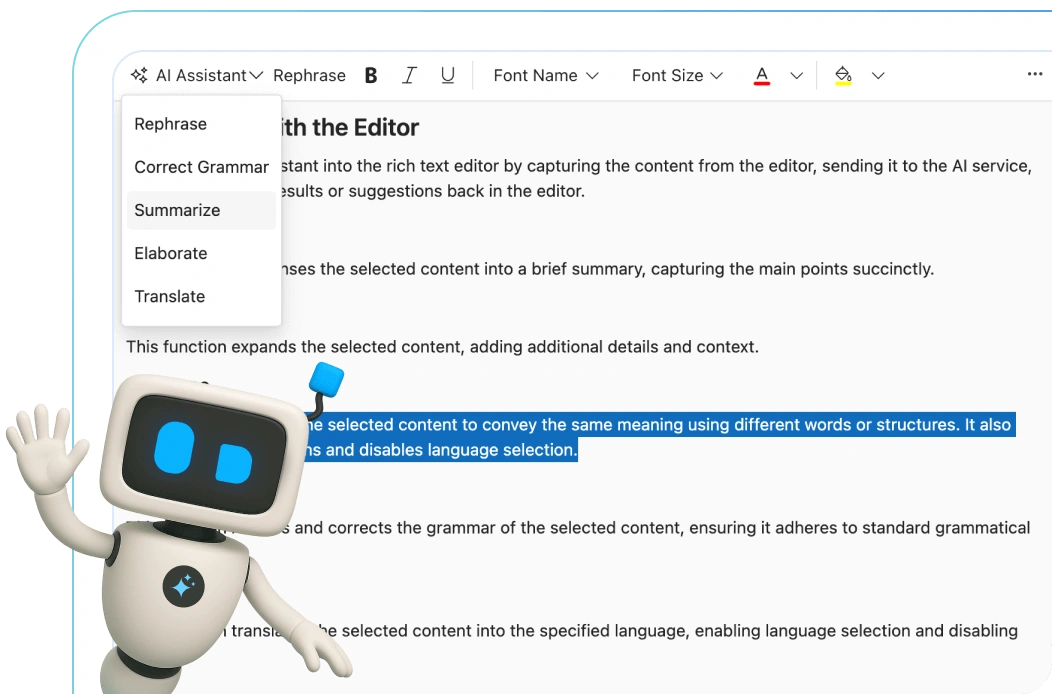
AI-Ready Rich Text Editor for smarter productivity
Write smarter with the AI-ready Angular Rich Text Editor. Instantly fix grammar, rewrite content, translate across languages, and generate summaries without leaving the editor.
Angular Rich Text Editor code example
Get started with the Angular Rich Text Editor using a few simple lines of HTML and TS code, as demonstrated below. Also, explore this Angular Rich Text Editor example, which shows how to render and configure the component in Angular.
<div class="control-section">
  <ejs-richtexteditor id='defaultRTE' [(value)]="rteValue">
  </ejs-richtexteditor>
</div>
import { Component } from '@angular/core';
import { ToolbarService, LinkService, ImageService, HtmlEditorService } from '@syncfusion/ej2-angular-richtexteditor';
@Component({
selector: 'app-root',
templateUrl: 'app.component.html',
providers: [ToolbarService, LinkService, ImageService, HtmlEditorService]
})
export class AppComponent {
private rteValue: string = `<p>The Rich Text Editor component is a WYSIWYG ("what you see is what you get") editor that provides the best user experience to create and update content. Users can format their content using standard toolbar commands.</p>
<p><b>Key features:</b></p>
<ul>
<li>
<p>Provides <IFRAME> and <DIV> modes</p>
</li>
<li>
<p>Capable of handling markdown editing.</p>
</li>
</ul>`;
}HTML editor toolbar
The toolbar offers a wide range of commands for editing and formatting content, enabling users to format text and paragraphs and insert images, hyperlinks, tables, lists, and more. The commands are organized into groups based on related functionality.
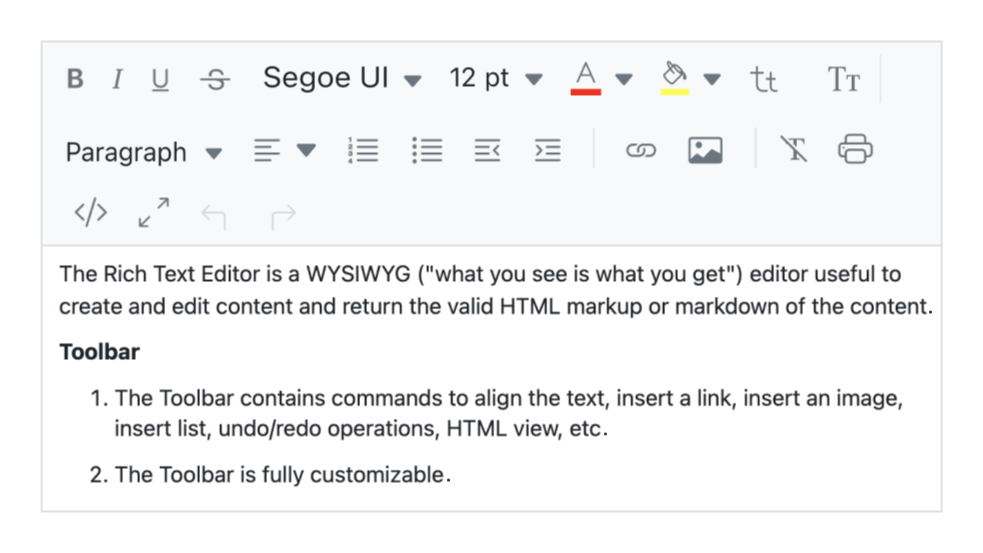
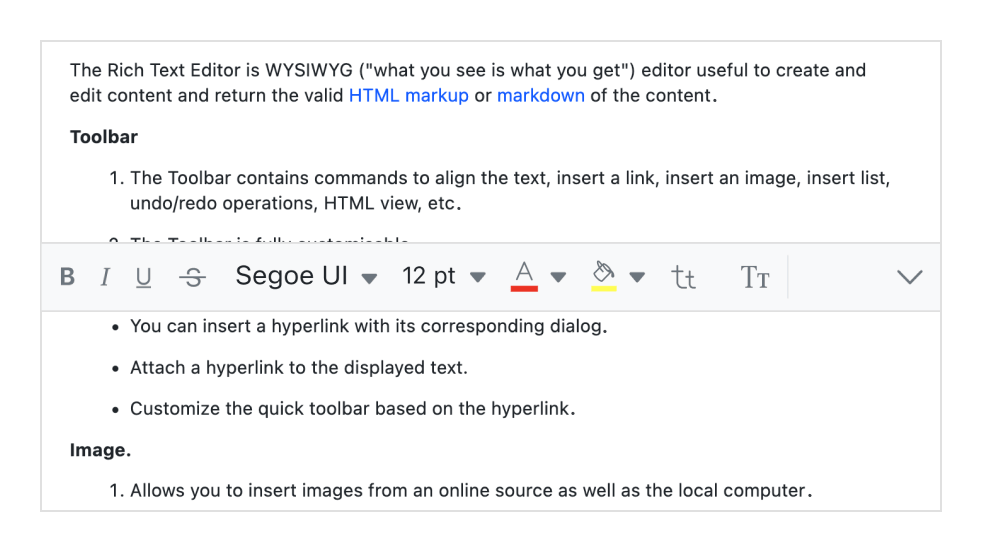
Multi-row toolbar
Toolbar commands that exceed the available space are automatically wrapped into additional rows within the toolbar.
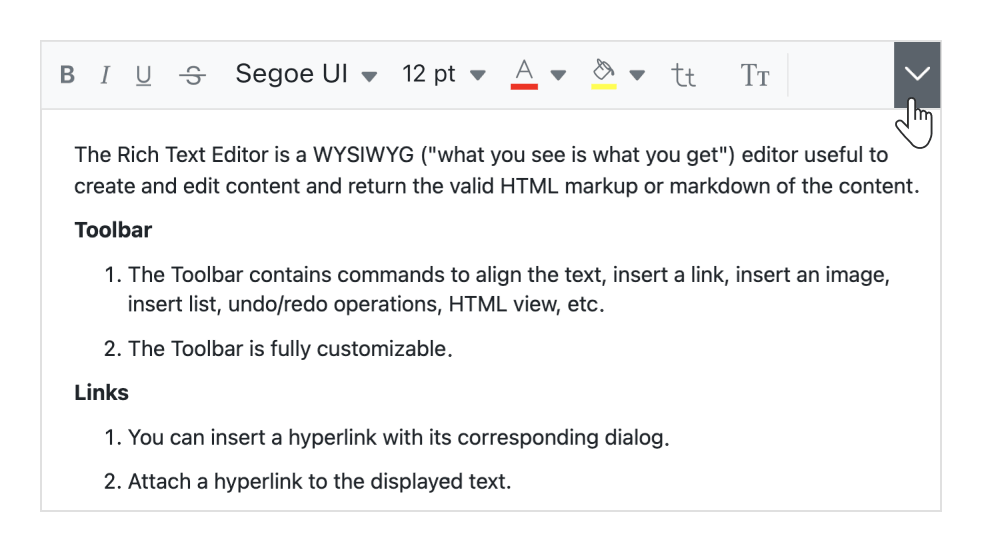
Expand toolbar
Hidden overflow commands in subsequent rows become visible when the toolbar is expanded using the expand icon.
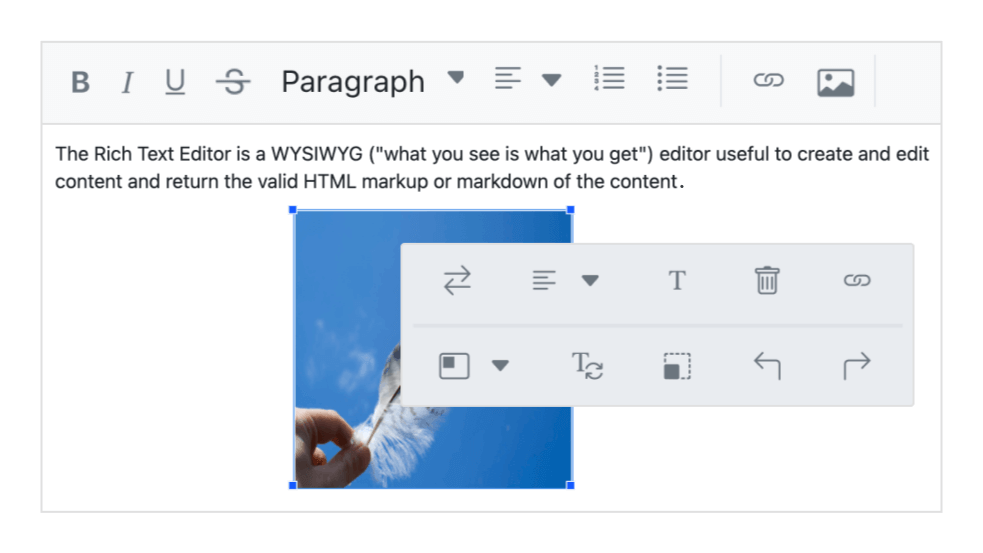
Quick toolbar
This toolbar includes commonly used commands for text, images, tables, and links. It allows quick access for formatting and customizing these elements.
Floating the toolbar
The toolbar does not remain fixed at the top. Instead, it floats within the editor area as users scroll the page.
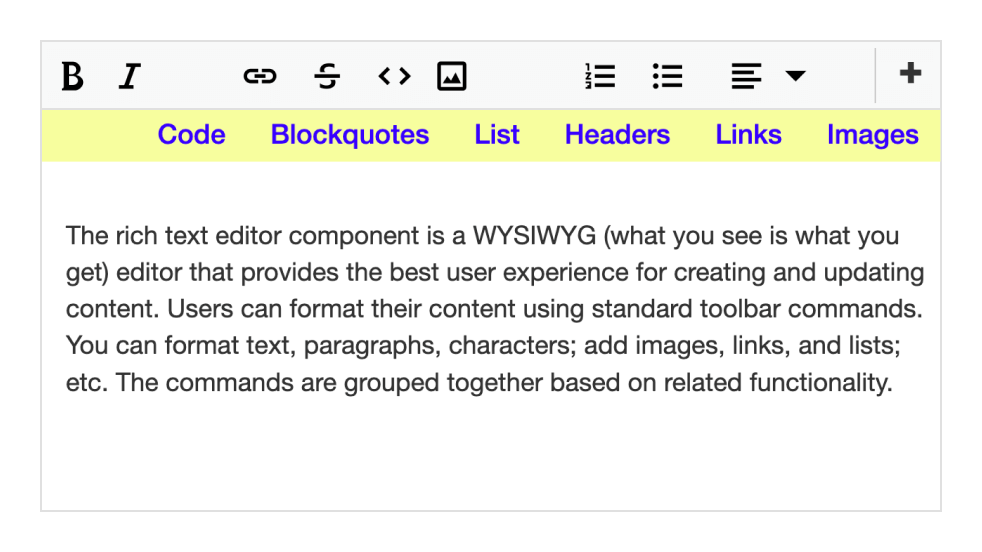
Fully customizable
The Angular Rich Text Editor toolbar buttons are fully customizable. Users can add or remove buttons and organize commands by category to meet application requirements, such as for blog editors or email composers.
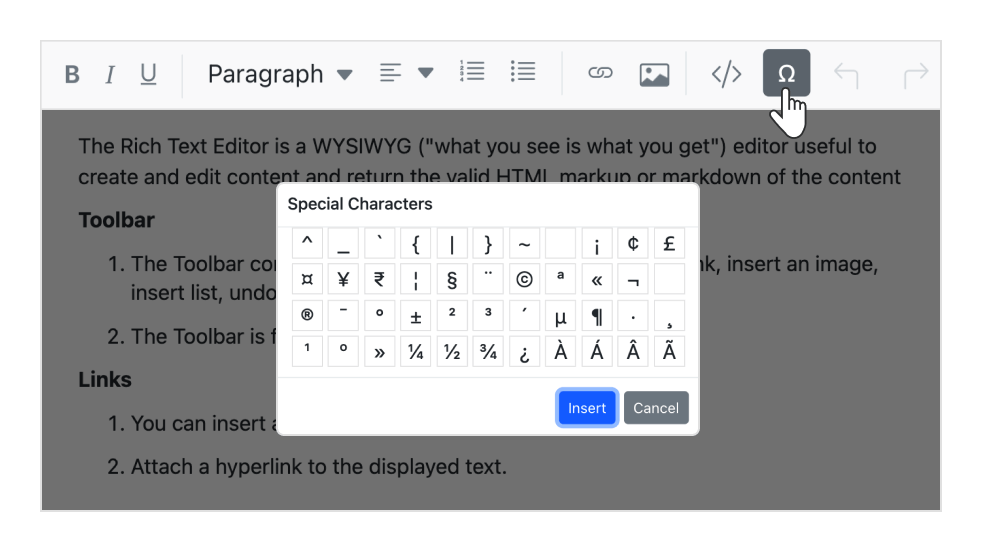
Custom tool
Custom commands with specific actions can be added to the toolbar alongside the built-in tools.
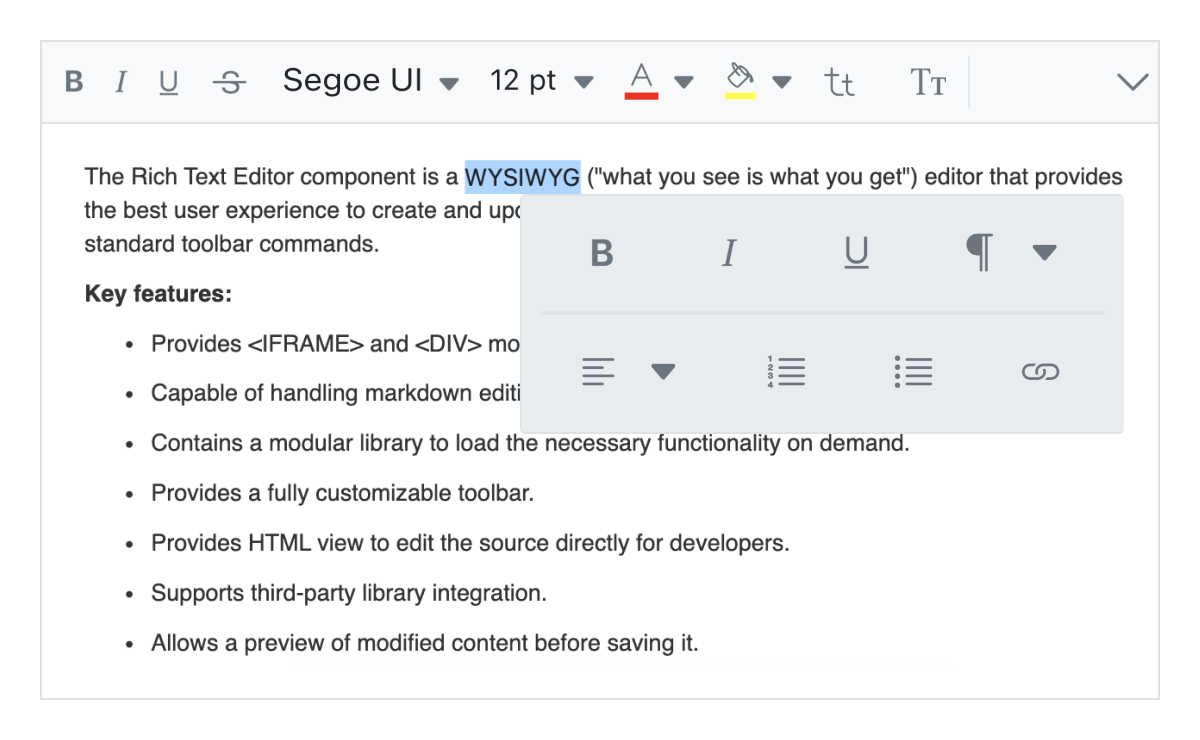
Inline mode
The Angular Rich Text Editor displays an inline HTML editor when content within an editable area is selected.
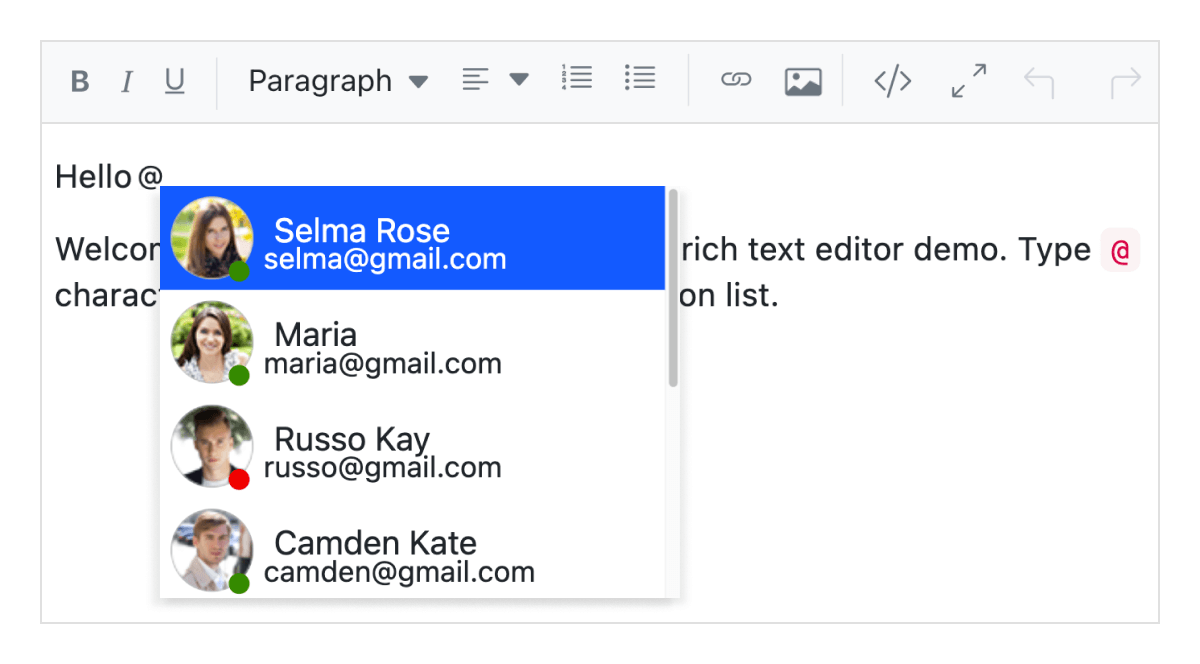
Mention and hashtag
While composing content in the Angular Rich Text Editor, users or groups can be tagged or selected from a suggestion list.
Editing experience
The Angular Rich Text Editor component provides a broad set of tools and options for an enhanced editing experience.
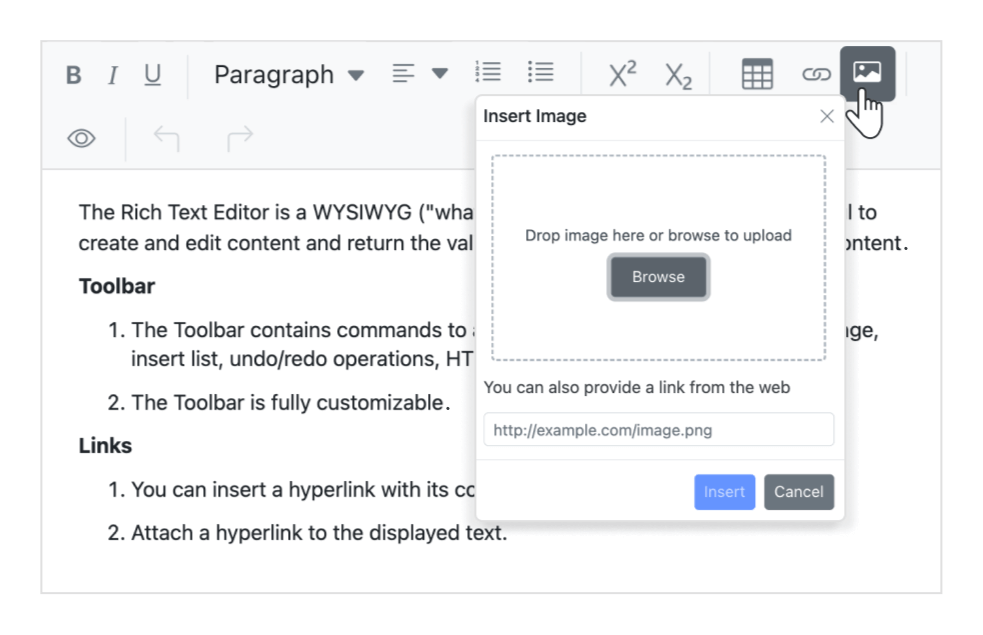
Insert images
Images can be added from local or server paths with captions, and URLs can be linked to them. Images can be uploaded via drag-and-drop or file upload. The editor also supports inserting images in BLOB or Base64 formats.
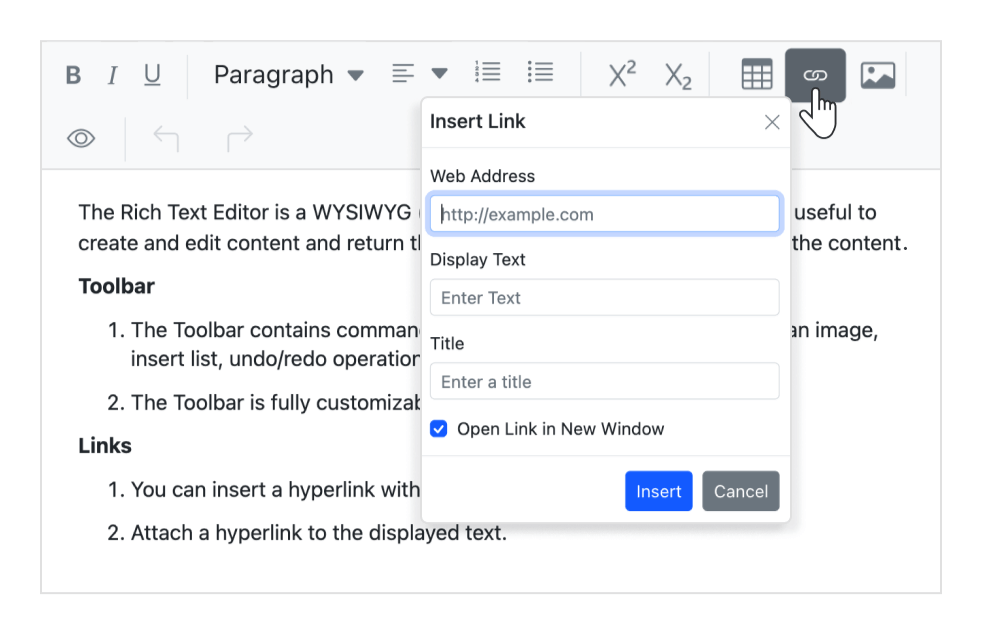
Insert hyperlinks
Hyperlinks can be added or modified with options such as display text, tooltips, and opening links in a new window.
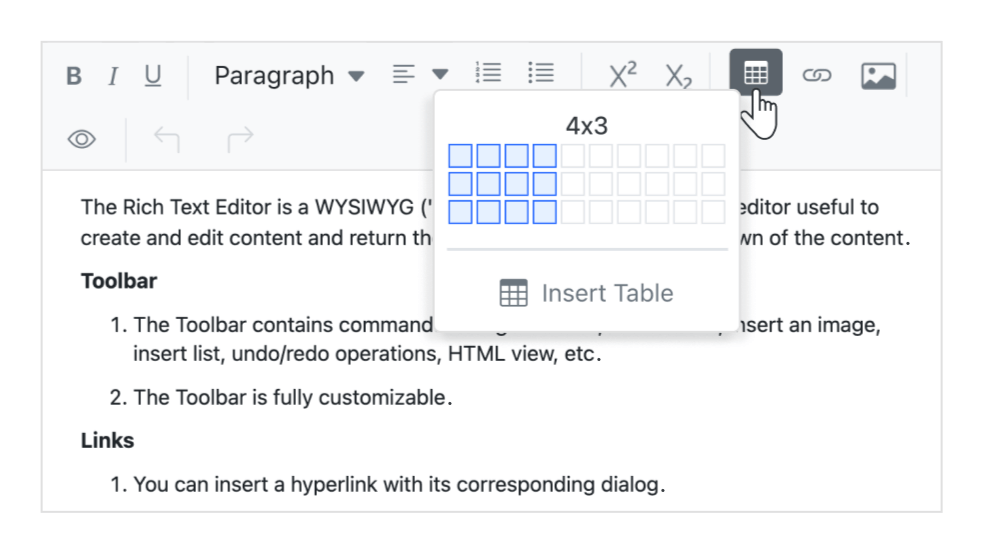
Insert tables
HTML tables can be created and edited to display structured data within the editor. Users can dynamically manage tables by adding or removing rows and columns, resizing the table or its elements, and deleting tables.
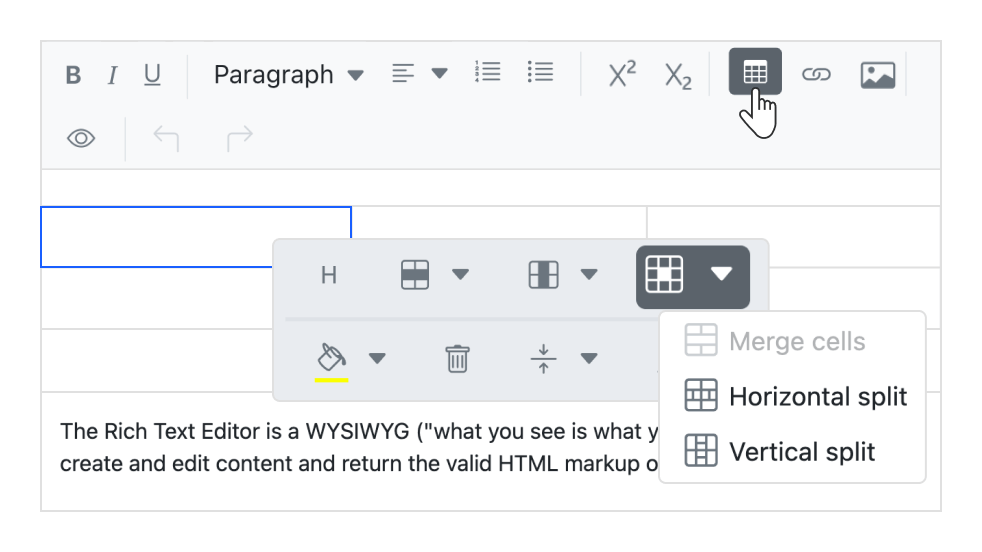
Table cell merge and split
Two or more row or column cells can be merged into a single cell along with their content. A single cell can also be split horizontally or vertically.
Text alignment
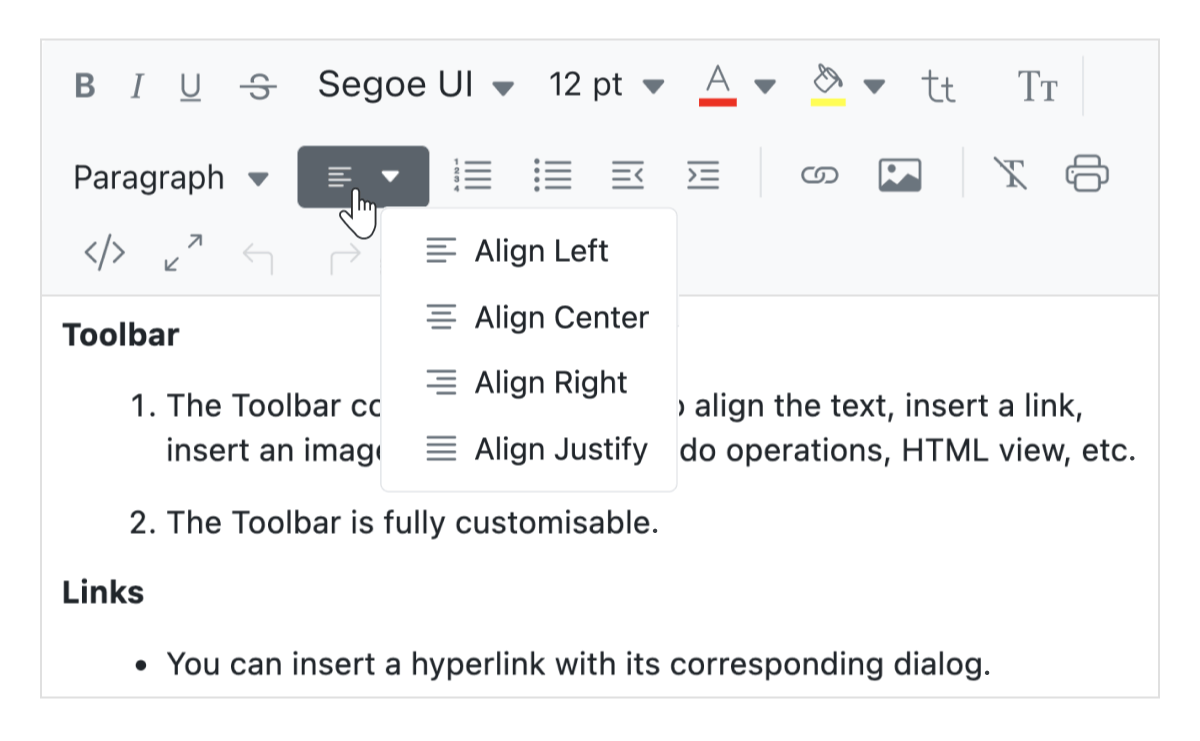
Built-in settings are available to align your content to the left, center, or right, or justify it.
Enter and Shift+Enter key configuration
The Angular Rich Text Editor enables configurable tag insertion when using the Enter and Shift+Enter keys.
- P: When set to ‘P’, pressing Enter or Shift+Enter creates a p tag.
- DIV: When set to ‘DIV’, pressing Enter or Shift+Enter creates a div tag.
- BR: When set to ‘BR’, pressing Enter or Shift+Enter creates a br tag.
Formatting text
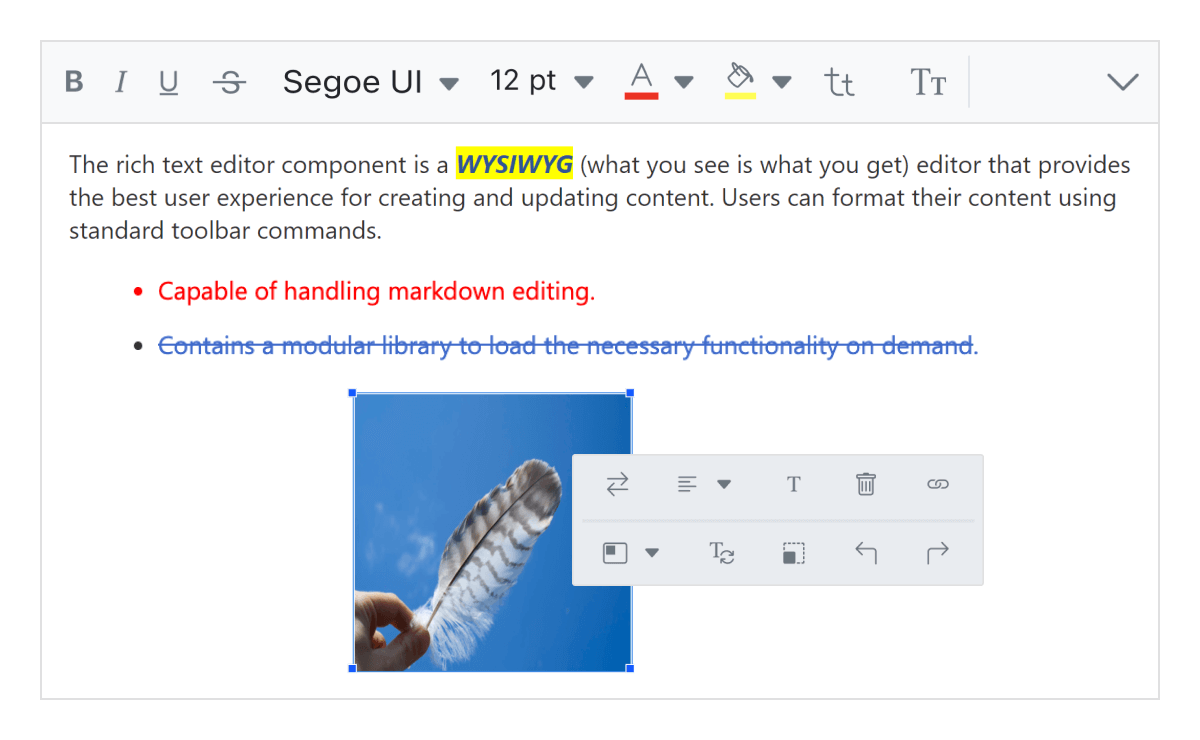
- Apply formatting to selected content, entire paragraphs, or specific words and characters.
- Style headings, quotations, code blocks, paragraphs, and more.
- Use bold, italics, underline, or strikethrough, or adjust letter casing.
- Modify paragraph indentation and spacing.
- Choose fonts and set font sizes.
- Apply subscript and superscript formatting.
- Customize the font color and background color of the content.
Auto formatting for Markdown syntax
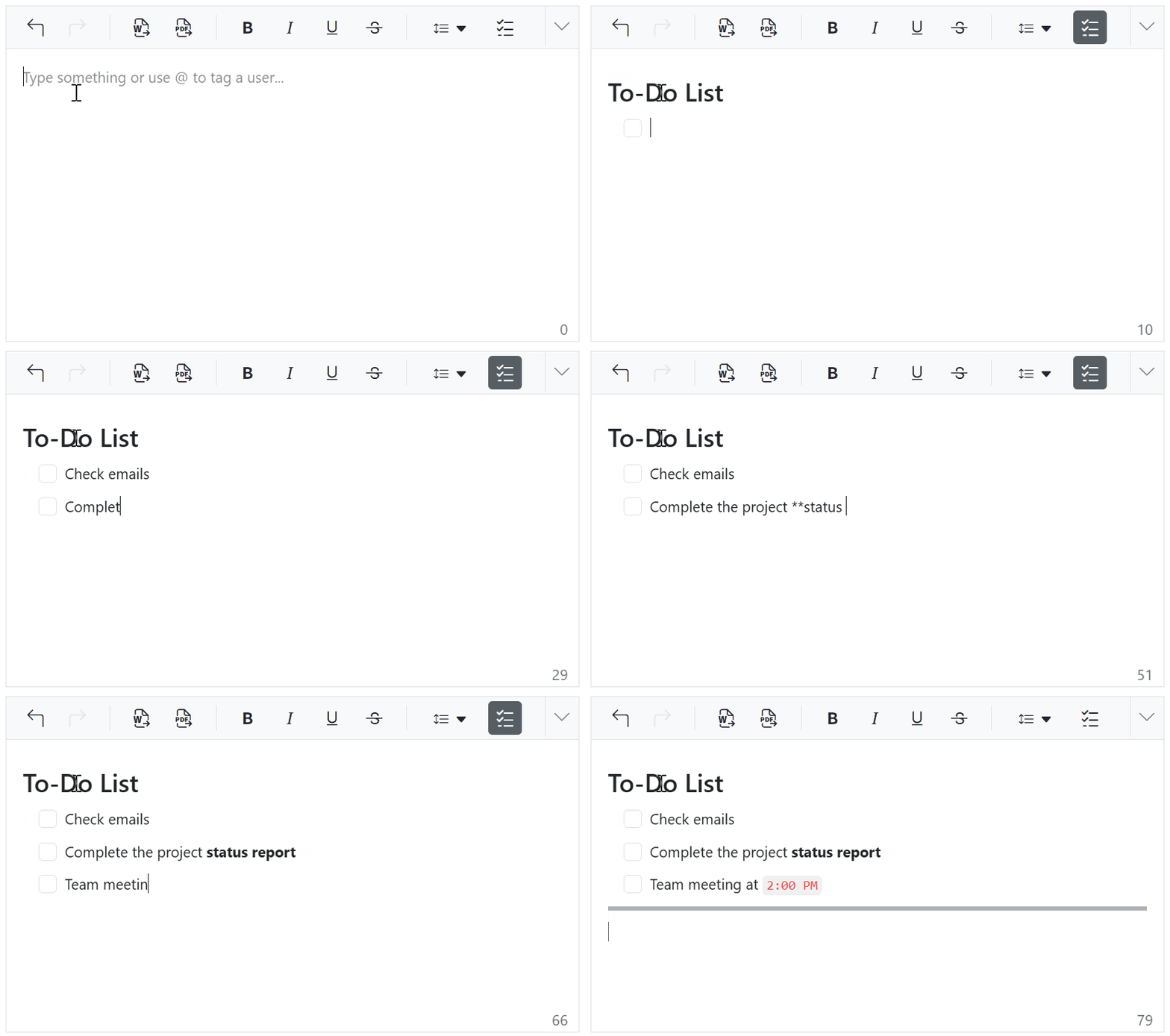
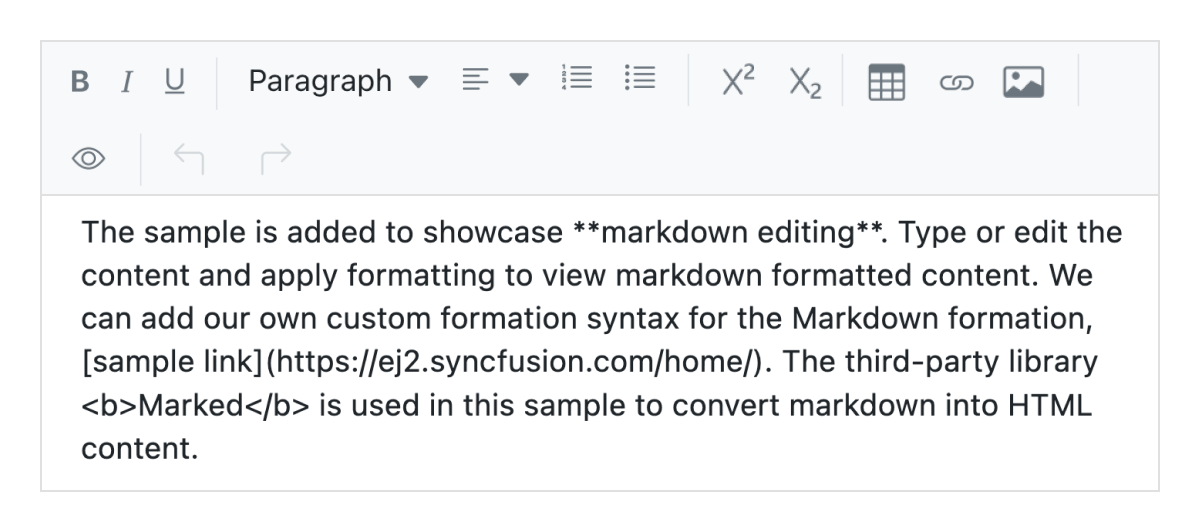
Autoformatting allows users to style content quickly using Markdown-style shortcuts, removing the need for toolbar buttons or dropdowns for common formatting. When users type syntax such as # for headings, ** for bold, or * for italics, the editor automatically converts it into corresponding HTML elements.
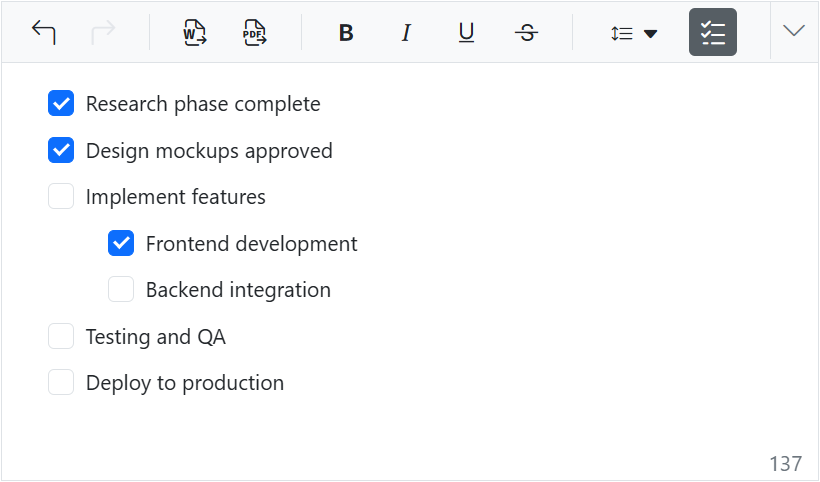
Checklists
Checklists (to-do lists) can be created directly within the editor. Users can easily add interactive checkbox items to their content, enabling task tracking and management within documents.
Adding custom lists
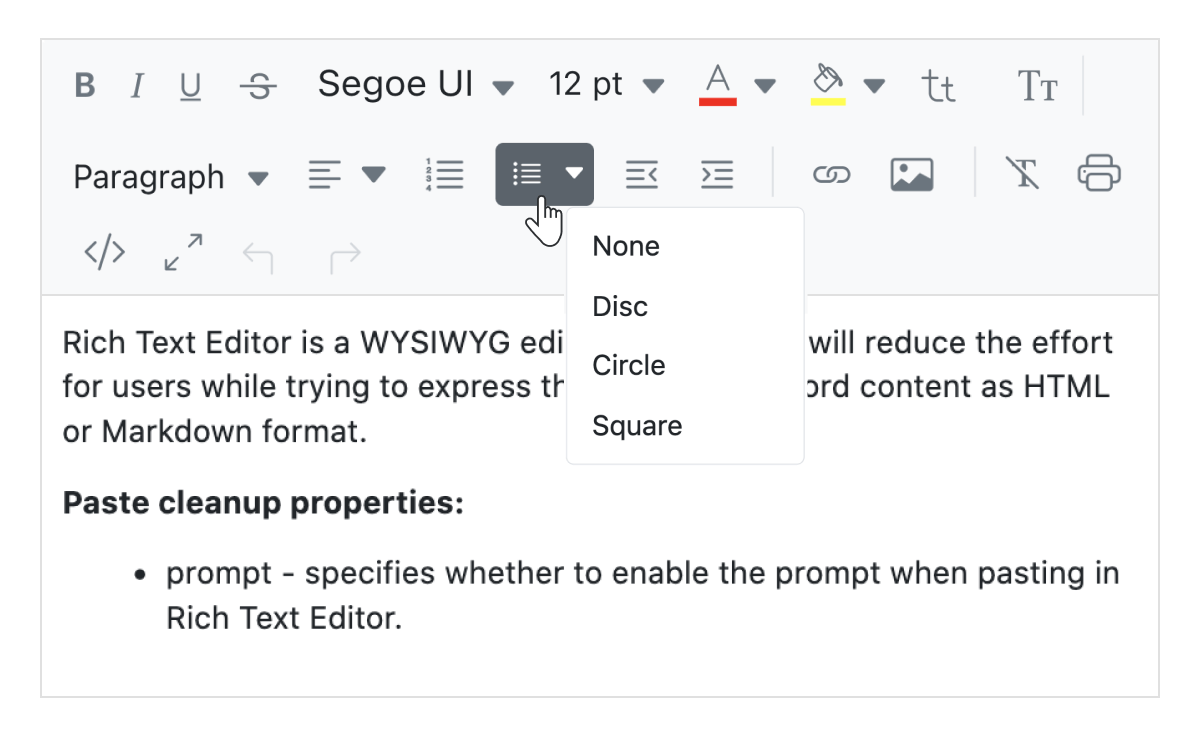
Create ordered (numbered) or unordered (bulleted) lists to structure content effectively. The editor supports customizing bullet styles such as circles or squares, as well as different numbering formats like lowercase Greek and uppercase Roman.
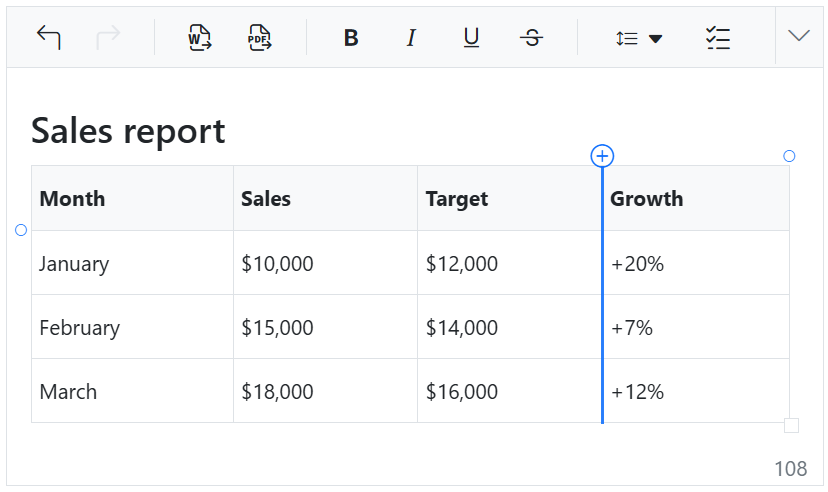
Quick insert for table rows and columns
Rows and columns can be added quickly to a table. When the cursor hovers near table edges, a “+” icon appears, allowing users to insert rows or columns with a single click.
Line height
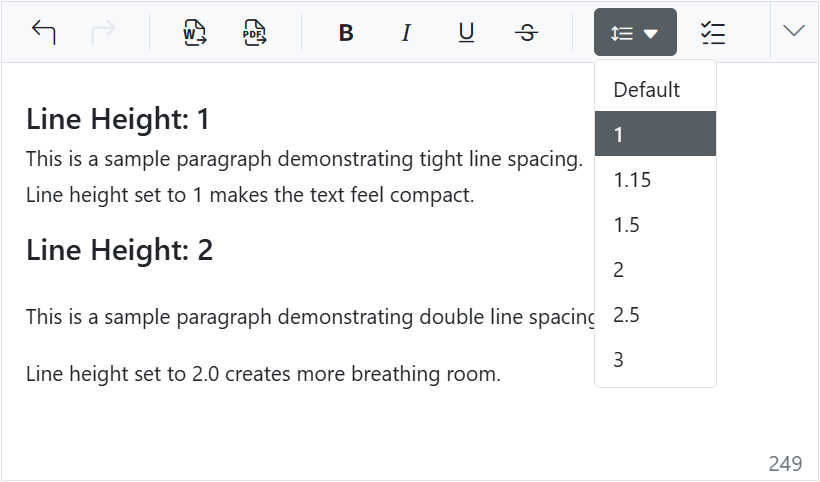
Users can adjust the vertical spacing between lines of text, controlling how compact or spaced the content appears, which improves readability and visual balance.
Full-screen text editor
A built-in option enables the editor to expand into full-screen mode for a more focused and distraction-free content editing experience.
Paste from Microsoft Word and Excel
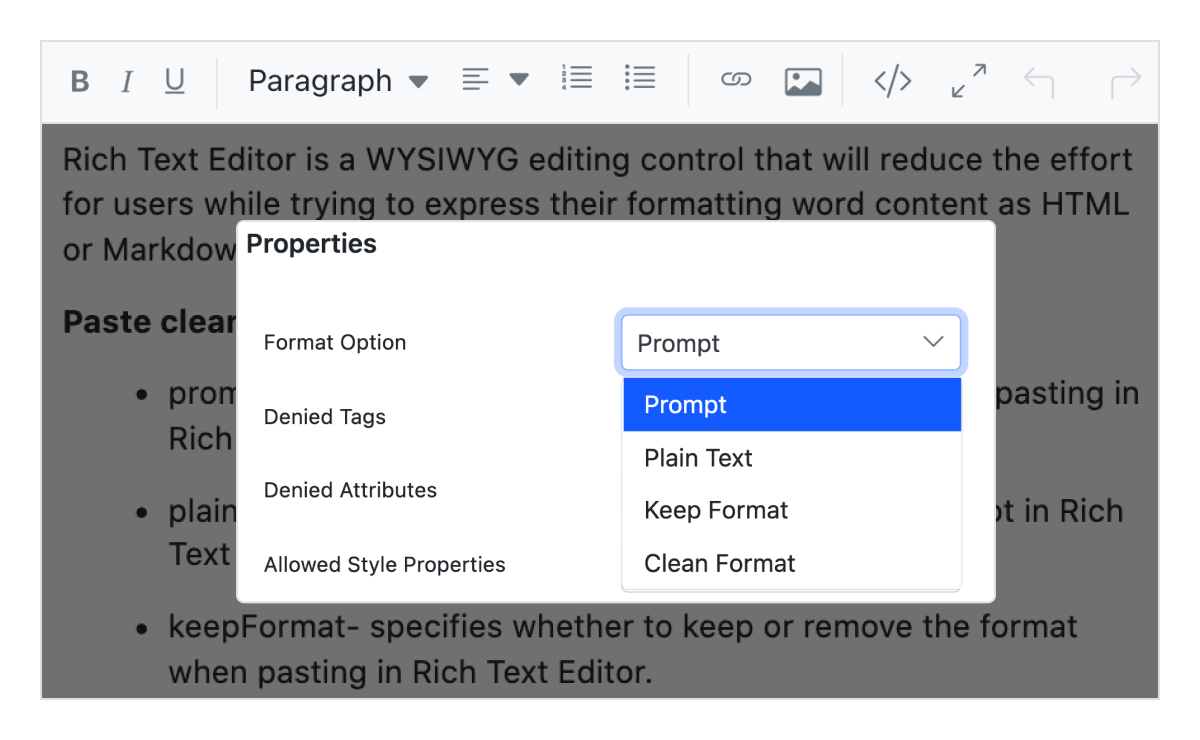
Provides built-in options to paste content, including images, from Microsoft Word, Outlook, and Excel while filtering unnecessary tags and styles. Content can be pasted as plain text, cleaned format, or with original formatting.
Auto-hyperlink of URL
Automatically converts plain text URLs into clickable hyperlinks as they are typed.
Angular form validations
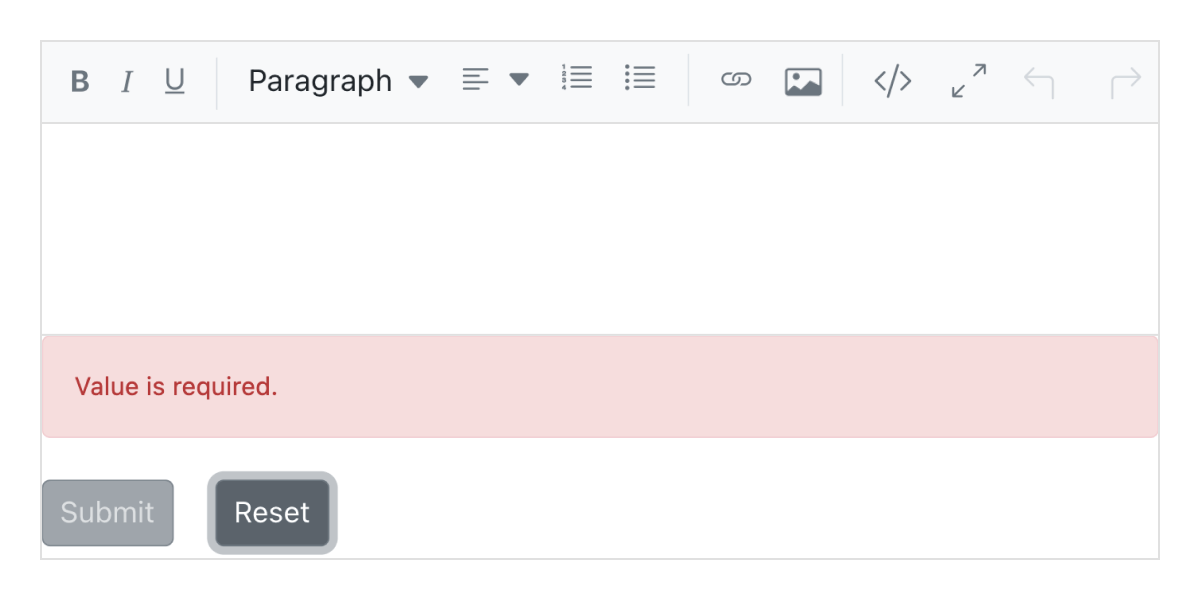
The Rich Text Editor supports form integration and can capture values during form submission. It provides the following validation types:
- Required validation
- Maximum length validation
Limit content length
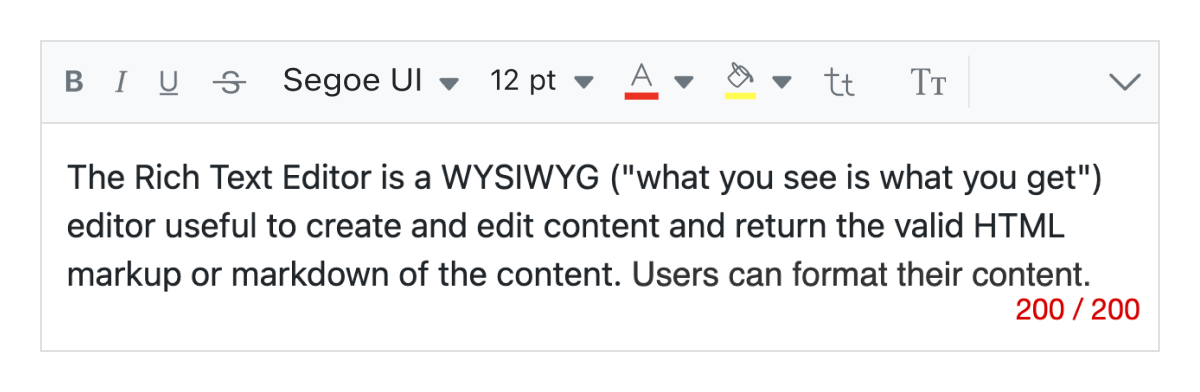
Users can set limits on the number of characters for a specific section, ensuring controlled content input.
Resizable editor
The Angular Rich Text Editor is resizable, enabling users to expand or reduce the content area based on their needs.
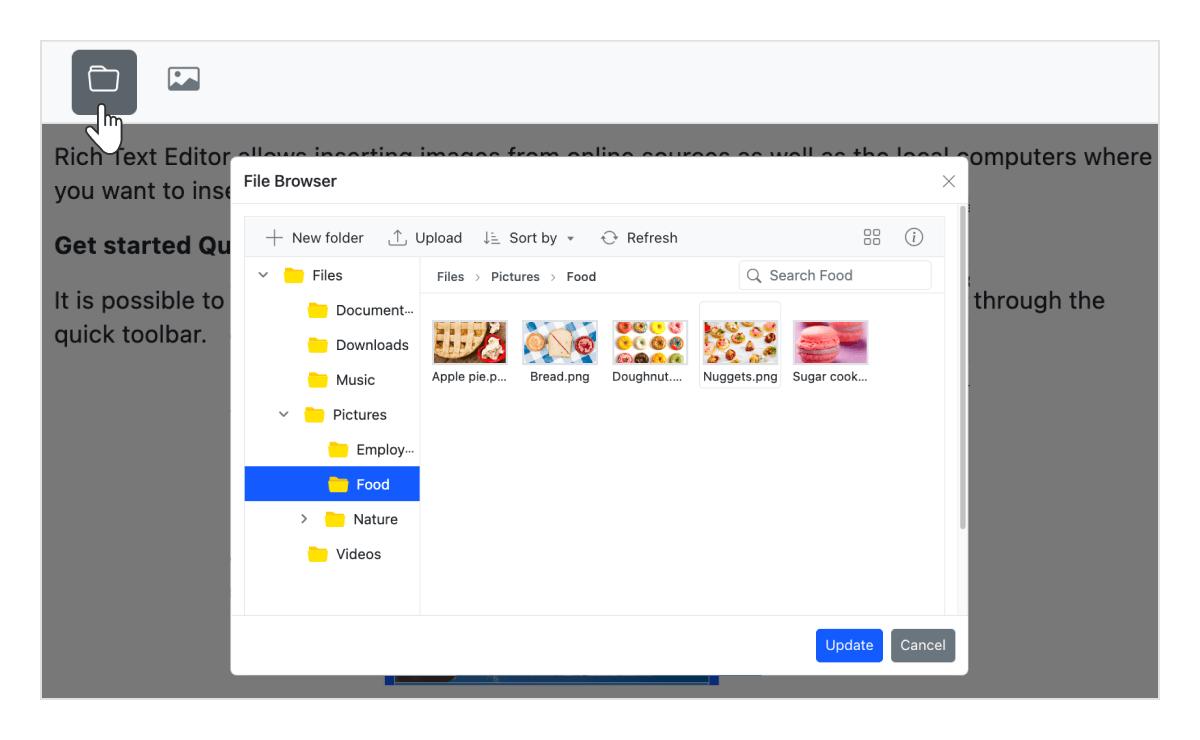
Insert an image through the file manager
The built-in file manager allows users to upload and insert images directly from cloud storage or a server.
Format painter
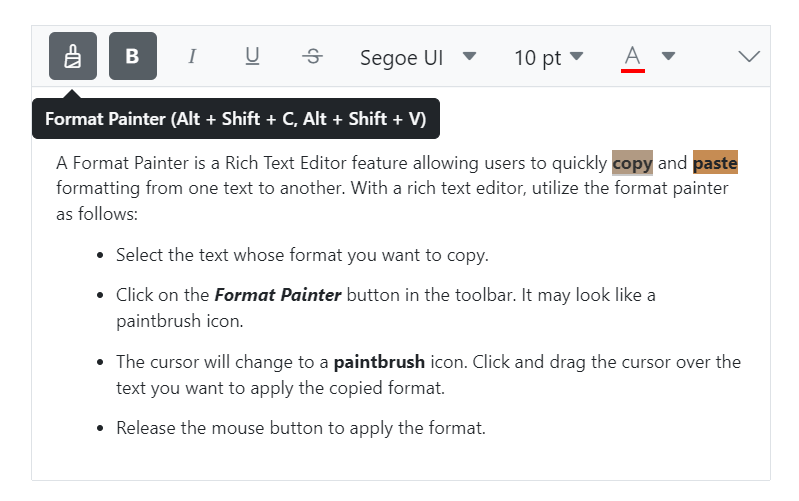
The format painter lets users quickly copy formatting and apply it to other content, avoiding manual reformatting. It can be accessed via the toolbar or keyboard shortcuts. The sticky mode, activated by double-clicking the toolbar button, enables users to apply formatting across multiple areas continuously.
Additional features

Cut, copy, and paste
Supports standard clipboard operations such as cut, copy, and paste.

Undo and redo manager
Maintains a history of editing actions, enabling users to undo or redo changes as needed.

Print text editor content
Print content directly using the toolbar option or programmatically, with formatting preserved.

Responsive Angular Rich Text Editor
Recognizes touch gestures, allowing users to swipe left or right to navigate the toolbar. The responsive design ensures a smooth experience across mobile, tablet, and desktop devices.

Built-in and customizable themes
Includes multiple built-in themes such as Tailwind CSS, Bootstrap 5, Bootstrap 4, Bootstrap, Material, Fabric, Fluent, and high contrast.
Developer-friendly Angular Rich Text Editor APIs
There are sufficient client-side APIs available to enhance the process of content editing.
HTML editor accessibility

Keyboard navigation
The Rich Text Editor ensures that every cell is accessible using the keyboard. Major features like sort, select, and edit can be performed using keyboard commands alone; no mouse interaction is required. This helps in creating highly accessible applications using this component.

Screen reader
The Rich Text Editor view has complete WAI-ARIA accessibility support. Its UI includes high-contrast visual elements that help visually impaired people to have the best viewing experience. Also, valid UI descriptions are easily accessible through assistive technologies such as screen readers.

Right to left (RTL)
The Rich Text Editor supports right-to-left rendering, allowing the text and layout of the text editor to be displayed from right to left. This improves the user experience and accessibility for users of RTL languages such as Arabic, Farsi, and Hebrew.
Angular version compatibility
With continuous improvement in Angular versions, the Angular Rich Text Editor is kept up to date to make it compatible with versions starting from 4 to the latest version.
Other supported frameworks
The Rich Text Editor is also available for the Blazor, React, Angular, and JavaScript frameworks. Explore its platform-specific options through the following links:
Supported browsers
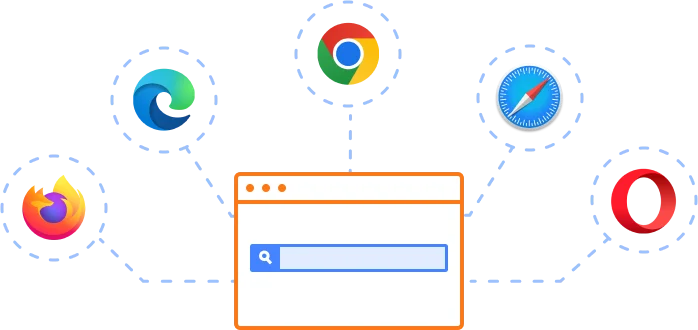
The Angular Rich Text Editor works well with all modern web browsers, including Chrome, Firefox, Edge, Safari, and Opera.
Not sure how to create your first Angular Rich Text Editor? Our tutorial videos and documentation can help.
I’d love to watch it now I’d love to read it nowFrequently Asked Questions
Why should you choose the Syncfusion Angular Rich Text Editor?
The Syncfusion Angular Rich Text Editor component is a production-ready WYSIWYG HTML and Markdown editor enabling modern content editing experiences in Angular applications. Key features:
Edit WYSIWYG HTML and Markdown content with a comprehensive set of formatting tools.
Integrate the component into blog editors, messaging applications, HTML email composers, documentation tools, CMS platforms, and discussion forums.
Use floating toolbar and inline editing modes to edit content directly on the page.
- Customize the editor with simple configuration options and developer-friendly APIs.
- Build responsive applications that support all modern browsers and mobile devices.
Get started quickly with comprehensive documentation, demos, and enterprise support.
Where can I find the Syncfusion Angular Rich Text Editor demo?
You can find our Angular Rich Text Editor demo here.
Does Syncfusion provide an Angular Rich Text Editor library?
Yes. Syncfusion provides a production-ready Angular Rich Text Editor component that serves as a complete rich text editing solution for Angular applications. If you’re looking for an Angular Rich Text Editor library, it offers WYSIWYG HTML and Markdown editing, customizable toolbars, image and media insertion, accessibility, and extensive APIs for enterprise applications.
Can I download and utilize the Syncfusion Angular Rich Text Editor for free?
No, this is a commercial product and requires a paid license. However, a free community license is also available for companies and individuals whose organizations have less than $1 million USD in annual gross revenue, 5 or fewer developers, and 10 or fewer total employees.
How do I get started with the Syncfusion Angular Rich Text Editor?
A good place to start would be our comprehensive getting started documentation.
Our Customers Love Us
Having an excellent set of tools and a great support team, Syncfusion® reduces customers’ development time.Here are some of their experiences.

Document Editor For Angular
Great features, amazing package for start-ups / small businesses with the free license plan, excellent support. We use document editor component for angular. We also like the documentation.

Călin C,

Technology Consultant
Perfect for any developer
The Syncfusion Essential Studio has excellent features that are updated or added constantly on a regular basis. The support is exceptional—fast and professional responses. The support team provides you with code samples. As for the bugs, they always try to include the fix in the next release.

Dejan D.
Chief Executive Officer
See Real Success Stories
Developers around the world trust Syncfusion’s Essential Studio to simplify complex projects and speed up delivery. With a vast library of UI controls, powerful SDKs, and reliable support, Essential Studio helps teams build enterprise-ready applications with confidence.
Read Our Customer StoriesIndustry
Software development
75% Cost reduction
50% Faster development
Industry
Utilities (oil and gas)

450+ hours saved
Streamlined processes and hours of development effort saved.

Advanced, flexible features
Empowered users through robust and versatile functionality.
Industry
Software and technology
1000+ of hours saved
Accelerated development with enterprise-ready UI components.

Efficient file management
Streamlined workflows with document libraries without building them from scratch.
Industry
Software and technology

2 Years of delay avoided
Two years of delays prevented with proactive planning.

On-time delivery
Projects delivered on schedule using trusted controls.
Industry
IT services and IT consulting

Improved performance
Large datasets handled with easy customization and quick debugging.

Highly customizable
Plug-and-play controls with quick template integration.
Industry
Professional services
Instant access
Quick availability of features and resources.
Reduced dependencies
Fewer dependencies for faster development.
Rated by users across the globe
Syncfusion Angular Rich Text Editor resources


UI Kits
 Figma download
Figma download
Awards
Greatness—it’s one thing to say you have it, but it means more when others recognize it. Syncfusion® is proud to hold the following industry awards.


Recent activities in Angular Rich Text Editor tutorial and blogs
The Angular Rich Text Editor tutorial videos and blog posts will guide you in building your first app with this Angular components. They provide problem-solving strategies, describe features and functionalities, announce new feature releases, explain best practices, and showcase example scenarios. Explore our latest posts on our blog and tutorial video channels for Angular Rich Text Editor updates.







