


Choose How You Navigate and Work
Choose how files are displayed, move through folder hierarchies, and access frequently needed actions. Flexible views and navigation options make it easier to find content and perform file operations based on the task at hand.
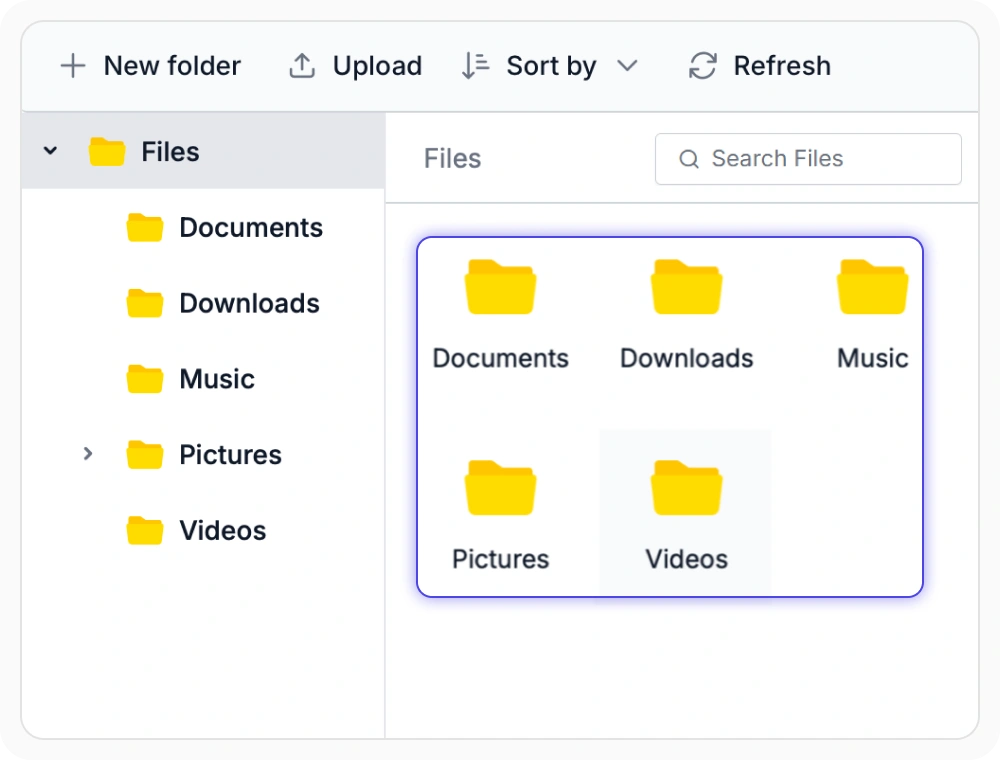
Large icons view for browsing
Files and folders render as large thumbnail tiles that refresh automatically after adds, renames, or deletions. Teams managing photo libraries, video assets, or design files can scan visual previews instead of reading file names, speeding up content identification.
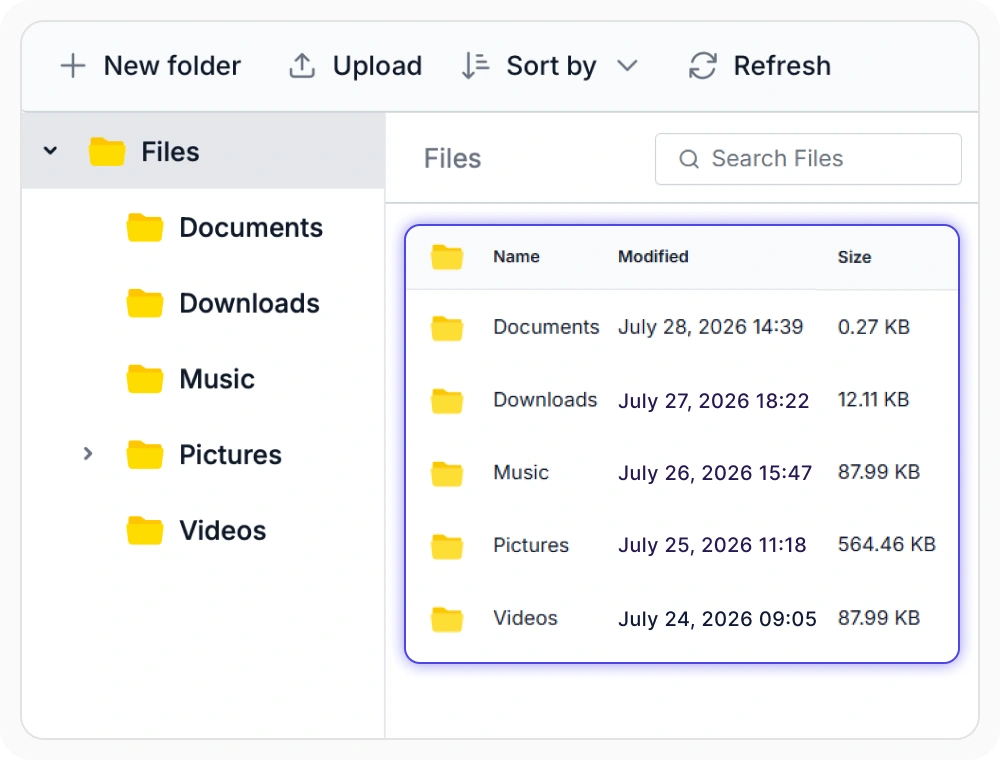
Compare files in details view
Details view lists files in a sortable table with columns for name, type, size, modified date, and custom fields, with resizable widths. Teams auditing document repositories or compliance archives can compare metadata across many items without opening each file, saving time.
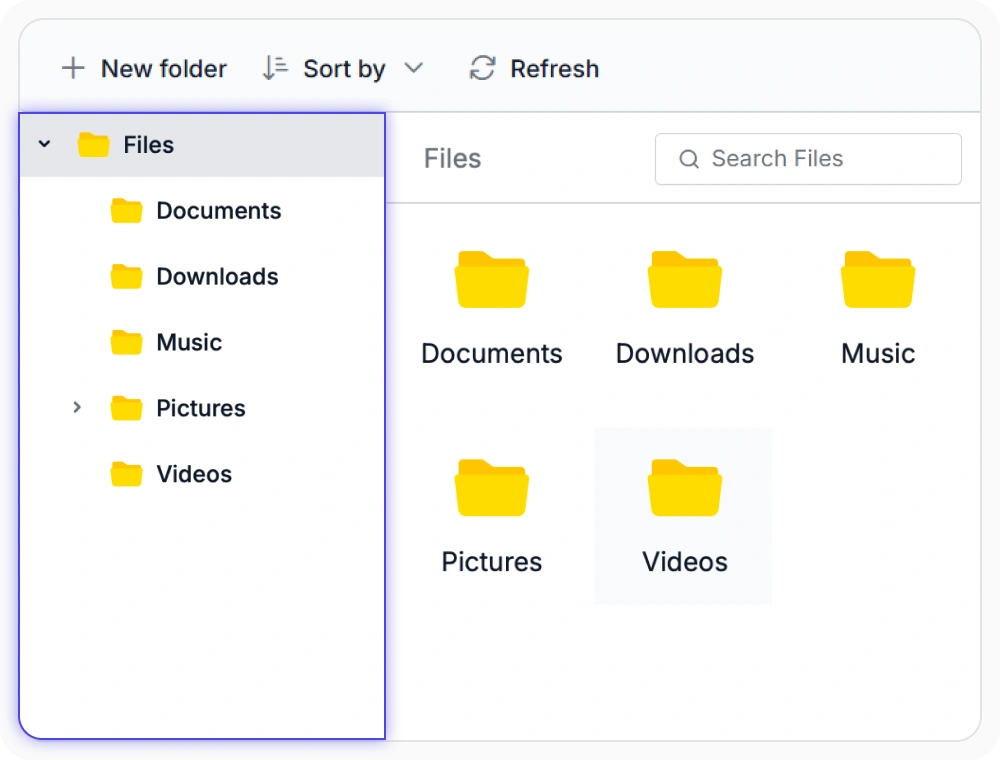
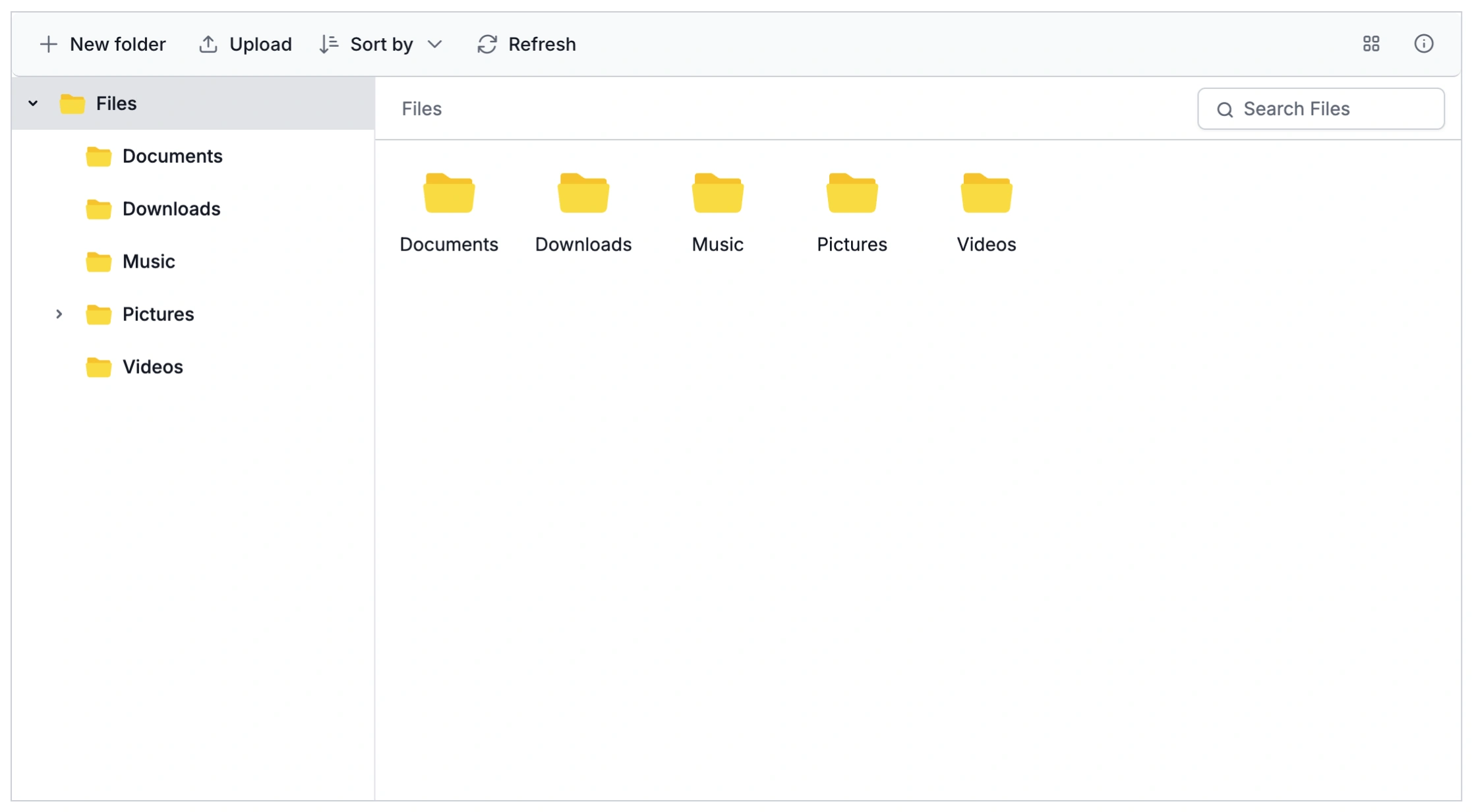
Navigation pane for folder jumps
The navigation pane displays the folder hierarchy in a sidebar for one-click jumps between locations, staying in sync with file operations and supporting keyboard navigation. Teams managing shared drives with hundreds of nested subfolders can reach any folder in fewer clicks.
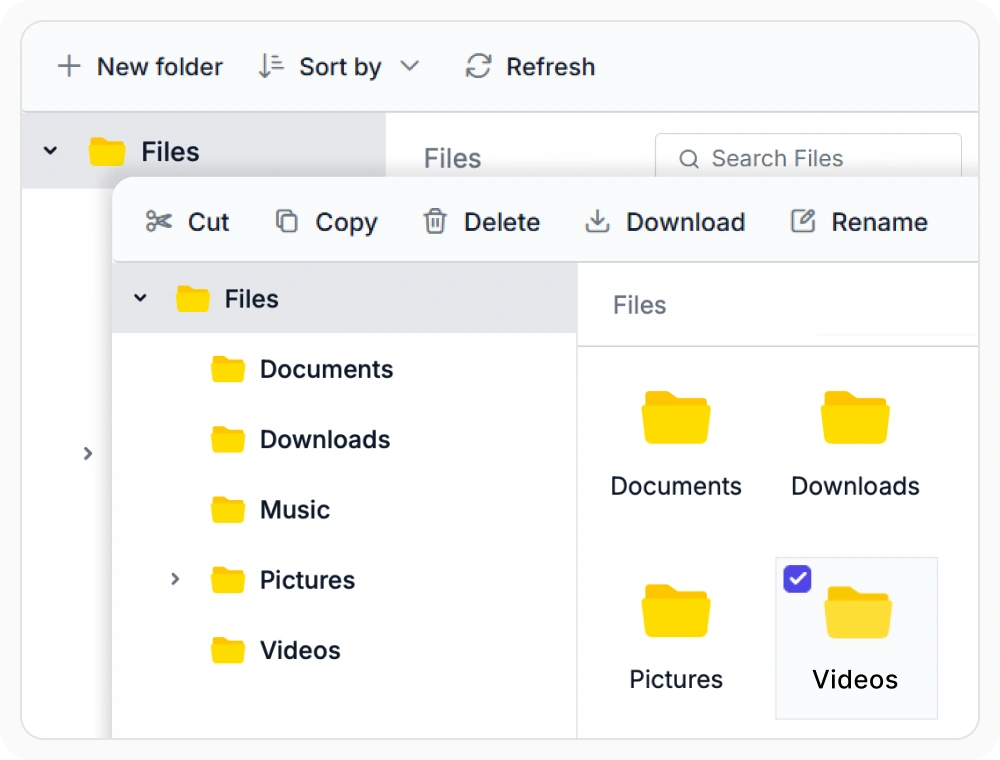
Toolbar for quick operations
The toolbar keeps core actions, including create, upload, delete, and view switching, visible without extra menus. Teams building internal document portals or admin dashboards can reorder buttons to match their workflow, cutting clicks for the most frequent tasks.
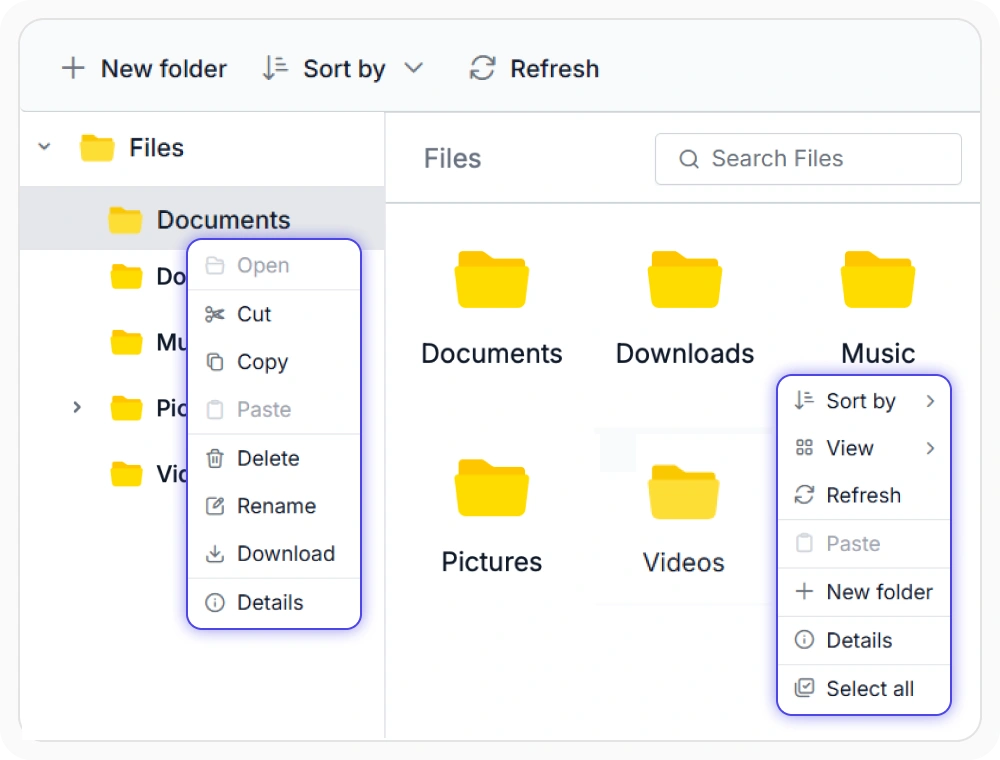
Context menu for quick actions
Right-clicking a file or folder opens a context menu with common operations, and the selected item stays highlighted while the menu is open. Teams working in shared document libraries can rename, move, or delete items on the spot, without using to the toolbar first.
Frequently Asked Questions
What view modes does the React File Manager user interface support?
React File Manager supports a large icons view for thumbnail-based browsing and a details view for displaying files and folders with metadata. Users can switch between the available views based on their browsing preferences.
Can the React File Manager toolbar and context menu be customized?
Yes. React File Manager allows toolbar and context menu items to be added, removed, reordered, or customized to match application requirements. Custom commands can also be included when needed.
How does the navigation Pane improve folder navigation?
The navigation pane in React File Manager displays the complete folder hierarchy in a sidebar, making it easy to browse and switch between folders. It stays synchronized with the current folder structure during file management operations.
Does the React File Manager details view support custom columns?
Yes. React File Manager supports custom columns in the details view to display additional file metadata. This helps applications present business-specific information such as project codes, document status, or approval stages.
Resources
Learn more about our React File Manager
Explore demos, KB articles, and documentation to get the most out of the File Manager.
Explore guides, APIs, and quick-start tips
See live use cases in action
Ask, share, and connect with peers
Find solutions and best practices fast
Get expert help when needed
Feature requests and bug reports
Track issues and suggest improvements
See Real Success Stories
Developers around the world trust Syncfusion’s Essential Studio to simplify complex projects and speed up delivery. With a vast library of UI controls, powerful SDKs, and reliable support, Essential Studio helps teams build enterprise-ready applications with confidence.
Read Our Customer StoriesIndustry
Software development
75% Cost reduction
50% Faster development

Industry
Utilities (oil and gas)

450+ hours saved
Streamlined processes and hours of development effort saved.

Advanced, flexible features
Empowered users through robust and versatile functionality.
Industry
Software and technology
1000+ of hours saved
Accelerated development with enterprise-ready UI components.

Efficient file management
Streamlined workflows with document libraries without building them from scratch.
Industry
Software and technology

2 Years of delay avoided
Two years of delays prevented with proactive planning.

On-time delivery
Projects delivered on schedule using trusted controls.
Industry
IT services and IT consulting

Improved performance
Large datasets handled with easy customization and quick debugging.

Highly customizable
Plug-and-play controls with quick template integration.
Industry
Professional services
Instant access
Quick availability of features and resources.
Reduced dependencies
Fewer dependencies for faster development.
Awards
Greatness—it’s one thing to say you have it, but it means more when others recognize it. Syncfusion® is proud to hold the following industry awards.