


Core Actions Every File Manager Needs
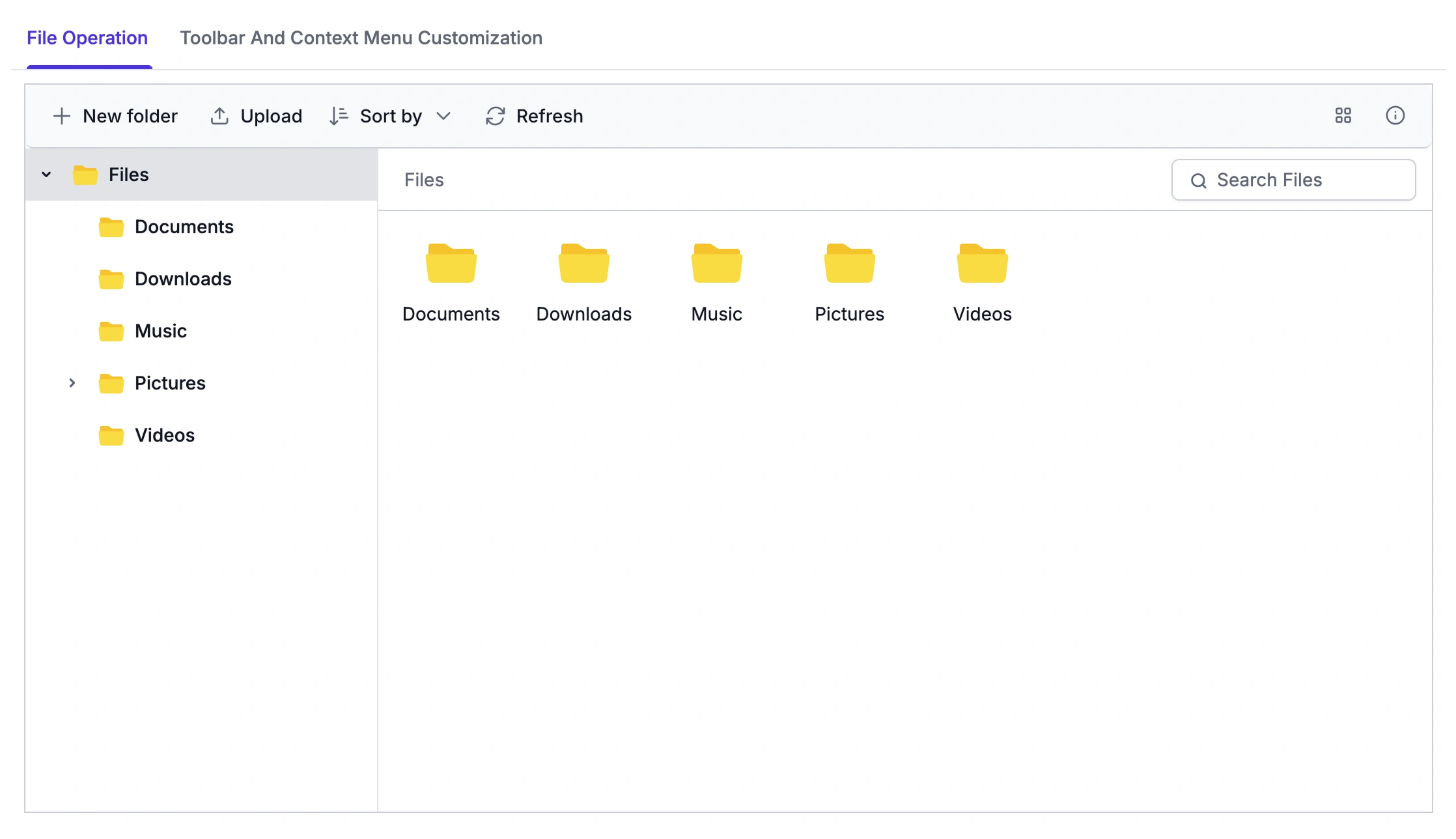
From everyday organization to reordering shared content, these operations cover the file and folder actions most applications need, available through the toolbar or context menu.
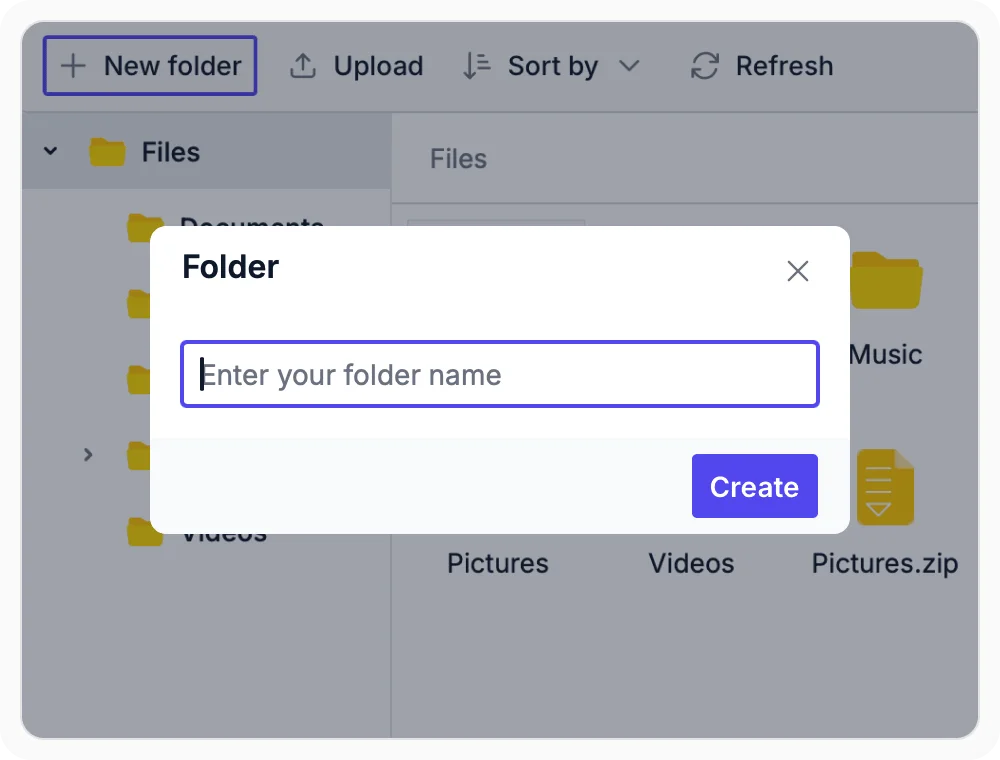
Create new folders
Create nested folders directly from the toolbar or context menu to organize related content within the current folder. Use this for project deliverables, client folders, or versioned asset libraries as new content arrives. This keeps the folder hierarchy clear as content grows.
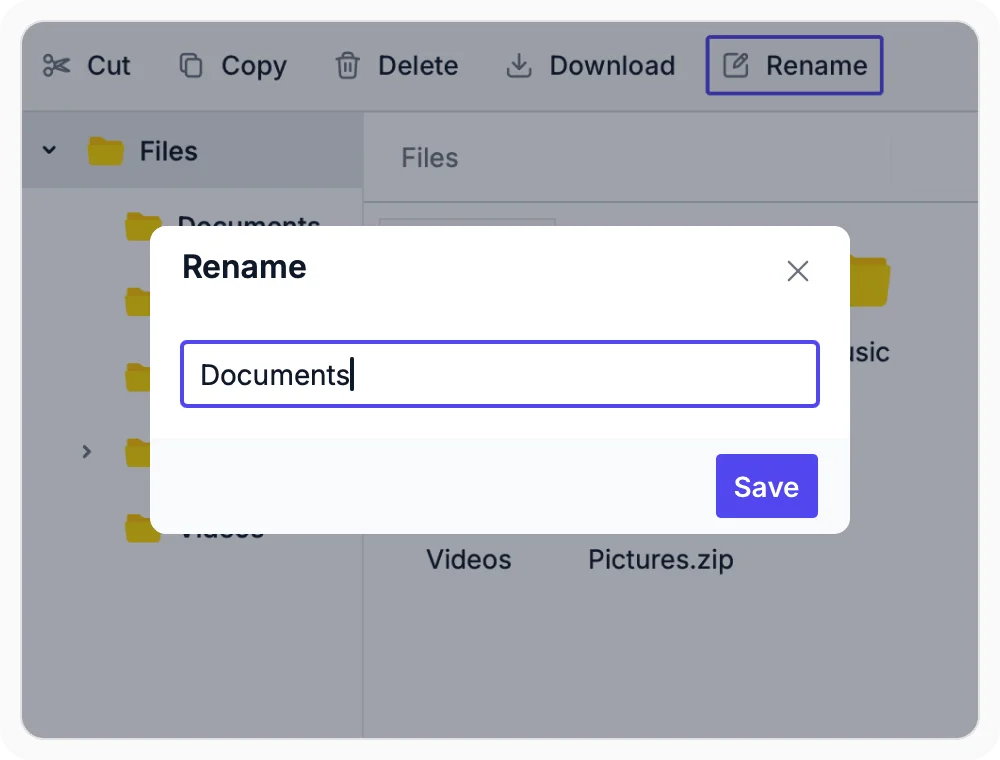
Rename files and folders
Rename files and folders to keep names accurate and meaningful over time. Renaming updates the item in place without changing its location or content. Use this feature when document names need to reflect updated content, versioning, or business requirements.
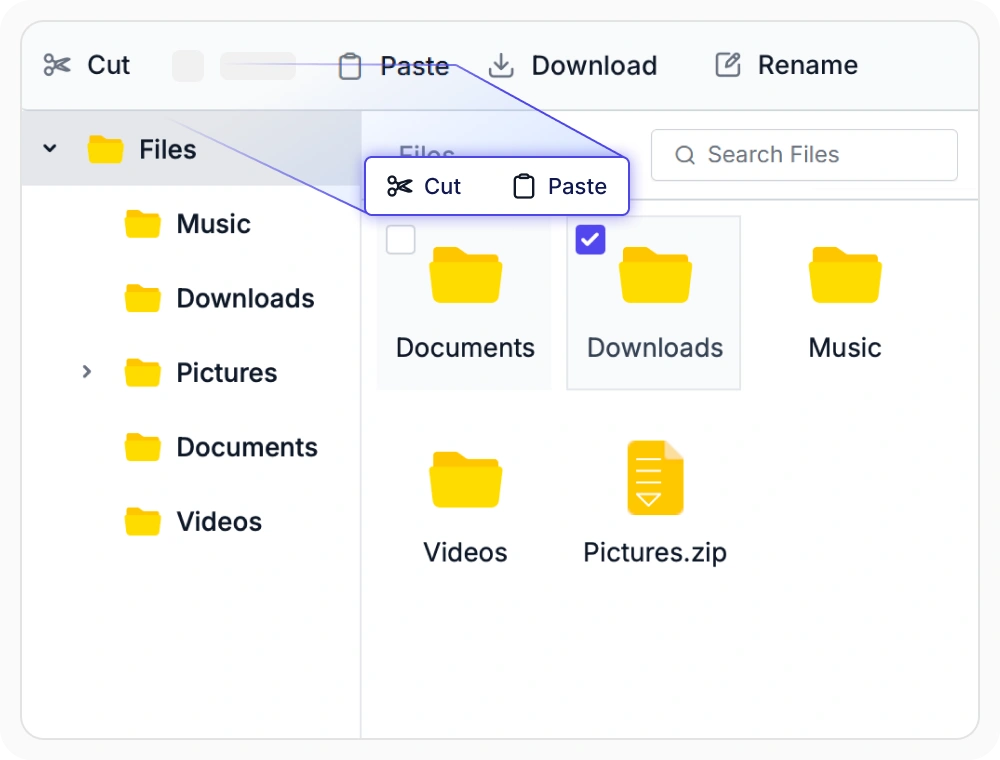
Move files and folders
Move files and folders between locations using cut and paste actions, relocating the item and removing it from the original folder. Use this when migrating completed project files from an In Progress folder to an Archive folder. Content is reorganized without duplicating storage.
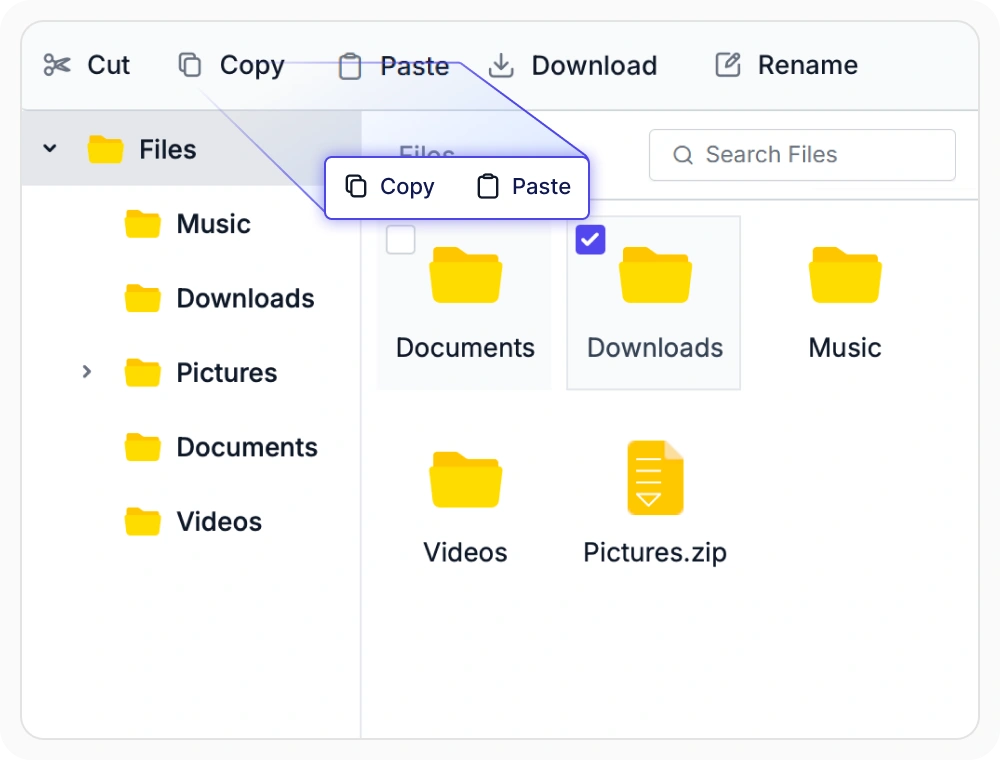
Copy files and folders
Copy files and folders to another location while keeping the original items unchanged, with the duplicate retaining the same content and structure. Use this when reusing a shared template folder across multiple client or project directories. No manual recreation is needed.
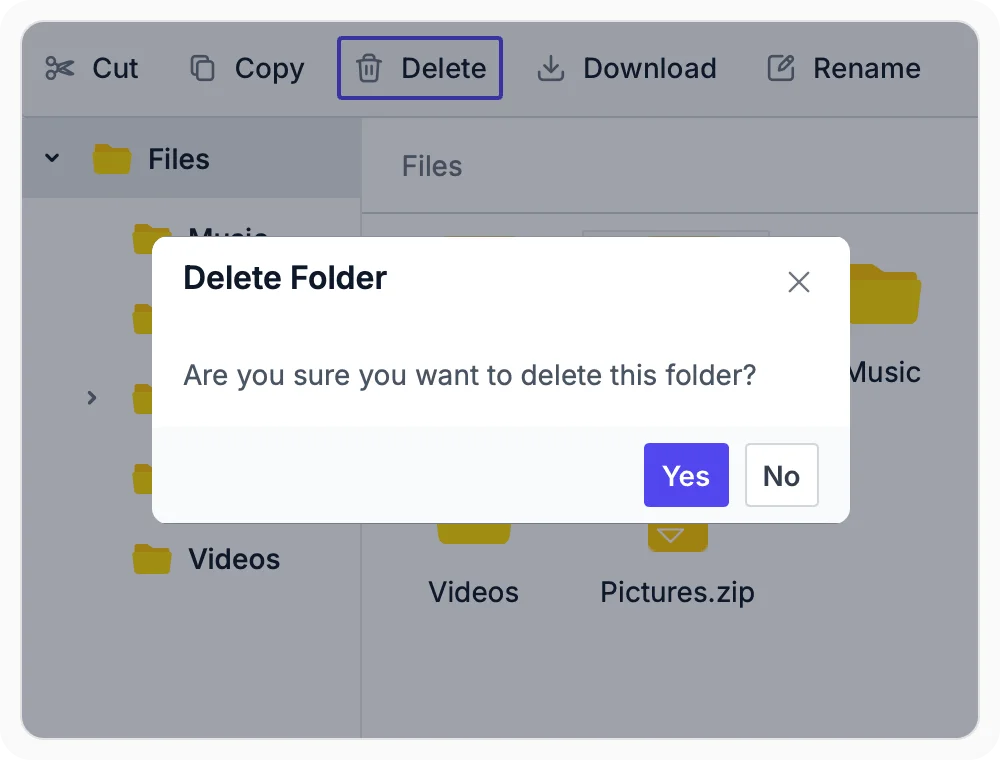
Delete files and folders
Delete files and folders that are no longer needed from the current workspace, with items removed from the file system after confirmation. Use this when clearing outdated drafts or temporary uploads from a shared team workspace. The confirmation step reduces accidental data loss.
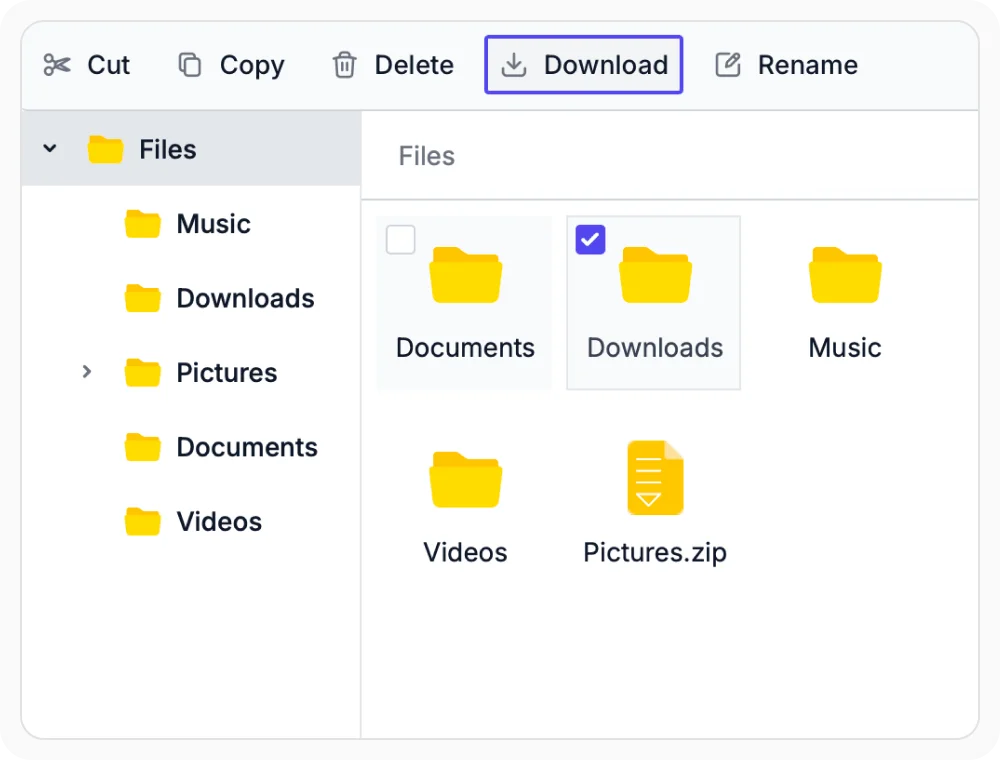
Download files and folders
Download files and folders from the current workspace to a local device, with the downloaded copy retaining its original content, name, and folder structure. Use this when content needs to be accessed offline, shared externally, or saved as a local backup for records.
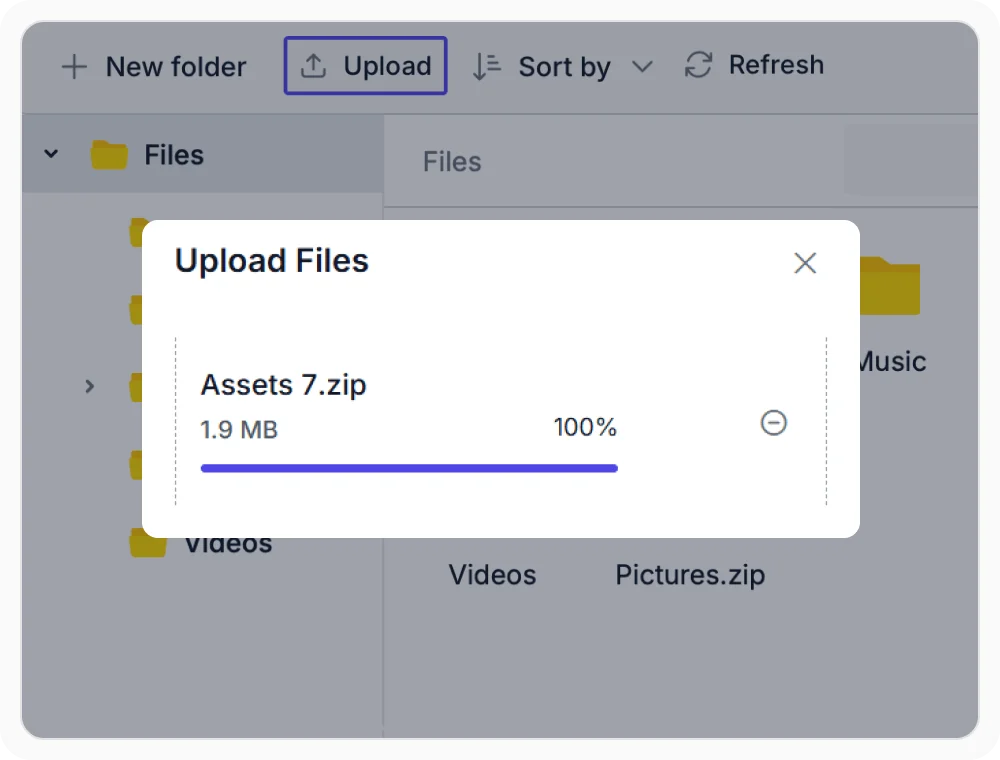
Upload files and folders
Upload files and folders from a local device directly into the current folder, with items appearing immediately in the file list once the transfer completes. Use this when new content needs to be added to a shared team workspace, project directory, or department folder.
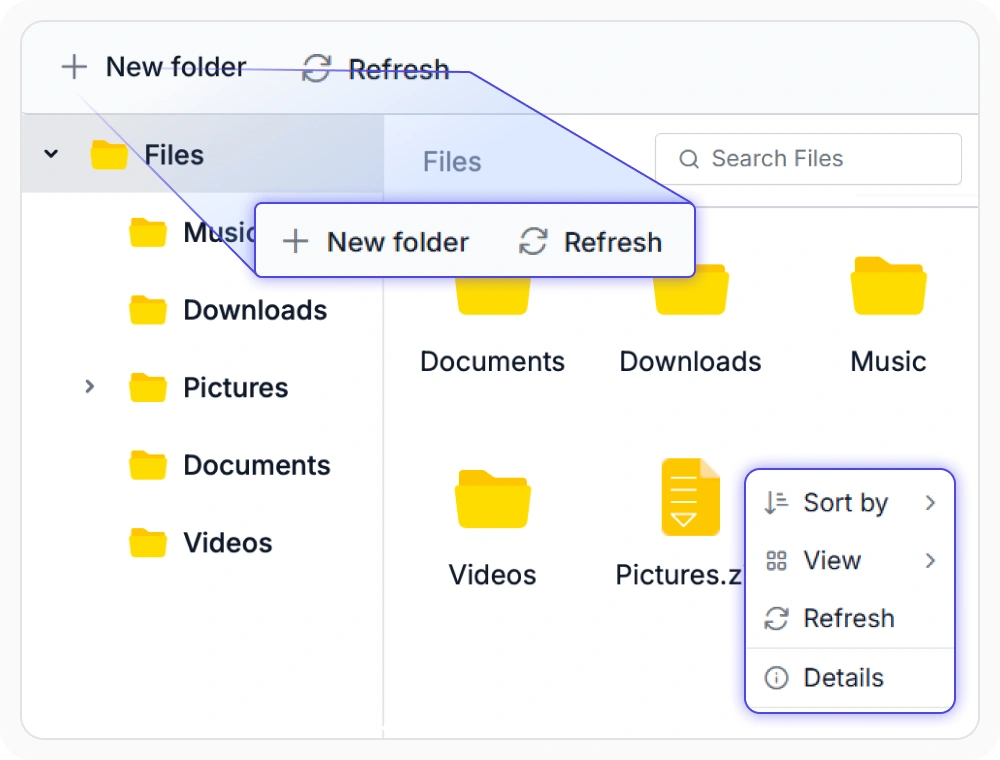
Customize toolbar and context menus
Customize toolbar and context menu options to control which actions are available in different scenarios. Individual commands can be shown, hidden, or disabled based on context. Use this when different user roles or file types need specific management actions available.
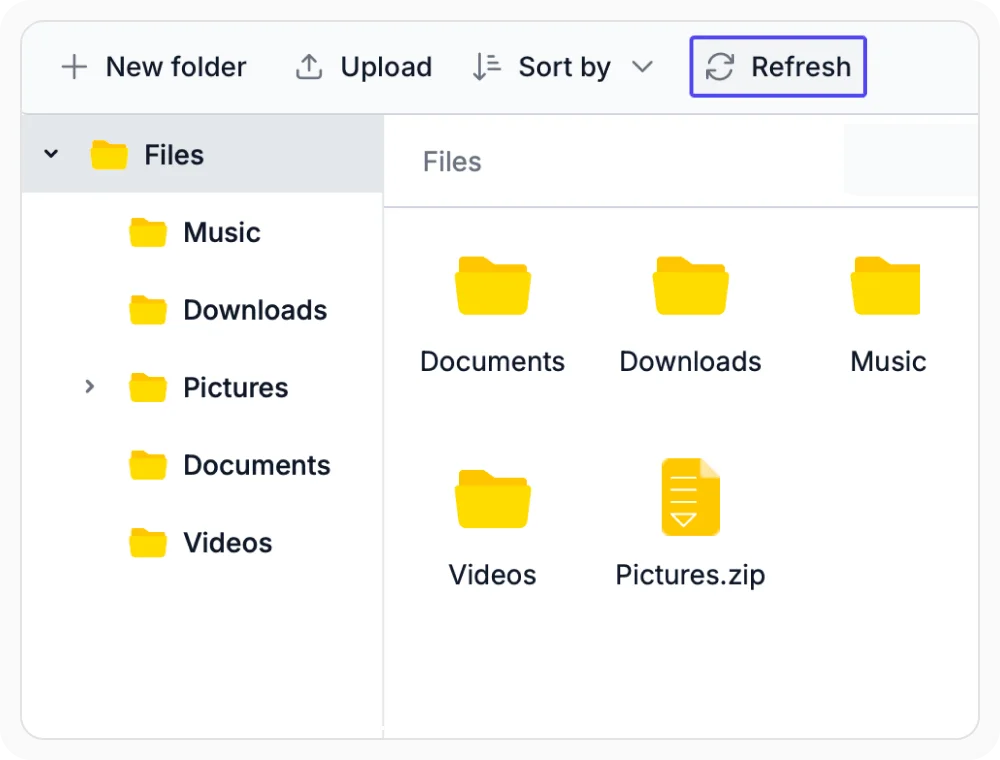
Refresh folder content
efresh folder content to display the latest file and folder changes without reopening the current folder. Use this to confirm that files recently added, modified, or removed by another user or background process now appear correctly in the current file list.
Frequently Asked Questions
How do I create and rename files and folders in React File Manager?
React File Manager provides New Folder and Rename options in the toolbar and context menu. Renaming happens inline, and newly created folders appear immediately in the current view.
Can toolbar and context menus be customized in React File Manager?
Yes, React File Manager toolbar and context menu items can be fully customized. Actions can be shown, hidden, or disabled based on application requirements, user roles, or specific workflows.
How do copy, cut, and paste operations work in React File Manager?
Copy duplicates files and folders while keeping originals unchanged. Cut moves items to new locations, and paste completes the operation at destination folders in React File Manager.
Does React File Manager support multi-item file operations?
Yes, React File Manager supports selecting multiple files or folders at once to perform bulk actions. Copy, move, delete, or download operations can all be applied to the entire selection in a single step.
Resources
Learn more about our React File Manager
Explore demos, KB articles, and documentation to get the most out of the File Manager.
Explore guides, APIs, and quick-start tips
See live use cases in action
Ask, share, and connect with peers
Find solutions and best practices fast
Get expert help when needed
Feature requests and bug reports
Track issues and suggest improvements
See Real Success Stories
Developers around the world trust Syncfusion’s Essential Studio to simplify complex projects and speed up delivery. With a vast library of UI controls, powerful SDKs, and reliable support, Essential Studio helps teams build enterprise-ready applications with confidence.
Read Our Customer StoriesIndustry
Software development
75% Cost reduction
50% Faster development

Industry
Utilities (oil and gas)

450+ hours saved
Streamlined processes and hours of development effort saved.

Advanced, flexible features
Empowered users through robust and versatile functionality.
Industry
Software and technology
1000+ of hours saved
Accelerated development with enterprise-ready UI components.

Efficient file management
Streamlined workflows with document libraries without building them from scratch.
Industry
Software and technology

2 Years of delay avoided
Two years of delays prevented with proactive planning.

On-time delivery
Projects delivered on schedule using trusted controls.
Industry
IT services and IT consulting

Improved performance
Large datasets handled with easy customization and quick debugging.

Highly customizable
Plug-and-play controls with quick template integration.
Industry
Professional services
Instant access
Quick availability of features and resources.
Reduced dependencies
Fewer dependencies for faster development.
Awards
Greatness—it’s one thing to say you have it, but it means more when others recognize it. Syncfusion® is proud to hold the following industry awards.