

Overview
The Syncfusion JavaScript PDF library provides comprehensive support for working with a wide range of PDF annotations. It allows developers to programmatically create, read, modify, and flatten annotations, making it easy to enrich PDF documents with interactive and descriptive elements.
The library supports 20+ annotation types, including highlight, underline, strikeout, text markup, free text, ink, link, shape, popup, stamp, and more. It also enables users to customize annotation properties to suit their application needs.
PDF annotation features work seamlessly across modern JavaScript ecosystems, including JavaScript, TypeScript, Angular, React, Vue, ASP.NET Core, and Node.js—making it highly suitable for both client‑side and server‑side PDF workflows in web applications.
How to add annotations in PDF document using JavaScript?
import {PdfDocument, PdfPage, PdfRectangleAnnotation, PdfAnnotationBorder, PdfBorderStyle} from '@syncfusion/ej2-pdf';

// Create a new PDF document
let document: PdfDocument = new PdfDocument();
// Add a new page to the PDF
let page: PdfPage = document.addPage();
// Create a new rectangle annotation with bounds
let annotation: PdfRectangleAnnotation = new PdfRectangleAnnotation({ x: 50, y: 80, width: 200, height: 100 }, {
text: 'Rect', author: 'Syncfusion', subject: 'Rectangle Annotation',
       color: { r: 255, g: 0, b: 0 },
       innerColor: { r: 255, g: 240, b: 240 },
       opacity: 0.6,
       border: new PdfAnnotationBorder({ width: 1, hRadius: 0, vRadius: 0, style: PdfBorderStyle.solid })
    });
// Add annotation to the page
page.annotations.add(annotation);
// Save the document
document.save('output.pdf');
// Close the document instance
document.destroy();
PDF annotation types
Explore various types of annotations available for marking up PDF documents.
Text markup
Apply a highlight, underline, strikeout, or squiggly underline to the text of a document. The color, opacity, border, author, subject, and other annotation properties can be completely customized.
Link
Add online URIs or local links as annotations, allowing users to navigate to a specific destination within the PDF document. It also supports linking to external files in the PDF.
Rubber stamp
Add predefined and custom rubber stamps to a document. The predefined rubber stamps include approved, experimental, not approved, expired, confidential, final, sold, top secret, and draft. Custom rubber stamps can be created with text, graphics, and images.
Popup
Add text and other markup as pop-ups. Predefined icons such as comment, help, note, and others are supported as pop-ups. The state of pop-ups can be toggled on or off.
Shape
Add line, square, rectangle, polygon, polyline, ellipse, and circle to PDF pages to create schematics or to mark an important region. You can move, resize, remove, and edit the shapes’ colors.
Freehand and ink
Add comments with freehand drawings on a PDF page. This feature enables users to provide feedback in a personalized, hand-drawn approach directly within the PDF document.
Measurement
Use interactive measurement annotations to measure the distance, area, and angle of line segments. The supported measurement annotations are line, square, circle, and angle.
Redaction
Remove sensitive information from PDF documents. Text, images, and other types of content can be redacted.
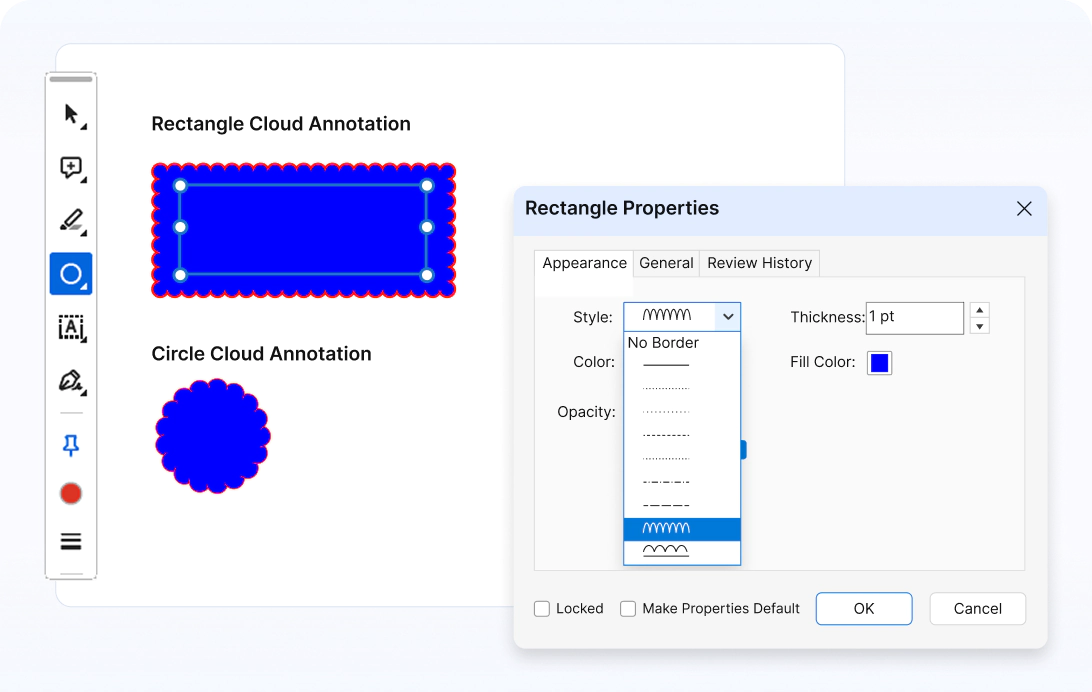
Cloud border style
Draw a cloud-shaped border around text or other objects in a PDF document. This type of annotation is typically used to highlight important information or draw attention to specific areas of a document.
Free text
Insert comments or notes anywhere on the document without constraints. This feature is useful for adding explanations, comments, or textual information, enhancing document clarity and communication.
PDF annotations options
Explore the diverse range of features available for working with annotations in PDF documents.
Import and export
Comprehensive support for importing and exporting annotations in formats, such as FDF, XFDF, and JSON.
Customization
Customize annotation font, color, border style, highlight type, shapes, and more depending on the annotation type.
Add annotations to layers
Bind or link annotations with PDF layers. Toggle, edit, and delete annotations linked with layers.
Flatten
Make annotations an uneditable, permanent part of the document by flattening them. Flattening directly replaces annotations with graphics identical to the original annotations. Annotation pop-up comments can also be flattened.
Read and modify
Access and change the properties of annotations in a PDF document. This can be done to view the annotation’s content, change its appearance, or remove it from the document.
Comments and reviews
Add and remove annotation comments, and reviews within documents. This lets users provide feedback, corrections, or additional information directly within the document, fostering effective collaboration.
Syncfusion JavaScript PDF Library Resources
Explore these resources for comprehensive guides, knowledge base articles, insightful blogs, and ebooks.


Product Updates


Technical Support


Frequently Asked Questions
What is PDF Annotation?
PDF annotations are comments, notes, highlights, stamps, and other markings added to a PDF document to provide feedback, mark important sections, or collaborate with others.
Can I customize the appearance of annotations?
Yes, the Syncfusion PDF library allows you to customize the color, thickness, opacity, and other properties of annotations.
Can I annotate images within a PDF?
Yes, the Syncfusion PDF library allows you to annotate both text and images within PDF documents.
Why annotate a PDF?
Annotating a PDF allows users to mark up documents for personal reference, highlight important information, collaborate on shared documents, and provide feedback on drafts.
Can I remove annotations from a PDF file?
Yes, the Syncfusion PDF library allows you to remove annotations from existing PDF documents.
Trusted by the world’s leading companies
Our Customers Love Us