.NET Word Examples
- Create Word Document
- Perform Mail Merge
- Manage Bookmarks
- Find and Replace Text
- Format Tables
- Split Word Documents
- Merge Multiple Word Documents
- Fill and Manage Form Fields
- Generate and Update Table of Contents
- Compare Word Documents
- Encrypt and Decrypt Documents with Password
- Convert Word Documents to PDF
- Convert Word Documents to Images
- Word-HTML Conversions
- Word-Markdown Conversions
- Word-Text Conversions
Create a Word Document Using the Syncfusion .NET Word Library
The Syncfusion® .NET Word Library offers powerful and comprehensive APIs to create, read, and edit Word documents programmatically in .NET Framework applications, all without relying on Microsoft Word or interop dependencies.
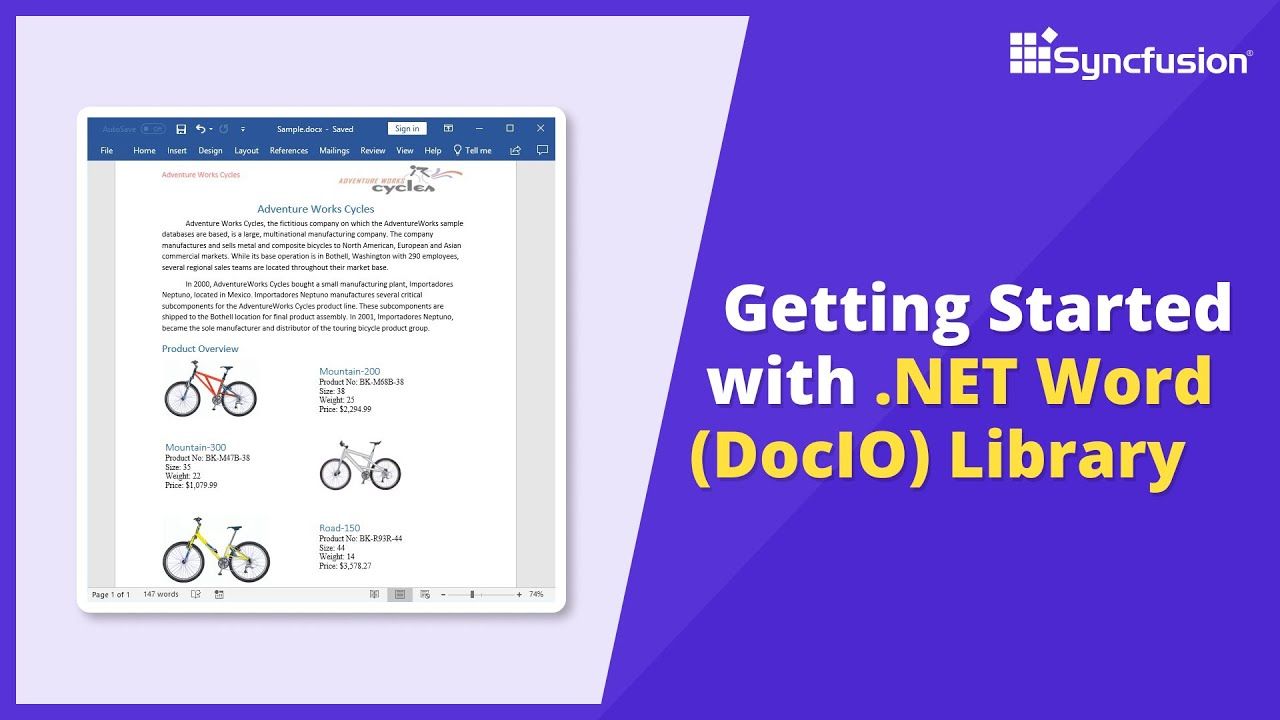
Create a Word document from scratch in C#
Learn how to programmatically create Word documents from scratch in C# using the Syncfusion .NET Word Library. This guide demonstrates document creation with text formatting, images, tables, and custom styles.
Step 1: Create a new project
Start by creating a new C# Console Application project.
Step 2: Install the NuGet package
Add the Syncfusion.DocIO.Net.Core package to your project from NuGet.org.
Step 3: Add required namespaces to create Word document
Add the following namespaces to your Program.cs file:
using System.IO;
using Syncfusion.DocIO;
using Syncfusion.DocIO.DLS;
Step 4: Create a Word document and add section
Create a new Word document, add a section, and apply a page setup to that section.
// Creating a new document
    WordDocument document = new WordDocument();
    //Adding a new section to the document
    WSection section = document.AddSection() as WSection;
    //Set margin of the section
    section.PageSetup.Margins.All = 72;
    //Set page size of the section
    section.PageSetup.PageSize = new Syncfusion.Drawing.SizeF(612, 792);
Step 5: Add a paragraph style to the Word document
Add a paragraph style to the Word document that applies distinct paragraph and character formatting.
//Create paragraph styles
WParagraphStyle style = document.AddParagraphStyle("Normal") as WParagraphStyle;
style.CharacterFormat.FontName = "Calibri";
style.CharacterFormat.FontSize = 11f;
style.ParagraphFormat.BeforeSpacing = 0;
style.ParagraphFormat.AfterSpacing = 8;
style.ParagraphFormat.LineSpacing = 13.8f;

style = document.AddParagraphStyle("Heading 1") as WParagraphStyle;
style.ApplyBaseStyle("Normal");
style.CharacterFormat.FontName = "Calibri Light";
style.CharacterFormat.FontSize = 16f;
style.CharacterFormat.TextColor = Syncfusion.Drawing.Color.FromArgb(46, 116, 181);
style.ParagraphFormat.BeforeSpacing = 12;
style.ParagraphFormat.AfterSpacing = 0;
style.ParagraphFormat.Keep = true;
style.ParagraphFormat.KeepFollow = true;
style.ParagraphFormat.OutlineLevel = OutlineLevel.Level1;
Step 6: Insert header with image and title
Add a header to the document with an image and company title text with custom formatting and positioning.
IWParagraph paragraph = section.HeadersFooters.Header.AddParagraph();
// Get the image stream
FileStream imageStream = new FileStream(@Path.GetFullPath("Data/AdventureCycle.jpg"), FileMode.Open, FileAccess.Read);
IWPicture picture = paragraph.AppendPicture(imageStream);
picture.TextWrappingStyle = TextWrappingStyle.InFrontOfText;
picture.VerticalOrigin = VerticalOrigin.Margin;
picture.VerticalPosition = -45;
picture.HorizontalOrigin = HorizontalOrigin.Column;
picture.HorizontalPosition = 263.5f;
picture.WidthScale = 20;
picture.HeightScale = 15;

paragraph.ApplyStyle("Normal");
paragraph.ParagraphFormat.HorizontalAlignment = HorizontalAlignment.Left;
WTextRange textRange = paragraph.AppendText("Adventure Works Cycles") as WTextRange;
textRange.CharacterFormat.FontSize = 12f;
textRange.CharacterFormat.FontName = "Calibri";
textRange.CharacterFormat.TextColor = Syncfusion.Drawing.Color.Red;
Step 7: Add paragraphs to the Word document
Add multiple paragraphs with heading and body text containing company information and a product overview.
//Append paragraph
paragraph = section.AddParagraph();
paragraph.ApplyStyle("Heading 1");
paragraph.ParagraphFormat.HorizontalAlignment = HorizontalAlignment.Center;
textRange = paragraph.AppendText("Adventure Works Cycles") as WTextRange;
textRange.CharacterFormat.FontSize = 18f;
textRange.CharacterFormat.FontName = "Calibri";

//Append paragraph
paragraph = section.AddParagraph();
paragraph.ParagraphFormat.FirstLineIndent = 36;
paragraph.BreakCharacterFormat.FontSize = 12f;
textRange = paragraph.AppendText("Adventure Works Cycles, the fictitious company on which the AdventureWorks sample databases are based, is a large, multinational manufacturing company. The company manufactures and sells metal and composite bicycles to North American, European and Asian commercial markets. While its base operation is in Bothell, Washington with 290 employees, several regional sales teams are located throughout their market base.") as WTextRange;
textRange.CharacterFormat.FontSize = 12f;

//Append paragraph
paragraph = section.AddParagraph();
paragraph.ParagraphFormat.FirstLineIndent = 36;
paragraph.BreakCharacterFormat.FontSize = 12f;
textRange = paragraph.AppendText("In 2000, AdventureWorks Cycles bought a small manufacturing plant, Importadores Neptuno, located in Mexico. Importadores Neptuno manufactures several critical subcomponents for the AdventureWorks Cycles product line. These subcomponents are shipped to the Bothell location for final product assembly. In 2001, Importadores Neptuno, became the sole manufacturer and distributor of the touring bicycle product group.") as WTextRange;
textRange.CharacterFormat.FontSize = 12f;

paragraph = section.AddParagraph();
paragraph.ApplyStyle("Heading 1");
paragraph.ParagraphFormat.HorizontalAlignment = HorizontalAlignment.Left;
textRange = paragraph.AppendText("Product Overview") as WTextRange;
textRange.CharacterFormat.FontSize = 16f;
textRange.CharacterFormat.FontName = "Calibri";
Step 8: Add a table with product details to the Word document
Create a table to display product information and details for various bicycle models.
//Append table
IWTable table = section.AddTable();
table.ResetCells(3, 2);
table.TableFormat.Borders.BorderType = BorderStyle.None;
table.TableFormat.IsAutoResized = true;
//Append paragraph
paragraph = table[0, 0].AddParagraph();
paragraph.ParagraphFormat.AfterSpacing = 0;
paragraph.BreakCharacterFormat.FontSize = 12f;
//Append picture to the paragraph
FileStream image1 = new FileStream(Path.GetFullPath(@"Data/Mountain-200.jpg"), FileMode.Open, FileAccess.Read);
picture = paragraph.AppendPicture(image1);
picture.TextWrappingStyle = TextWrappingStyle.TopAndBottom;
picture.VerticalOrigin = VerticalOrigin.Paragraph;
picture.VerticalPosition = 4.5f;
picture.HorizontalOrigin = HorizontalOrigin.Column;
picture.HorizontalPosition = -2.15f;
picture.WidthScale = 79;
picture.HeightScale = 79;

//Append paragraph
paragraph = table[0, 1].AddParagraph();
paragraph.ApplyStyle("Heading 1");
paragraph.ParagraphFormat.AfterSpacing = 0;
paragraph.ParagraphFormat.LineSpacing = 12f;
paragraph.AppendText("Mountain-200");
//Append paragraph
paragraph = table[0, 1].AddParagraph();
paragraph.ParagraphFormat.AfterSpacing = 0;
paragraph.ParagraphFormat.LineSpacing = 12f;
paragraph.BreakCharacterFormat.FontSize = 12f;
paragraph.BreakCharacterFormat.FontName = "Times New Roman";
textRange = paragraph.AppendText("Product No: BK-M68B-38\r") as WTextRange;
textRange.CharacterFormat.FontSize = 12f;
textRange.CharacterFormat.FontName = "Times New Roman";
textRange = paragraph.AppendText("Size: 38\r") as WTextRange;
textRange.CharacterFormat.FontSize = 12f;
textRange.CharacterFormat.FontName = "Times New Roman";
textRange = paragraph.AppendText("Weight: 25\r") as WTextRange;
textRange.CharacterFormat.FontSize = 12f;
textRange.CharacterFormat.FontName = "Times New Roman";
textRange = paragraph.AppendText("Price: $2,294.99\r") as WTextRange;
textRange.CharacterFormat.FontSize = 12f;
textRange.CharacterFormat.FontName = "Times New Roman";
//Append paragraph
paragraph = table[0, 1].AddParagraph();
paragraph.ParagraphFormat.AfterSpacing = 0;
paragraph.ParagraphFormat.LineSpacing = 12f;
paragraph.BreakCharacterFormat.FontSize = 12f;

//Append paragraph
paragraph = table[1, 0].AddParagraph();
paragraph.ApplyStyle("Heading 1");
paragraph.ParagraphFormat.AfterSpacing = 0;
paragraph.ParagraphFormat.LineSpacing = 12f;
paragraph.AppendText("Mountain-300 ");
//Append paragraph
paragraph = table[1, 0].AddParagraph();
paragraph.ParagraphFormat.AfterSpacing = 0;
paragraph.ParagraphFormat.LineSpacing = 12f;
paragraph.BreakCharacterFormat.FontSize = 12f;
paragraph.BreakCharacterFormat.FontName = "Times New Roman";
textRange = paragraph.AppendText("Product No: BK-M47B-38\r") as WTextRange;
textRange.CharacterFormat.FontSize = 12f;
textRange.CharacterFormat.FontName = "Times New Roman";
textRange = paragraph.AppendText("Size: 35\r") as WTextRange;
textRange.CharacterFormat.FontSize = 12f;
textRange.CharacterFormat.FontName = "Times New Roman";
textRange = paragraph.AppendText("Weight: 22\r") as WTextRange;
textRange.CharacterFormat.FontSize = 12f;
textRange.CharacterFormat.FontName = "Times New Roman";
textRange = paragraph.AppendText("Price: $1,079.99\r") as WTextRange;
textRange.CharacterFormat.FontSize = 12f;
textRange.CharacterFormat.FontName = "Times New Roman";
//Append paragraph
paragraph = table[1, 0].AddParagraph();
paragraph.ParagraphFormat.AfterSpacing = 0;
paragraph.ParagraphFormat.LineSpacing = 12f;
paragraph.BreakCharacterFormat.FontSize = 12f;

//Append paragraph
paragraph = table[1, 1].AddParagraph();
paragraph.ApplyStyle("Heading 1");
paragraph.ParagraphFormat.LineSpacing = 12f;
//Append picture to the paragraph.
FileStream image2 = new FileStream(Path.GetFullPath(@"Data/Mountain-300.jpg"), FileMode.Open, FileAccess.Read);
picture = paragraph.AppendPicture(image2);
picture.TextWrappingStyle = TextWrappingStyle.TopAndBottom;
picture.VerticalOrigin = VerticalOrigin.Paragraph;
picture.VerticalPosition = 8.2f;
picture.HorizontalOrigin = HorizontalOrigin.Column;
picture.HorizontalPosition = -14.95f;
picture.WidthScale = 75;
picture.HeightScale = 75;

//Append paragraph
paragraph = table[2, 0].AddParagraph();
paragraph.ApplyStyle("Heading 1");
paragraph.ParagraphFormat.LineSpacing = 12f;
//Append picture to the paragraph.
FileStream image3 = new FileStream(Path.GetFullPath(@"Data/Road-550-W.jpg"), FileMode.Open, FileAccess.Read);
picture = paragraph.AppendPicture(image3);
picture.TextWrappingStyle = TextWrappingStyle.TopAndBottom;
picture.VerticalOrigin = VerticalOrigin.Paragraph;
picture.VerticalPosition = 3.75f;
picture.HorizontalOrigin = HorizontalOrigin.Column;
picture.HorizontalPosition = -5f;
picture.WidthScale = 92;
picture.HeightScale = 92;

//Append paragraph
paragraph = table[2, 1].AddParagraph();
paragraph.ApplyStyle("Heading 1");
paragraph.ParagraphFormat.AfterSpacing = 0;
paragraph.ParagraphFormat.LineSpacing = 12f;
paragraph.AppendText("Road-150 ");
//Append paragraph
paragraph = table[2, 1].AddParagraph();
paragraph.ParagraphFormat.AfterSpacing = 0;
paragraph.ParagraphFormat.LineSpacing = 12f;
paragraph.BreakCharacterFormat.FontSize = 12f;
paragraph.BreakCharacterFormat.FontName = "Times New Roman";
textRange = paragraph.AppendText("Product No: BK-R93R-44\r") as WTextRange;
textRange.CharacterFormat.FontSize = 12f;
textRange.CharacterFormat.FontName = "Times New Roman";
textRange = paragraph.AppendText("Size: 44\r") as WTextRange;
textRange.CharacterFormat.FontSize = 12f;
textRange.CharacterFormat.FontName = "Times New Roman";
textRange = paragraph.AppendText("Weight: 14\r") as WTextRange;
textRange.CharacterFormat.FontSize = 12f;
textRange.CharacterFormat.FontName = "Times New Roman";
textRange = paragraph.AppendText("Price: $3,578.27\r") as WTextRange;
textRange.CharacterFormat.FontSize = 12f;
textRange.CharacterFormat.FontName = "Times New Roman";
//Append paragraph
section.AddParagraph();
Step 9: Save the document
Save the Word document to a file stream in DOCX format.
//Save the Word document to FileStream
 using FileStream outputStream = new FileStream(Path.GetFullPath(@"Output/Result.docx"), FileMode.Create);
 document.Save(outputStream, FormatType.Docx);
GitHub project
NuGet installation
Get started quickly by downloading the installer and checking license information on the Downloads page.
Table of contents
Syncfusion .NET Word Library Resources
Explore these resources for comprehensive guides, knowledge base articles, insightful blogs, and ebooks.
Learning


Technical Support








