.NET Word Examples
- Create Word Document
- Perform Mail Merge
- Manage Bookmarks
- Find and Replace Text
- Format Tables
- Split Word Documents
- Merge Multiple Word Documents
- Fill and Manage Form Fields
- Generate and Update Table of Contents
- Compare Word Documents
- Encrypt and Decrypt Documents with Password
- Convert Word Documents to PDF
- Convert Word Documents to Images
- Word-HTML Conversions
- Word-Markdown Conversions
- Word-Text Conversions
Mail Merge in Word Documents Using Syncfusion .NET Word Library
Mail merge is the process of merging data from a data source to a Word template document. The Syncfusion® .NET Word Library allows you to generate reports like invoices and payroll by performing mail merge faster in a batch process without Microsoft Office or interop dependencies. The generated reports can be saved as Word documents, PDF, HTML, and more.
Watch this video to learn how to how to perform a mail merge in a Word document using the Syncfusion .NET Word Library.
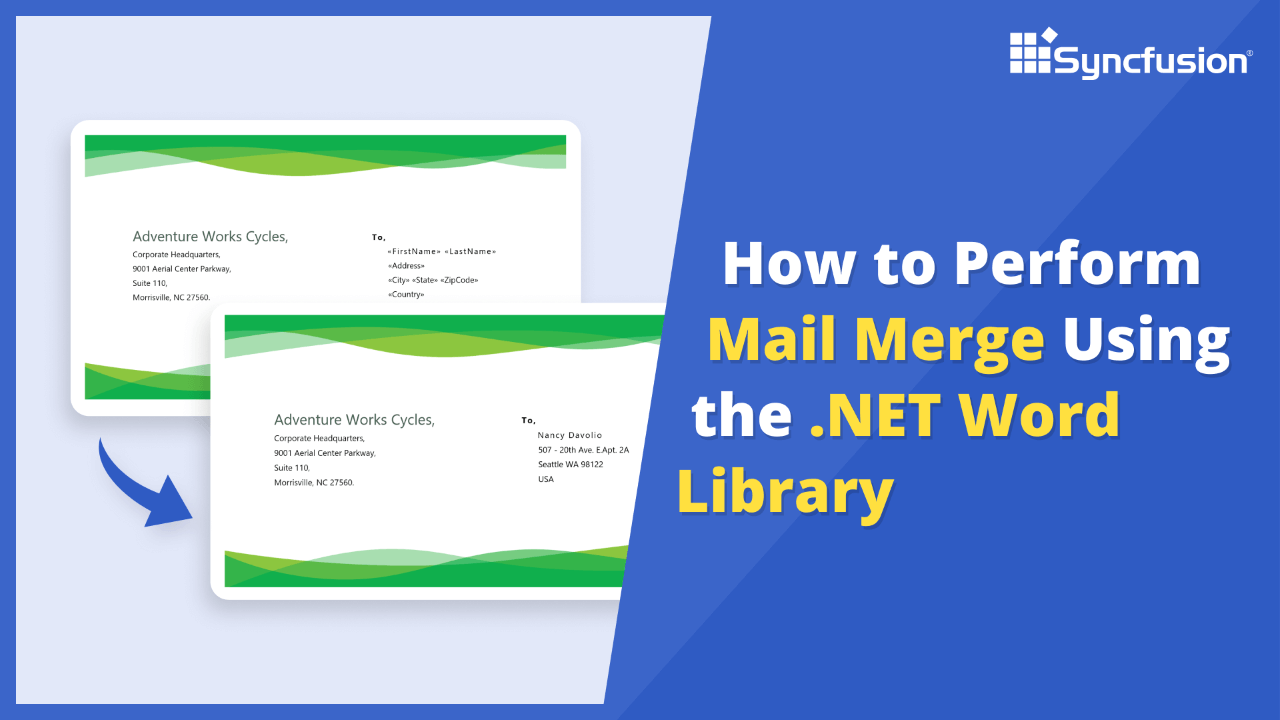
Perform Mail merge in Word document using C#
Learn how to perform mail merge in Word documents programmatically using C# with the Syncfusion .NET Word Library. This guide demonstrates merging data from various sources to generate reports like invoices and payrolls.
Step 1: Create a new project
Start by creating a new C# Console Application project.
Step 2: Install the NuGet package
Add the Syncfusion.DocIO.Net.Core package to your project from NuGet.org.
Step 3: Add required namespaces to perform mail merge
Add the following namespaces to your Program.cs file:
using Syncfusion.DocIO;
using Syncfusion.DocIO.DLS;
using System.Collections.Generic;
using System.IO;
Step 4: Open the template document
Open the Word template document that contains mail merge fields.
FileStream fileStream = new FileStream(Path.GetFullPath(@"Data/Template.docx"), FileMode.Open, FileAccess.ReadWrite);
//Open the template document
WordDocument document = new WordDocument(fileStream, FormatType.Docx);
Step 5: Prepare data source for mail merge
Get the organization data and create a MailMergeDataTable for the mail merge operation.
//Get the organization details as “IEnumerable” collection
List<Organization> organizationList = GetOrganizations();
//Create an instance of “MailMergeDataTable” by specifying mail merge group name and “IEnumerable” collection
MailMergeDataTable dataTable = new MailMergeDataTable("Organizations", organizationList);
Step 6: Perform nested group mail merge
Executes the nested group mail merge to populate template fields with data.
//Perform Mail merge
document.MailMerge.ExecuteNestedGroup(dataTable);
Step 7: Save the Word document
Save the mail merged Word document to a file stream.
//Create file stream
FileStream outputStream = new FileStream(Path.GetFullPath(@"Output/Result.docx"), FileMode.Create, FileAccess.ReadWrite);
//Save the Word document to file stream
document.Save(outputStream, FormatType.Docx);
//Close streams and document
outputStream.Close();
document.Close();
fileStream.Close();
Step 8: Add helper method to get data
Define a helper method that returns the organization data for mail merge.
/// <summary>
/// Get the data to perform mail merge
/// </summary>
public static List<Organization> GetOrganizations()
{
    //Create Employee details
    List<EmployeeDetails> employees = new List<EmployeeDetails>();
    employees.Add(new EmployeeDetails("Thomas Hardy", "1001", "05/27/1996"));
    employees.Add(new EmployeeDetails("Maria Anders", "1002", "04/10/1998"));
    //Create Departments details
    List<DepartmentDetails> departments = new List<DepartmentDetails>();
    departments.Add(new DepartmentDetails("Marketing", "Nancy Davolio", employees));

    employees = new List<EmployeeDetails>();
    employees.Add(new EmployeeDetails("Elizabeth Lincoln", "1003", "05/15/1996"));
    employees.Add(new EmployeeDetails("Antonio Moreno", "1004", "04/22/1996"));
    departments.Add(new DepartmentDetails("Production", "Andrew Fuller", employees));
    //Create organization details
    List<Organization> organizations = new List<Organization>();
    organizations.Add(new Organization("UK Office", "120 Hanover Sq.", "London", "WX1 6LT", "UK", departments));
    return organizations;
}
Step 9: Add helper classes for data structure
Define helper classes to structure the organization, department, and employee data.
/// <summary>
/// Represent a class to maintain organization details
/// </summary>
public class Organization
{
    public string BranchName { get; set; }
    public string Address { get; set; }
    public string City { get; set; }
    public string ZipCode { get; set; }
    public string Country { get; set; }
    public List<DepartmentDetails> Departments { get; set; }
    public Organization(string branchName, string address, string city, string zipcode, string country, List<DepartmentDetails> departments)
    {
        BranchName = branchName;
        Address = address;
        City = city;
        ZipCode = zipcode;
        Country = country;
        Departments = departments;
    }
}
/// <summary>
/// Represent a class to maintain department details
/// </summary>
public class DepartmentDetails
{
    public string DepartmentName { get; set; }
    public string Supervisor { get; set; }
    public List<EmployeeDetails> Employees { get; set; }
    public DepartmentDetails(string departmentName, string supervisor, List<EmployeeDetails> employees)
    {
        DepartmentName = departmentName;
        Supervisor = supervisor;
        Employees = employees;
    }
}
/// <summary>
/// Represent a class to maintain employee details
/// </summary>
public class EmployeeDetails
{
    public string EmployeeName { get; set; }
    public string EmployeeID { get; set; }
    public string JoinedDate { get; set; }
    public EmployeeDetails(string employeeName, string employeeID, string joinedDate)
    {
        EmployeeName = employeeName;
        EmployeeID = employeeID;
        JoinedDate = joinedDate;
    }
}
GitHub project
NuGet installation
Get started quickly by downloading the installer and checking license information on the Downloads page.
Table of contents
Syncfusion .NET Word Library Resources
Explore these resources for comprehensive guides, knowledge base articles, insightful blogs, and ebooks.
Learning


Technical Support








