.NET Word Examples
- Create Word Document
- Perform Mail Merge
- Manage Bookmarks
- Find and Replace Text
- Format Tables
- Split Word Documents
- Merge Multiple Word Documents
- Fill and Manage Form Fields
- Generate and Update Table of Contents
- Compare Word Documents
- Encrypt and Decrypt Documents with Password
- Convert Word Documents to PDF
- Convert Word Documents to Images
- Word-HTML Conversions
- Word-Markdown Conversions
- Word-Text Conversions
Split Word Documents Using the Syncfusion .NET Word Library
The Syncfusion® .NET Word Library offers powerful APIs to programmatically split large Word documents into multiple smaller ones with ease. Achieve document segmentation in just a few lines of code, all without relying on Microsoft Word or interop dependencies.
DocIO supports splitting Word documents by:
- Section
- Heading
- Bookmark
- Placeholder
This allows developers to extract specific portions of a document or generate multiple documents efficiently based on the required splitting logic.
Watch this video to learn how to split a Word document using the Syncfusion .NET Word Library.
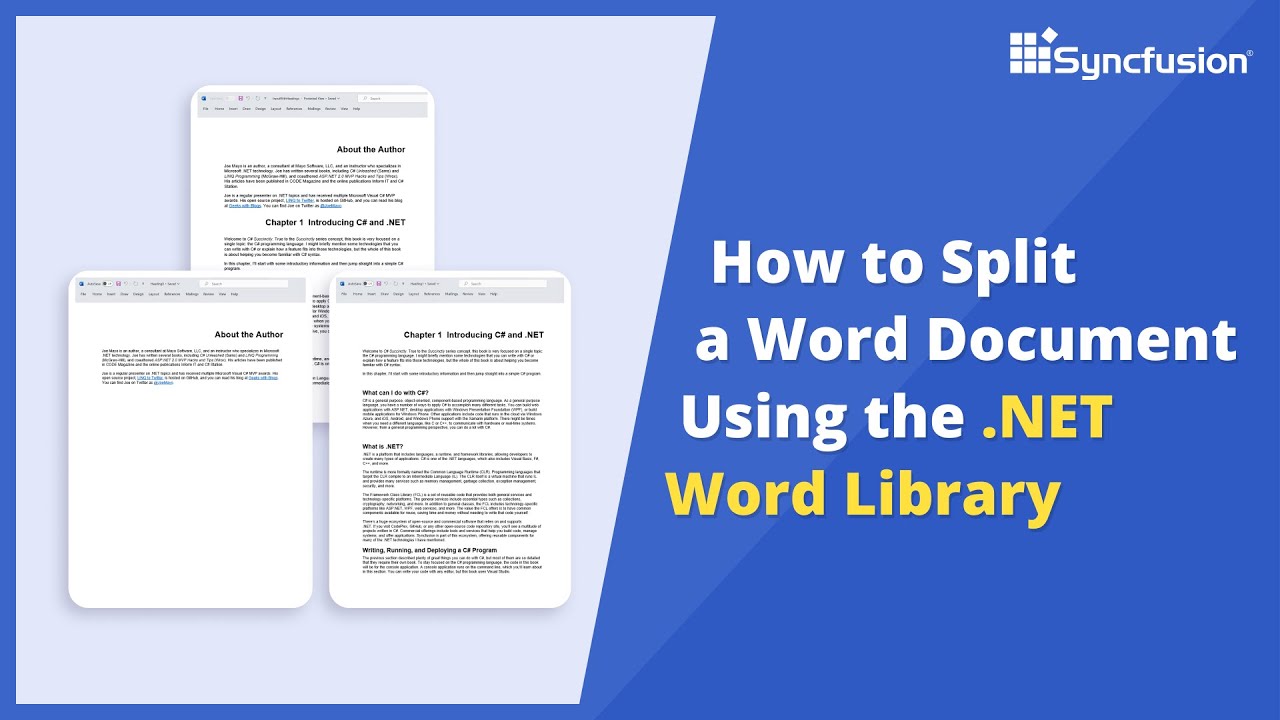
Split Word document using C#
Learn how to split Word documents programmatically using C# with the Syncfusion .NET Word Library. This guide demonstrates splitting documents by section and heading to create multiple smaller documents from a single large document.
Step 1: Create a new project
Start by creating a new C# Console Application project.
Step 2: Install the NuGet package
Add the Syncfusion.DocIO.Net.Core package to your project from NuGet.org.
Step 3: Add required namespaces to split Word document
Add the following namespaces to your Program.cs file:
using System.IO;
using Syncfusion.DocIO;
using Syncfusion.DocIO.DLS;
Step 4: Split Word document by section
Split each section of a Word document into separate Word documents.
using (FileStream inputStream = new FileStream(Path.GetFullPath(@"Data/Template.docx"), FileMode.Open, FileAccess.Read, FileShare.ReadWrite))
{
    //Load the template document as stream
    using (WordDocument document = new WordDocument(inputStream, FormatType.Docx))
    {
        //Iterate each section from Word document
        for (int i = 0; i < document.Sections.Count; i++)
        {
            //Create new Word document
            using (WordDocument newDocument = new WordDocument())
            {
                //Add cloned section into new Word document
                newDocument.Sections.Add(document.Sections[i].Clone());
                //Save the Word document to  MemoryStream
                using (FileStream outputStream = new FileStream(Path.GetFullPath(@"Output/Section") + i + ".docx", FileMode.OpenOrCreate, FileAccess.ReadWrite))
                {
                    newDocument.Save(outputStream, FormatType.Docx);
                }
            }
        }
    }
}
Step 5: Split Word document by headings
Split each heading and its associated content into separate Word documents.
using (FileStream inputStream = new FileStream(Path.GetFullPath(@"Data/Template.docx"), FileMode.Open, FileAccess.Read))
  {
      //Load the template document as stream
      using (WordDocument document = new WordDocument(inputStream, FormatType.Docx))
      {
          WordDocument newDocument = null;
          WSection newSection = null;
          int headingIndex = 0;
          //Iterate each section in the Word document
          foreach (WSection section in document.Sections)
          {
              // Clone the section and add into new document
              if (newDocument != null)
                  newSection = AddSection(newDocument, section);
              //Iterate each child entity in the Word document
              foreach (TextBodyItem item in section.Body.ChildEntities)
              {
                  //If item is paragraph, then check for heading style and split
                  //else, add the item into new document
                  if (item is WParagraph)
                  {
                      WParagraph paragraph = item as WParagraph;
                      //If paragraph has Heading 1 style, then save the traversed content as separate document
                      //And create new document for new heading content
                      if (paragraph.StyleName == "Heading 1")
                      {
                          if (newDocument != null)
                          {
                              //Save the Word document
                              string fileName = Path.GetFullPath(@"Output/Document") + (headingIndex + 1) + ".docx";
                              SaveWordDocument(newDocument, fileName);
                              headingIndex++;
                          }
                          //Create new document for new heading content
                          newDocument = new WordDocument();
                          newSection = AddSection(newDocument, section);
                          AddEntity(newSection, paragraph);
                      }
                      else if (newDocument != null)
                          AddEntity(newSection, paragraph);
                  }
                  else
                      AddEntity(newSection, item);
              }
          }
          //Save the remaining content as separate document
          if (newDocument != null)
          {
              //Save the Word document
              string fileName = Path.GetFullPath(@"Output/Document") + (headingIndex + 1) + ".docx";
              SaveWordDocument(newDocument, fileName);
          }
      }
  }
Add the helper methods to split a Word document by headings
/// <summary>
/// Add new section to Word document
/// </summary>
private static WSection AddSection(WordDocument newDocument, WSection section)
{
    //Create new session based on original document
    WSection newSection = section.Clone();
    newSection.Body.ChildEntities.Clear();
    //Remove the first page header.
    newSection.HeadersFooters.FirstPageHeader.ChildEntities.Clear();
    //Remove the first page footer.
    newSection.HeadersFooters.FirstPageFooter.ChildEntities.Clear();
    //Remove the odd footer.
    newSection.HeadersFooters.OddFooter.ChildEntities.Clear();
    //Remove the odd header.
    newSection.HeadersFooters.OddHeader.ChildEntities.Clear();
    //Remove the even header.
    newSection.HeadersFooters.EvenHeader.ChildEntities.Clear();
    //Remove the even footer.
    newSection.HeadersFooters.EvenFooter.ChildEntities.Clear();
    //Add cloned section into new document
    newDocument.Sections.Add(newSection);
    return newSection;
}
/// <summary>
/// Add Entity to new section
/// </summary>
private static void AddEntity(WSection newSection, Entity entity)
{
    //Add cloned item into the newly created section
    newSection.Body.ChildEntities.Add(entity.Clone());
}
/// <summary>
/// Save Word document
/// </summary>
private static void SaveWordDocument(WordDocument newDocument, string fileName)
{
    using (FileStream outputStream = new FileStream(Path.GetFullPath(fileName), FileMode.OpenOrCreate, FileAccess.ReadWrite))
    {
        //Save file stream as Word document
        newDocument.Save(outputStream, FormatType.Docx);
        //Closes the document
        newDocument.Close();
        newDocument = null;
    }
}
Step 6: Split Word document by bookmark
Split the content of each bookmark into separate Word documents.
using (FileStream fileStreamPath = new FileStream(Path.GetFullPath(@"Data/Template.docx"), FileMode.Open, FileAccess.Read, FileShare.ReadWrite))
{
    using (WordDocument document = new WordDocument(fileStreamPath, FormatType.Docx))
    {
        //Create the bookmark navigator instance to access the bookmark
        BookmarksNavigator bookmarksNavigator = new BookmarksNavigator(document);
        BookmarkCollection bookmarkCollection = document.Bookmarks;
        //Iterate each bookmark in Word document
        foreach (Bookmark bookmark in bookmarkCollection)
        {
            //Move the virtual cursor to the location before the end of the bookmark
            bookmarksNavigator.MoveToBookmark(bookmark.Name);
            //Get the bookmark content as WordDocumentPart
            WordDocumentPart documentPart = bookmarksNavigator.GetContent();
            //Save the WordDocumentPart as separate Word document
            using (WordDocument newDocument = documentPart.GetAsWordDocument())
            {
                //Save the Word document to file stream
                using (FileStream outputFileStream = new FileStream(Path.GetFullPath(@"Output/" + bookmark.Name + ".docx"), FileMode.Create, FileAccess.ReadWrite))
                {
                    newDocument.Save(outputFileStream, FormatType.Docx);
                }
            }
        }
    }

}
Step 7: Split Word document by placeholder
Split a Word document by finding placeholder text and extracting content between placeholders into separate documents.
using (FileStream fileStreamPath = new FileStream(Path.GetFullPath(@"Data/Template.docx"), FileMode.Open, FileAccess.Read, FileShare.ReadWrite))
 {
     using (WordDocument document = new WordDocument(fileStreamPath, FormatType.Docx))
     {

         //Find all the placeholder text in the Word document
         TextSelection[] textSelections = document.FindAll(new Regex("<<(.*)>>"));
         if (textSelections != null)
         {
             #region Insert bookmarks at placeholders
             //Unique ID for each bookmark
             int bkmkId = 1;
             //Collection to hold the inserted bookmarks
             List<string> bookmarks = new List<string>();
             //Iterate each text selection
             for (int i = 0; i < textSelections.Length; i++)
             {
                 #region Insert bookmark start before the placeholder
                 //Get the placeholder as WTextRange
                 WTextRange textRange = textSelections[i].GetAsOneRange();
                 //Get the index of the placeholder text
                 WParagraph startParagraph = textRange.OwnerParagraph;
                 int index = startParagraph.ChildEntities.IndexOf(textRange);
                 string bookmarkName = "Bookmark_" + bkmkId;
                 //Add new bookmark to bookmarks collection
                 bookmarks.Add(bookmarkName);
                 //Create bookmark start
                 BookmarkStart bkmkStart = new BookmarkStart(document, bookmarkName);
                 //Insert the bookmark start before the start placeholder
                 startParagraph.ChildEntities.Insert(index, bkmkStart);
                 //Remove the placeholder text
                 textRange.Text = string.Empty;
                 #endregion

                 #region Insert bookmark end after the placeholder
                 i++;
                 //Get the placeholder as WTextRange
                 textRange = textSelections[i].GetAsOneRange();
                 //Get the index of the placeholder text
                 WParagraph endParagraph = textRange.OwnerParagraph;
                 index = endParagraph.ChildEntities.IndexOf(textRange);
                 //Create bookmark end
                 BookmarkEnd bkmkEnd = new BookmarkEnd(document, bookmarkName);
                 //Insert the bookmark end after the end placeholder
                 endParagraph.ChildEntities.Insert(index + 1, bkmkEnd);
                 bkmkId++;
                 //Remove the placeholder text
                 textRange.Text = string.Empty;
                 #endregion

             }
             #endregion
             #region Split bookmark content into separate documents
             BookmarksNavigator bookmarksNavigator = new BookmarksNavigator(document);
             int fileIndex = 1;
             foreach (string bookmark in bookmarks)
             {
                 //Move the virtual cursor to the location before the end of the bookmark
                 bookmarksNavigator.MoveToBookmark(bookmark);
                 //Get the bookmark content as WordDocumentPart
                 WordDocumentPart wordDocumentPart = bookmarksNavigator.GetContent();
                 //Save the WordDocumentPart as separate Word document
                 using (WordDocument newDocument = wordDocumentPart.GetAsWordDocument())
                 {
                     //Save the Word document to file stream
                     using (FileStream outputFileStream = new FileStream(Path.GetFullPath(@"Output/Placeholder_" + fileIndex + ".docx"), FileMode.Create, FileAccess.ReadWrite))
                     {
                         newDocument.Save(outputFileStream, FormatType.Docx);
                     }
                 }
                 fileIndex++;
             }
             #endregion
         }
     }
 }
GitHub project
NuGet installation
Get started quickly by downloading the installer and checking license information on the Downloads page.
Table of contents
Syncfusion .NET Word Library Resources
Explore these resources for comprehensive guides, knowledge base articles, insightful blogs, and ebooks.
Learning


Technical Support








