.NET Word Examples
- Create Word Document
- Perform Mail Merge
- Manage Bookmarks
- Find and Replace Text
- Format Tables
- Split Word Documents
- Merge Multiple Word Documents
- Fill and Manage Form Fields
- Generate and Update Table of Contents
- Compare Word Documents
- Encrypt and Decrypt Documents with Password
- Convert Word Documents to PDF
- Convert Word Documents to Images
- Word-HTML Conversions
- Word-Markdown Conversions
- Word-Text Conversions
Compare Word Documents Using the Syncfusion .NET Word Library
The Syncfusion® .NET Word Library enables powerful comparison capabilities, allowing you to identify differences between two versions of a Word document as tracked changes-without relying on Microsoft Word or interop dependencies.
Watch this video to learn how to compare a Word documents using the Syncfusion .NET Word Library.
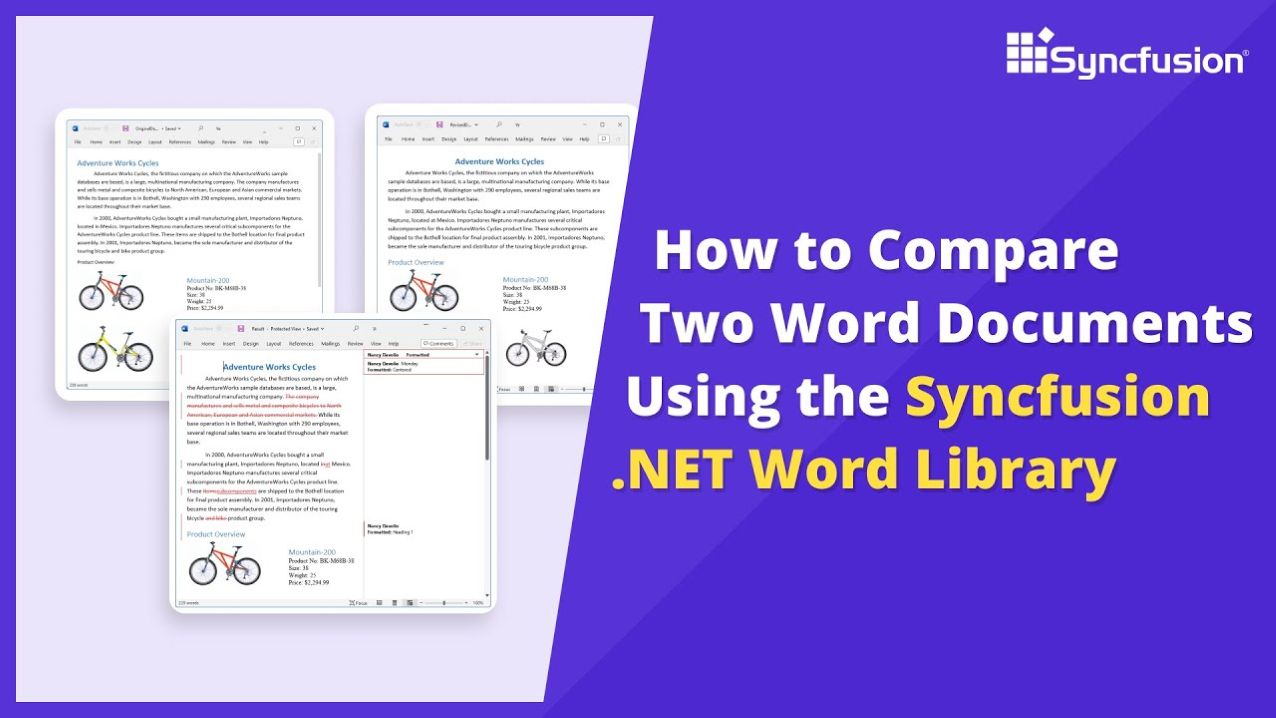
Compare Word documents using C#
Learn how to compare Word documents programmatically using C# with the Syncfusion .NET Word Library. This guide demonstrates how to identify differences between two document versions as tracked changes.
Step 1: Create a new project
Start by creating a new C# Console Application project.
Step 2: Install the NuGet package
Add the Syncfusion.DocIO.Net.Core package to your project from NuGet.org.
Step 3: Add required namespaces to compare Word documents
Add the following namespaces to your Program.cs file:
using Syncfusion.DocIO;
using Syncfusion.DocIO.DLS;
Step 4: Open the original document
Open the original Word document from a file stream.
FileStream originalDocumentStreamPath = new FileStream(Path.GetFullPath(@"Data/OriginalDocument.docx"), FileMode.Open, FileAccess.Read);
WordDocument originalDocument = new WordDocument(originalDocumentStreamPath, FormatType.Docx);
Step 5: Open the revised document
Open the revised Word document that will be compared with the original.
//Loads the revised document
FileStream revisedDocumentStreamPath = new FileStream(Path.GetFullPath(@"Data/RevisedDocument.docx"), FileMode.Open, FileAccess.Read);
WordDocument revisedDocument = new WordDocument(revisedDocumentStreamPath, FormatType.Docx);
Step 6: Compare the documents
Compare the original document with the revised document to identify differences as tracked changes.
// Compare the original and revised Word documents
originalDocument.Compare(revisedDocument);
Step 7: Save the Word document
Save the compared document with tracked changes to a file stream.
//Save the Word document
FileStream fileStreamOutput = File.Create(Path.GetFullPath("Output/Result.docx"));
originalDocument.Save(fileStreamOutput, FormatType.Docx);
originalDocument.Close();
revisedDocument.Close();
originalDocumentStreamPath.Close();
revisedDocumentStreamPath.Close();
GitHub project
NuGet installation
Get started quickly by downloading the installer and checking license information on the Downloads page.
Table of contents
Syncfusion .NET Word Library Resources
Explore these resources for comprehensive guides, knowledge base articles, insightful blogs, and ebooks.
Learning


Technical Support








