.NET Excel Examples
Import Data from a DataTable to an Excel Template with the Syncfusion .NET Excel Library
Overview
The Syncfusion® .NET Excel Library (XlsIO) enables you to create, read, and edit Excel documents programmatically without Microsoft Excel or interop dependencies. Using this library, you can import data from a DataTable to a predefined Excel template using C#.
Watch this video to see how to import data to a template in Excel using the Syncfusion .NET Excel Library:
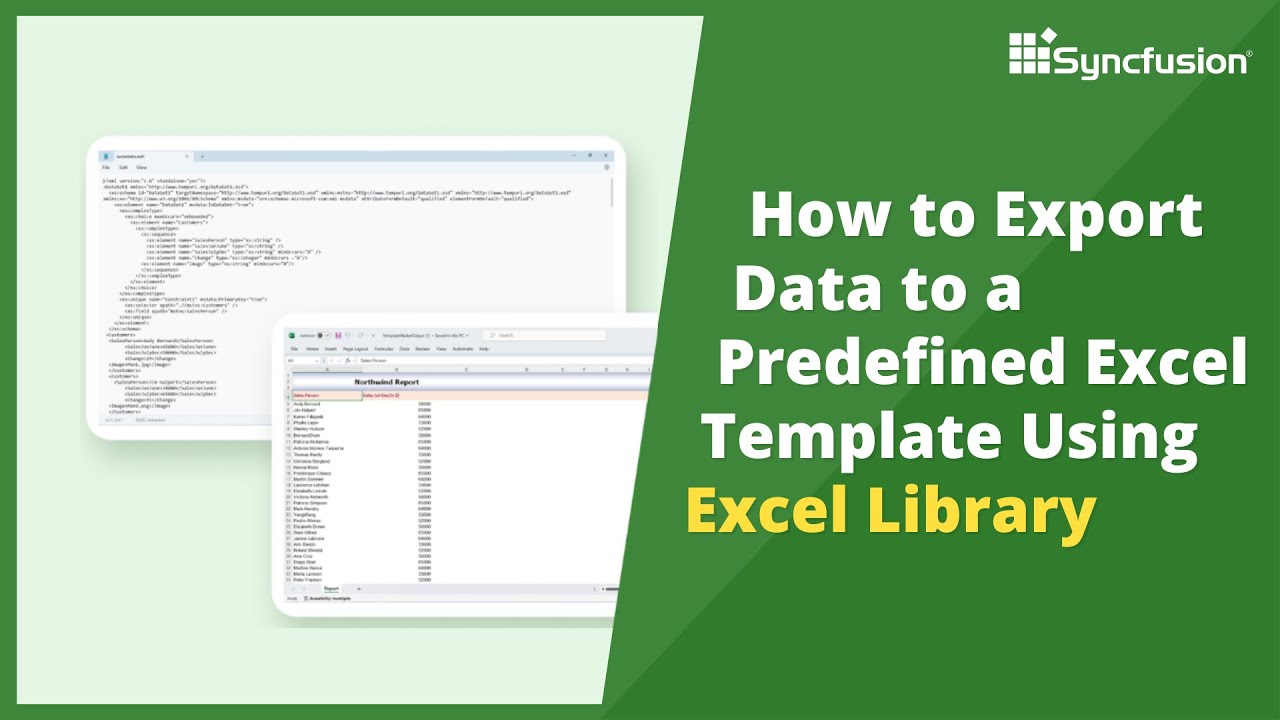
Import data to template in Excel
Follow these steps to import data from a DataTable to a predefined Excel template using the Syncfusion .NET Excel Library.
Step 1: Create a new project
Start by creating a new C# Console Application project.
Step 2: Install the NuGet package
Add the Syncfusion.XlsIO.Net.Core package to your project from NuGet.org.
Step 3: Include namespaces
Add the following namespaces to your Program.cs file:
using System;
using System.Data;
using System.IO;
using Syncfusion.XlsIO;
Step 4: Add code to import data to an Excel template
Use the following code in the Program.cs file to import data to an Excel template.
using (ExcelEngine excelEngine = new ExcelEngine())
{
    IApplication application = excelEngine.Excel;
    application.DefaultVersion = ExcelVersion.Xlsx;
    FileStream inputStream = new FileStream(Path.GetFullPath(@"Data/InputTemplate.xlsx"), FileMode.Open, FileAccess.Read);
    IWorkbook workbook = application.Workbooks.Open(inputStream, ExcelOpenType.Automatic);
    IWorksheet worksheet = workbook.Worksheets[0];

    //Create template marker processor.
    ITemplateMarkersProcessor marker = workbook.CreateTemplateMarkersProcessor();

    //Create an instance for data table.
    DataTable reports = new DataTable();

    //Add value to data table.
    reports.Columns.Add("SalesPerson");
    reports.Columns.Add("FromDate", typeof(DateTime));
    reports.Columns.Add("ToDate", typeof(DateTime));

    reports.Rows.Add("Andy Bernard", new DateTime(2014, 09, 08), new DateTime(2014, 09, 11));
    reports.Rows.Add("Jim Halpert", new DateTime(2014, 09, 11), new DateTime(2014, 09, 15));
    reports.Rows.Add("Karen Fillippelli", new DateTime(2014, 09, 15), new DateTime(2014, 09, 20));
    reports.Rows.Add("Phyllis Lapin", new DateTime(2014, 09, 21), new DateTime(2014, 09, 25));
    reports.Rows.Add("Stanley Hudson", new DateTime(2014, 09, 26), new DateTime(2014, 09, 30));

    //Add collection to marker variable.
    marker.AddVariable("Reports", reports, VariableTypeAction.DetectNumberFormat);

    //Process the markers in the template.
    marker.ApplyMarkers();

    #region Save
    //Saving the workbook.
    FileStream outputStream = new FileStream(Path.GetFullPath(@"Output/ImportDataTable.xlsx"), FileMode.Create, FileAccess.Write);
    workbook.SaveAs(outputStream);
    #endregion

    //Dispose streams.
    outputStream.Dispose();
    inputStream.Dispose();
}NuGet installation
Get started quickly by downloading the installer and checking license information on the Downloads page.
Table of contents
Syncfusion .NET Excel Library resources
Explore these resources for comprehensive guides, knowledge base articles, insightful blogs, and ebooks.
Learning


Technical support








