Try Our Live Demo
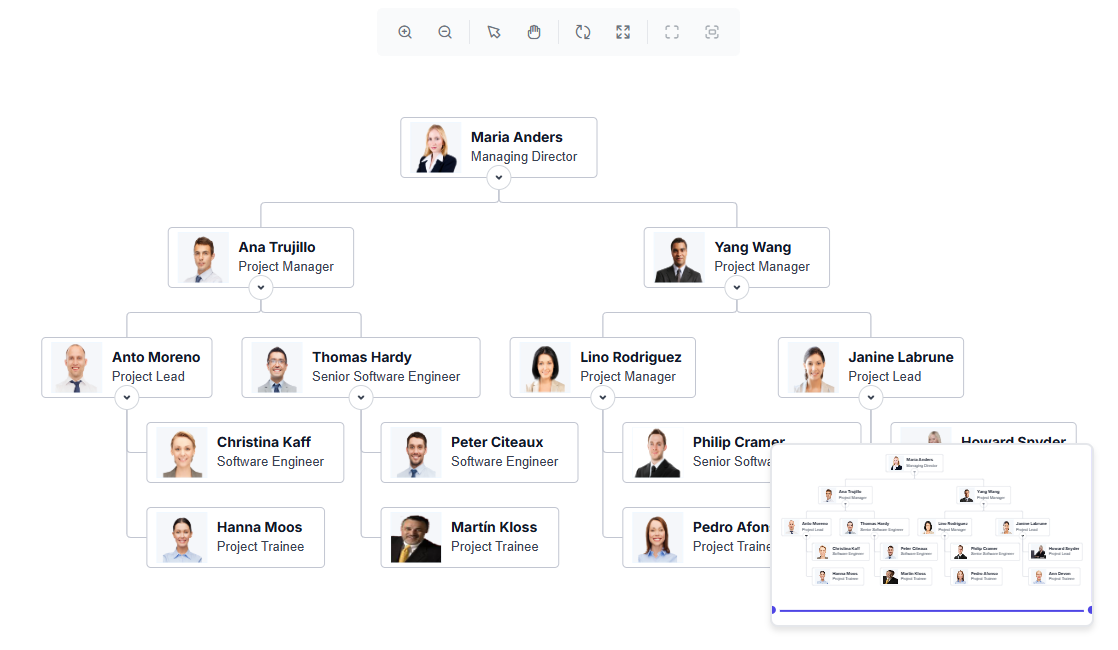
Explore React Diagram zooming and panning features
Navigate large diagram canvases with zoom, pan, reset, and fit-to-page controls. Bring specific content into view or move it to the viewport center, and use the Overview component to navigate distant regions while maintaining context.
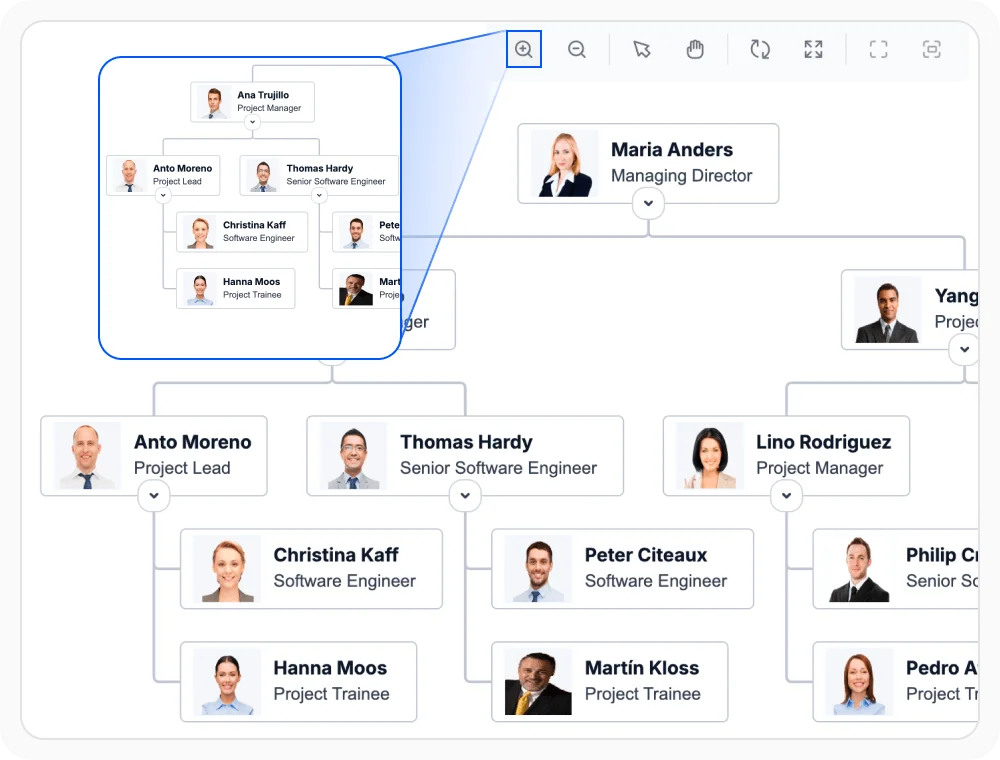
Zoom in, zoom out, and reset the view
Zoom in to inspect details, zoom out to view a broader area, and reset the view to restore its default zoom and position. These controls make it easier to move between detailed inspection and broader views. Use them when users need to examine specific elements, understand their surrounding context, or return to the diagram’s initial view.
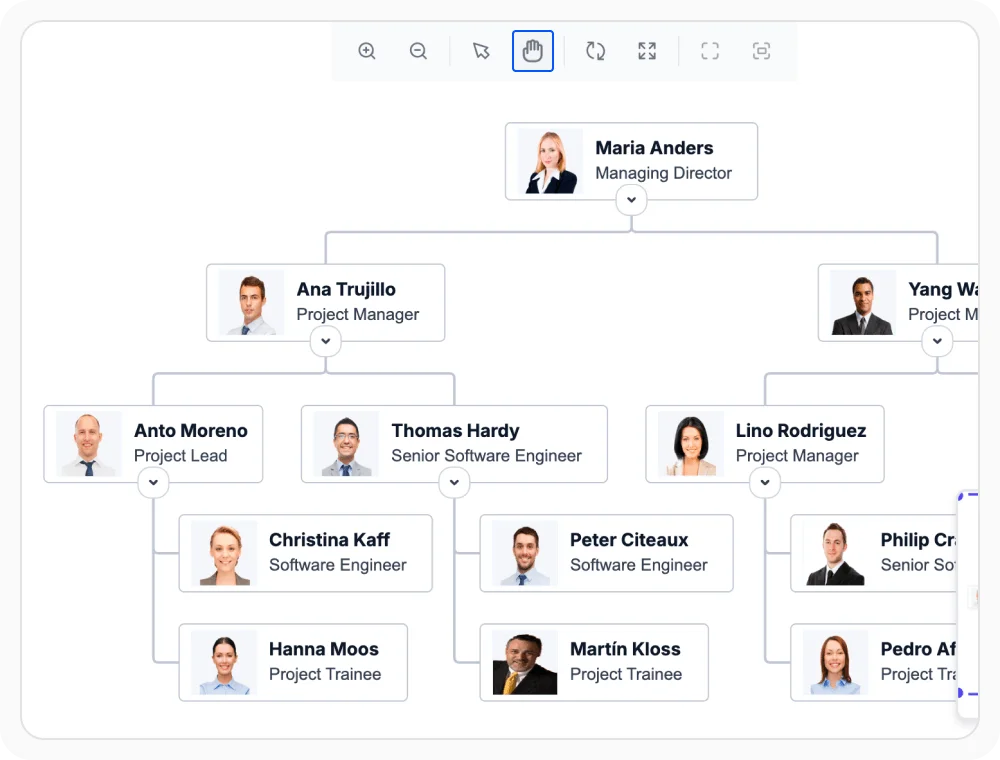
Pan across the canvas
Pan across the diagram canvas while keeping the current zoom level unchanged. This allows distant regions to come into view without changing the visual scale. Use panning when a large diagram extends beyond the viewport and users need to follow connections or move between separate areas.
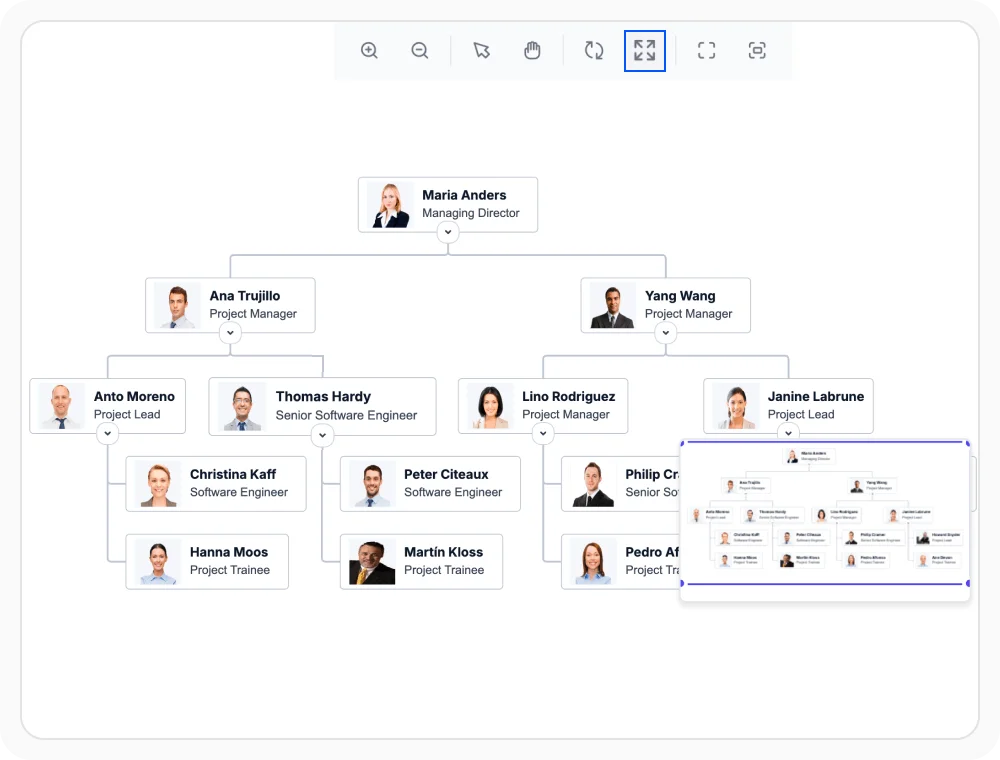
Fit diagram content to the viewport
Fit-to-page navigation adjusts the zoom level so the diagram content is visible within the available viewport. This provides a quick way to restore the overall structure after zooming or panning. Use it when users need a complete view of a wide, tall, or detailed diagram.
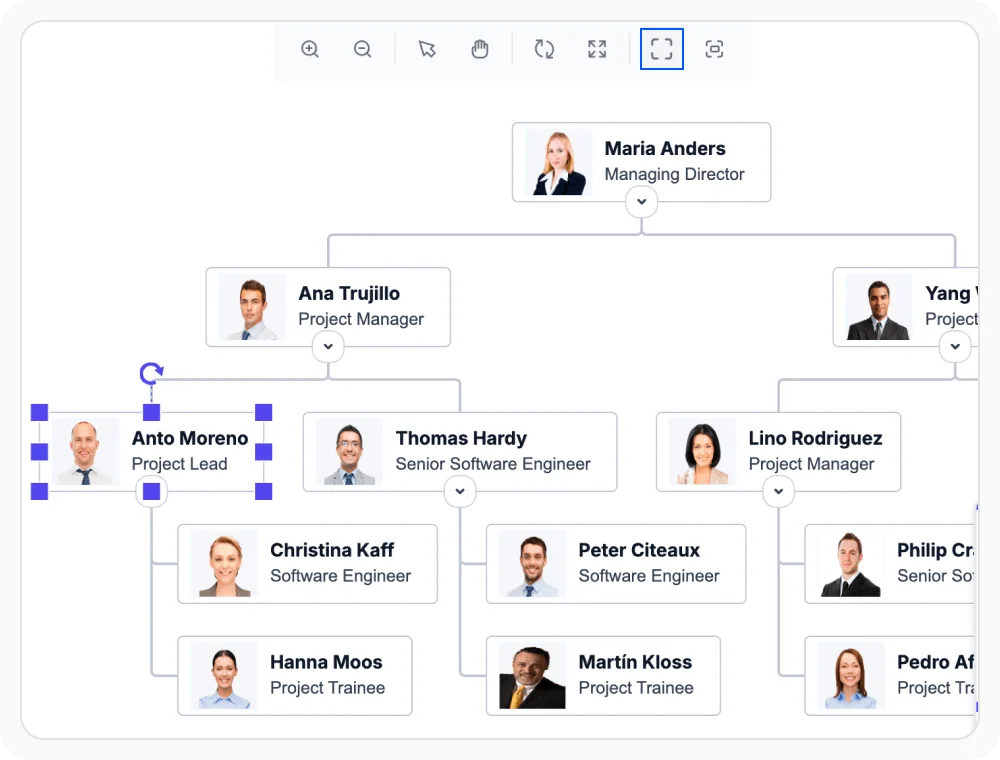
Bring specific content into view
Bring a specific diagram region into the viewport without manually searching or panning across the canvas. Applications can identify a diagram element or known area and reveal it quickly, making important content easier to find. Use this option when users need to navigate directly to a particular part of a large diagram.
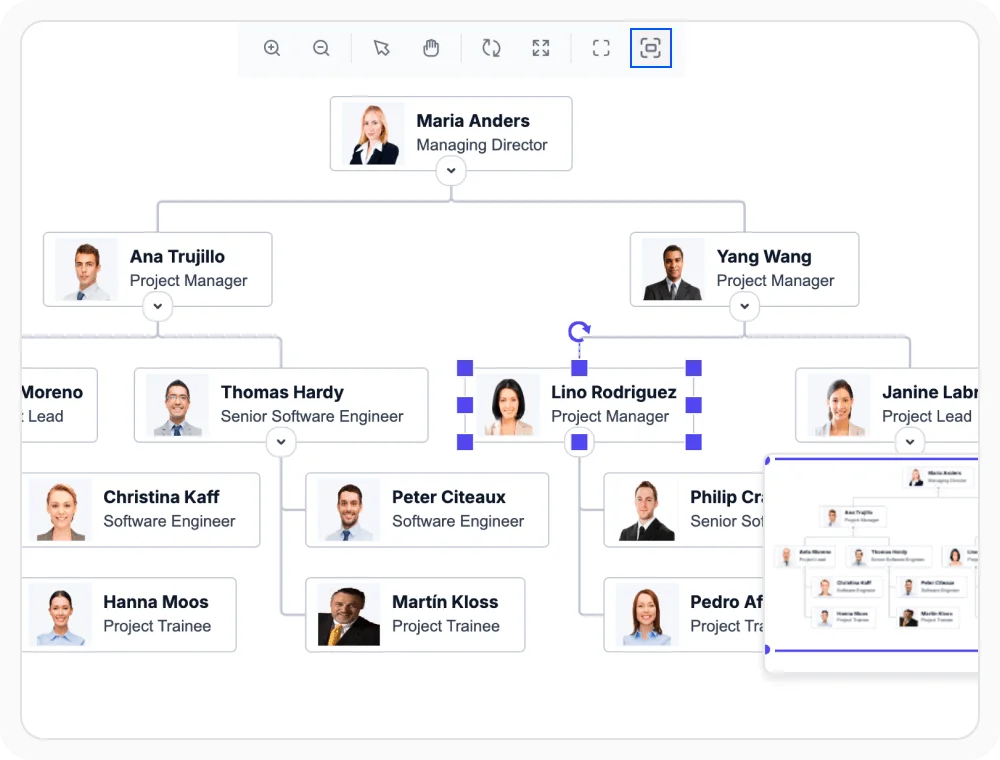
Bring specific content to the center
Move a specific diagram region to the center of the viewport for focused review. Applications can identify an element or known area and position it centrally, making the content easier to inspect or present. Use this option when a diagram area must be highlighted during a review, presentation, or discussion.
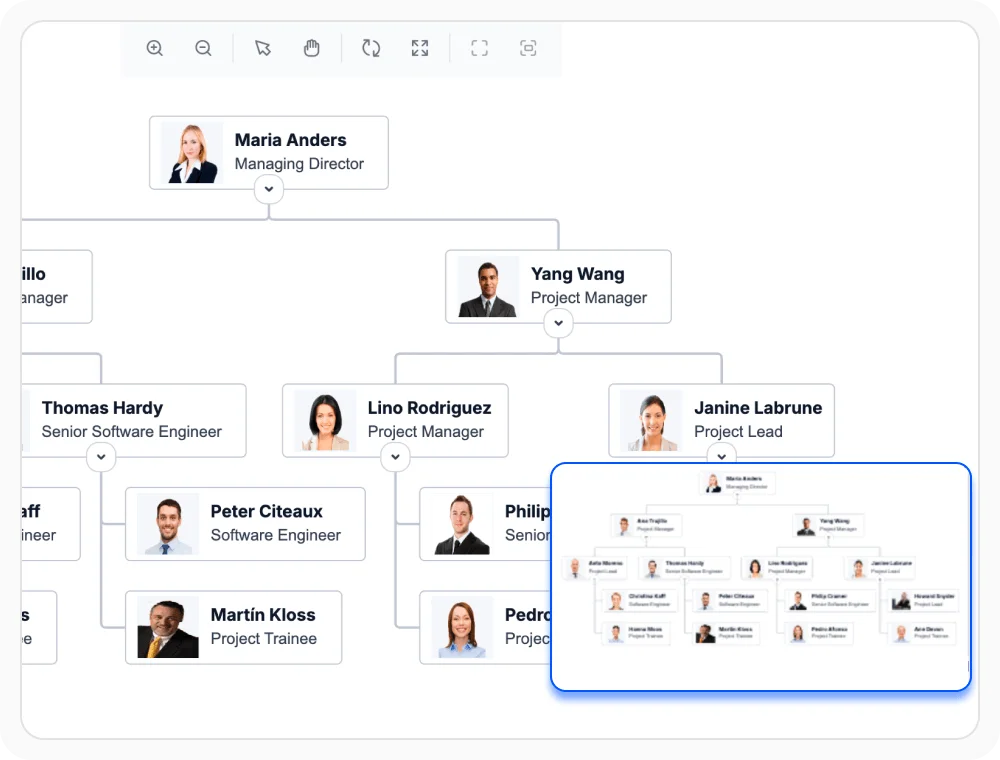
Navigate with the Overview component
The Overview component displays a miniature version of the full diagram with an indicator for the current viewport. Users can move the viewport indicator or select another area to navigate large diagrams while maintaining spatial context. Use it when diagrams extend across multiple regions and users need faster navigation.
See Why Developers Love Syncfusion
Our Customers Love Us
Having an excellent set of tools and a great support team, Syncfusion reduces customers’ development time. Here are some of their experiences.




Frequently Asked Questions
What are React Diagram zooming and panning used for?
React Diagram zooming and panning help users inspect detailed content and navigate diagrams that extend beyond the visible viewport. Users can change the scale, move across the canvas, reset the view, or fit all content within the available area.
Can React Diagram display the full layout in one view?
Yes. Fit-to-page navigation adjusts the zoom level so the diagram content is visible within the available viewport. This is useful for restoring an overall view of wide, tall, or detailed layouts.
Can React Diagram navigate to a specific content region?
Yes. React Diagram can bring a specific content region into view or move it to the center of the viewport. Applications can identify an element or known area and navigate directly to that part of the diagram.
Can users reset the zoomed and panned view?
Yes. Reset returns the diagram’s zoom level and scroll position to their default values. This provides a quick way to return to the initial view after zooming or panning.
How does the Overview component help with navigation?
The Overview component displays a miniature version of the full diagram and highlights the current viewport. Users can interact with the viewport indicator or choose another area to navigate without losing their position in the overall layout.
Resources
Learn more about our React Diagram
Explore demos, knowledge base articles, and documentation to get the most out of the Diagram.
Explore guides, APIs, and quick-start tips
See live use cases in action
Ask, share, and connect with peers
Find solutions and best practices fast
Get expert help when needed
Feature requests and bug reports
Track issues and suggest improvements
Awards
Greatness—it’s one thing to say you have it, but it means more when others recognize it. Syncfusion® is proud to hold the following industry awards.