Try Our Live Demo
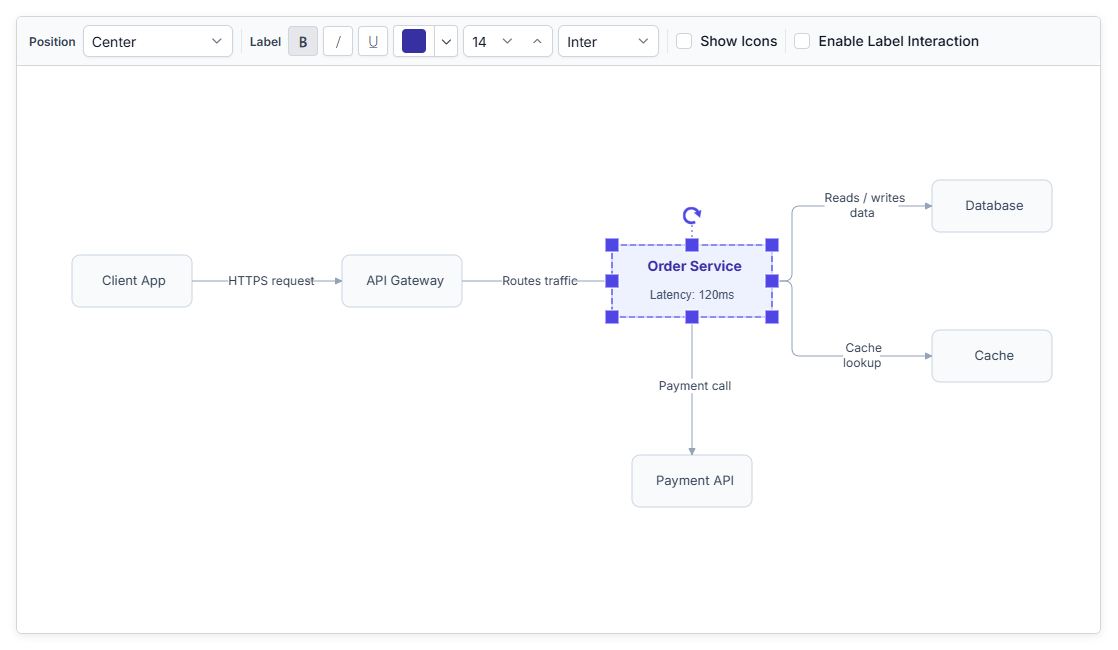
Explore React Diagram annotation features
Add descriptive labels to nodes and connectors so diagram elements, relationships, and process flows are easier to understand. Position and style annotation text, control label interaction, display multiple labels on one element, and use templates to include custom visual content.
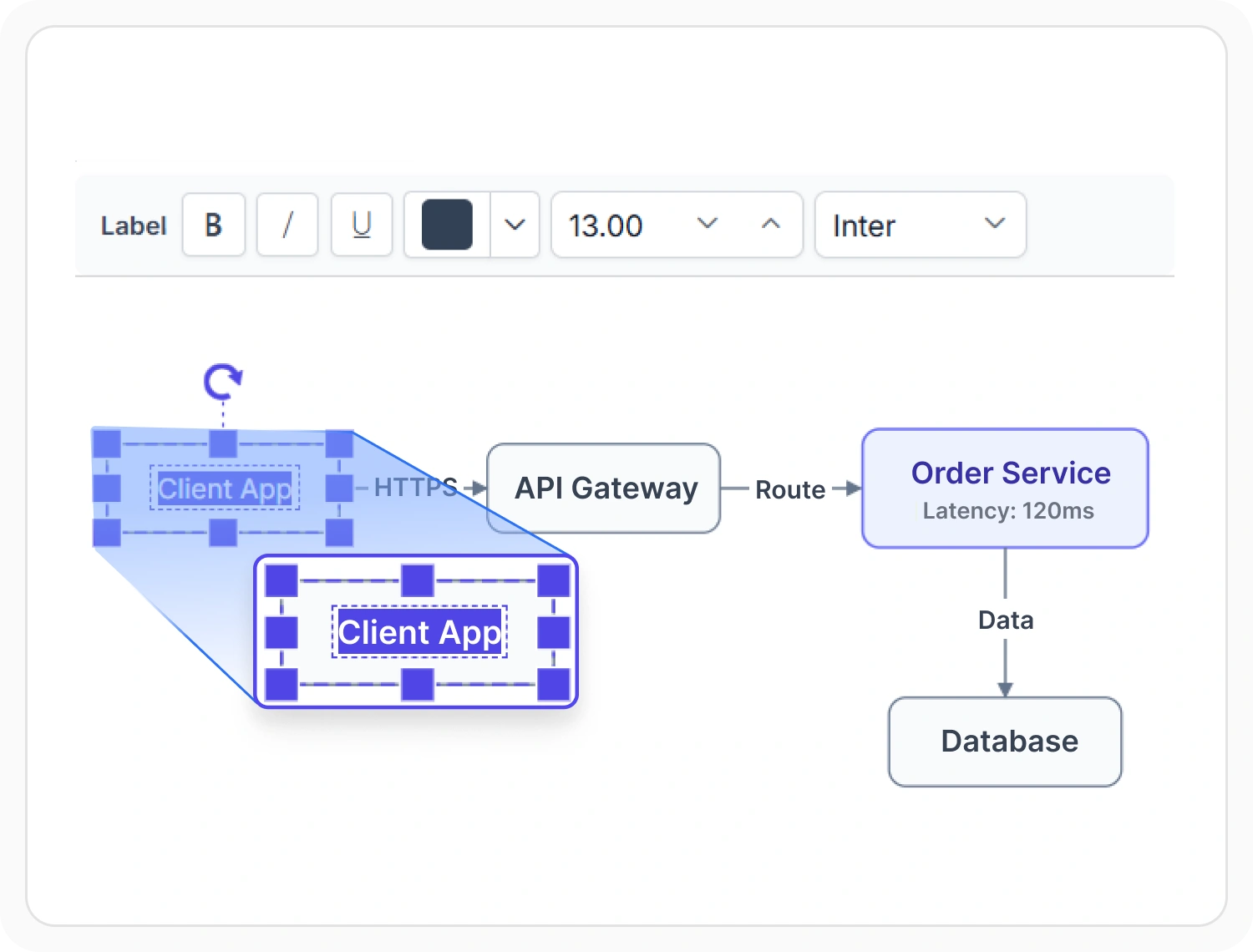
Add labels to nodes
Add annotations to nodes to display names, roles, statuses, values, or other supporting information. This helps each diagram element communicate its purpose without requiring separate documentation. Use node labels when a process step, employee, system component, or other element needs identifying details.
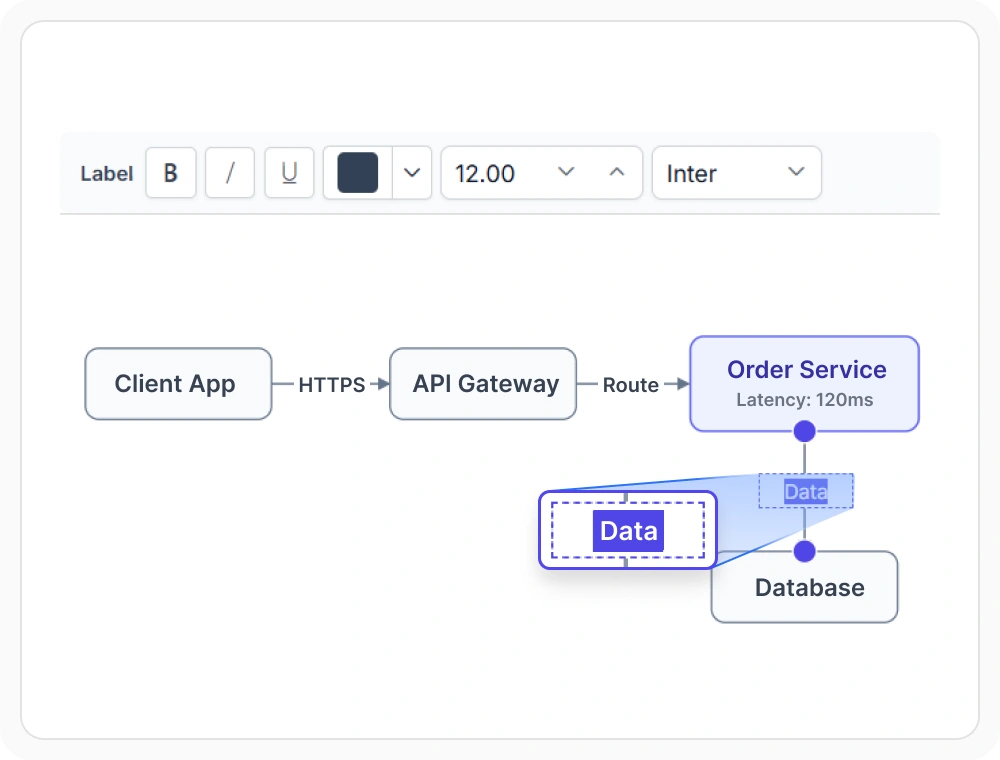
Add labels to connectors
Add annotations to connectors to explain relationships, transitions, conditions, or process flows between diagram elements. This helps readers understand why elements are connected and what each path represents. Use connector labels when a workflow needs to show approval conditions, transition outcomes, or relationship details.
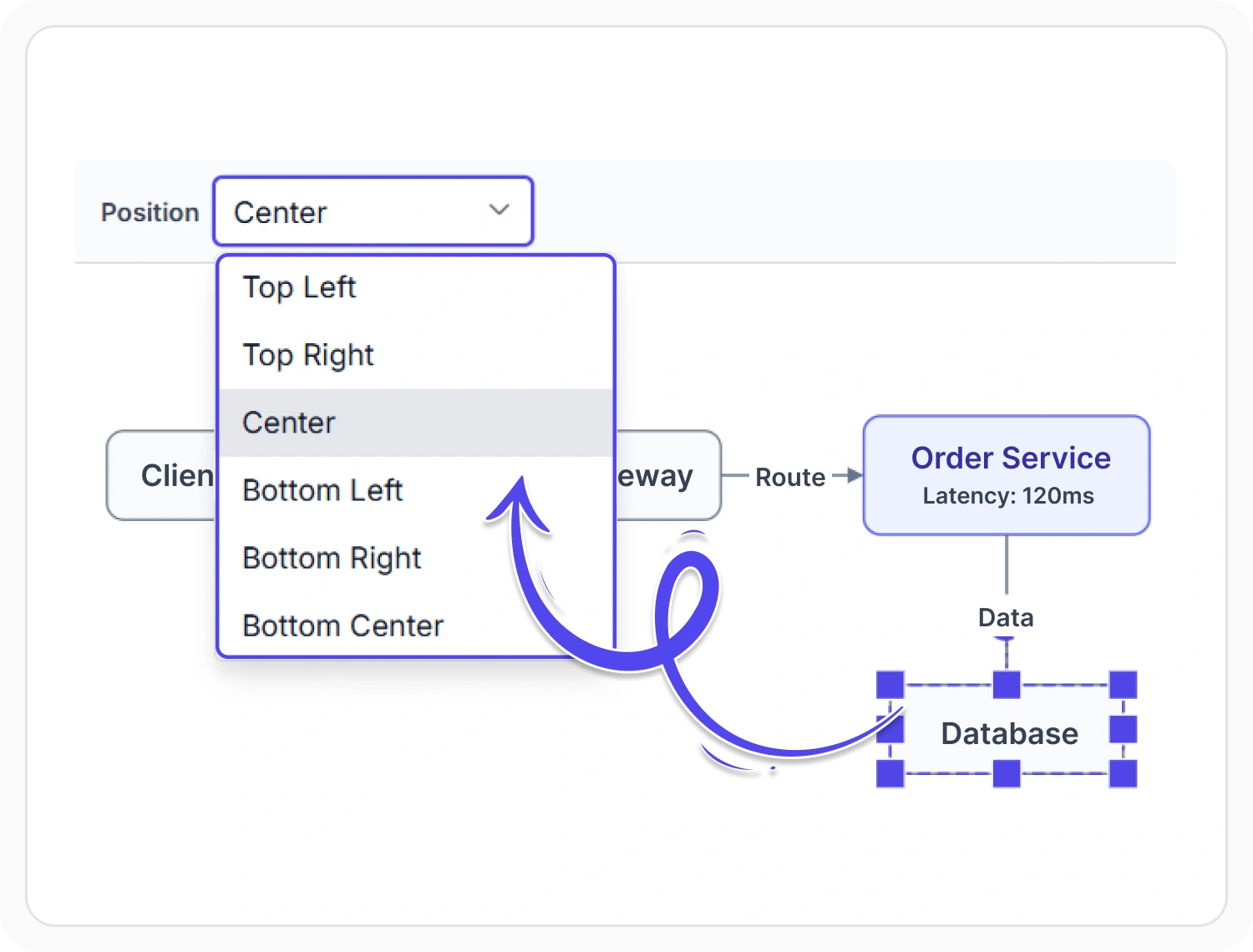
Position labels precisely
Position node annotations within or around a node, and place connector annotations along a connector path using alignment and offset settings. This provides precise control over label placement and helps keep labels clear and readable. Use these settings when labels must be arranged around crowded nodes or appear at a specific point along a connection.
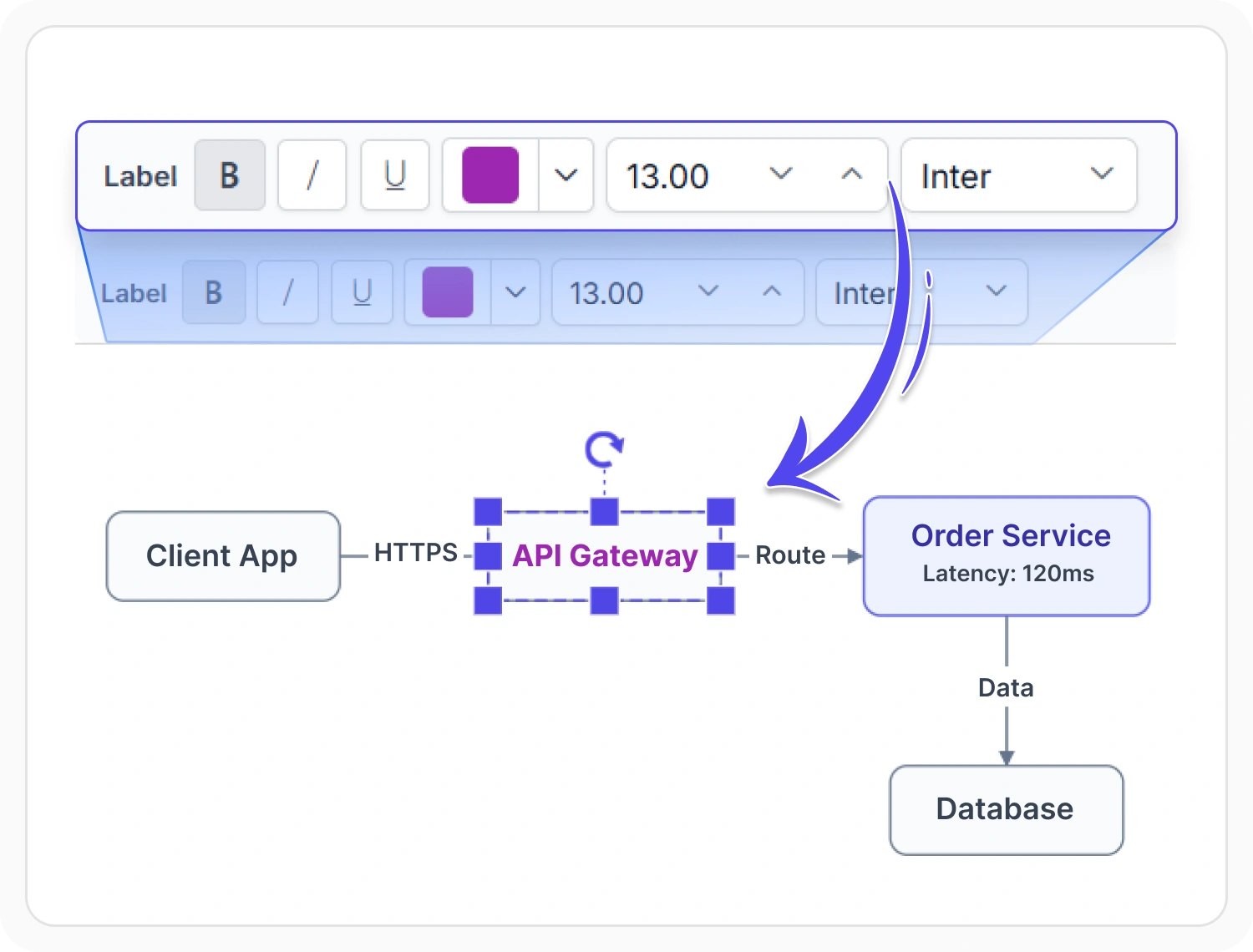
Style and format label text
Customize annotation text with font, color, alignment, wrapping, background, border, and decoration settings. These options help labels remain readable and match the application’s visual style. Use them when different label types need consistent branding or important information must stand out.
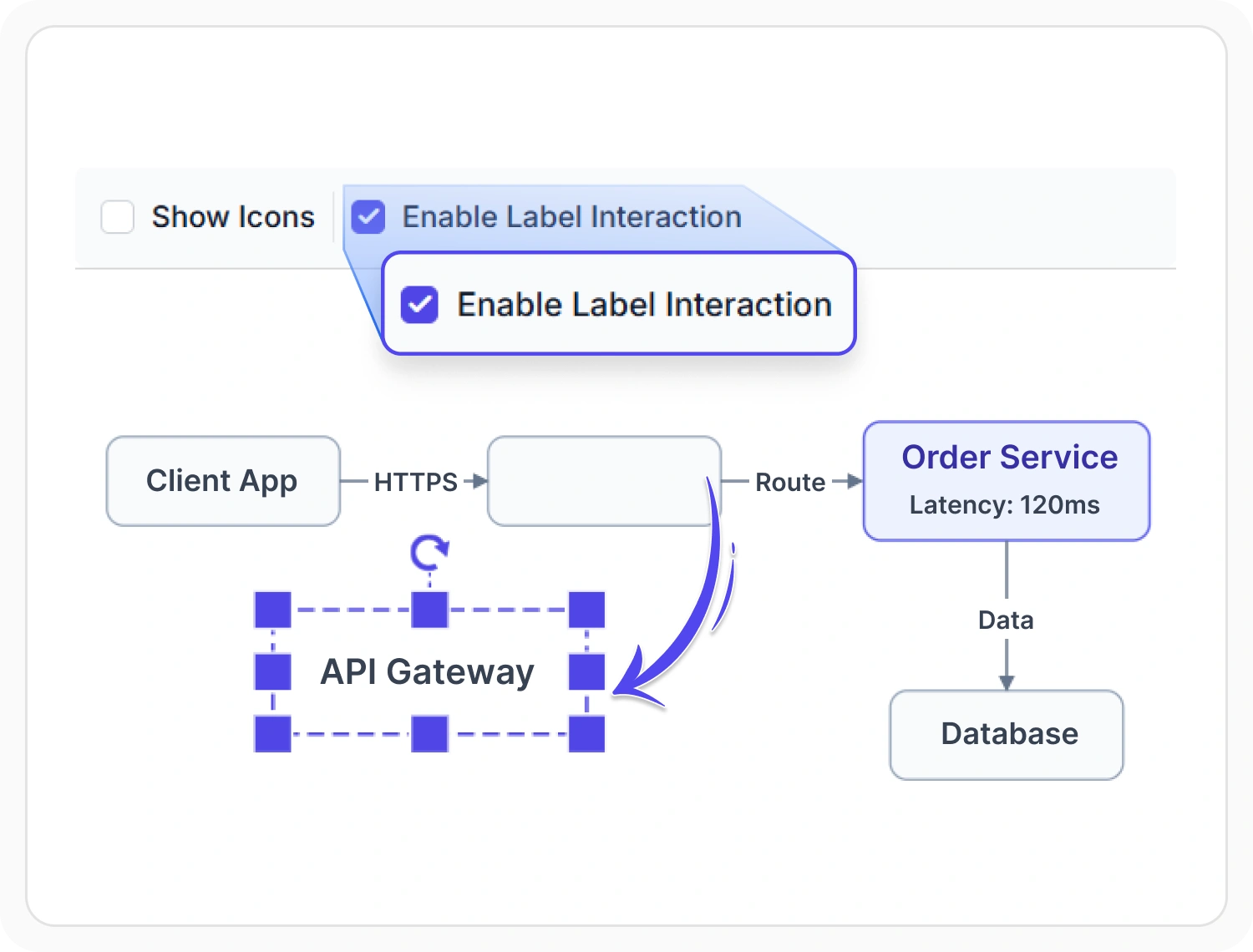
Interact with labels in the diagram
Allow users to select, edit, and adjust annotations directly in the diagram, or disable interaction to keep labels fixed. This gives applications control over whether users can change label text or placement. Enable interaction in editable diagrams and disable it when users should only view the configured labels.
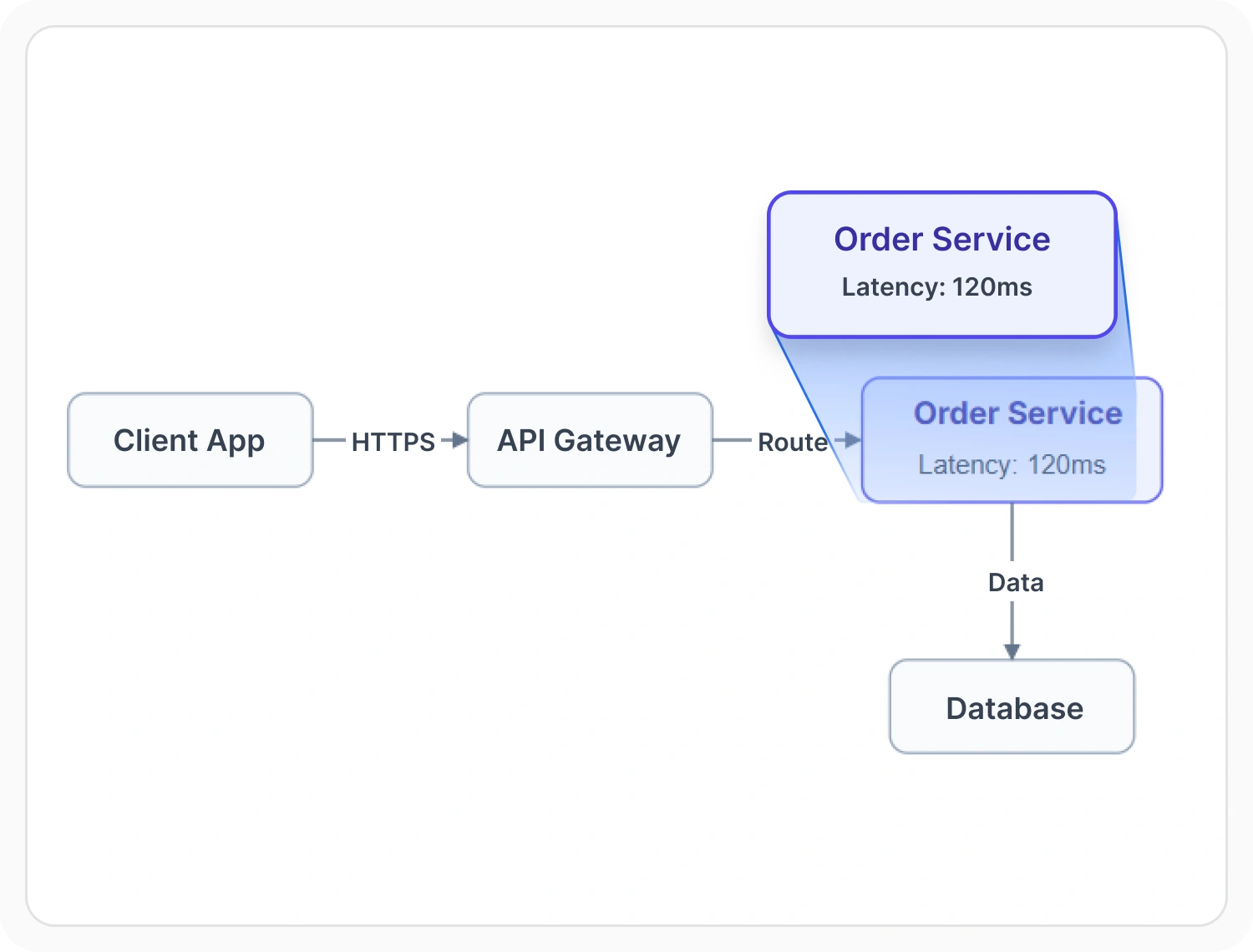
Use multiple labels
Add multiple annotations to the same node or connector to present primary text, supporting details, status, or other information together. This keeps related information connected to the diagram element without requiring additional shapes. Use multiple labels when an element must show a name, description, and status in separate areas.
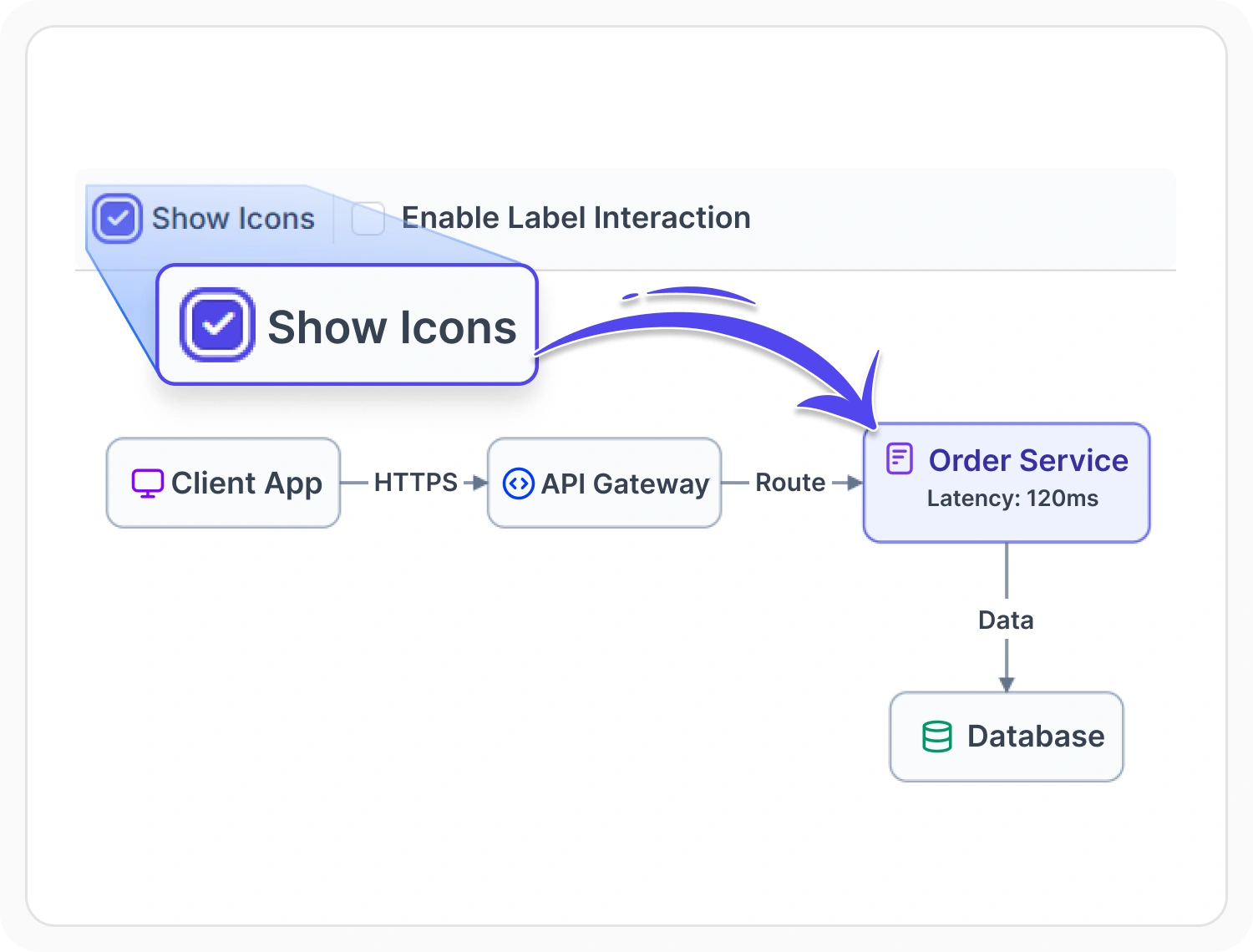
Add custom content with templates
Use annotation templates to display custom HTML or SVG content, such as icons alongside label text. Templates provide additional visual context while keeping annotation content consistent with the diagram design. Use them when labels need status icons, branded content, or visual indicators that plain text cannot provide.
See Why Developers Love Syncfusion
Our Customers Love Us
Having an excellent set of tools and a great support team, Syncfusion reduces customers’ development time. Here are some of their experiences.




Frequently Asked Questions
What are annotations in React Diagram?
Annotations are text labels displayed on nodes or connectors. They help describe diagram elements, relationships, conditions, values, and process flow, and multiple annotations can be added to the same element.
How does React Diagram handle long annotation text?
Annotation text can wrap onto multiple lines or be clipped and shortened with an ellipsis when it exceeds the available space. Alignment, size, and offset settings can also be adjusted to improve label placement in detailed diagrams.
Can annotations be positioned differently on nodes and connectors?
Yes. Node annotations can be aligned and offset relative to the node’s bounds, while connector annotations can be positioned along a connector path. These settings help place labels where they are easier to read.
Can a single node or connector show more than one label in React Diagram?
Yes. React Diagram supports multiple labels on the same node or connector to show primary text, secondary details, status, or other information. This groups related information in one location without creating additional diagram elements.
Can React Diagram use different annotations for nodes and connectors in the same diagram?
Yes. Node annotations add text labels to show names, roles, statuses, or values, while connector annotations explain relationships, transitions, conditions, or flow between connected elements. Using both together creates more complete and understandable diagrams.
Can React Diagram annotations be edited directly from the diagram canvas?
Yes. Annotation text can be edited directly in the diagram when editing is enabled. Annotation properties can also be updated while the application is running, allowing labels to reflect changes without recreating the node or connector.
Can React Diagram annotations use templates?
Yes. Annotation templates can display custom HTML or SVG content on nodes and connectors. For example, a template can show an icon alongside label text to help users identify applications, services, databases, and other diagram elements.
Can label interaction be controlled in React Diagram?
Yes. Label interaction can be enabled when users need to select or adjust annotations in the diagram, or disabled when label placement should remain fixed. This allows applications to control whether users can interact with annotations.
Resources
Learn more about our React Diagram
Explore demos, knowledge base articles, and documentation to get the most out of the Diagram.
Explore guides, APIs, and quick-start tips
See live use cases in action
Ask, share, and connect with peers
Find solutions and best practices fast
Get expert help when needed
Feature requests and bug reports
Track issues and suggest improvements
Awards
Greatness—it’s one thing to say you have it, but it means more when others recognize it. Syncfusion® is proud to hold the following industry awards.