Try Our Live Demo
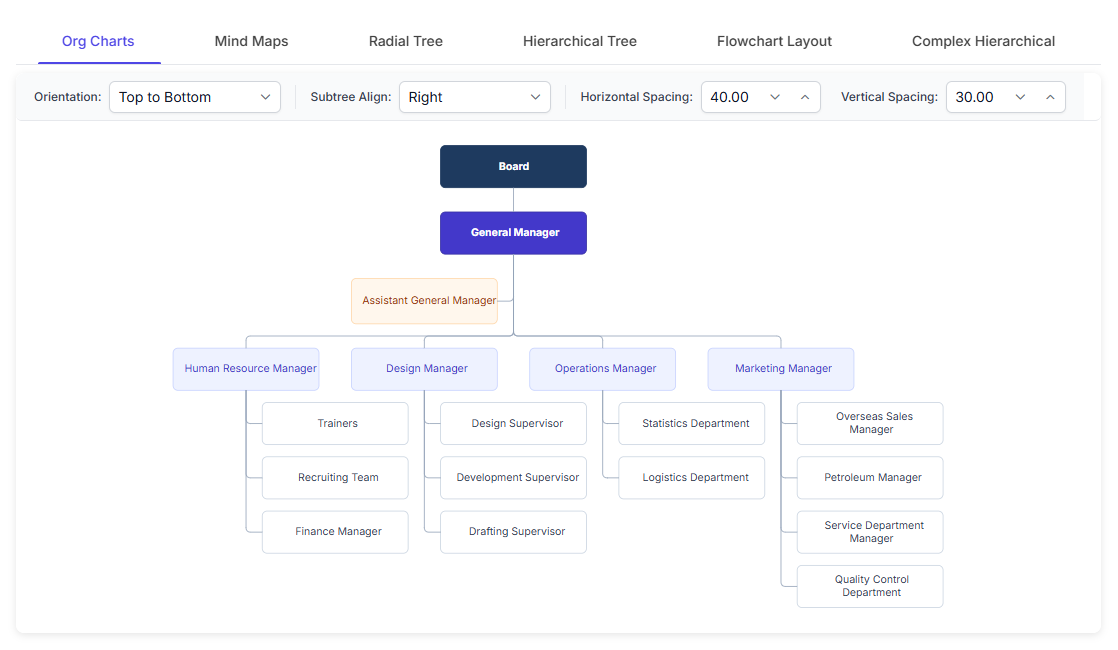
Why automatic layout matters
Positioning nodes by hand doesn’t scale as a diagram grows. Automatic layout keeps structure and readability intact as nodes, connections, or data change.
No manual positioning
Nodes and connectors are positioned automatically from how they relate to each other, so a diagram doesn’t need every coordinate set by hand.
Stays organized as it grows
Adding a node or a decision branch reflows the rest of the diagram automatically, instead of leaving it cluttered or overlapping.
Consistent with the data behind it
When nodes come from a data source, the layout can be reapplied automatically so the diagram reflects the current structure.
Automatic tree arrangement
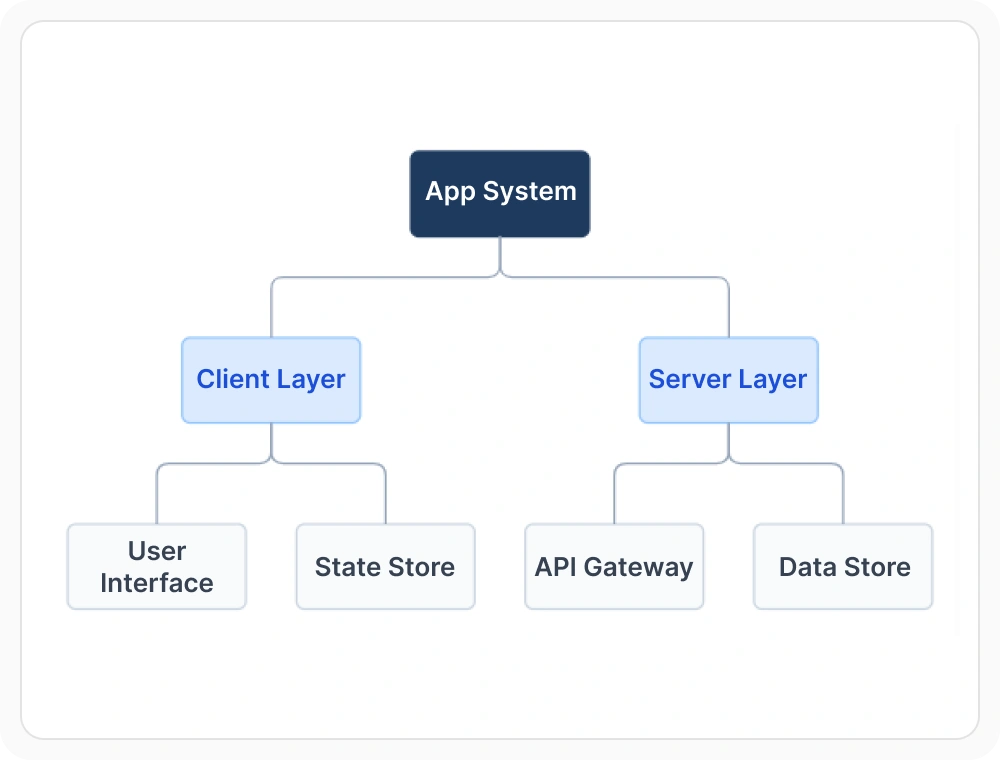
The hierarchical layout arranges connected nodes into a tree structure automatically. A node can connect to more than one parent, which suits matrix organizations, dependency graphs, and similar multi-parent structures. Use the hierarchical layout when a tree-like structure needs to be arranged without manual positioning.
- Build the tree from manually created nodes and connectors, or from a data source
- Support nodes with more than one parent, useful for matrix or dependency structures
- Require no root node to be specified before the layout runs
- Ensure automatic reflow as nodes and connections are added
Complex multi-parent arrangement
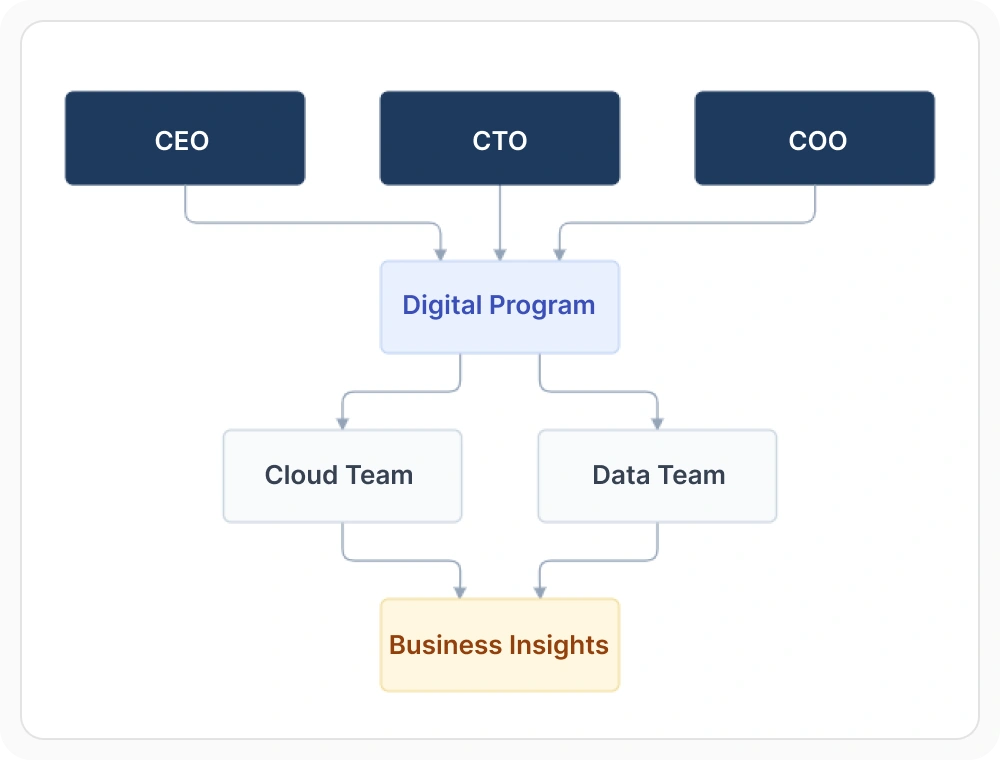
An extended version of the hierarchical layout adds finer control over structures where many nodes share multiple parents, such as a family tree or a dependency graph with several converging relationships, sometimes called a directed acyclic graph. Use the complex multi-parent layout when denser structures need control over how converging connections are drawn.
- Build from manually created nodes and connectors, or from a data source, the same way the standard hierarchical layout does
- Support connectors from a single parent leaving from the same point or spreading out across different points along that parent
- Enable child nodes to be arranged in a straight line relative to their parent instead of the standard branching arrangement
- Deliver this layout for structures like family trees or dependency graphs where a node commonly connects to several parents at once
Flowchart arrangement
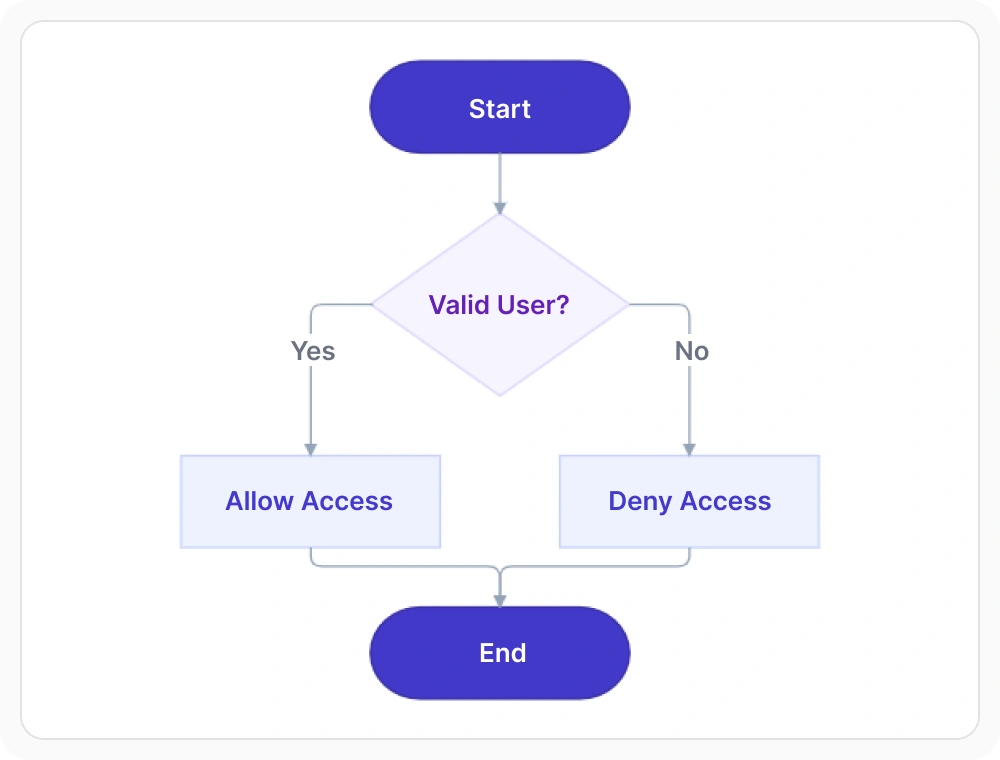
The flowchart layout arranges flowchart shapes into a readable sequence automatically, keeping process steps and decision branches organized as they’re added. Use the flowchart layout when a process diagram needs to be arranged automatically from data or manually created shapes. Shape notation itself, such as what a Terminator or Decision shape represents, is covered in Diagram Types.
- Build the sequence from manually created shapes and connectors, or from a data source
- Support flow direction running top-to-bottom or left-to-right
- Enable decision branches to be directed to the left, right, or in line with the overall flow
- Provide configuration for which connector text counts as a Yes or No branch
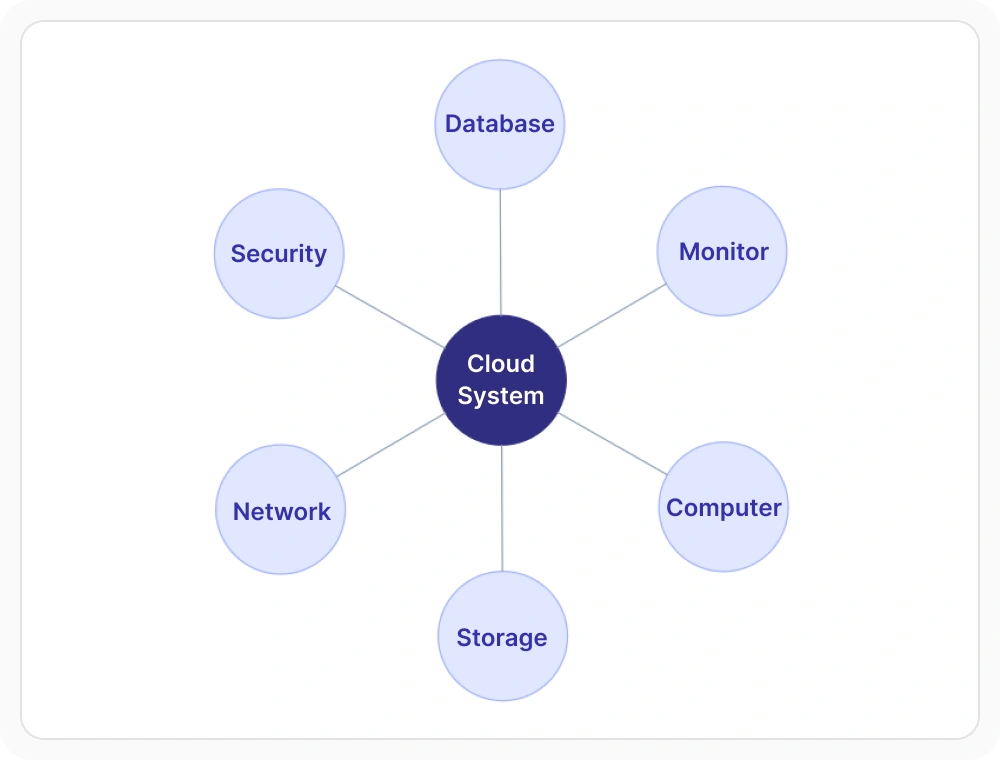
Radial tree arrangement
The radial tree layout arranges nodes in concentric circles around a central root node, with each ring representing one additional level in the hierarchy. Use the radial tree layout when relationship distance from a central concept needs to be visualized. Unlike the hierarchical layout, it supports only a single parent per node.
- Support specifying a root node directly, or leaving it for the layout to detect automatically from the node with no incoming connections
- Provide each concentric ring outward from the root to represent one additional level in the hierarchy
- Deliver a layout well suited to visualizing relationship distance from a central concept, such as a network diagram or a family tree
- Ensure single-parent hierarchy only, unlike the multi-parent hierarchical layouts described above
Direction, spacing, and alignment
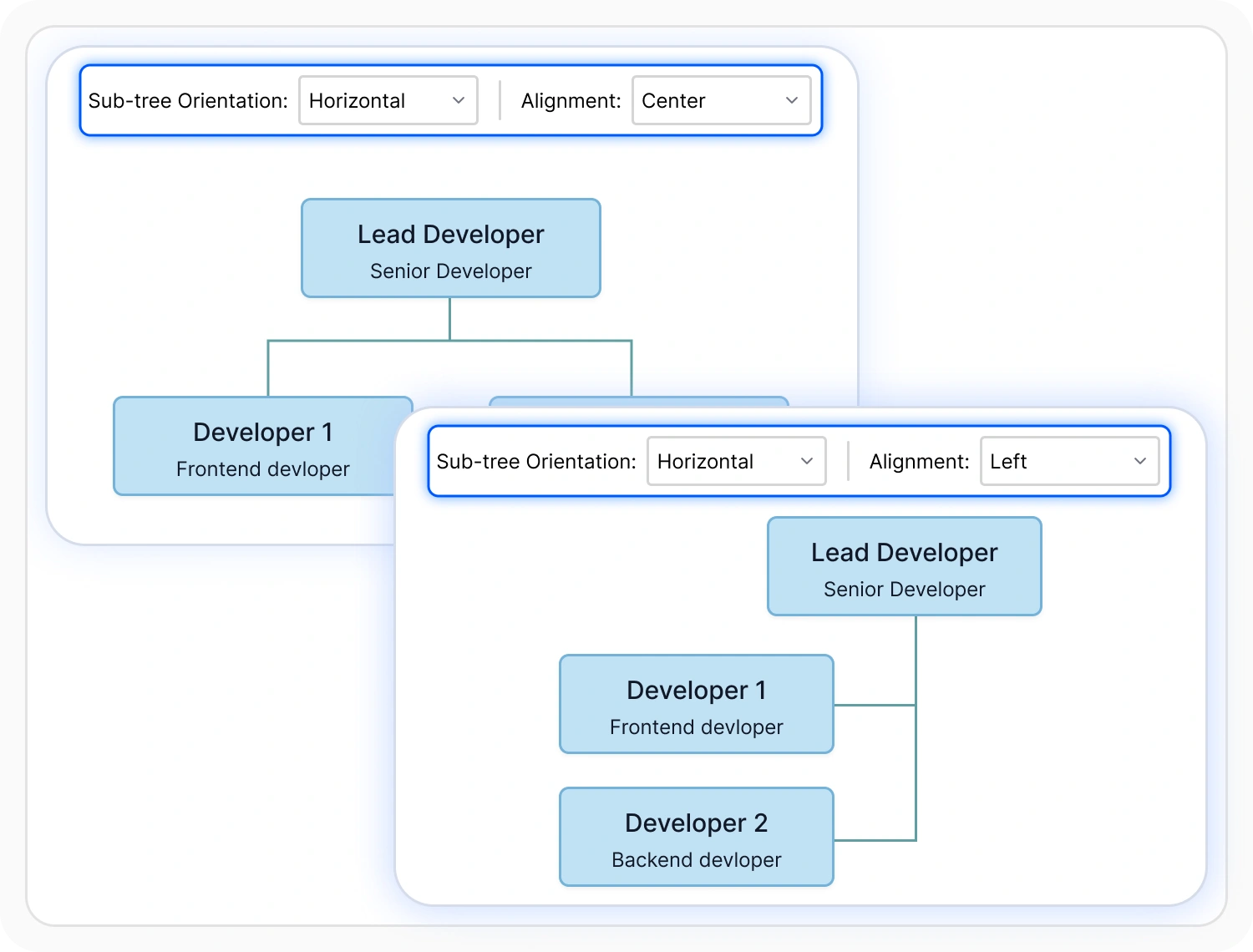
All these layouts share a common set of arrangement controls, so the overall look of a tree, a radial diagram, or a flowchart can be adjusted without changing how nodes are connected. Use these controls when a layout’s visual appearance needs to be fine-tuned after the algorithm runs.
- Support layout direction (orientation) running top-to-bottom, bottom-to-top, or left-to-right, depending on the layout
- Provide adjustable horizontal and vertical spacing between nodes
- Enable the arranged structure to be aligned within a defined area of the canvas
- Ensure layout changes can animate smoothly instead of jumping to new positions
Layouts that keep pace with changing data
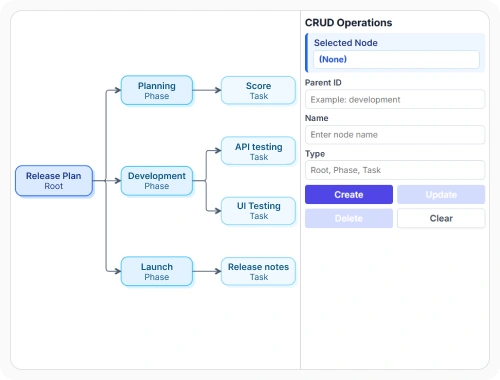
When nodes and connectors are generated from a data source, any of these layouts can be reapplied automatically to reflect updates, instead of repositioning shapes by hand. Use these data-driven layouts when a diagram needs to stay in sync with an underlying data source as it changes.
- Reapply the layout automatically when the underlying data source changes; see Data Import & Export for data binding
- Support reporting structures, dependency graphs, decision trees, and process flows
- Enable two more specific tree layouts covered separately: Organizational Charts and Mind Map Layout
- Ensure data-driven layouts remain available across JavaScript, Angular, React, Vue, Blazor, ASP.NET Core, MVC, WPF, UWP, and Windows Forms platforms
PLATFORM SUPPORT
Automatic layout support by platform
All four layouts are available across the Diagram SDK, but the underlying implementation is not identical everywhere. JavaScript, Angular, React, Vue, ASP.NET Core, ASP.NET MVC, and Blazor configure layouts through a shared layout-type property, while WPF, UWP, and Windows Forms use their own layout manager classes.
| Layout capability | JavaScript frameworks | ASP.NET Core and MVC | Blazor | WPF | UWP | Windows Forms |
|---|---|---|---|---|---|---|
| Hierarchical tree layout | ||||||
| Complex multi-parent layout, including connector distribution | ||||||
| Radial tree layout algorithm (single-parent, concentric arrangement) | ||||||
| Flowchart layout algorithm (orientation and branch direction) | ||||||
| Layout spacing and alignment | ||||||
| Animated layout transitions | ||||||
| Automatic layout generated from a data source |
Frequently Asked Questions
What is the difference between hierarchical layout and organizational chart layout?
Both arrange nodes into a tree, but they are separate layout algorithms. Hierarchical layout is the general-purpose tree arrangement described on this page. Organizational chart layout is a related, more specific layout built for reporting structures, including options like assistant positions; see Organizational Charts.
Does a hierarchical layout need a designated root node?
No. The layout determines the structure from how nodes and connectors, or data records, relate to each other, so no root needs to be identified in advance.
What’s different about the complex multi-parent layout, if the hierarchical layout already supports multiple parents?
The complex multi-parent layout adds control over how converging connections from a shared parent are drawn, such as spreading them across different points instead of one, and can arrange children in a straight line relative to their parent. It’s suited to denser multi-parent structures like family trees, where these details matter more.
Can a tree or flowchart layout be generated directly from a data source?
Yes. When nodes and connectors are generated from a data source, any of these layouts can be reapplied automatically as the data changes, rather than repositioning shapes by hand. See Data Import & Export for data binding.
What is the difference between hierarchical layout and mind map layout?
Both position nodes automatically, but mind map is a distinct layout built around a single central topic with branches extending outward on both sides, rather than the top-down structure of the general-purpose hierarchical layout; see Mind Map Layout.
Can a node have more than one parent in a hierarchical layout?
Yes. Unlike a strict tree, the hierarchical layout allows a node to connect to more than one parent, which suits matrix organizations or dependency graphs where a single item relates to more than one item above it.
How is radial tree layout different from the hierarchical layout?
Both arrange nodes into a tree automatically, but radial tree lays the hierarchy out in concentric circles around a central root node and supports only a single parent per node. The hierarchical layout arranges nodes top-down and allows multiple parents.
Is automatic layout support identical across every platform?
No. JavaScript, Angular, React, Vue, ASP.NET Core, ASP.NET MVC, and Blazor configure all four layouts through a shared layout-type property, while WPF, UWP, and Windows Forms use their own layout manager classes. Some layout options also differ by platform, as shown in the table above.
Resources
Learn more about our Diagram SDK
Explore demos, documentation, and support resources to get the most out of the Syncfusion Diagram SDK.
Review shared concepts and supported platforms
Representative hierarchical layout demo
See one automatic layout implementation in action
Ask, share, and connect with peers
Find solutions and best practices fast
Get expert help when needed
Feature requests and bug reports
Track issues and suggest improvements
Awards
Greatness—it’s one thing to say you have it, but it means more when others recognize it. Syncfusion® is proud to hold the following industry awards.