Try Our Live Demo
Why the mind map layout matters
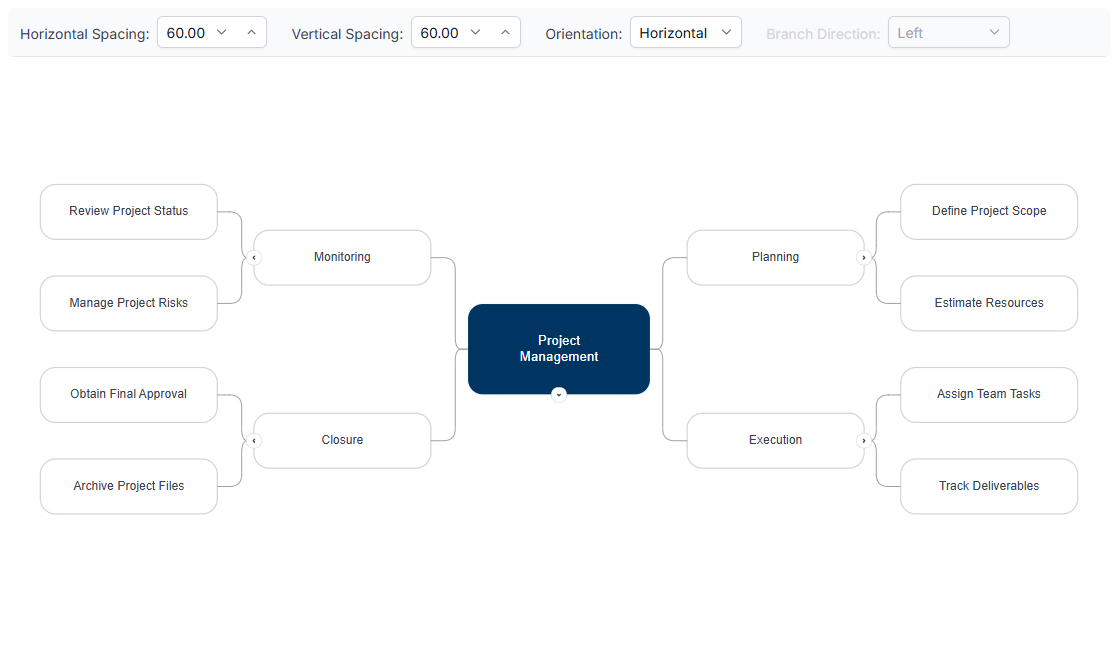
Ideas don’t always branch off in a straight line. A layout built around a central topic keeps brainstorming and planning visuals organized without forcing them into a top-down shape.
Organize around one idea
Every subtopic connects back to a single central concept, keeping a scattered set of ideas visually anchored.
Balanced without manual placement
Subtopics are positioned automatically on either side of the center, instead of needing to be placed and re-balanced by hand.
Rearrange as ideas change
Moving a topic to a different part of the map is a drag, not a redraw.
Layout around a central idea
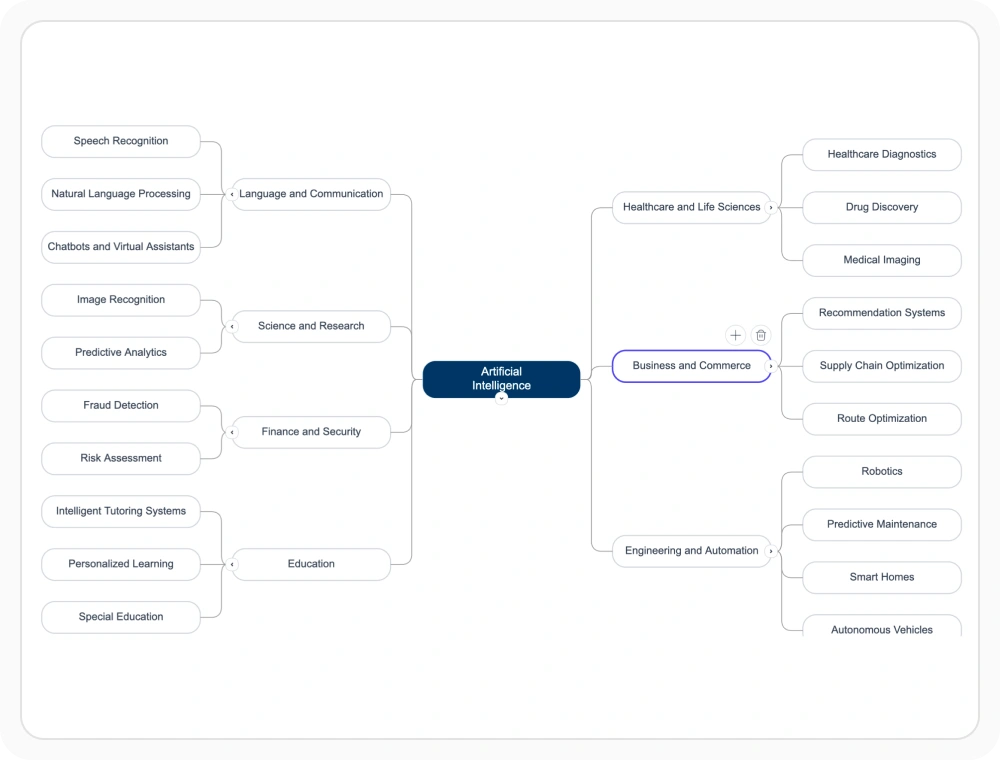
The mind map layout arranges nodes as a spider diagram around one central topic, rather than the top-down structure used by a typical tree. Use the mind map layout when ideas need to be organized around a single central concept rather than in a top-down hierarchy.
- Position one node at the center, with every other node connected outward from it, directly or through another node
- Build from manually created nodes and connectors, or from a data source describing each topic and its parent
- Support automatic positioning of subtopics on either side of the center without manual placement
- Provide a distinct algorithm separate from the generic tree arrangement covered in Automatic Layouts
Orientation and branch placement
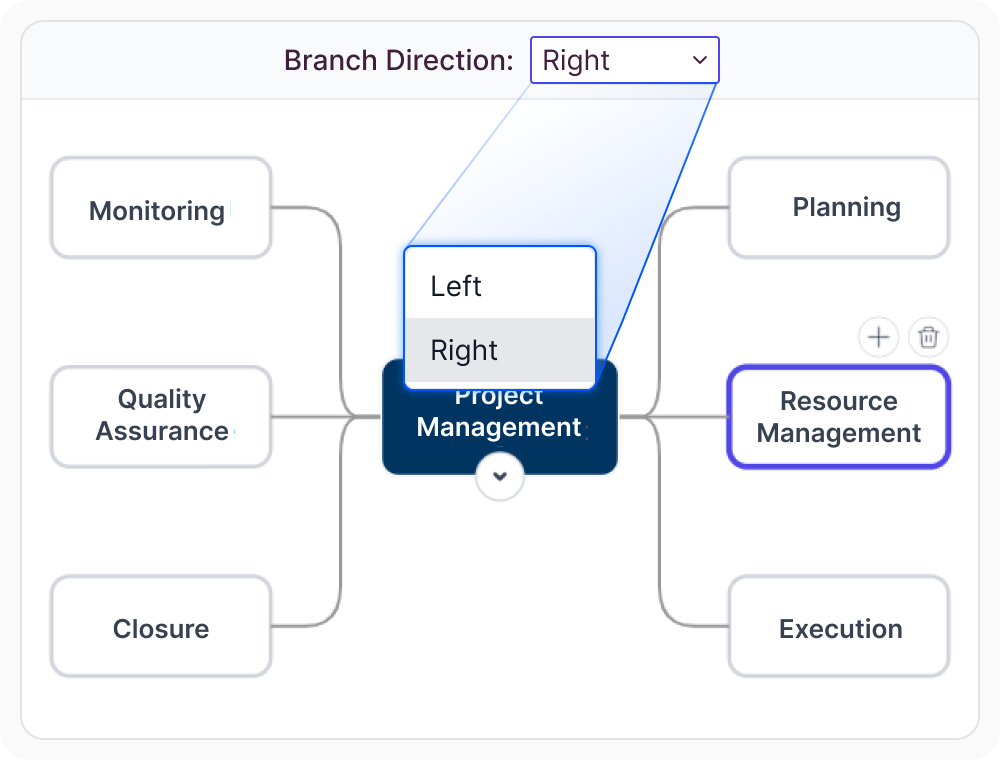
By default, subtopics extend to both the left and right of the central topic, but which side a given branch falls on doesn’t have to be left to chance. Use orientation and branch placement controls when specific topics need to appear on a designated side of the center.
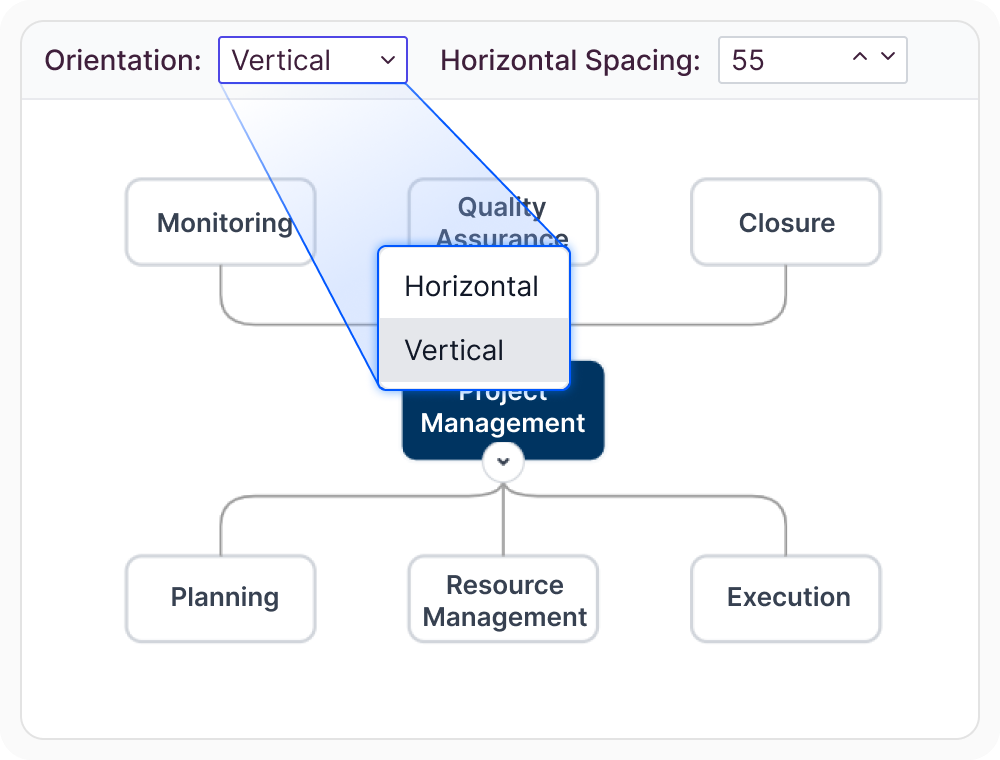
- Provide horizontal orientation as the default, spreading branches to the left and right of the center
- Support vertical orientation to spread branches above and below instead
- Enable each node’s branch to be assigned individually, keeping a specific topic on the left or right regardless of where the layout would otherwise place it
- Ensure orientation and branch assignment remain consistent across supported web and desktop platforms
Spacing, margins, and connector style
The visual density of a mind map, and the connectors linking its topics, can both be adjusted to fit the amount of content involved. Use these controls when a mind map’s visual density or connector appearance needs to be fine-tuned for readability.
- Provide adjustable horizontal and vertical spacing between topics
- Support a margin defined around the whole mind map
- Enable connectors between topics to use a curved style rather than straight or orthogonal lines
- Ensure spacing, margin, and connector style options remain available across supported platforms
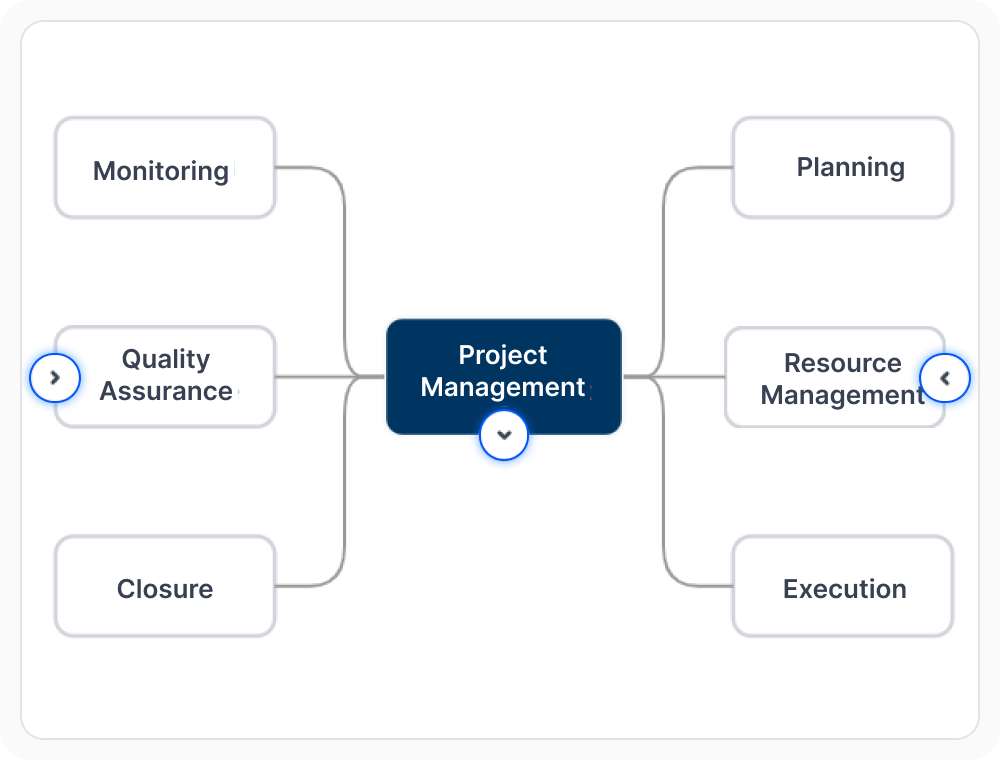
Expanding, collapsing, and rearranging topics
A mind map tends to grow as ideas are added, and staying readable means being able to hide parts of it or move a topic without rebuilding the whole thing. Use these interactions when a growing mind map needs to be navigated or restructured without full reconfiguration.
- Support collapsing a topic to hide its subtopics without deleting them
- Enable a topic to be dragged onto a different topic to become its subtopic instead
- Provide general selection, dragging, and other interactions covered in Editing and Interaction
- Ensure expand, collapse, and rearrange behavior remains available across supported web and desktop platforms
Common uses for a mind map
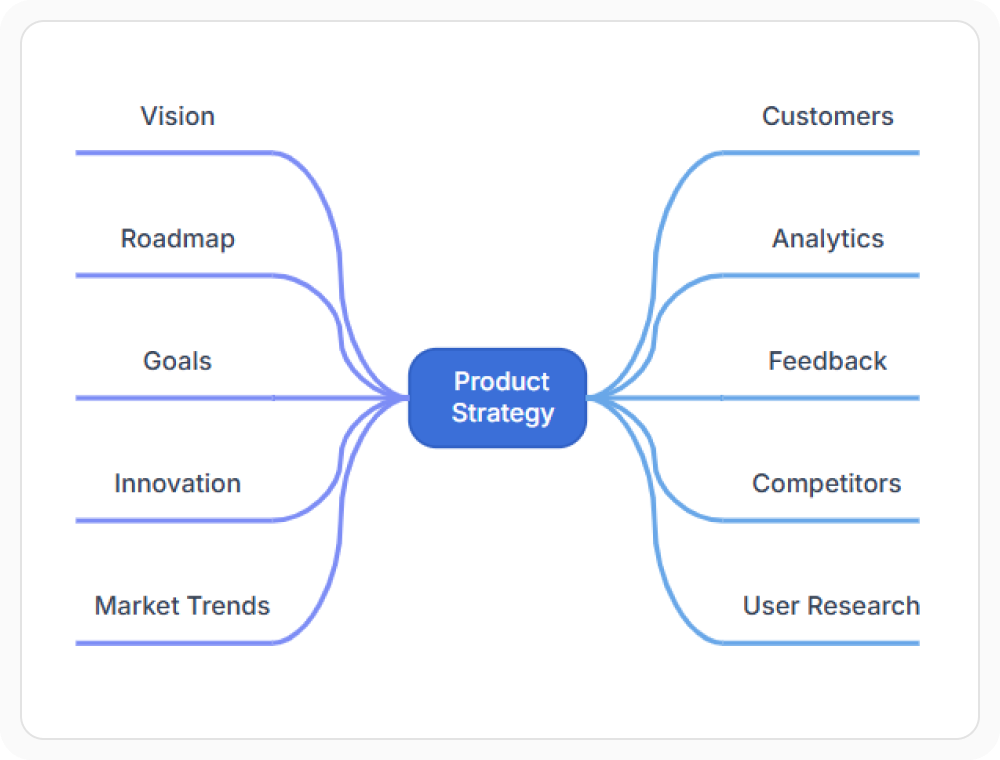
A mind map is typically used wherever ideas need to be organized around a single concept rather than described as a linear sequence of steps. Use a mind map when brainstorming, planning, or strategy work needs a visual structure anchored to one central topic.
- Support brainstorming and idea organization around a central topic
- Enable strategy mapping, problem-solving, and project planning
- Provide data-driven mind map generation covered alongside other diagrams in Data Import & Export
- Ensure the mind map layout remains available across JavaScript, Angular, React, Vue, Blazor, ASP.NET Core, MVC, WPF, and UWP platforms
PLATFORM SUPPORT
Mind map layout support by platform
The mind map layout is documented as a dedicated algorithm on most Diagram SDK platforms, though interactive rearranging is confirmed more consistently on some than others. JavaScript, Angular, React, Vue, ASP.NET Core, ASP.NET MVC, and Blazor configure it through a shared layout type, while WPF and UWP provide the same algorithm through their own layout classes.
| Capability | JavaScript frameworks | ASP.NET Core and MVC | Blazor | WPF | UWP | Windows Forms |
|---|---|---|---|---|---|---|
| Mind map layout algorithm | ||||||
| Orientation and per-topic branch assignment | ||||||
| Interactive expand and collapse | ||||||
| Drag-to-reparent |
Frequently Asked Questions
How is the mind map layout different from the generic hierarchical layout?
Both position nodes automatically, but the mind map layout is built around a single central topic with branches extending outward on both sides, rather than the top-down structure of a generic tree; see Automatic Layouts.
Can a specific topic be forced to appear on the left or right of the center?
Yes. Each node’s branch can be assigned individually, so a specific topic stays on the side it’s assigned to regardless of where the layout would otherwise place it.
Can a topic be moved to a different parent after the mind map is built?
Yes, on platforms where interactive drag-to-reparent is supported. Dragging a topic onto a different topic makes it a subtopic there instead, and the layout adjusts automatically.
Can a mind map be arranged vertically instead of left and right?
Yes. Vertical orientation spreads branches above and below the central topic instead of the default horizontal arrangement to the left and right.
Are mind map connectors always curved?
Curved connectors are the common default for mind maps, but connector type is a configurable style choice rather than a fixed part of the layout itself.
Is mind map layout support identical across every platform?
No. The core layout algorithm is documented on most platforms, but interactive expand, collapse, and drag-to-reparent behavior is confirmed more consistently on some than others, as shown in the table above.
Resources
Learn more about our Diagram SDK
Explore demos, documentation, and support resources to get the most out of the Syncfusion Diagram SDK.
Review shared concepts and supported platforms
See central topic arrangement and branching in action
Ask, share, and connect with peers
Find solutions and best practices fast
Get expert help when needed
Feature requests and bug reports
Track issues and suggest improvements
Awards
Greatness—it’s one thing to say you have it, but it means more when others recognize it. Syncfusion® is proud to hold the following industry awards.