Overview
The Angular Diagram organizational chart (often called an org chart or organization chart) is the graphical representation of an organization’s structure. Designed to show relationships and relative ranks among positions, the chart provides a clear view of the organizational hierarchy. A variety of features are available to help you easily create and customize organizational charts.
Visualize organizational charts from data sources
The Angular Diagram component supports visualizing an organizational chart from an external data source. In addition, data in any format can be easily converted, mapped, and consumed in the diagram by setting a few properties.

Automatic layout algorithm
The built-in automatic layout algorithm is specifically designed for organizational charts to arrange the parent and child node positions automatically.
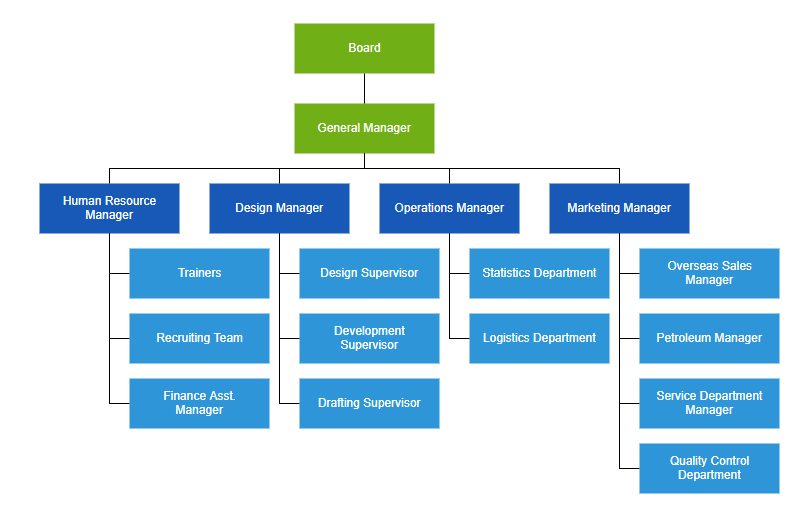
Templates
Create different organizational chart templates and present them using custom node designs.
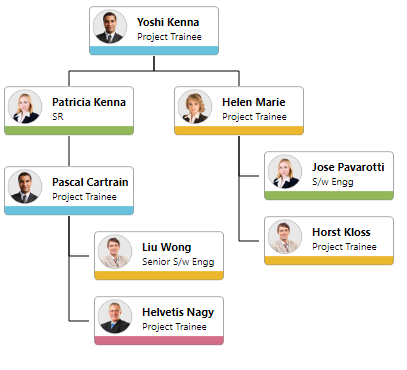
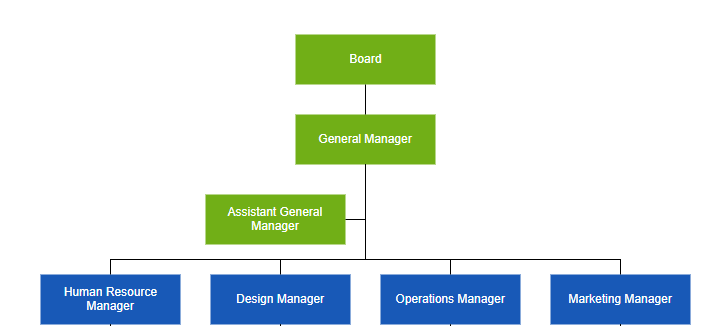
Assistants
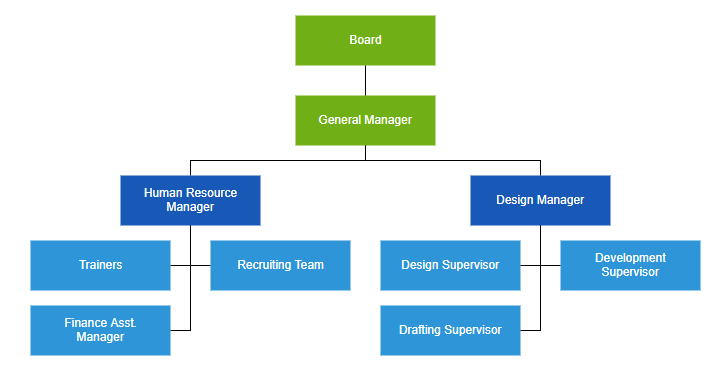
The Angular Diagram component supports defining assistants in the organizational chart. Child items designated as assistants have a different relationship with the parent node. A dedicated section of the tree is used to arrange assistant nodes.
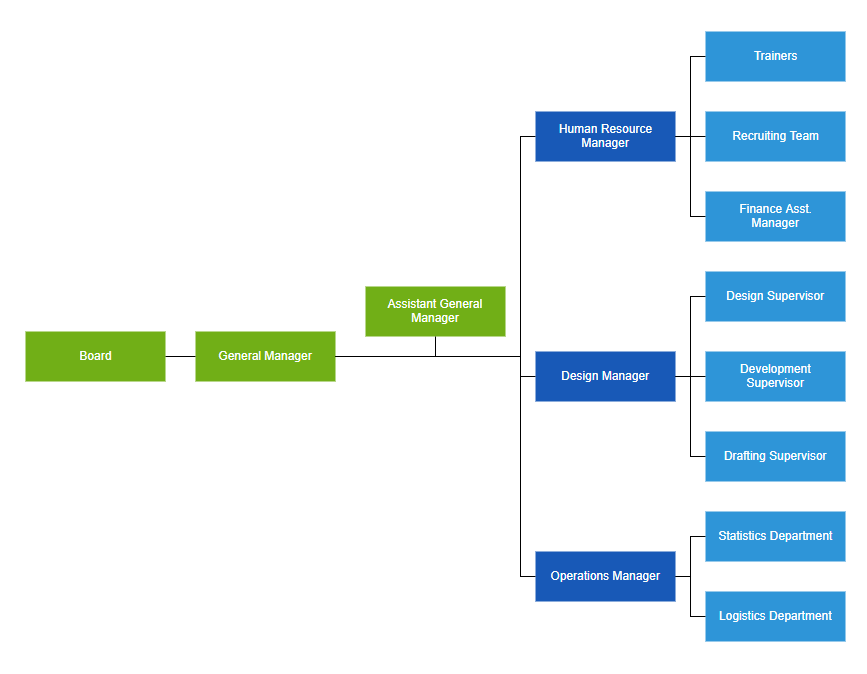
Orientation
Arrange organizational charts from top to bottom, left to right, right to left, or bottom to top based on the required orientation.
Leaf-level alignment
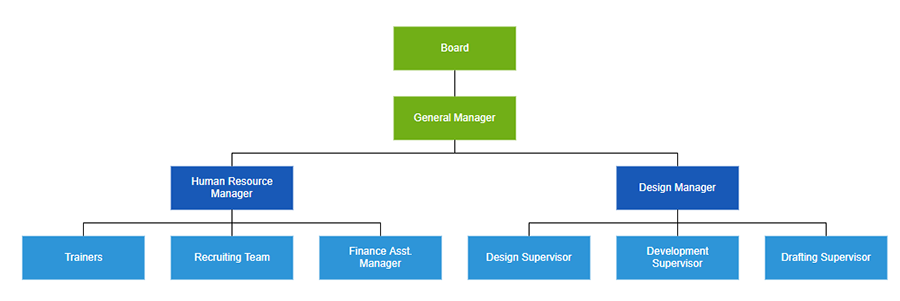
Arrange the leaf-level nodes in the organization chart to be aligned to the left, right, or center horizontally, or to the top, bottom, or middle vertically.
Level spacing
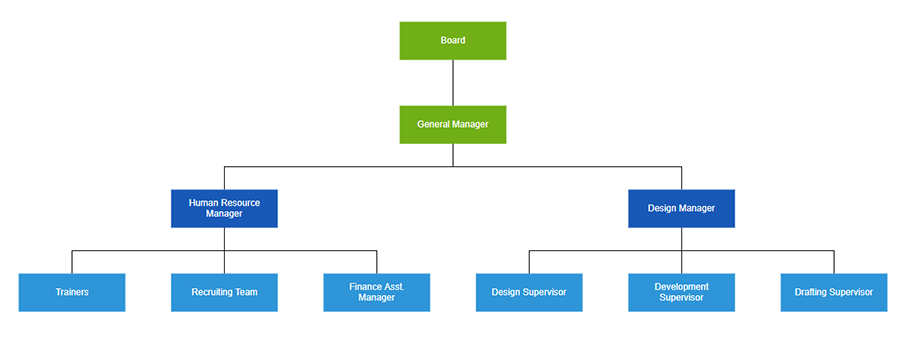
The Angular Diagram component supports customizing the spacing between each level in both horizontal and vertical directions, and allows you to define a margin around the organizational chart.
Expand and collapse child nodes
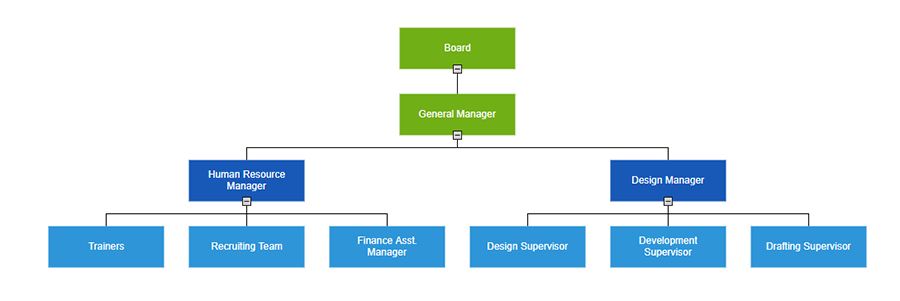
Child nodes can be shown or hidden to control which branches are visible in the diagram. Branch visibility is suitable when selected portions of a larger mind map need to remain in focus.
Drag and Drop
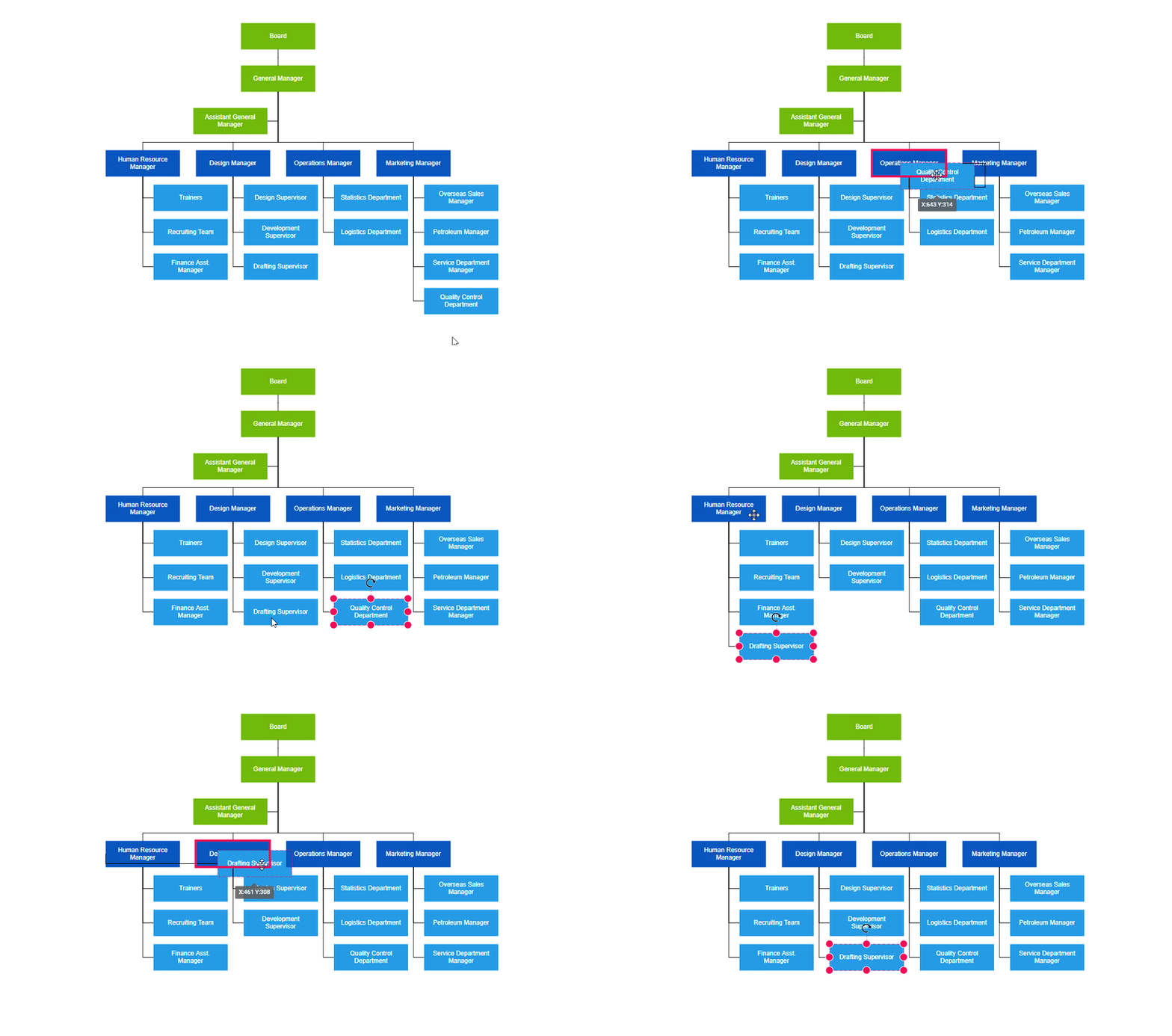
You can easily modify the organizational structure interactively by dragging the child or parent nodes and then dropping them on the required locations.
Our Customers Love Us
Here are some of their experiences.




See Real Success Stories
Developers around the world trust Syncfusion’s Essential Studio to simplify complex projects and speed up delivery. With a vast library of UI controls, powerful SDKs, and reliable support, Essential Studio helps teams build enterprise-ready applications with confidence.
Read Our Customer StoriesIndustry
Software development
75% Cost reduction
50% Faster development

Industry
Utilities (oil and gas)

450+ hours saved
Streamlined processes and hours of development effort saved.

Advanced, flexible features
Empowered users through robust and versatile functionality.
Industry
Software and technology
1000+ of hours saved
Accelerated development with enterprise-ready UI components.

Efficient file management
Streamlined workflows with document libraries without building them from scratch.
Industry
Software and technology

2 Years of delay avoided
Two years of delays prevented with proactive planning.

On-time delivery
Projects delivered on schedule using trusted controls.
Industry
IT services and IT consulting

Improved performance
Large datasets handled with easy customization and quick debugging.

Highly customizable
Plug-and-play controls with quick template integration.
Industry
Professional services
Instant access
Quick availability of features and resources.
Reduced dependencies
Fewer dependencies for faster development.
 Automatic layout algorithms 40+ interactive demos 1.1M+ downloads