 Piramanayagam Ramakrishnan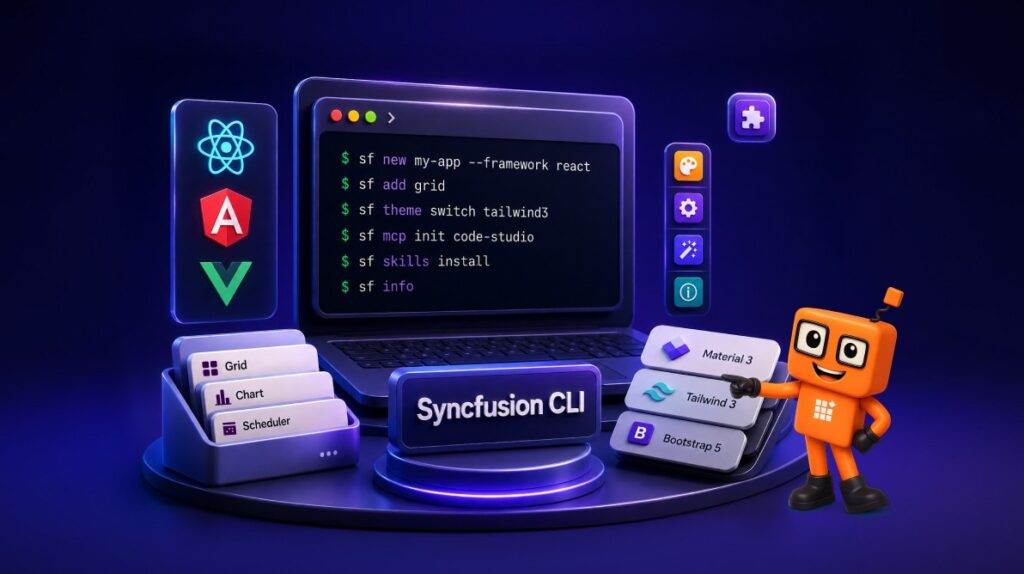
TL;DR: Syncfusion CLI simplifies frontend development by automating project creation, component integration, theme management, and AI-assisted workflows for React, Angular, and Vue applications. Learn how to scaffold projects faster, maintain consistency across teams, and streamline development tasks from a single command-line tool.
Setting up a new web application is often more time-consuming than it should be. Before writing a single business feature, developers typically spend time creating the project structure, configuring frameworks, installing dependencies, selecting themes, and integrating UI components.
To streamline this process, we’ve introduced Syncfusion® CLI, a command-line tool that helps developers create, configure, and manage applications built with Syncfusion components. Whether you’re starting a new React, Angular, or Vue application, adding components to an existing project, or setting up AI-assisted development workflows, Syncfusion CLI helps reduce setup effort and gets you to development faster.
Why Syncfusion CLI?
Modern frontend projects often require repetitive setup tasks that must be performed every time a new application is created. While these tasks are necessary, they can slow development and create inconsistencies across projects.
Syncfusion CLI provides a unified workflow for common development tasks, helping teams:
- Create React, Angular, and Vue applications quickly.
- Start with preconfigured Syncfusion component templates.
- Apply consistent themes across projects.
- Add Syncfusion components to existing applications.
- Configure Syncfusion MCP support for AI-powered workflows.
- Install Syncfusion Skills for AI-assisted development.
- View project and environment information directly from the command line.
Instead of manually performing multiple setup steps, developers can manage everything through a single tool.
Installing Syncfusion CLI
You can install the Syncfusion CLI globally using npm:
npm install -g @syncfusion/syncfusion-cli
Once installation is complete, run the following command to verify that the CLI is available:
sf
This launches the interactive experience and provides access to the available commands.
How to use Syncfusion CLI
Syncfusion CLI supports both guided and command-driven workflows, allowing developers to choose the approach that best fits their development style.
Interactive mode
The interactive mode is ideal for developers who are new to Syncfusion CLI or prefer a guided experience.
Run:
sf
You’ll be presented with a terminal-based menu that walks you through common tasks such as:
- Creating a new project
- Adding components
- Switching themes
- Configuring MCP
- Installing Skills
- Viewing project information
This approach eliminates the need to memorize commands and simplifies initial project setup.
Non-interactive mode
For automation scenarios and repeatable workflows, developers can provide all configuration options directly from the command line.
For example:
sf new my-vue-app --framework vue --type ts --template scheduler --theme tailwind3 --styling scss
This command creates a Vue TypeScript application using the Scheduler template, Tailwind 3 theme, and SCSS styling.
Because all options are explicitly defined, this workflow is especially useful for build pipelines, team standards, and CI/CD environments.
Create applications with templates and themes
One of the primary benefits of Syncfusion CLI is the ability to generate a fully configured application in a single command.
Example: Create a React Application
sf new my-react-app --framework react --type ts --template grid --theme material3
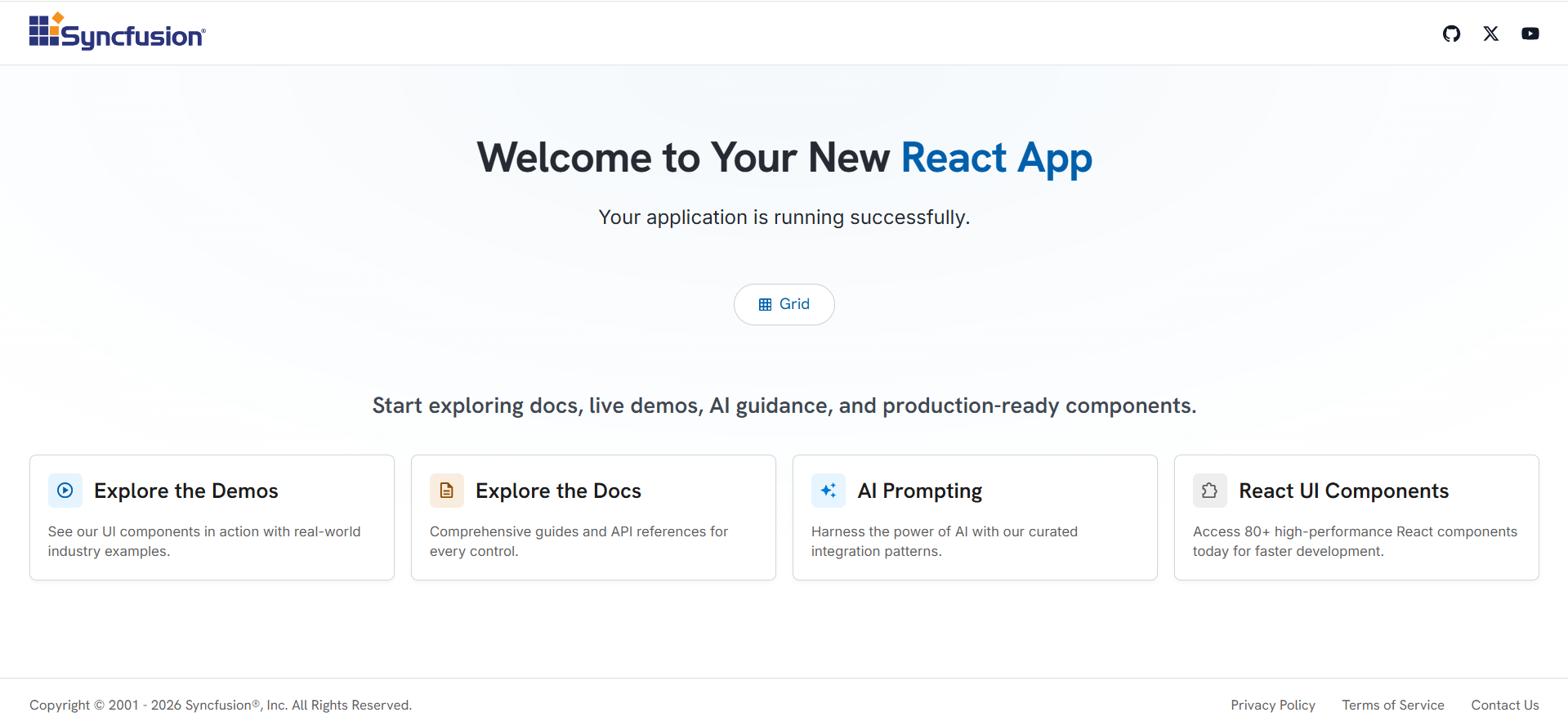
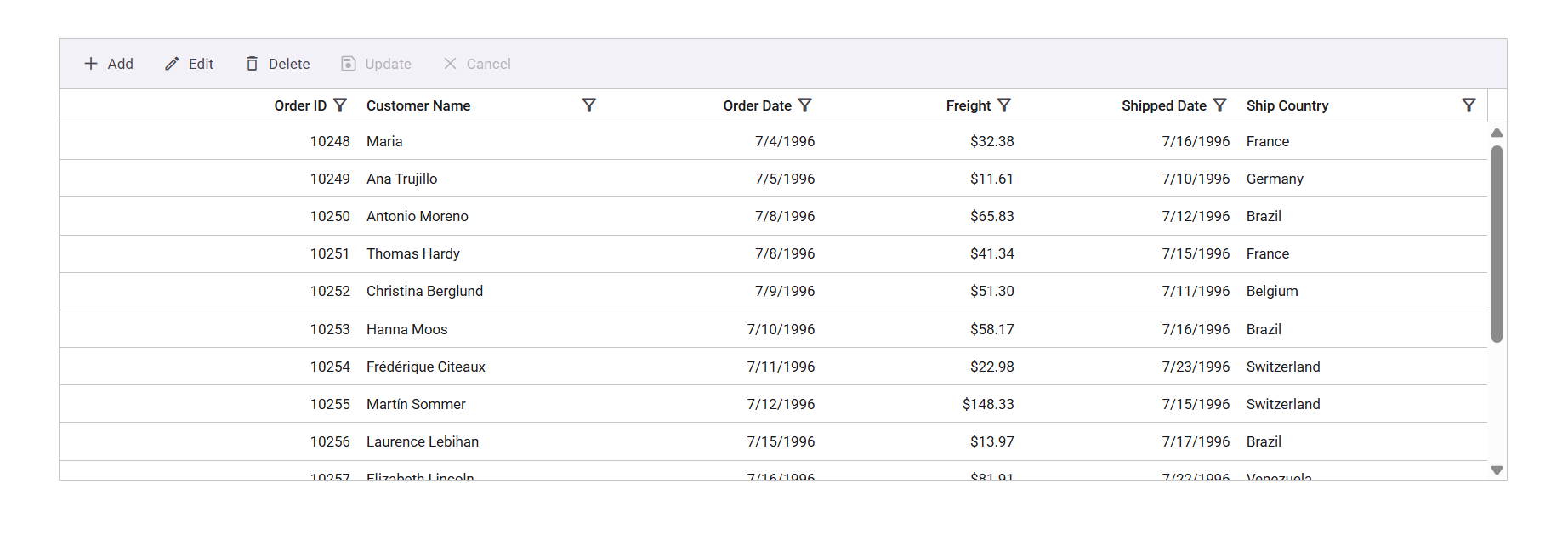
This command creates a React TypeScript application with the Syncfusion Grid component and Material 3 theme already configured.
After setup, you can run the project to view the generated application workspace and the ready-to-use Grid component, as shown below.
Ready-to-Use Project Templates
Developers can choose from several built-in templates when creating a project:
- Empty
- Grid
- Chart
- Scheduler
- Gantt
- Diagram
- Rich Text Editor
- PDF Viewer
- DOCX Editor
- Spreadsheet Editor
- File Manager
These templates eliminate manual setup and allow developers to start with working implementations of commonly used Syncfusion components.
Built-in theme support
Syncfusion CLI includes support for popular themes:
- Material 3
- Tailwind 3
- Fluent 2
- Bootstrap 5.3
If you need to update an existing application’s appearance, switch themes using:
sf theme switch tailwind3
This helps teams maintain a consistent design system without extensive manual configuration.
Add components to existing projects
Syncfusion CLI is not limited to new applications. You can also enhance existing projects by adding Syncfusion components as needed.
Examples:
sf add grid
sf add chart
sf add scheduler
sf add gantt
sf add diagram
sf add rich-text-editor
sf add file-manager
sf add pdf-viewer
sf add docx-editor
sf add spreadsheet-editor
This approach simplifies component integration and reduces the amount of setup typically required when introducing new functionality.
AI-assisted development with MCP and Skills
As AI becomes an increasingly important part of modern development workflows, Syncfusion CLI provides tools to help teams integrate AI-assisted experiences into their projects.
Configure Syncfusion MCP
To configure the Syncfusion MCP server for a supported editor:
sf mcp init vs-code
This command sets up the required environment for AI-enabled development scenarios.
Install Syncfusion Skills
To install Syncfusion Skills in an existing project:
sf skills install
These skills help AI assistants better understand and work with Syncfusion components, making it easier to generate, modify, and maintain application code.
Show project information
sf info
Example Workflows
| Workflow | Command |
|---|---|
| Create a React Vite Grid application | sf new my-react-app --framework react --build-tool vite --type ts --template grid --theme material3 --styling css |
| Create a React Next.js Chart application | sf new my-next-app --framework react --build-tool nextjs --type ts --template chart --theme fluent2 --styling scss |
| Create an Angular Scheduler application | sf new my-angular-app --framework angular --type ts --template scheduler --theme bootstrap5.3 --styling css |
| Create a Vue Chart application | sf new my-vue-app --framework vue --type ts --template chart --theme tailwind3 --styling scss |
Note: The --build-tool option is supported only for React projects.
These examples illustrate how Syncfusion CLI can simplify common development tasks across React, Angular, and Vue projects.
Who can benefit from Syncfusion CLI?
Syncfusion CLI is designed for a wide range of development scenarios, including:
- Frontend developers who want to build applications quickly.
- Teams looking to standardize project setup across multiple applications.
- Developers working with React, Angular, or Vue.
- Organizations that rely on automation and CI/CD workflows.
- Teams adopting AI-assisted development and MCP-based tooling.
Whether you’re building a prototype, creating a production application, or managing multiple projects across a team, Syncfusion CLI helps simplify project setup and ongoing maintenance.
Frequently Asked Questions
Do I need prior experience with Syncfusion components to use Syncfusion CLI?
No. Syncfusion CLI is designed to simplify the setup process for both new and experienced users. Developers can use the interactive mode to discover available options and create projects without needing in-depth knowledge of individual components or project configurations.
Can Syncfusion CLI be used in team development environments?
Yes. Syncfusion CLI helps teams follow consistent project structures, themes, and component configurations across multiple applications. This can reduce onboarding time and minimize differences between development environments.
Is Syncfusion CLI suitable for rapid prototyping?
Absolutely. By generating preconfigured applications and component-based templates, Syncfusion CLI allows developers to quickly create working prototypes and proof-of-concept applications, helping teams validate ideas faster.
Can I customize the generated application after it is created?
Yes. Applications generated by Syncfusion CLI are standard React, Angular, or Vue projects. Once the project is created, you can freely modify the structure, add third-party packages, customize components, and adapt the application to your specific business requirements.
Conclusion
Syncfusion CLI brings project creation, component integration, theme management, MCP configuration, Skills installation, and project utilities together in a single developer-friendly tool.
Instead of spending valuable time on repetitive setup tasks, developers can quickly create applications, integrate components, standardize project configuration, and enable AI-assisted workflows through a consistent command-line experience.
Whether you prefer a guided, interactive workflow or a fully automated setup process, Syncfusion CLI provides a faster, more efficient way to build React, Angular, or Vue applications with Syncfusion components.
Start using Syncfusion CLI today and accelerate the way you build modern web applications.




Be the first to get updates