 Sumathi Uthayakumar
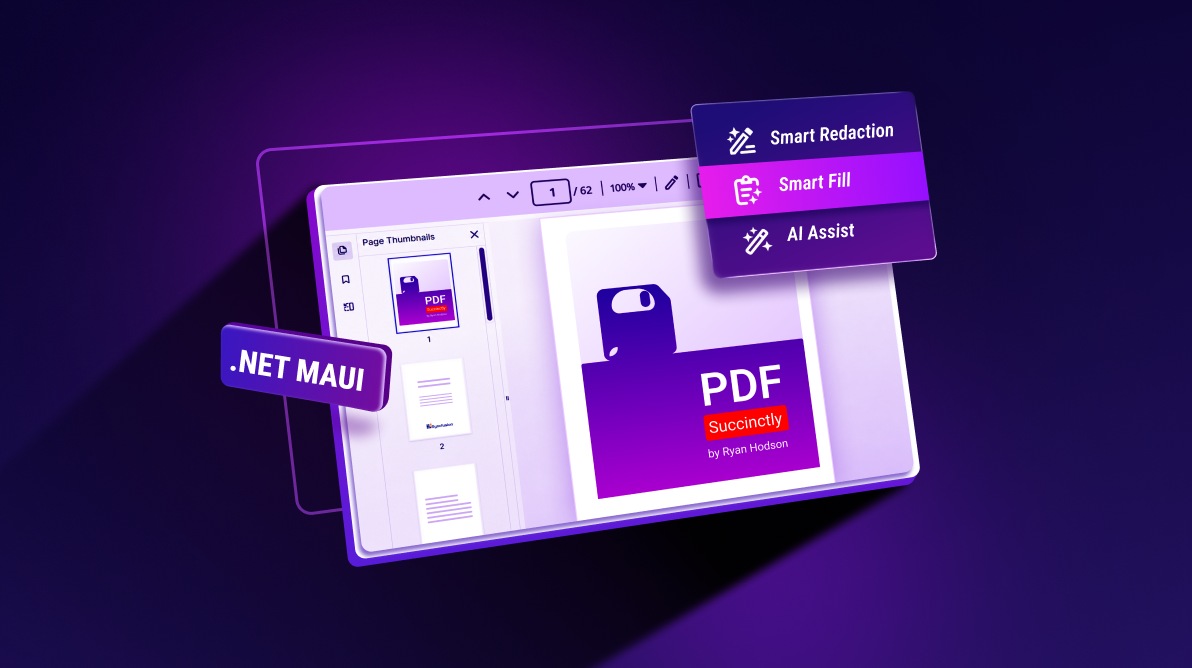
TL;DR: Want to make PDF workflows smarter in your .NET MAUI applications? The Syncfusion Smart PDF Viewer brings AI-powered document summarization, question answering, sensitive data redaction, and automatic form filling into one component. In this blog, learn how to integrate these features using Azure OpenAI and build more efficient document experiences across Android, iOS, macOS, and Windows.
Working with PDFs often involves more than just viewing documents. You may need to find specific information, remove sensitive details, or fill out forms. Doing all this manually can take time, especially when working with large documents.
What if your application could help users complete these tasks with AI?
The Syncfusion® AI-Powered .NET MAUI Smart PDF Viewer, introduced in Essential Studio 2026 Volume 3, makes this possible. It extends the PDF viewing experience with three AI-powered features: AI Assistant, Smart Redaction, and Smart Form Fill.
With these features, users can summarize documents, ask questions, identify sensitive information, and fill out PDF forms with less manual effort.
In this blog, we’ll explore these features and learn how to integrate the Smart PDF Viewer into a .NET MAUI application using Azure OpenAI.
What can you do with the .NET MAUI Smart PDF Viewer?
Imagine you’re building a customer onboarding application. Users need to review agreements, check customer details, and complete PDF forms before submitting them.
Instead of handling each task manually, you can use the Smart PDF Viewer to:
-
Understand documents: Generate summaries and ask questions about PDF content.
-
Protect sensitive information: Find details such as names, email addresses, and phone numbers that need to be redacted.
-
Complete PDF forms: Extract information from copied content and fill in the matching form fields.
All these capabilities are available within the same PDF viewing experience.
Let’s look at each feature in detail.
1. Understand lengthy documents with the AI Assistant
Have you ever opened a lengthy PDF just to find one specific piece of information? Searching through every page can be frustrating.
The built-in AI Assistant makes this easier. Users can generate a summary of a PDF, ask questions about its content, and explore suggested prompts.
For example, when reviewing a business report, users can ask questions such as:
-
What are the key findings in this report?
-
Summarize the main points.
-
What are the important dates mentioned in this document?
The AI Assistant analyzes the document and provides relevant responses, helping users find information without reading every page.
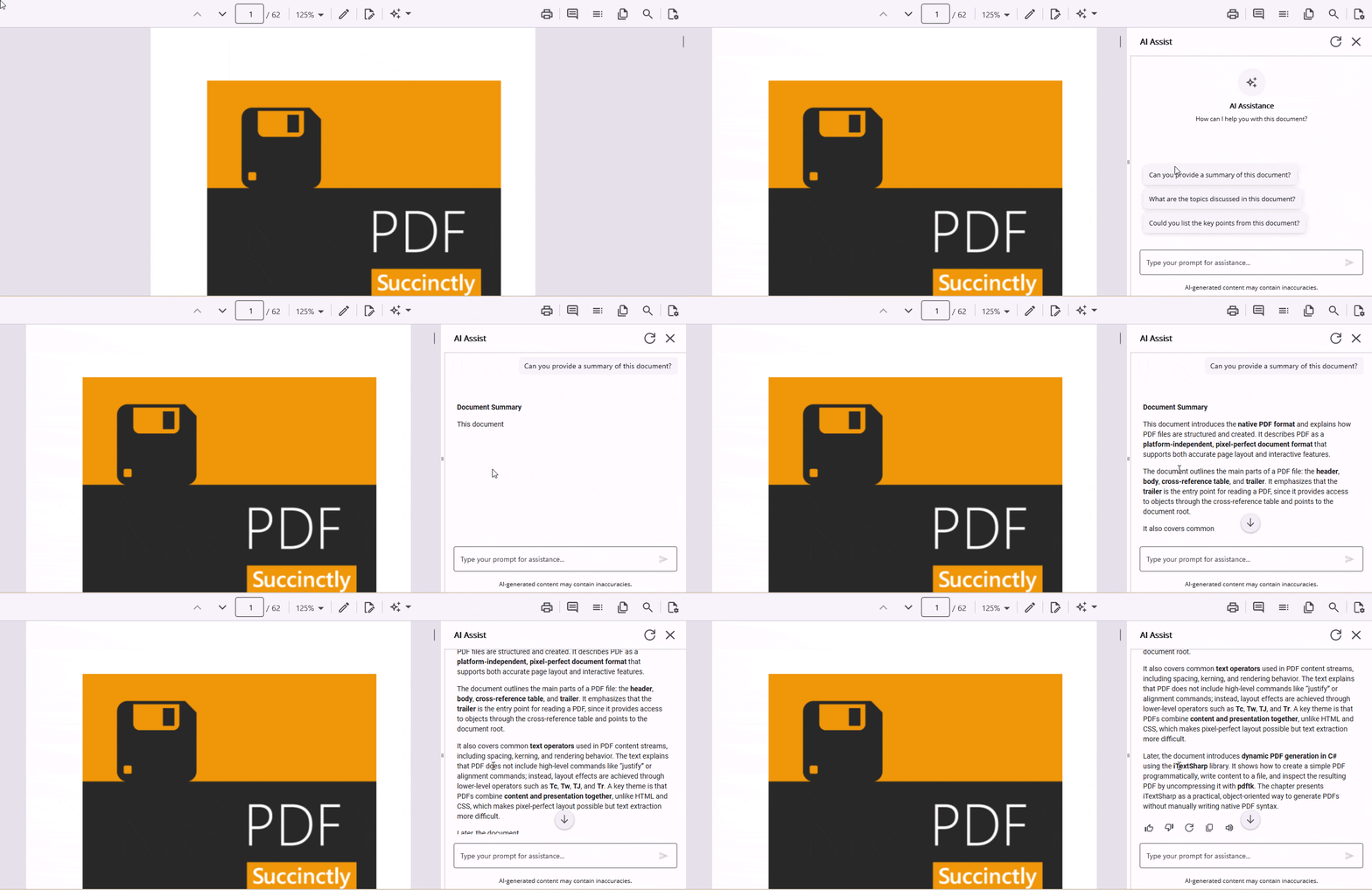
Key capabilities include:
-
Generate concise summaries of lengthy documents.
-
Ask questions and get answers based on document content.
-
Explore suggested prompts to learn more about the document.
-
Understand reports, contracts, research papers, and technical documents more easily.
This feature is useful whenever users need to understand large amounts of information quickly.
2. Find and protect sensitive information with Smart Redaction
PDF documents often contain information that shouldn’t be shared with everyone. This could include customer details, financial information, or personal identifiers.
Finding all these details manually can take time, particularly when a document contains many pages.
The Smart Redaction feature helps simplify this process by using AI to identify sensitive information in PDF documents.
Users can select the information they want to detect, scan the document, review the results, and apply redaction to the selected content.
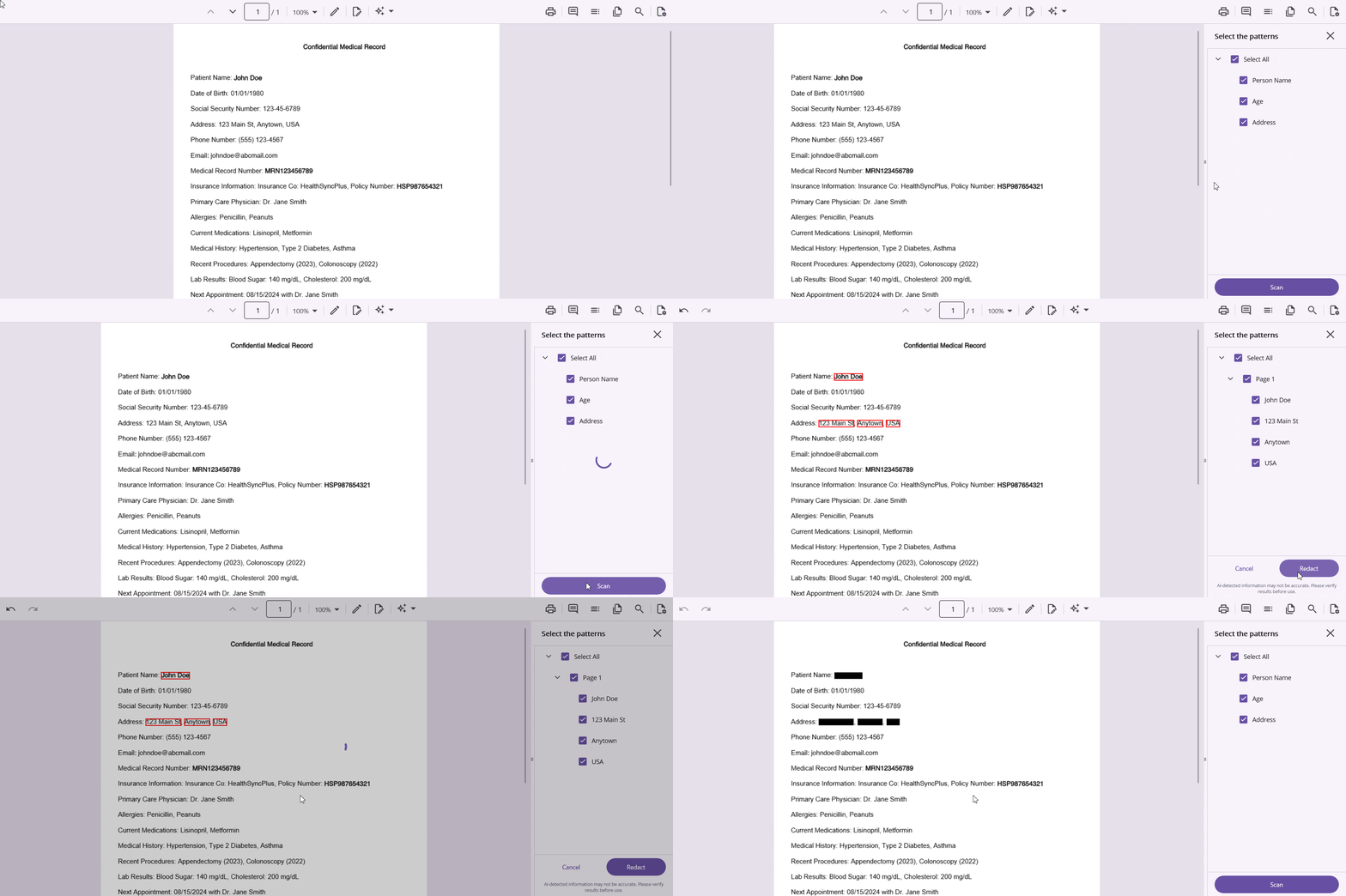
For example, when preparing a customer agreement for external sharing, users can look for:
-
Person names
-
Organization names
-
Email addresses
-
Phone numbers
-
Credit card numbers
-
Other confidential information
Developers can also configure custom detection patterns to identify information specific to their applications or business requirements.
How does it work?
-
Select patterns: Choose the types of sensitive information to identify.
-
Scan the document: Let AI find matching information throughout the PDF.
-
Review the results: Check the detected information in the Redaction panel.
-
Apply redaction: Select the items to redact and confirm the changes.
One important point: AI detection may not identify every sensitive detail correctly. Always review the detected items before applying redaction.
Also, applying redaction permanently removes the selected content. It cannot be recovered through undo or redo. Keep a backup of the original document when required.
3. Fill PDF forms automatically with Smart Form Fill
Filling out PDF forms often involves copying information from emails, spreadsheets, or other documents and entering it into the correct fields.
Imagine a user needs to complete a customer registration form. The customer details are already available in an email, but the user still has to enter each value manually.
Smart Form Fill helps reduce this effort.
It uses AI to understand copied information and match the extracted values to the appropriate PDF form fields.
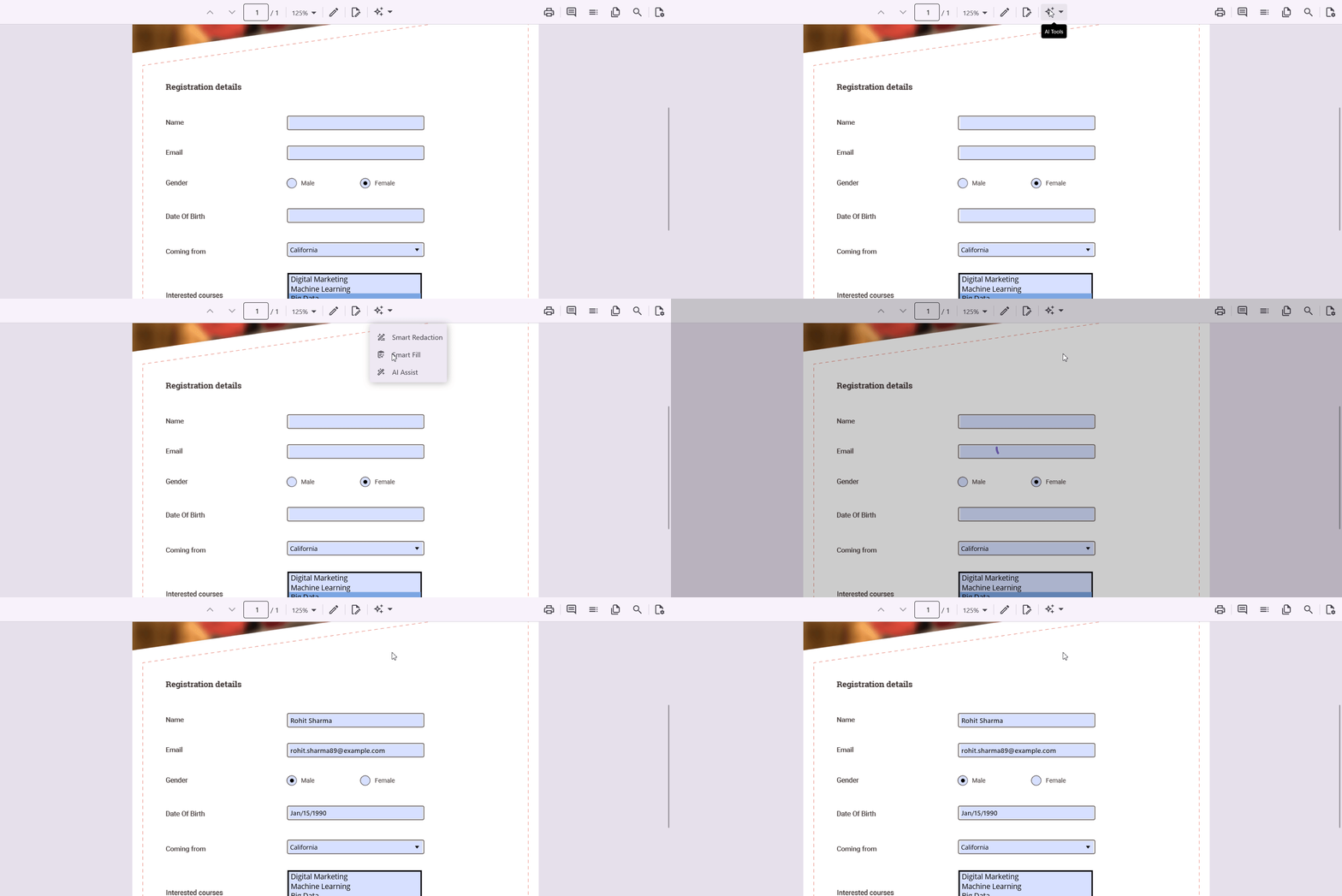
For example, a user might copy the following customer details:
Name: John Doe
Email: [email protected]
Phone: +1 555 0100
Smart Form Fill analyzes the copied information and identifies the matching fields in the PDF form.
Instead of entering each value individually, users can let the feature populate the matching fields automatically.
Key benefits include:
-
Extract information from copied content.
-
Match values with the appropriate PDF form fields.
-
Reduce repetitive data entry.
-
Complete forms more quickly.
Smart Fill works with PDF documents containing form fields, such as text boxes, combo boxes, radio buttons, and list boxes. Users can review and adjust the populated values before finalizing the form.
4. Connect your preferred AI provider
Different applications may use different AI services depending on their existing architecture and requirements.
For example, your application might already use Azure OpenAI, OpenAI, or a custom AI service.
The .NET MAUI Smart PDF Viewer supports AI integration through the Microsoft.Extensions.AI chat client infrastructure. It also provides a custom integration approach through the IChatInferenceService interface.
This gives developers flexibility when connecting AI services to their applications.
You can integrate services such as:
-
Azure OpenAI
-
OpenAI
-
Ollama
-
Gemini
-
Claude
-
DeepSeek
-
Groq
For custom integrations, the IChatInferenceService interface provides a standard way to connect your AI service with Syncfusion Smart Components.
Refer to the custom AI service integration guide for implementation details.
Now, let’s see how to integrate Azure OpenAI with the Smart PDF Viewer.
Get started with the .NET MAUI Smart PDF Viewer
Let’s create a simple .NET MAUI application and add the Smart PDF Viewer with Azure OpenAI integration.
Prerequisites
Before getting started, make sure you have:
-
.NET 10 SDK or later.
-
Visual Studio with .NET MAUI development support.
-
An Azure OpenAI resource with a deployed model.
-
An Azure OpenAI endpoint, deployment name, and API key.
Step 1: Create a .NET MAUI project
First, create a new .NET MAUI application using the .NET CLI:
dotnet new maui -n MauiSmartPdfViewerExample
cd MauiSmartPdfViewerExample
This creates a new .NET MAUI project.
Step 2: Install the required NuGet packages
Next, install the following packages to add the Smart PDF Viewer and configure Azure OpenAI.
Install-Package Syncfusion.Maui.SmartPdfViewer
Install-Package Microsoft.Extensions.AI
Install-Package Microsoft.Extensions.AI.OpenAI
Install-Package Azure.AI.OpenAI
These packages provide the PDF Viewer component and the required AI integration.
Step 3: Configure the Syncfusion services
Open the MauiProgram.cs file and register the Syncfusion core services.
Add the following namespace:
using Syncfusion.Maui.Core.Hosting;
Then, configure the Syncfusion core handler in the CreateMauiApp method:
public static class MauiProgram
{
    public static MauiApp CreateMauiApp()
    {
        var builder = MauiApp.CreateBuilder();

        builder
            .UseMauiApp<App>()
            .ConfigureFonts(fonts =>
            {
                fonts.AddFont("OpenSans-Regular.ttf", "OpenSansRegular");
            });

        // Register Syncfusion core services.
        builder.ConfigureSyncfusionCore();

        return builder.Build();
    }
}
This registers the required Syncfusion services in your application.
Step 4: Configure Azure OpenAI
Now, let’s connect Azure OpenAI to the application.
First, add the following namespaces to MauiProgram.cs:
using Azure.AI.OpenAI;
using Microsoft.Extensions.AI;
using Syncfusion.Maui.SmartComponents.Hosting;
using System.ClientModel;
Inside the CreateMauiApp method, configure the Azure OpenAI client and register it with the dependency injection container.
public static class MauiProgram
{
    public static MauiApp CreateMauiApp()
    {
        var builder = MauiApp.CreateBuilder();

        builder
            .UseMauiApp<App>()
            .ConfigureFonts(fonts =>
            {
                fonts.AddFont("OpenSans-Regular.ttf", "OpenSansRegular");
            });

        // Register Syncfusion core services.
        builder.ConfigureSyncfusionCore();

        // Azure OpenAI configuration.
        string azureOpenAiKey = "api-key";
        string azureOpenAiEndpoint = "endpoint URL";
        string azureOpenAiModel = "deployment-name";

        // Create the Azure OpenAI client.
        AzureOpenAIClient azureOpenAiClient = new AzureOpenAIClient(
            new Uri(azureOpenAiEndpoint),
            new ApiKeyCredential(azureOpenAiKey));

        // Configure the chat client.
        IChatClient azureOpenAiChatClient = azureOpenAiClient
            .GetChatClient(azureOpenAiModel)
            .AsIChatClient();

        // Register the chat client.
        builder.Services.AddChatClient(azureOpenAiChatClient);

        // Register Syncfusion AI services.
        builder.ConfigureSyncfusionAIServices();

        return builder.Build();
    }
}
Replace the placeholder values with your Azure OpenAI configuration:
-
azureOpenAiKey: Your Azure OpenAI API key. -
azureOpenAiEndpoint: Your Azure OpenAI endpoint URL. -
azureOpenAiModel: Your deployed model name.
Security note: Avoid storing long-lived API keys directly in production client applications. Use a secure backend or an appropriate token-based authentication approach to protect your credentials.
The AddChatClient method registers the AI chat client with the dependency injection container. The Smart PDF Viewer uses this registered client for its AI-powered features.
Note: The AI service configuration is required for document summarization, Smart Redaction, and Smart Fill. Basic PDF viewing does not require an AI service.
Step 5: Add the Smart PDF Viewer
Next, open the MainPage.xaml file and add the Syncfusion namespace:
xmlns:syncfusion="clr-namespace:Syncfusion.Maui.SmartPdfViewer;assembly=Syncfusion.Maui.SmartPdfViewer"
Add the SfSmartPdfViewer control to the page:
<syncfusion:SfSmartPdfViewer
    x:Name="pdfViewer"
    DocumentSource="{Binding PdfDocumentStream}" />
Here, DocumentSource specifies the PDF document stream to display in the viewer.
For this example, bind it to a PdfDocumentStream property in your view model. You can load a PDF from an embedded resource, local storage, or another supported document source.
Step 6: Enable the AI-powered features
Now, let’s configure the three AI-powered features in the Smart PDF Viewer.
Enable the AI Assistant
Use AssistViewSettings to configure document summarization and question-answering capabilities.
Add the following configuration inside the SfSmartPdfViewer control:
<syncfusion:SfSmartPdfViewer.AssistViewSettings>
    <syncfusion:AssistViewSettings
        Prompt="Summarize this document."
        Placeholder="Enter your query..."
        ShowPromptSuggestions="True" />
</syncfusion:SfSmartPdfViewer.AssistViewSettings>
Also, set IsAIAssistViewVisible to True on the viewer to display the AI Assistant panel.
Here is what these properties do:
-
Prompt: Defines the initial prompt used to guide AI-generated responses.
-
Placeholder: Displays the placeholder text in the query input area.
-
ShowPromptSuggestions: Shows or hides suggested prompts. -
IsAIAssistViewVisible: Shows or hides the AI Assistant panel.
With this configuration, users can summarize PDF documents and ask questions about their content.
Enable Smart Redaction
Next, use SmartRedactSettings to enable AI-powered sensitive information detection.
<syncfusion:SfSmartPdfViewer.SmartRedactSettings>
    <syncfusion:SmartRedactSettings IsEnabled="True" />
</syncfusion:SfSmartPdfViewer.SmartRedactSettings>
Set IsSmartRedactViewVisible to True on the viewer to display the Smart Redaction panel.
You can also configure custom detection patterns using the RedactPatterns property.
For example, add the following configuration in your C# code:
pdfViewer.SmartRedactSettings = new SmartRedactSettings
{
    IsEnabled = true,
    RedactPatterns = new string[]
    {
        "Person Names",
        "Organization Names",
        "Email Addresses",
        "Phone Numbers",
        "Credit Card Numbers"
    }
};
Here:
-
IsEnabled: Enables or disables Smart Redaction. -
RedactPatterns: Specifies the types of sensitive information to identify. -
IsSmartRedactViewVisible: Controls the visibility of the Smart Redaction panel.
You can replace the sample patterns with custom patterns based on your application’s requirements.
Enable Smart Form Fill
Finally, configure Smart Form Fill using the SmartFillSettings class.
<syncfusion:SfSmartPdfViewer.SmartFillSettings>
    <syncfusion:SmartFillSettings IsEnabled="True" />
</syncfusion:SfSmartPdfViewer.SmartFillSettings>
The IsEnabled property controls whether Smart Fill is available in the viewer.
Once enabled, users can access Smart Fill from the AI Tools menu in the viewer toolbar. The option becomes available when the loaded PDF contains form fields.
You can also trigger Smart Fill programmatically.
To use the current clipboard content:
await pdfViewer.ApplySmartFillAsync(
    CancellationToken.None);
To provide custom text instead of using clipboard content:
string customerDetails =
    "Name: John Doe\n" +
    "Email: [email protected]\n" +
    "Phone: +1 555 0100";

await pdfViewer.ApplySmartFillAsync(
    customerDetails,
    CancellationToken.None);
The viewer analyzes the supplied information and maps the extracted values to matching form fields.
Step 7: Register the Syncfusion license
Before using the Smart PDF Viewer, register your Syncfusion license key in MauiProgram.cs.
Syncfusion.Licensing.SyncfusionLicenseProvider
    .RegisterLicense("YOUR_LICENSE_KEY");
Replace the placeholder with your valid Syncfusion license key.
For more information, refer to the Syncfusion licensing documentation.
Step 8: Run the application
You’re all set!
Build and run the application on your preferred target platform: Android, iOS, macOS, or Windows.
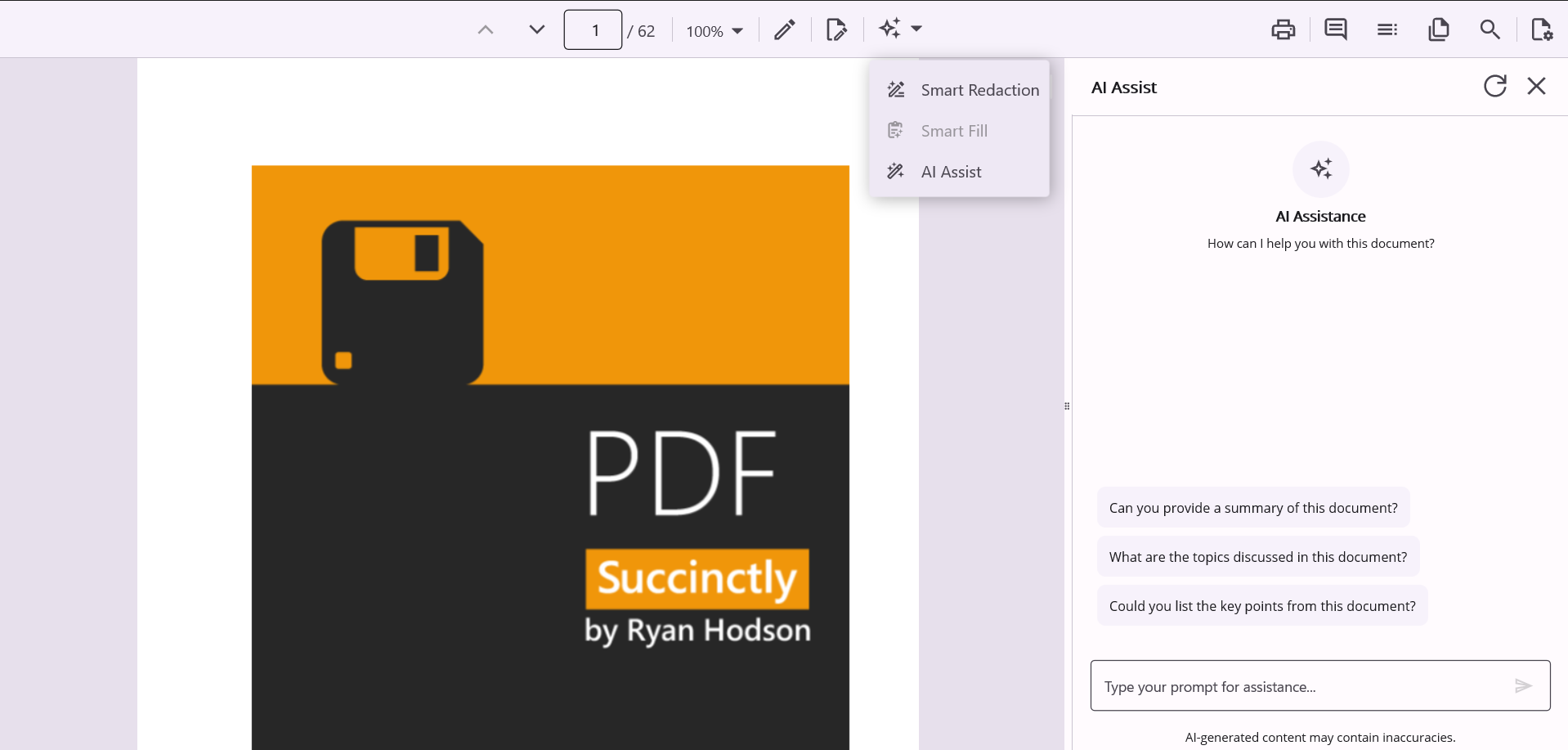
Once the PDF document loads, you can try the AI-powered features:
-
Generate summaries and ask questions using the AI Assistant.
-
Scan documents and redact sensitive information using Smart Redaction.
-
Populate PDF form fields using Smart Form Fill.
You now have an AI-powered document experience integrated into your .NET MAUI application.
Platform note: Android deployments may require additional semantic-search model setup for AI-powered features. Refer to the .NET MAUI Smart PDF Viewer getting-started documentation for the platform-specific setup instructions.
Frequently asked questions
Which platforms are supported by the .NET MAUI Smart PDF Viewer?
The .NET MAUI Smart PDF Viewer supports Android, iOS, macOS, and Windows. You can use the same .NET MAUI codebase to build applications for these platforms.
Do I need an AI service to use the Smart PDF Viewer?
No. You can use the basic PDF viewing capabilities without configuring an AI service. However, features such as document summarization, Smart Redaction, and Smart Fill require a registered AI chat client.
What types of information can Smart Redaction identify?
Smart Redaction supports detection patterns for person names, organization names, email addresses, phone numbers, addresses, dates, account numbers, credit card numbers, and other configurable information. You can also define custom patterns based on your application requirements.
Can I use my own AI service?
Yes. The Smart PDF Viewer supports custom AI service integration through the IChatInferenceService interface. This allows you to connect your preferred AI service to Syncfusion Smart Components.
How does Smart Form Fill work?
Smart Form Fill analyzes clipboard content or supplied text, extracts relevant information, and maps the values to matching PDF form fields. It requires a PDF containing form fields and a configured AI service. Users can review and adjust the populated values before finalizing the form.

Conclusion
Working with PDF documents doesn’t have to involve repetitive manual tasks. With AI-powered features, users can find information, protect sensitive details, and complete forms more easily.
The Syncfusion AI-Powered .NET MAUI Smart PDF Viewer brings these capabilities together in one component. Its AI Assistant, Smart Redaction, and Smart Form Fill features help developers build more interactive document workflows across Android, iOS, macOS, and Windows.
You can also connect Azure OpenAI or integrate a custom AI service based on your application’s requirements.
Ready to try it in your application? Explore the .NET MAUI Smart PDF Viewer documentation and get started with the 30-day free trial.
If you have questions or feedback, connect with us through our support forums or feedback portal.







Be the first to get updates