 Karthick Mani
TL;DR: The new .NET MAUI Interactive Viewer control makes it easier to explore detailed visual content with built-in zooming, panning, rotation, and view reset. Learn how to add interactive viewing experiences for images, diagrams, technical drawings, floor plans, and other graphical content in .NET MAUI applications.
When visual content needs closer inspection, a single fixed view may not provide enough flexibility. Users may need to zoom in on a specific detail, pan across the content, rotate the view, or return to the starting position. Handling these interactions can add extra implementation work when an application requires a complete viewing experience.
The new .NET MAUI Interactive Viewer control, introduced in Essential Studio® 2026 Volume 3, brings these capabilities together in a single control. It provides configurable viewing interactions for applications that need users to inspect and navigate detailed visual content in .NET MAUI applications.
In this blog, we’ll explore the Interactive Viewer’s key capabilities and walk through how to integrate it into a .NET MAUI application.
Key features
The .NET MAUI Interactive Viewer provides:
- Zoom and pan interactions
- Content rotation
- View reset
- Light and dark theme support
- Support for hosting any .NET MAUI view
Let’s look at how to use these capabilities.
Zoom and pan content
Detailed content is often difficult to inspect when it is restricted to its original size. Users may need to zoom into a particular area and then move around the content without leaving the viewing context.
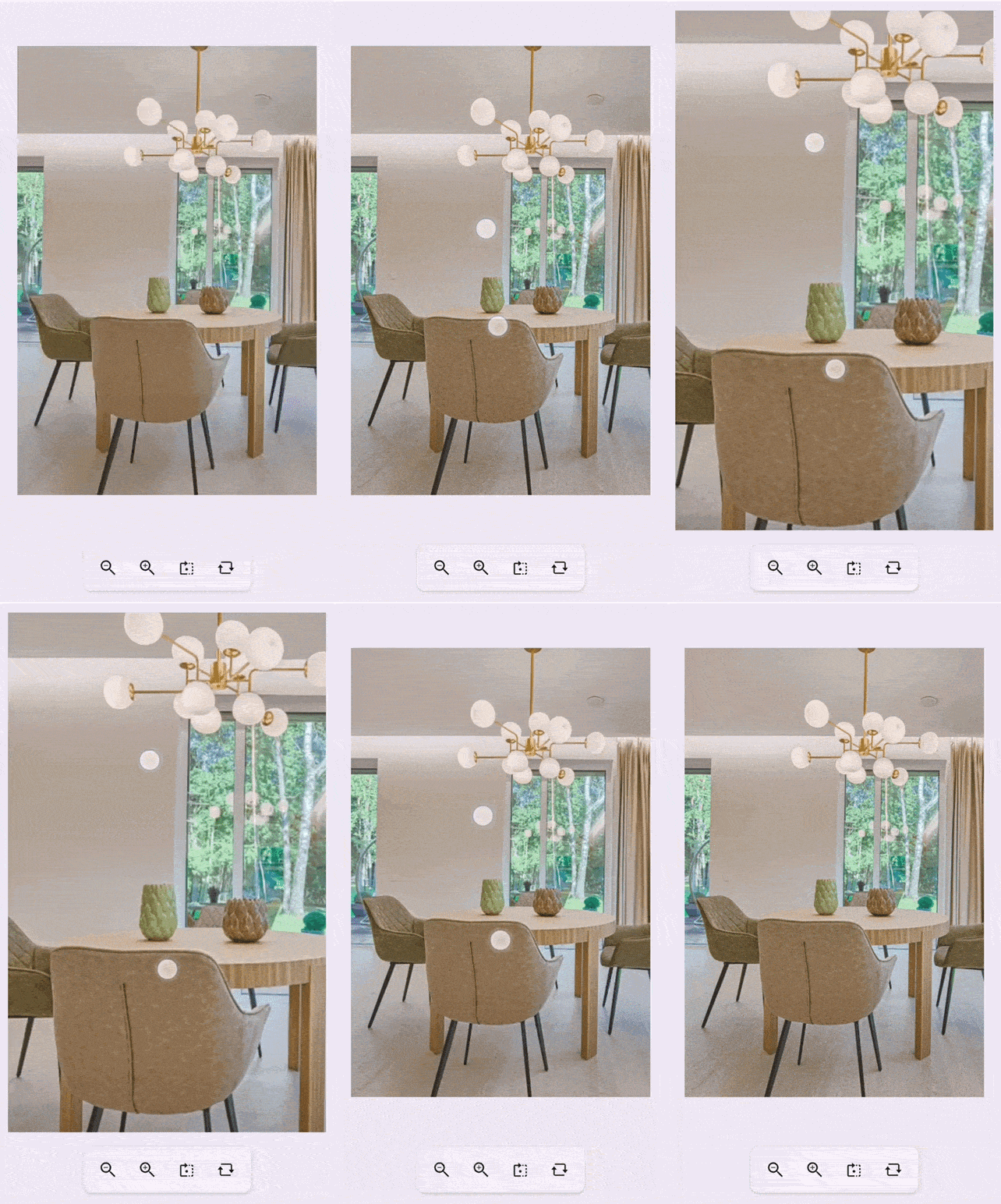
The Interactive Viewer provides zoom and pan interactions for this scenario, making it suitable for images, diagrams, floor plans, and other detailed content.
The MinimumZoomFactor and MaximumZoomFactor properties allow developers to define the minimum and maximum zoom levels. The IsZoomEnabled and IsPanEnabled properties can also be used to control zooming and panning.
Rotate content
Some visual content needs to be viewed from different orientations. For example, users may want to rotate an image, diagram, or technical drawing to inspect it from another orientation.
The Interactive Viewer provides rotation support alongside its zoom and pan capabilities.
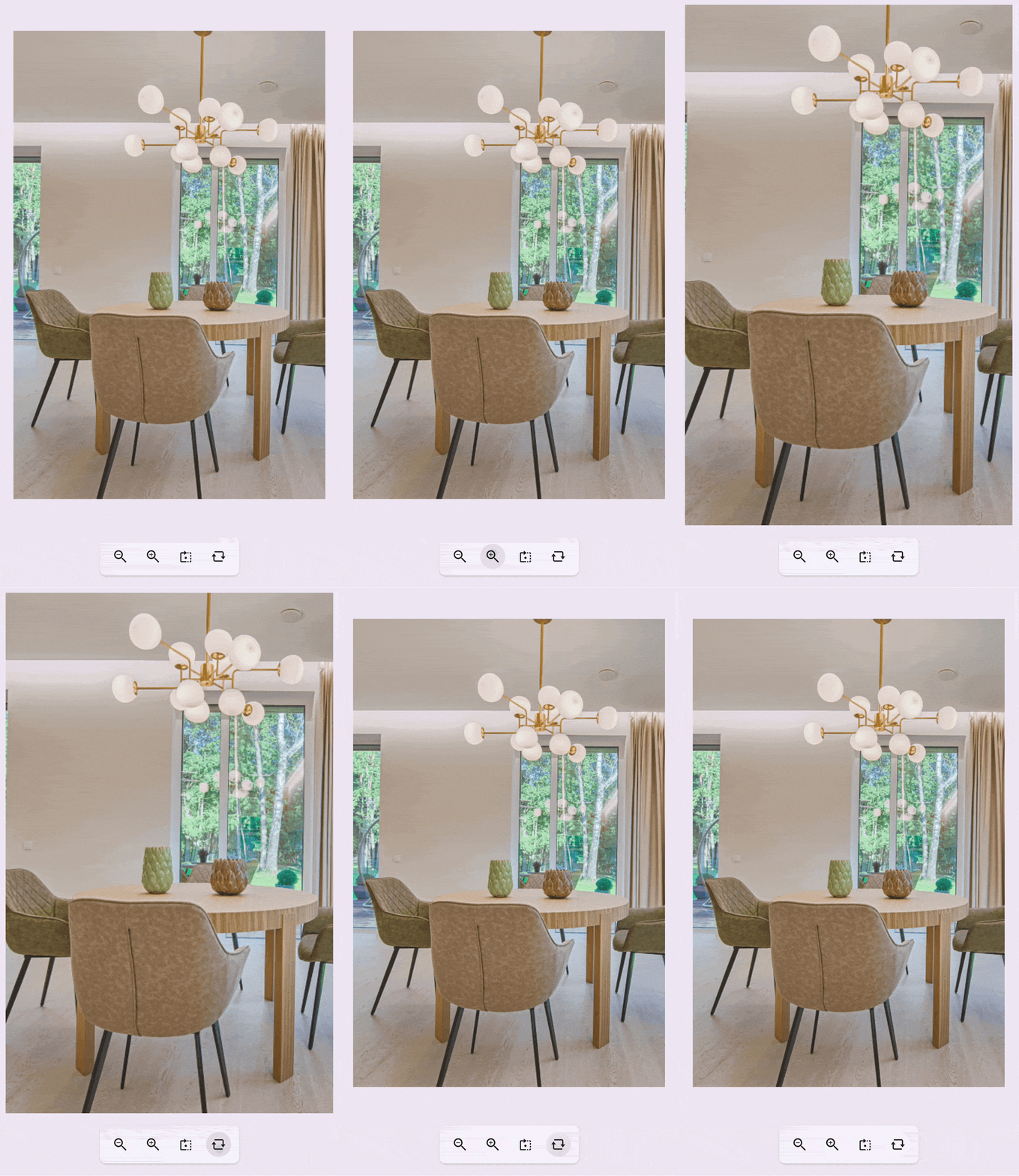
The Rotate() method rotates the hosted content 90 degrees clockwise with each call, allowing you to view the content in different orientations.

Reset the view
After zooming, panning, or rotating content, users may need to return to its original state.
The Interactive Viewer provides a reset operation that restores the view by resetting the zoom level, pan position, and rotation changes.
Support light and dark themes
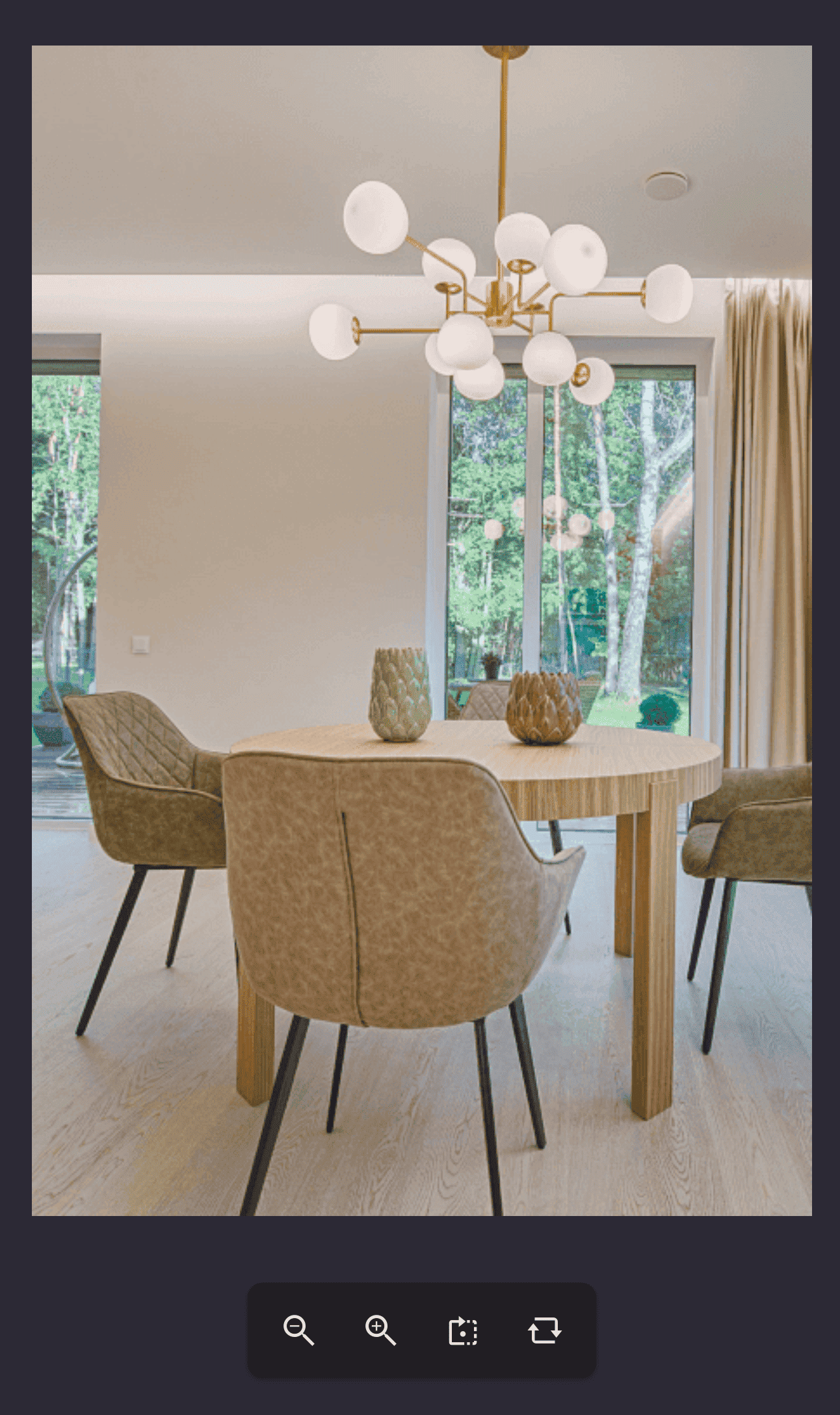
The Interactive Viewer supports light and dark application themes, so it integrates with applications that use them.
Host any .NET MAUI view
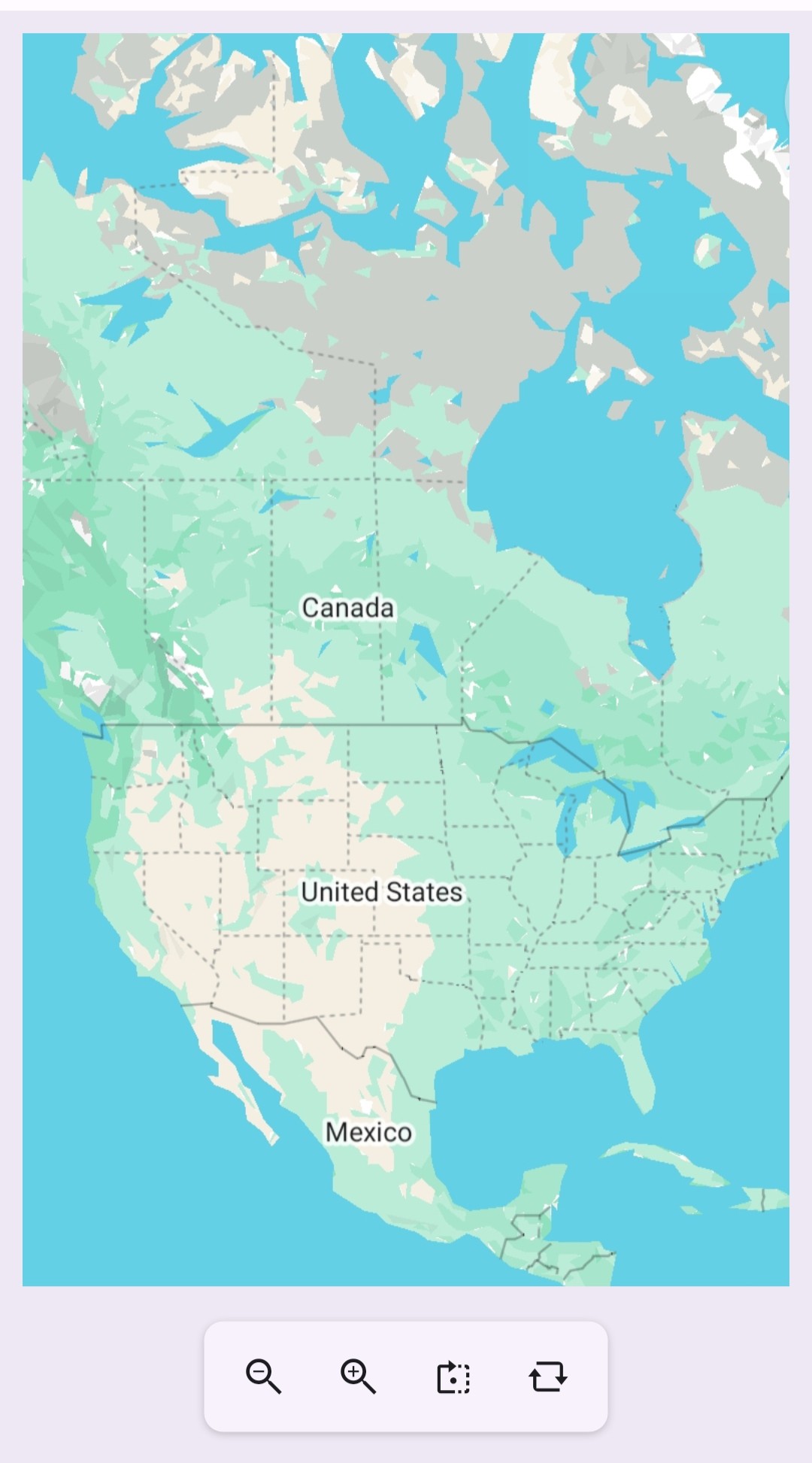
The Interactive Viewer is not limited to images. It can host any .NET MAUI view, allowing developers to add interactive viewing capabilities to different types of visual content. For example, you can place a diagram or custom graphical view inside the viewer and explore it using zooming, panning, and rotation.
Common use cases
Because the Interactive Viewer can host visual content beyond basic image viewing, you can use it in a range of scenarios.
Common use cases include:
- Large image and photo viewers
- Interactive product image viewing
- Floor plans and diagrams
- Technical drawings and blueprints
- Medical images and diagnostic reports
- Monitoring applications that require detailed visual inspection
Developers can also host custom layouts and other .NET MAUI views when an application requires interactive handling for custom content.
For complete API details and customization options, refer to the .NET MAUI Interactive Viewer documentation.
Getting started with the .NET MAUI Interactive Viewer
Let’s add an image to the Interactive Viewer and configure its zoom range.
Create a project and install the package
Start by creating a new .NET MAUI application in Visual Studio. Then, install the Syncfusion.Maui.InteractiveViewer package using the NuGet Package Manager to add the Interactive Viewer control to your project.
You can also install the package using the .NET CLI:
dotnet add package Syncfusion.Maui.InteractiveViewer
Register Syncfusion Core
Then, register the Syncfusion Core handler in the MauiProgram.cs file:
using Syncfusion.Maui.Core.Hosting;

public static class MauiProgram
{
    public static MauiApp CreateMauiApp()
    {
        var builder = MauiApp.CreateBuilder();

        builder.ConfigureSyncfusionCore();

        // ...

        return builder.Build();
    }
}
Add the namespace and control
Import the Interactive Viewer namespace into your XAML page:
xmlns:interactiveViewer="clr-namespace:Syncfusion.Maui.InteractiveViewer;assembly=Syncfusion.Maui.InteractiveViewer"
Then, add the SfInteractiveViewer control and place an image inside it:
<interactiveViewer:SfInteractiveViewer
    x:Name="interactiveViewer"
    MinimumZoomFactor="1"
    MaximumZoomFactor="4">

    <Image
        Source="interactiveviewerimage.png"
        Aspect="AspectFit" />

</interactiveViewer:SfInteractiveViewer>
In this example, MinimumZoomFactor and MaximumZoomFactor define the zoom range for the image.
Run the application to interact with the image using the supported viewing operations.
The Interactive Viewer can also host other .NET MAUI views when an application requires interactive handling for custom content
GitHub reference
To explore the control with a working example, refer to the Interactive Viewer demo on GitHub. For API details, configuration options, and additional examples, see the .NET MAUI Interactive Viewer documentation.
Frequently Asked Questions
When should I use the Interactive Viewer instead of implementing gesture recognizers manually?
The Interactive Viewer is useful when an application requires multiple viewing interactions, such as zooming, panning, rotation, and resetting the view. These capabilities are provided through a single control, reducing the need to implement the viewing interactions separately.
Can I display custom layouts and controls inside the Interactive Viewer?
Yes. The Interactive Viewer can host any .NET MAUI view, not just images. This allows developers to use it with layouts, custom controls, dashboards, diagrams, and other visual content.
Can I control the zoom range?
Yes. The Interactive Viewer provides zoom-related properties that allow developers to configure the viewing experience. The MinimumZoomFactor and MaximumZoomFactor properties define the supported zoom range, while ZoomFactor can be used to control the current zoom level.
Can I respond to zoom or pan changes?
Yes. The Interactive Viewer provides the ZoomFactorChanged and ScrollChanged events, allowing applications to respond to changes in zoom level and pan position.
Can I rotate the content programmatically?
Yes. The Rotate() method rotates the hosted content 90 degrees clockwise with each call.

Conclusion
Interactive content often requires several coordinated operations, including zooming, panning, rotation, and view reset. Implementing these behaviors independently can add gesture and transformation logic to an application.
The .NET MAUI Interactive Viewer brings these interactions together in a single control and can host both images and other .NET MAUI views. With configurable zooming, rotation, reset, events, and theme support, it provides a flexible way to add interactive content viewing to .NET MAUI applications.
To explore the control further, refer to the Interactive Viewer documentation and demo. You can explore the complete What’s New and Release Notes documentation to discover the features most relevant to your project.
For existing Syncfusion customers, the latest version of Essential Studio is available from the License and Downloads page. New users can explore the capabilities through the 30-day free trial.
If you have questions or feedback, reach out through our support forums, feedback portal, or support portal.







Be the first to get updates