 Kavitha Muralitharan
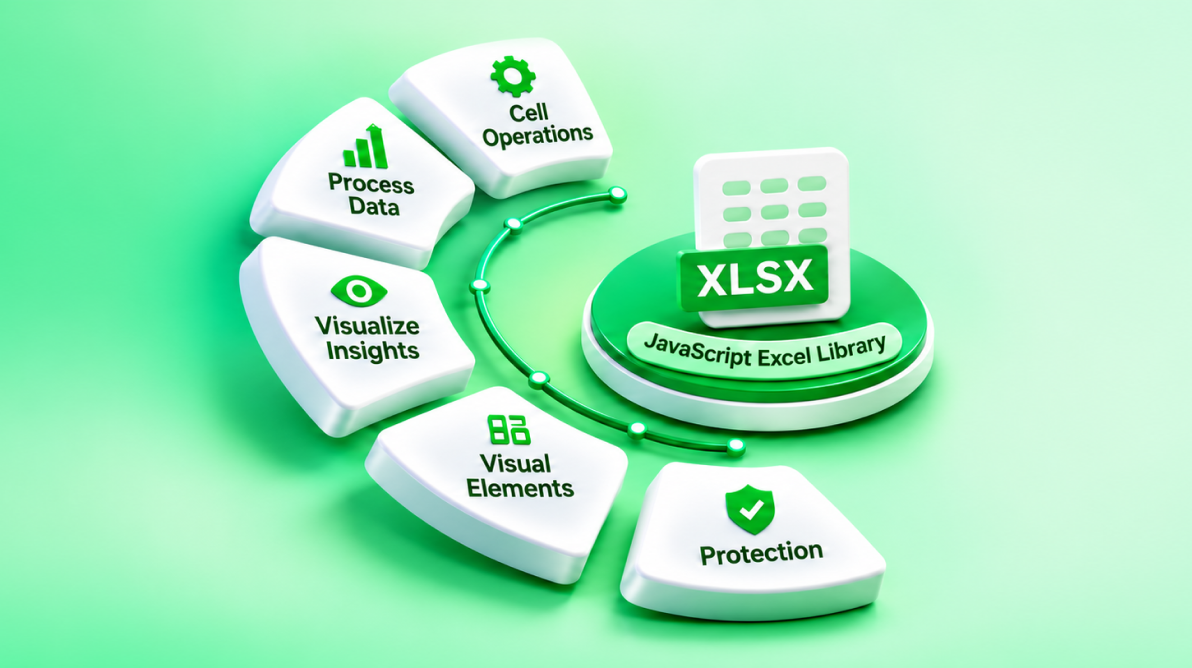
TL;DR: The new Syncfusion® JavaScript Excel Library enables developers to work with Excel workbooks programmatically in JavaScript and TypeScript applications. Developers can create and open XLSX files, manage worksheets and cells, apply formatting, define formulas, add charts, and configure data validation and protection. This blog explores the library’s key features and demonstrates how to generate and download an Excel workbook in an application without requiring Microsoft Excel.
Introduction
Creating an Excel file may seem straightforward at first. However, as application requirements grow, developers may need to generate business reports, export large datasets, and create workbooks containing multiple worksheets, formulas, and charts. Handling these operations can become increasingly complex.
Relying on manual spreadsheet operations or desktop-based automation can also introduce additional dependencies and maintenance challenges. Developers need a way to work with Excel files programmatically within their applications.
The new Syncfusion® JavaScript Excel Library provides a programmatic way to handle this process and is available as a preview in Essential Studio® 2026 Volume 3.
The library enables developers to create, read, modify, format, and save Excel (.xlsx) workbooks using JavaScript or TypeScript. It supports browser and Node.js environments without requiring Microsoft Excel or COM automation.
In this blog, we’ll explore the library’s key features and demonstrate how to create and download an Excel workbook in a React application.
Why choose the Syncfusion JavaScript Excel Library?
As spreadsheet requirements grow, traditional Excel automation approaches can introduce additional dependencies and maintenance challenges.
For example, Office Interop automation requires Microsoft Excel and a compatible Windows environment. Lightweight spreadsheet generators may also have limitations when handling complex formatting, formulas, and workbook structures.
The Syncfusion JavaScript Excel Library provides a JavaScript-based approach to workbook processing. Here’s how it compares with traditional Office Interop automation.
Traditional Office interop vs. Syncfusion JavaScript Excel Library
| Comparison | Traditional Office interop | Syncfusion JavaScript Excel Library |
|---|---|---|
| Microsoft Excel dependency | Requires Microsoft Excel installation | Does not require Microsoft Excel |
| COM dependency | Uses COM automation | No COM dependency |
| Execution environment | Windows environment with compatible Office installation | Browser and Node.js |
| Application integration | Requires Office automation setup | Integrates with JavaScript and TypeScript applications |
| Workbook processing | Automates an installed Excel application | Uses a programmatic workbook object model |
| Deployment | Requires managing Office installation and automation dependencies | Runs within supported JavaScript environments |
With the Syncfusion library, developers can create and manage Excel workbooks directly through JavaScript or TypeScript without launching a desktop Excel application. This makes it useful for browser-based exports, server-side report generation, and spreadsheet-processing features in modern web applications.
Key features of the JavaScript Excel Library
Once spreadsheet generation becomes part of an application, developers often need more than basic cell exports. Reports may require multiple worksheets, formulas, structured tables, formatting, charts, and protection.
The Syncfusion JavaScript Excel Library provides APIs for managing these workbook operations.
Here are some of its key capabilities:
-
Workbook and worksheet management: Create new workbooks, open existing .xlsx files, and manage worksheets, named ranges, document properties, and frozen panes.
Modifying an existing worksheet using the JavaScript Excel Library -
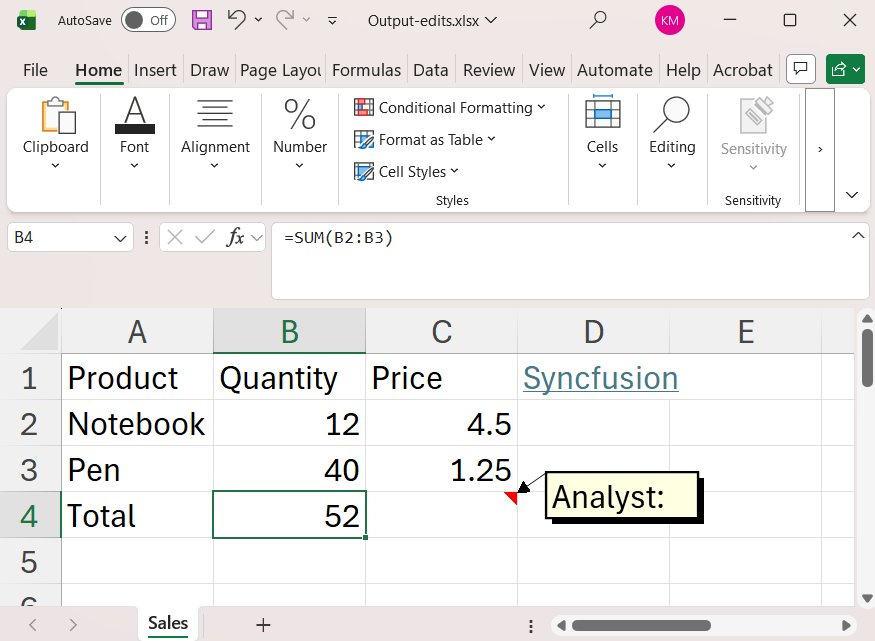
Cell operations and formulas: Work with cell values such as strings, numbers, dates, and Boolean values. Define mathematical, logical, statistical, and financial formulas. The library stores formula expressions; Microsoft Excel recalculates them when the workbook opens.
Performing cell operations in an Excel Workbook -
Tables and structured data: Create tables and named ranges to organize business records. Tables provide structured data regions that can include header rows, totals rows, and styles.
-
Formatting and visual elements: Customize cell styles, fonts, borders, alignment, background fills, and conditional formatting. Add images, text boxes, and AutoShapes to improve workbook presentation.
-
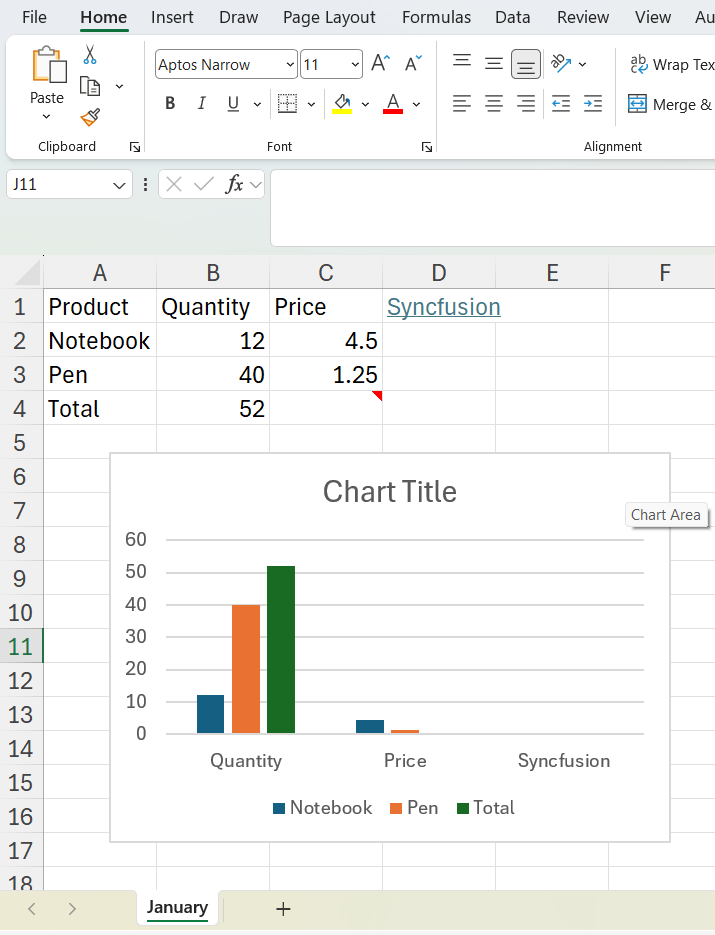
Charts and data analysis: Create charts to visualize spreadsheet data. Use sorting and filtering to organize and analyze information.
Visualizing data with charts in JavaScript Excel Library -
Data validation and protection: Configure data-validation rules and protect worksheets or workbooks to control permitted changes.
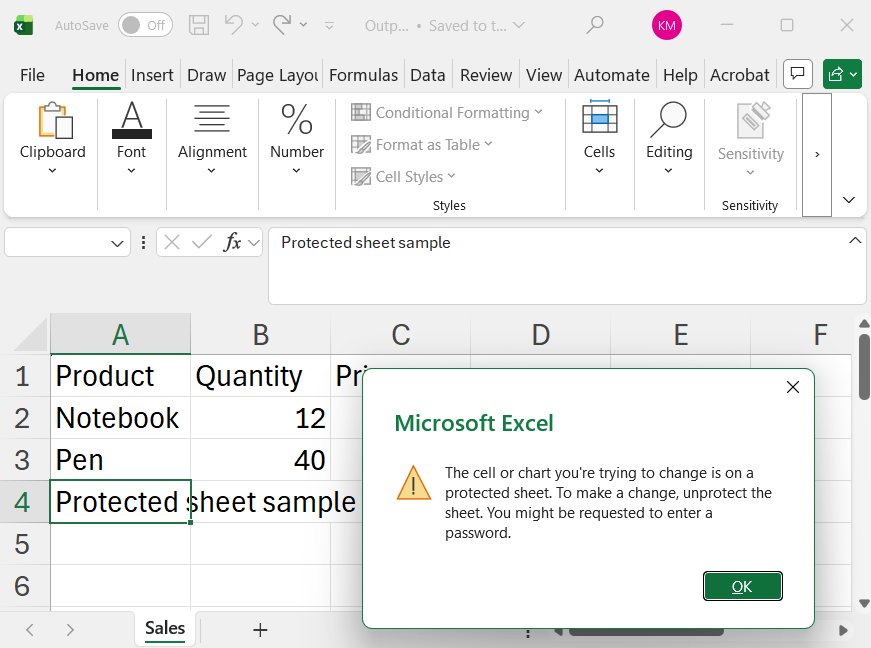
Protecting data in an Excel worksheet -
Interactive spreadsheet elements: Create and manage form controls for spreadsheet-based data-entry scenarios.
These capabilities help developers generate structured reports, update existing workbooks, and automate spreadsheet workflows within JavaScript applications.
Getting started: Create and download an Excel workbook in React
Before exploring advanced spreadsheet workflows, let’s start with a common requirement: generating an Excel file directly from a web application.
In this example, we’ll use React to create and download an Excel workbook containing sample sales data. While this guide uses React, the JavaScript Excel Library also supports Angular, Vue, JavaScript, ASP.NET Core, and ASP.NET MVC, making it easy to generate and manage Excel files across different application frameworks.
Prerequisites
Before getting started, make sure you have:
- Node.js 18 or later.
- npm 9 or later (or Yarn 1.22 or later).
- React 18 or later.
- Visual Studio Code or your preferred code editor.
- A modern browser such as Chrome, Edge, or Firefox.
Step 1: Create a React Application
We’ll use Vite to create the React project. Run the following commands in your terminal:
npm create vite@latest my-excel-app -- --template react
cd my-excel-app
npm install
Step 2: Install the JavaScript Excel Library
Install the library using the following npm command:
npm install @syncfusion/ej2-xlsx --save
Step 3: Generate and download a workbook
Create a new workbook, rename its default worksheet, and add the headers and sample data. The following code downloads the workbook when the user clicks the Generate Excel button.
import React from 'react';
import { Workbook } from '@syncfusion/ej2-xlsx';

export default function App() {
  const createExcel = async () => {
    // Create the workbook
    const workbook = Workbook.create();

    // Access and rename the worksheet
    const sheet = workbook.sheet(0);
    sheet.name = 'Sales';

    // Add sample data
    sheet.cell('A1').value = 'Product';
    sheet.cell('B1').value = 'Quantity';
    sheet.cell('C1').value = 'Price';

    sheet.cell('A2').value = 'Notebook';
    sheet.cell('B2').value = 12;
    sheet.cell('C2').value = 4.5;

    sheet.cell('A3').value = 'Pen';
    sheet.cell('B3').value = 40;
    sheet.cell('C3').value = 1.25;

    // Save the workbook
    const bytes = await workbook.save();

    // Download the workbook
    const blob = new Blob([bytes], {
      type: 'application/vnd.openxmlformats-officedocument.spreadsheetml.sheet',
    });

    const url = URL.createObjectURL(blob);
    const anchor = document.createElement('a');
    anchor.href = url;
    anchor.download = 'Output.xlsx';

    document.body.appendChild(anchor);
    anchor.click();
    anchor.remove();
    URL.revokeObjectURL(url);
  };

  return (
    <div style={{ padding: '1.5rem' }}>
      <button type="button" onClick={createExcel}>
        Generate Excel
      </button>
    </div>
  );
}
Output
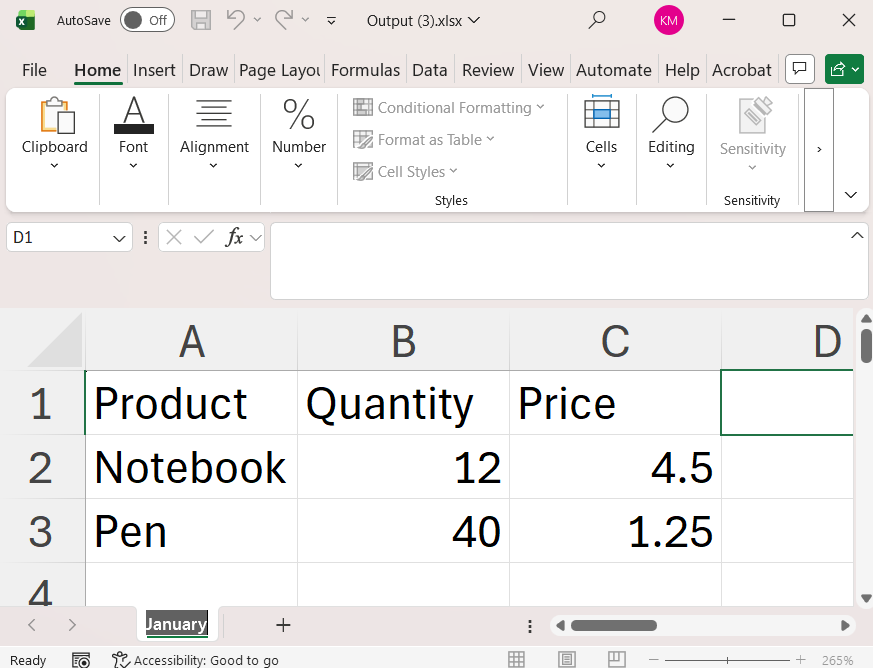
Run the React application and click the Generate Excel button. The browser downloads a file named Output.xlsx containing a worksheet named Sales with the sample product, quantity, and price data.
Refer to the following image.
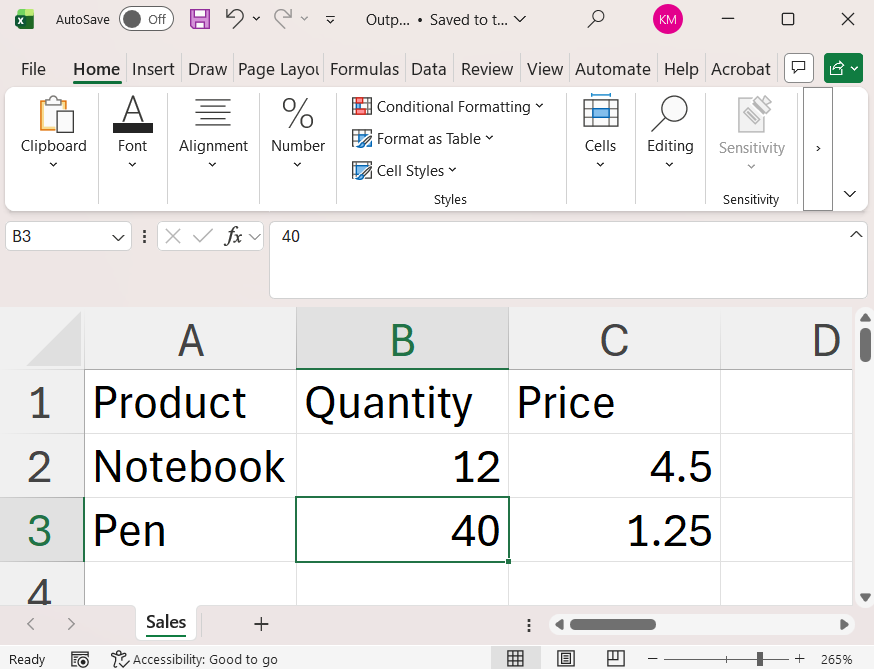
This example demonstrates the basic workbook-generation process. You can extend the same approach to add worksheets, formulas, formatting, charts, and other spreadsheet features as your application requirements grow.
Real-World Example: Automate monthly sales reports
Consider a SaaS platform that delivers monthly performance reports to hundreds of customers.
Each report may contain:
- Executive summary: A worksheet showing total sales and key performance metrics.
- Transaction details: Product names, quantities, prices, and individual order records.
- Revenue calculations: Formulas for calculating totals and other financial values.
- Charts: Visual representations of monthly sales and growth trends.
- Worksheet protection: Restrictions that help prevent accidental changes to important workbook content.
Maintaining these reports manually can become time-consuming, especially when the application generates them regularly for many customers.
With the JavaScript Excel Library, developers can create each workbook programmatically, populate it with the latest application data, organize the information into worksheets, apply formatting, and configure worksheet protection. The application can then save the generated workbook and make it available for download.
For example, a reporting service can generate a separate workbook for each customer at the end of the month. Each workbook follows the same structure while containing that customer’s latest sales data.
This approach reduces repetitive spreadsheet work and helps keep reports consistent across customers.
What’s coming next?
Spreadsheet requirements continue to evolve. As reporting systems mature, developers may need more advanced workbook operations, file conversions, analytics, and security features.
The original product roadmap identifies the following areas for future enhancements:
- Advanced workbook features: Worksheet cloning and merging content across multiple workbooks.
- Additional file formats and conversions: Support for formats such as .xlsm, .xltm, .xlsb, .xltx, .csv, and .tsv, along with Excel-to-PDF conversion.
- Advanced analytics: Pivot tables and pivot charts for multidimensional data summarization.
- Extended spreadsheet capabilities: Features such as slicers, sparklines, template markers, OLE objects, and group shapes.
- Data governance and security: Encryption, decryption, and digital signatures for document-protection and compliance scenarios.
These planned enhancements aim to expand workbook processing, reporting, and document security capabilities in future updates. Refer to the official release notes for the latest availability information.
Frequently Asked Questions
Does the JavaScript Excel Library require Microsoft Office to be installed on the server?
No. The Syncfusion JavaScript Excel Library is a standalone spreadsheet engine built with TypeScript and JavaScript. It runs directly in Node.js environments and modern web browsers, eliminating the need for Microsoft Excel installations, Office Interop dependencies, or third-party background services.
Which JavaScript frameworks and runtimes does the Excel Library support?
The library integrates seamlessly with modern JavaScript environments, including ECMAScript/TypeScript applications, Node.js (18+), React, Angular, Vue, and Next.js. It can also be used on serverless platforms such as AWS Lambda and Azure Functions.
Which Excel features does the JavaScript Excel Library support?
Developers can programmatically create and manage worksheets, cells, ranges, formulas, tables, charts, images, hyperlinks, comments, data validation rules, and workbook or worksheet protection settings.
Which file formats does the JavaScript Excel Library support?
The current release supports the Excel .xlsx format, which is compatible with Microsoft Excel 2007 and later versions, including Microsoft 365.
Does the JavaScript Excel Library support workbook and worksheet protection?
Yes. The library includes workbook and worksheet protection features that help prevent unauthorized modifications, safeguard formulas and critical data, and maintain the integrity of spreadsheet content.
Create, read, edit, and format Excel workbooks in browser and Node.js apps with the Syncfusion JavaScript Excel Library. Work with formulas, tables, charts, and worksheet protection without Microsoft Excel.
Start Your Free TrialConclusion
Automating Excel tasks becomes easier when developers can manage workbooks directly within their applications. The Syncfusion JavaScript Excel Library provides a simple way to create, read, edit, format, and process Excel workbooks using JavaScript or TypeScript.
With support for browser and Node.js environments, developers can automate spreadsheet operations without depending on Microsoft Excel or COM automation. Whether you’re generating business reports, exporting application data, or managing existing workbooks, the library helps simplify these tasks.
Available as a preview in Essential Studio 2026 Volume 3, the library brings new possibilities for Excel automation in modern JavaScript applications.
Ready to explore it? Check out the official Release Notes and What’s New pages.
Existing customers can access the library through the License and Downloads page. New users can start a 30-day free trial to try its capabilities.
Have questions or feedback? Reach out through our support forums, support portal, or feedback portal. We’d be happy to help!



Be the first to get updates