
 Eshwari Balraj
TL;DR: Need to render Word documents in the browser without broken layouts? Convert DOCX files to clean, responsive HTML in C#, no Microsoft Word required. Preserve formatting, remove messy markup, and ensure consistent performance. Learn how to customize output, control styles, images, and layout with practical examples and best practices.
You open a Word document, and it looks perfect. Neatly aligned text, consistent fonts, beautifully structured sections. Exactly how you designed it.
Now, you upload it to your app and render it in a browser. Suddenly… things feel off.
- The layout breaks in unexpected places.
- Styles don’t match what you saw in Word.
- The HTML is bloated with unnecessary markup, slowing everything down.
- What once looked polished now feels messy and unreliable.
If you’re building something like a document portal, knowledge base, or even a simple content preview feature, this gap isn’t just annoying; it’s a real problem. It impacts performance, user trust, and the overall experience of your app.
So, you start wondering… What if there was a better way?
What if you can convert Word(DOCX) files into clean, lightweight, responsive HTML, something that just works in the browser without surprises?
That’s exactly what we’re going to explore. In this blog, we’ll see how to:
- Convert DOCX files to HTML using the Syncfusion® .NET Word Library (DocIO).
- Fine-tune the output so it looks polished, loads faster, and blends seamlessly into your app.
Let’s get started!

What makes the conversion process easier?
A reliable DOCX-to-HTML conversion engine should do more than simply export content. It should help developers maintain consistency between the original document and what users eventually see in the browser.
Here’s where the Syncfusion .NET Word Library becomes useful:
- Preserve document formatting.
Maintain headings, lists, tables, styles, and text formatting so the HTML output closely matches the original Word document. - Deploy across modern environments.
Whether you’re building apps on Windows, Linux, macOS, in containers, or in the cloud, the library works consistently without requiring Microsoft Office. - Control the HTML output.
Customize how styles, images, headers, footers, and form fields are exported so the generated HTML fits your app requirements. - Reduce development complexity.
Instead of manually processing Open XML structures or writing custom converters, developers can handle document conversion with a few API calls.
Getting started with the .NET Word Library
Step 1: Create a new .NET Core project
Open Visual Studio and select the ASP.NET Core template. Enter your project name, choose the desired configuration, and click Create.
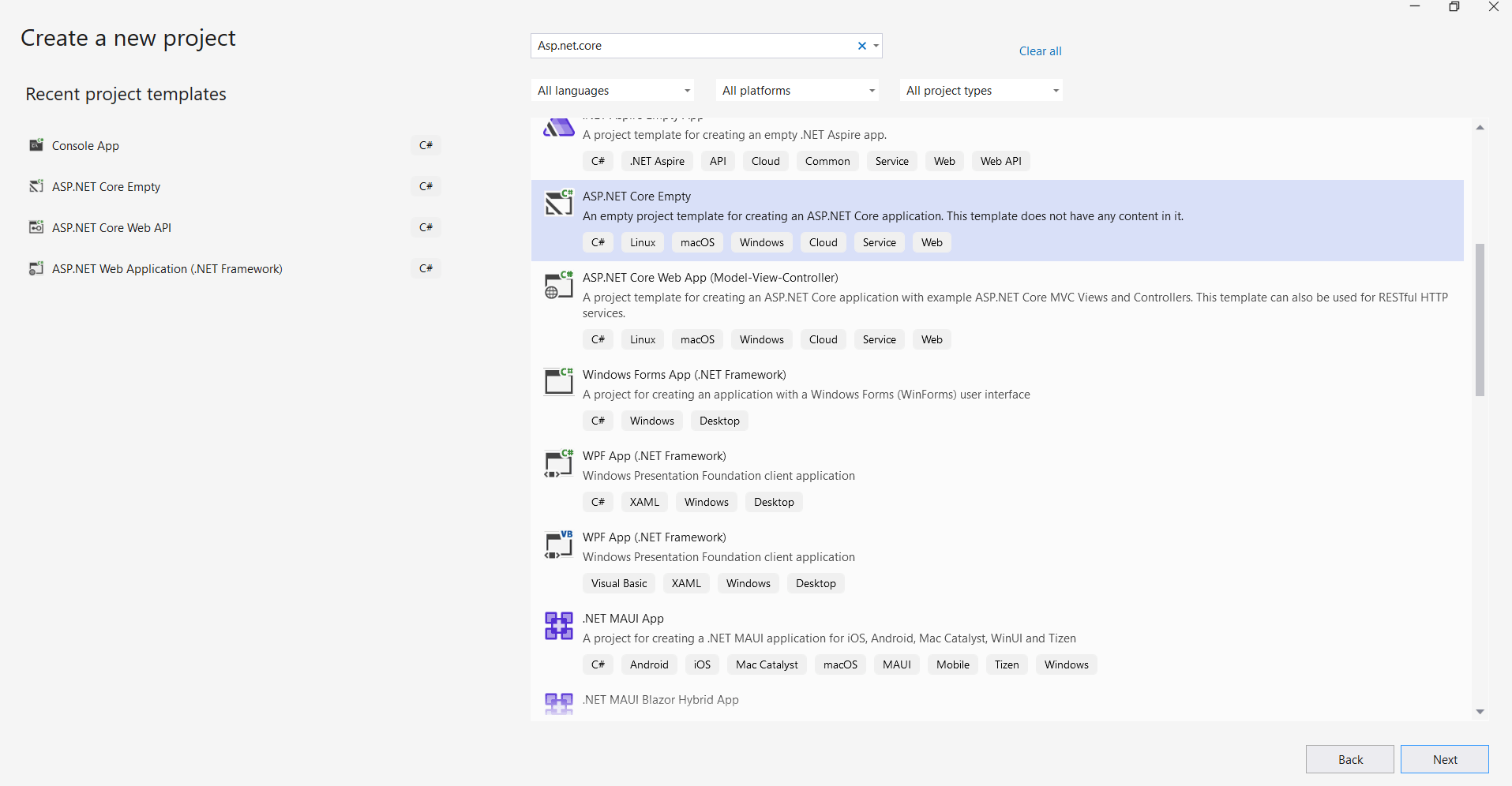
Now, you have a working foundation ready to handle document processing.
Step 2: Install the Syncfusion .NET Word Library
Next, install the Syncfusion.DocIO.Net.Core NuGet package.
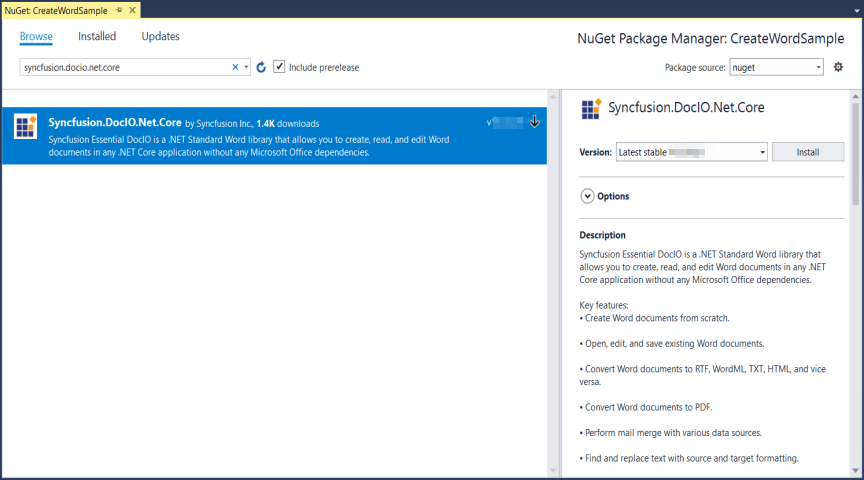
This package enables your application to read, process, and convert Word documents, including converting them into HTML.
Convert DOCX files to HTML in C#
The DocIO library makes it simple to convert Word documents (DOCX) into browser-friendly HTML format, while keeping the structure intact.
Here’s a simple example:
FileStream fileStreamPath = new FileStream("Template.docx", FileMode.Open, FileAccess.Read, FileShare.ReadWrite);
//Opens an existing document from the  file system through the constructor of the WordDocument class.
using (WordDocument document = new WordDocument(fileStreamPath, FormatType.Docx))
{
    //Saves the docx file to MemoryStream.
    MemoryStream stream = new MemoryStream();
    document.Save(stream, FormatType.Html);
    //Closes the Word document.
    document.Close();
}
That’s it! Your Word document is now converted into HTML, and ready to be rendered in a browser or embedded into your app.
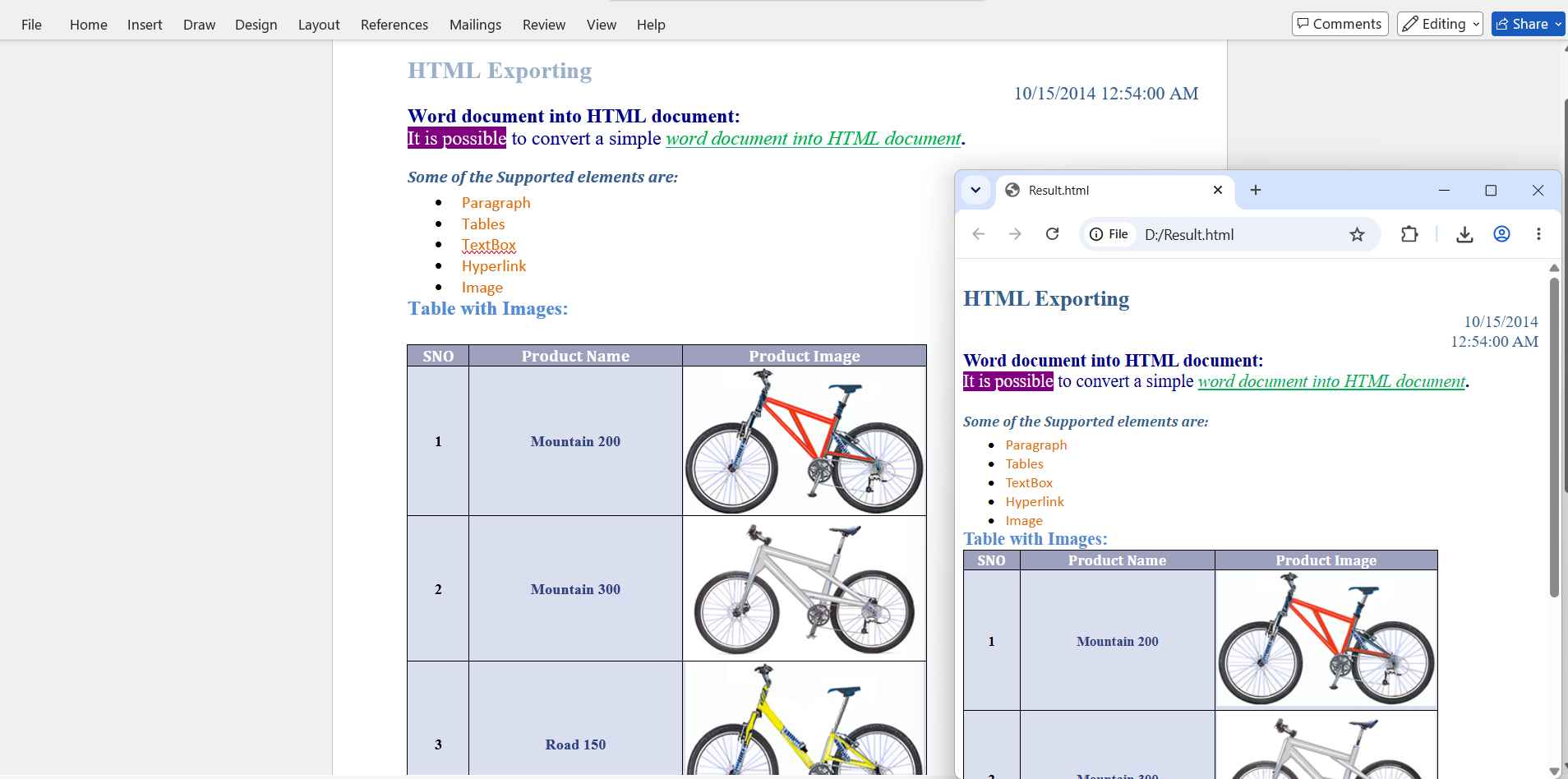
Note: Some advanced Word styling (like borders or background colors) may have limited support in HTML. For edge cases, it’s worth checking the official documentation.
Customizing the export settings in DOCX to HTML conversion
Here’s where things get more interesting.
Real-world apps rarely need a “default” conversion; you often need control. And this is exactly where DocIO shines.
You can fine-tune the output to match your UI, performance goals, and content needs.
What you can customize
- Extract images to a specified directory for easy management.
- Include headers and footers in the exported HTML for complete document fidelity.
- Control editable fields by treating text input fields as editable or static text.
- Define CSS styles with custom stylesheet types and names.
- Embed images as Base64 for a single-file HTML output.
- Omit XML declaration for cleaner HTML using the HtmlExportOmitXmlDeclaration property.
The following code example illustrates how to customize the export settings for DOCX to HTML conversion.
//Load an existing Word document into the DocIO library instance.
using (FileStream fileStreamPath = new FileStream("Input.docx", FileMode.Open, FileAccess.Read, FileShare.ReadWrite))
{
   using (WordDocument document = new WordDocument(fileStreamPath, FormatType.Docx))
   {
        //The header and footer in the input are exported.
        document.SaveOptions.HtmlExportHeadersFooters = true;
        //Export the text form fields as editable.
        document.SaveOptions.HtmlExportTextInputFormFieldAsText = false;
        //Set the style sheet type.
        document.SaveOptions.HtmlExportCssStyleSheetType = CssStyleSheetType.Inline;
        //Set value to omit XML declaration in the exported HTML file.
        //True- to omit XML declaration, otherwise false.
        document.SaveOptions.HtmlExportOmitXmlDeclaration = false;
        //Create a file stream.
        using (FileStream outputFileStream = new FileStream("WordToHTML.html", FileMode.Create, FileAccess.ReadWrite))
        {
            //Save the HTML file to the file stream.
            document.Save(outputFileStream, FormatType.Html);
        }
   }
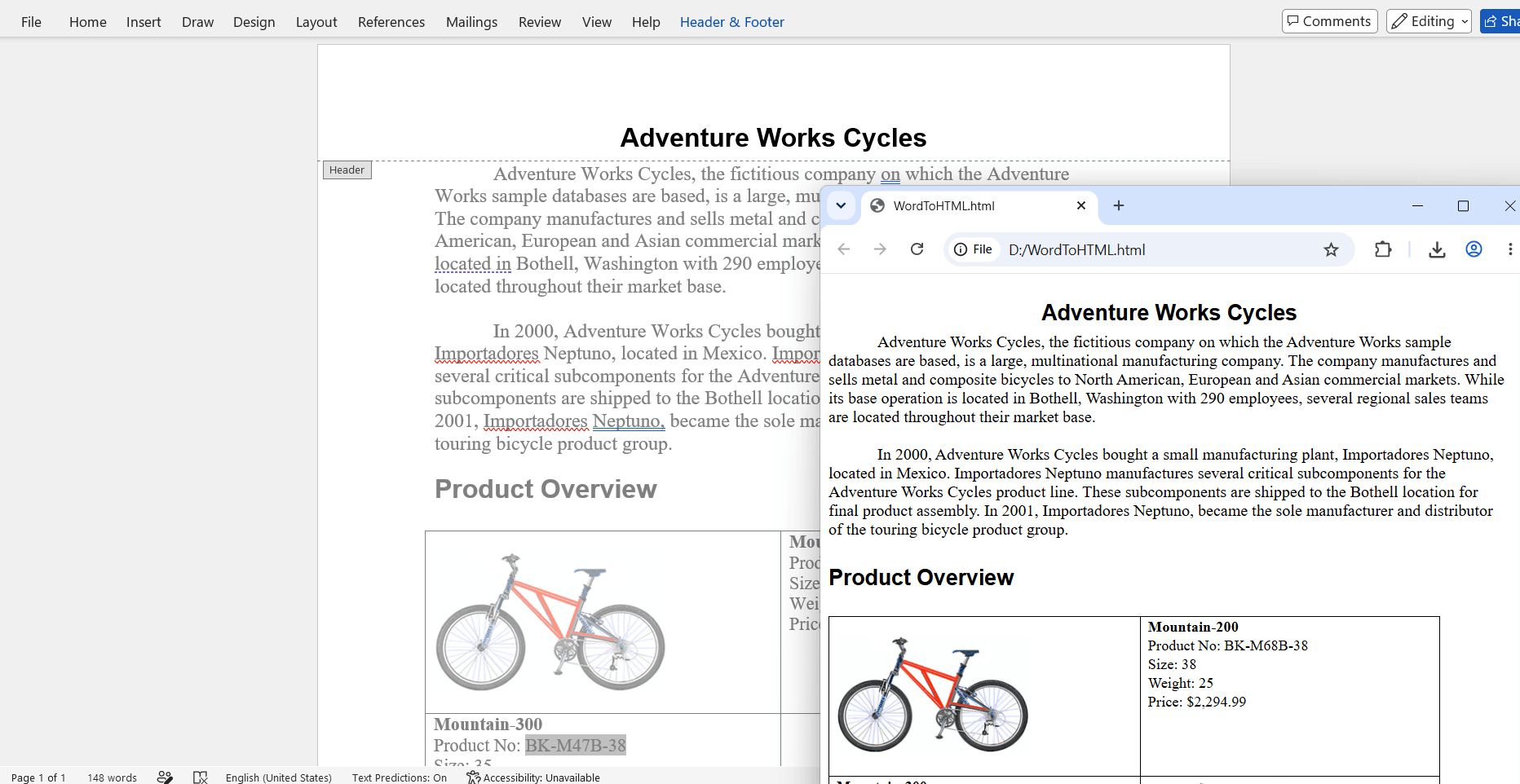
See the following image for better visual clarity.
Managing images during DOCX to HTML conversion
Handling images becomes important when converting larger Word documents that contain logos, diagrams, charts, or embedded media.
In many real-world apps, storing images directly inside HTML isn’t always ideal.
For example:
- CMS platforms often store images separately in cloud storage.
- Document preview systems may require optimized image delivery through a CDN.
- Large embedded images can unnecessarily increase page size and slow page load time.
To solve this, the .NET Word Library enables developers to control how images are exported during DOCX to HTML conversion.
Using the ImageNodeVisited event, you can customize image paths and decide exactly where images should be stored before rendering the final HTML.
//Open the file as a Stream.
using (FileStream docStream = new FileStream("Data/Input.docx", FileMode.Open, FileAccess.Read))
{
    //Load the file stream into a Word document.
    using (WordDocument document = new WordDocument(docStream, FormatType.Docx))
    {
        //Hook the event to customize the image.
        document.SaveOptions.ImageNodeVisited += SaveImage;
        using (FileStream outputStream = new FileStream("WordtoHTML.html", FileMode.Create, FileAccess.ReadWrite, FileShare.ReadWrite))
        {
            //Save the HTML file.
            document.Save(outputStream, FormatType.Html);
        }
    }
}
Converting DOCX to clean HTML: Export only the content
Sometimes, you don’t want the full HTML structure. Maybe you’re injecting content into an existing layout or rendering inside a component.
In such cases, a full <html> document is unnecessary; you just need the content.
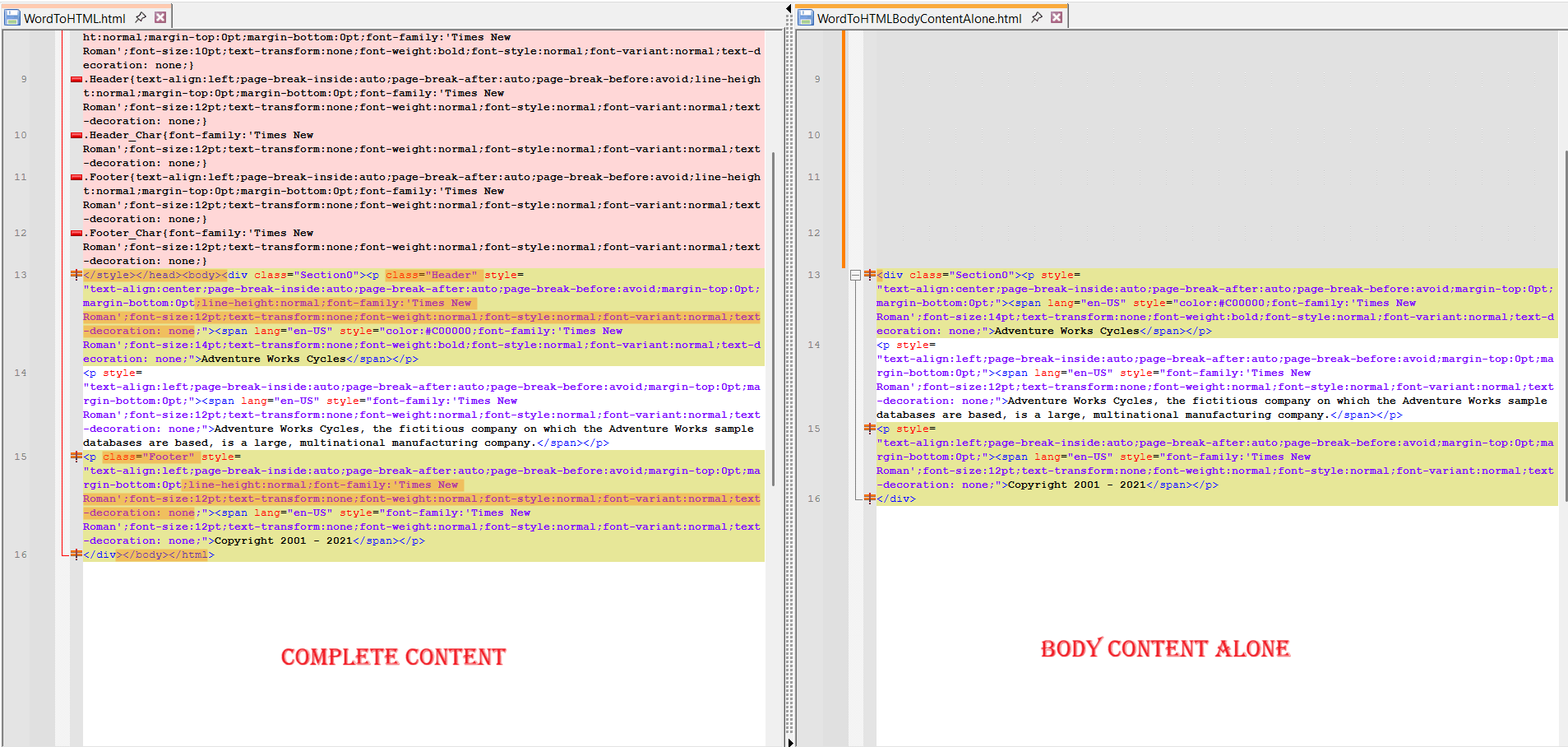
The DocIO Library makes this easy by providing the HtmlExportBodyContentAlone option to export only the content within the <body> tag.
The result? Lightweight, clean HTML that fits perfectly into your existing UI without extra overhead.
For better understanding, refer to the code example below.
//Load an existing Word document.
using (FileStream fileStreamPath = new FileStream("Input.docx", FileMode.Open, FileAccess.Read, FileShare.ReadWrite))
{
    using (WordDocument document = new WordDocument(fileStreamPath, FormatType.Docx))
    {
        //Enable the flag to save HTML with elements inside body tags alone.
        document.SaveOptions.HtmlExportBodyContentAlone = true;

        using (FileStream outputFileStream = new FileStream("WordToHTML.html", FileMode.Create, FileAccess.ReadWrite))
        {
            //Save Word document as HTML.
            document.Save(outputFileStream, FormatType.Html);
        }
    }
}
Here’s the output image.
Best practices for reliable DOCX to HTML conversion
By now, you’ve seen how powerful and flexible DOCX-to-HTML conversion can be. But like any tool, the real difference comes down to how you use it in your day-to-day development flow.
Think of these best practices as the small habits that quietly save you hours of debugging, rework, and performance tuning later on.
- Use NuGet for easy integration.
Always install the latest Syncfusion DocIO library package via NuGet for smooth updates and compatibility. - Optimize for performance.
Dispose of document objects properly and avoid unnecessary conversions to reduce memory usage. - Leverage customization options.
Tailor Word-to-HTML exports by controlling CSS, image handling, and editable fields for a better UX. - Secure your documents.
Apply encryption and password protection when handling sensitive content. - Test across platforms.
Validate rendering on Windows, Linux, and macOS for consistent results in cloud or container environments. - Explore the ecosystem.
Use demos, GitHub examples, and the support portal for quick solutions and best patterns.
GitHub reference
For more details, refer to converting Word document (DOCX) to HTML using C# GitHub demo.
Frequently Asked Questions
Can I convert a DOCX file into responsive HTML?
Yes, the generated HTML is standard and can be styled with CSS for responsiveness.
Can CSS be customized when converting a DOCX file to HTML format?
Yes, you can modify or inject custom CSS by handling the HTML output after conversion or by using the CssStyleSheetType property in the SaveOptions.
Does Syncfusion .NET Word Library (DOCIO) preserve styles during DOCX to HTML conversion?
Yes, the library retains styles, formatting, and layout when converting Word documents to HTML.
During DOCX to HTML conversion, can we exclude headers and footers from the HTML output?
Yes, you can configure the HtmlExportHeadersFooters property in the SaveOptions to exclude headers and footers.
Is it possible to embed images in the DOCX to HTML conversion instead of saving them externally?
Yes, by default, images are embedded in the HTML. To save them externally, use the ImageNodeVisited event.
Does the Word to HTML conversion support hyperlinks and bookmarks?
Yes, hyperlinks and bookmarks in the Word document are preserved in the HTML output.
During DOCX to HTML conversion, can the output HTML encoding be customized?
Yes, you can specify the encoding using the HtmlExportEncoding property in the SaveOptions.
Is DOCX to HTML conversion supported in .NET Core and .NET 6+?
Yes, Syncfusion .NET Word Library (DOCIO) supports .NET Framework, .NET Core, and .NET 6+.
Ready to bridge the gap between Word and the web?
You’ve seen the problem: beautiful Word documents losing their polish in the browser. And now, you’ve seen a better way to handle it.
With the Syncfusion .NET Word Library (DocIO), you’re not just converting DOCX files; you’re delivering clean, responsive, production-ready HTML that fits seamlessly into your apps. No messy cleanup. No unpredictable rendering. Just a smooth, reliable workflow from document to browser.
If you’re ready to get started, you can download the latest version (for existing customers) or spin up a free 30-day trial to test the full capabilities firsthand
If you need assistance, you can reach out through the support forums, support portal, or feedback portal at any time. We’re ready to help you succeed!
Start converting DOCX files into lightweight, web-ready HTML today!


 No spam, just valuable updates.